Wi-Fi QR Code Settings Guide
This guide explains the various settings and configuration options available when creating a Wi-Fi QR code. Wi-Fi QR codes allow users to connect to a wireless network instantly by scanning a QR code instead of manually entering credentials. These QR codes are commonly used in offices, hotels, cafes, events, schools, smart homes, and enterprise environments.
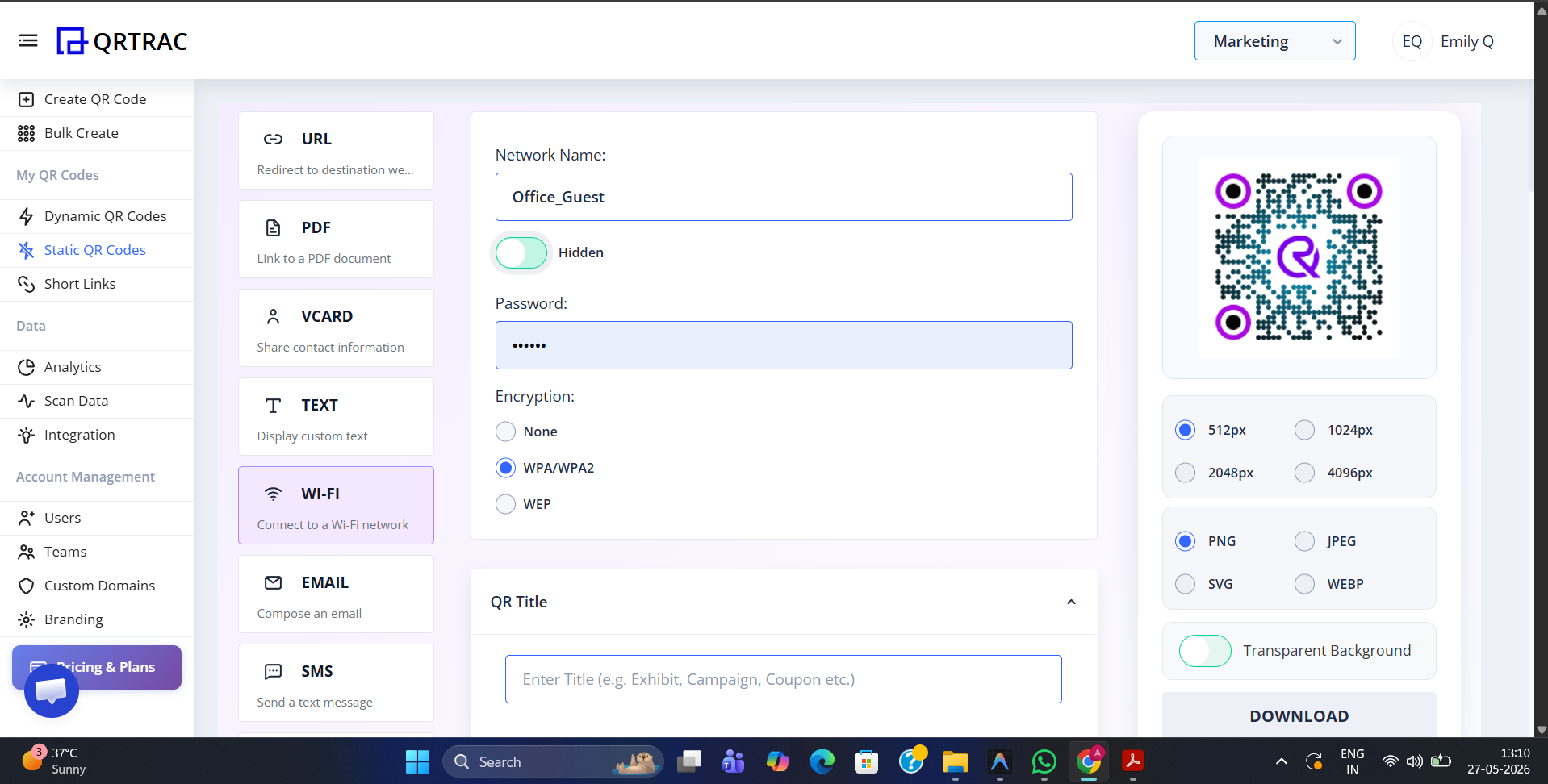
1. SSID (Wi-Fi Network Name)
The SSID (Service Set Identifier) is the visible name of the Wi-Fi network users connect to. This is one of the most important fields in a Wi-Fi QR code because it identifies the target network.
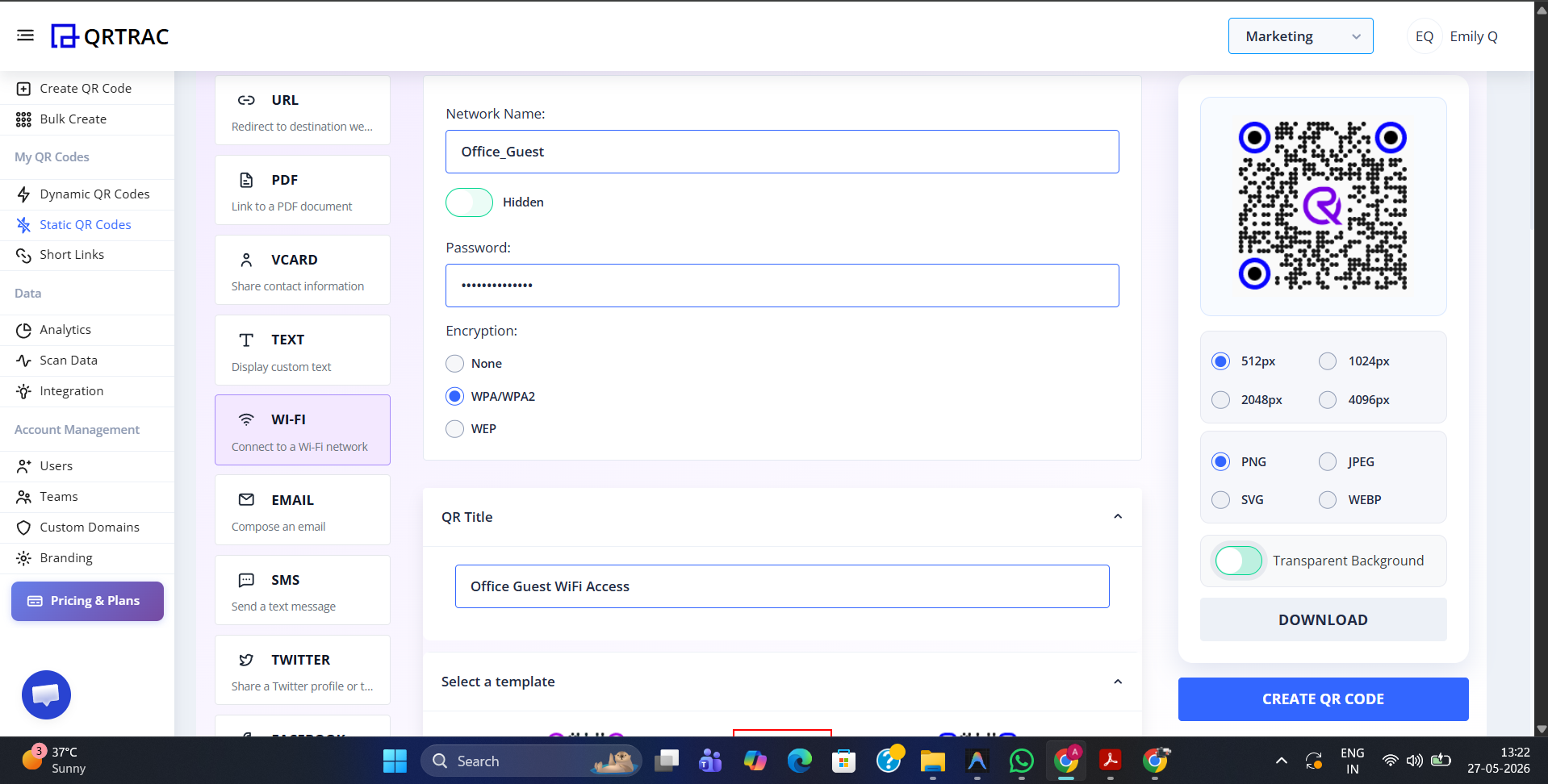
Examples:Office_GuestQRTRAC_VisitorsHomeWiFi_5G
- Keep the SSID easy to identify.
- Avoid special characters if compatibility with older devices is required.
- Separate guest and internal employee networks.
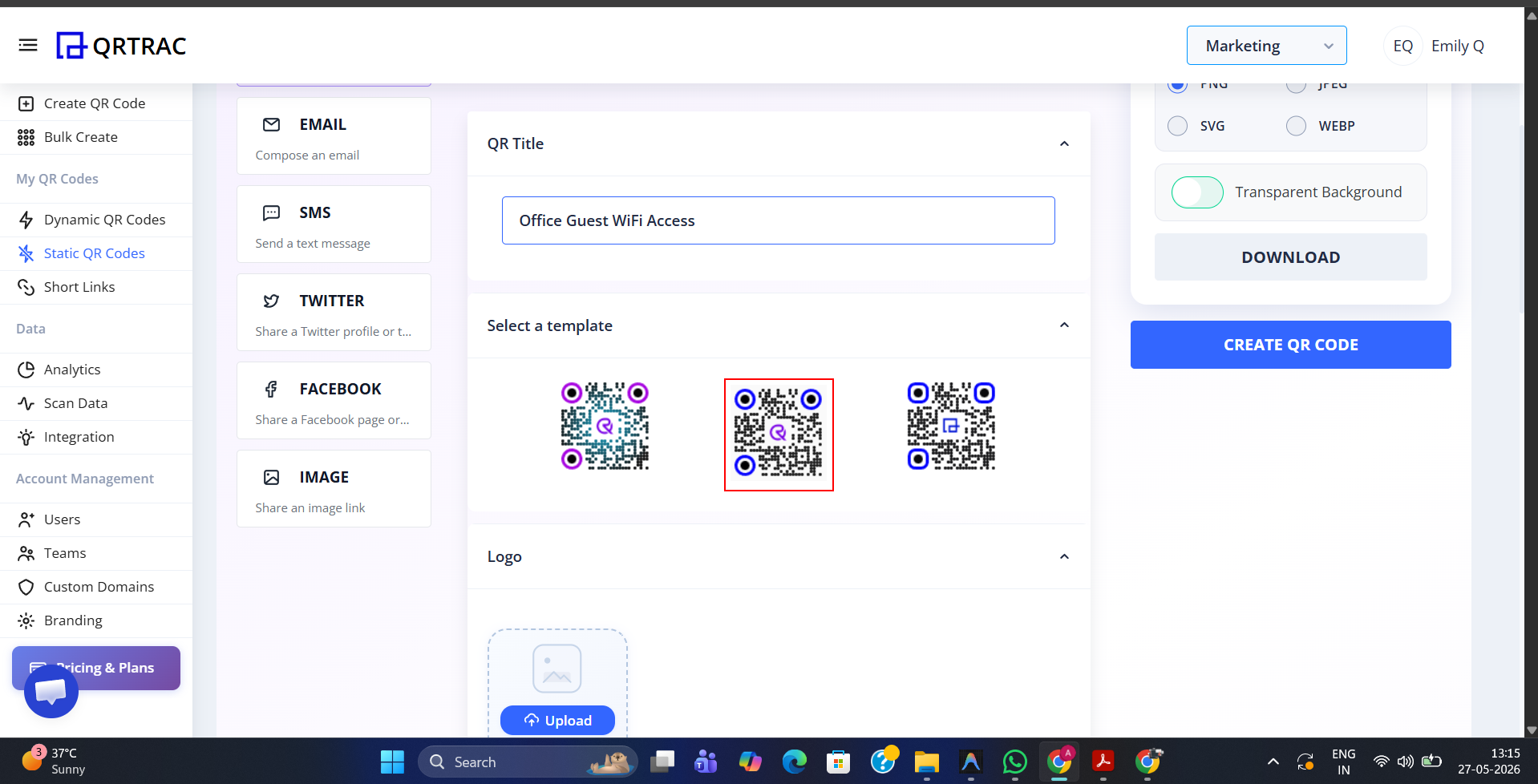
2. Password / Passphrase
This field stores the Wi-Fi password used for authentication. When users scan the QR code, the password is automatically filled into the device, eliminating typing errors.
Best Practices:- Use strong passwords with letters, numbers, and symbols.
- Avoid sharing employee/internal passwords publicly.
- Rotate guest passwords periodically.
- Use different passwords for different locations or departments.
3. Encryption Type
Encryption defines the security standard used by the Wi-Fi network. You must select the correct encryption type that matches your router's configuration, otherwise the QR code won't work.
Common Encryption Types:- WPA/WPA2-Personal – Most common and recommended for almost all modern networks.
- WPA3 – Latest and more secure standard (may not be supported on older devices).
- WEP – Older and insecure; generally not recommended.
- None / Open Network – No password required.
- Prefer WPA2 or WPA3 whenever possible.
- Avoid WEP because it is outdated and vulnerable.
- Use open networks only for temporary public access.
4. Hidden Network Option
Some Wi-Fi networks do not broadcast their SSID publicly. In such cases, the QR code must include a "Hidden Network" flag to ensure devices know how to connect.
How It Works:- Devices scanning the QR code will know the network is hidden.
- The device attempts connection even though the SSID is not visible in the Wi-Fi list.
5. Dynamic vs Static Wi-Fi QR Codes
When generating your Wi-Fi QR code, you can choose between Static and Dynamic formats depending on your needs.
Static QR Code:- Encodes Wi-Fi credentials permanently into the pattern itself.
- Cannot be edited after printing or distribution.
- Suitable for stable home or small business networks.
- Managed through a backend platform like QRTRAC.
- Credentials or destinations can be updated later without reprinting the code.
- Better for enterprises, events, hotels, and rotating guest access.
6. QR Code Error Correction
Error correction determines how much damage or obstruction a QR code can tolerate while remaining scannable. This is crucial if you plan to print your Wi-Fi QR code for public use.
Levels:- L – Low redundancy (about 7% damage recovery)
- M – Medium redundancy (about 15% damage recovery)
- Q – High redundancy (about 25% damage recovery)
- H – Maximum redundancy (about 30% damage recovery)
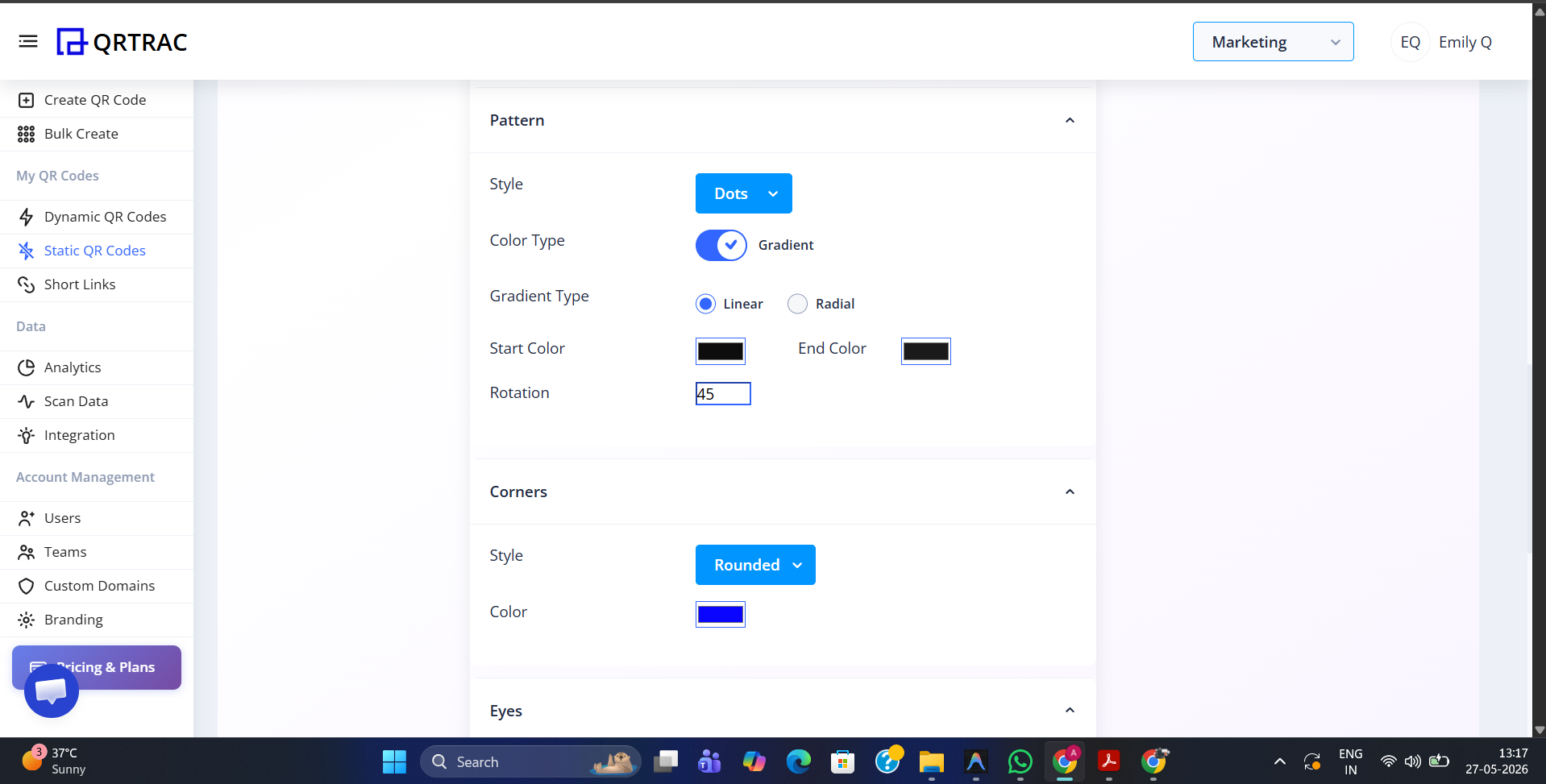
7. QR Code Design & Branding
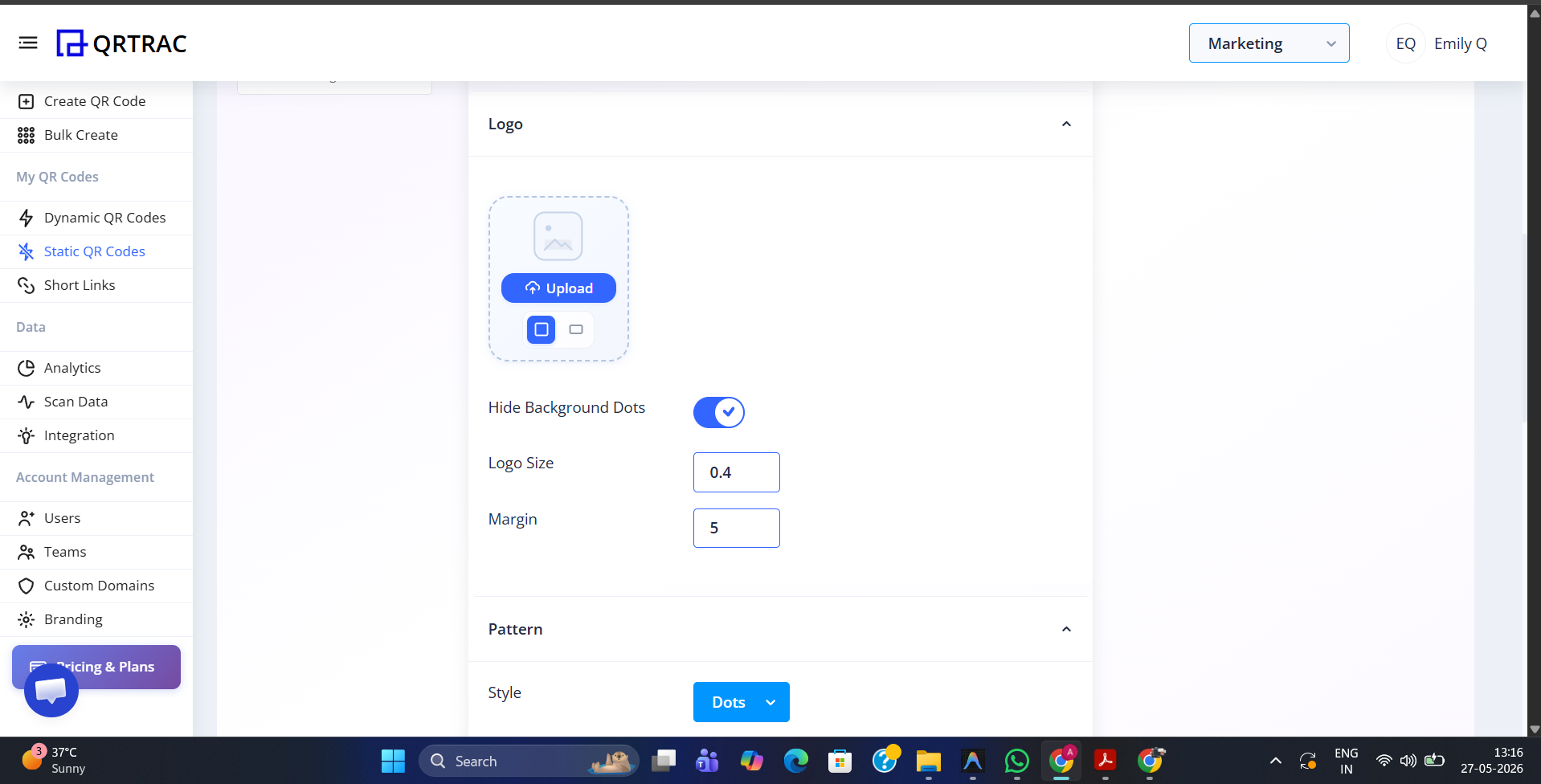
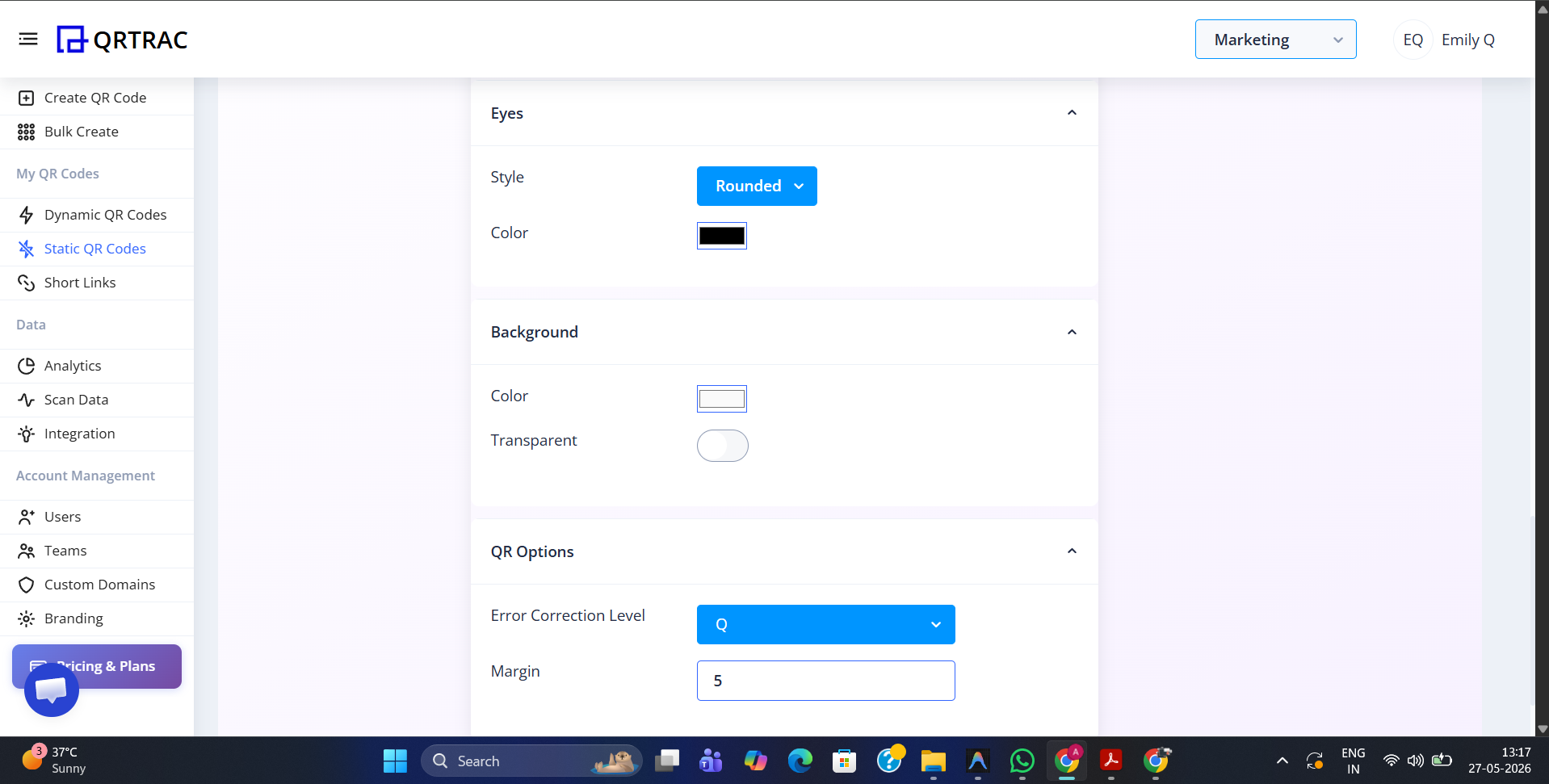
Wi-Fi QR codes can be customized visually for branding and better user engagement. Using our design tools, you can modify the core appearance of your QR code to match your brand identity.
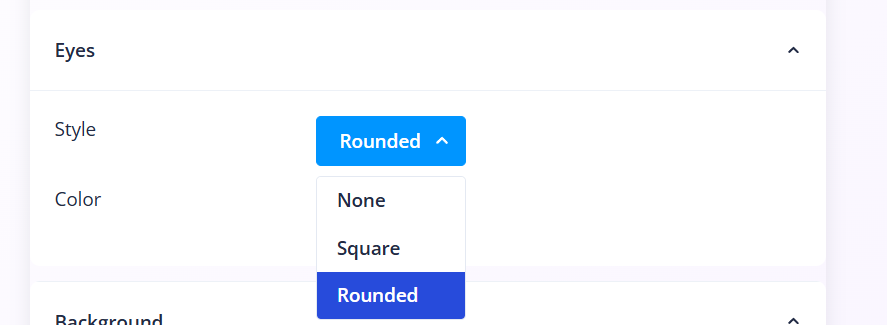
Eyes Style Options
The "eyes" (or finding patterns) are the three large squares at the corners of the QR code. You can customize their shape to be square, rounded, circular, or custom shapes.
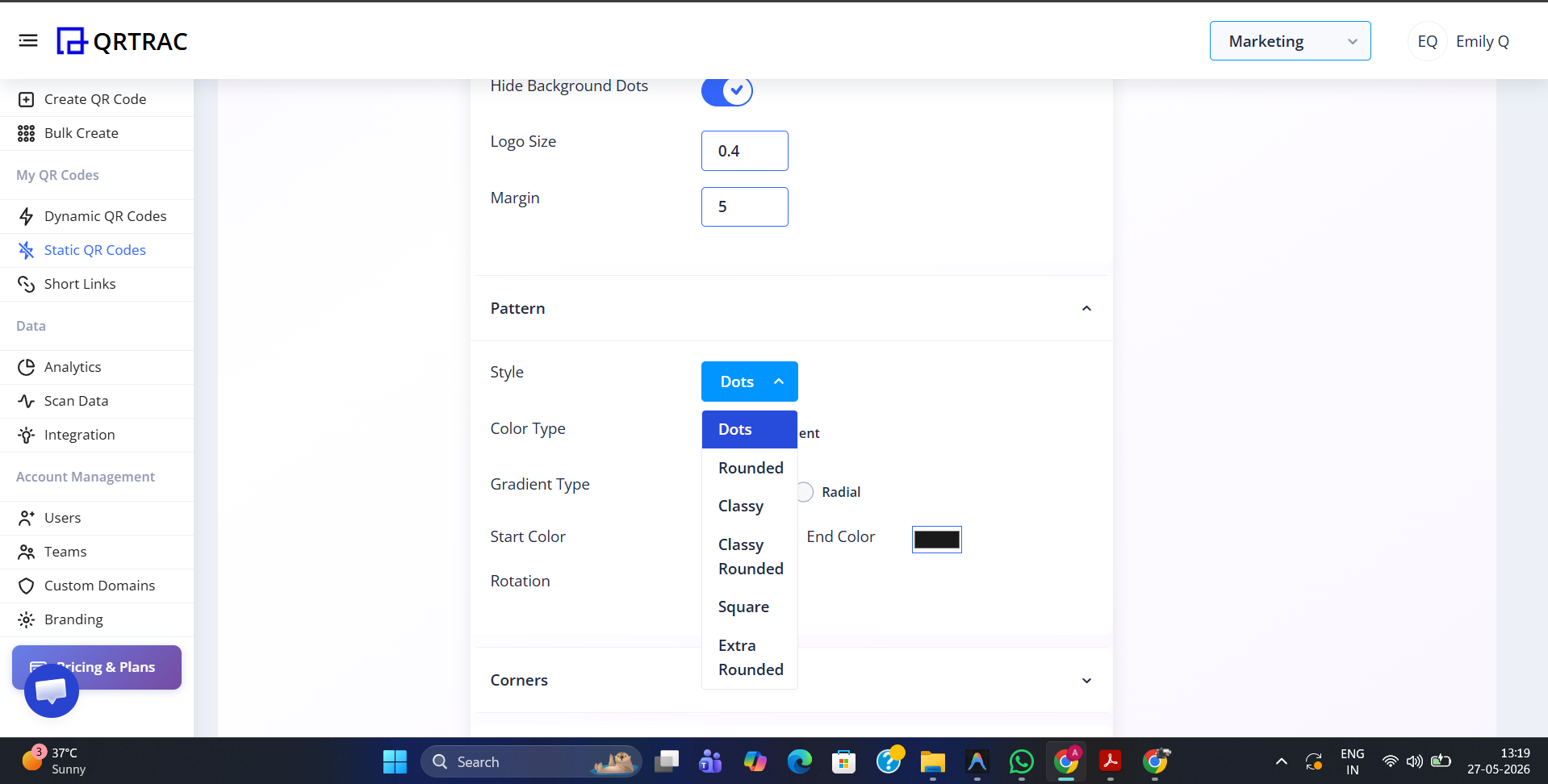
Pattern Style Options
The data pattern itself can be customized. Instead of standard square modules, you can use rounded dots, crosses, or fluid shapes.
8. Access Control & Expiration
Advanced platforms may allow time-based or policy-based access control.
- QR code valid only during business hours
- Temporary guest access for events
- Expiration after a certain number of scans
9. Device Compatibility
Modern Android and iOS devices support Wi-Fi QR scanning directly from the native camera app. Older devices may require third-party QR scanner apps.
10. Downloading and Deploying
Once your QR code is configured and designed, you can download it in high-resolution formats. For print materials, we recommend downloading as SVG or high-res PNG.
11. Security Recommendations
For enterprise security, use separate guest networks, rotate credentials regularly, and monitor scans when possible.