How to Enable or Disable Global Template
The Global Template setting lets you lock your organisation's QR code design to a single saved template. Once enabled, anyone creating a QR code in your account will only see your branded template — not the default design library.
How do I enable the Global Template?
- Click your avatar or name and select Org Preferences.
- Under General Settings, toggle on Enable Global Template.
- Optionally toggle on Disable Default Template to remove all built-in designs.
- Now when creating a QR code, only your saved template is shown in the Template tab.
Step 1: Open Org Preferences
Click your avatar or name in the top-right corner of the QRTRAC dashboard to open the account menu. Select Org Preferences from the dropdown.
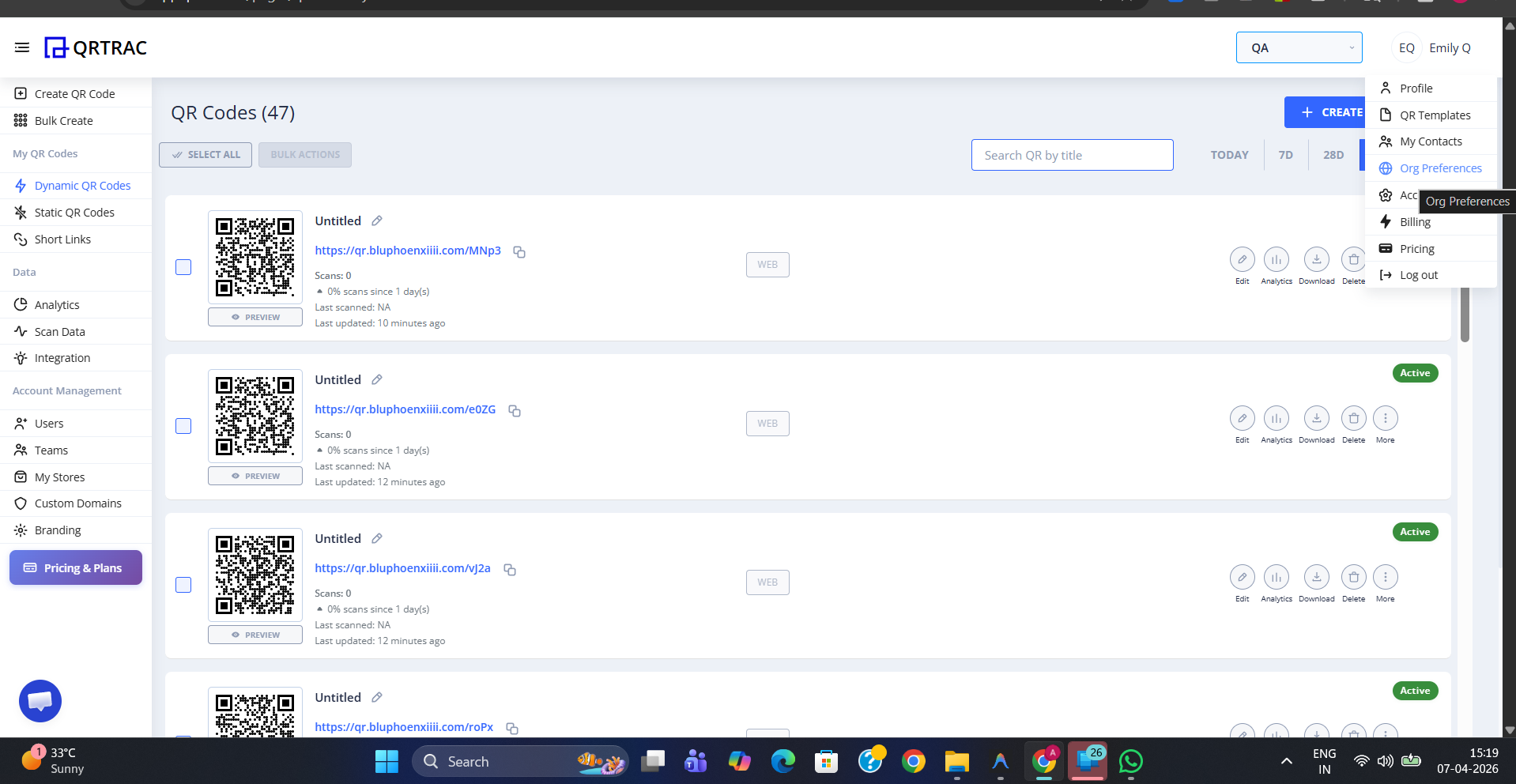
Click your avatar and select Org Preferences from the menu
Step 2: Enable Global Template
On the Organisation Preferences page, open the General Settings tab. You will see three toggles:
- Enable Global Template — makes your saved QR Template the active design for all QR codes in your organisation
- Disable Default Template — hides QRTRAC's built-in design library so only your template is shown
- Enable Folder View — organises your QR codes into folders (unrelated to templates)
Turn on Enable Global Template. If you also want to remove the default designs entirely, turn on Disable Default Template as well.
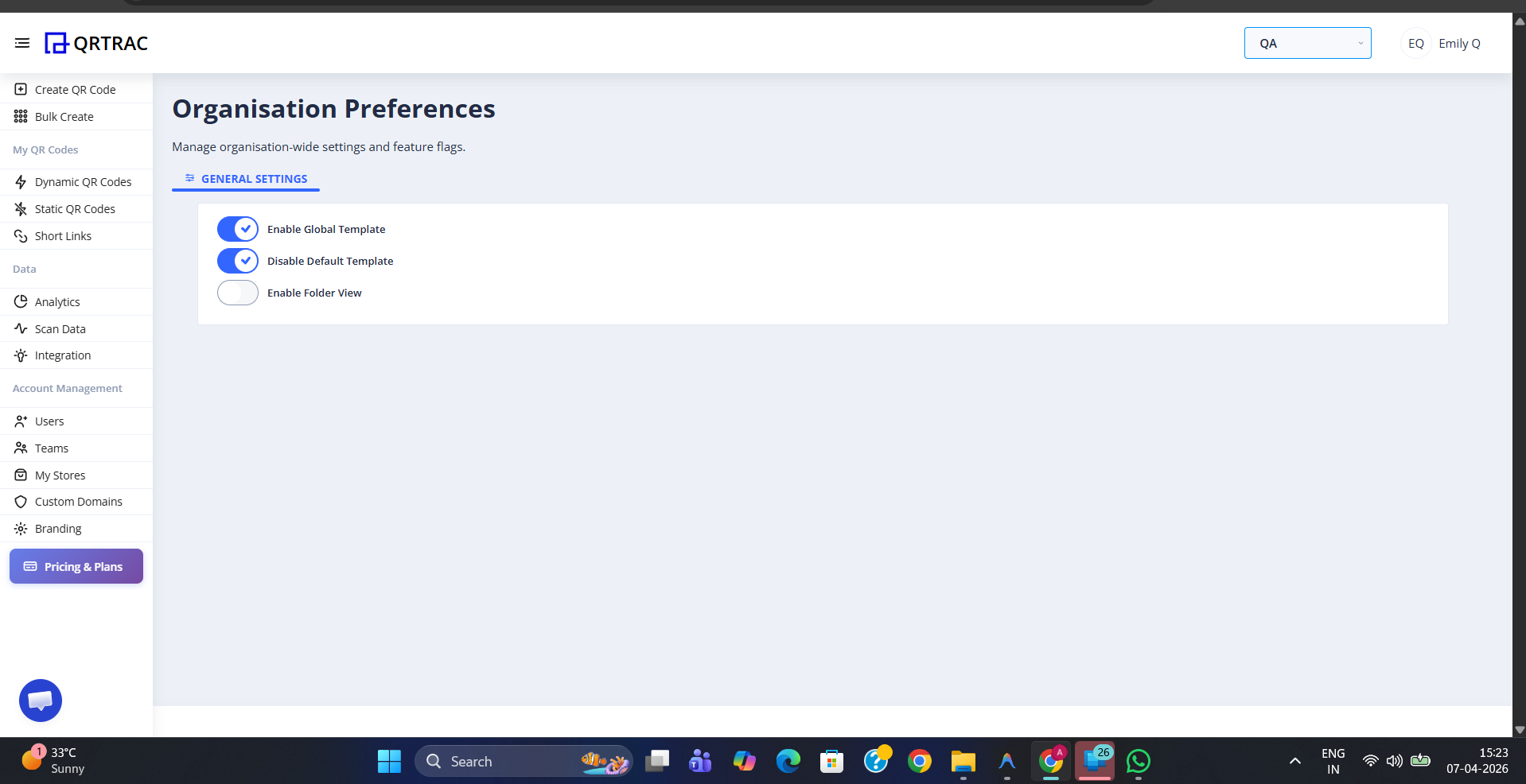
Toggle on Enable Global Template under General Settings
Note: You need at least one saved QR Template marked as Global Template for this setting to take effect. Create or edit a template and enable the Global Template toggle inside the template editor.
Before: All Default Designs Visible
Without the Global Template setting enabled, the Template tab inside the QR code editor shows the full QRTRAC design library — multiple built-in styles that anyone on your team can pick from.
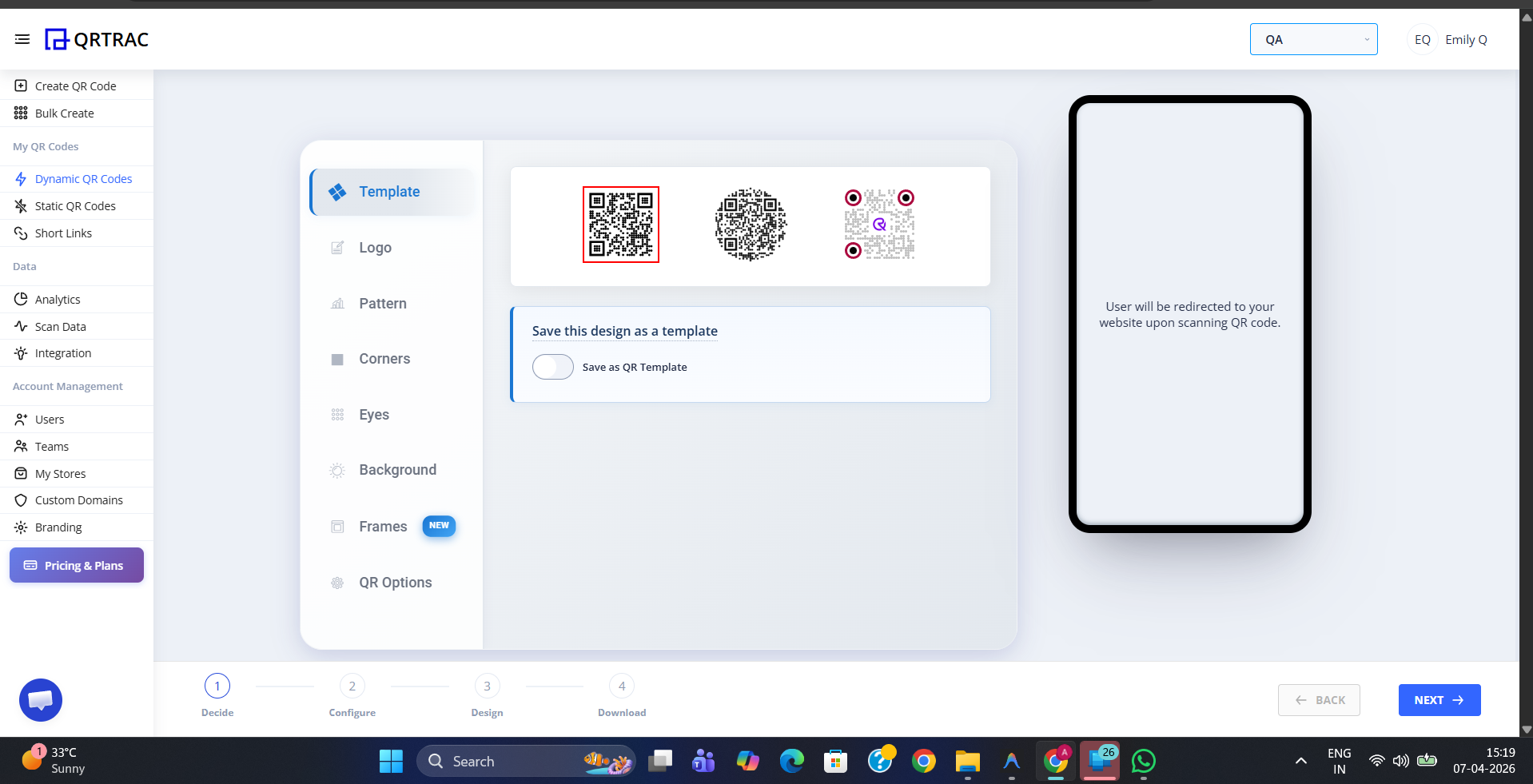
Before: the Template tab shows all default QRTRAC designs
After: Only Your Template Is Shown
Once Enable Global Template is turned on, the Template tab shows only your organisation's saved template. Team members creating QR codes will automatically use your branded design — no need to manually select it each time.
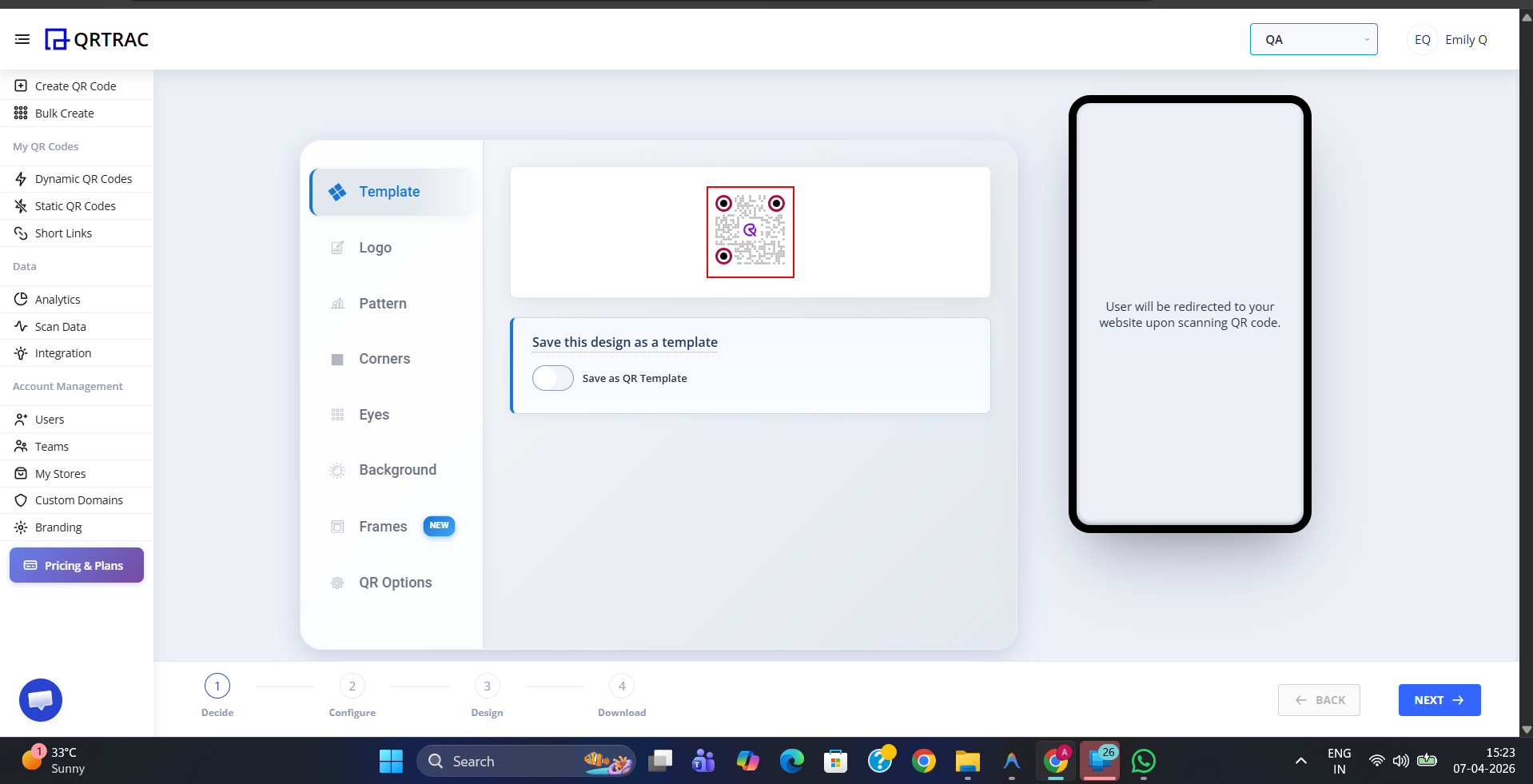
After: only your saved template appears — consistent branding across every QR code
This setting applies to your entire organisation
Enabling Global Template affects all users in your account. Any team member creating a QR code will see only the global template in the design step.