How to Download QR Codes in Bulk
If you have dozens — or hundreds — of QR codes and need to download them all at once, QRTRAC's Bulk Actions feature makes it effortless. Instead of downloading each QR code one by one, you can select multiple codes, choose your preferred format, and get everything in a single click. This guide walks you through exactly how to do it.
Before You Start
Before using the bulk download feature, make sure the following are in place:
- You are logged in to your QRTRAC dashboard
- You have at least one QR code created under Dynamic QR Codes or Static QR Codes
- You know which format you need — QR images, Excel, or CSV
Bulk Actions require at least one selection
The Bulk Actions button only becomes active after you select one or more QR codes using the checkboxes. If it appears greyed out, make sure you have checked at least one QR code.
Step 1: Go to Your QR Codes List
- Log in to your QRTRAC dashboard
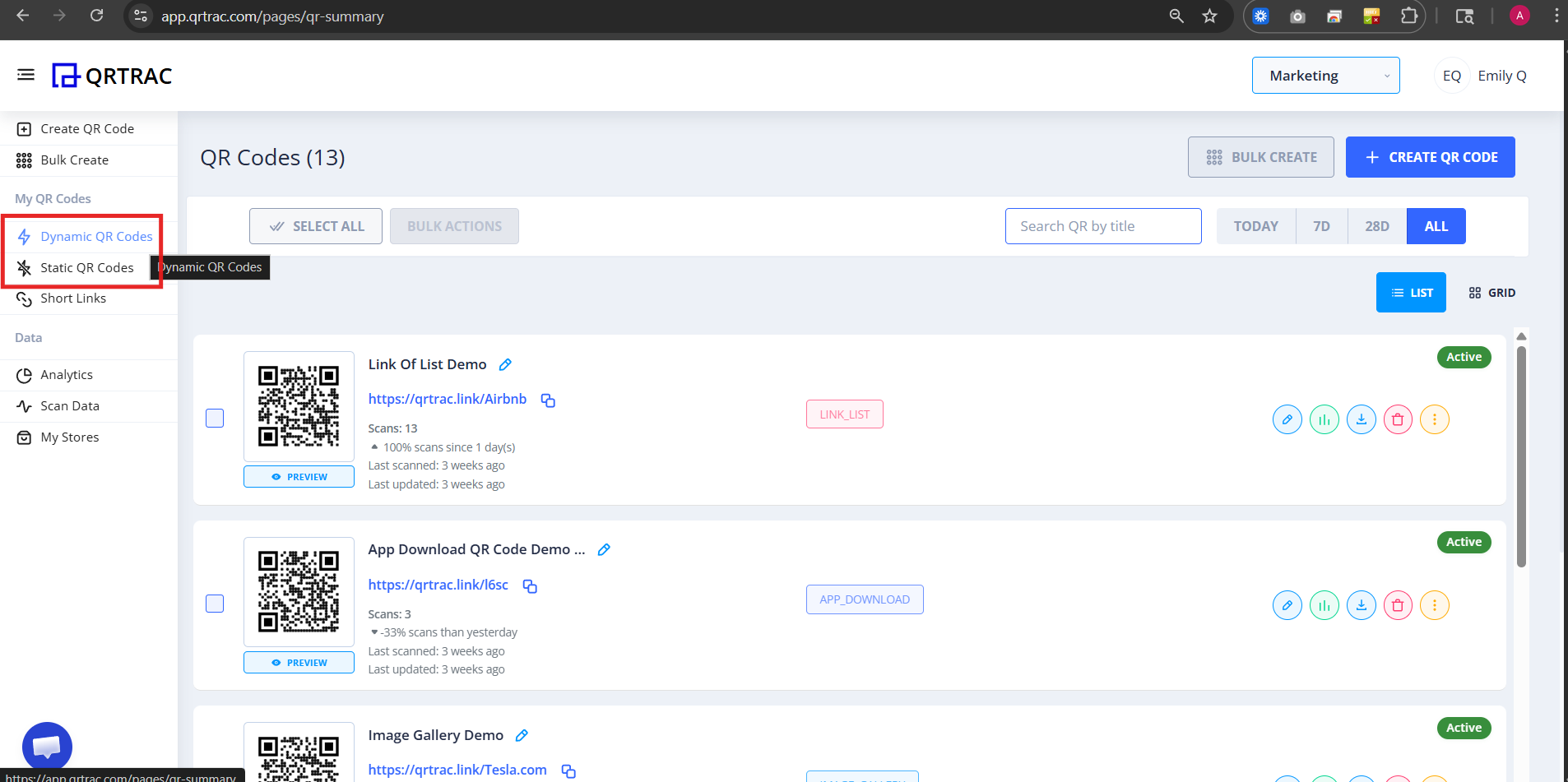
- In the left sidebar, click Dynamic QR Codes or Static QR Codes depending on which ones you want to download
Step 2: Select the QR Codes You Want to Download
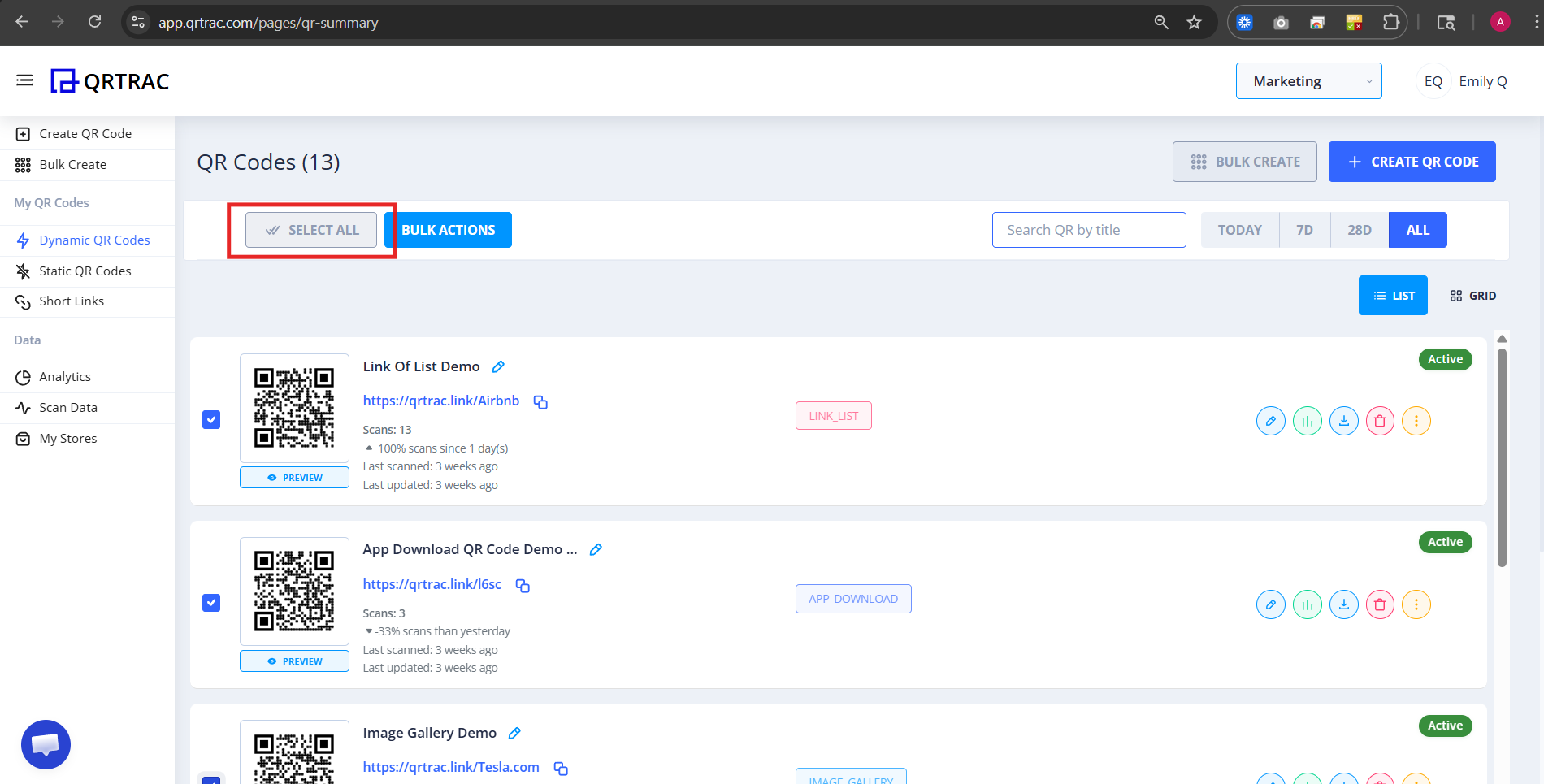
You have two ways to select QR codes:
- Select individual codes — tick the checkbox on the left side of each QR code row
- Select all codes — tick the checkbox at the very top of the list to select everything at once
Use filters to narrow your selection
Use the Today / 7D / 28D / All filter buttons at the top right to filter QR codes by date range before selecting, so you only download the ones you need.
Step 3: Click "Bulk Actions"
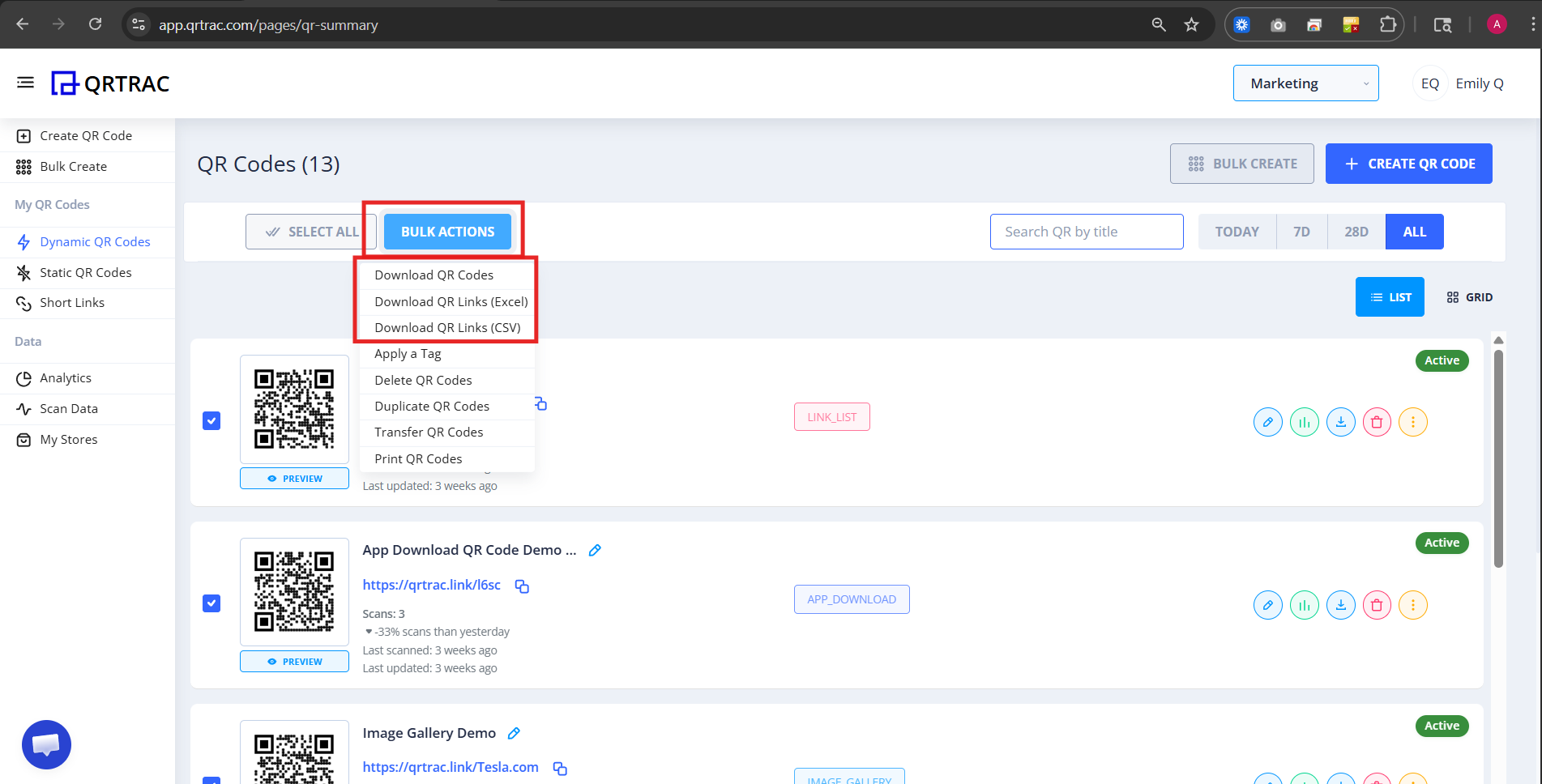
Once you have selected one or more QR codes, the Bulk Actions button will become active at the top of the list.
- Click the Bulk Actions button
- A dropdown menu will appear with several options
Step 4: Choose Your Download Format
The Bulk Actions dropdown offers three download options. Choose based on what you need:
📥 Download QR Codes
Downloads a ZIP file containing individual QR code image files (PNG) for each selected code. Use this when you need the actual QR code images — for printing, sharing, or embedding in designs.
📊 Download QR Links (Excel)
Downloads an Excel spreadsheet (.xlsx) with your QR code names, short URLs, and destination links. Use this when you need a structured list for reporting, sharing with a team, or keeping a record in Microsoft Excel or Google Sheets.
📄 Download QR Links (CSV)
Downloads a CSV file with the same information as Excel. Use this when importing QR data into another tool, CRM, database, or custom system that accepts CSV input.
Which Format Should I Choose?
Need to print?
Use Download QR Codes (ZIP of images)
Need a report?
Use Download QR Links (Excel)
Need to import?
Use Download QR Links (CSV)
Step 5: Receive and Open Your Files
After clicking your chosen download option:
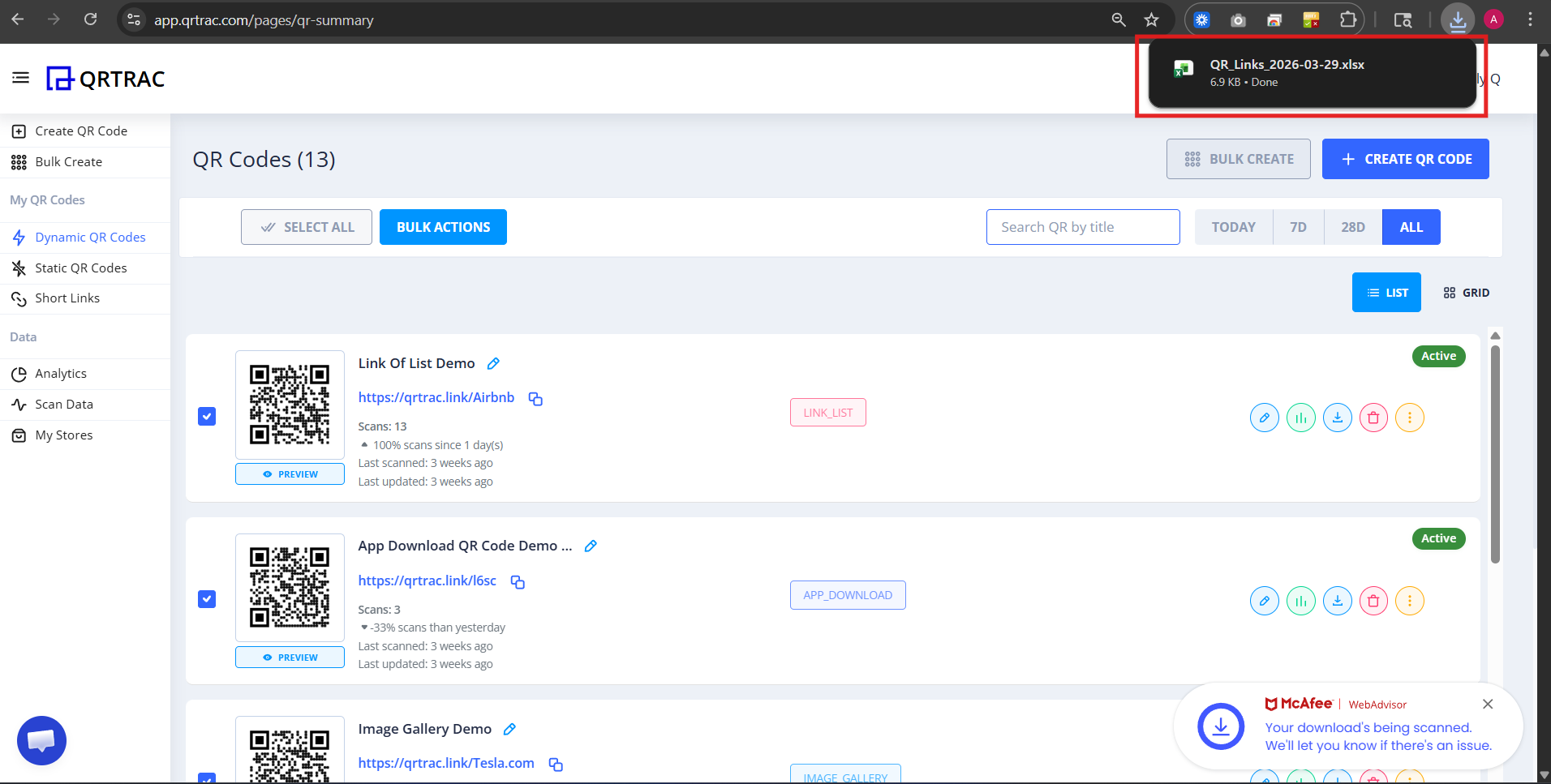
- Your browser will automatically download the file
- For QR Images — open the ZIP file and extract the PNG images inside
- For Excel or CSV — open the file in Microsoft Excel, Google Sheets, or your preferred tool
Tip: After extracting the ZIP, each QR code image is named after the QR code title you set in QRTRAC. Rename your QR codes before downloading to keep your files organised.
Why Use Bulk Download Instead of One-by-One?
Downloading QR codes individually is fine when you have just a few. But as your campaign grows, bulk download saves significant time and effort.
Save Hours of Manual Work
If you have 50 QR codes and download each one individually, that could take 15–20 minutes. With bulk download, the same task takes under 10 seconds — a single click exports everything.
Keep Files Organised
Bulk download gives you all QR images in one ZIP, neatly packaged. No need to hunt through multiple browser downloads or rename files one by one.
Share a Clean Report with Your Team
The Excel and CSV export options let you share a structured list of all QR codes and their destination URLs. This is useful for agency handoffs, campaign audits, or client reporting.
Works Across All QR Types
Bulk download works for all QR code types — Website URL, App Download, Digital Business Card, Coupon Codes, and more. You can mix and match QR types in a single bulk download.
Tips for Getting the Best Results
Name Your QR Codes Before Downloading
Each downloaded image file is named after your QR code title. If your QR codes are named "QR Code 1", "QR Code 2" etc., your ZIP will be hard to navigate. Use clear, descriptive names like "Store-Delhi-Menu" or "Product-Box-Reorder" before downloading.
Use Filters to Download Specific Groups
If you only want to download QR codes from a specific campaign or time period, use the date filter (Today / 7D / 28D) or search by title to narrow the list before selecting and downloading.
Download SVG for Print, PNG for Digital
The QR image download gives you PNG files by default, which are perfect for digital use. If you need print-quality files, design and download individual QR codes in SVG format from the QR design screen for high-resolution print work.
Keep a CSV Backup of Your QR Links
Regularly downloading your QR links as CSV is a good habit. It gives you a local backup of all your short URLs and destination links — useful if you ever need to audit or migrate campaigns.
Popular Use Cases
- Downloading QR codes for a product launch batch
- Exporting QR links for a client report
- Sharing QR images with a print vendor
- Importing QR data into a CRM or database
- Backing up all campaign QR links as CSV
- Handing off a campaign to another team member
Frequently Asked Questions
Can I download all my QR codes at once?
Yes. Tick the checkbox at the top of the list to select all QR codes, then click Bulk Actions and choose Download QR Codes. All selected codes will be downloaded as a single ZIP file.
What file format are the QR code images downloaded in?
QR code images are downloaded as a ZIP archive containing individual PNG files — one for each selected QR code.
What is the difference between Download QR Links (Excel) and Download QR Links (CSV)?
Both export a spreadsheet with your QR code names, short URLs, and destination links. Excel (.xlsx) is best for use in Microsoft Excel or Google Sheets. CSV is best for importing into other tools, databases, or CRM systems.
Is there a limit to how many QR codes I can download at once?
No hard limit applies to bulk downloads. You can select and download as many QR codes as your plan includes in a single action.
Common Mistakes
- ❌ Clicking Bulk Actions before selecting any QR codes
- ❌ Downloading CSV when you needed images (or vice versa)
- ❌ Not naming QR codes before downloading — results in confusing file names
- ❌ Forgetting to extract the ZIP before sharing images
Bulk Download Checklist
- QR codes are named clearly before downloading
- Selected the right QR codes using checkboxes
- Chosen the correct format (Images / Excel / CSV)
- ZIP extracted and files verified after download