My Stores
My Stores lets you create profiles for your physical locations — each with a title, address, email, and redemption password. Store profiles can be linked to QR codes for location-based campaigns, allowing you to manage multiple locations from one place.
What can I do in My Stores?
- View all stores — see every store with its title, address, email, and created date
- Add a store — create a new store profile with a redemption password
- Reveal a password — click the eye icon to show a store's hidden redemption password
- Edit a store — update any store's details using the edit icon in the Actions column
- Delete a store — permanently remove a store using the delete icon in the Actions column
Step 1: Open My Stores
Click My Stores in the left sidebar under the Account Management section. The page shows a table of all your store profiles with the following columns:
- Title — the name of the store or location
- Address — the physical address of the store
- Email — an optional contact email for the store
- Password — the store's redemption password, hidden by default. Click the eye icon next to the dots to reveal it
- Created At — the date the store profile was created
- Actions — edit (pencil icon) to update the store details, or delete (trash icon) to permanently remove the store
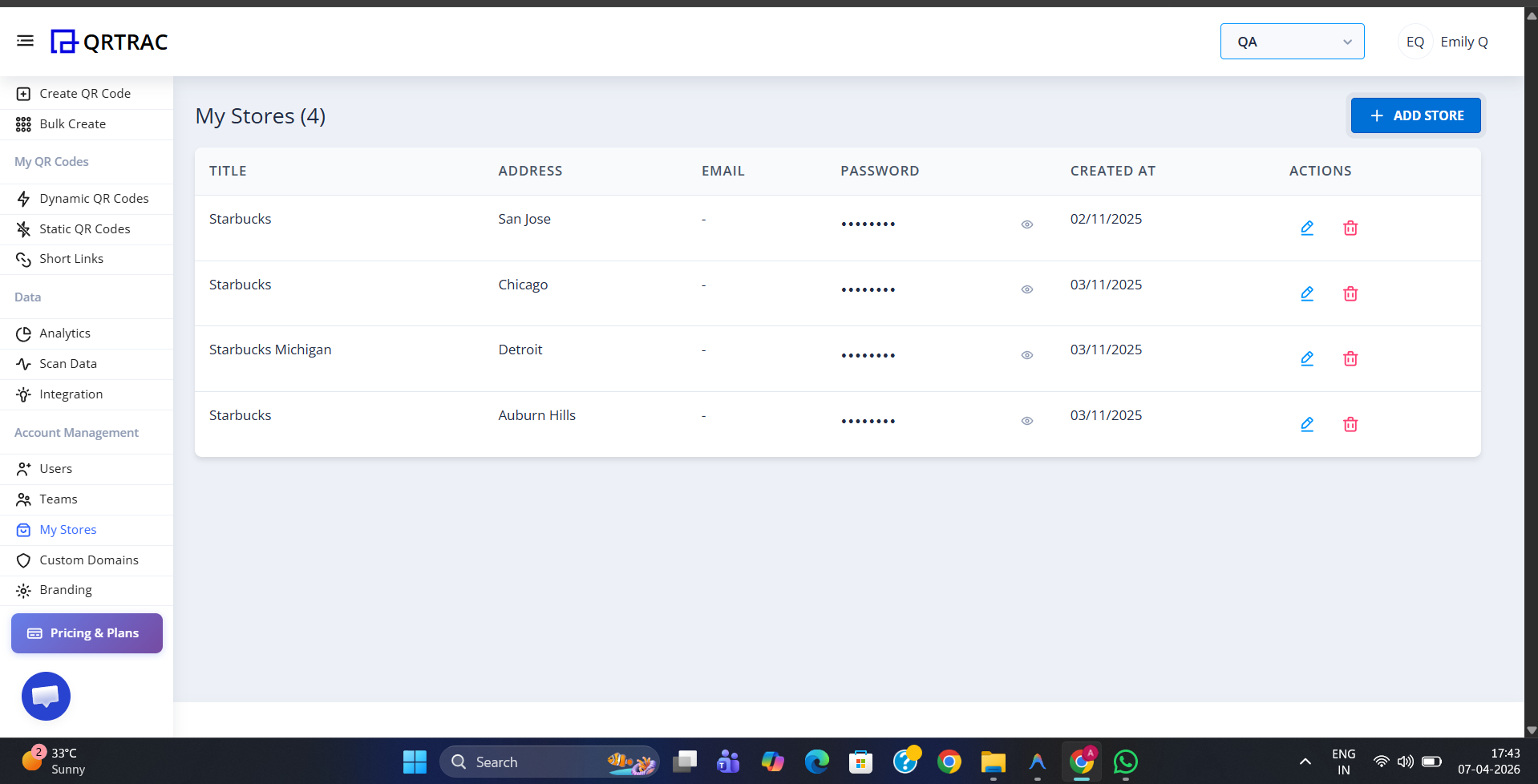
My Stores table — click the eye icon to reveal a password, the pencil to edit, or the trash icon to delete
Show Password: The redemption password for each store is hidden by default (shown as ••••••••). Click the eye icon in the Password column to reveal the password for that store. Click it again to hide it.
Step 2: Add a New Store
Click + Add Store in the top-right corner. The Add Store modal opens with the following fields:
- Title (required) — the name of the store or location
- Address (required) — the physical address
- Email (optional) — a contact email for the store
- Redemption Password (required) — a password used for redemption-based QR code campaigns at this location
Fill in the required fields and click Save to create the store profile. It will appear immediately in the My Stores table.
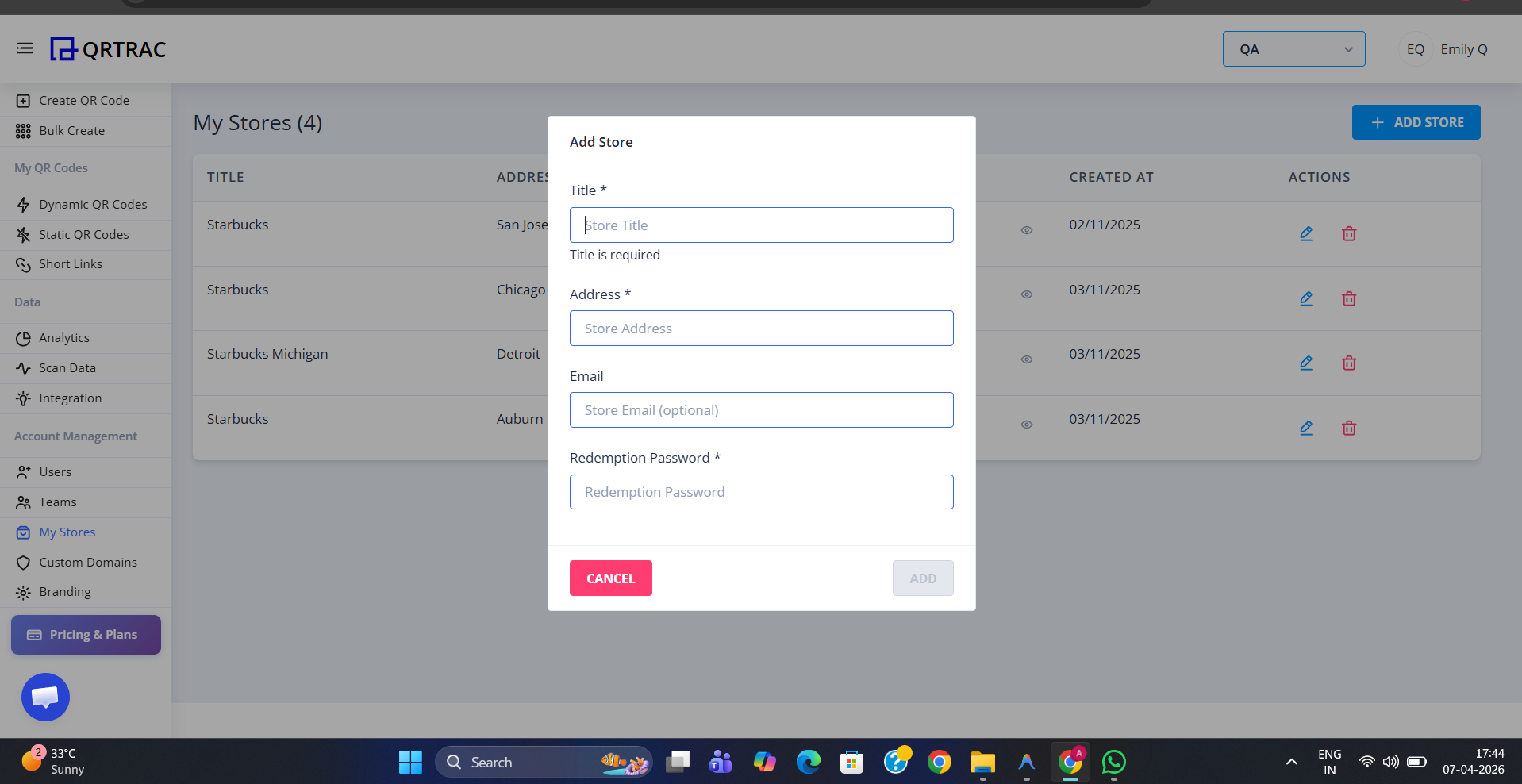
Fill in the store details and click Save — the store appears in the table instantly
Editing and Deleting Stores
Each row in the My Stores table has two action icons on the right:
- Edit (pencil icon) — opens the store's details so you can update the title, address, email, or redemption password. Make your changes and click Save to apply them.
- Delete (trash icon) — permanently removes the store profile. This action cannot be undone, so confirm before proceeding.
Deleting a store is permanent
Once a store is deleted it cannot be recovered. If the store's redemption password is linked to active QR codes, those codes will no longer have a valid store profile attached.