How to Disable a QR Code
The Disable QR Code option lets you manually stop a QR code from working at any time. Once disabled, the QR code stops redirecting scanners immediately — and you can optionally send them to a custom URL instead of a blank error page.
What does Disable QR Code do?
- Stops the QR code instantly — the code stops working as soon as you save
- Shows a Disabled badge — the QR code is marked as Disabled in your dashboard list
- Optional redirect URL — send scanners to a custom page instead of a 404 error
- Fully reversible — toggle it OFF at any time to re-enable the QR code without reprinting
Step 1 — Enable Disable QR Code in Advanced Settings
Login to your QRTRAC dashboard. Open the QR code you want to stop. Go to the Configure tab and scroll down to Advanced Settings. Toggle Disable QR Code to ON.
An Enter your 404 page redirect URL field will appear below the toggle — this is optional but recommended so scanners are sent somewhere useful instead of a generic error.
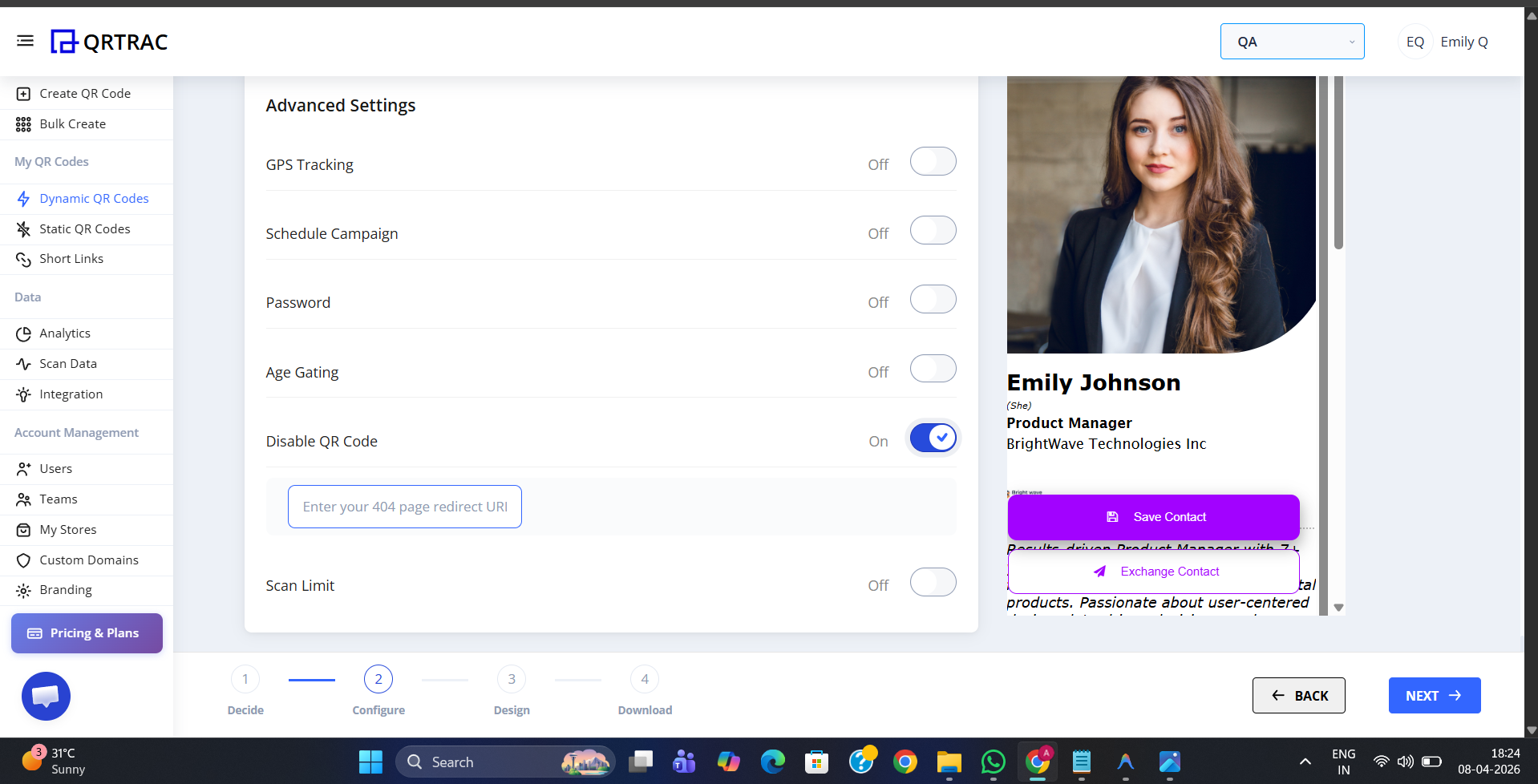
Disable QR Code toggle ON — the redirect URL field appears below
Step 2 — Enter a Redirect URL (Optional)
In the redirect URL field, enter the page you want scanners sent to after the QR code is disabled. Good examples:
- Your homepage —
https://yourwebsite.com - A campaign-ended page —
https://yourwebsite.com/offer-ended - A new product page — redirect traffic from an old campaign to something relevant
If you leave this field empty, scanners will see a 404 — Oops! Page Not Found page on qrtrac.com.
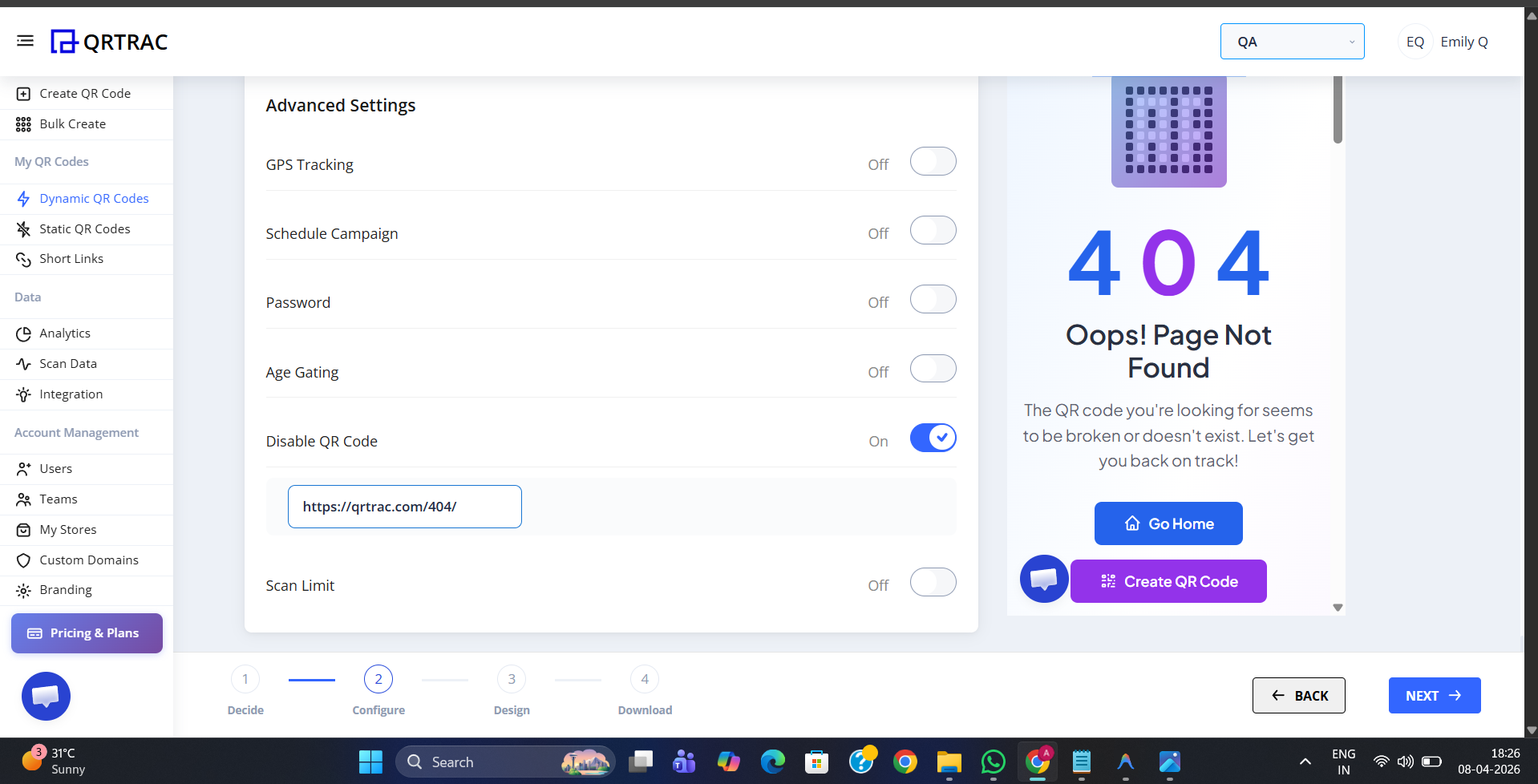
Redirect URL entered — the dashboard preview shows where scanners will land
Step 3 — Save Your QR Code
Click Save (or Update). The QR code is now disabled immediately. In your QR code list, the code will show a Disabled badge so you can easily identify it alongside your active codes.
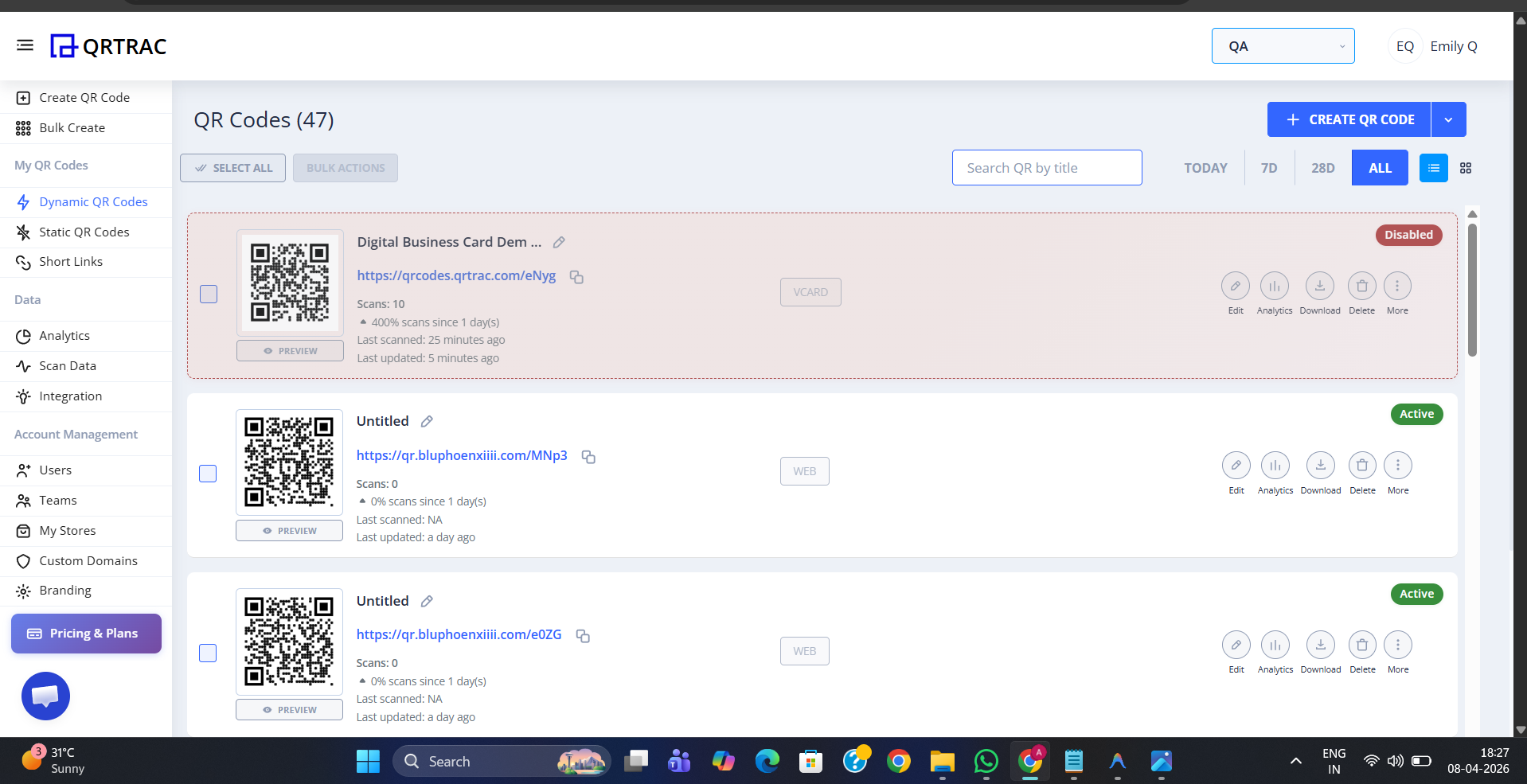
The QR code list — disabled codes are clearly marked with a Disabled badge
What the Scanner Sees
If no redirect URL is set, scanners who try to scan a disabled QR code will land on a QRTRAC 404 — Oops! Page Not Found page with a message: "The QR code you're looking for seems to be broken or doesn't exist. Let's get you back on track!"
They are given options to Go Home or Create QR Code. To avoid this, always set a redirect URL when disabling a QR code that is already in the field.
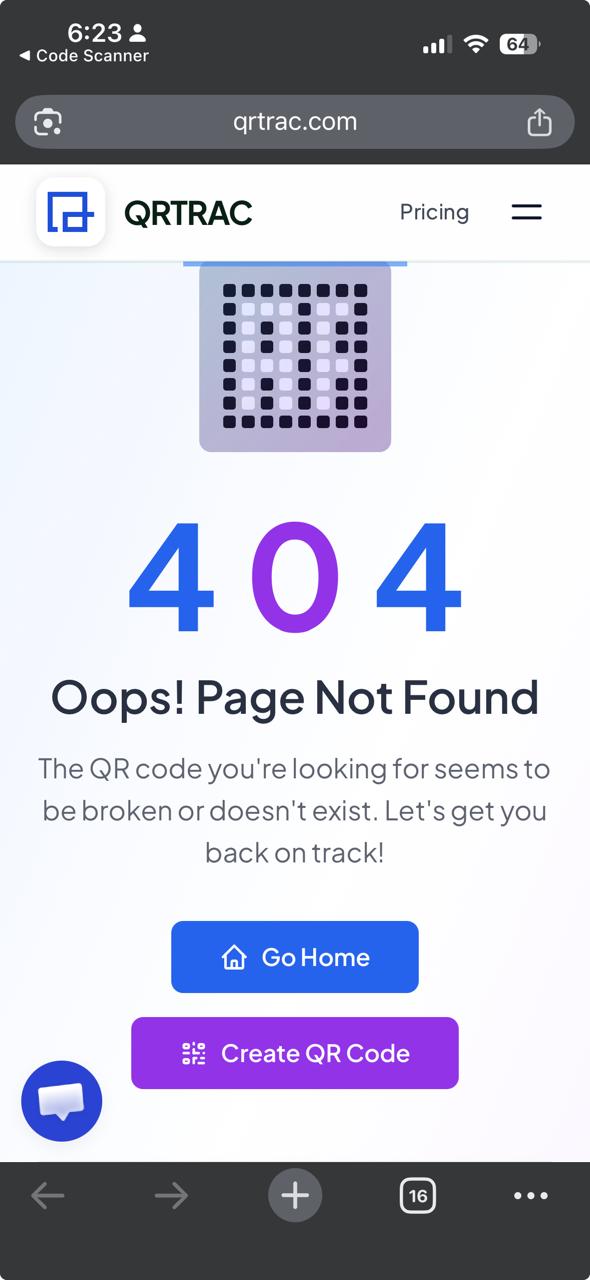
What scanners see without a redirect URL — always set one for QR codes already in the field
Best use cases for Disable QR Code
- Campaign ended — stop an expired promotion immediately and redirect to a new offer
- Wrong link added — disable a live QR code while you fix the destination URL
- Emergency stop — instantly pull a QR code from circulation without reprinting materials
- Replaced campaigns — retire an old QR code and redirect its traffic to the updated version
Always set a redirect URL for live QR codes
If your QR code is already printed and in the field, leaving the redirect URL empty means scanners will hit a 404 error page. Always enter a useful redirect URL — your homepage or a campaign-ended page — to give scanners somewhere to go.
Frequently Asked Questions
Q Can I re-enable a disabled QR code?
A Yes. Simply go back to Advanced Settings, toggle Disable QR Code to OFF, and save. The QR code will become active again immediately — no reprinting needed.
Q What does the scanner see if no redirect URL is set?
A They will see a QRTRAC 404 — Oops! Page Not Found page with options to Go Home or Create QR Code. Set a redirect URL to send them somewhere more useful.
Q How do I know which QR codes are disabled in my dashboard?
A Disabled QR codes show a Disabled badge in your QR code list, making them easy to identify alongside your active codes.
Q Does disabling a QR code delete my analytics data?
A No. All historical scan data is preserved. Disabling only stops future scans from reaching the content — your past analytics remain fully intact.
Q Can I combine Disable QR Code with other Advanced Settings?
A Yes, though once a QR code is disabled, all other settings become irrelevant until it is re-enabled — the disable takes full priority.