My Contacts
My Contacts is a built-in lead capture tool. Whenever someone scans your Digital Business Card QR code and taps Exchange Contact, their details are saved here automatically — no forms, no manual entry, no third-party tools needed.
How does My Contacts work?
- Go to your account menu and open My Contacts.
- Share your Digital Business Card QR code — at an event, on a name badge, or on printed materials.
- When someone scans it, they see your profile with a Exchange Contact button.
- They fill in their details and tap Exchange Contact.
- Their contact instantly appears in your list — download it anytime as a CSV or VCF Format.
Step 1: Open My Contacts
Click your avatar or name in the top-right corner of the QRTRAC dashboard to open the account menu. Select My Contacts from the dropdown.
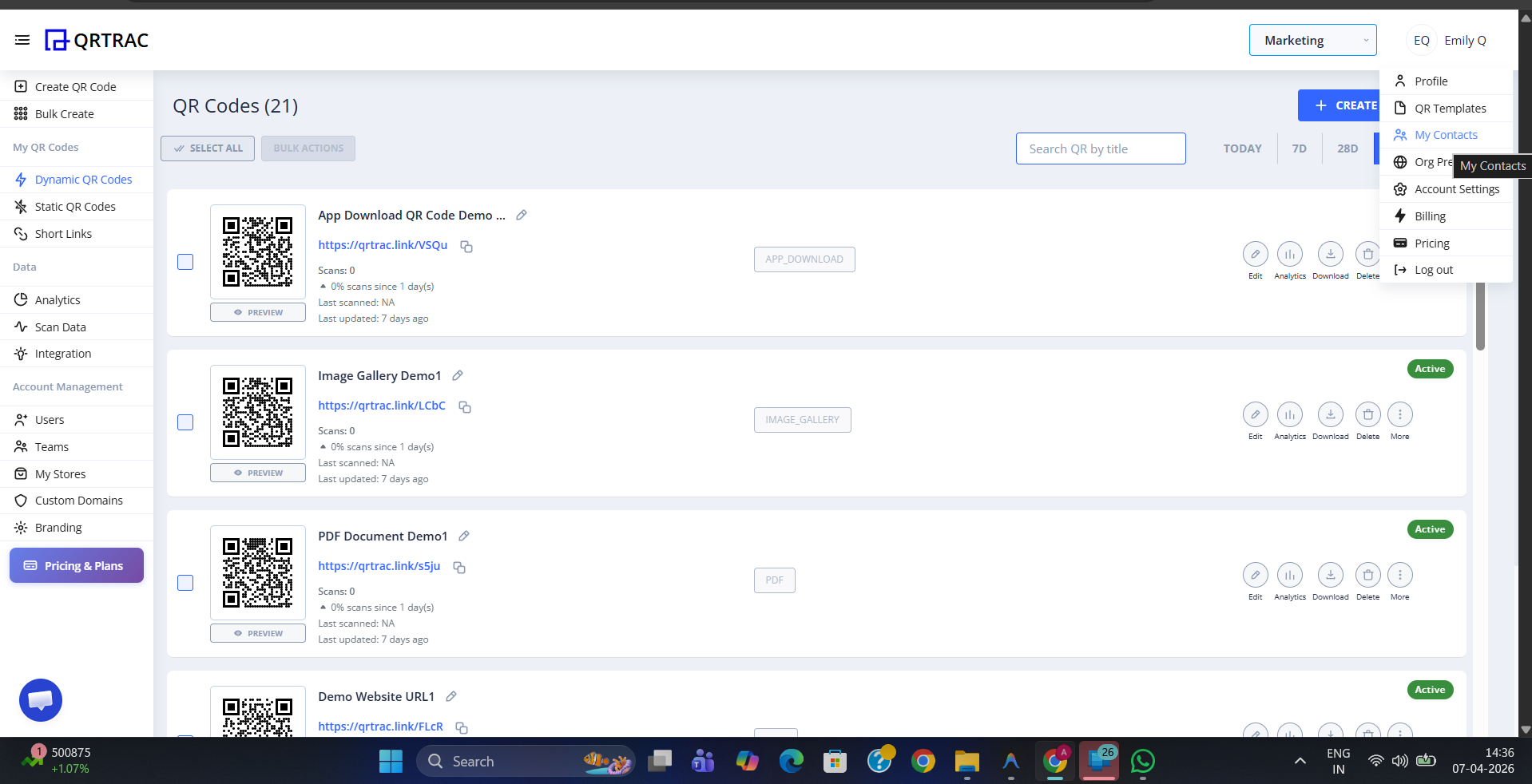
Click your avatar and select My Contacts from the menu
Step 2: Before Anyone Scans
When you first open My Contacts — or before any scans have been recorded — the page shows an empty state: "You're All Caught Up!". Contacts will appear here automatically as soon as someone exchanges their details with you via your Digital Business Card QR code.
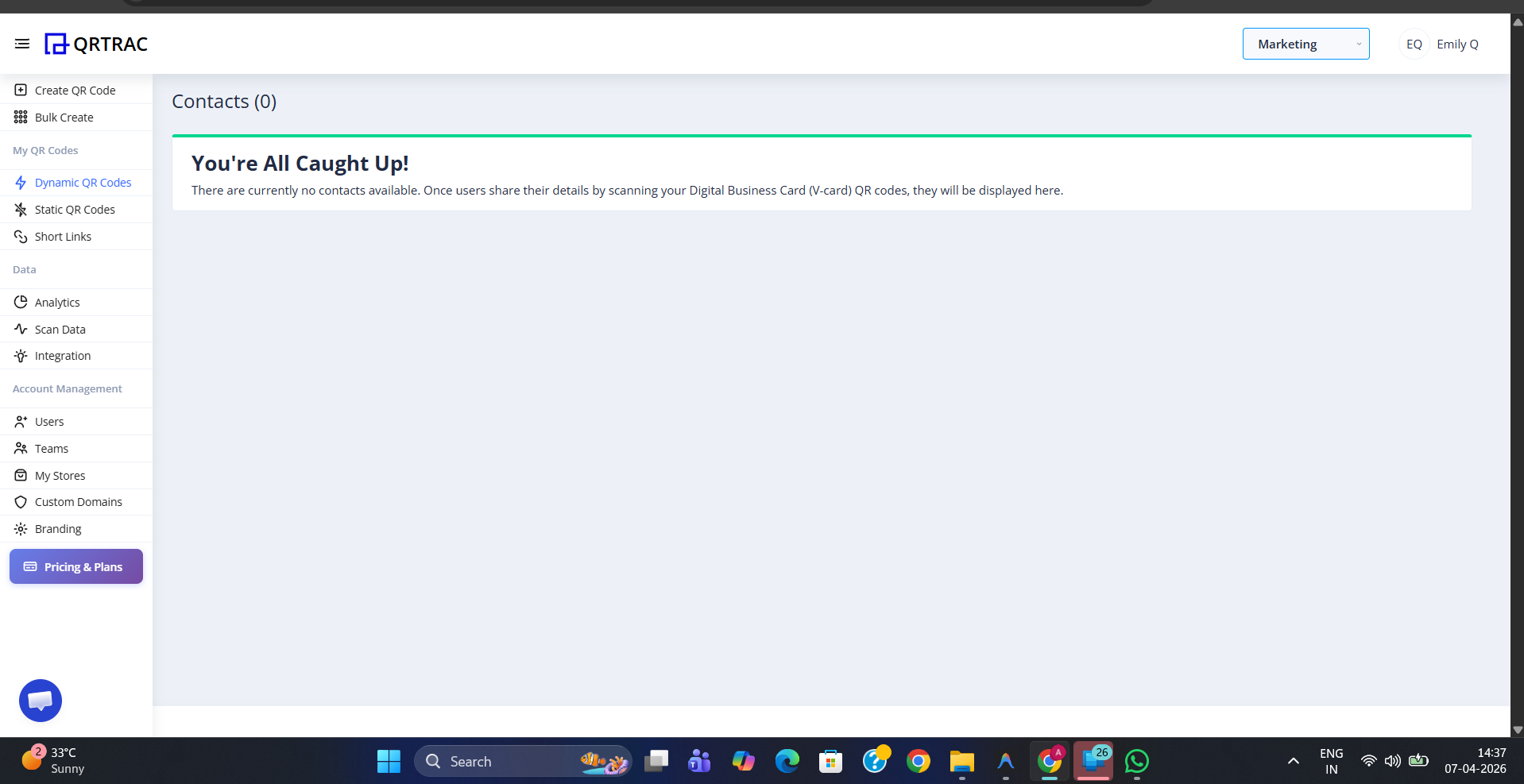
Empty state — contacts appear here automatically after someone exchanges their details
Note: My Contacts only collects details from Digital Business Card QR codes. Other QR code types do not trigger contact exchange.
Step 3: What the Scanner Sees
When someone scans your Digital Business Card QR code, they land on your personal profile page at qrcodes.qrtrac.com. They can see your photo, name, title, and company. Two action buttons are shown at the bottom:
- Save Contact — downloads your details directly to their phone's address book
- Exchange Contact — opens a form where they share their own details with you
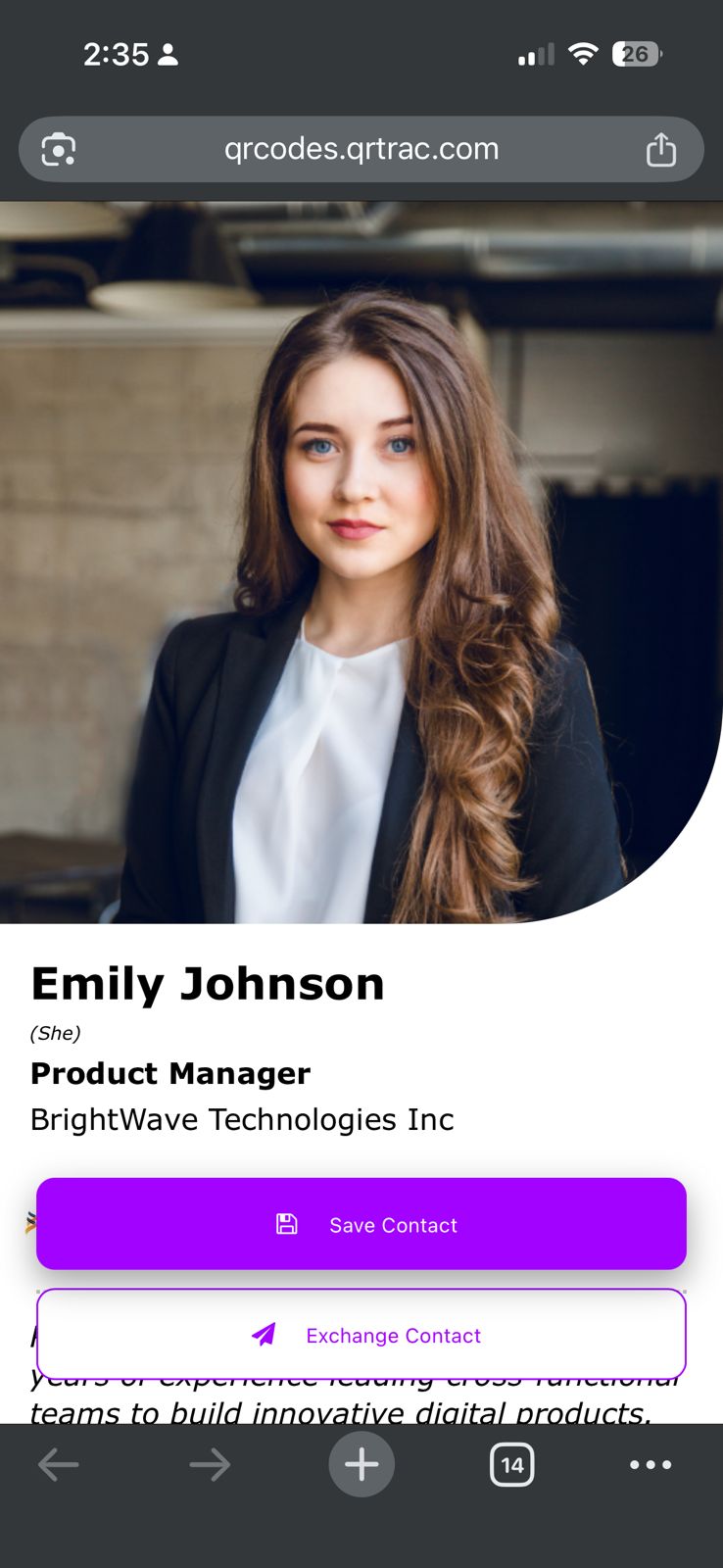
The scanner sees your profile with Save Contact and Exchange Contact options
Step 4: They Fill In the Exchange Form
When the scanner taps Exchange Contact, a form slides up prompting them to enter their details:
- First name & Last name
- Email address
- Phone number
- Company name
- Designation
- Additional notes
Once they tap Exchange Contact on the form, their information is sent directly to your QRTRAC account.
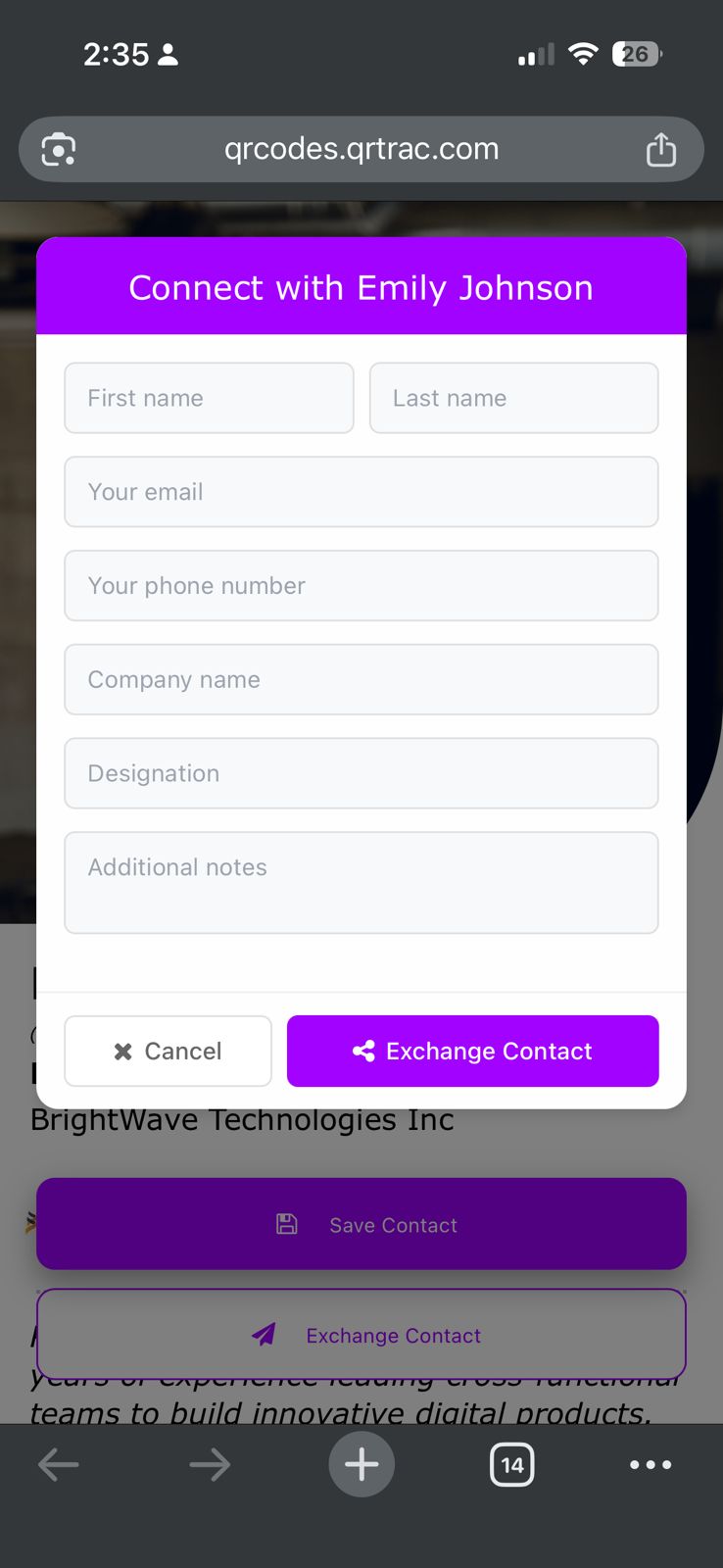
The Exchange Contact form the scanner fills in — their details go straight to your account
Step 5: Contact Appears in Your List
As soon as someone submits the exchange form, their details appear in your My Contacts list. You can see their first name, last name, email, phone number, company, designation, and which QR code was scanned. Click Download Contacts in the top-right corner to export the full list as a CSV file.
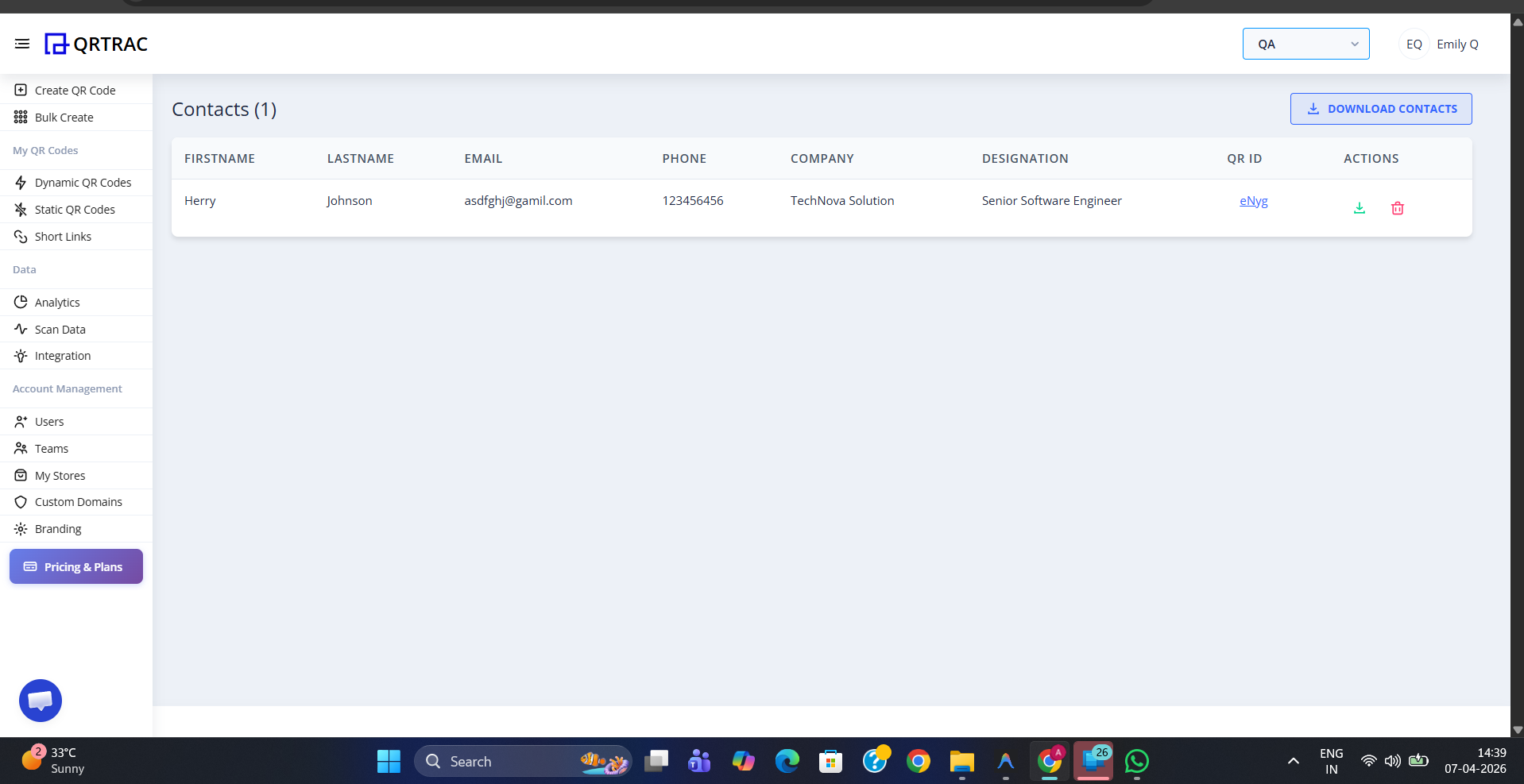
Contacts appear instantly — download the full list anytime using Download Contacts
My Contacts are account-specific
Each user sees only the contacts collected from their own Digital Business Card QR codes. Contacts from other team members' cards are stored in their accounts separately.