How to Apply Scan Limit to QR Code
Scan Limit lets you control exactly how many times a QR code can be scanned. Once the limit is reached, you choose what happens next — show a custom message to the scanner, or redirect them to a different URL.
What does Scan Limit do?
- Scan Count — set the maximum number of times the QR code can be scanned (e.g. 1 = single use)
- Show Message — display a custom message to scanners who exceed the limit
- Redirect to URL — send over-limit scanners to a specific page instead
- Fully editable — increase, decrease, or remove the limit at any time without reprinting
Step 1 — Enable Scan Limit in Advanced Settings
Login to your QRTRAC dashboard. Open an existing QR code or click Create QR Code. Choose your QR type, go to the Configure tab, and scroll down to Advanced Settings. Toggle Scan Limit to ON.
Three fields appear: Scan Count, a When scan limit is reached selector, and a Scan Limit Message box.
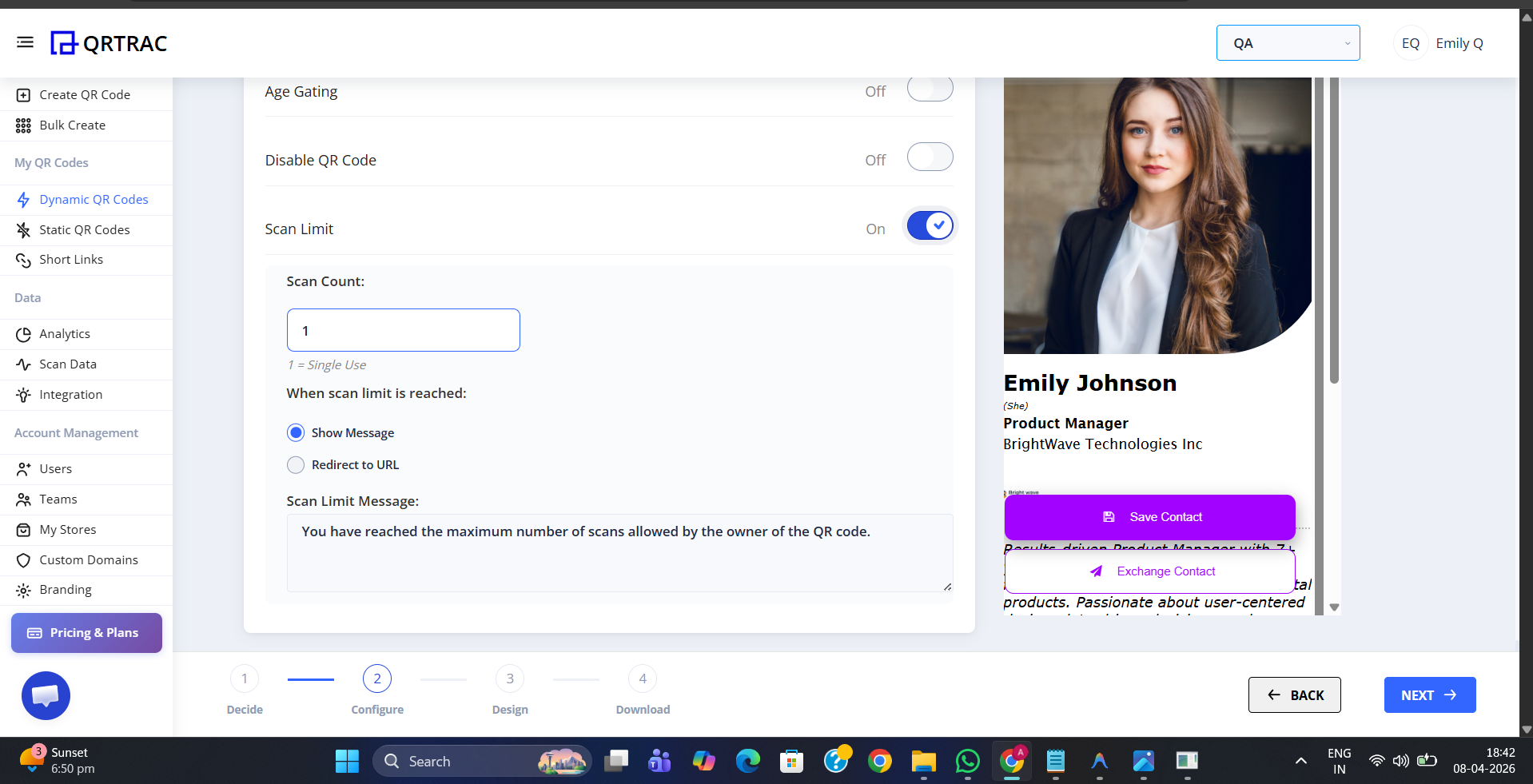
Scan Limit toggle ON — Scan Count, behaviour selector, and message field all appear
Step 2 — Enter the Scan Count
In the Scan Count field, enter the maximum number of scans you want to allow. For example:
- 1 — single use, the QR code works for only one scan
- 1000000 — allows up to 1000000 total scans before the limit kicks in
- Any number that matches your campaign's access requirements
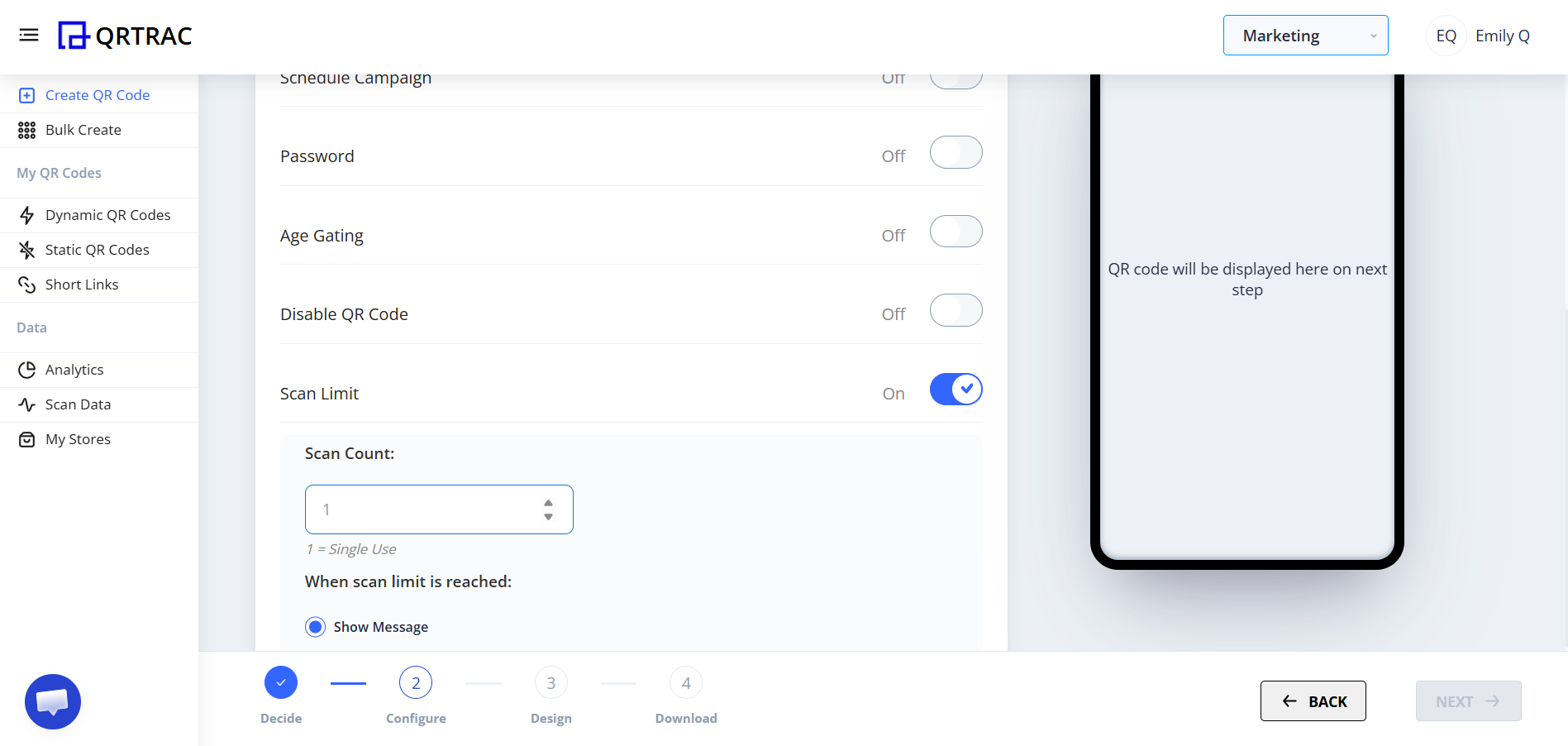
Scan Count set to 1 — this QR code will work for a single scan only
Step 3 — Choose What Happens When the Limit Is Reached
Under When scan limit is reached, you have two options:
Option A — Show Message
Select Show Message to display a text message to scanners who try to scan after the limit. The default message reads: "You have reached the maximum number of scans allowed by the owner of the QR code." You can customise this text in the Scan Limit Message field below.
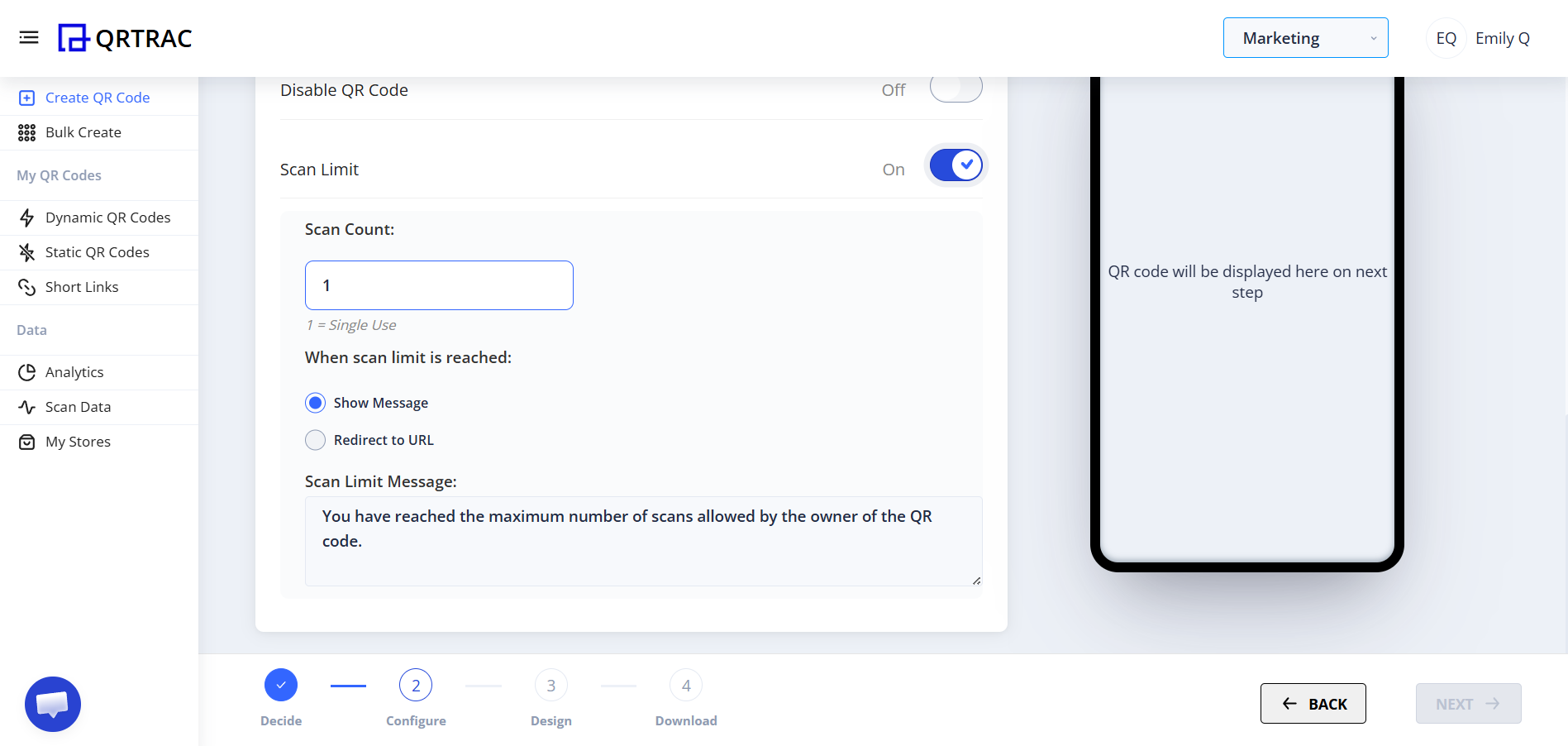
Show Message selected — the message text can be customised in the field below
Option B — Redirect to URL
Select Redirect to URL to send over-limit scanners to a specific page instead of showing a message. Enter the destination in the Redirection URL field — for example, a sold-out page, your homepage, or a new campaign URL.
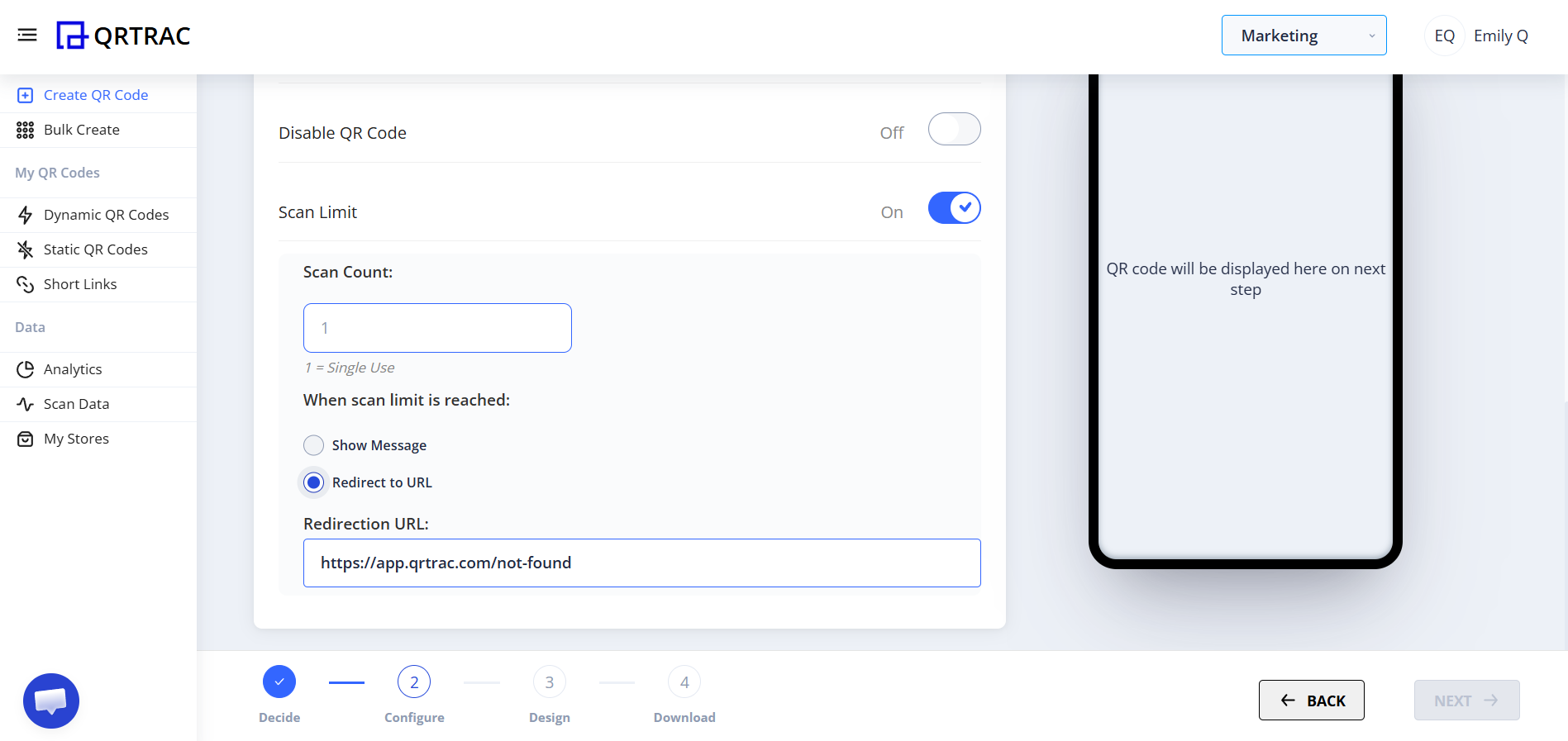
Redirect to URL selected — enter the page scanners will land on after the limit is reached
Step 4 — Save Your QR Code
Click Save (or Update for an existing QR code). The scan limit is now live — the QR code will stop working normally once the count is reached and trigger the behaviour you configured.
What the Scanner Sees
When the scan limit has been reached and Show Message is selected, scanners see a Scan limit reached screen with the message: "You have reached the maximum number of scans allowed by the owner of the QR code."
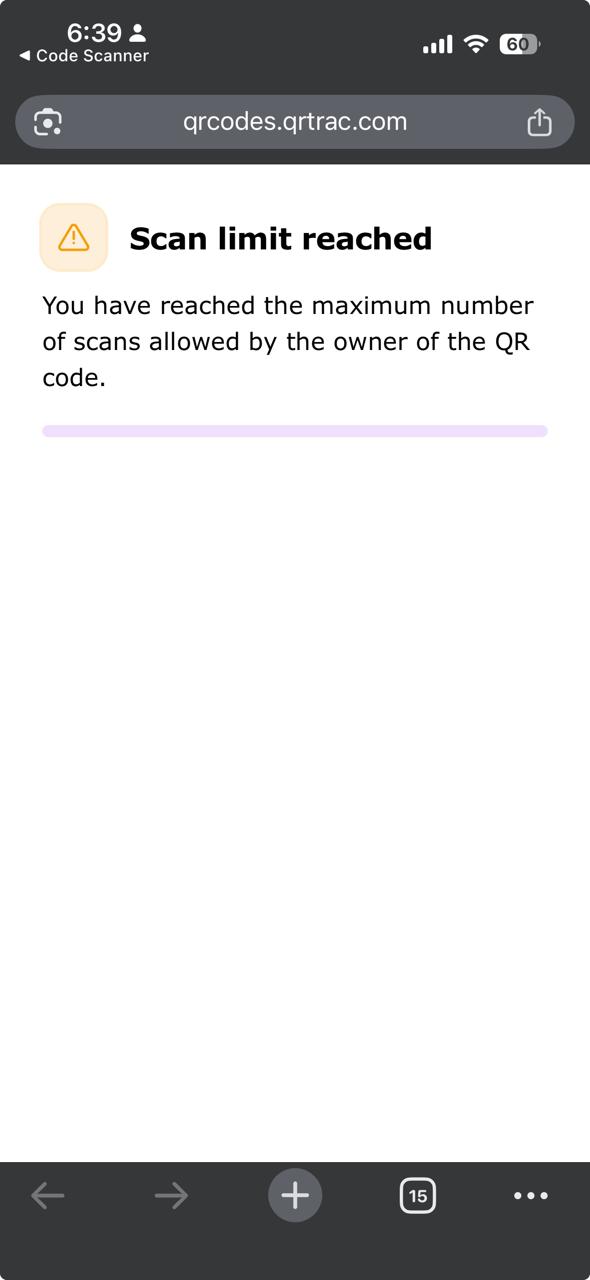
The Scan limit reached screen shown to scanners after the maximum count is exceeded
Best use cases for Scan Limit
- Coupon redemption — limit a discount code to a fixed number of uses
- Single-use tickets — event passes or access codes that work only once
- Limited access promotions — first 100 scanners get the offer, rest see a sold-out message
- Sample giveaways — restrict a free sample redemption to a set number of claims
- Exclusive content — make content available to a limited number of people only
Test your scan count before going live
Each test scan counts toward your limit. If you set a limit of 1 and test the QR code yourself, the limit is already consumed. Increase the count to account for any test scans, or reset it after testing.
Frequently Asked Questions
Q What does the scanner see when the limit is reached?
A If Show Message is selected, they see a "Scan limit reached" screen with the message you configured. If Redirect to URL is selected, they are sent to the URL you entered.
Q Can I increase the scan count after the limit has been reached?
A Yes. Update the Scan Count field to a higher number and save. The QR code will become active again for additional scans immediately.
Q Does a scan count if the user does not complete the action?
A Yes. Each scan of the QR code increments the counter regardless of what the user does after landing on the page.
Q Can I customise the message shown when the limit is reached?
A Yes. When Show Message is selected, the Scan Limit Message field lets you write any custom text you want scanners to see.
Q Can I combine Scan Limit with other Advanced Settings?
A Yes. Scan Limit works alongside GPS Tracking, Password Protection, Age Gating, Schedule Campaign, and any other Advanced Setting on the same QR code.