How to Download QR Links in CSV (Bulk)
The CSV (Comma Separated Values) format is a lightweight and universal file type perfect for developers and data analysts. QRTRAC's CSV export provides all your critical QR code data in a plain-text format that can be easily imported into databases, CRM systems, or any spreadsheet software.
Step 1: Select Your QR Codes
Log in to your dashboard and navigate to the list of your QR codes. Use the checkboxes on the left side of each row to select the codes you want to include in your CSV report.
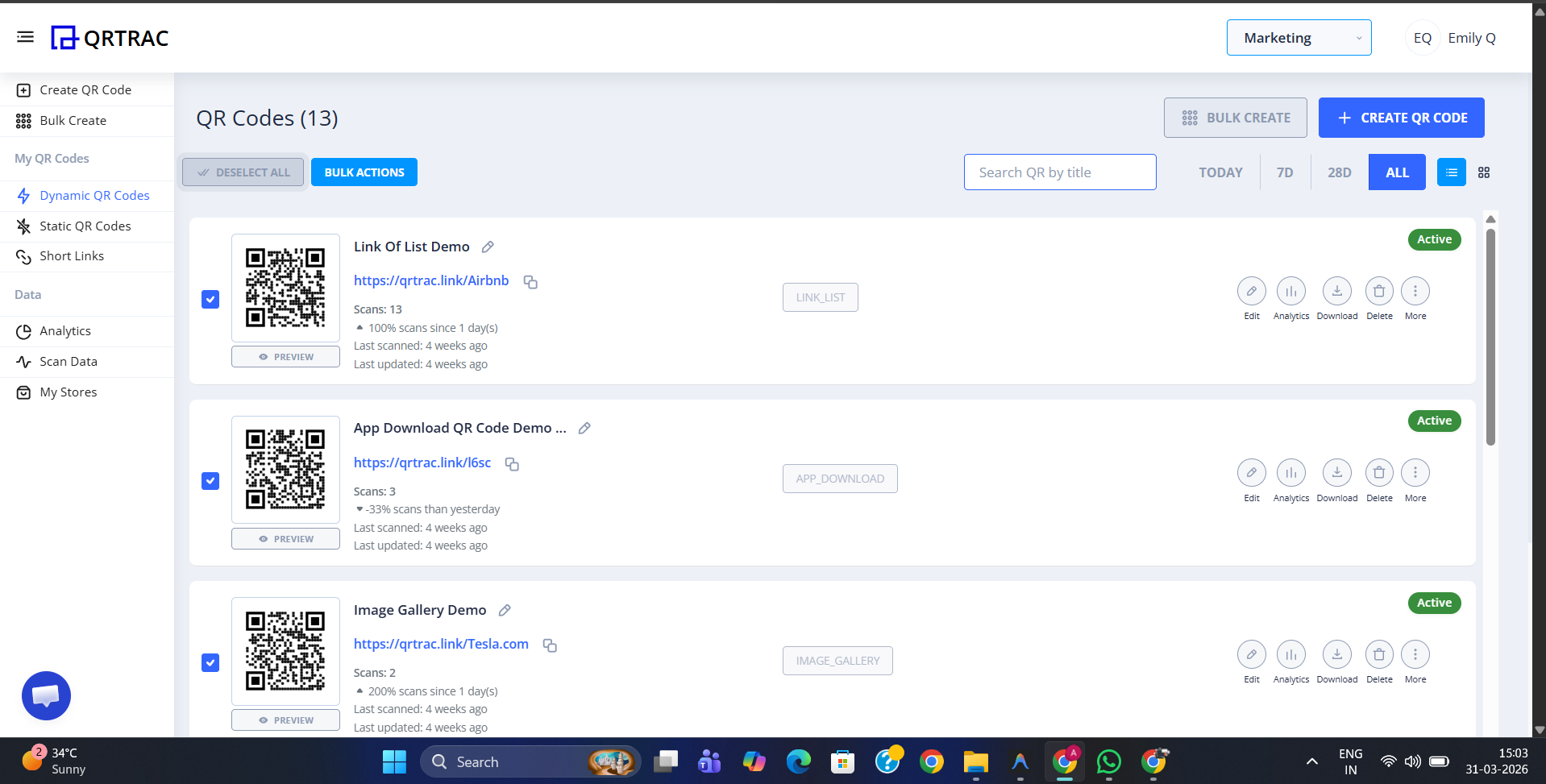
Step 2: Open Bulk Actions
Once your selection is complete, click on the **Bulk Actions** dropdown button located at the top of your list.
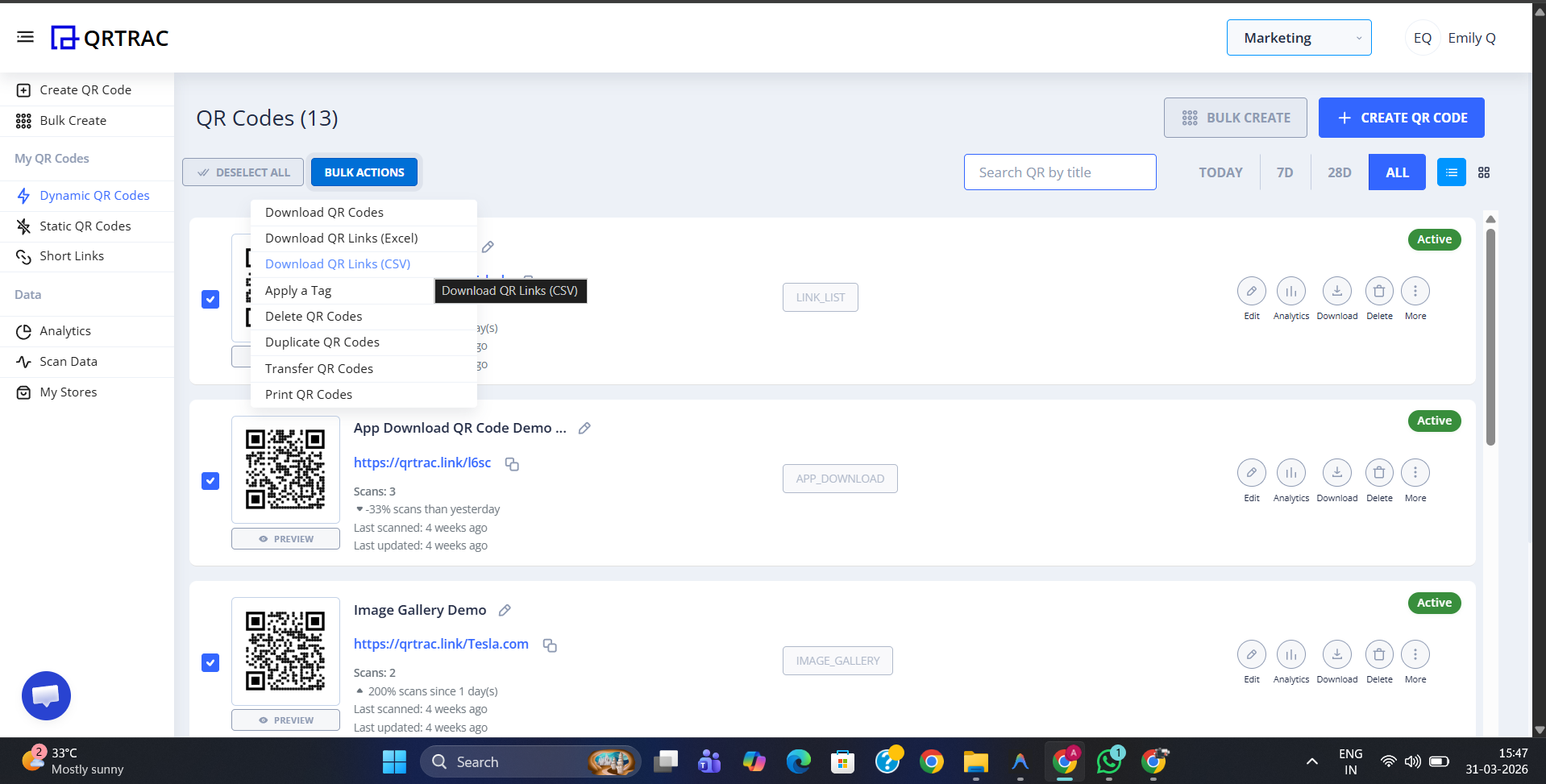
Step 3: Choose "Download QR Links (CSV)"
From the dropdown menu, select **Download QR Links (CSV)**. Your browser will instantly initiate the download. Choose the destination folder on your computer and click **Save** to complete the process.
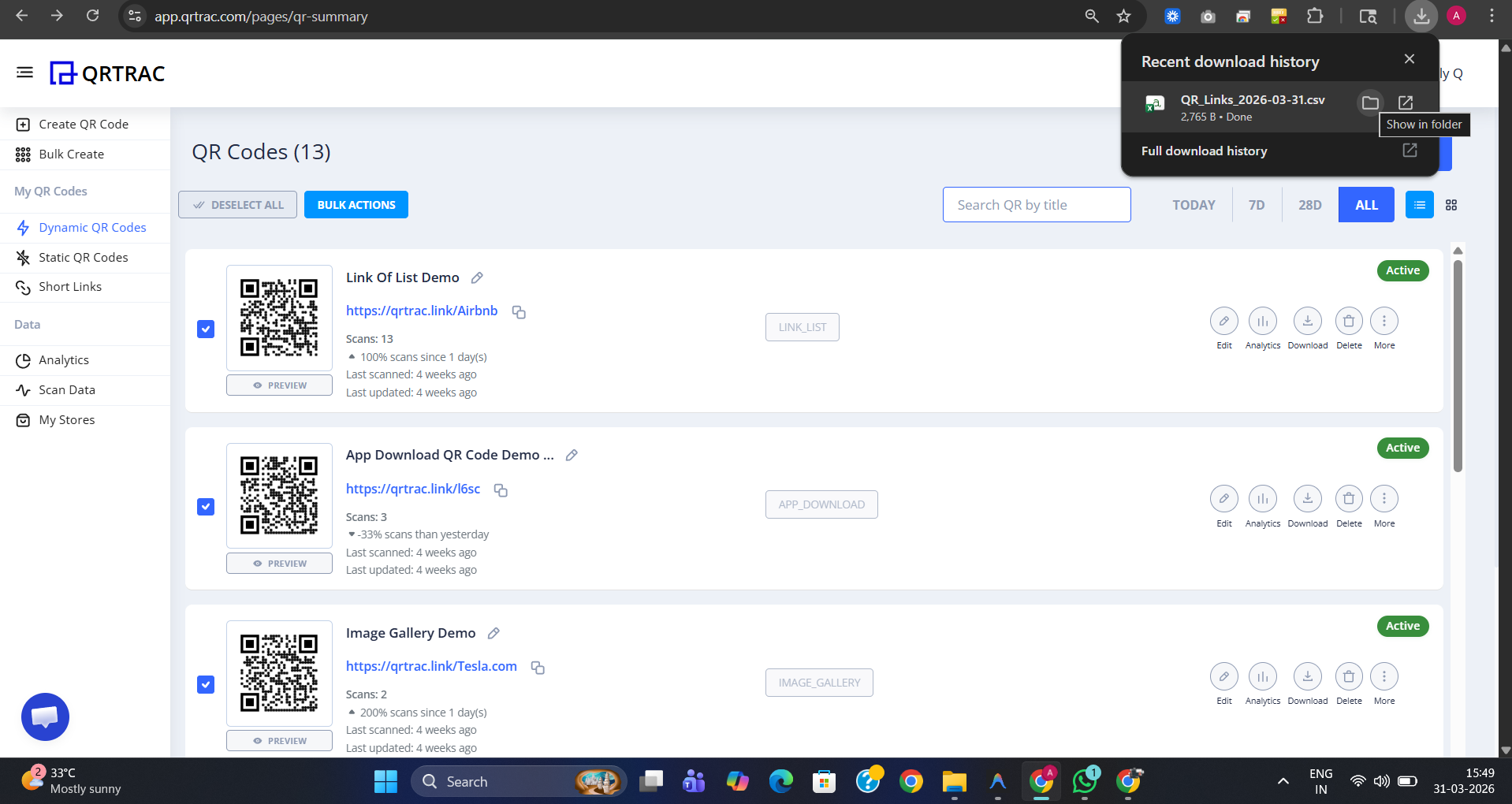
Step 4: Use Your CSV Data
The CSV file contains clear column headers for each QR code. This format is designed for high compatibility across all data-processing systems. Each row in your CSV includes:
| Column Header | Data Value |
|---|---|
| ID / Tracking ID | The unique tracking code for accurate data mapping. |
| QR Type | Campaign type (Website, PDF, App, etc). |
| Title | The internal name of your QR campaign. |
| QR URL | The short traceable URL for scanning. |
| Redirect URL | The target link your QR code points to. |
| QR Image URL | A direct hosted link to your QR code image. |
| Created At | The exact creation date and time. |
Developer Recommendation
CSV is the preferred format for automated reporting scripts and integrating QRTRAC campaign data into your proprietary analytics dashboards or CRM systems.