How To Create Short Link QR Code
A Short Link QR Code creates a compact, branded, trackable short URL. Instead of encoding a long destination URL directly into the QR code, it redirects through a short link — giving you the ability to change the destination at any time without reprinting.
Before You Start
Before creating your Short Link QR code, have the following ready:
- The destination URL you want to redirect to
- Whether you want a custom domain or the default QRTRAC domain
- An optional custom slug (e.g.
yourname/promo)
Always Include https://
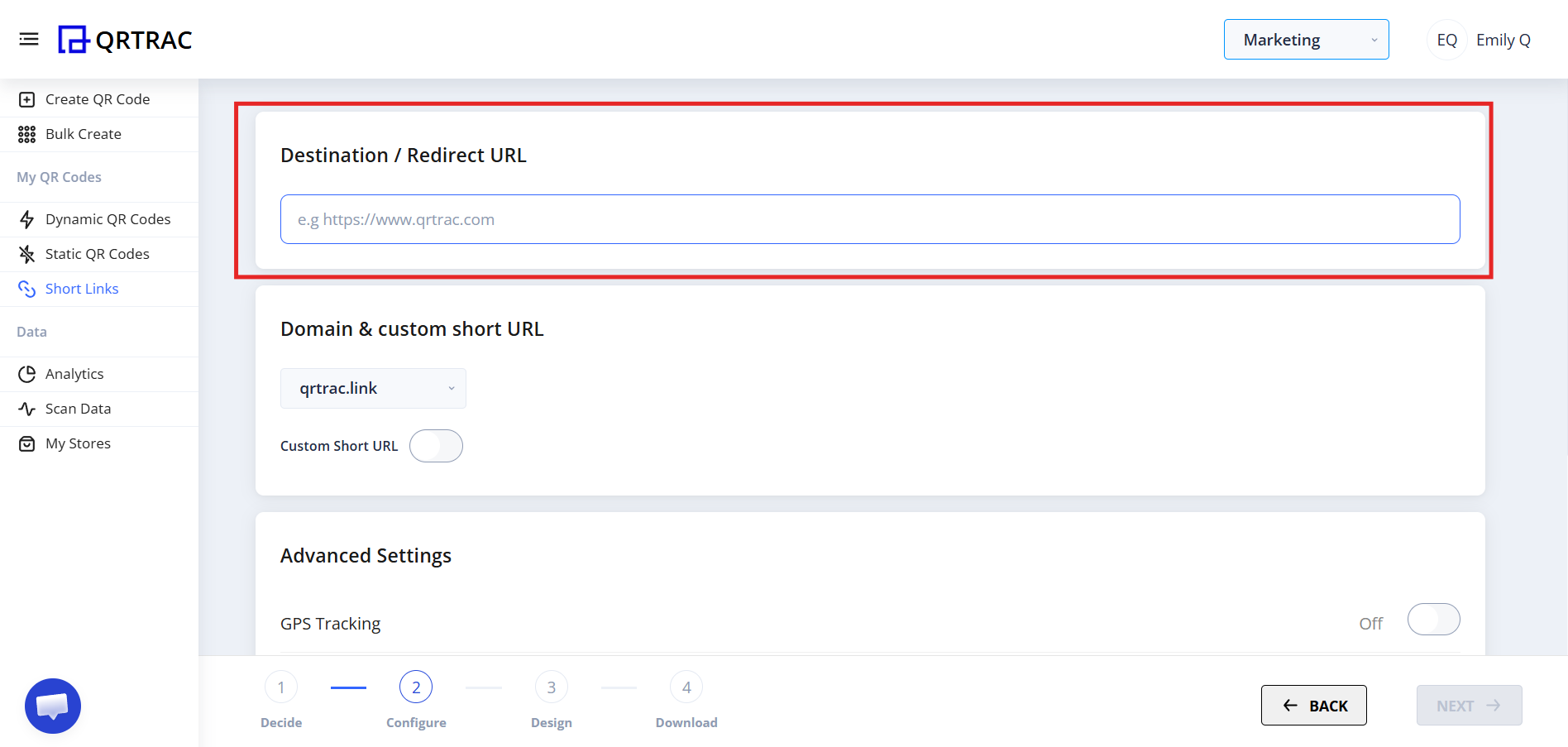
Your redirect URL must start with https://. A URL without it will not redirect correctly.
Step 1: Login & Start
- Login to your QRTRAC dashboard
- Click Create QR Code
- Select Short Links
- Click Next
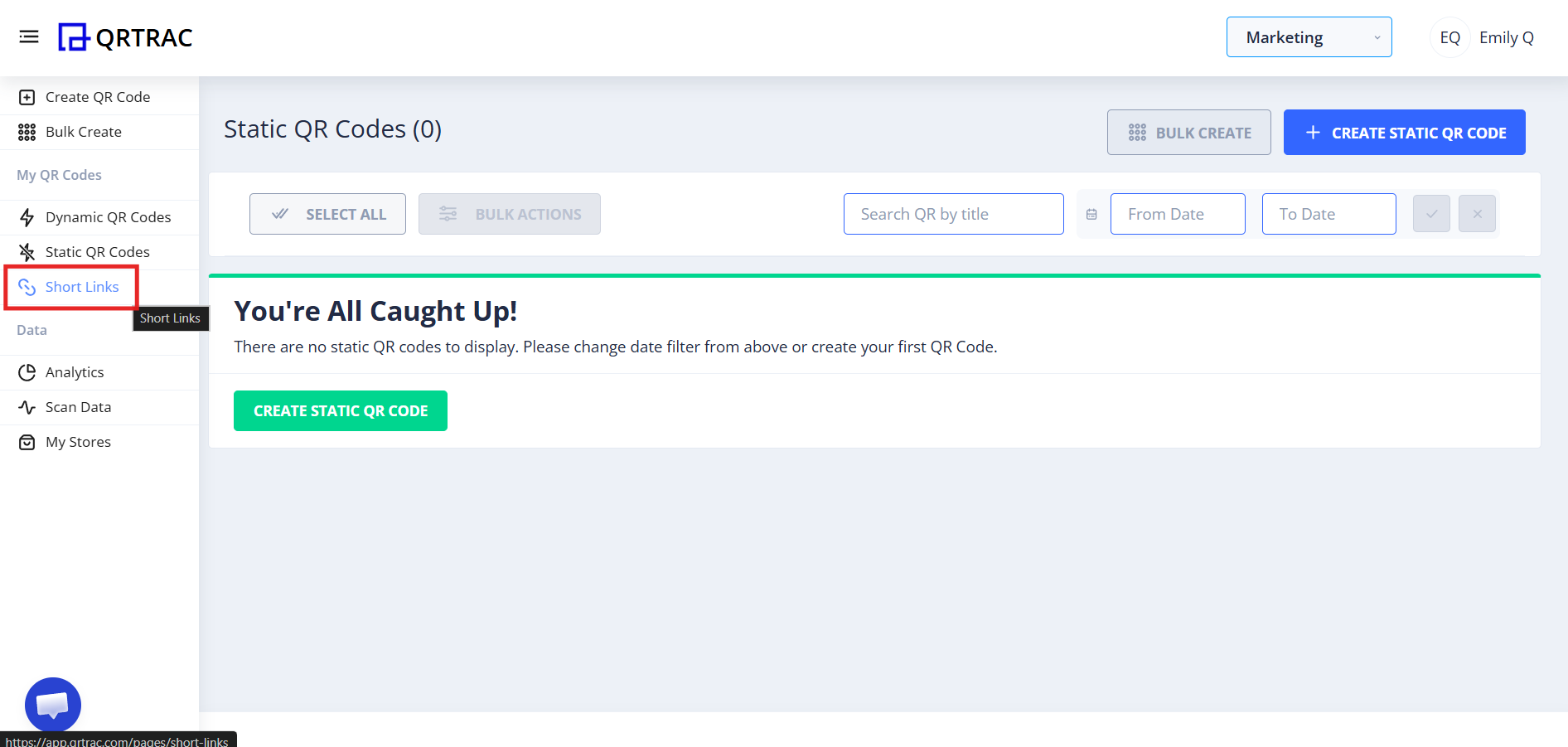
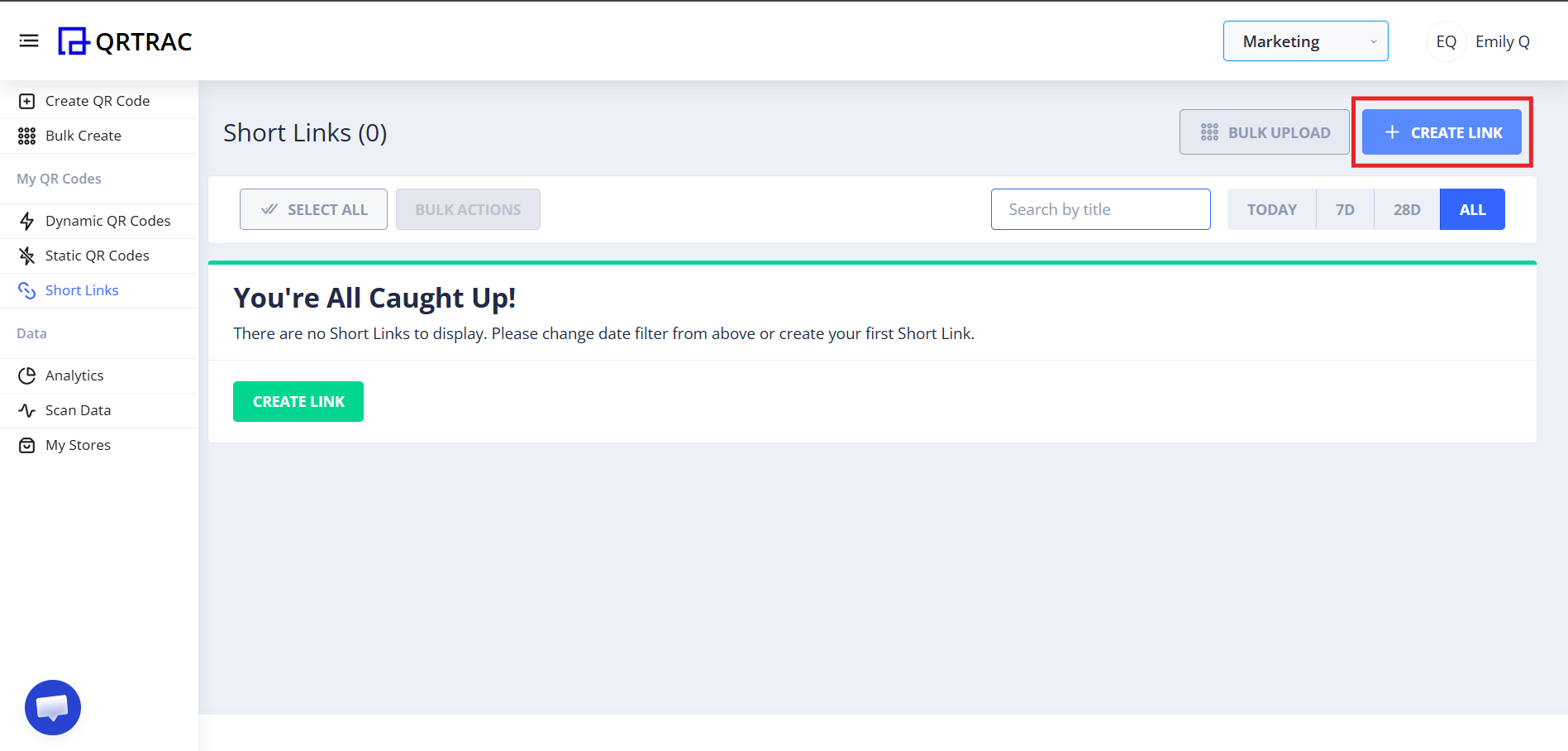
Step 2: Create Your Short Link
- Click Create Link
Step 3: Add Your Redirect URL
Paste the destination URL into the Redirect URL field. This is where users will land after scanning the QR code.
Dynamic QR — No Reprinting Needed
Update the redirect URL on your short link at any time from the QRTRAC dashboard. Your printed QR codes keep working with zero reprinting.
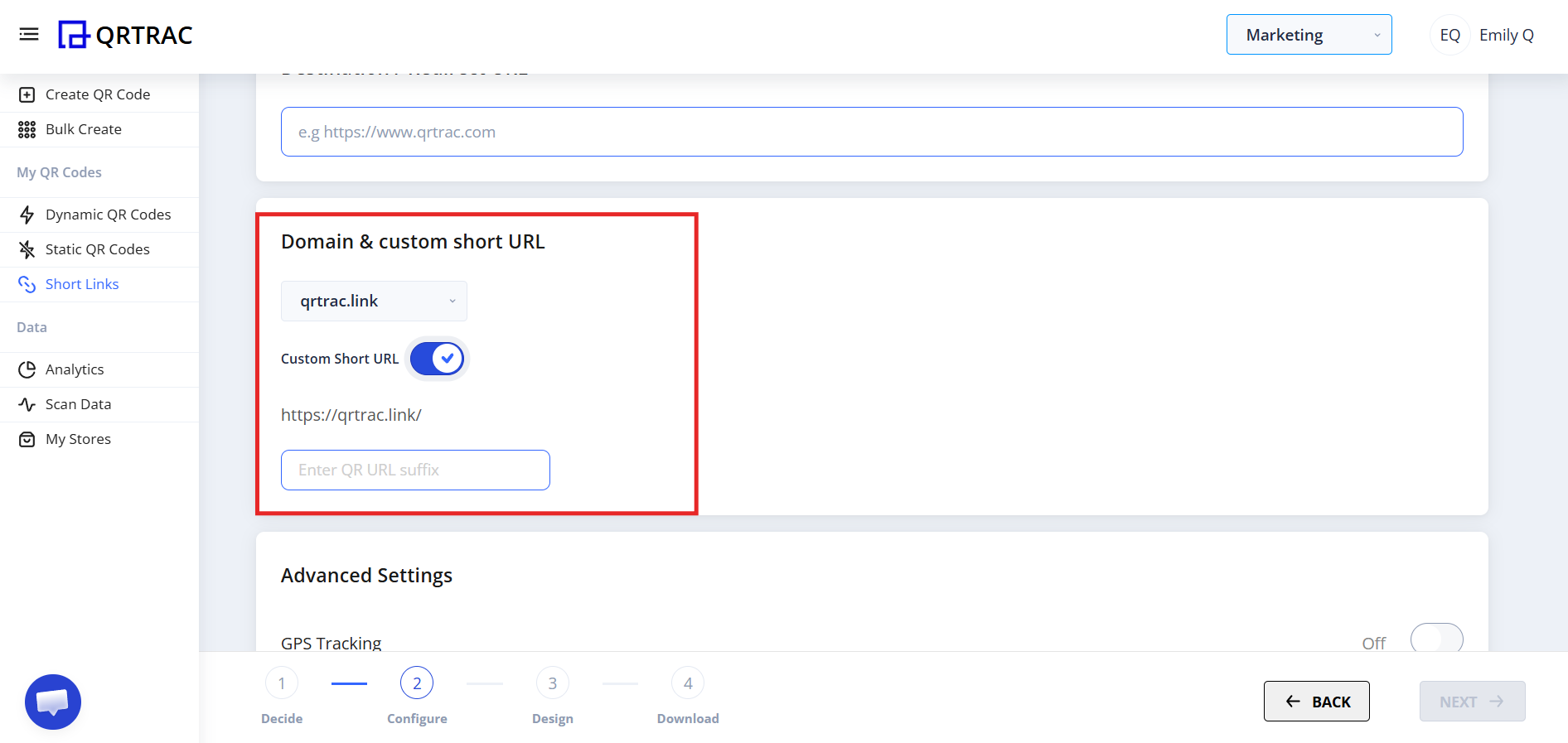
Step 4: Configure Domain & Custom Short URL
Select your domain. Optionally, set a custom short URL slug (e.g. yourname/promo) to create a branded, memorable link.
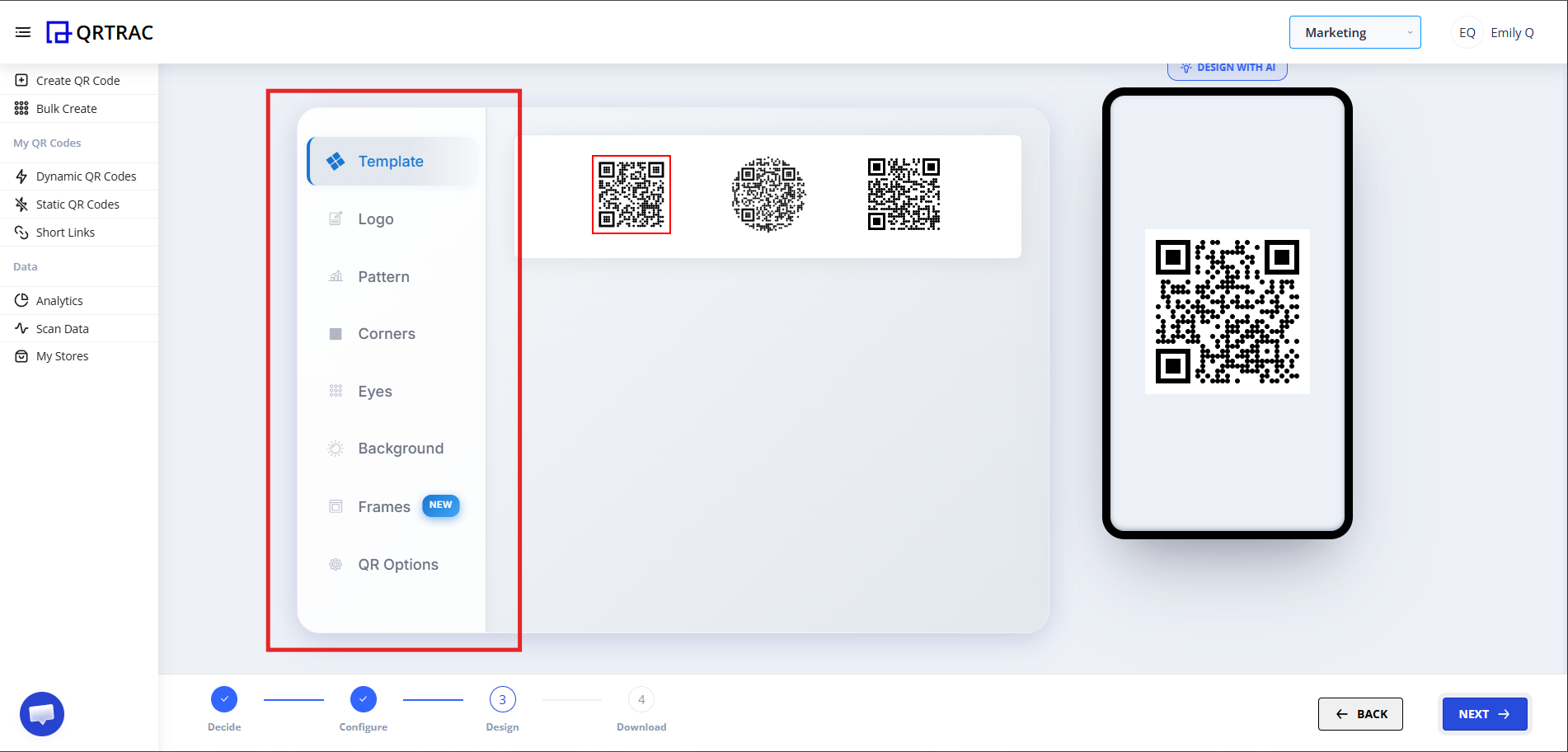
Step 5: Design Your QR Code
Customize your QR code appearance:
- Choose a color scheme
- Add your logo
- Select a pattern style
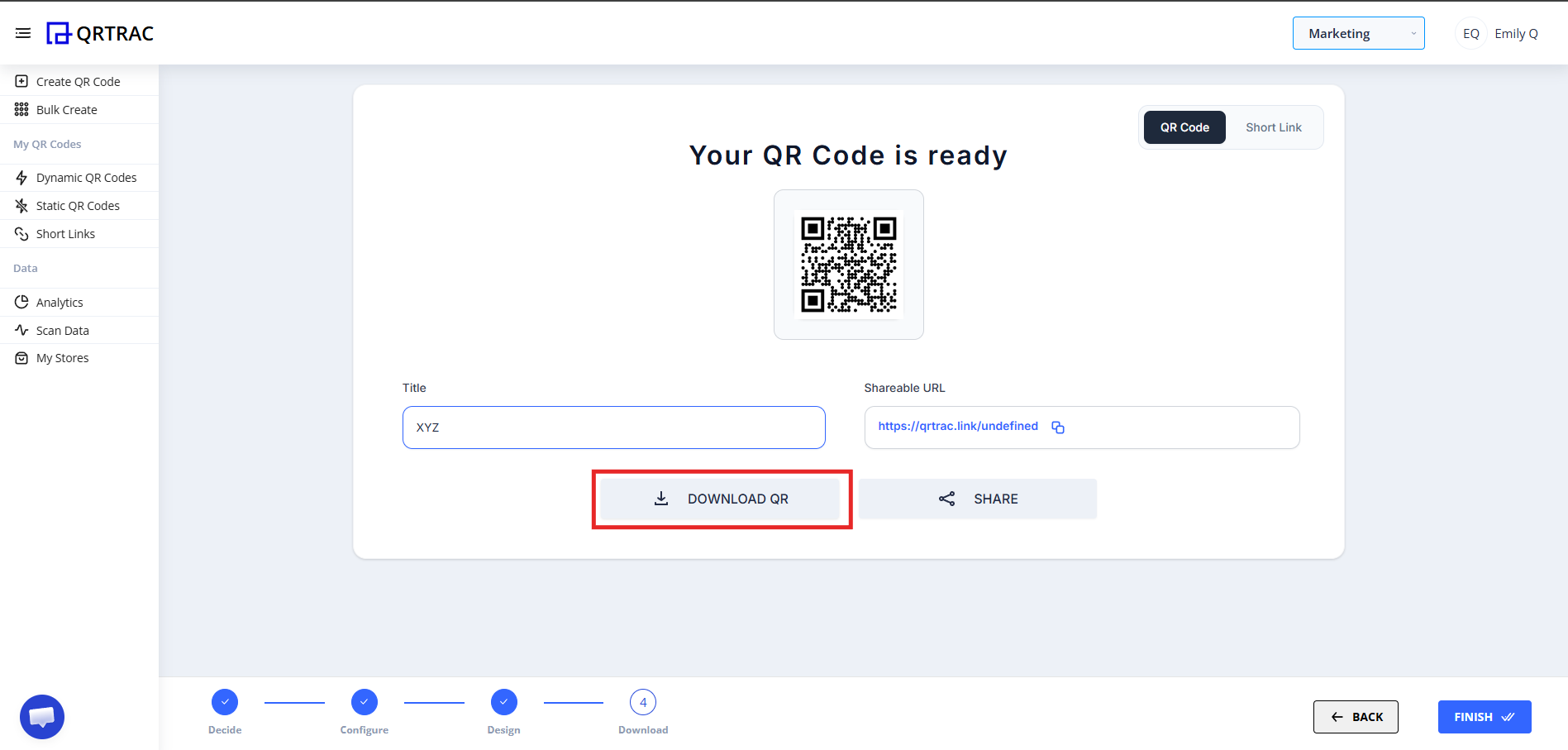
Step 6: Review & Download
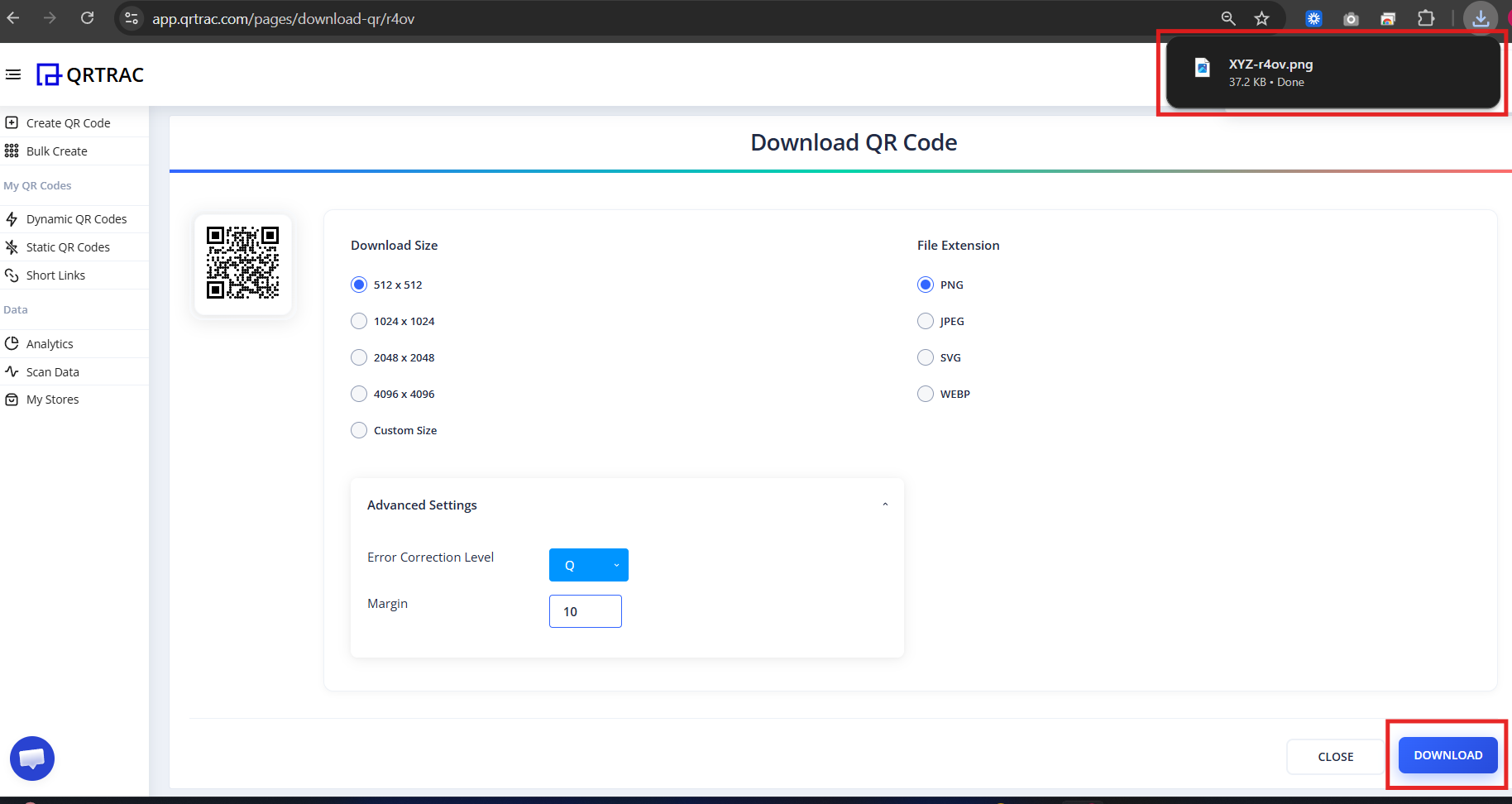
Preview your QR code, confirm it redirects correctly, and download in your preferred format.
Tip: Always test your QR code with a smartphone camera straight from your computer monitor before you download and print it.
Frequently Asked Questions
Can I change the redirect URL after printing?
Yes. Dynamic short links let you change the destination any time from the QRTRAC dashboard.
Can I use a custom domain for the short link?
Yes. You can configure a custom domain under your account settings.
Can I track who clicks the short link?
Yes. QRTRAC tracks scan volume, device type, and geographic location for every scan.
What happens if I enter an invalid redirect URL?
The QR code will not redirect correctly. Always test the redirect URL in a browser before printing.
Common Mistakes
- ❌ Pasting a URL without https:// — the redirect won't work.
- ❌ Not testing the redirect before printing at scale.
- ❌ Using a static QR code instead of dynamic — can't update without reprinting.
- ❌ Setting a custom slug that's already in use.
Launch Checklist
- Redirect URL tested in browser
- Custom domain configured (if needed)
- Custom slug set (if desired)
- QR code scanned and redirect confirmed