Organising QR Codes with Folders
Folders let you group your Dynamic QR codes into organised collections — making it easy to manage campaigns, clients, or locations without scrolling through a long list.
How do I create a folder?
- Open the account menu and go to Org Preferences.
- Turn on the Enable Folder View toggle under General Settings.
- Go to Dynamic QR Codes and click the arrow next to + Create QR Code.
- Select New Folder, enter a name, and click Create.
Step 1: Open Org Preferences
Folder view is disabled by default and needs to be turned on once for your organisation. Click your avatar or name in the top-right corner of the dashboard and select Org Preferences.
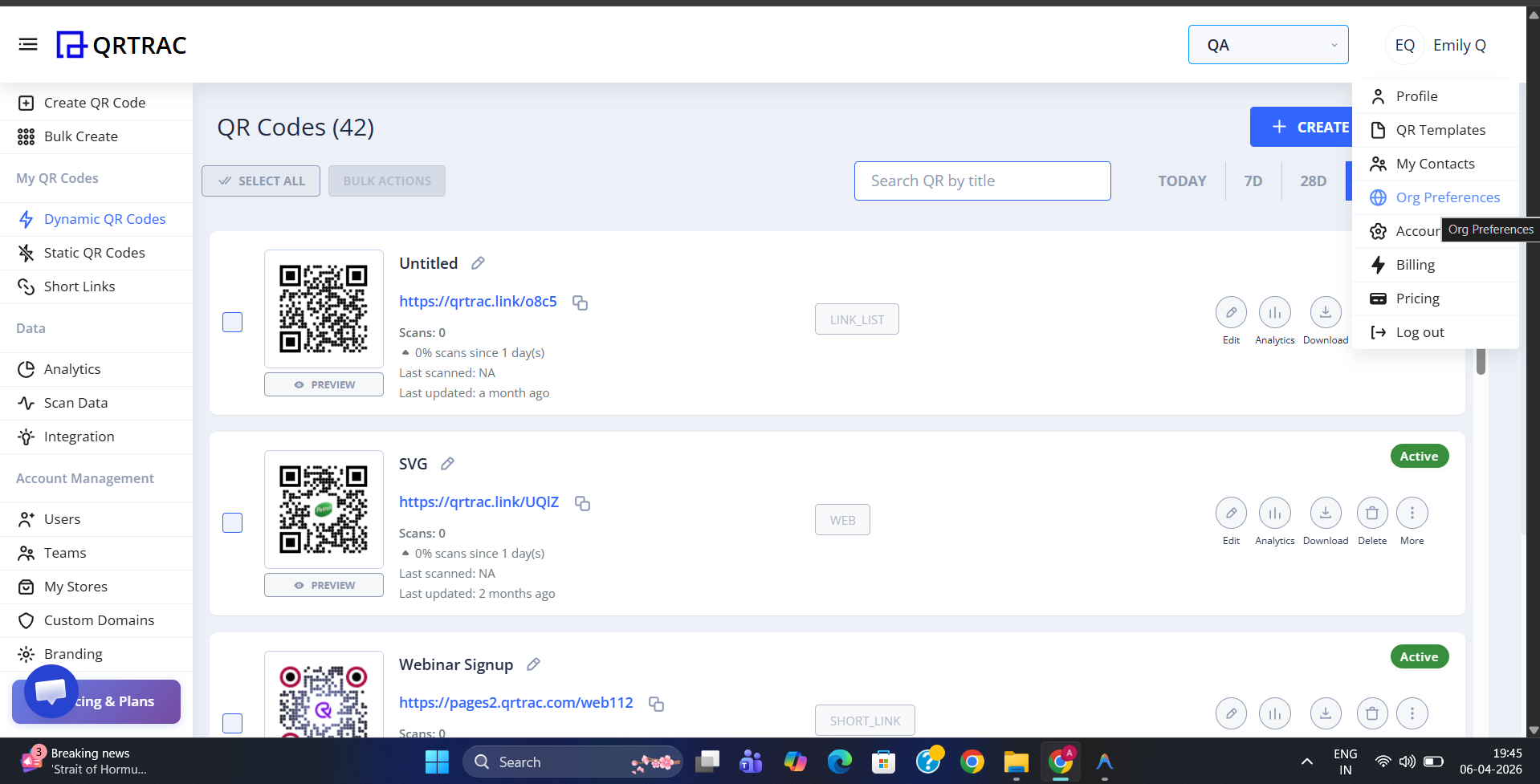
Click your avatar and select Org Preferences
Step 2: Enable Folder View
On the Organisation Preferences page, find the General Settings tab. Toggle on Enable Folder View. Once active, a folder option will appear throughout the QR Codes section.
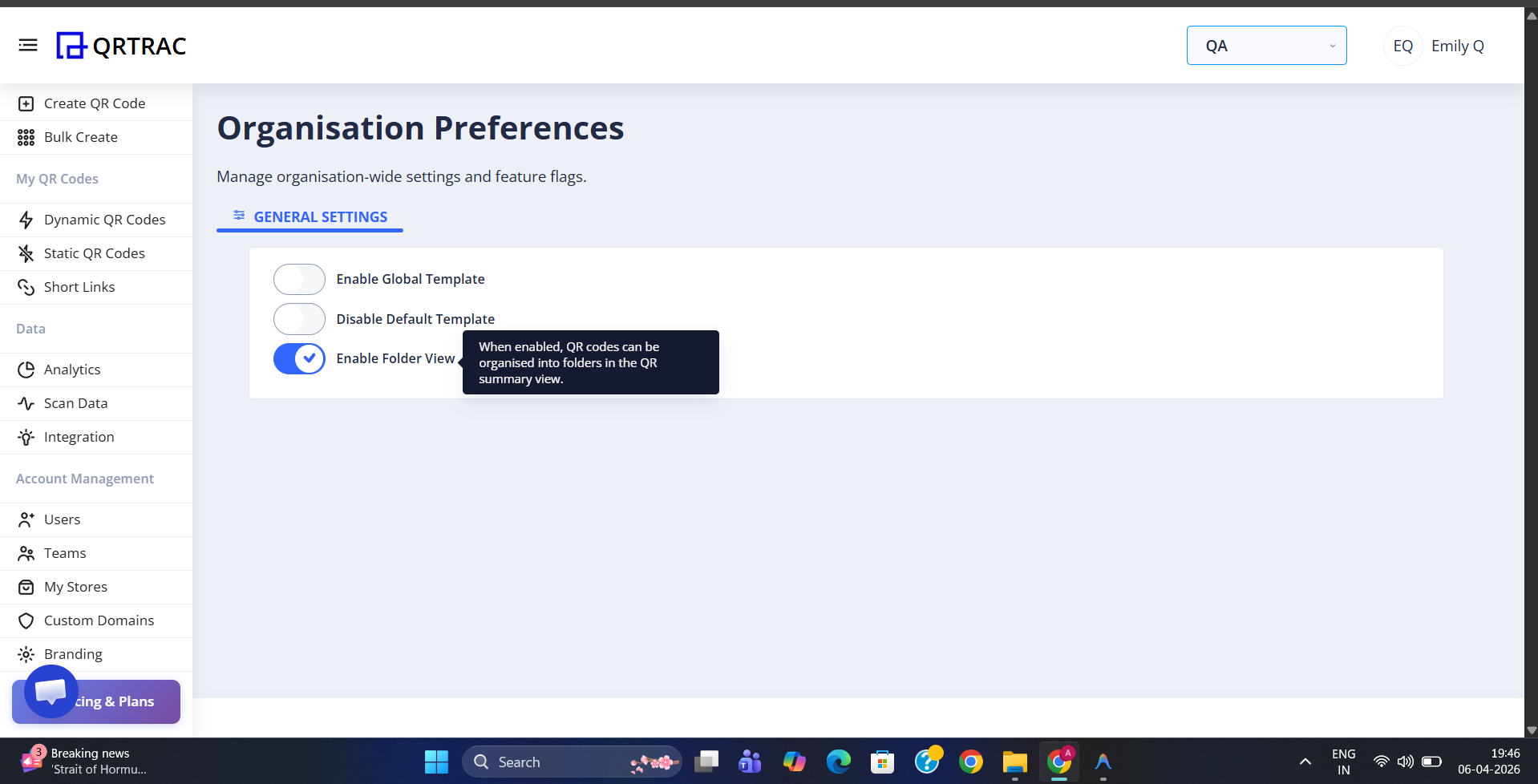
Toggle on Enable Folder View under General Settings
Note: This setting applies to your entire organisation. All team members will be able to see and use folders once it is enabled.
Step 3: Open the New Folder Option
Navigate to Dynamic QR Codes in the left sidebar. Click the dropdown arrow on the right side of the + Create QR Code button. You will see two options — Bulk Create and New Folder. Click New Folder.
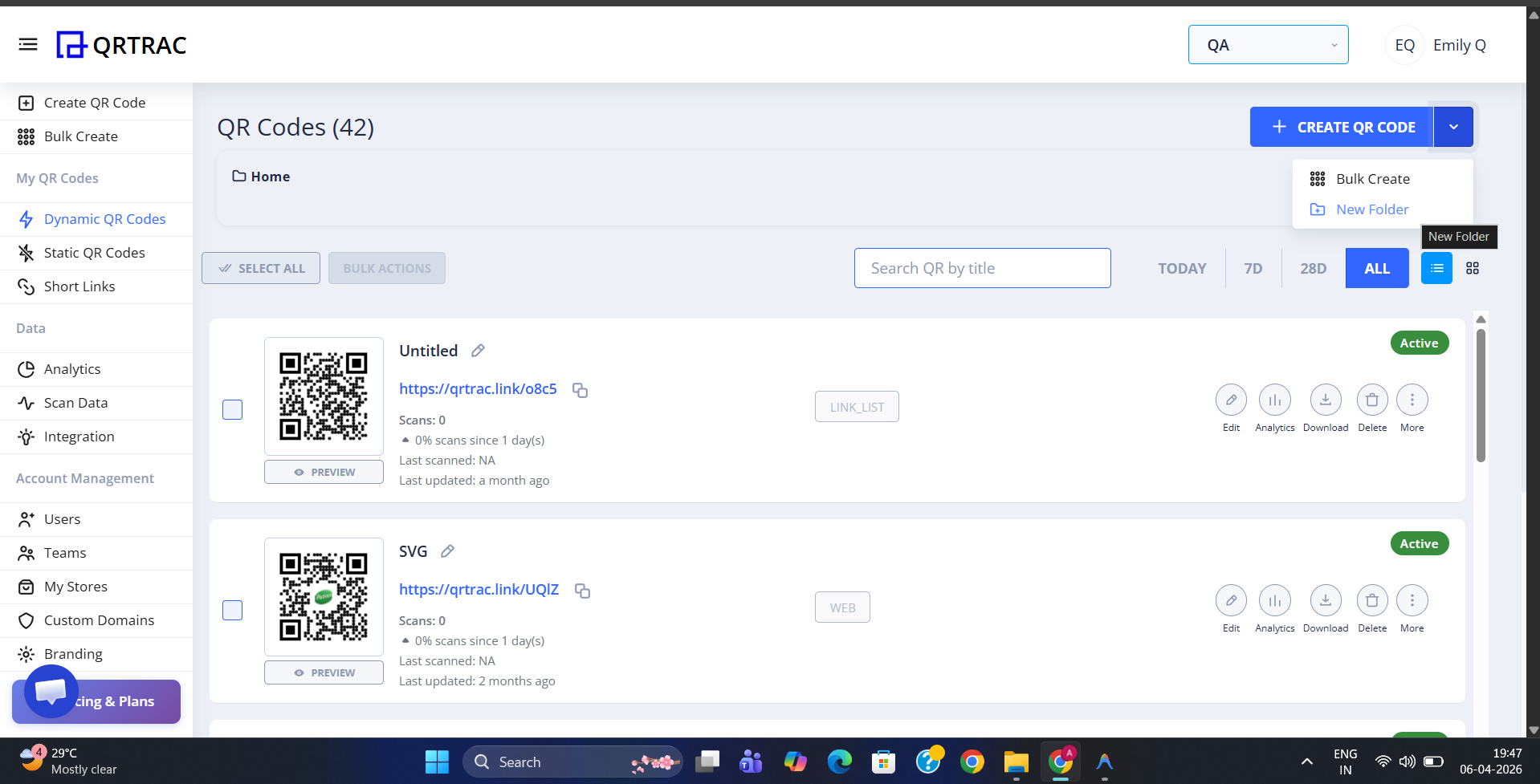
Click the arrow next to Create QR Code and select New Folder
Step 4: Name Your Folder
A dialog box will appear asking for a Folder Name. Enter a descriptive name that reflects the group of QR codes it will contain — for example, a campaign name, a client, or a physical location. Then click Create.
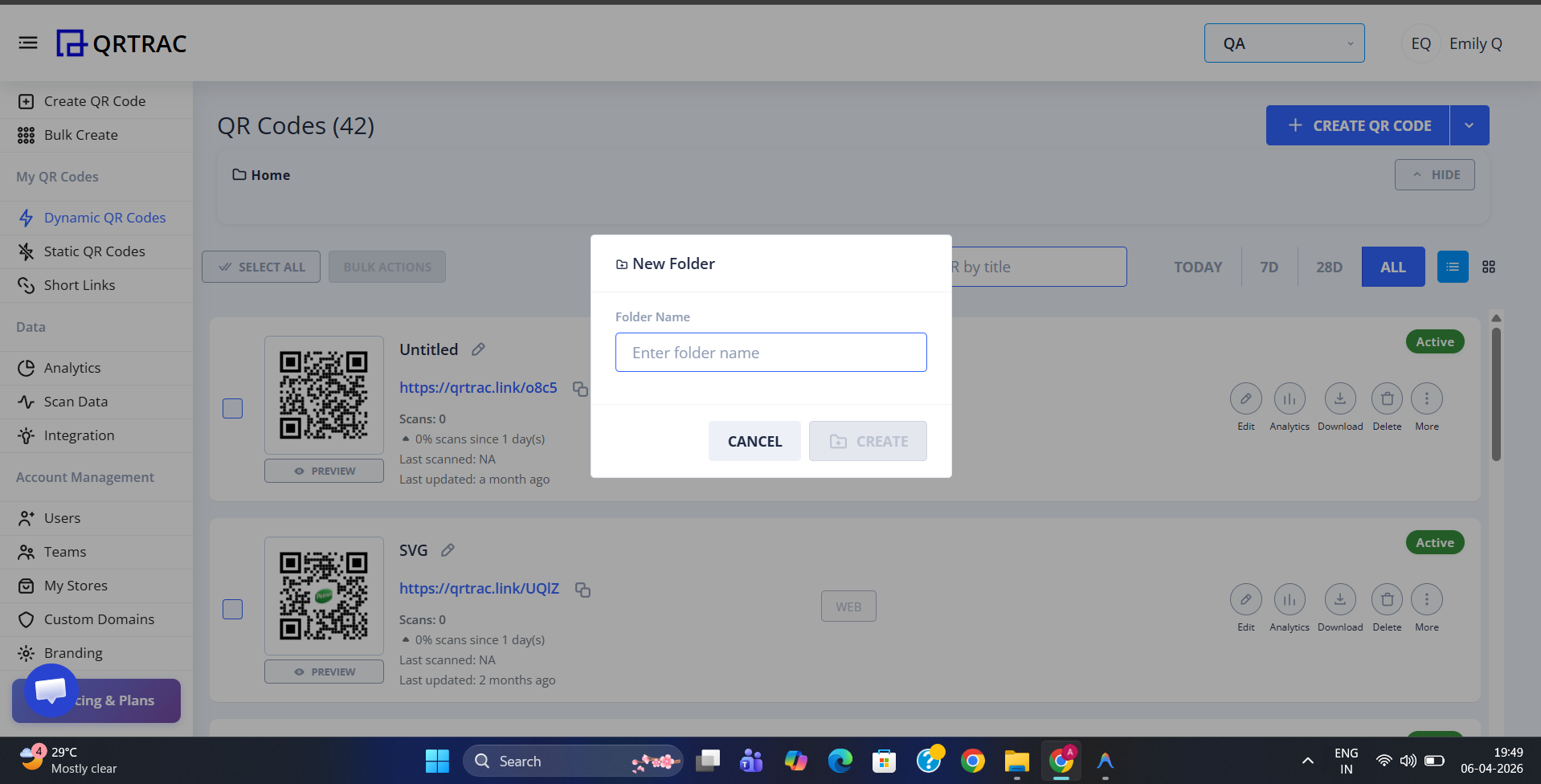
Enter a folder name and click Create
Step 5: Folder Created
Your new folder will appear on the Dynamic QR Codes page as a card. It starts empty — you can move existing QR codes into it or create new ones directly inside it.
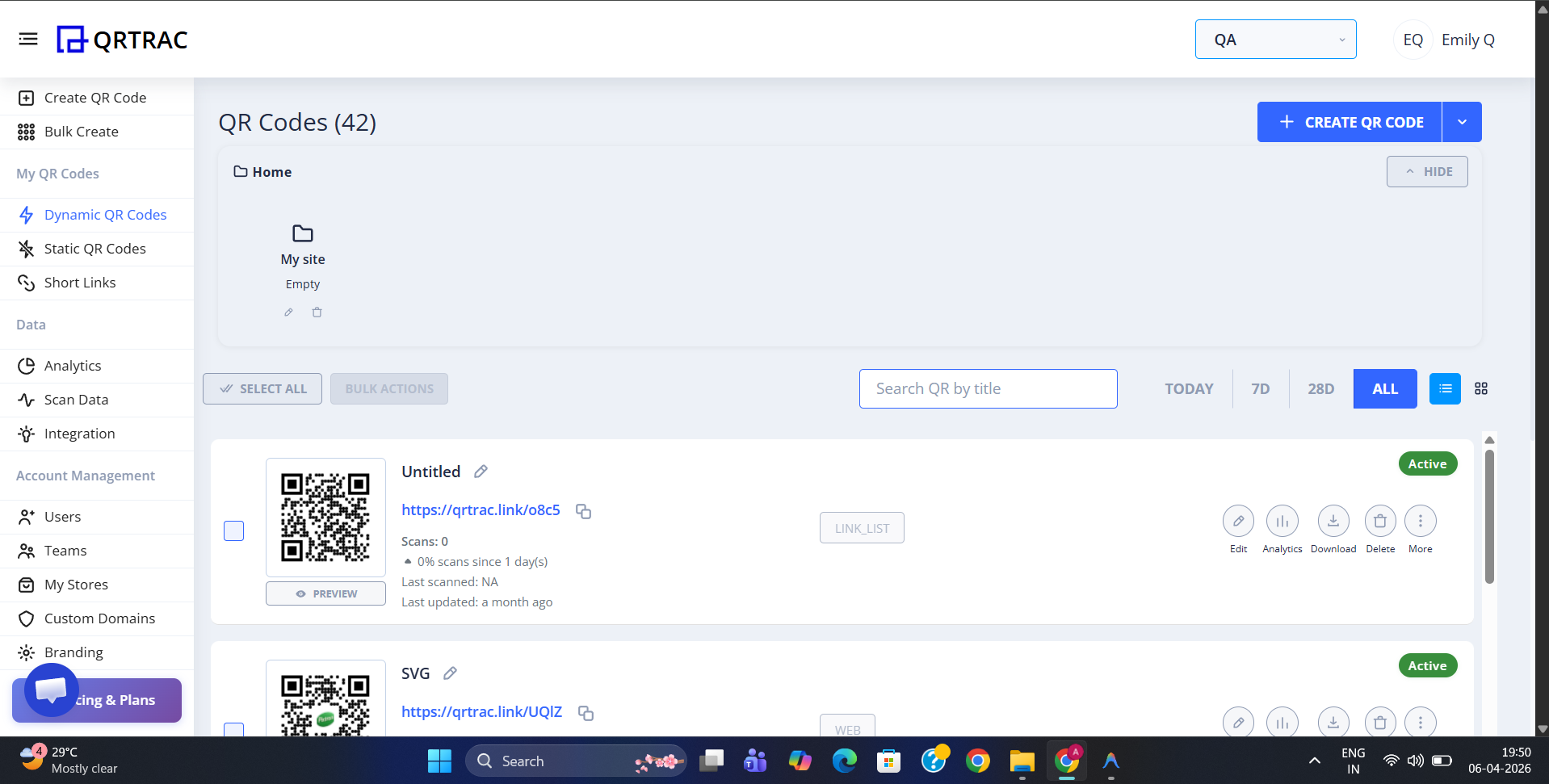
The folder appears as a card on the QR Codes page, ready to use
Folders only apply to Dynamic QR Codes
Static QR Codes and Short Links have their own separate sections and do not use the folder structure.