Account Settings
Account Settings is your central hub for managing your subscription. From here you can view your current plan, monitor how much of your allowance you have used, upgrade to a higher plan, buy additional QR codes or custom domains, and manage your billing details.
What can I do in Account Settings?
- View your plan — see your active plan, billing cycle, and renewal date
- Monitor usage — track QR codes, scans, teams, domains, users, and mini sites
- Upgrade plan — switch to a higher tier with more capacity
- Buy more QR codes — add extra QR code capacity on top of your plan
- Buy more domains — add extra custom domains to your account
- Manage billing — download invoices, update payment method, or pause your subscription
Step 1: Open Account Settings
Click your avatar or name in the top-right corner of the QRTRAC dashboard to open the account menu. Select Account Settings from the dropdown.
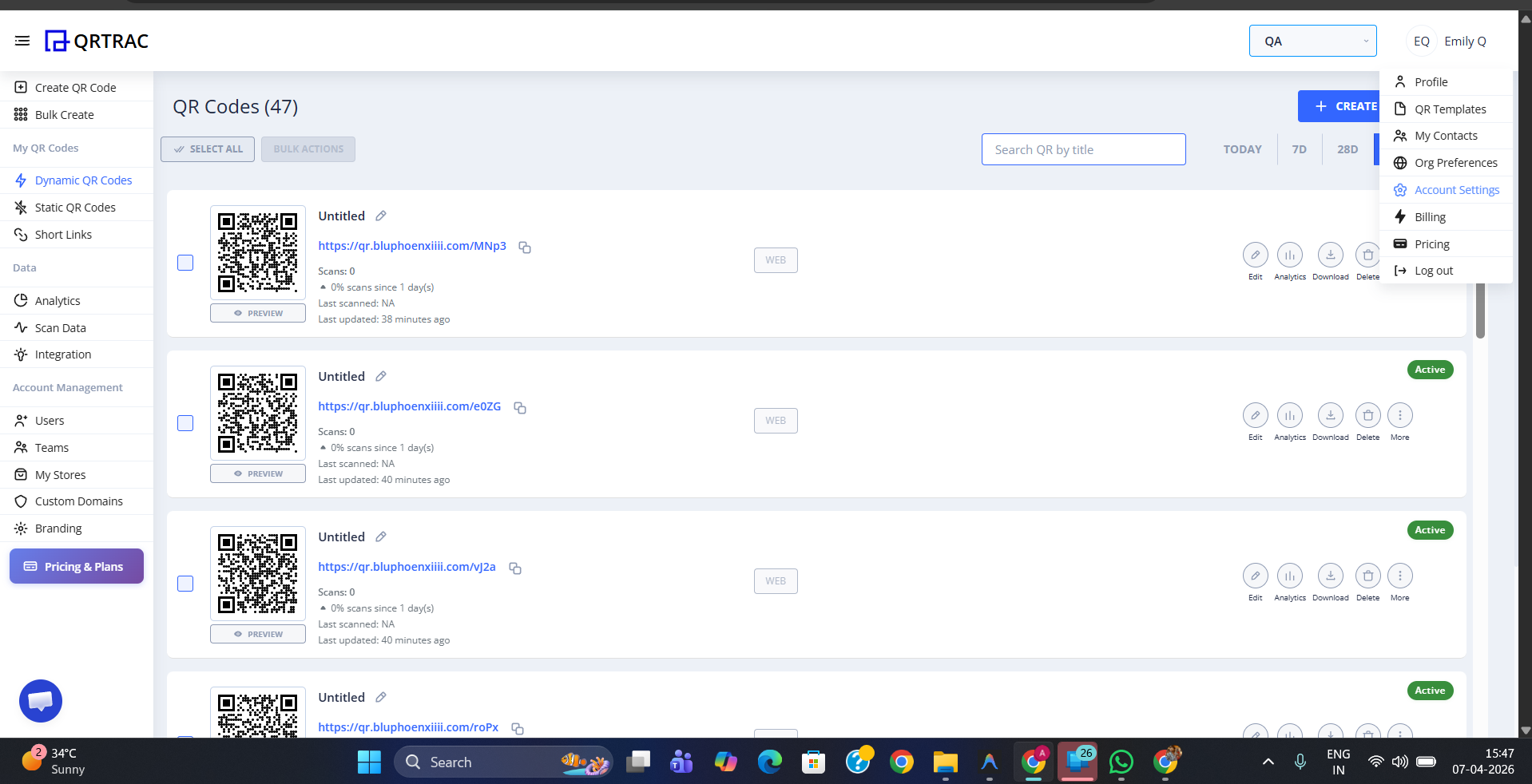
Click your avatar and select Account Settings from the menu
Step 2: Account Settings Overview
The Account Settings page is split into three sections:
- Current Plan — shows your active plan name, billing cycle (monthly or yearly), status, and the date your plan is valid until
- Usage — live counters showing how much of each allowance you have consumed: QR codes, scans, teams, custom domains, users, and mini sites. Use the Buy More QR and Buy More Domain buttons here to top up your limits
- Billing Overview — access the hosted billing portal to download invoices, pause or resume your subscription, or update your payment method
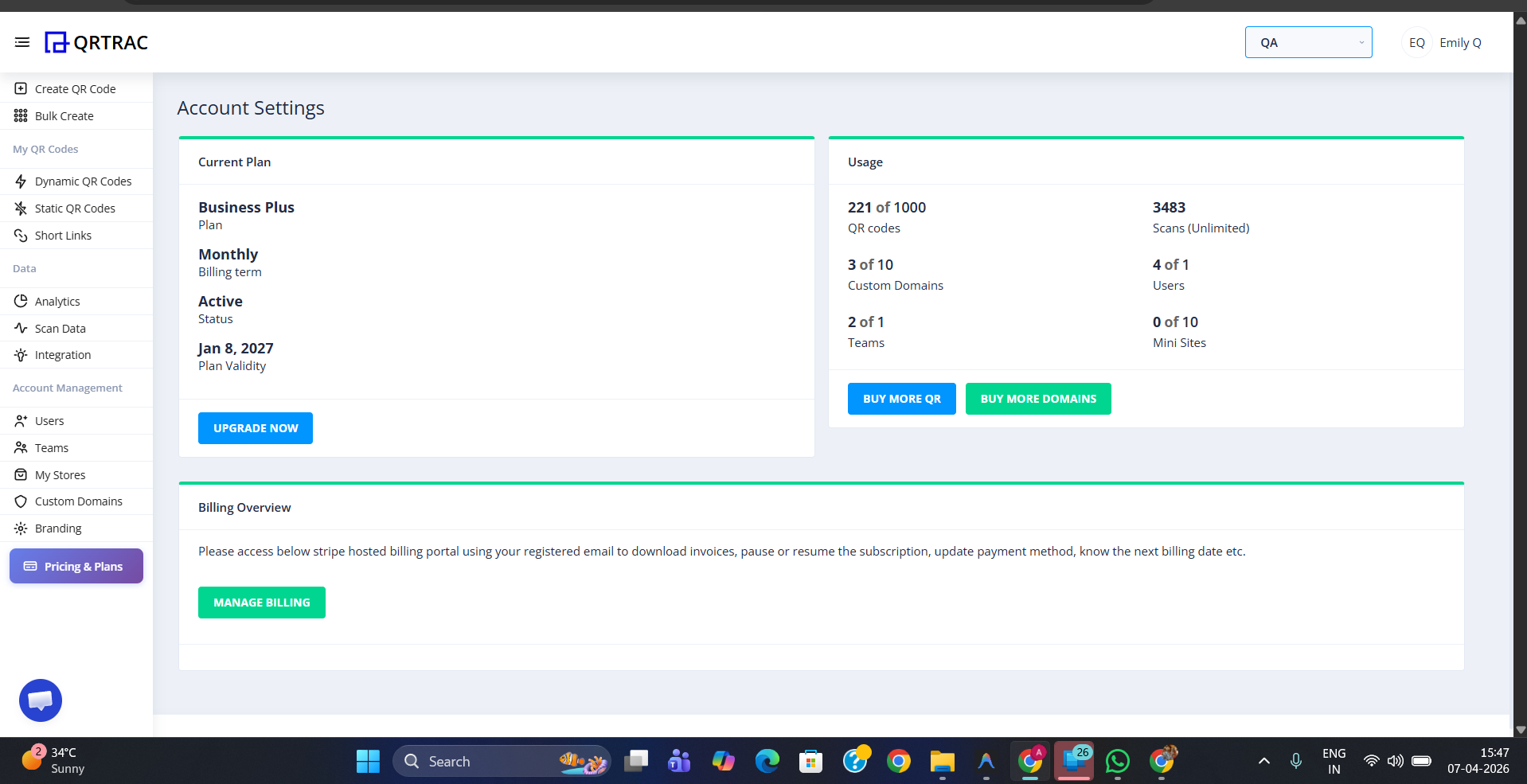
Account Settings shows your plan details, usage at a glance, and billing access
Step 3: Upgrade Your Plan
Click Upgrade Now under your current plan to open the plan pricing page. You can toggle between Yearly and Monthly billing to compare costs. Select the plan that suits your needs and click Upgrade to proceed.
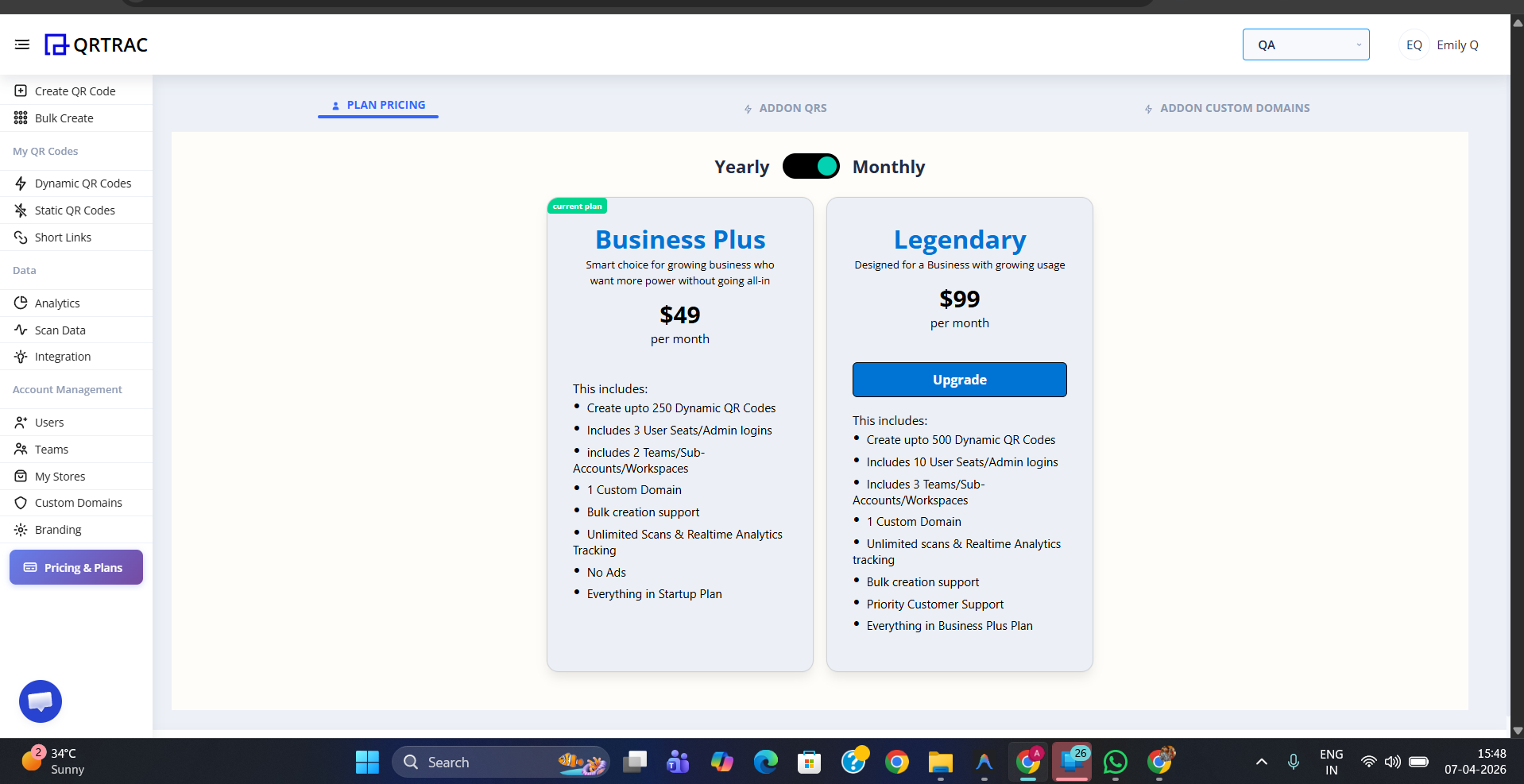
Choose between plans and billing cycles, then click Upgrade to confirm
Tip: Switching to Yearly billing saves you money compared to paying month by month. The saving is shown automatically when you toggle the billing cycle.
Step 4: Buy More QR Codes
If you are running low on QR code capacity but do not want to upgrade your full plan, click Buy More QR in the Usage section. Enter the number of additional QR codes you need and click Buy Now. A confirmation modal will show you the cost per QR code, the subtotal, and the total monthly charge. Click Confirm Purchase to complete the add-on.
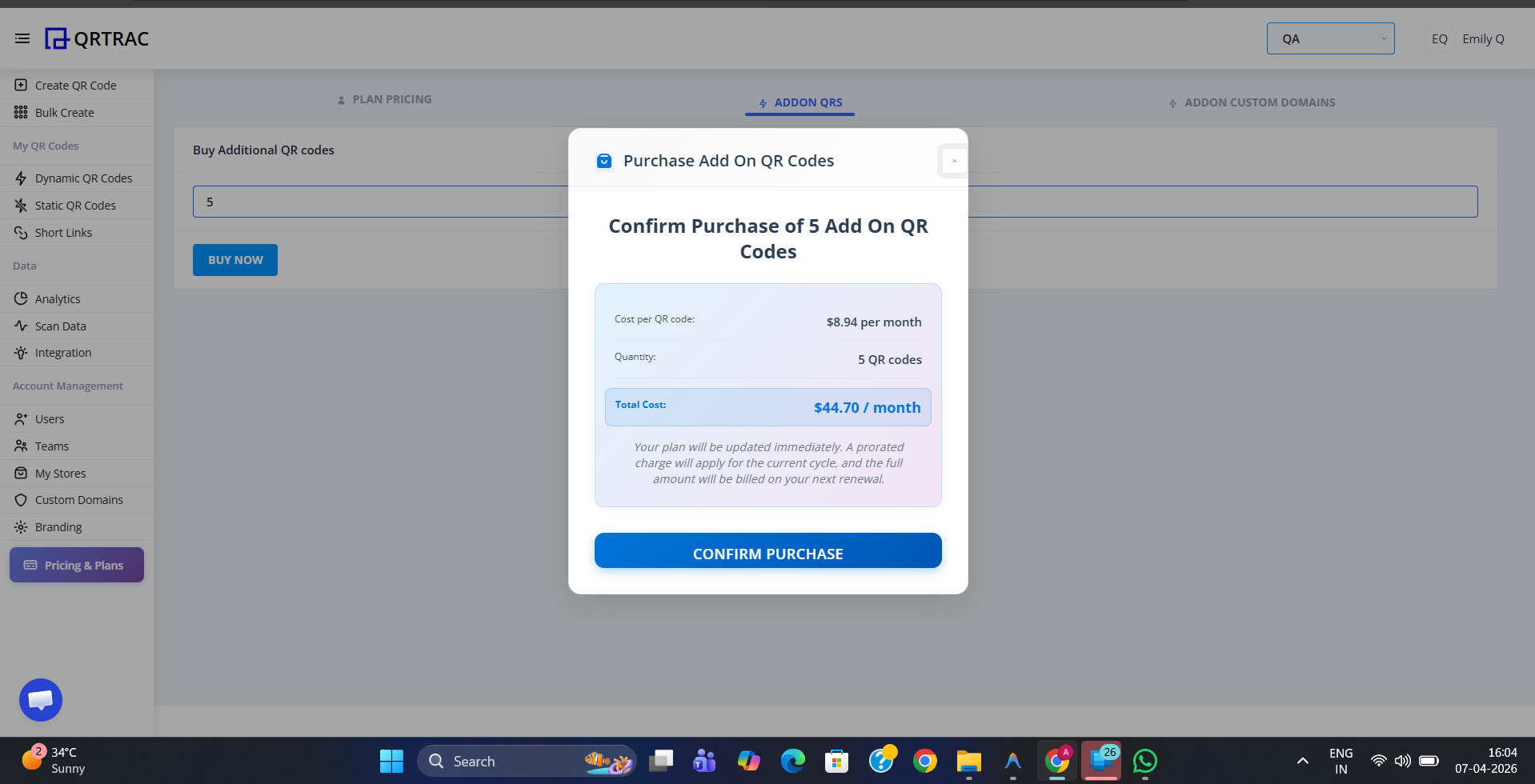
Enter how many extra QR codes you need, review the cost, then confirm
Step 5: Buy More Custom Domains
The process for adding custom domains works the same way. Click Buy More Domain in the Usage section, enter the number of additional domains you need, and click Proceed to Checkout. Review the purchase summary in the confirmation modal — it shows the cost per domain, quantity, and total — then click Confirm Purchase.
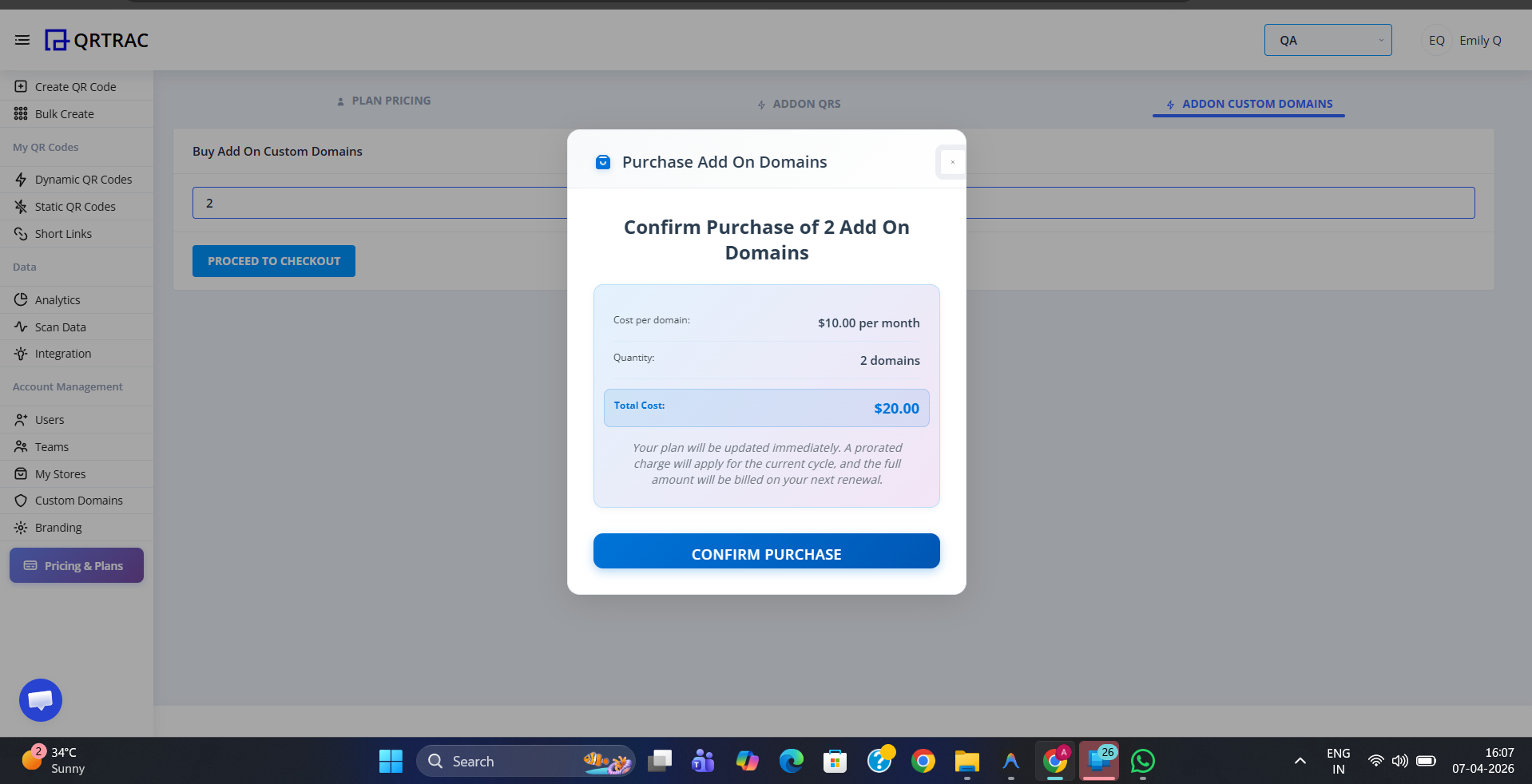
Enter the number of extra domains, review the cost, then confirm the purchase
Add-ons are charged immediately and prorated
When you purchase additional QR codes or domains, a prorated charge is applied to your current billing cycle. The full add-on cost will appear on your next renewal invoice.