How to Apply Password Protection to QR Code
Password Protection lets you restrict access to your QR code content. When enabled, anyone who scans the QR code will be asked to enter a password before they can view the destination — keeping your content private and secure.
What does Password Protection do?
- Restricts access — scanners must enter the correct password before reaching your content
- Works on any QR type — apply it to URLs, vCards, PDFs, menus, or any other QR type
- Fully editable — change or remove the password at any time from your dashboard
- No reprinting needed — update the password without reprinting the physical QR code
Step 1 — Enable Password in Advanced Settings
Login to your QRTRAC dashboard. Open an existing QR code or click Create QR Code. Choose your QR type, go to the Configure tab, and scroll down to Advanced Settings. Toggle Password to ON.
As soon as the toggle is enabled, an Enter password field will appear directly below it.
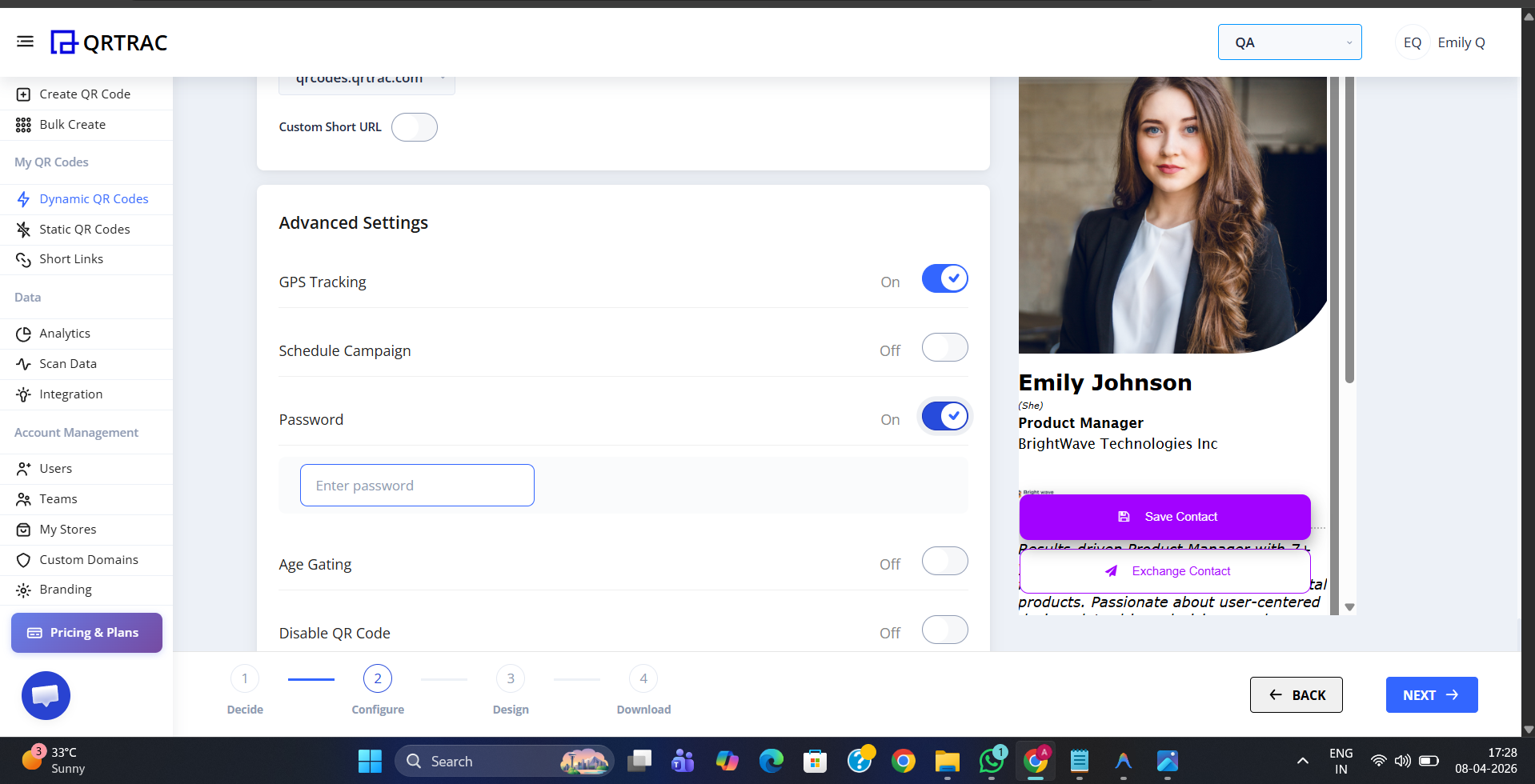
Password toggle ON — the Enter Password field appears immediately below
Step 2 — Enter Your Password
Type your chosen password into the Enter password field. You can use any combination of letters, numbers, or symbols. Choose something memorable — you will need to share this password with anyone who should have access.
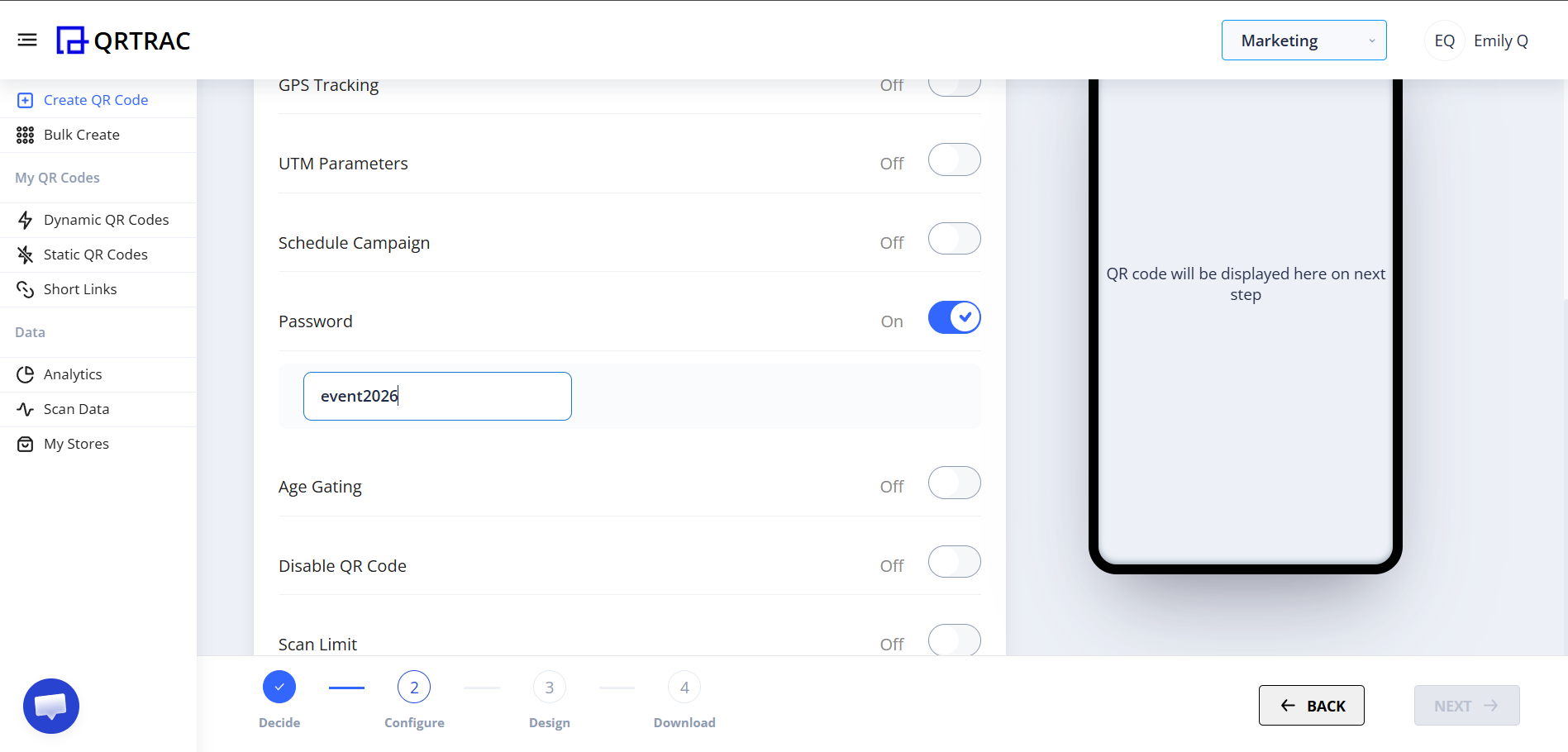
Enter your password in the field — share it only with those who need access
Step 3 — Save Your QR Code
After entering your password, scroll down and click Save (or Update for an existing QR code). Password Protection is now live on your QR code.
What the Scanner Sees
When someone scans your QR code, they are shown a password prompt screen on their device before any content loads. They must type the correct password and tap Proceed to continue.
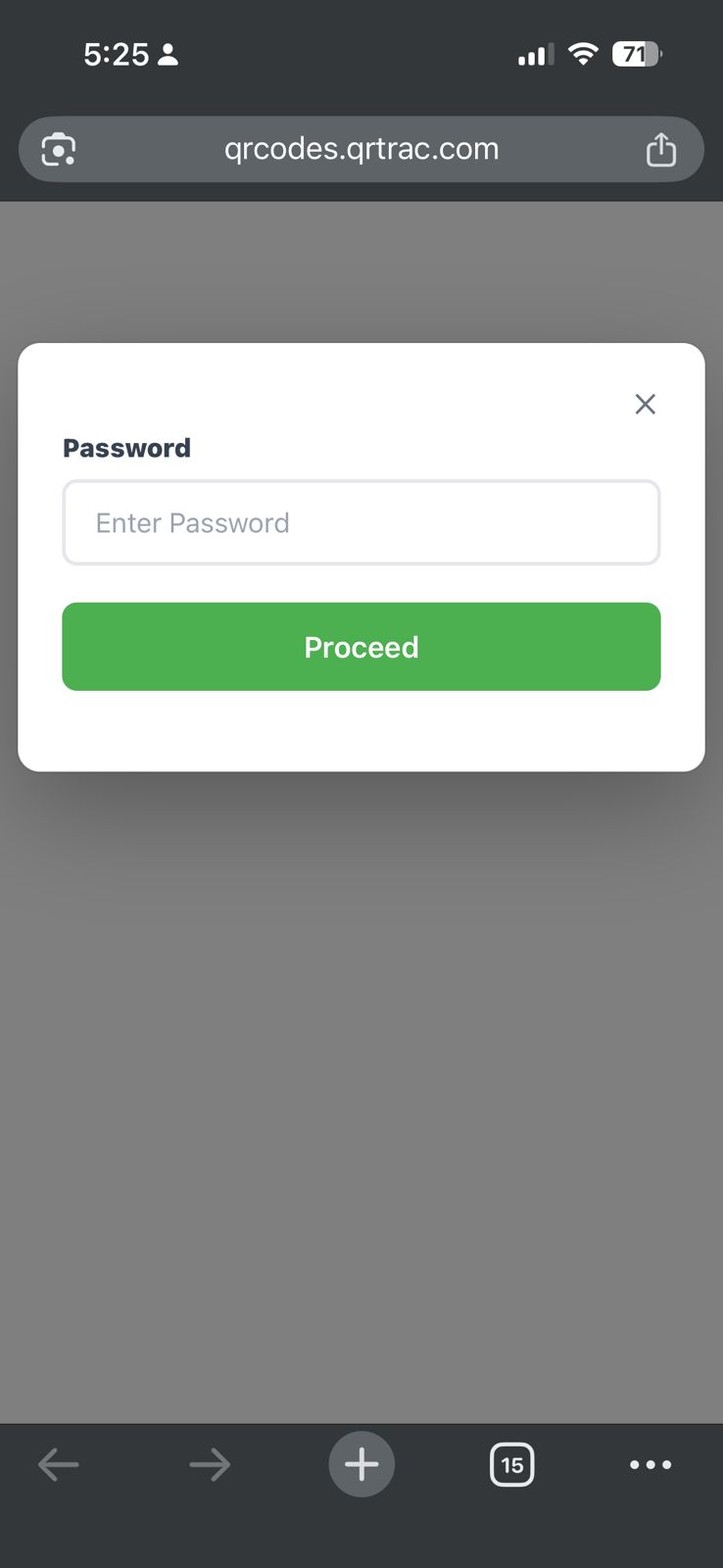
The password prompt screen shown to the scanner before content loads
Once the correct password is entered and Proceed is tapped, the QR code content loads immediately — whether that is a digital business card, a URL, a PDF, or any other QR type.
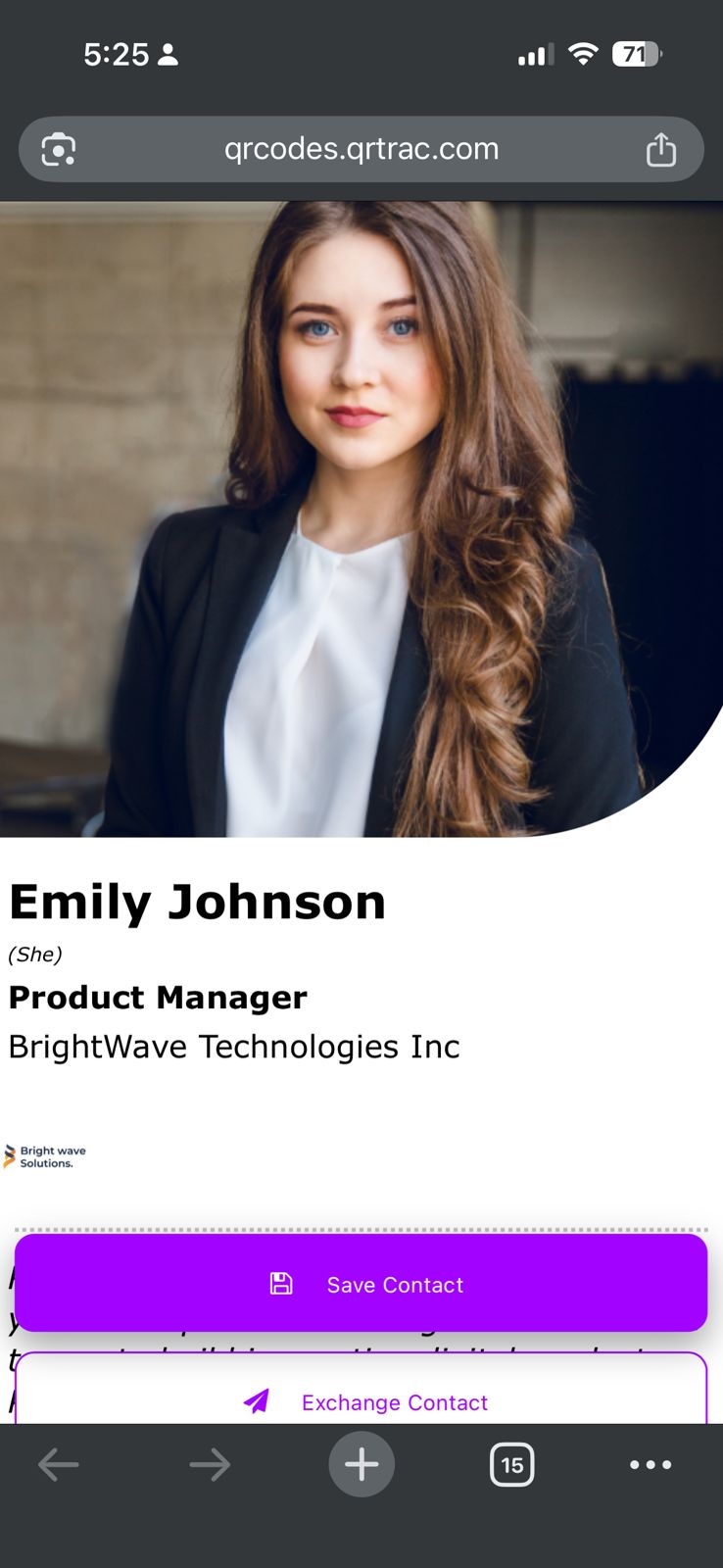
Content loads after the correct password is entered — full access granted
Best use cases for Password Protection
- Private documents — internal company links, confidential reports, or HR resources
- Exclusive offers — VIP discounts or early access promotions shared only with select customers
- Event access — gate event check-in links or digital programmes to attendees only
- Member content — restrict resources to paying members or registered users
Keep a record of your password
QRTRAC does not send password reminders. If you forget the password, you can log into your dashboard and update it at any time — but anyone using the old password will lose access immediately.
Frequently Asked Questions
Q What does the scanner see when Password Protection is enabled?
A When someone scans the QR code, they are shown a password prompt screen with an Enter Password field and a Proceed button. They must enter the correct password to access the content.
Q Can I change the password after the QR code is already printed?
A Yes. QRTRAC uses Dynamic QR codes, so you can update or remove the password at any time from your dashboard without reprinting the QR code.
Q Can I combine Password Protection with other Advanced Settings?
A Yes. Password Protection works alongside GPS Tracking, Scan Limit, Schedule Campaign, and any other Advanced Setting on the same QR code.
Q Is there a limit on what I can use as a password?
A No specific restrictions — you can use letters, numbers, and symbols. Keep it simple enough to share with your intended audience but strong enough to keep others out.
Q What happens if I disable Password Protection later?
A Toggle Password to OFF and save. The QR code will immediately become accessible to anyone without requiring a password.