Managing Teams
Teams let you organise users into groups and control exactly which custom domains each group can use when creating QR codes. Whether you are managing multiple clients, departments, or campaigns, teams keep everything neatly separated with the right permissions in place.
How do I create a team?
- Click Teams in the left sidebar under Account Management.
- Click + Create Team in the top-right corner.
- Enter a Team Name in the popup and click Submit.
- Configure which custom domains are allowed and set a default domain for the team.
Step 1: Open the Teams Page
Click Teams in the left sidebar under the Account Management section. The page shows all existing teams as cards. Each card displays the team name and a custom domain table with three columns:
- Custom domain — the domain name (e.g.
qrcodes.qrtrac.comorqrtrac.link) - Allowed — whether users in this team can use this domain for their QR codes
- Default — the domain that is automatically selected when a team member creates a new QR code
Click the edit icon next to a team name to rename it. Use the ADD CUSTOM button inside a team card to add a new custom domain to that team.
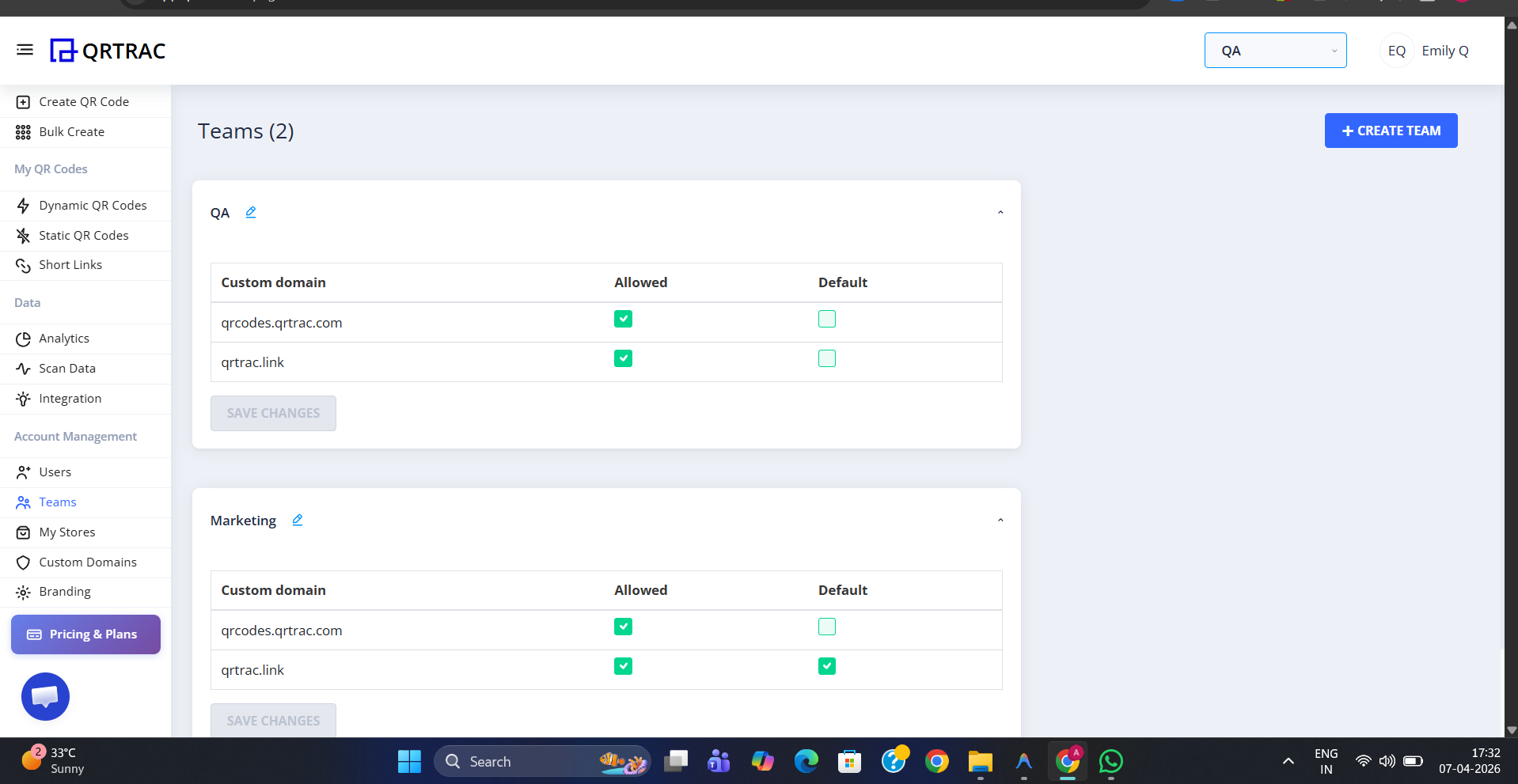
The Teams page — each card shows the team's allowed domains and which is set as default
Tip: Set a different Default domain for each team so that their QR codes automatically use the right branded domain without having to select it each time.
Step 2: Create a New Team
Click + Create Team in the top-right corner. A popup appears with a single Team Name input field. Enter a clear, descriptive name — for example a department name, a client name, or a campaign group. Click Submit to create the team.
The new team card will appear on the Teams page. You can then configure its allowed and default domains, and assign users to it from the Users page.
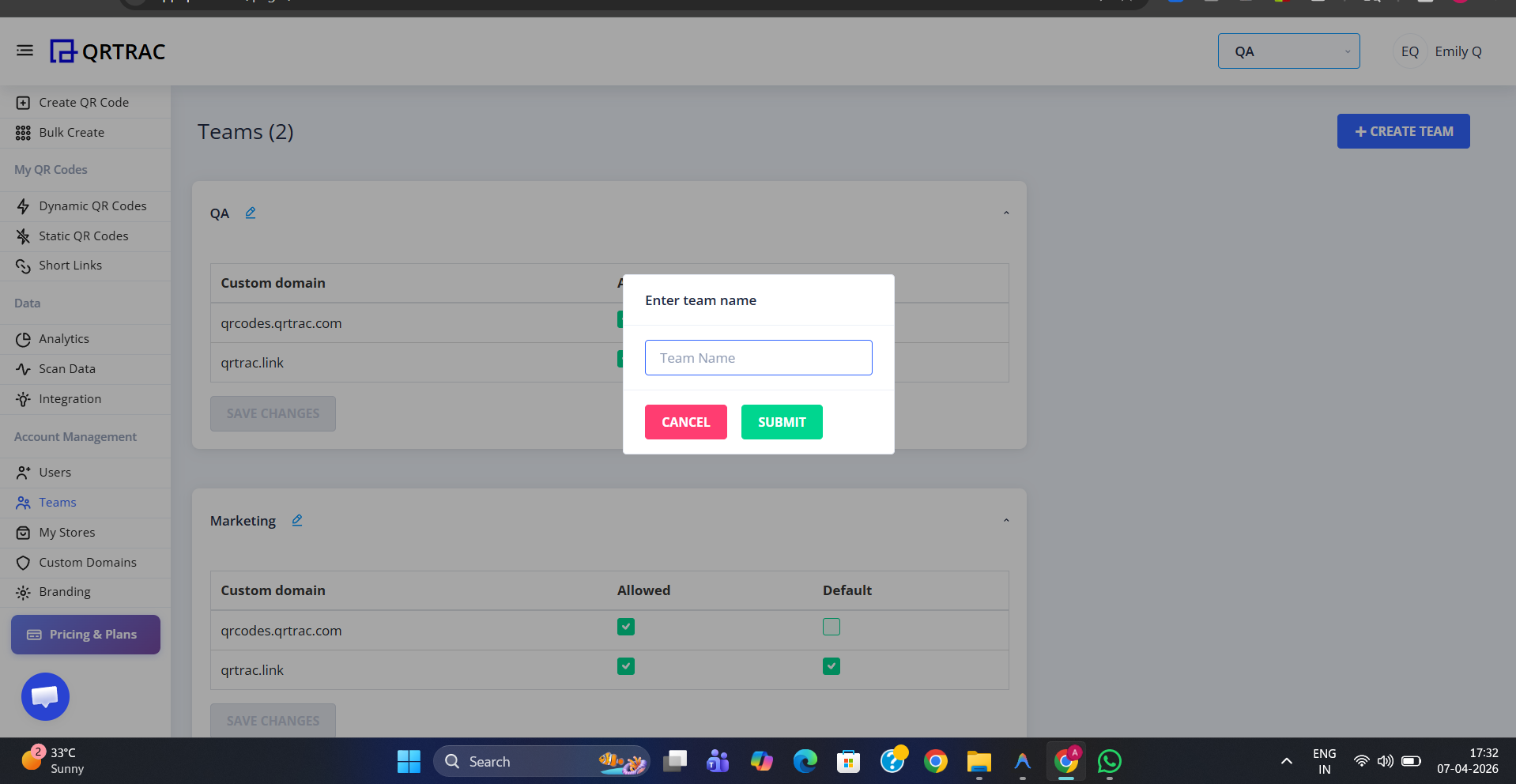
Enter a team name and click Submit — the team is created instantly
Team limits depend on your plan
The number of teams you can create is set by your subscription. Check your current team allowance in Account Settings under the Usage section.