Branding & White Label
The Branding page lets you apply your own company identity to the QRTRAC platform — upload your logo and favicon, set your company name, and configure a custom sub-domain. This is an Enterprise feature that removes all QRTRAC branding and replaces it with yours.
What can I configure in Branding?
- Company Logo — your brand logo displayed across the platform
- Favicon (64x64) — the browser tab icon shown when users access the dashboard
- Company Name — your organisation's name shown in the interface
- Sub Domain — host the dashboard on your own subdomain (e.g.
app.yourbrand.com) - Disable Default Domain — hide the QRTRAC default domain so only your custom domain is used
The Branding White Label Page
Click Branding in the left sidebar under Account Management. The page is divided into two sections — Brand Assets and your company details.
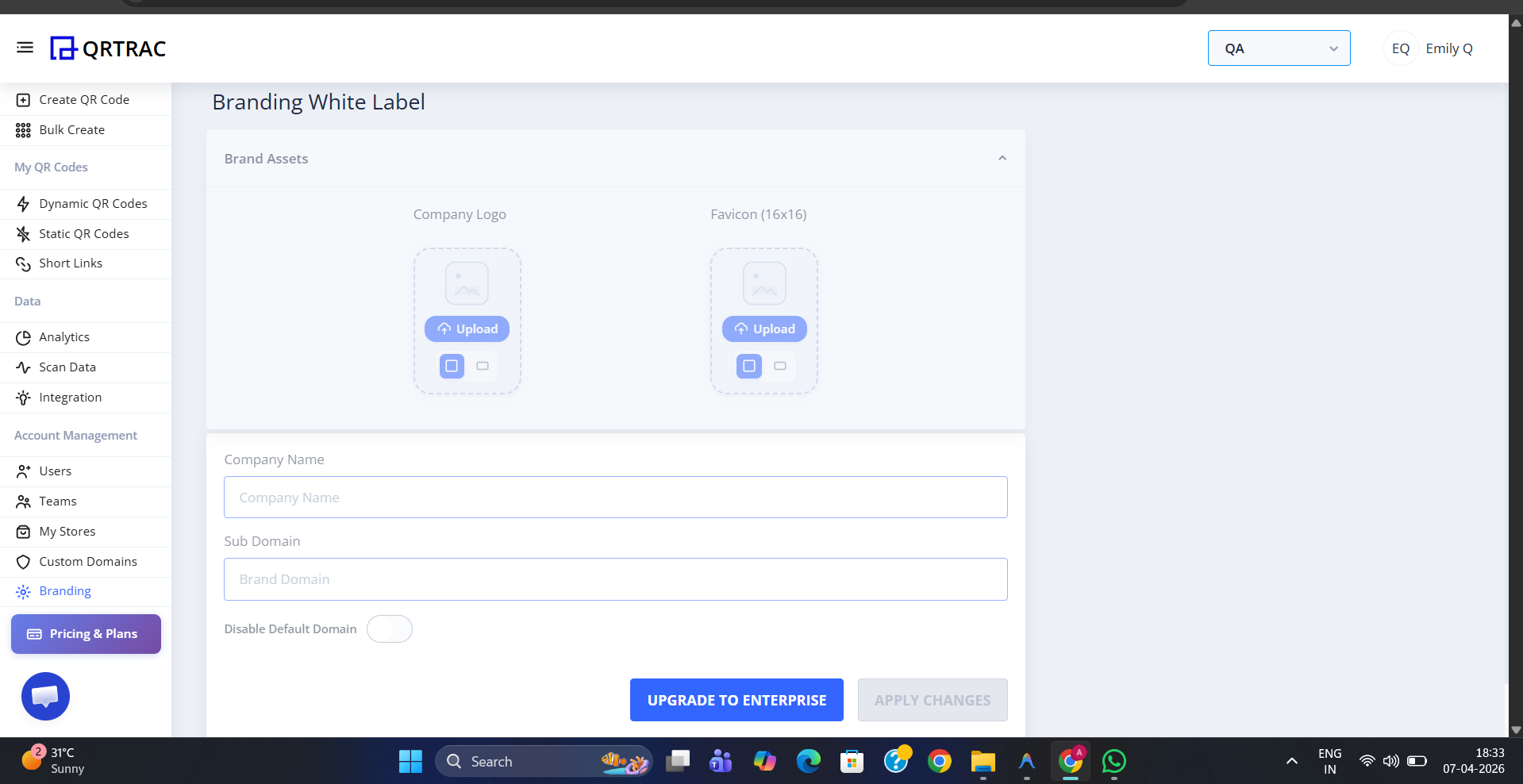
The Branding White Label page — upload assets, set your domain, and click Apply Changes
Brand Assets
The Brand Assets section has two upload areas:
- Company Logo — upload your main brand logo. This appears in the dashboard header and replaces the QRTRAC logo for all users in your organisation.
- Favicon (64x64) — upload a square icon at 64×64 pixels. This appears in the browser tab when users have the dashboard open.
Click the Upload button under each asset to select and upload your file.
Company Name & Sub Domain
Below the Brand Assets section, fill in the two text fields:
- Company Name — enter your organisation's name. This replaces "QRTRAC" wherever it appears in the platform interface.
- Sub Domain — enter a subdomain to host the QRTRAC dashboard under your own domain (e.g. entering
appforyourdomain.comwould make the dashboard accessible atapp.yourdomain.com).
Disable Default Domain
The Disable Default Domain toggle hides the QRTRAC default domain from your organisation entirely. Once enabled, users in your account will only see your configured custom sub-domain — reinforcing a fully white-labelled experience with no QRTRAC branding visible.
Saving Your Changes
Once you have configured your brand assets and details, click Apply Changes to save. Your branding will be applied immediately across the platform for all users in your organisation.
Enterprise plan required
Branding White Label is only available on the Enterprise plan. If you are on a lower plan, click Upgrade to Enterprise on the Branding page to upgrade your subscription. See White Label Setup for a full overview of what is included.