How to Transfer QR Codes in Bulk
Transferring QR codes is necessary when you want to shift ownership between colleagues, clients, or different accounts within your organization. Use the bulk transfer feature to move multiple codes in one go. Follow these steps to learn more.
Step 1: Choose Your QR Codes
Log in to your dashboard and navigate to the list of your QR codes. Use the checkboxes on the left side of each row to select the codes you want to transfer.
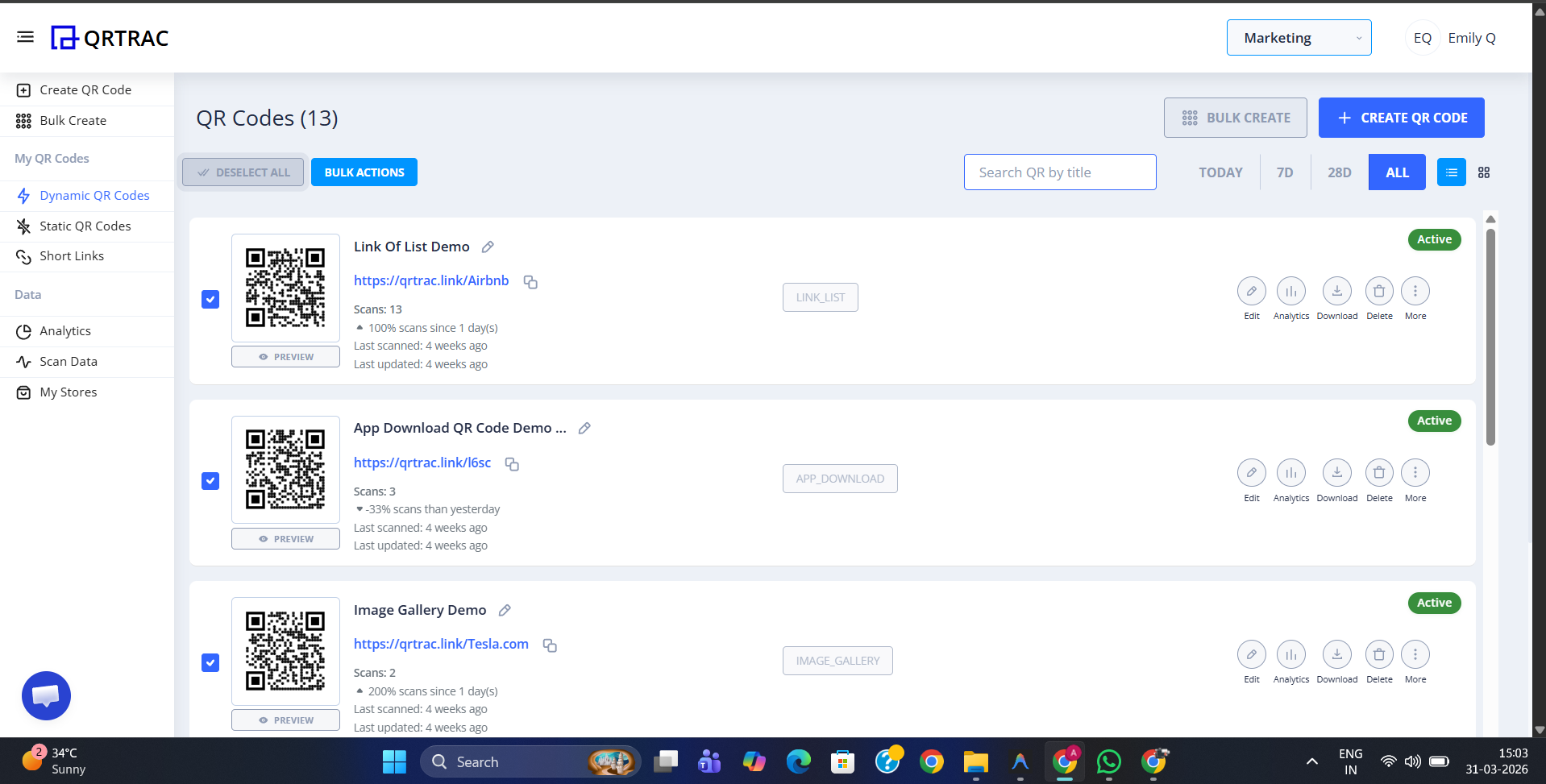
Step 2: Access Transfer Options
Once you've made your selection, the Bulk Actions button at the top becomes active. Click it to reveal the management menu.
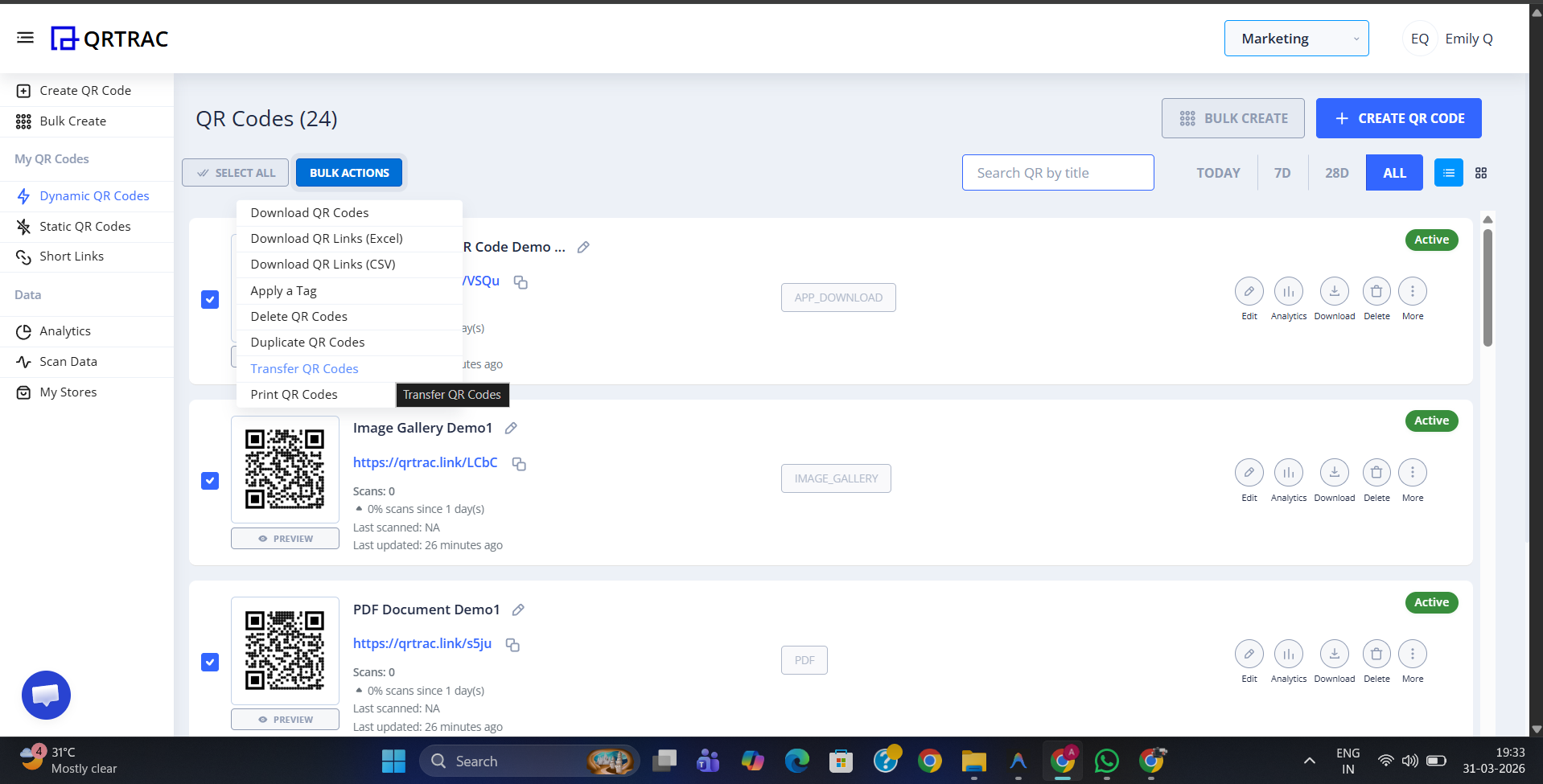
Step 3: Choose "Transfer QR Codes"
From the dropdown menu, select Transfer QR Codes. This will open a dialog box asking for the recipient's details.

Step 4: Enter Recipient Email and Confirm
Enter the email address of the account or team member you wish to transfer the QR codes to. Double-check for accuracy before clicking Confirm Transfer. Note that transferring ownership can be a permanent action, so handle with care.
Transfer Warning
Transferring QR codes moves all tracking data and settings to the new owner. Once the transfer is accepted, you will no longer have access to these codes from your account.
Common Questions
Do the transfer recipients need an account?
Yes, the recipient must have an active QRTRAC account under the email address you provide to receive and manage the transferred codes.
What happens if I make a mistake while transferring?
If the transfer hasn't been accepted yet, you can reach out to our support team for assistance. However, once a transfer is finalized, only the new owner can set things back.