How to Apply Schedule Campaign to QR Code
Schedule Campaign lets you control exactly when your QR code is active. Set a start date and end date — the QR code will automatically activate on time and stop working once the campaign is over, with no manual action required.
What does Schedule Campaign do?
- Start Date — the QR code becomes active and scannable from this date
- End Date — the QR code automatically stops working after this date
- Fully automatic — no manual intervention needed to activate or deactivate
- Editable anytime — extend, shorten, or remove the schedule from your dashboard without reprinting
Step 1 — Enable Schedule Campaign in Advanced Settings
Login to your QRTRAC dashboard. Open an existing QR code or click Create QR Code. Choose your QR type, go to the Configure tab, and scroll down to Advanced Settings. Toggle Schedule Campaign to ON.
Two date picker fields will appear — one for the Start Date and one for the End Date.
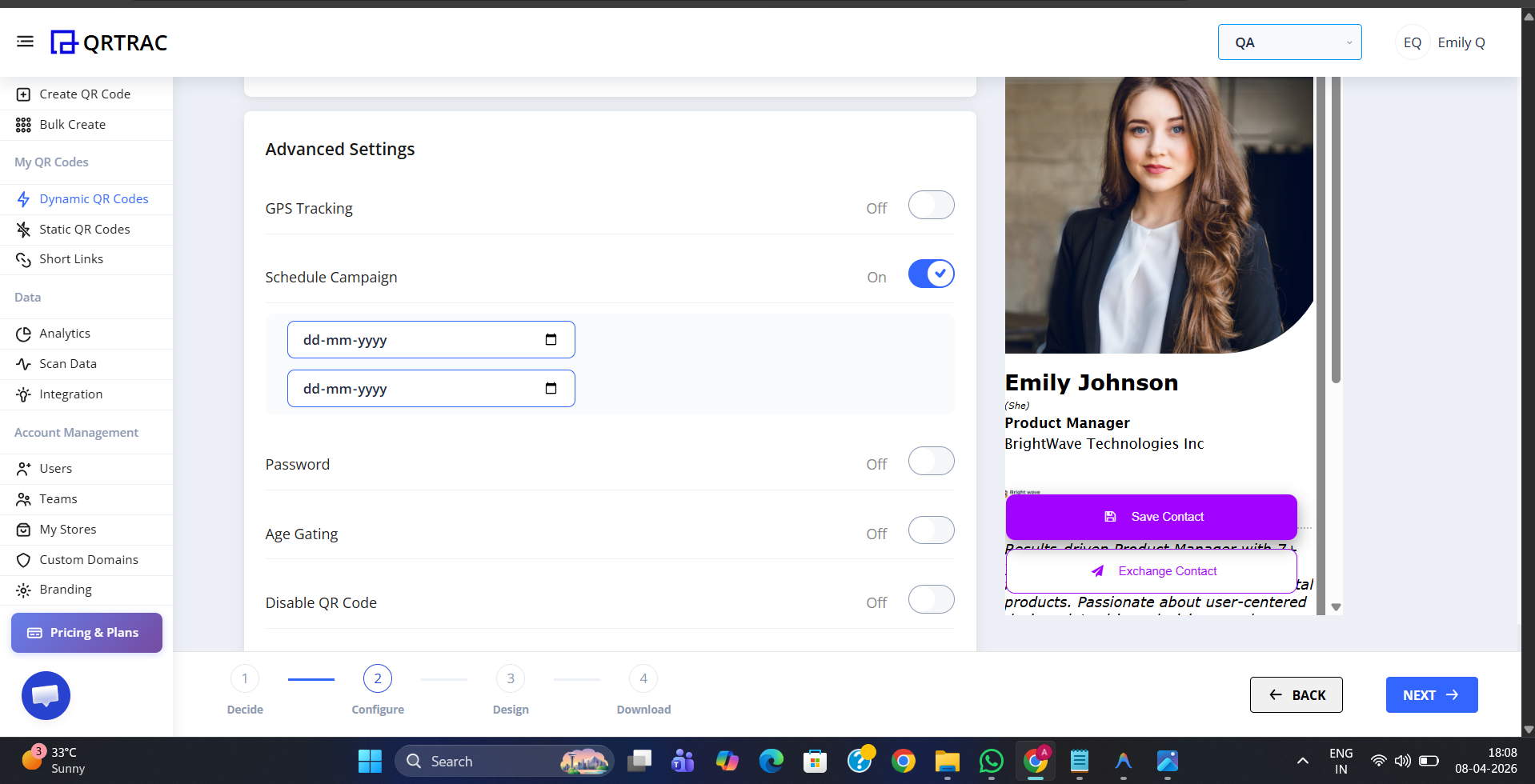
Schedule Campaign toggle ON — Start Date and End Date fields appear below
Step 2 — Set the Start Date and End Date
Click each date field and select your campaign dates:
- Start Date — the date from which the QR code will become active and scannable
- End Date — the date after which the QR code will automatically stop working
Dates are entered in dd-mm-yyyy format. Make sure the End Date is after the Start Date.
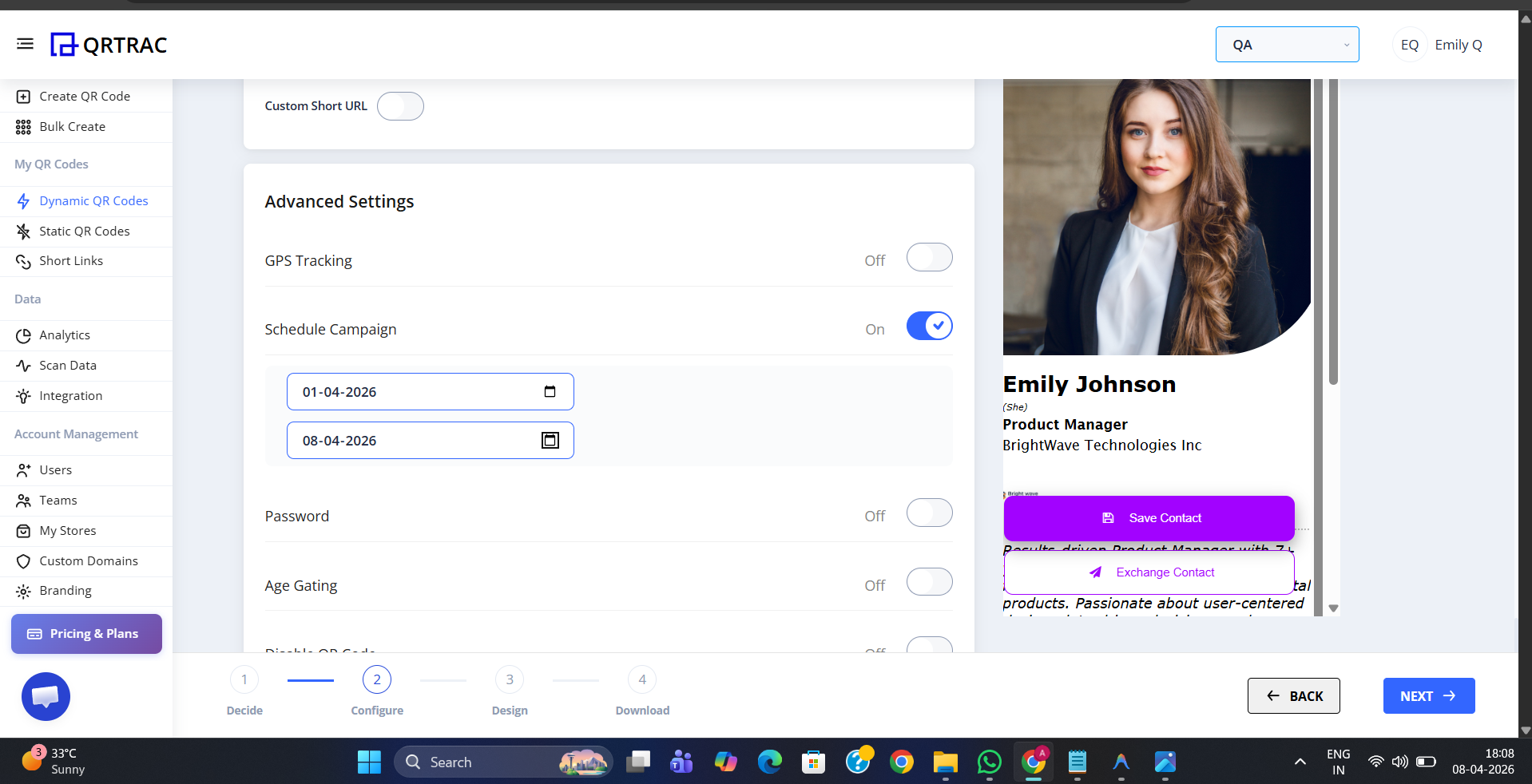
Start Date and End Date filled in — the QR code will only be active between these two dates
Step 3 — Save Your QR Code
After setting both dates, scroll down and click Save (or Update for an existing QR code). The schedule is now live — the QR code will activate and deactivate automatically on the dates you set.
What the Scanner Sees
During the active campaign period — when someone scans the QR code between the Start Date and End Date, the content loads normally with no interruption.
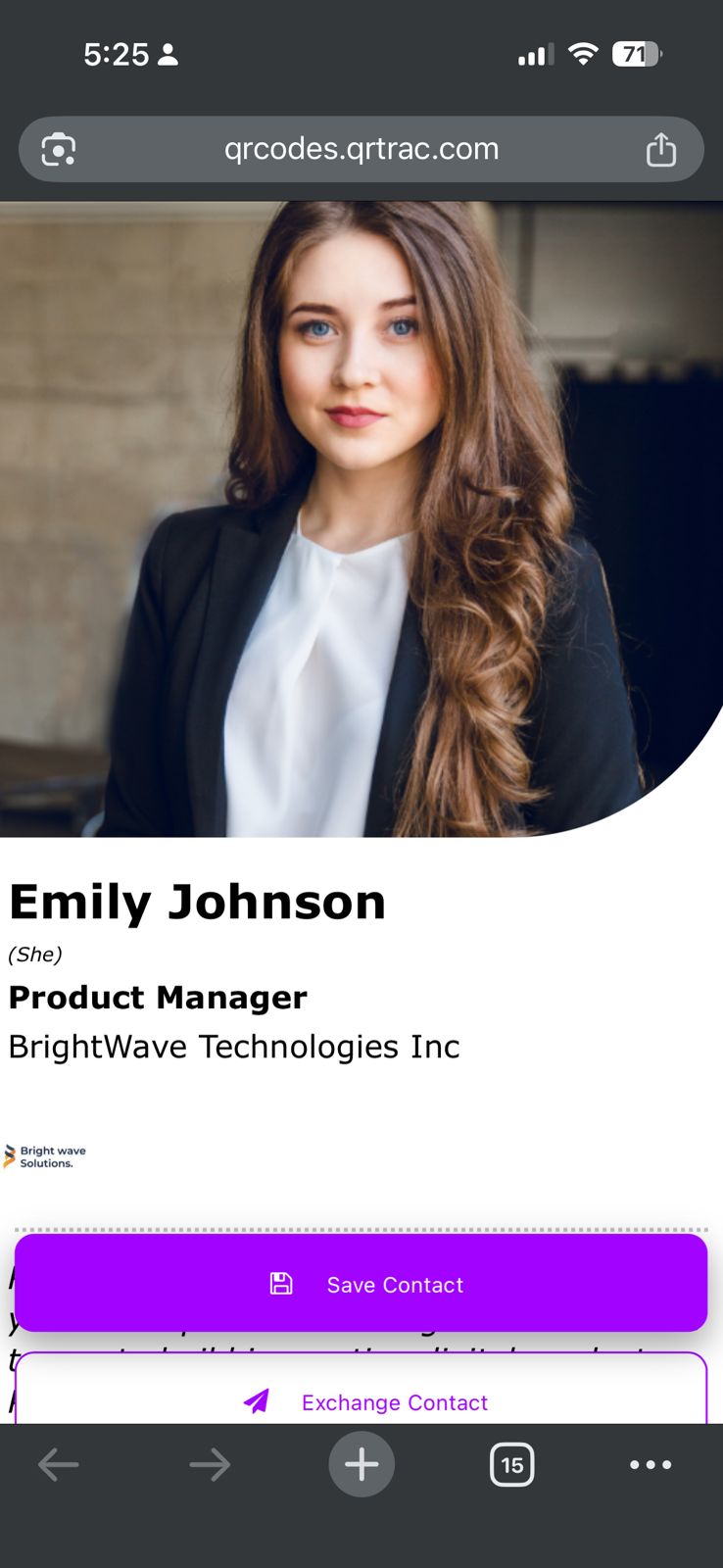
Content loads normally while the campaign is active
After the End Date — once the campaign period has passed, anyone who scans the QR code will see a deactivated message instead of the content.
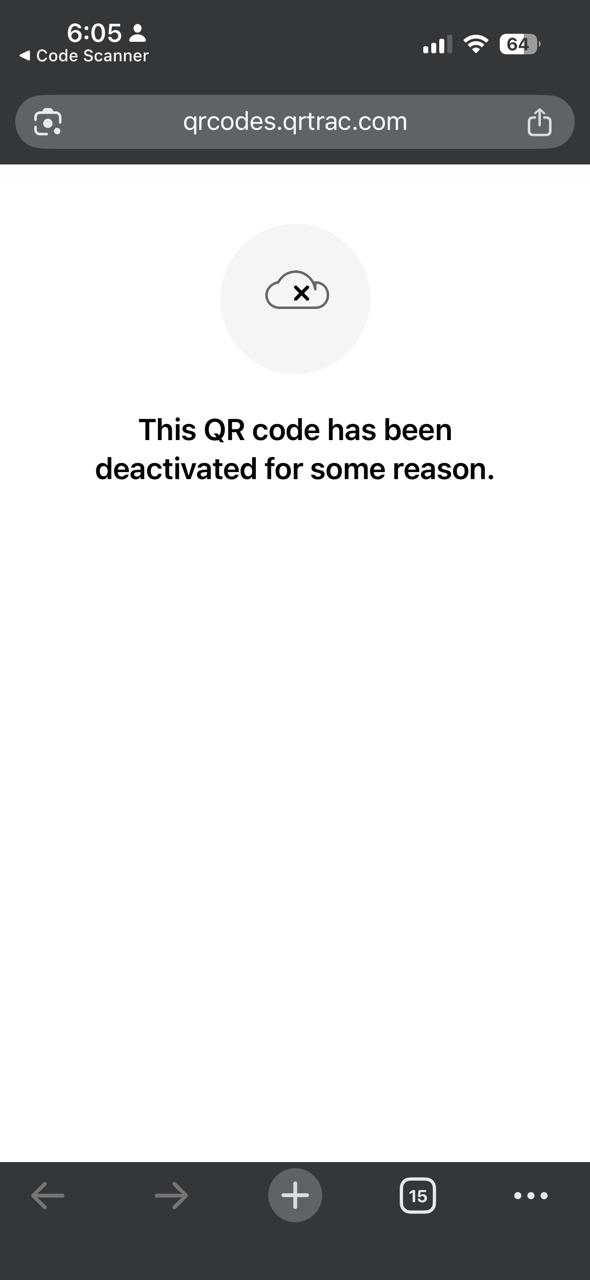
After the End Date — scanners see a deactivated message, content is no longer accessible
Best use cases for Schedule Campaign
- Limited-time offers — flash sales, seasonal discounts, or holiday promotions with a hard end date
- Event registrations — open registration from a specific date and close it automatically
- Festival campaigns — QR codes on printed materials that should only work during the event window
- Product launches — activate a QR code on launch day without any manual action
- Time-sensitive content — menus, schedules, or offers that change after a set date
Double-check your dates before saving
Setting the wrong start or end date is one of the most common mistakes with Schedule Campaign. Always verify both dates before saving — especially if your QR code is already printed and live in the field.
Frequently Asked Questions
Q What does the scanner see after the End Date?
A After the campaign ends, scanners see a message saying "This QR code has been deactivated for some reason." The content is no longer accessible.
Q Can I extend the campaign after it has already ended?
A Yes. You can update the End Date at any time from your dashboard to extend the campaign. The QR code will become active again as soon as you save the new date.
Q What happens if I only set a Start Date and no End Date?
A Both fields are shown when Schedule Campaign is enabled. Set both dates to ensure the campaign activates and deactivates correctly. Leaving the End Date empty may result in unexpected behaviour.
Q Can I combine Schedule Campaign with other Advanced Settings?
A Yes. Schedule Campaign works alongside GPS Tracking, Password Protection, Age Gating, Scan Limit, and any other Advanced Setting on the same QR code.
Q Can I change the dates after the QR code is already printed?
A Yes. QRTRAC uses Dynamic QR codes, so you can update the start and end dates at any time from your dashboard without reprinting the QR code.