How to Delete QR Codes in Bulk
Is your dashboard cluttered with outdated or temporary marketing campaigns? Use the bulk deletion tool to quickly remove multiple QR codes at once. This action keeps your workspace organized and ensures you only see the codes that are currently relevant to your business. Follow these steps to learn how.
Step 1: Select Your QR Codes
Log in to your dashboard and navigate to the list of your QR codes. Use the checkboxes on the left side of each row to select the codes you want to permanently remove.
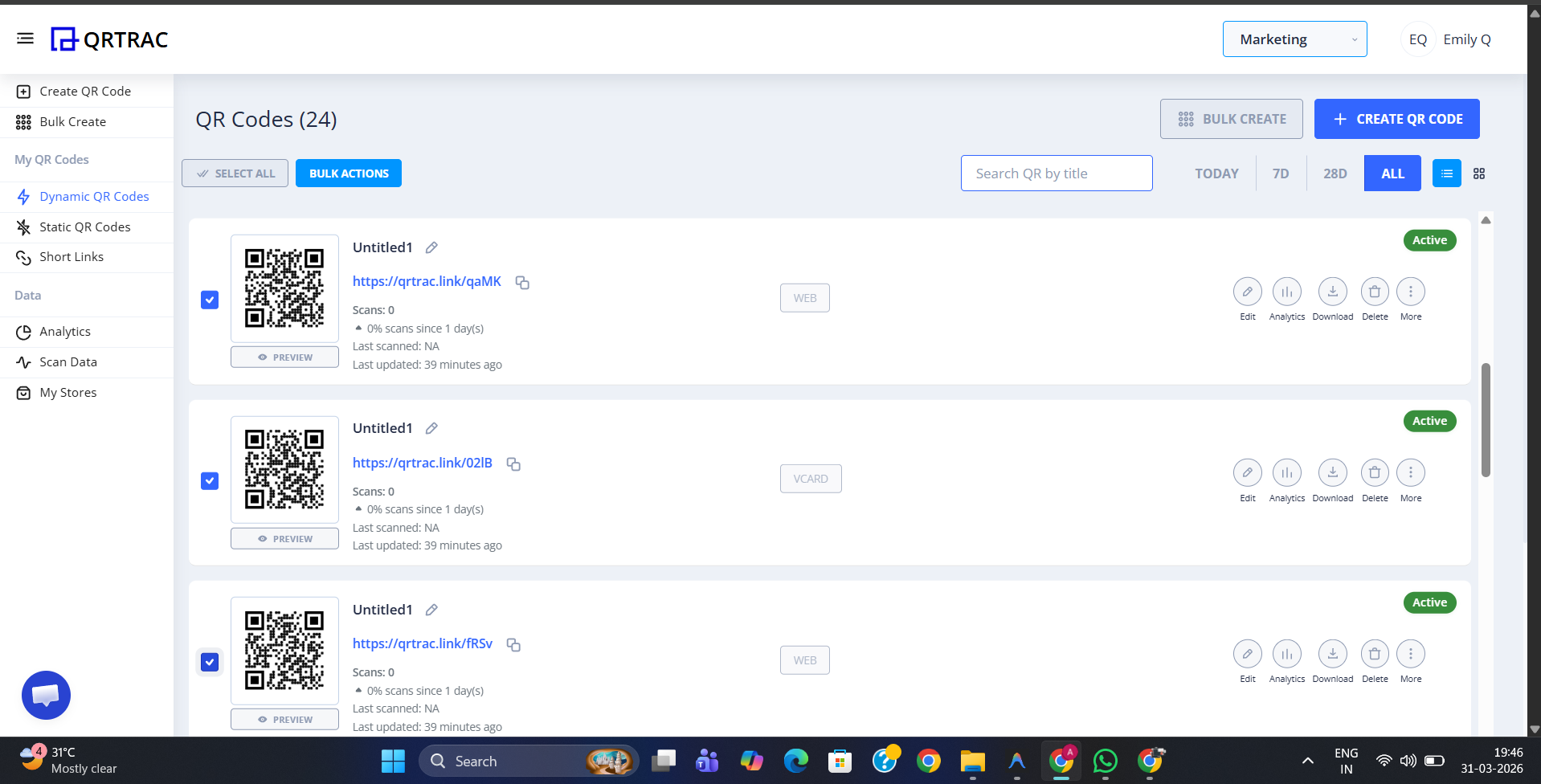
Step 2: Access Deletion
Once selected, the Bulk Actions button will appear at the top. Click it to open the management dropdown.
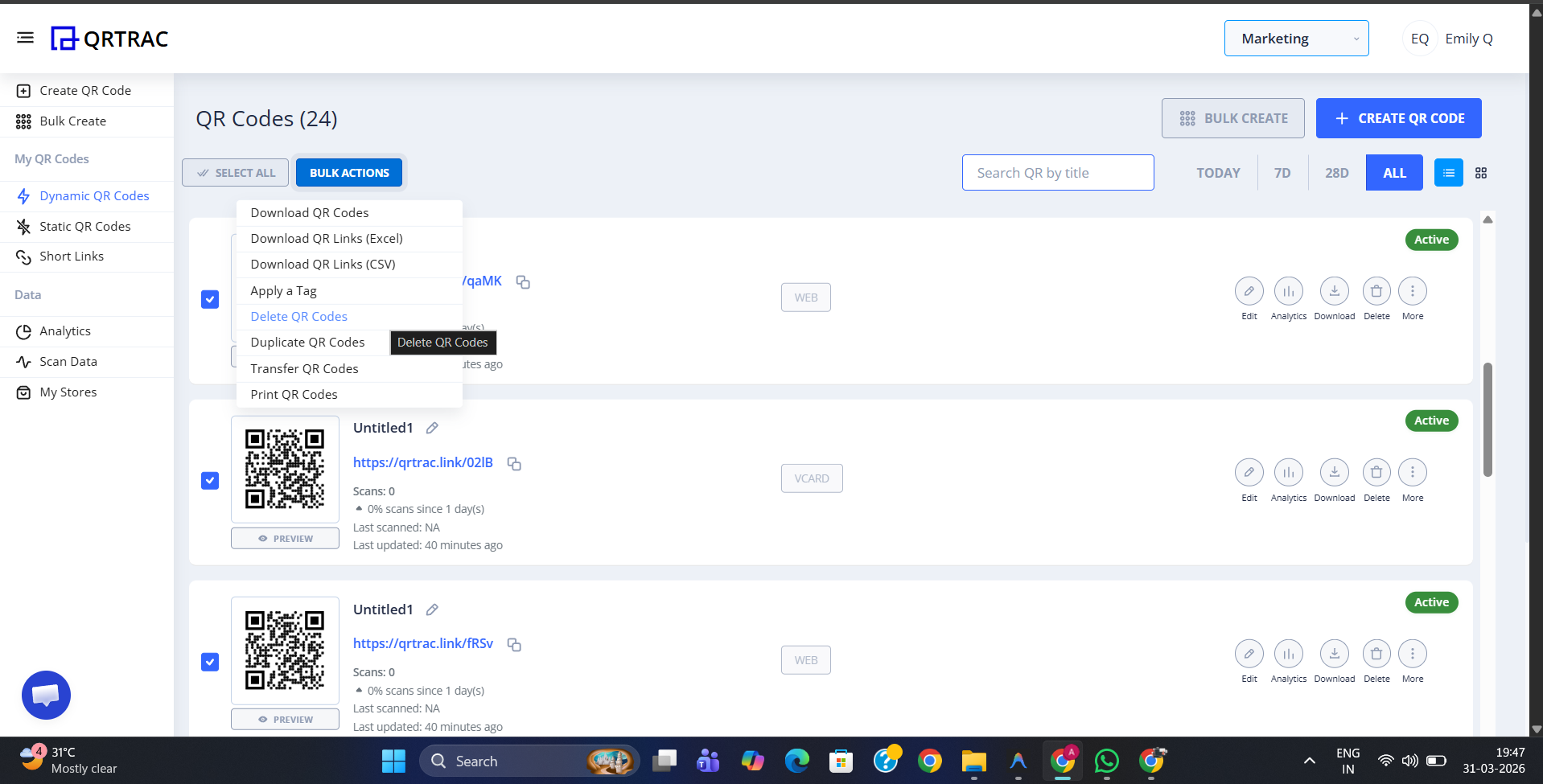
Step 3: Choose "Delete QR Codes"
From the dropdown options, select Delete QR Codes. This will trigger a critical confirmation window.
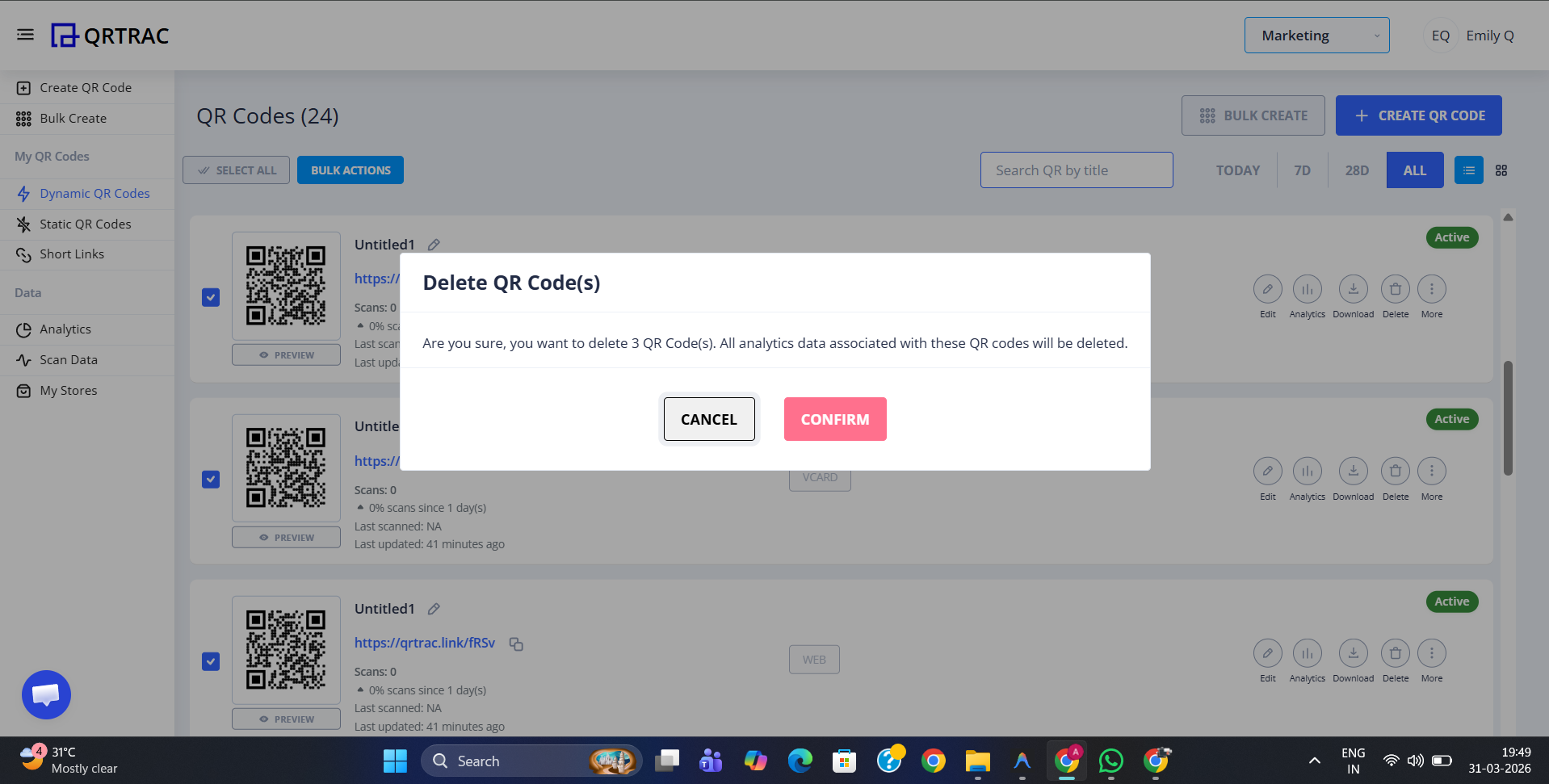
Step 4: Finalize and Clean Up
Review your selection one last time and click Confirm Delete. Your selected QR codes and their tracking history will be removed from your dashboard. Note that this action is permanent and cannot be undone.
Warning: Irreversible Action
Deleting a QR code is permanent. It will immediately stop working if scanned, and all associated analytics data will be lost. If you only want to stop a QR code temporarily, consider pausing or disabling the redirect instead.
Common Questions
Is there a way to restore deleted QR codes?
No, deletion is permanent. If you delete a QR code by mistake, you will have to create a new one, but it will have a different short link and no prior analytics.
What happens to the scanned QR code after it's deleted?
When a user scans a deleted QR code, they will see a 'Page Not Found' error or a generic expired link message from QRTRAC.