How to Download QR Links in Excel (Bulk)
Generating a report of all your active campaigns is essential for marketing audits and internal organization. QRTRAC allows you to export all the metadata for your selected QR codes into a single, clean Microsoft Excel spreadsheet.
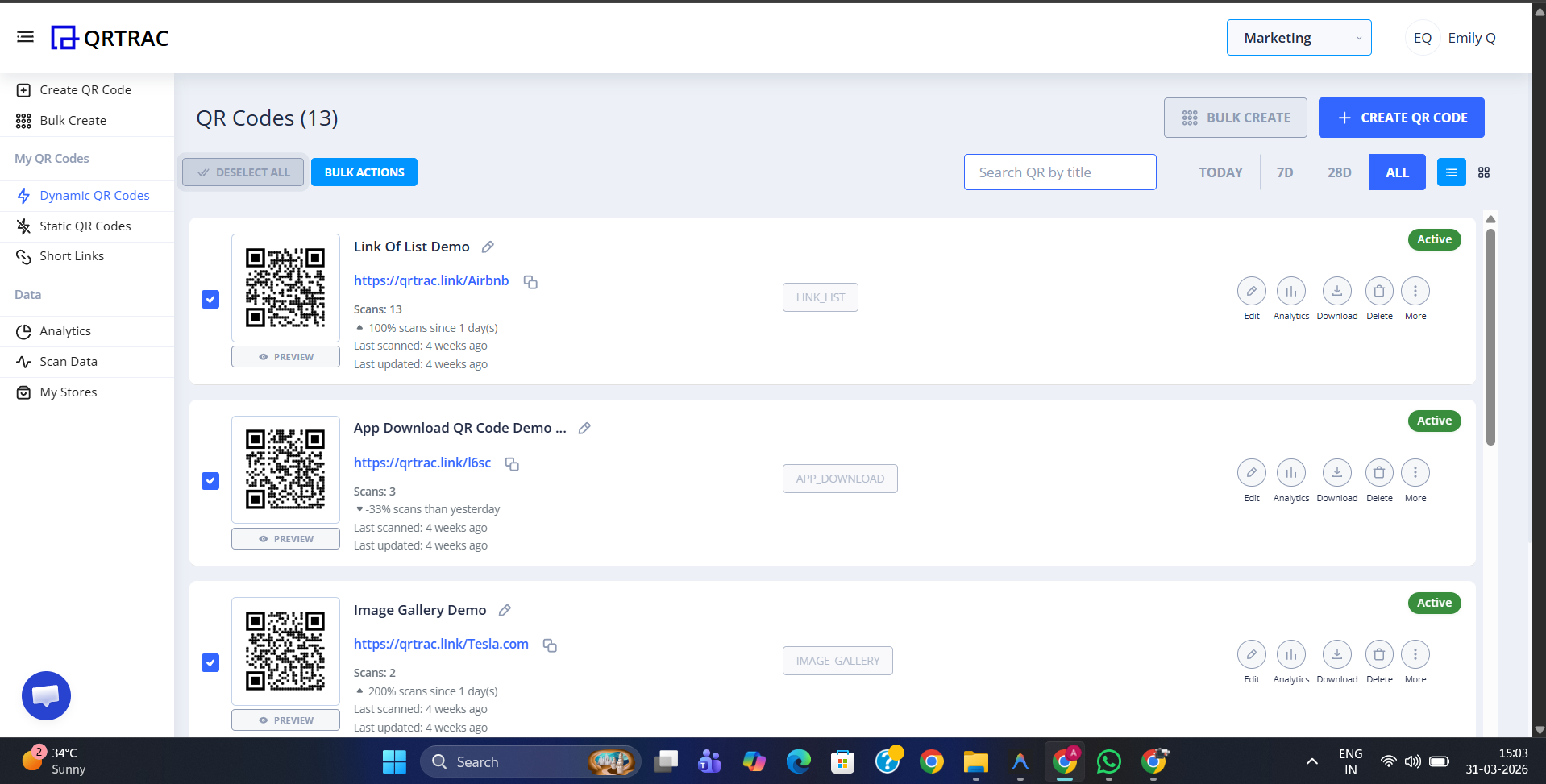
Step 1: Select Your QR Codes
Open your dashboard and go to your list of QR codes. Use the checkboxes on the left to select every code you want to include in your Excel report. You can select an entire page at once using the header checkbox.
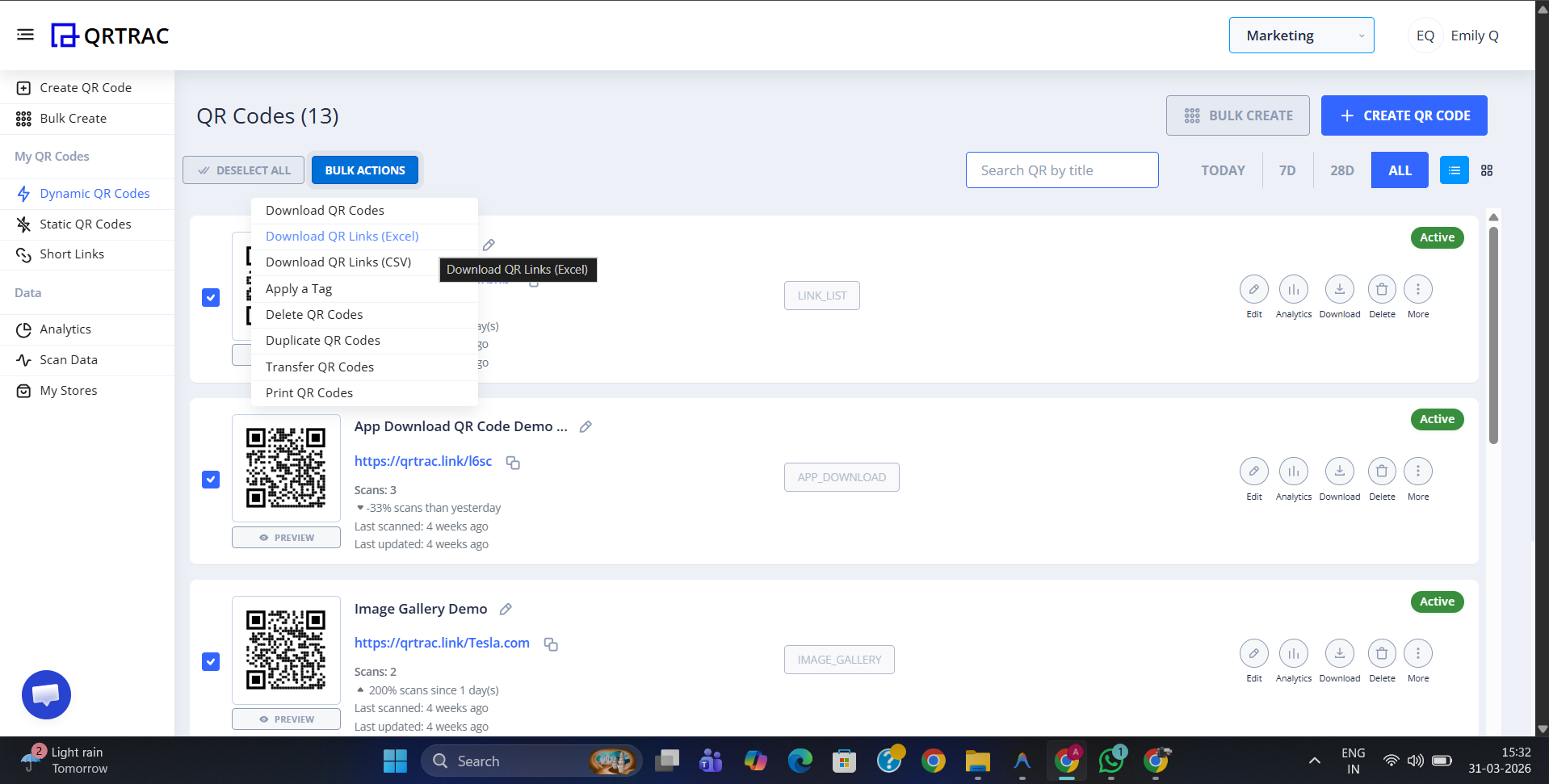
Step 2: Choose "Download QR Links (Excel)"
Once you have made your selection, click on the Bulk Actions button at the top of the table. From the dropdown menu, select Download QR Links (Excel).
Step 3: Save Your File
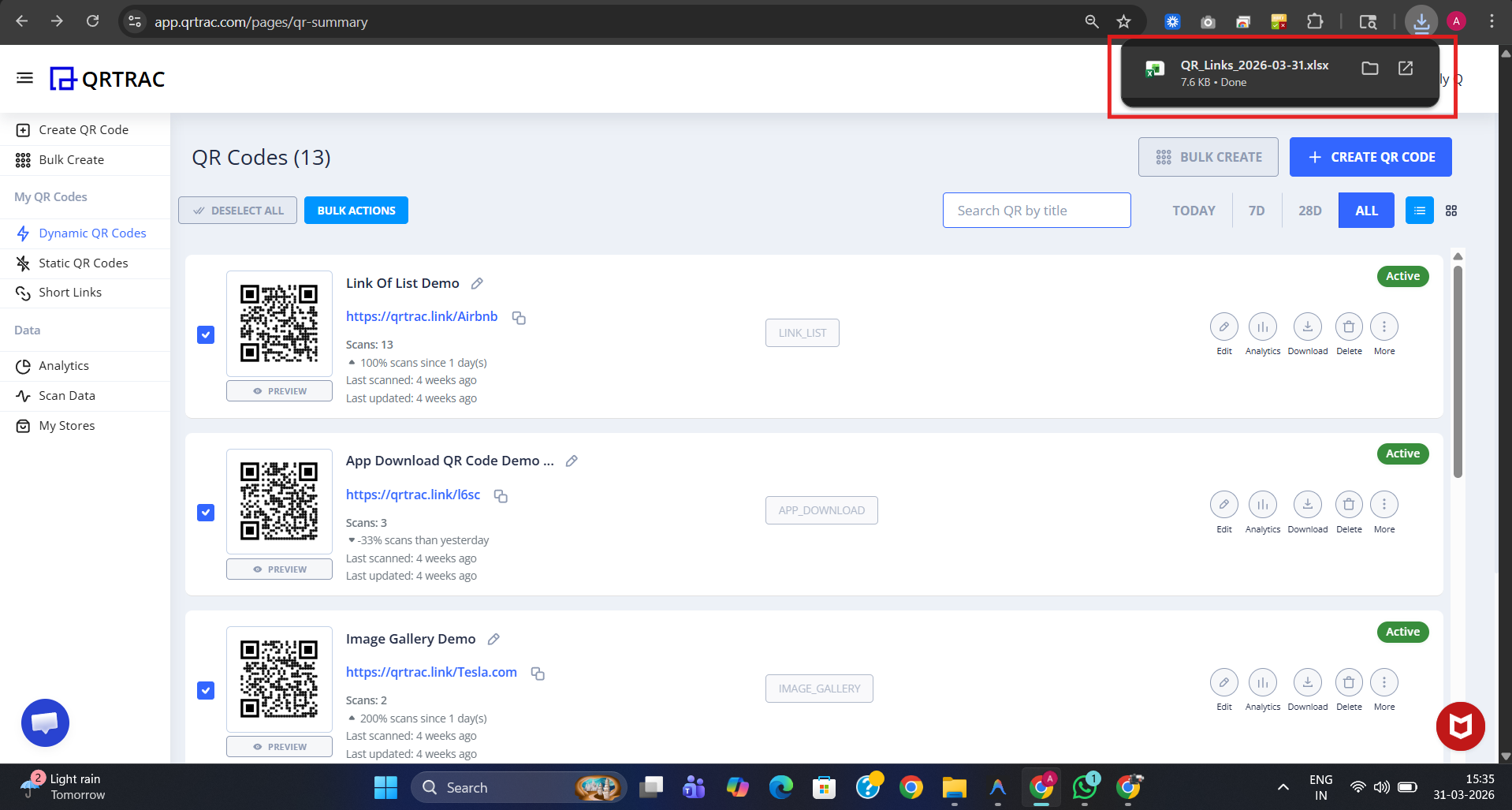
The system will instantly generate your spreadsheet. A save dialog will appear on your screen; choose your preferred folder and click Save to download the .xlsx file.
Step 4: Review Your Report
Open the downloaded Excel file in Microsoft Excel, Google Sheets, or any compatible tool. You will see a structured list with comprehensive information for each QR code including:
| Column Name | Description |
|---|---|
| ID | The unique internal identifier for the QR code. |
| QR Type | The category (e.g., WebView, PDF, app_download, Image_Gallery). |
| Title | The name you assigned to your QR code. |
| QR URL | The short traceable link associated with the codes. |
| Redirect URL | The final destination where the user is sent. |
| QR Image URL | A direct link to the QR code image asset. |
| Created At | Date and time when the QR code was first generated. |
| Updated At | Last time any changes were made to the code. |
Audit Tip
Use Excel's Filter function to quickly see all 'Expired' or 'Paused' links, or to group your QR codes by their 'QR Type' for better campaign management.