How to Apply GPS Tracking on QR Code
GPS Tracking lets you capture the physical location where each QR code scan happens. Once enabled, every scan records the device's location — giving you City, State, Country, Postcode, Latitude, and Longitude data inside your analytics.
What does GPS Tracking capture?
- City, State, Country, Postcode — shown in the Scan Data table inside your dashboard
- Latitude & Longitude — precise coordinates available in the Excel / CSV export
- Per QR code control — toggle GPS Tracking on or off independently for each QR code
- Device browser permission — the scanner must allow location access for coordinates to be recorded
Step 1 — Open Advanced Settings & Enable GPS Tracking
Login to your QRTRAC dashboard. Open an existing QR code or click Create QR Code. Choose your QR type, go to the Configure tab, and scroll down to Advanced Settings. Toggle GPS Tracking to ON.
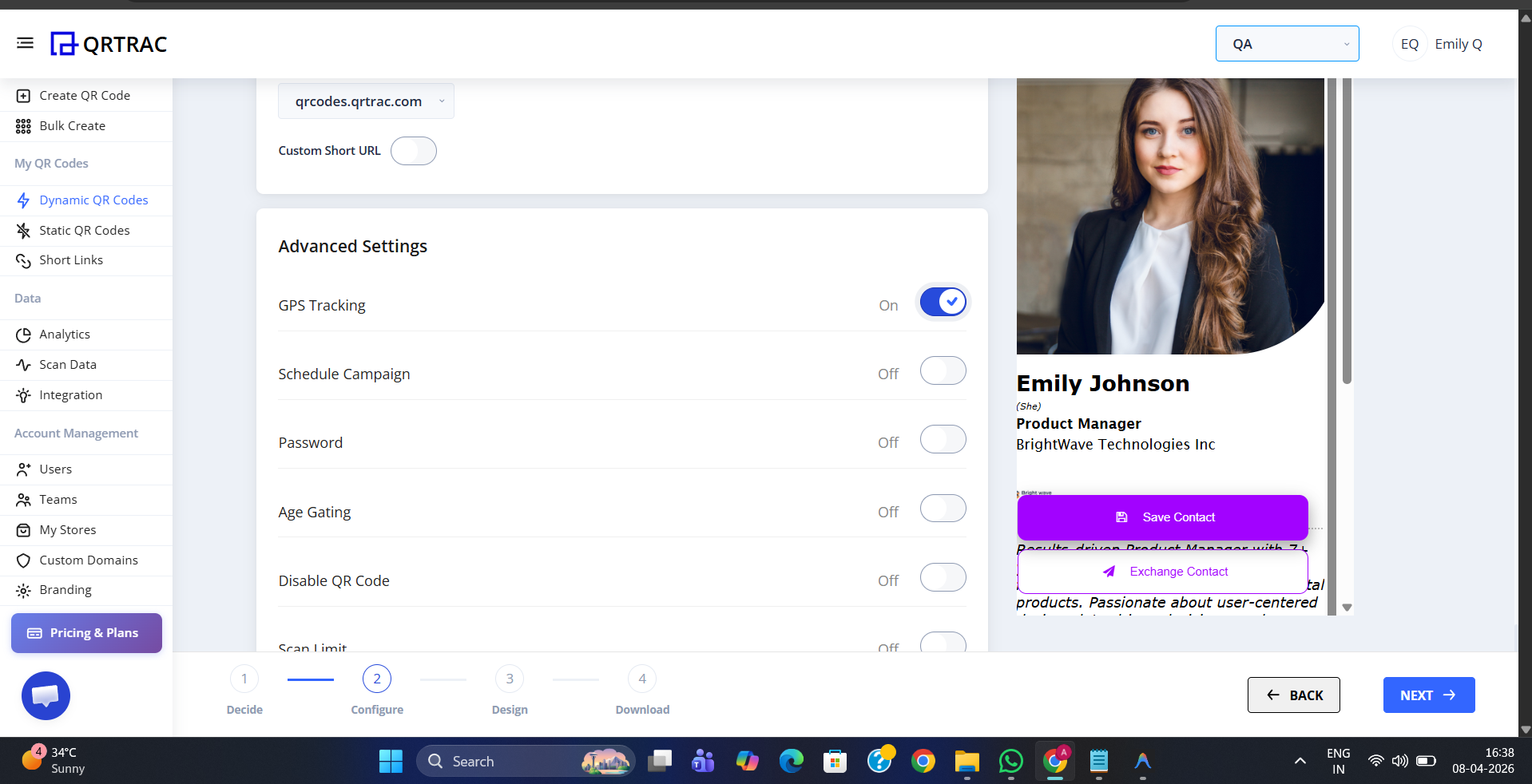
GPS Tracking toggled ON inside Advanced Settings — no extra fields required
That is all you need to do in the configuration panel. No additional fields are required — the toggle is the only control for GPS Tracking. Scroll down and click Save (or Update for an existing QR code) to make it live.
Step 2 — View Scan Location in Scan Data
After scans start coming in, go to Analytics → Scan Data in the left sidebar. You will see a table of every scan with the following location columns automatically populated:
- City — city where the scan occurred
- State — state or province
- Country — country of the scan
- Postcode — postal or ZIP code
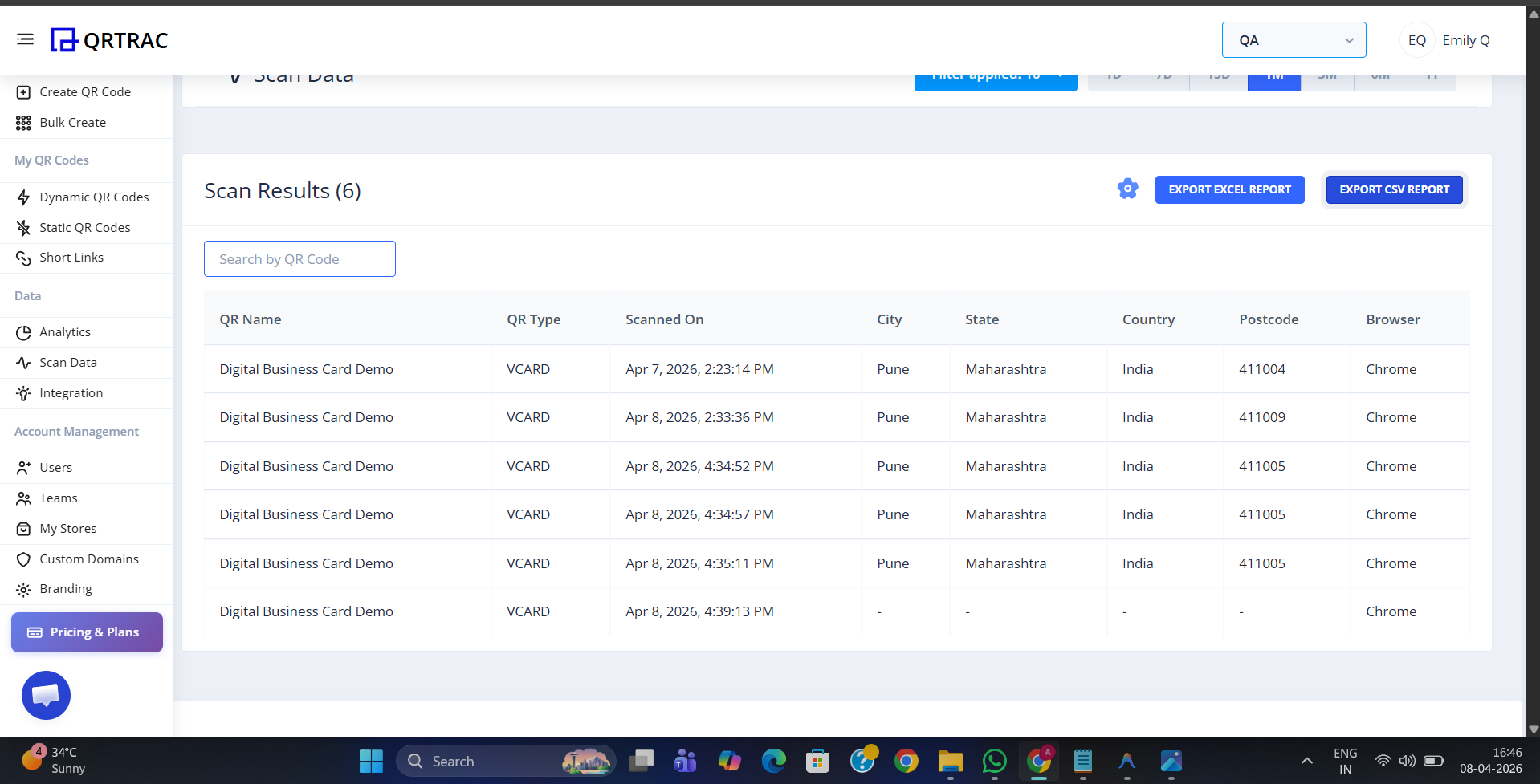
Scan Data view — each row shows the scan's location broken down by City, State, Country, and Postcode
Step 3 — Export Full GPS Data (Latitude & Longitude)
For precise GPS coordinates, use the Export Excel Report or Export CSV Report button at the top of the Scan Data page. The downloaded file includes additional columns not shown in the dashboard table:
- Latitude — GPS latitude of the scan location
- Longitude — GPS longitude of the scan location
- Device, Browser, iOS — device and browser details alongside location
- Ticker ID — internal scan reference ID
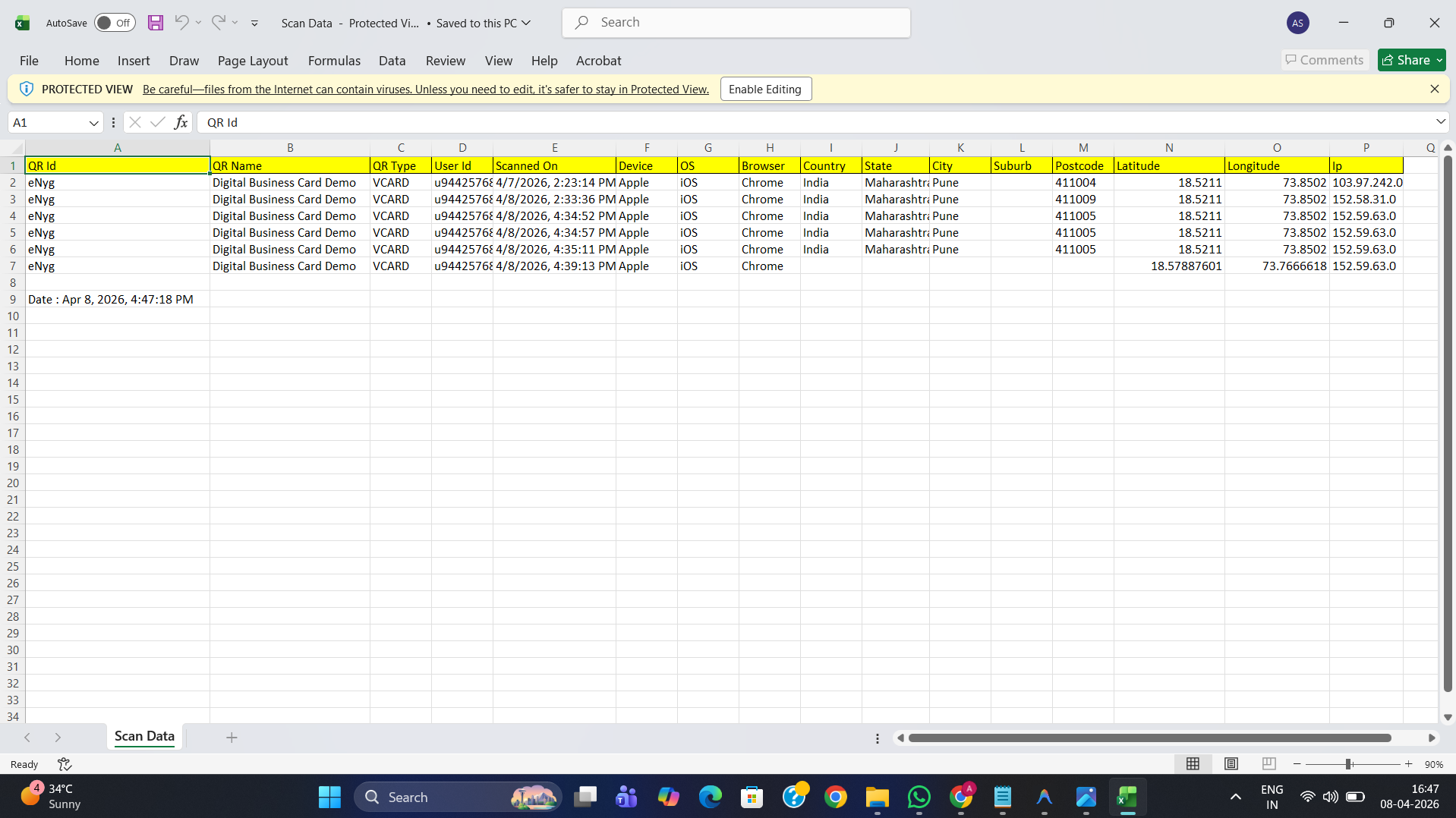
Excel export — includes Latitude and Longitude columns for precise GPS coordinates per scan
Best use cases for GPS Tracking
- Offline campaigns — know exactly which city, street, or venue drives the most scans
- Event tracking — confirm attendance or engagement at physical events
- Store performance — compare scan volume across multiple retail locations
- Outdoor advertising — measure which billboard or poster location performs best
Location permission is required
Precise GPS coordinates depend on the scanner's device and whether they grant location access to their browser. Users who deny permission will not have Latitude/Longitude recorded — their scan is still counted, but location columns will appear empty in the export.
Frequently Asked Questions
Q Where do I see City and Country data after scans?
A Go to Analytics → Scan Data. The table shows City, State, Country, and Postcode for every scan where location was captured.
Q Where do I get Latitude and Longitude coordinates?
A Click Export Excel Report or Export CSV Report from the Scan Data page. The downloaded file includes Latitude and Longitude columns for every scan.
Q Will GPS Tracking always give a precise location?
A Not always. Precision depends on the scanner's device and whether they grant location permission in their browser. Users who deny permission will not have GPS coordinates recorded, though the scan itself is still counted.
Q Can I enable GPS Tracking after the QR code is already printed?
A Yes. QRTRAC uses Dynamic QR codes, so you can turn GPS Tracking on or off at any time from your dashboard without reprinting the QR code.
Q Can I combine GPS Tracking with other Advanced Settings?
A Yes. GPS Tracking works alongside any other Advanced Setting — for example, GPS Tracking + Password Protection + Scan Limit can all be active on the same QR code at once.