How to Duplicate QR Codes in Bulk
Need to create similar QR codes quickly? Instead of starting from scratch, you can duplicate existing ones to reuse designs, settings, and structures. Follow this guide to see how to use the bulk duplication tool in QRTRAC.
Step 1: Select Your QR Codes
Log in to your dashboard and navigate to the list of your QR codes. Use the checkboxes on the left side of each row to select the codes you want to duplicate.
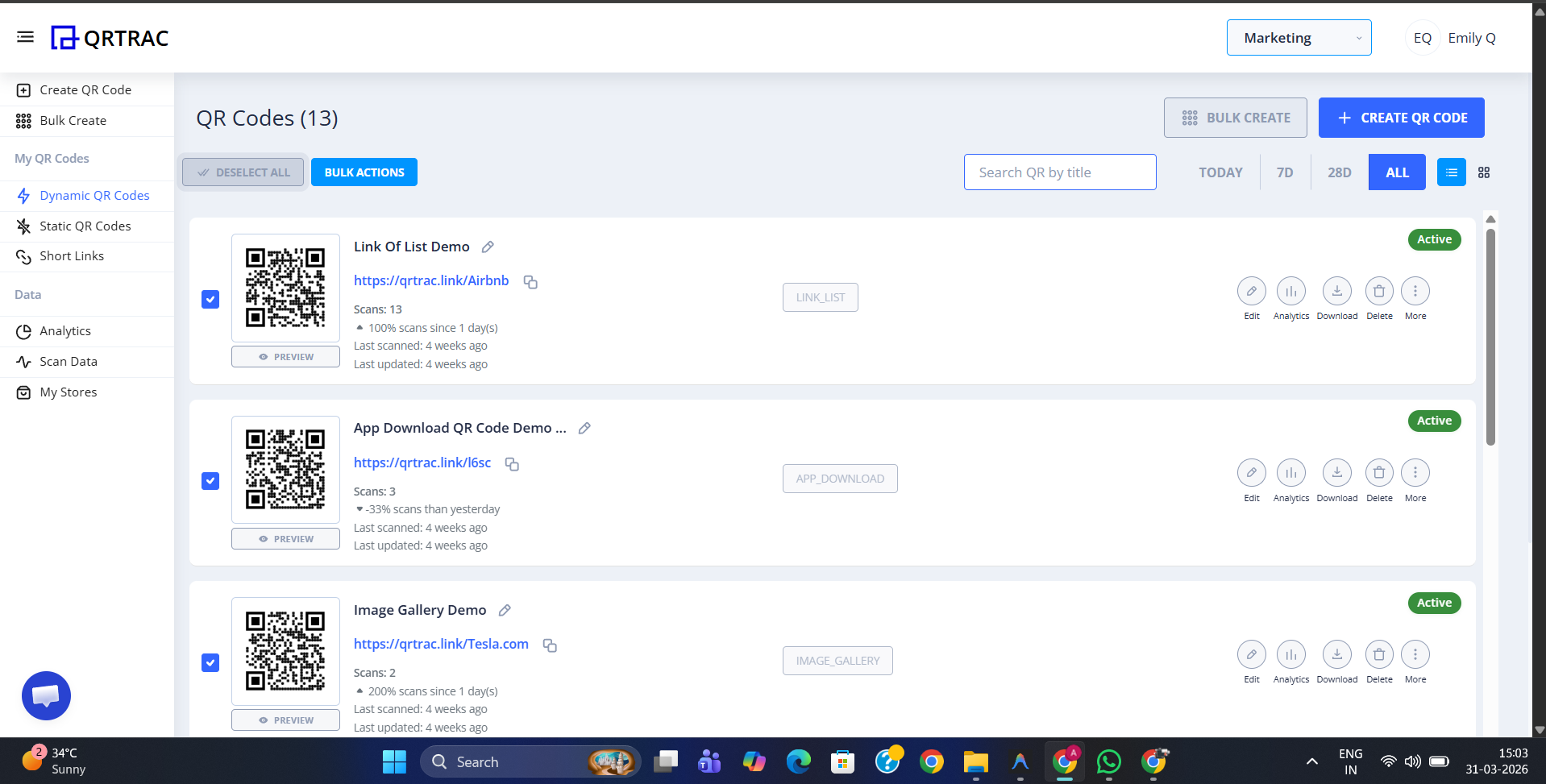
Step 2: Access Duplication
Once selected, the Bulk Actions button will appear at the top. Click it to open the management dropdown.
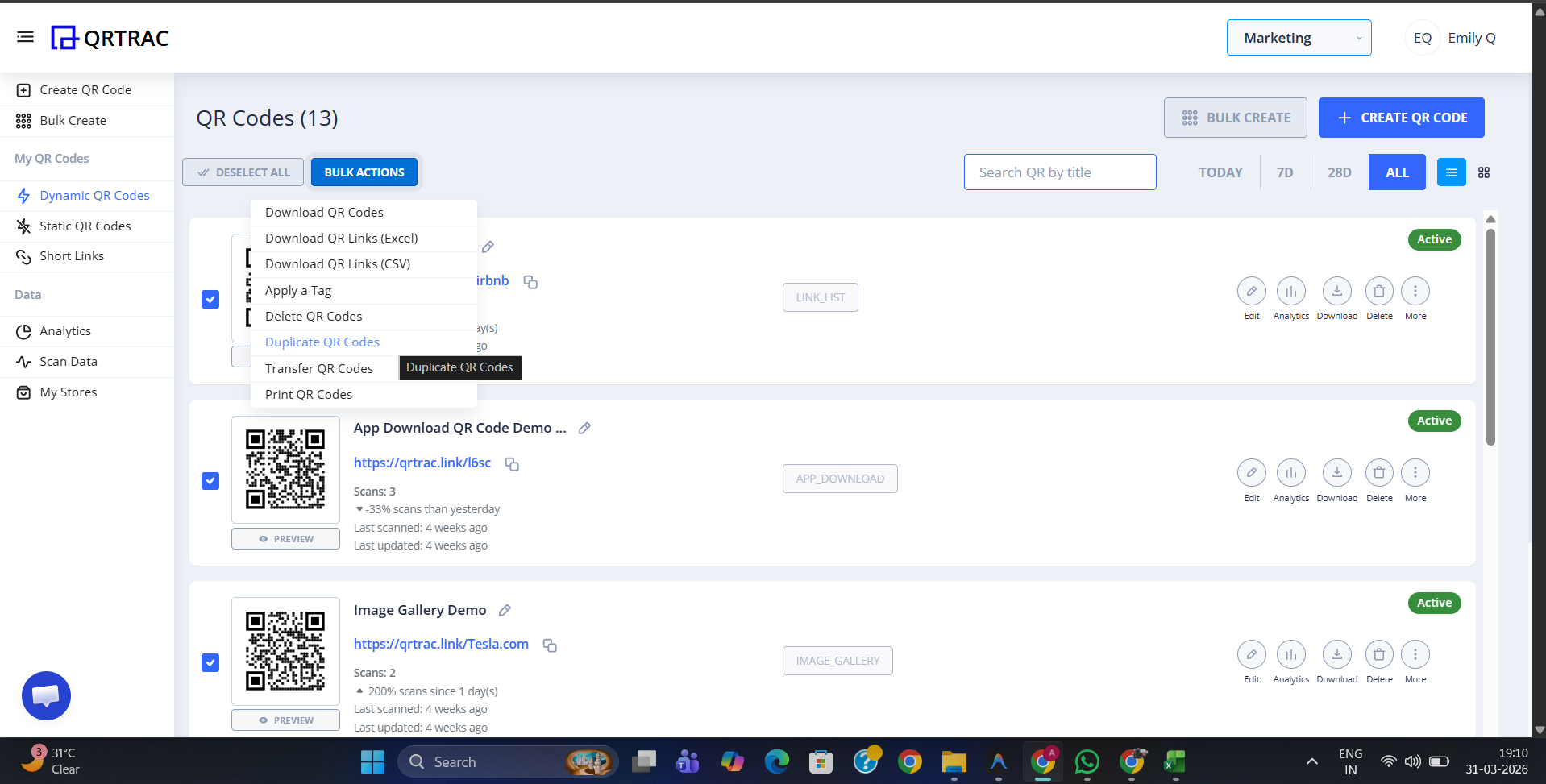
Step 3: Choose "Duplicate QR Codes"
From the dropdown options, select Duplicate QR Codes. This will trigger a confirmation process where your selected codes will be replicated with all their current settings.
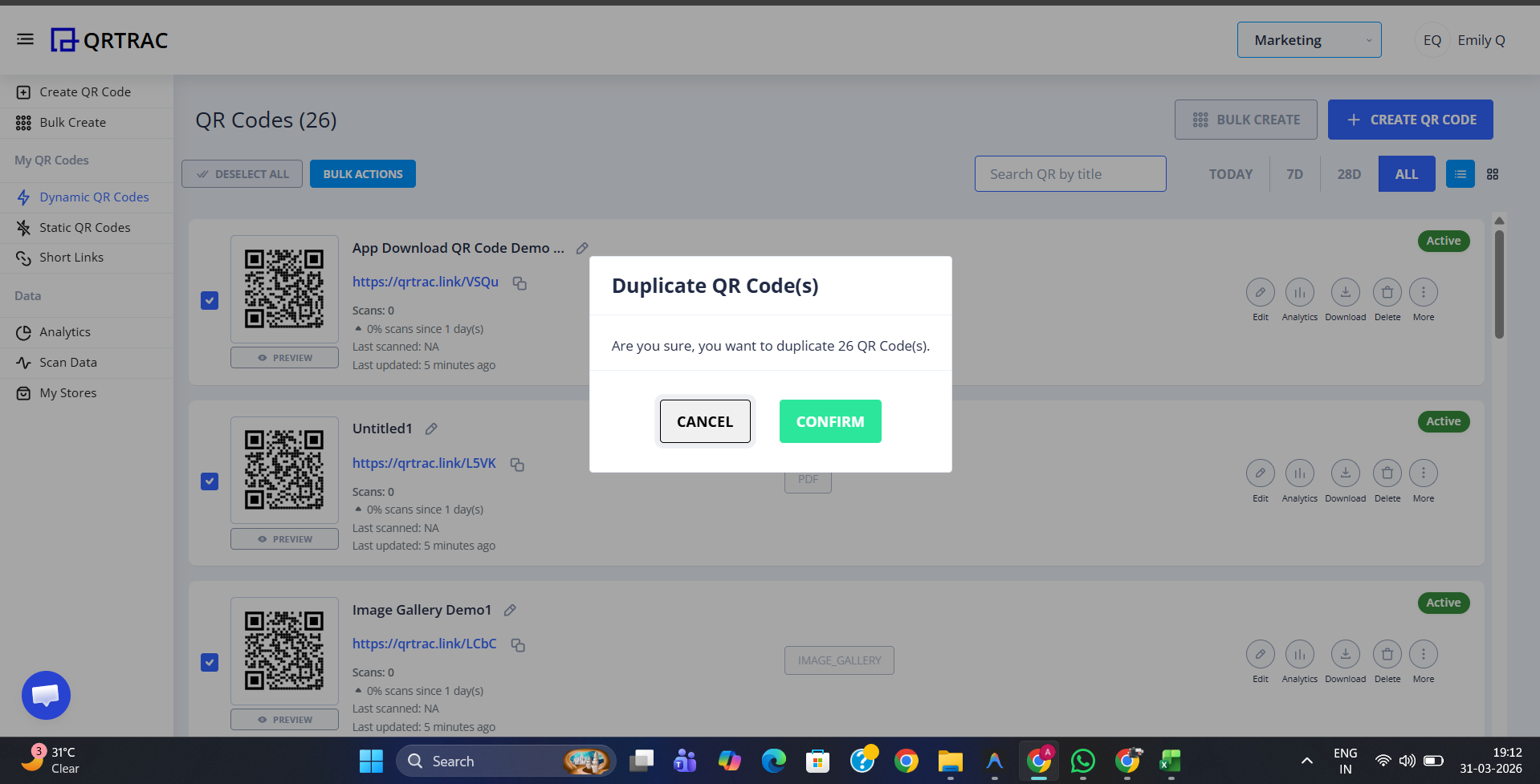
Step 4: Finalize and Manage
After clicking confirm, you will see the new copies added to your list. The duplicated QR codes are typically titled "Untitled1" (or another numbered Untitled name) by default. To give your new QR codes a specific name, simply click Edit on the individual row to update the title and destination URL.
Efficient Setup
Duplicating in bulk is the fastest way to set up identical QR codes for different departments, locations, or team members while maintaining consistent branding.
Frequently Asked Questions
Do the duplicate QR codes have the same analytics?
No, each duplicate is a completely new QR code with its own unique ID and its own separate analytics tracking.
Can I duplicate codes across different types?
Yes, you can select any combination of QR code types for bulk duplication as long as you have the appropriate permissions and plan availability.
Need to create fresh QR codes in bulk from scratch?
Use our Bulk QR Code Generator to generate thousands of unique codes from a CSV or Excel file — faster than duplicating one by one.
Try Bulk QR Code Generator →