How to Apply Tags to QR Codes in Bulk
Tags are a powerful way to organize, filter, and manage large numbers of QR codes. Whether you want to group codes by campaign, location, or department, applying tags in bulk saves you from editing each code individually. Follow this guide to learn how to use bulk tagging in QRTRAC.
Step 1: Select Your QR Codes
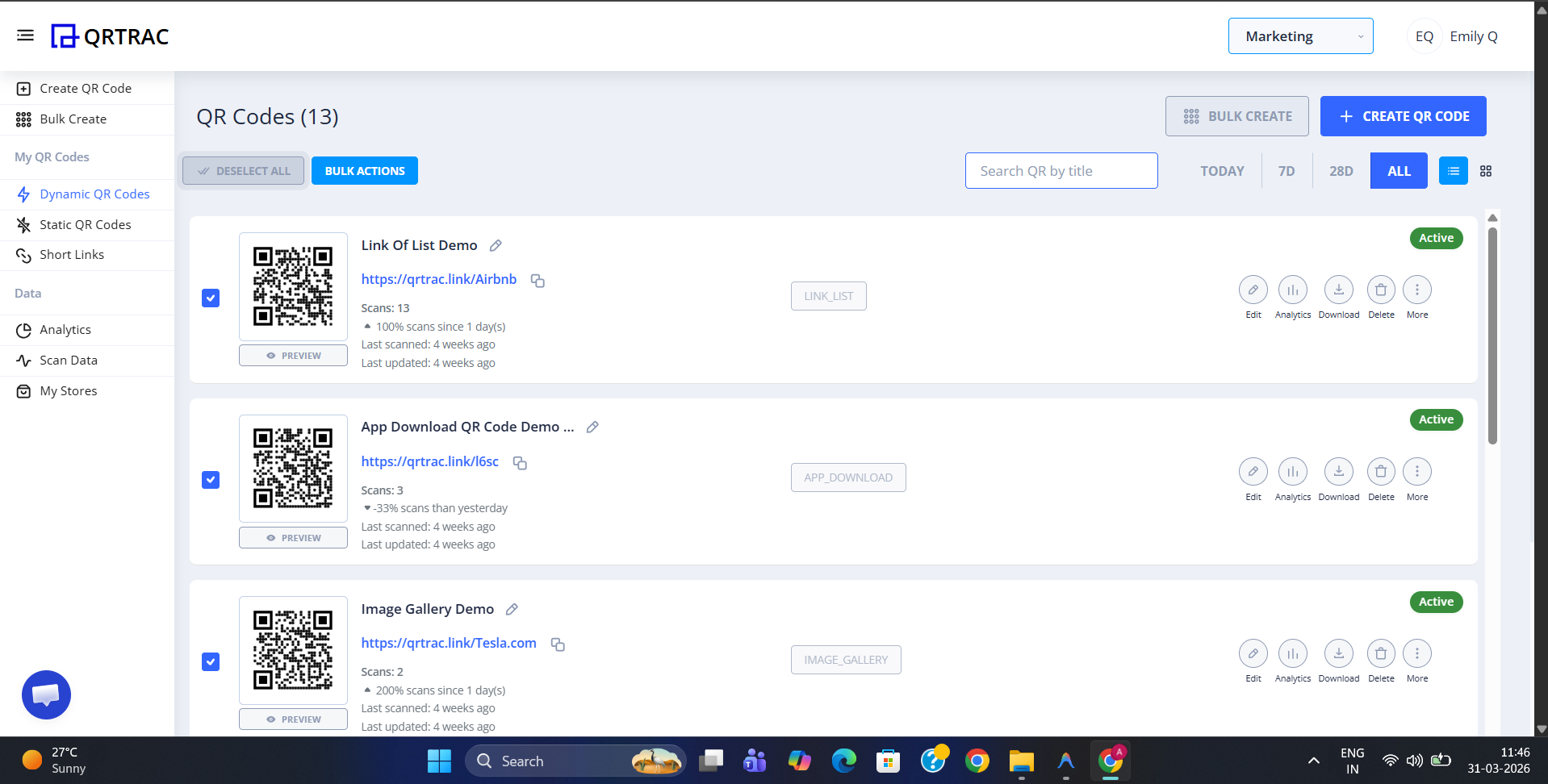
Log in to your dashboard and navigate to your QR codes list. Use the checkboxes on the left to select all the codes you wish to tag together.
Step 2: Open Bulk Actions
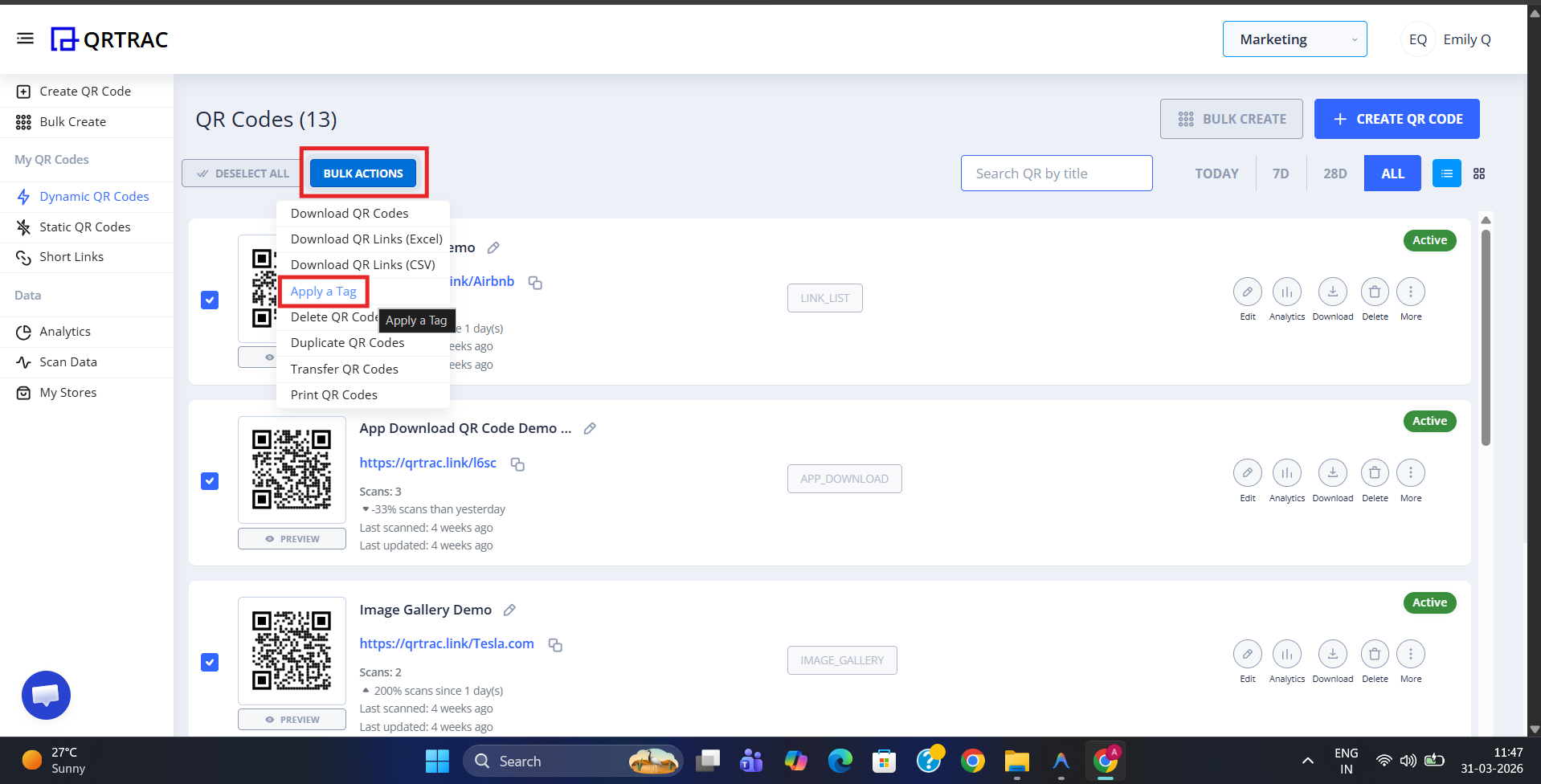
Once selected, the Bulk Actions button will appear at the top of your list. Click it to reveal the management menu.
Step 3: Choose "Apply a Tag"
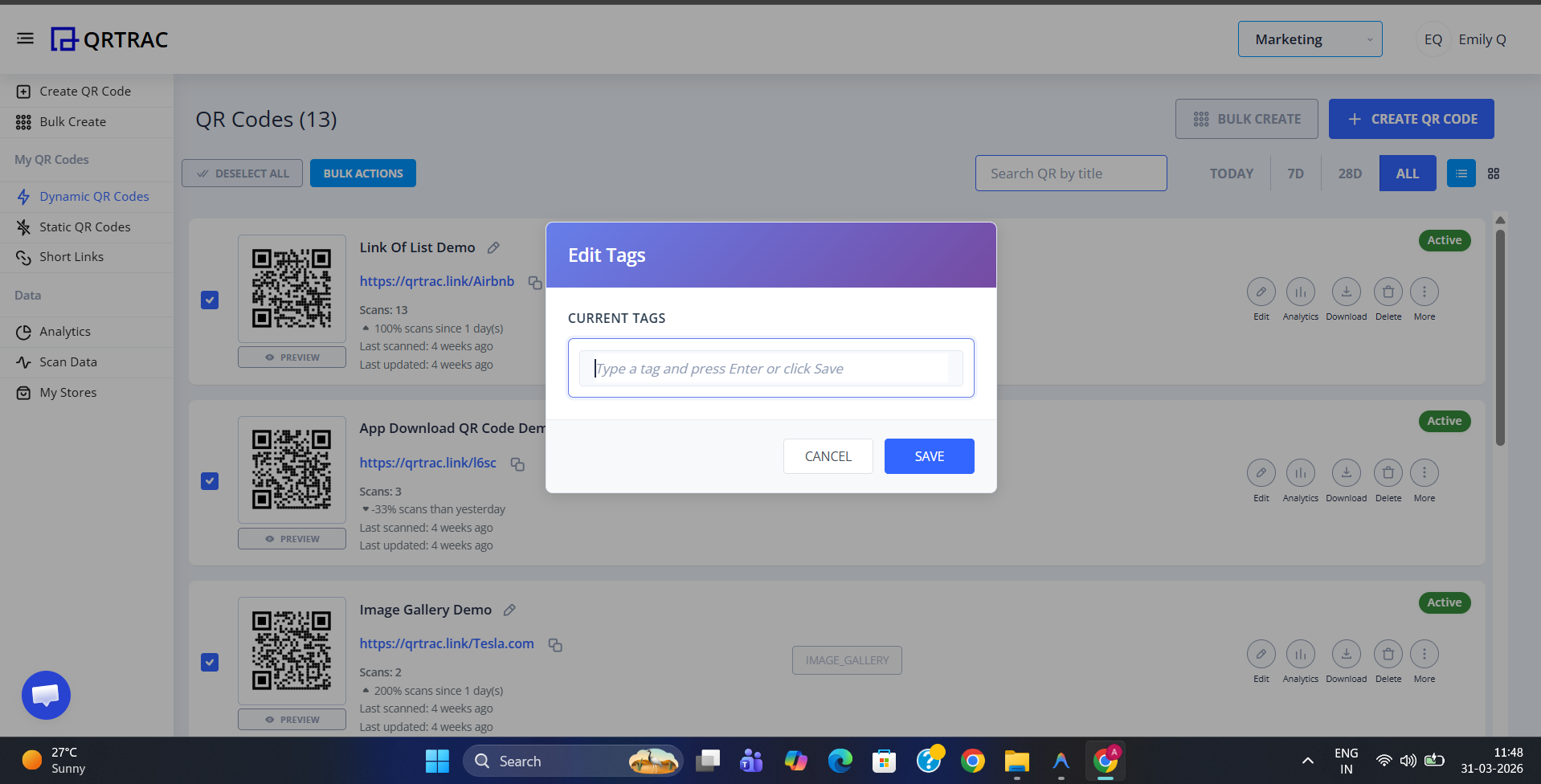
From the dropdown menu, select Apply a Tag. A small popup or input field will appear allowing you to manage your tags.
Step 4: Save and Organize
Type the name of the tag you want to apply. If the tag already exists, you can select it from the list. Once finished, click Save. Your selected QR codes will now display the new tag, making them easy to filter later.
Pro Tip: Use Tags for Analytics
Once tagged, you can filter your analytics dashboard by tag to see the combined performance of an entire marketing campaign or location.
Common Questions
Can I apply multiple tags at once?
Yes, you can add multiple tags to your selection during the bulk application process. Just separate them with a comma or enter them individually.
Can I remove tags in bulk?
Currently, the bulk action is for adding tags. To remove tags, you can edit the QR code individually or look for the 'Clear Tags' option in the advanced dashboard settings.