How to Bulk Download QR Images
When managing dozens or hundreds of QR codes, downloading them one by one is inefficient. QRTRAC allows you to export your selected QR codes into a single high-resolution ZIP file, complete with professional settings for print and digital use.
Step 1: Select Your QR Codes
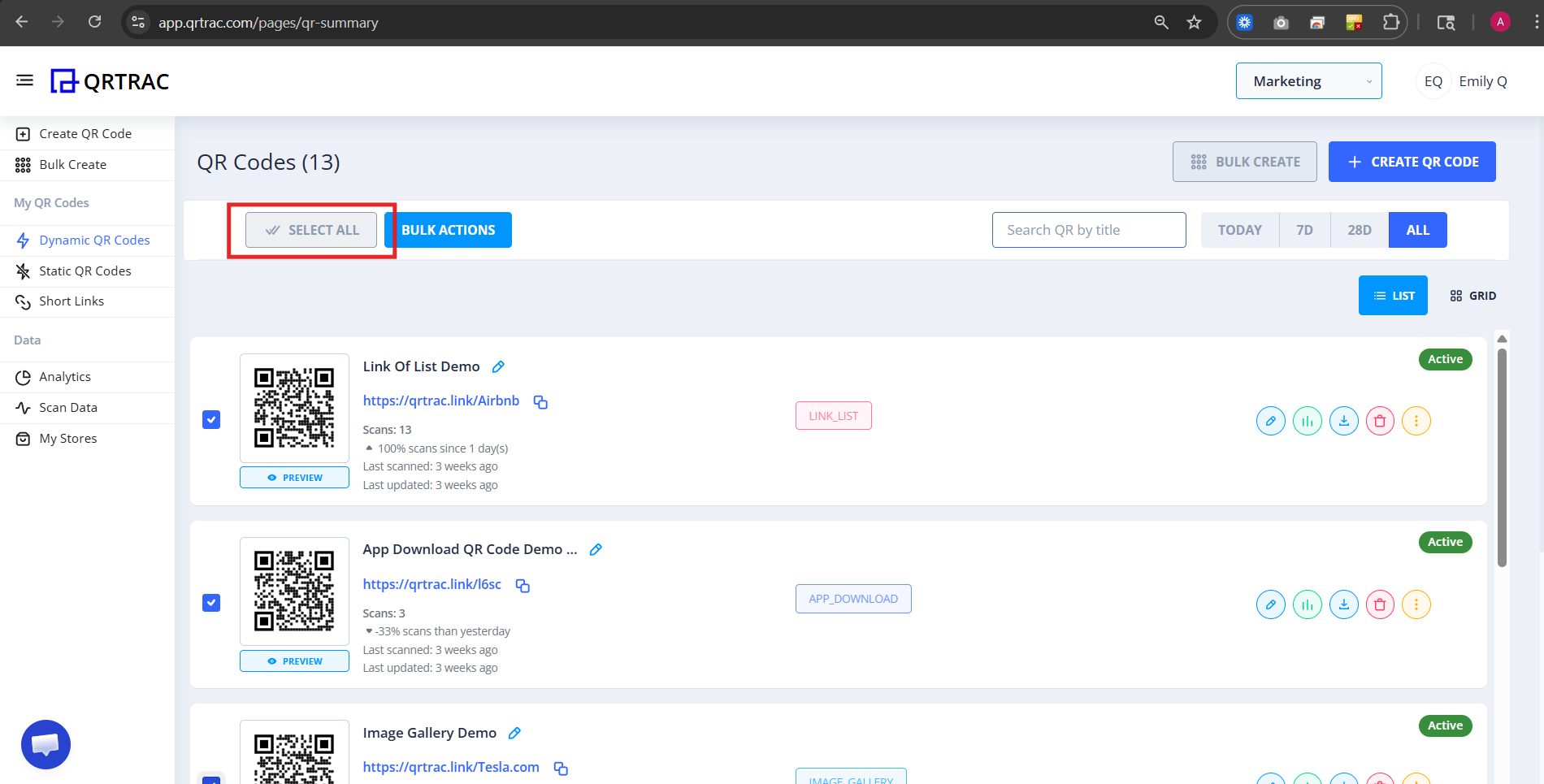
Log in to your dashboard and navigate to your QR codes list (Dynamic or Static). Use the checkboxes to select the codes you want to download. To select all visible codes, use the checkbox at the very top of the header row.
Step 2: Choose "Download QR Codes"
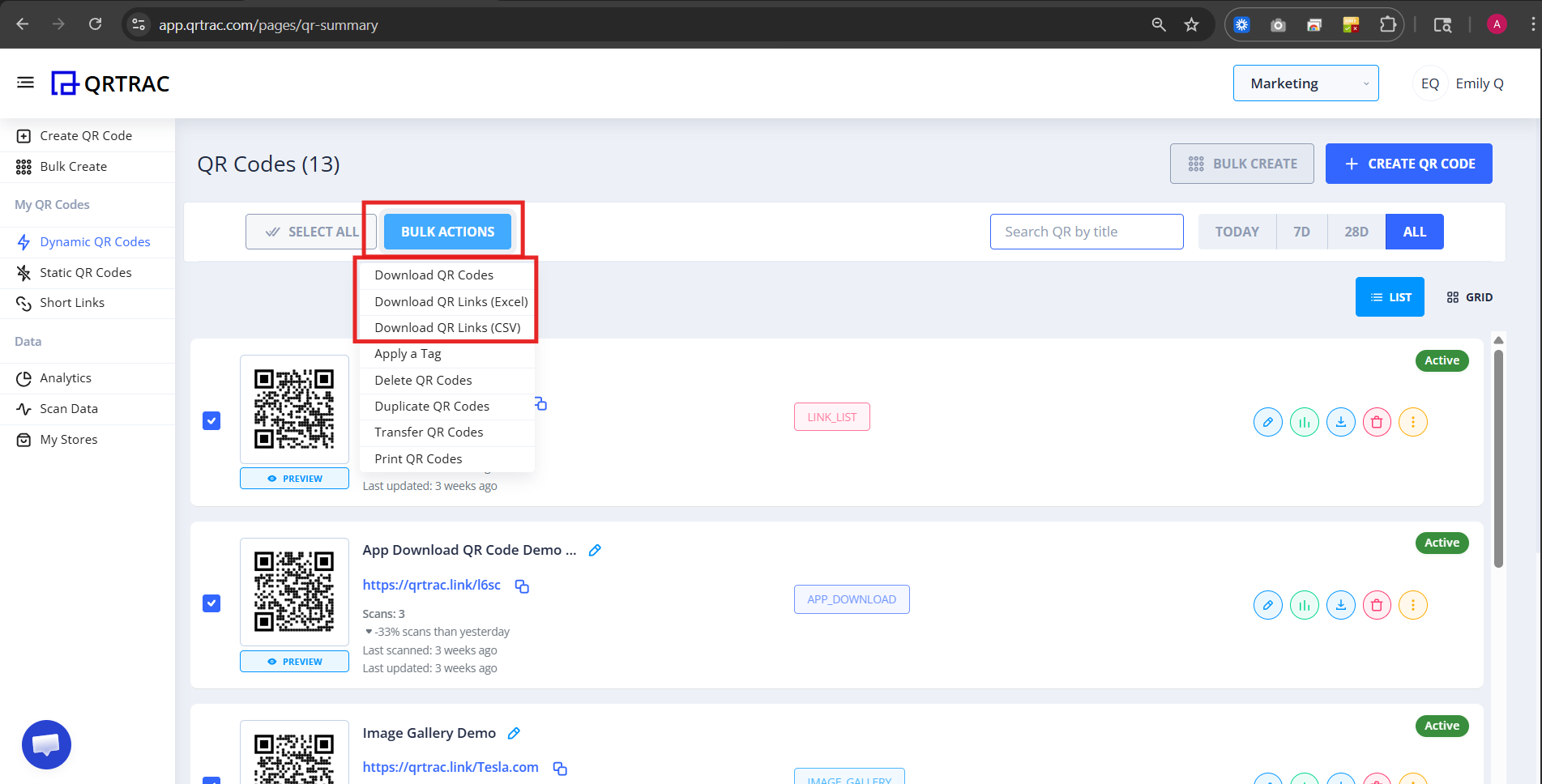
Once selected, click on the Bulk Actions dropdown menu at the top of the list and choose Download QR Codes. This will open the advanced export configuration panel.
Step 3: Configure Your Export Settings
Before downloading, you can customize how every QR code in the batch is generated. This ensures consistency across your entire campaign.
🖼️ Quality & Formats
- Download Size: Choose from 300px (1 in.) to 4096px (Print-ready 300 DPI).
- Custom Size: Enter exact dimensions for specialty layouts.
- Formats: Export as PNG, JPEG, SVG (vector), or WEBP.
⚙️ Advanced Controls
- Error Correction: (Levels L, M, Q, H) - increase for robust scanning in busy designs.
- Margin: Adjust the white space around the QR for different backgrounds.
Step 4: Customize Size, Format, and Advanced Settings
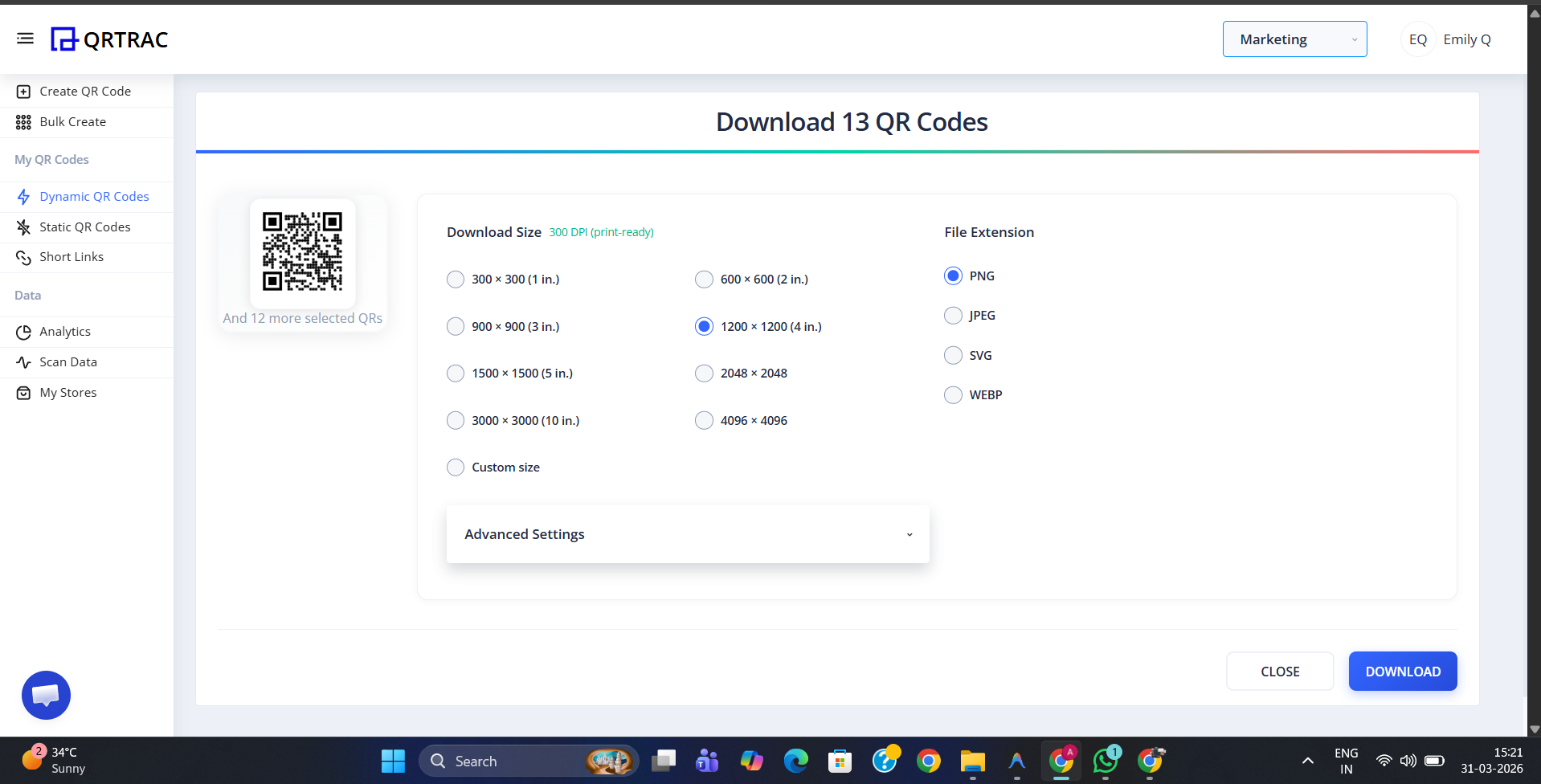
Before the final download, you can fine-tune your entire batch of QR codes. This ensures every image is exactly the resolution and format you need for your project.
- Download Size: Choose from 300px to 4096px (print-ready 300 DPI) or set a custom size.
- File Extension: Select your preferred format: PNG, JPEG, SVG, or WEBP.
- Advanced Settings: Adjust the Error Correction Level and Margin for the whole batch simultaneously.

Step 5: Download Your ZIP File
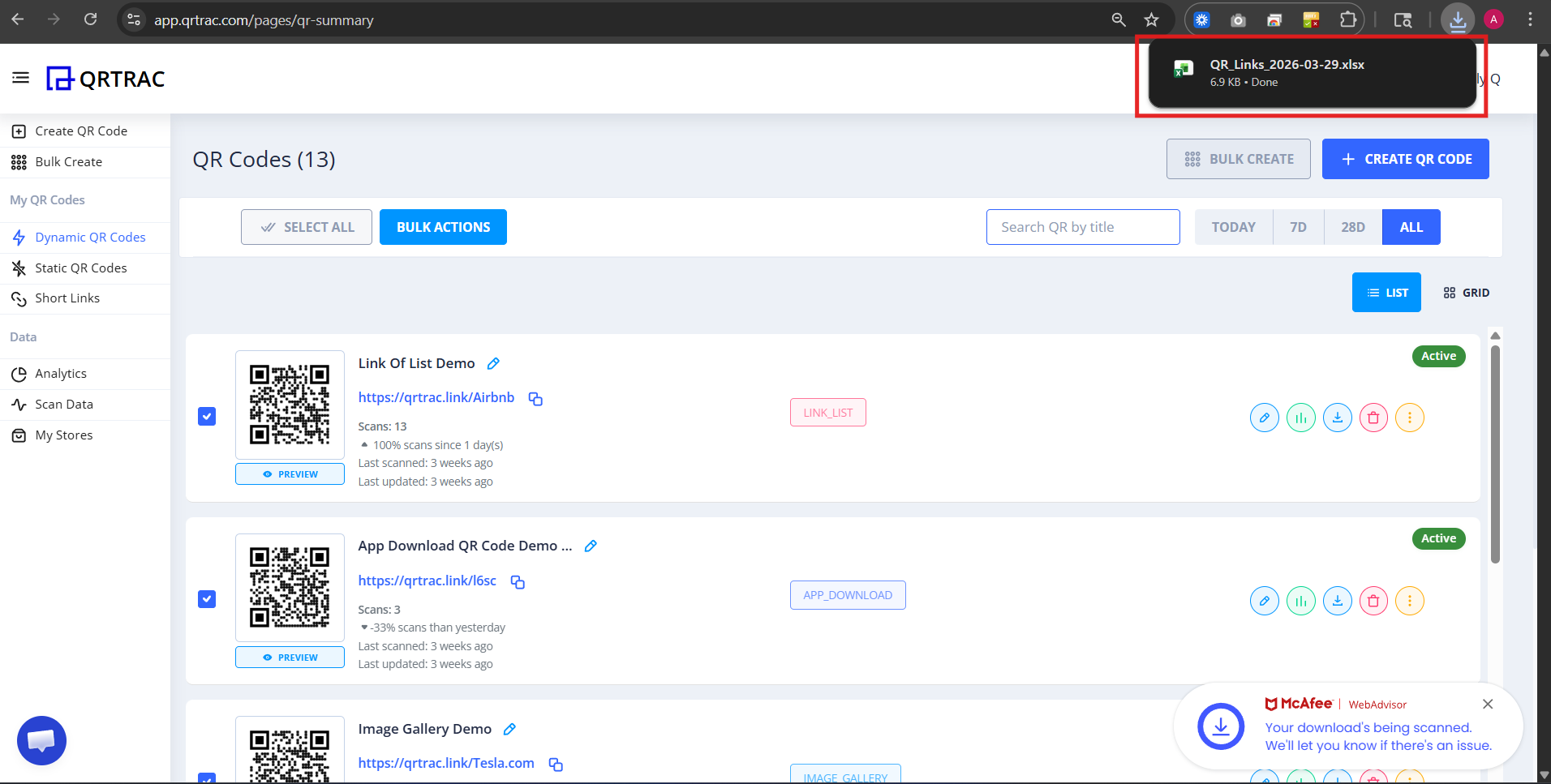
Once you've finalized your settings, click the Download button. QRTRAC will bundle all your high-quality images into a single .zip archive. Extract it on your computer to see your QR codes organized by name.
When to use SVG?
If you are sending these QR codes to a professional designer or using them on large billboards, always choose SVG. It is a vector format that never loses quality, no matter how much you resize it.
Bulk Download FAQ
Are the images naming identifiable?
Yes! Each file inside the ZIP is named based on the title you gave the QR code in your dashboard, making it easy to find exactly what you need.
Is there a limit to how many I can download?
You can download up to 100 QR codes at once in a single bulk operation. For larger quantities, simply repeat the process for your next set of codes.
Don't have your QR codes yet?
Use our Bulk QR Code Generator to create thousands of QR codes from CSV or Excel in minutes, then download them all as a ZIP in any format.
Try Bulk QR Code Generator →