How to Print QR Codes in Bulk
For large-scale marketing, inventory, or events, manual printing can take hours. QRTRAC's Bulk QR Code Printer is a powerful tool designed to help you generate custom printable sheets with up to 1000 QR codes at once. You can customize the layout, add cutout lines, and download your final file as a PDF or high-quality Word document.
Step 1: Choose Your QR Codes
Log in to your dashboard and navigate to the list of your QR codes. Use the checkboxes on the left side of each row to select the codes you want to print, then click Bulk Actions > Print QR Codes.
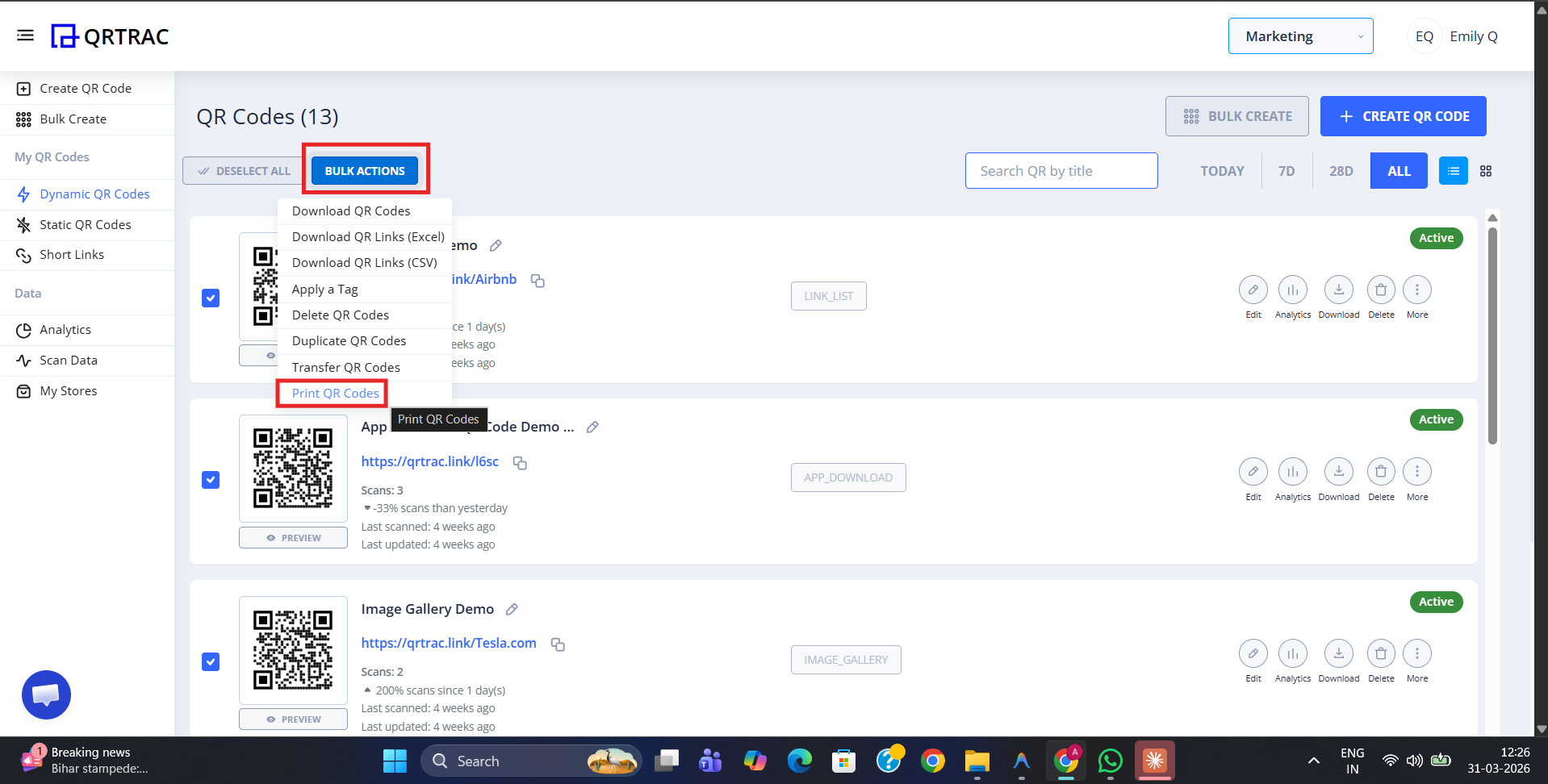
Step 2: Upload Files to the Printer
In the Bulk Printer interface, you can upload your QR code image files. The system supports uploading individual **PNG images** or **multiple ZIP files** simultaneously.
- Bulk processing: Upload up to 1000 QR code images at once.
- Real-time feedback: The system extracts and verifies your images automatically.
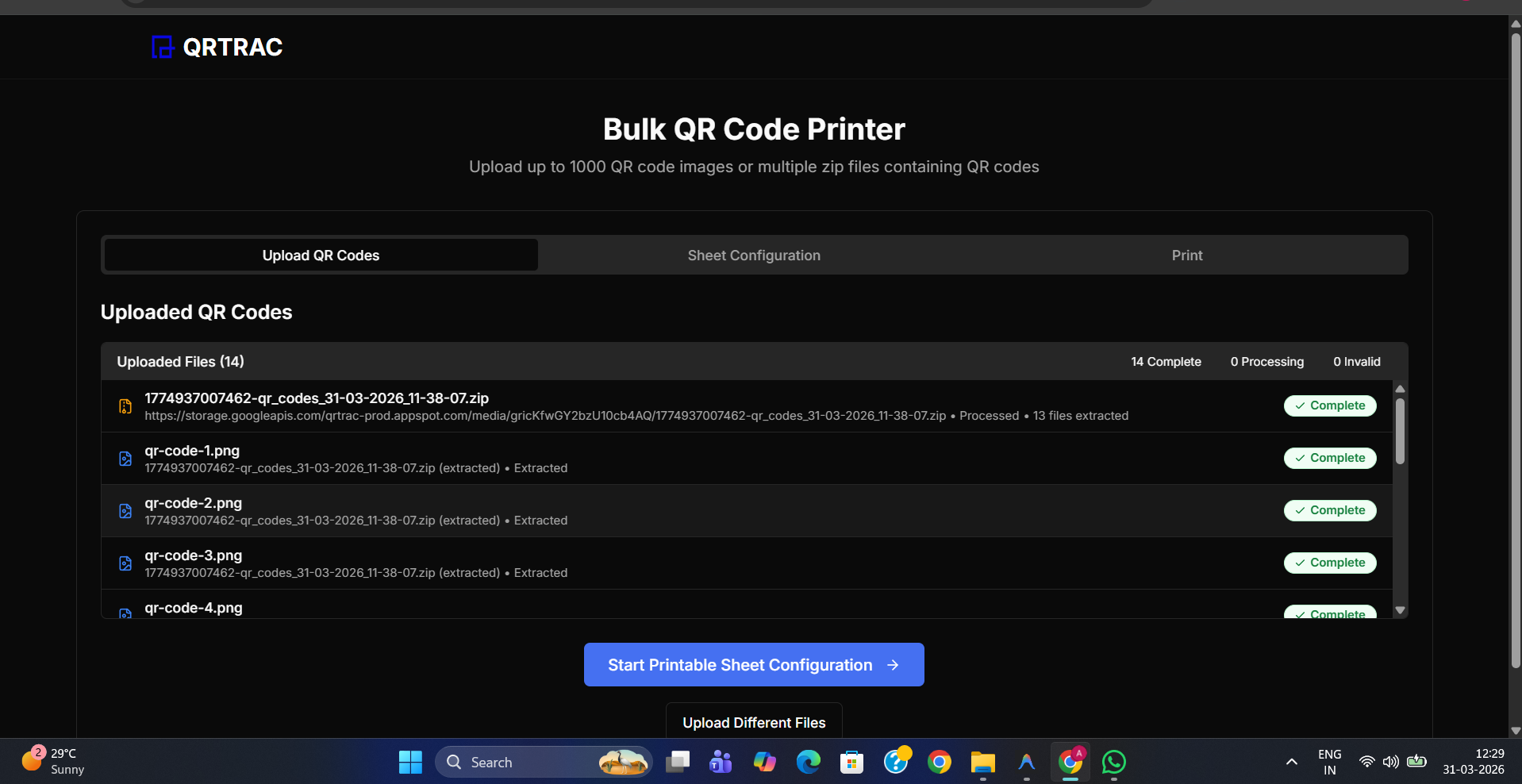
Step 3: Configure Sheet Layout
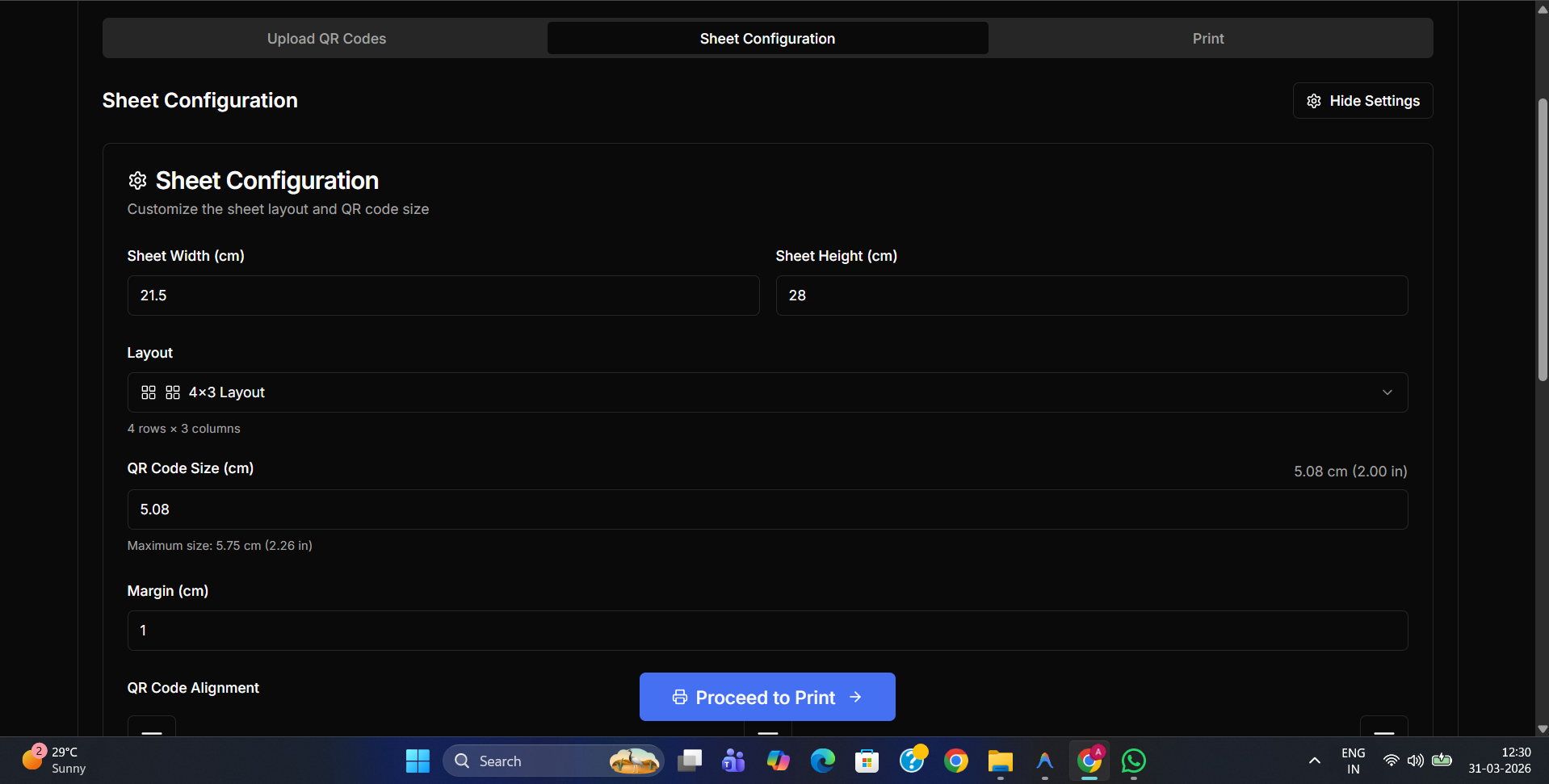
Before printing, you can perfect your layout using the Sheet Configuration panel. This allows you to tailor the output to your specific paper size and label requirements.
📐 Size & Spacing
- Set custom Sheet Width and Height (cm)
- Choose Layout (e.g., 4 rows × 3 columns)
- Adjust QR Code size (up to 5.75 cm)
- Define Page Margins
✂️ Alignment & Cutting
- Align codes to Left, Center or Right
- Show Cutout Lines (dashed lines for easy manual cutting)
- Show Drag Handles for manual re-ordering
Step 4: Finalize and Export
Once you are happy with the arrangement and layout settings, click Apply Settings. Your final printable sheet will be generated instantly.
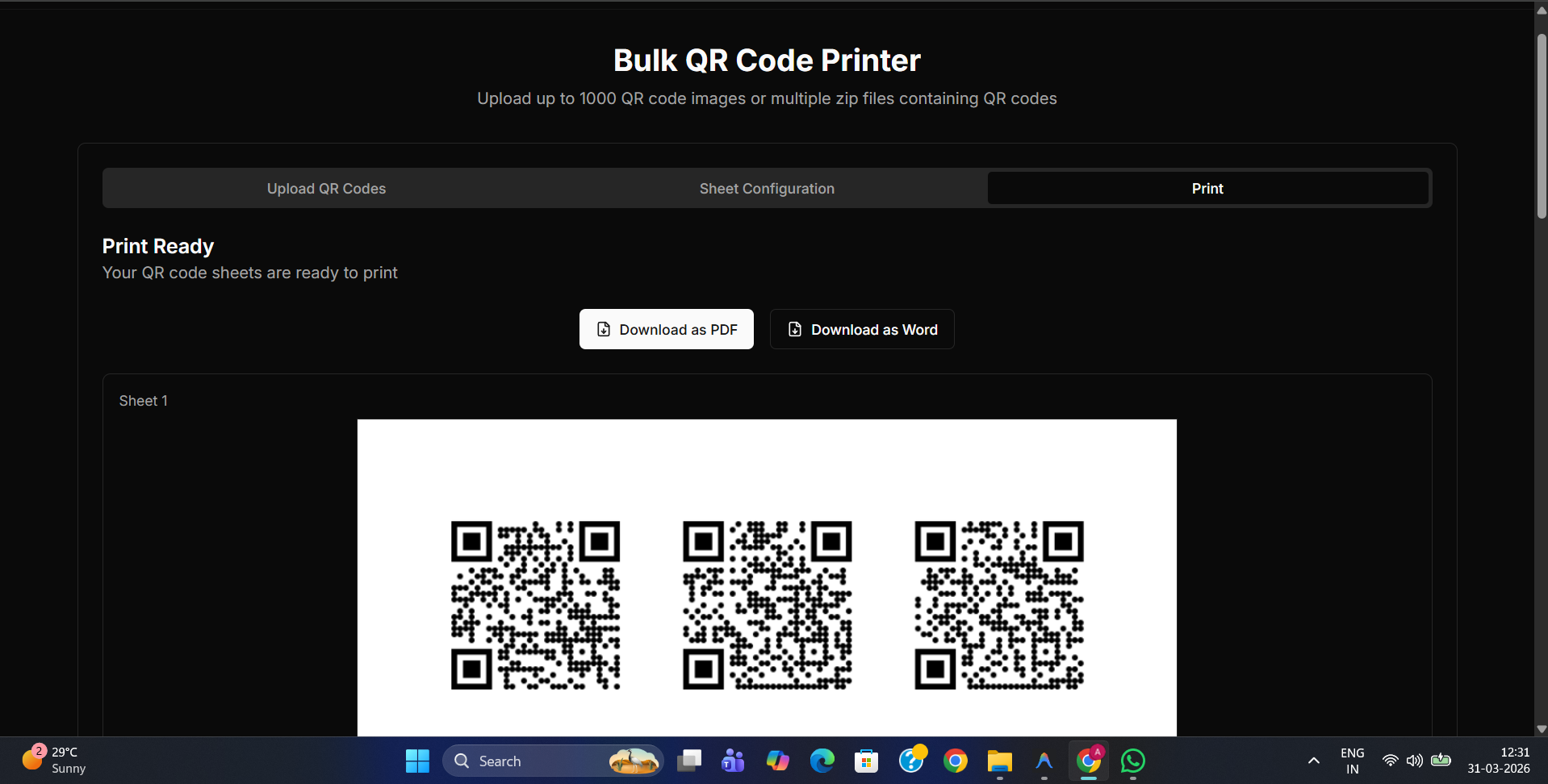
You can choose your preferred file format for downloading:
- 📥 Download as PDF: Best for professional printers and high-resolution quality.
- 📥 Download as Word: Great if you need to add extra text or images in Microsoft Word later.
Testing is Key
Printers can sometimes slightly shrink or shift content. After creating your PDF, print just one page first to test the scanability and physical size before printing the entire batch.
Printer Best Practices
What is the best resolution?
Always use the PDF export for printing. It preserves the vector quality of your QR codes, ensuring they are sharp even at small sizes.
How do cutout lines help?
If you are printing on standard (non-peel) paper, cutout lines give you exact dashed indicators for where to cut with scissors or a paper trimmer.