How to Apply Age Restriction to QR Code
Age Gating lets you set a minimum age requirement on your QR code. When enabled, anyone who scans the QR code will see an Age Confirmation screen — they must confirm they meet the minimum age by clicking I Confirm before the content loads.
What does Age Gating do?
- Sets a minimum age — you define the age threshold (e.g. 18, 21, or 25)
- Shows an Age Confirmation screen — scanners see a prompt with Decline and I Confirm buttons
- Works on any QR type — apply it to URLs, PDFs, menus, or any other QR type
- Editable anytime — change or remove the age requirement from your dashboard without reprinting
Step 1 — Enable Age Gating in Advanced Settings
Login to your QRTRAC dashboard. Open an existing QR code or click Create QR Code. Choose your QR type, go to the Configure tab, and scroll down to Advanced Settings. Toggle Age Gating to ON.
As soon as the toggle is enabled, an Enter minimum age field will appear directly below it.
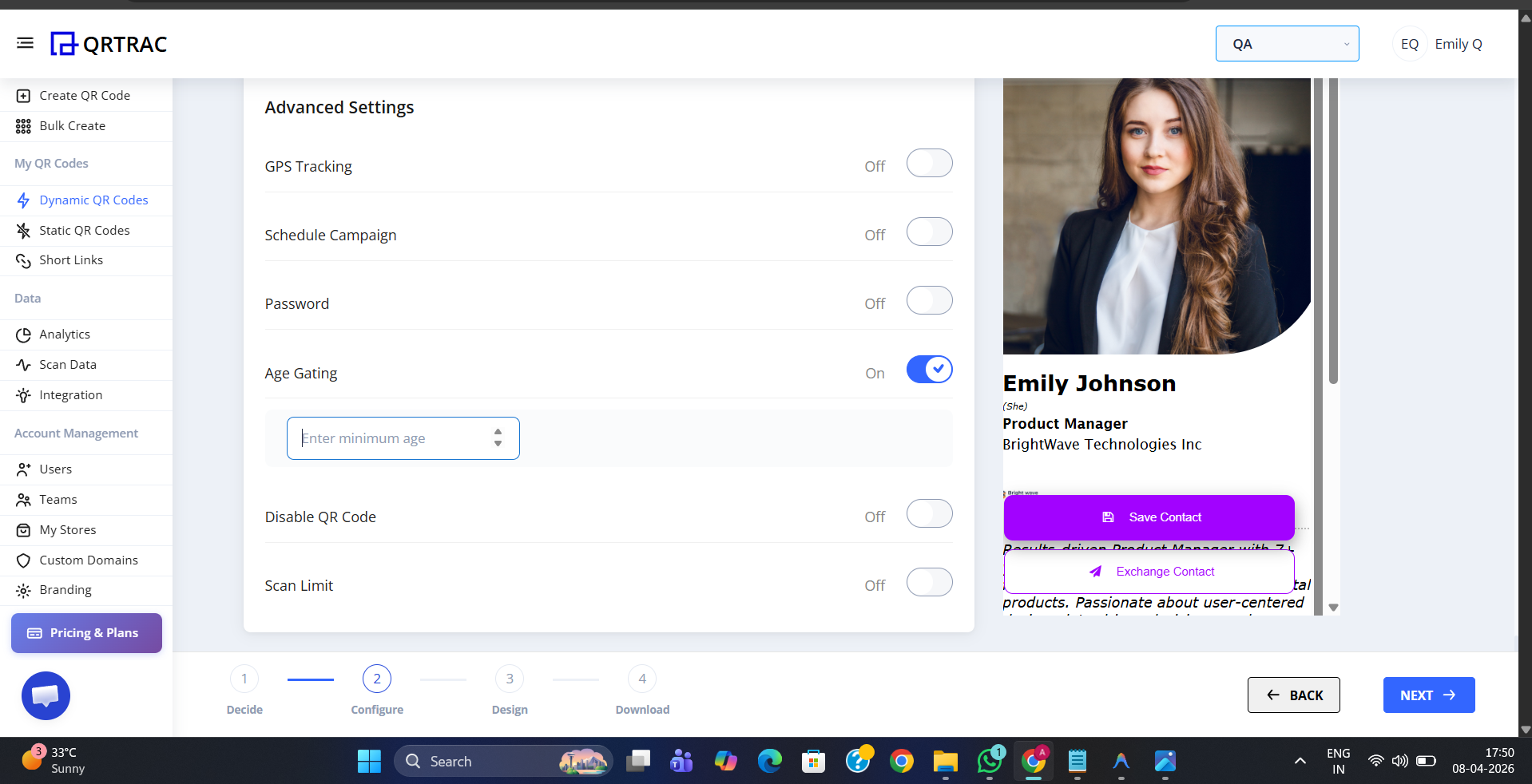
Age Gating toggle ON — the Enter Minimum Age field appears immediately below
Step 2 — Enter the Minimum Age
Type the minimum age required to access your content into the Enter minimum age field. For example:
- Enter 18 for alcohol promotions, tobacco, or adult content in most markets
- Enter 21 for markets where the legal drinking or access age is 21
- Enter 25 or any value that fits your campaign's legal or policy requirements
Step 3 — Save Your QR Code
After entering the minimum age, scroll down and click Save (or Update for an existing QR code). Age Gating is now live — every scan will show an Age Confirmation screen before the content loads.
What the Scanner Sees
When someone scans your QR code, they are shown an Age Confirmation screen before any content loads. The screen clearly states the minimum age requirement — for example: "Please confirm your age is 25 or above to proceed viewing the content."
The scanner has two choices:
- I Confirm — confirms they meet the age requirement and proceeds to the content
- Decline — exits without accessing the content
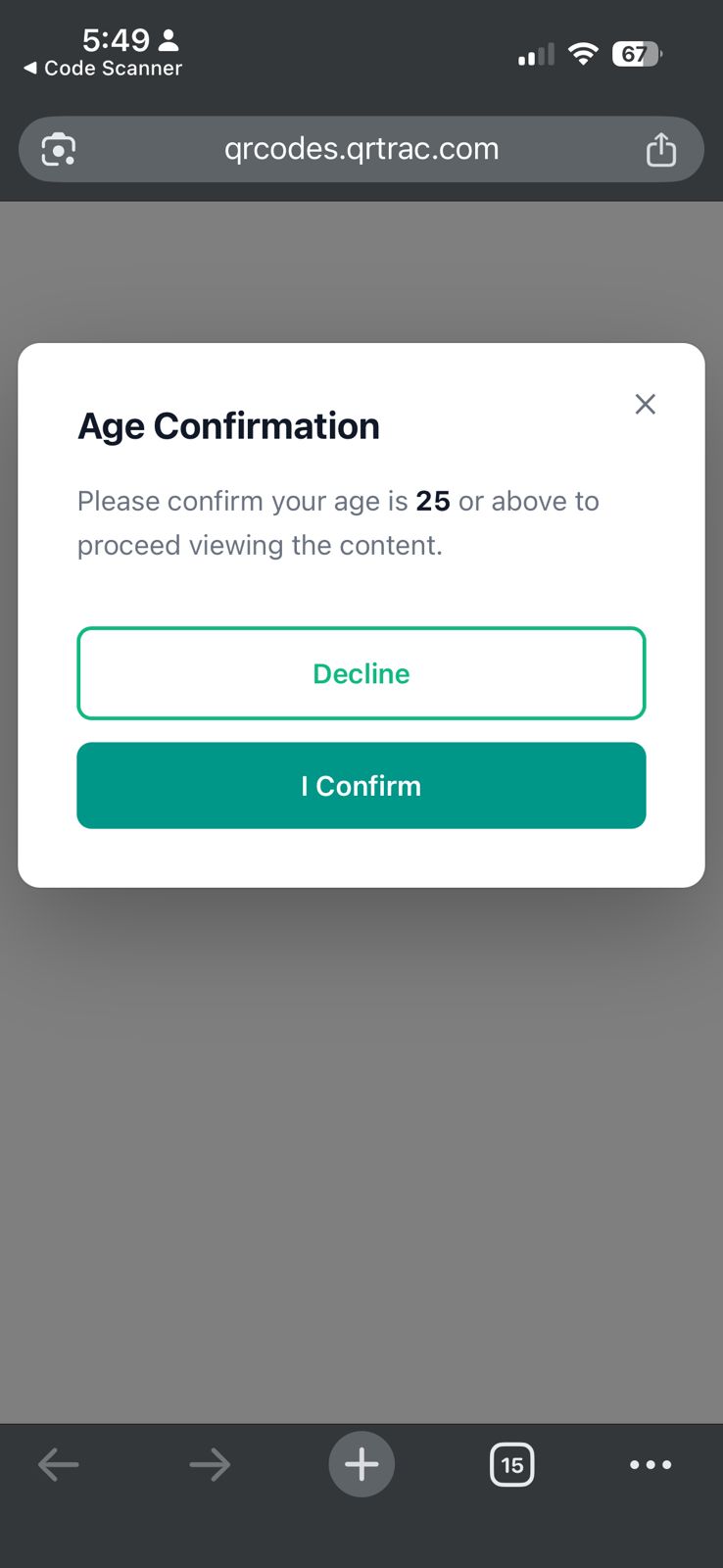
Age Confirmation screen shown to the scanner — they must tap I Confirm to proceed
Once the scanner taps I Confirm, the QR code content loads immediately — whether that is a digital business card, a URL, a PDF, or any other QR type.

Content loads after the scanner taps I Confirm — full access granted
Best use cases for Age Restriction
- Alcohol promotions — beer, wine, or spirits campaigns requiring 18+ or 21+ confirmation
- Tobacco & vaping — age-restricted product promotions
- Adult content — any content requiring users to confirm they are of legal age
- Age-restricted events — nightclub events, adult-only experiences, or 18+ venues
- Regulated industries — gambling, pharmaceuticals, or any sector with legal age requirements
Age Gating is a self-declaration gate
The Age Confirmation screen asks scanners to confirm their age — it does not verify identity or check official documents. For full legal compliance in your industry, consult your local regulations and combine this with other access controls where required.
Frequently Asked Questions
Q What exactly does the scanner see on the Age Confirmation screen?
A The scanner sees a dialog that reads: "Please confirm your age is [X] or above to proceed viewing the content." with a Decline button and an I Confirm button.
Q What happens if the scanner clicks Decline?
A The dialog closes and the scanner does not get access to the QR code content. They are not redirected anywhere.
Q Does Age Gating verify ID?
A No. Age Gating is a self-declaration gate — the scanner confirms their own age by tapping I Confirm. It does not verify identity or check official documents.
Q Can I change the minimum age after the QR code is printed?
A Yes. QRTRAC uses Dynamic QR codes, so you can update or remove the age requirement at any time from your dashboard without reprinting.
Q Can I combine Age Gating with other Advanced Settings?
A Yes. Age Gating works alongside Password Protection, GPS Tracking, Scan Limit, and any other Advanced Setting on the same QR code.