Using QR Templates
QR Templates let you save a custom design — logo, pattern, colours, corners, and more — so you can apply it to any QR code in seconds. Keep your brand consistent across every campaign without repeating the same design steps.
How do I create a QR Template?
- Click your avatar or name in the top-right corner and select QR Templates.
- Click + Create QR Template.
- Enter a Template Title, customise your design, and click Save.
- Select this template whenever you create or edit a QR code.
Step 1: Open QR Templates
Click your avatar or name in the top-right corner of the QRTRAC dashboard to open the account menu. Select QR Templates from the dropdown list.
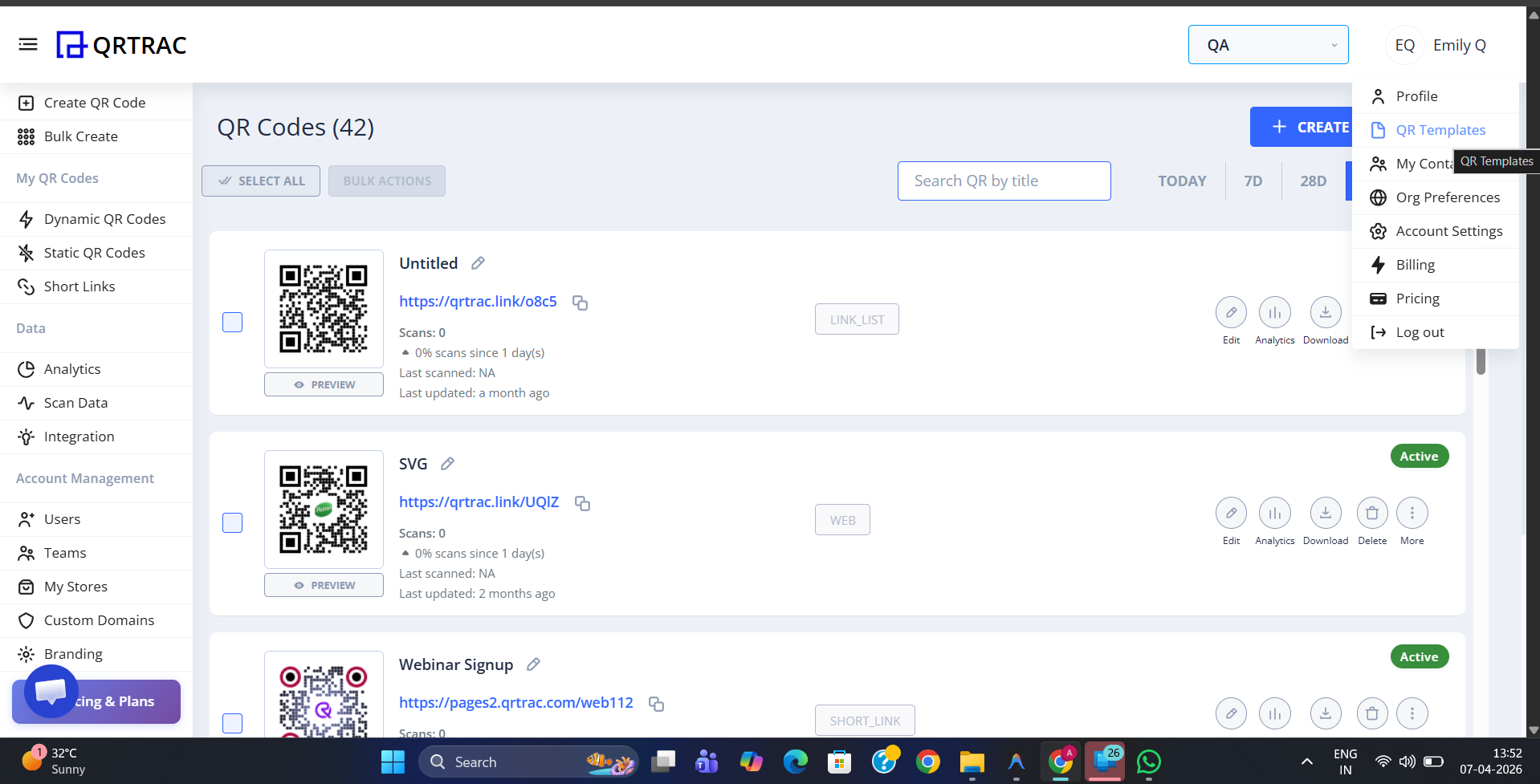
Click your avatar and select QR Templates from the menu
Step 2: View Your Templates
The QR Templates page lists all templates saved in your account. Any existing templates are shown as cards with their title, last updated date, and who created them. Click + Create QR Template in the top-right corner to start a new one.
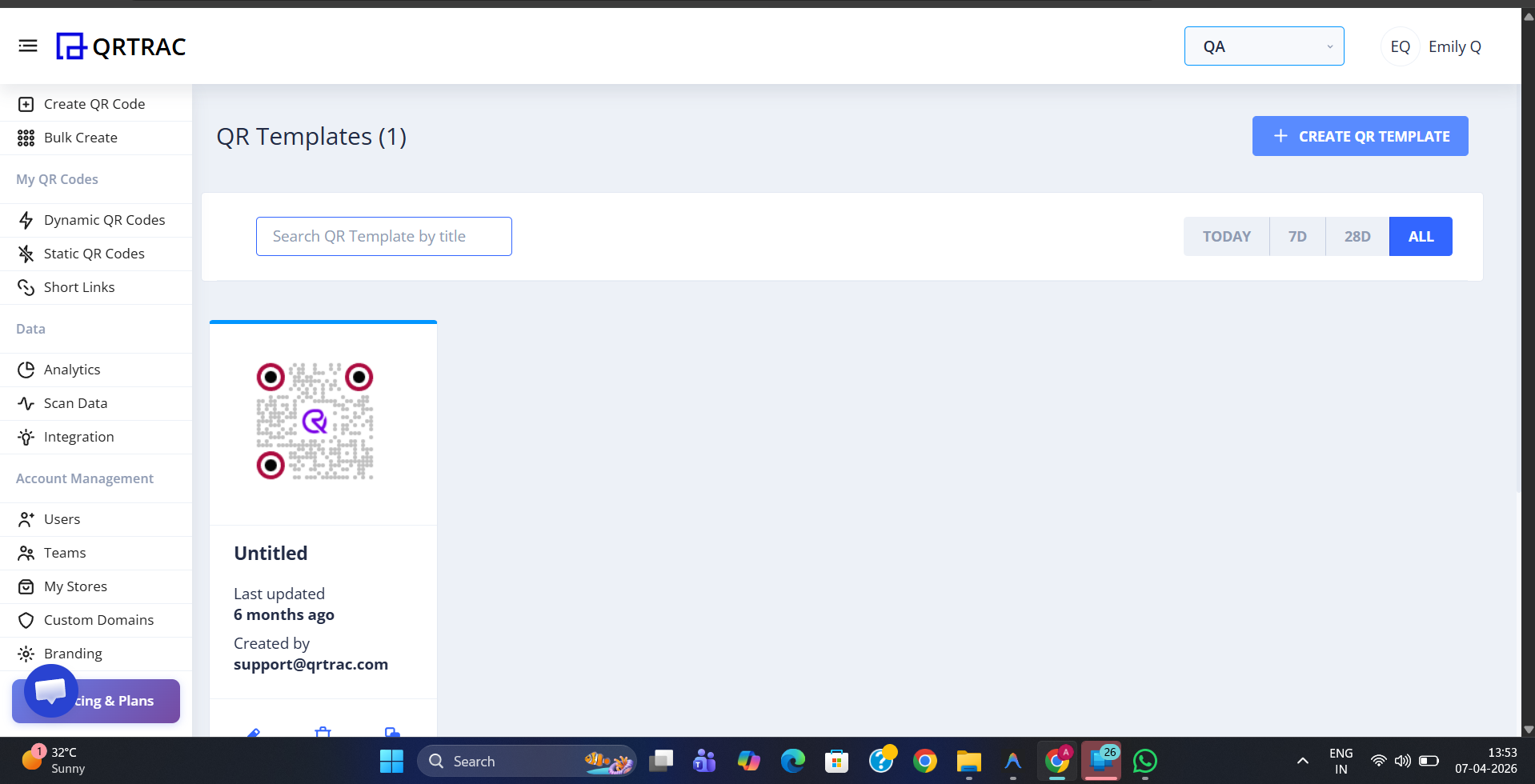
The QR Templates page — click + Create QR Template to begin
Step 3: Design Your Template
The template editor opens with a live preview of your QR code on the right. Enter a Template Title at the top. You can also enable Global Template to make it available to all users in your organisation.
Use the left panel to customise every aspect of the QR code design:
- Template — choose a pre-built style as a starting point
- Logo — upload your brand logo to place in the centre
- Pattern — change the shape of the QR code dots
- Corners — style the corner squares
- Eyes — customise the corner eye markers
- Background — set a background colour or image
- Frames — add a frame with a call-to-action label
- QR Options — adjust error correction level and other advanced settings
Once satisfied, click Save to store the template.
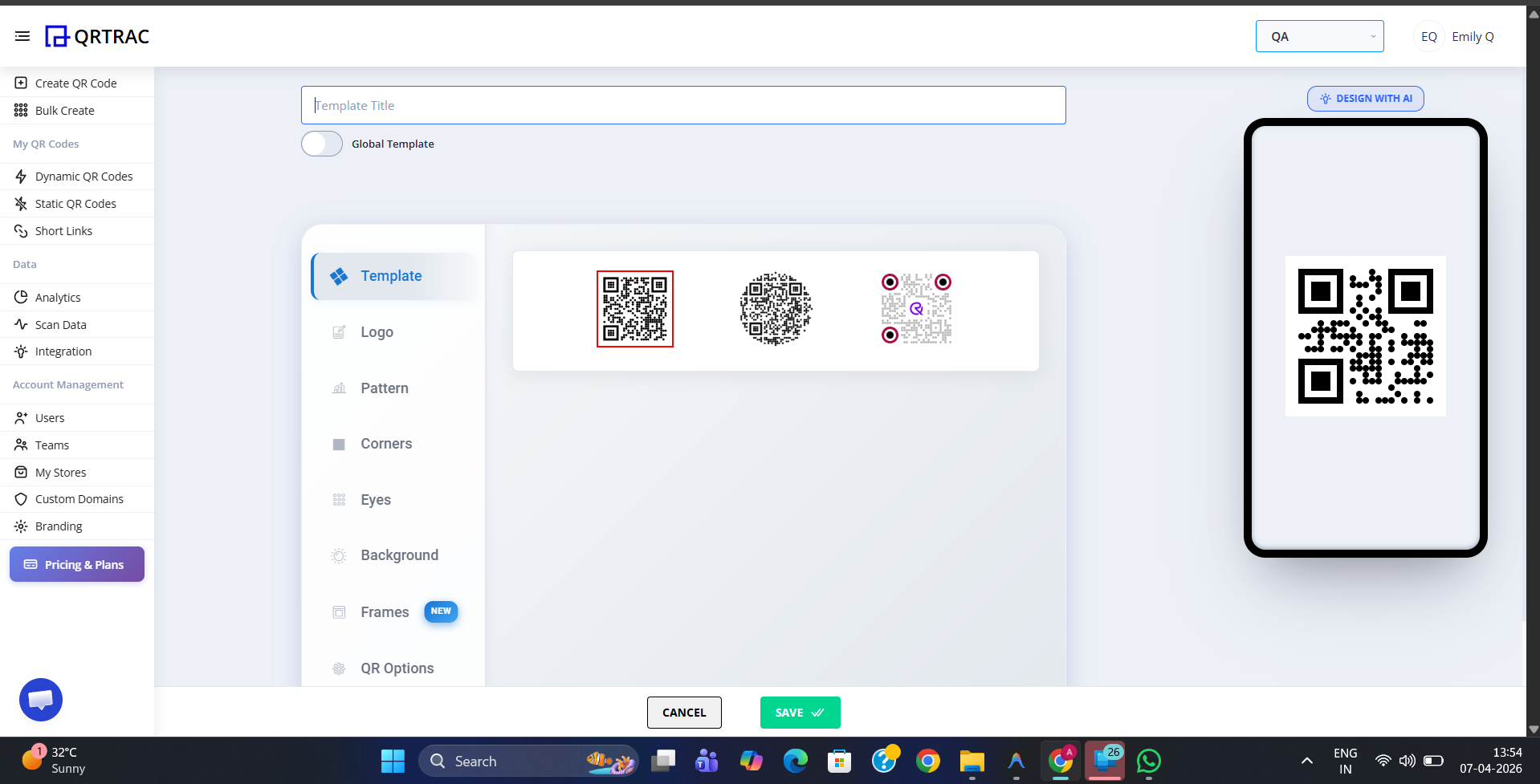
Customise logo, pattern, corners, eyes, background, and frames — then click Save
Tip: Enable Global Template to share the design with your entire team. Leave it off to keep it private to your own account.
Step 4: Template Ready to Use
Your saved template appears on the QR Templates page as a card showing its title, creator, and last updated date. It is now available to select whenever you create or edit a QR code — simply pick it from the template list in the QR code editor to apply the full design in one click.
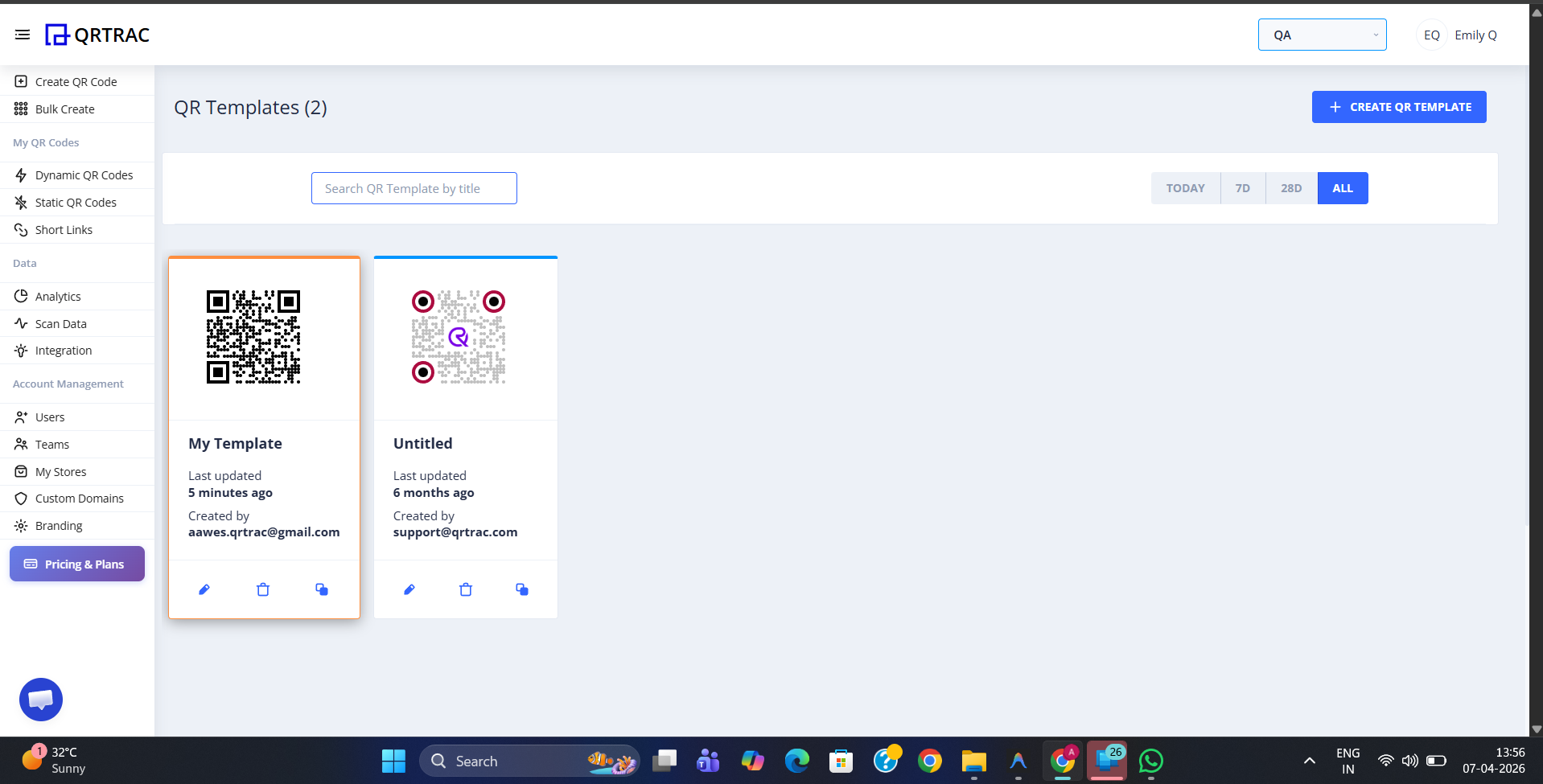
Your new template appears as a card and is ready to apply to any QR code
Templates apply design only — not content
A QR Template stores the visual design of your QR code. The destination URL or content is set separately when you create each individual QR code.