How to Apply UTM Parameters to QR Code
UTM Parameters let you track exactly where your QR code traffic is coming from inside Google Analytics. When enabled, every scan appends Source, Medium, and Campaign tags to your destination URL — giving you precise campaign attribution data.
What do UTM Parameters do?
- Source — identifies where traffic is coming from (e.g.
facebook,poster,flyer) - Medium — the marketing channel (e.g.
social,print,offline) - Campaign — the campaign name (e.g.
summer_sale,launch2026) - Redirect URL — the final destination page the scanner lands on, with UTM tags appended automatically
What are UTM Parameters?
UTM parameters are short tags added to the end of a URL that tell analytics tools like Google Analytics where a visitor came from. When a scanner scans your QR code and lands on your page, Google Analytics reads those tags and attributes the visit to the correct campaign.
https://yoursite.com/offer?utm_source=facebook&utm_medium=social&utm_campaign=summer_sale
Step 1 — Enable UTM Parameters in Advanced Settings
Login to your QRTRAC dashboard. Open an existing QR code or click Create QR Code. Choose your QR type, go to the Configure tab, and scroll down to Advanced Settings. Toggle UTM Parameters to ON.
Three input fields will appear — Source, Medium, and Campaign — along with a Redirect URL field below them.
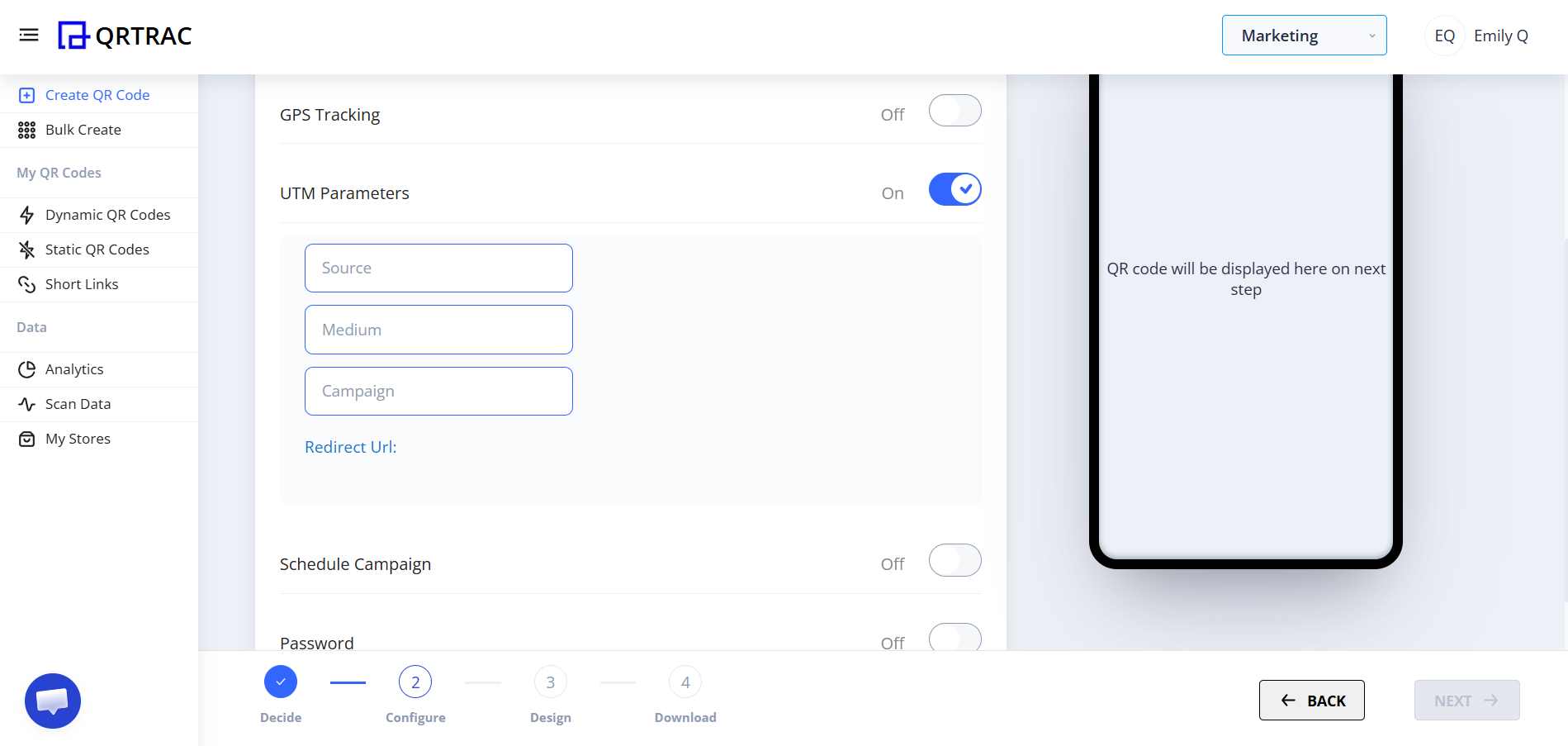
UTM Parameters toggle ON — Source, Medium, Campaign and Redirect URL fields appear
Step 2 — Fill in Source, Medium and Campaign
Enter values for each field based on your campaign:
| Field | What to enter | Examples |
|---|---|---|
| Source | Where the traffic is coming from | facebook, poster, flyer, email |
| Medium | The marketing channel or format | social, print, offline, cpc |
| Campaign | The name of your campaign | summer_sale, launch2026, event_apr |
Also enter the Redirect URL — this is the destination page your scanner will land on. QRTRAC will automatically append the UTM tags to this URL when the QR code is scanned.
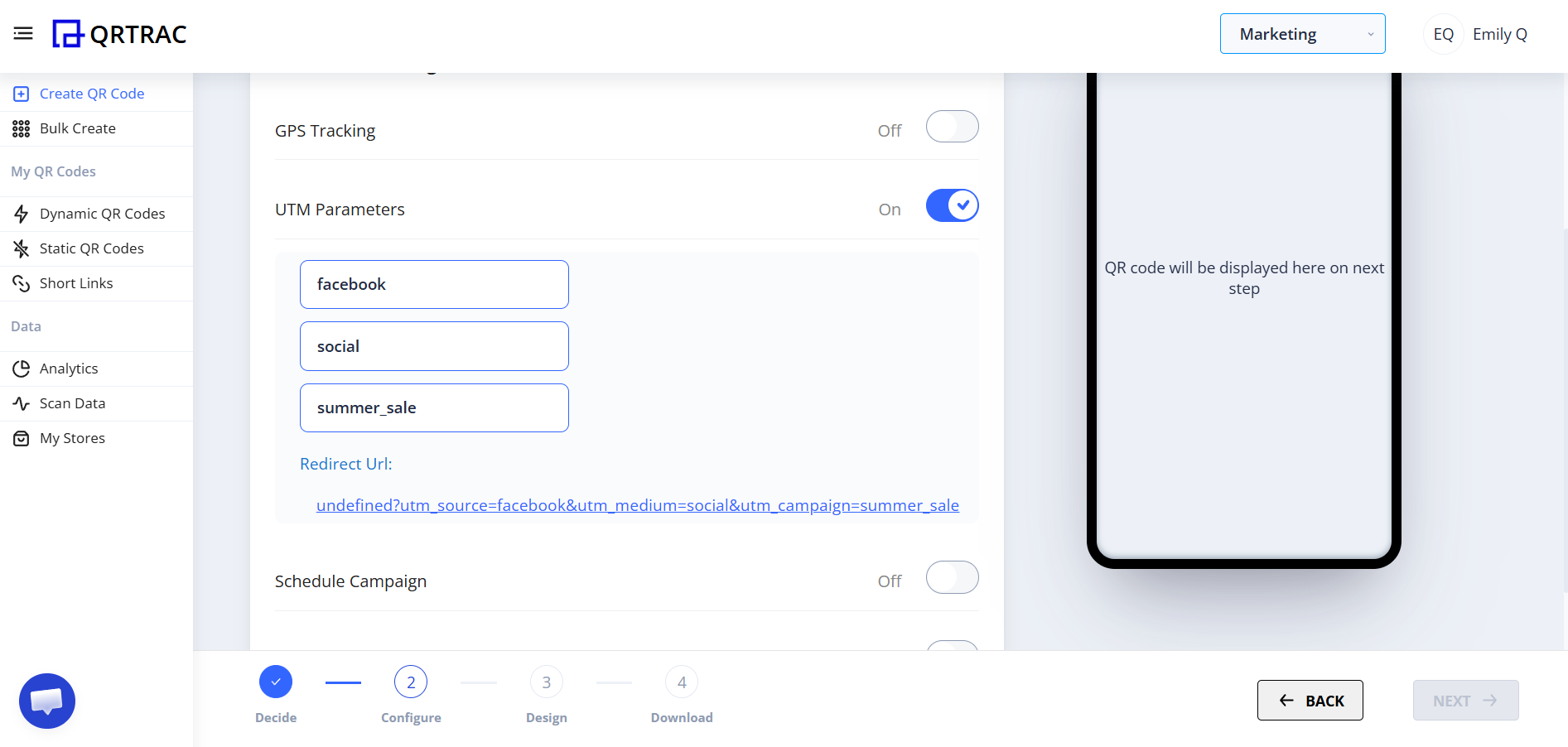
Example: Source=facebook, Medium=social, Campaign=summer_sale — the full UTM URL is generated automatically below the fields
Notice the generated URL preview shown below the Redirect URL field — this is the exact URL scanners will be sent to, with all UTM tags appended. You can copy this to verify it looks correct before saving.
Step 3 — Save Your QR Code
Click Save (or Update for an existing QR code). Every scan from this point will carry the UTM tags you configured, and the data will appear in Google Analytics under Acquisition → Campaigns.
Best use cases for UTM Parameters
- Multi-channel campaigns — use different UTM values on each material (flyer vs. poster vs. social) to compare which drives the most traffic
- Event marketing — track which event location or booth generated the most QR scans
- Print advertising — measure the ROI of offline print media with precise Google Analytics data
- Social media campaigns — attribute QR code scans back to a specific social platform or post
Use UTM Parameters only for structured campaigns
UTM Parameters only provide value if you have Google Analytics (or another analytics tool) set up on your destination website. Without it, the tags are appended to the URL but no data is captured. Also use consistent naming — mixing Facebook and facebook will create separate entries in Analytics.
Frequently Asked Questions
Q Do I need Google Analytics for UTM Parameters to work?
A Yes. UTM tags are appended to the URL automatically, but they are only useful if you have Google Analytics (or a compatible analytics tool) installed on your destination website to capture and report on them.
Q Where do I see UTM data in Google Analytics?
A In Google Analytics 4, go to Reports → Acquisition → Traffic Acquisition. Filter by Session campaign, Session source, or Session medium to find your QR code traffic.
Q Can I use spaces in UTM field values?
A Avoid spaces — use underscores or hyphens instead (e.g. summer_sale not summer sale). Spaces can cause issues with URL encoding and inconsistent reporting in Analytics.
Q Can I update UTM values after the QR code is printed?
A Yes. QRTRAC uses Dynamic QR codes, so you can change your UTM values or redirect URL at any time from your dashboard without reprinting the QR code.
Q Can I combine UTM Parameters with other Advanced Settings?
A Yes. UTM Parameters work alongside GPS Tracking, Password Protection, Age Gating, Scan Limit, and any other Advanced Setting on the same QR code.