How to Show Your Digital Business Card QR Code
Someone scans your digital business card at a trade show. Their colleague standing next to them wants it too. With Share QR Code turned on, they tap a button on your card and it shows your card's QR code on their screen, ready for the next person to scan. Nobody has to find your printed card again, and nobody types anything.
The QR code it shows is your card's own code, so every scan made this way opens the same card and counts in your analytics like any other scan.
Before you start: this setting is on Digital Business Card (vCard) codes and is off by default. Turning it on doesn't change your printed QR code.
Step 1: Open your digital business card
- Log in to your QRTRAC dashboard.
- Go to Dynamic QR Codes, find your card and click Edit.
- Creating a new card instead? Click Create QR Code, choose Digital Business Card and click Next. See how to create a digital business card QR code for the other fields.
Step 2: Turn on Share QR Code
- On the Configure step, scroll to the Share QR Code section and open it.
- Turn on Show QR code on the scan page. The dashboard explains it as: anyone viewing the card can show its QR code so others can scan it.
Step 3: Choose where the QR code appears
Four placements appear once the setting is on:
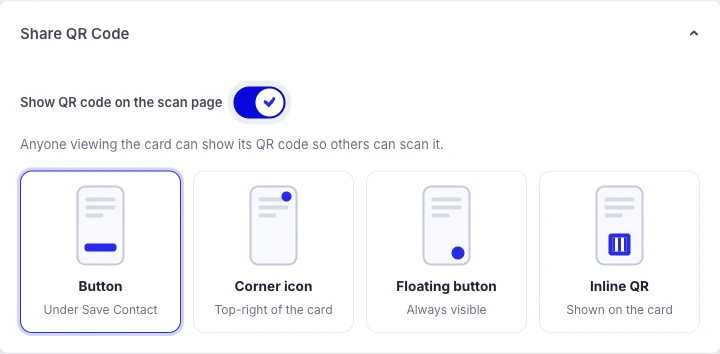
| Placement | Where it appears | Good for |
|---|---|---|
| Button | A Show QR Code button under Save Contact and Exchange Contact | Most cards. It sits with the other actions, so people find it. |
| Corner icon | A small QR icon at the top-right of the card | Cards where you want the buttons area kept short |
| Floating button | A round QR button that stays on screen while scrolling | Long cards with many links |
| Inline QR | The QR code itself, shown on the card with the label "Scan to view this card". Tap it to enlarge. | Booths and counters, where the card is shown on a screen for others to scan |
Step 4: Save
- Click Next to go to Design, then Next again.
- Click Finish. The change is live on your card straight away. Your printed QR code stays the same.
Step 5: Check it on your phone
Scan your card with your phone's camera. With the Button placement, you'll see Show QR Code under the other buttons:
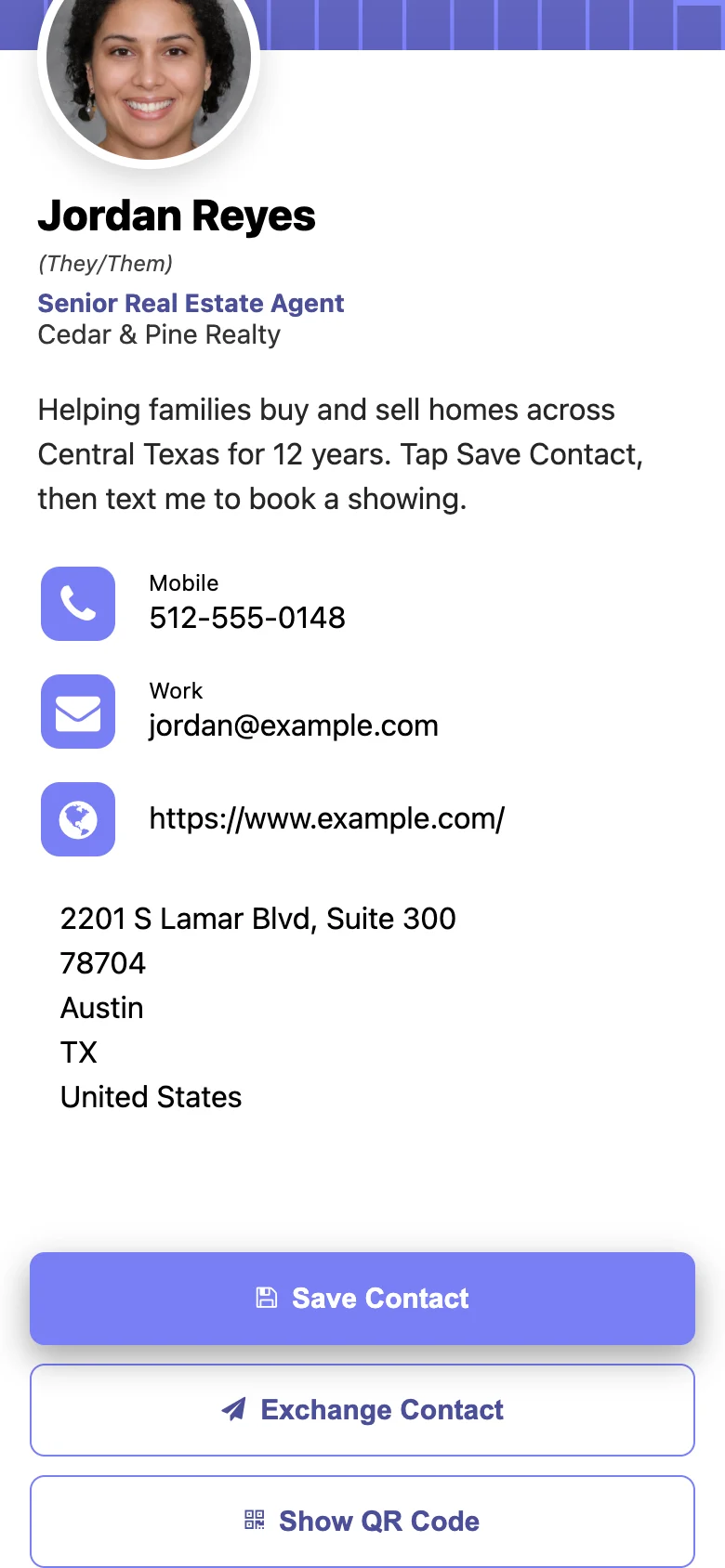
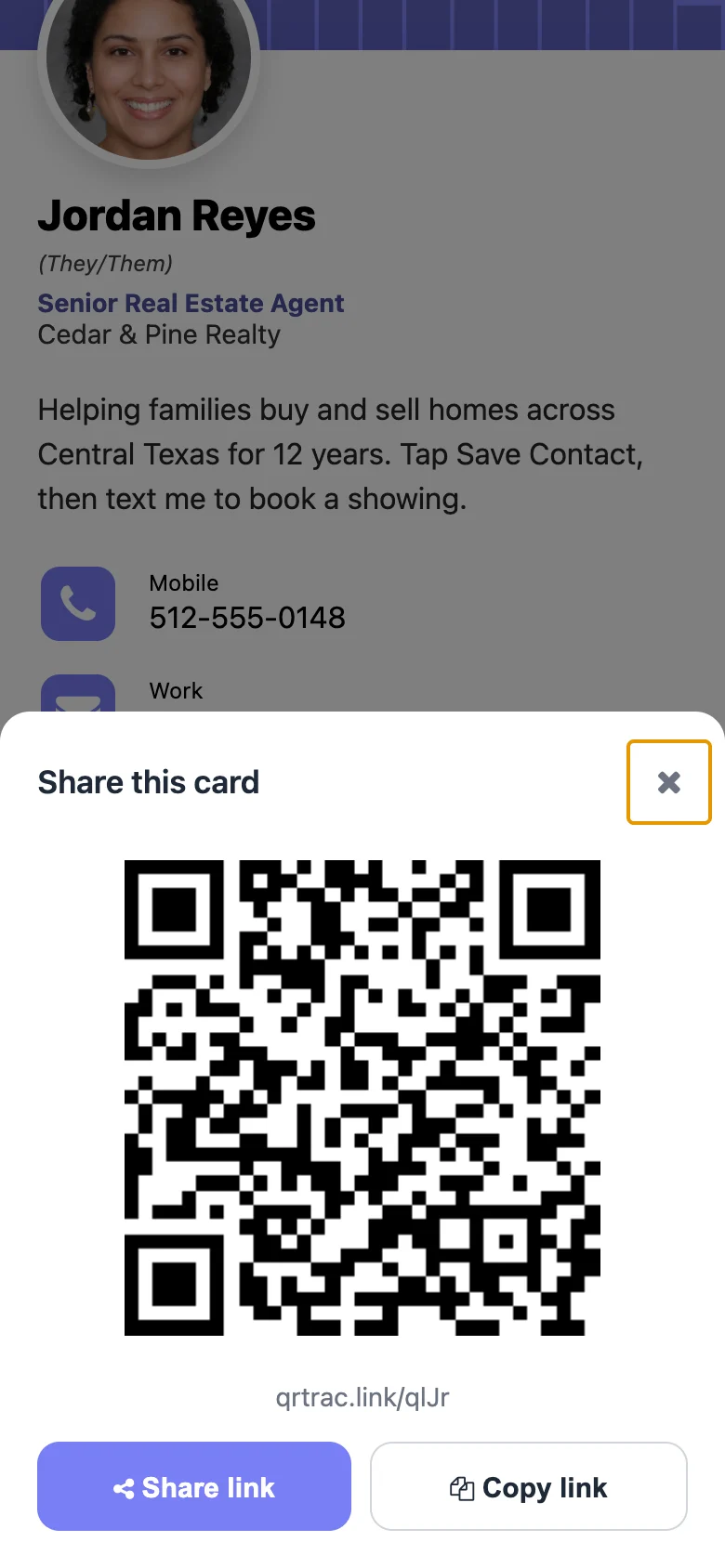
Tap it and the Share this card screen opens with:
- The card's QR code, large enough for the next person to scan from your screen
- The card's link, written under the code
- Share link, which opens the phone's share menu for messages, email or AirDrop. It only appears on phones and browsers that support sharing.
- Copy link, which copies the card's link to paste anywhere
Close the screen with the X, by tapping outside it, or with the Escape key on a computer.
Example card for a fictional agency. The photo is a generated face, not a real person.
How people use it
- Trade shows and conferences: one person scans your printed card, then shows the code to the rest of their team.
- Without a printed card: open your own card on your phone, tap Show QR Code and let the other person scan your screen.
- Sales teams: a customer passes your card to the person who signs off on the purchase, and you see the extra scan.
- Booth screens: with Inline QR, a tablet on the counter can show your card with its QR code ready to scan.
Frequently Asked Questions
Is the QR code on the share screen the same as my printed one?
It opens the same card through the same link, so scans count in your analytics. It's shown in plain black and white, without the colors or logo of your downloaded design.
Do I need to reprint my cards to use this?
No. It's a setting on the card page, not on the printed code. Turn it on and the next scan of any printed card shows the option.
Can I turn it off later?
Yes. Edit the card, turn off Show QR code on the scan page and click Finish.
Does it work with Hide Save Contact?
Yes. Both settings are on the Configure step and work independently, so you can hide Save Contact and still let people pass the card on.
Can I use this on cards created in bulk?
Turn it on per card by editing it. For cards created from a spreadsheet, see bulk digital business cards.
Related: How to create a digital business card QR code · vCard QR code generator · Digital business cards for teams