QR Code Default Settings
Learn which QR code settings to keep at their QRTRAC defaults, including design, error correction, margin, download size, file format, and DPI.
When you create a QR code in QRTRAC, you may see several design, QR, and download settings available to customize your code.
For most users, there is no need to manually adjust every option. QRTRAC provides sensible default values so you can create a highly usable, scannable QR code without needing to become an expert in QR code configuration.
This guide covers the main settings visible during the QR code creation and download workflow and explains when you should leave them unchanged.
Recommended for most users:
Keep the default QRTRAC settings unless you have a specific requirement for branding, printing, file format, or advanced QR configuration.
QRTRAC QR Code Settings at a Glance
| Setting | Default/Recommended | When to Change It |
|---|---|---|
| Logo | None | When required for specific brand recognition. |
| Logo size | 0.5 | If the logo visually overwhelms the code or fails scan tests. |
| Background dots | Hidden (ON) | If you need the QR pattern to show through a transparent logo. |
| Margin | 5 | Only if your print layout requires less (with extreme caution). |
| Error Correction Level | Q | When adding a large logo or if printing extremely small codes. |
| Download Size | 1200 × 1200 (4 in.) | Increase for large format printing or high-res workflows. |
| File Extension | PNG | Use SVG for scalable print graphics, JPEG or WEBP for specific web requirements. |
| DPI | 300 | Keep at 300 for printing. Change only if a digital-only platform requires 72 DPI. |
Design Settings: Why You Can Usually Keep the Defaults
When you open the design panel in QRTRAC, you'll see options for Template, Logo, Pattern, Corners, Eyes, Background, Frames, and QR Options.
These options primarily affect the visual appearance and technical configuration of your QR code. It's important to prioritize scanability over unnecessary visual customization. Too many extreme design changes can make a QR code unreadable.
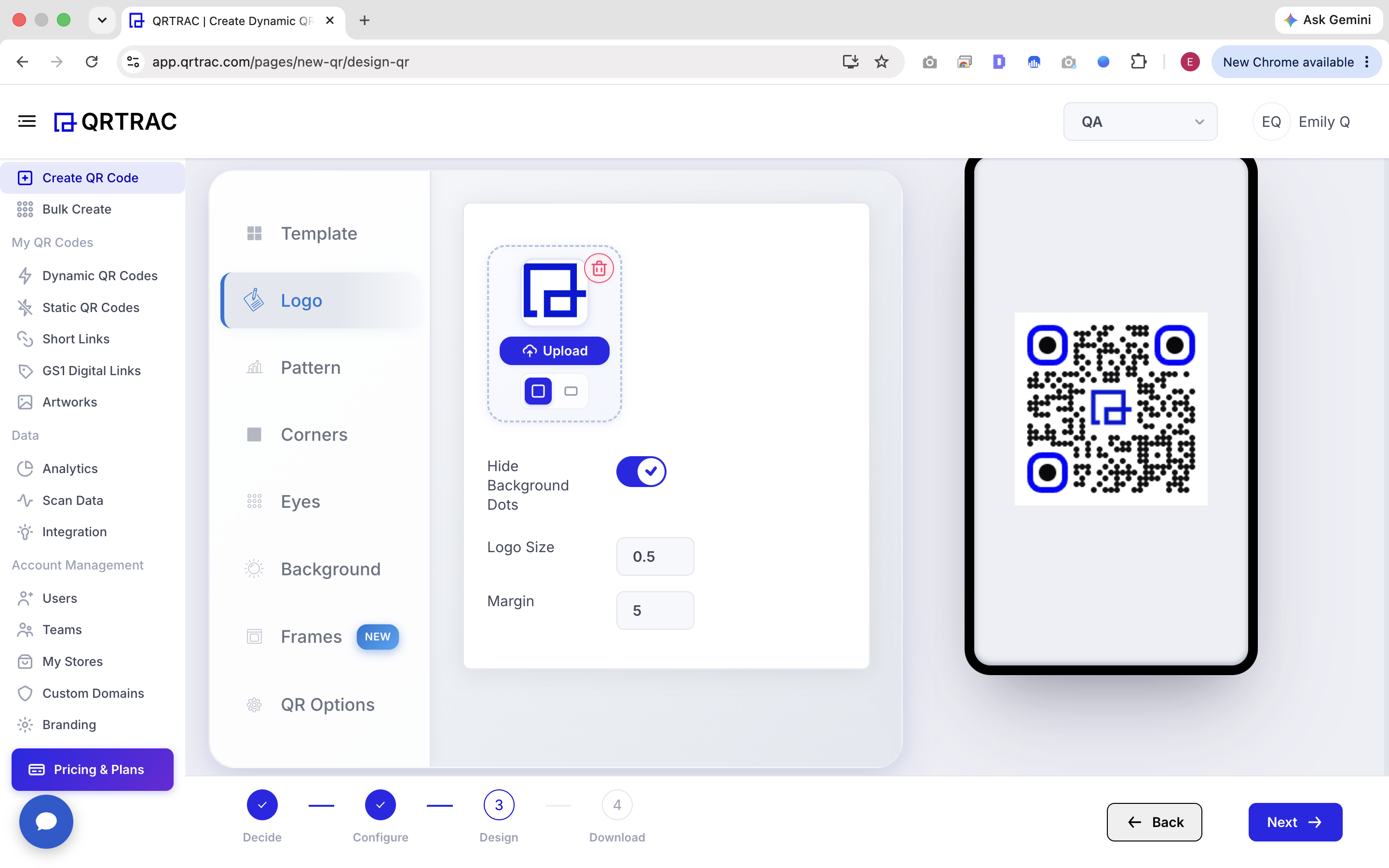
QRTRAC QR code design settings with the live QR preview
In the Logo settings, you can adjust:
- Logo: The image uploaded to the center of the QR code.
- Hide Background Dots: Removes the QR data modules immediately behind the logo for a cleaner look.
- Logo Size: Controls the footprint of the logo on the QR code.
- Margin: The spacing around the logo itself.
If you do not need a logo for your brand, do not add one simply for decoration. Adding a logo covers part of the QR code data. While error correction compensates for this, a clean, logo-free QR code is always the easiest for a camera to scan.
If a logo is used, we recommend keeping the logo size visually controlled (not too large) and always testing the QR code with a smartphone camera before production or printing.
QR Options: Why You Should Usually Leave Them Alone
The QR Options section controls the mathematical structure of the QR code.
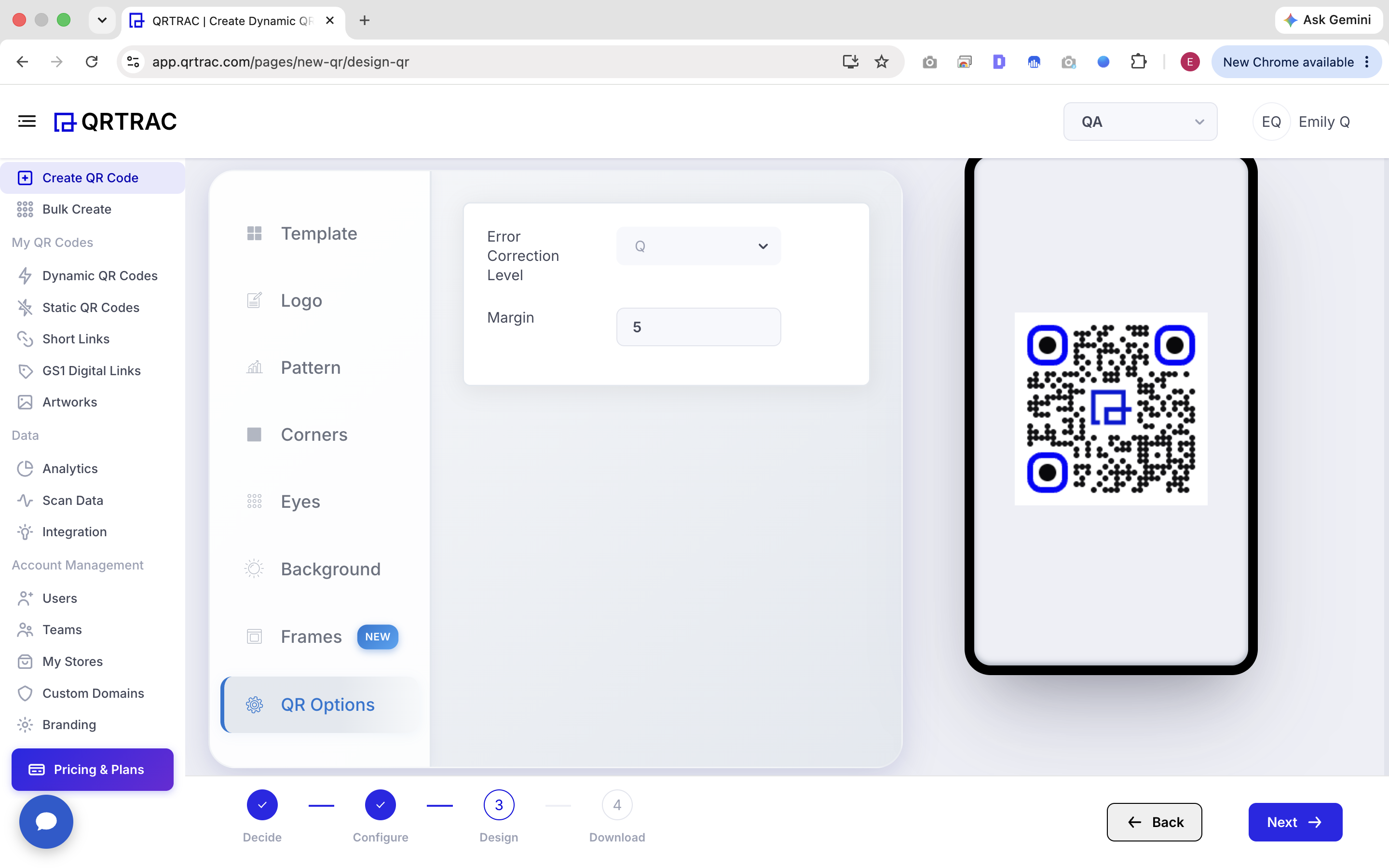
QRTRAC QR Options showing error correction and margin settings
Error Correction Level
Error correction determines how much damage or obstruction a QR code can tolerate while remaining readable. It builds mathematical redundancy into the QR code pattern.
If you do not have a specific reason to change the error correction level, keep the QRTRAC default.
You should be especially careful when combining high error correction with small QR sizes or complex visual customization. Higher error correction makes the QR code pattern denser (more tiny dots), which can be harder for cheaper cameras to resolve if printed too small.
Margin
The margin (or "quiet zone") provides clear space around the outside of the QR code.
Keep the default margin unless you have a specific layout requirement.
Clear space around the QR code is absolutely critical for reliable scanning. It tells the scanning camera where the QR code starts and ends, separating it from the text or images surrounding it on your printed material.
Download Settings: Recommended Defaults for Most Users
After designing the QR code, QRTRAC lets you set the size, file format, DPI and a few advanced options before you download.
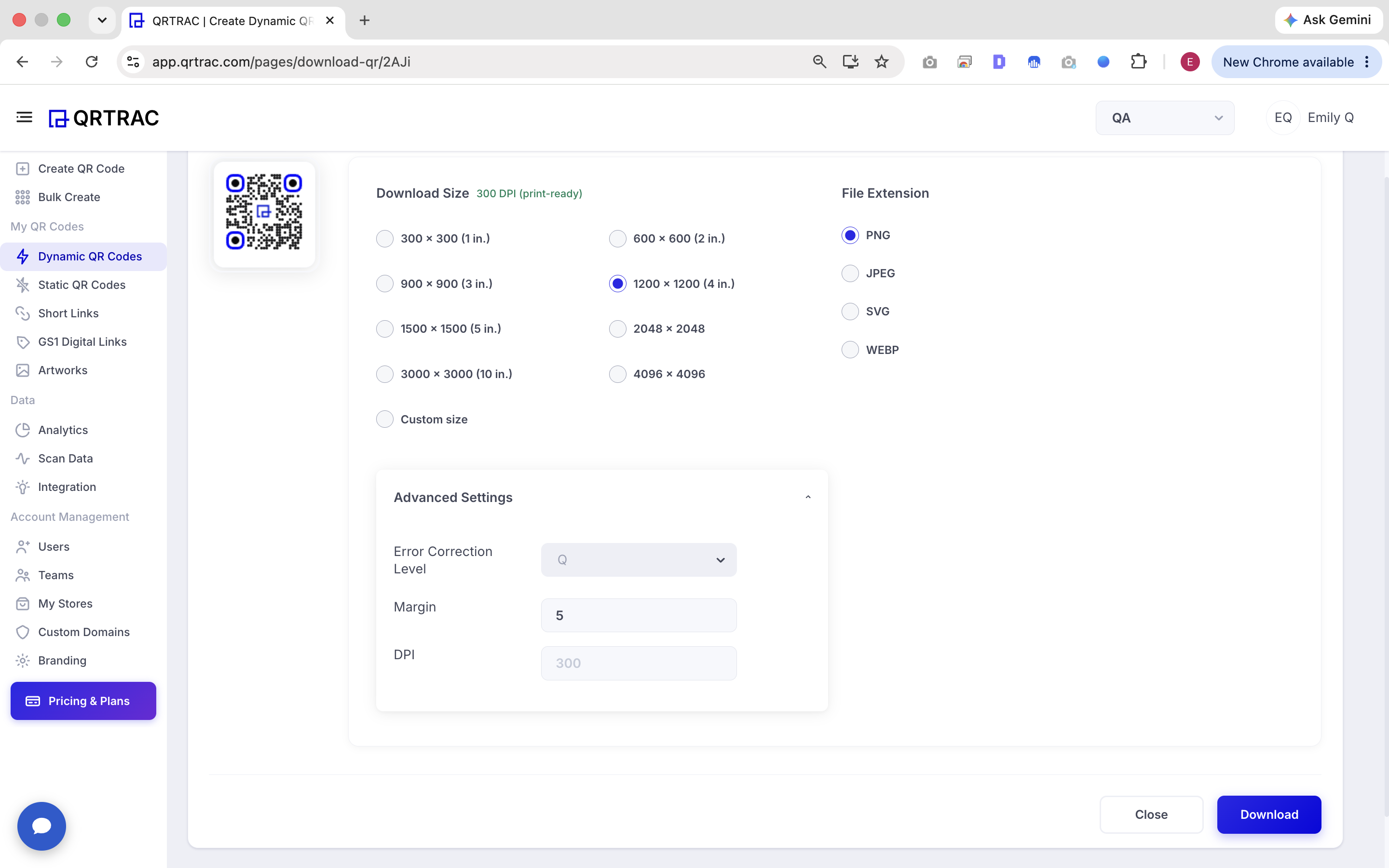
QRTRAC QR code download settings with size, file format, DPI, and advanced options
Download Size
QRTRAC defaults to a print-ready size of 1200 × 1200 pixels (4 in.) at 300 DPI. You should choose a size based on where the QR code will be used. For normal digital use (like an email signature or a website footer), you can stick with the default or choose a smaller size. For printing on posters, banners, or packaging, you can increase it to a larger size to maintain sufficient resolution.
File Extension
QRTRAC allows you to download your QR code in multiple formats:
- PNG: A good general-purpose raster format with a transparent background. Excellent for most daily uses.
- JPEG: Useful for systems or platforms where JPEG compatibility is specifically required. (Does not support transparency).
- SVG: Useful for scalable graphics and professional print/design workflows. It never loses quality when resized.
- WEBP: Useful for modern web and digital use cases where supported, offering smaller file sizes.
The best format always depends on where the QR code will be used.
DPI
DPI (Dots Per Inch) tells a printer how densely to pack the pixels of an image. The default 300 DPI is appropriate for many professional print workflows.
However, 300 DPI is just a print setting. The final physical size of the printed QR code and the printer's overall quality are equally important. Do not assume a high DPI alone guarantees scanability if the code is printed too small.
Should You Change the Default QRTRAC Settings?
Keep the defaults if:
- ✓ You are creating a normal QR code.
- ✓ You are using the QR code digitally.
- ✓ You are printing a standard QR code.
- ✓ You do not have special branding requirements.
- ✓ You do not have a specific file-format requirement.
- ✓ You are unsure which advanced setting to choose.
Consider changing if:
- ! You need a specific brand design.
- ! You need to add a logo.
- ! You need a specific print size.
- ! A designer requires SVG.
- ! A production workflow requires a particular file format.
- ! You have a specific scanning environment.
- ! You have tested the QR code and need to adjust its design.
Recommended QR Code Workflow in QRTRAC
- Create your QR code.
- Enter or configure the destination.
- Leave the default design settings unless customization is required.
- Leave QR Options at their default values unless you have a specific requirement.
- Review the live QR preview.
- Test the QR code with a smartphone.
- Choose the appropriate download size and file format.
- Download the QR code.
- For printed materials, test the final printed QR code before producing a large batch.
When Should You NOT Change QR Code Settings?
Changing advanced settings without understanding their purpose can make a QR code unnecessarily difficult to scan.
- Avoid excessive visual customization.
- Avoid making QR codes too small.
- Avoid reducing contrast (e.g., using light colors on a light background).
- Do not remove the clear space (margin) around the QR code.
- Always test customized QR codes before printing or publishing.
Default QR Code Settings Checklist
- ✓ Keep the default settings for normal QR codes
- ✓ Keep sufficient margin around the QR code
- ✓ Use the default error correction unless you have a reason to change it
- ✓ Avoid unnecessary visual complexity
- ✓ Choose download format based on the destination/use case
- ✓ Use an appropriate download size
- ✓ Use suitable DPI for print workflows
- ✓ Test the final QR code before publishing or printing
Frequently Asked Questions
What are the default QR code settings in QRTRAC?
QRTRAC provides default design, QR, and download settings intended to give users a practical starting point. This ensures you get a scannable, functional QR code immediately without manual configuration.
Should I change the default QR code settings?
Most users can leave them unchanged unless they have a specific design, printing, scanning, or file-format requirement. The defaults are optimized for reliability.
What does QR code error correction do?
Error correction determines how much damage or obstruction (like a central logo) the QR code can tolerate while still being readable by adding mathematical redundancy.
What does QR code margin do?
Margin creates necessary clear space around the QR code, helping the scanner separate the code from surrounding content, graphics, or text.
Which QR code file format should I download?
PNG is great for general digital use; JPEG is useful where explicitly required; SVG is best for scalable professional print workflows; and WEBP is optimal for fast-loading websites. The correct choice depends entirely on your intended use.
Is 300 DPI good for printing QR codes?
Yes, 300 DPI is a common print-ready setting. However, physical QR size, color contrast, printer quality, and real-world testing are also critical for scanability.
Should I add a logo to my QR code?
A logo is optional and should only be added when branding is important. Adding a logo covers data modules, so the resulting QR code should always be tested on multiple devices before use.