How to Create a Product Verification QR Code
The Product Verification QR Code is a powerful anti-counterfeit feature designed to help brands protect their products and give customers confidence in their purchases. By generating unique QR codes for every single unit in a batch—and optionally pairing them with unique scratch-off codes—you can securely verify authenticity, track scans, and flag suspicious activity in real-time.
This guide will walk you through the complete 4-step flow: Decide → Configure → Design → Download.
Why Use Product Verification?
Key Security Features
- Unique QR code per product unit
- Optional Scratch-off 2nd Factor authentication
- Automatic counterfeit flagging (Scan Thresholds)
- Real-time verification reporting
- Custom customer data collection
Common Uses
- Luxury goods & apparel
- Electronics and hardware
- Pharmaceuticals & supplements
- Cosmetics & beauty products
- Automotive parts
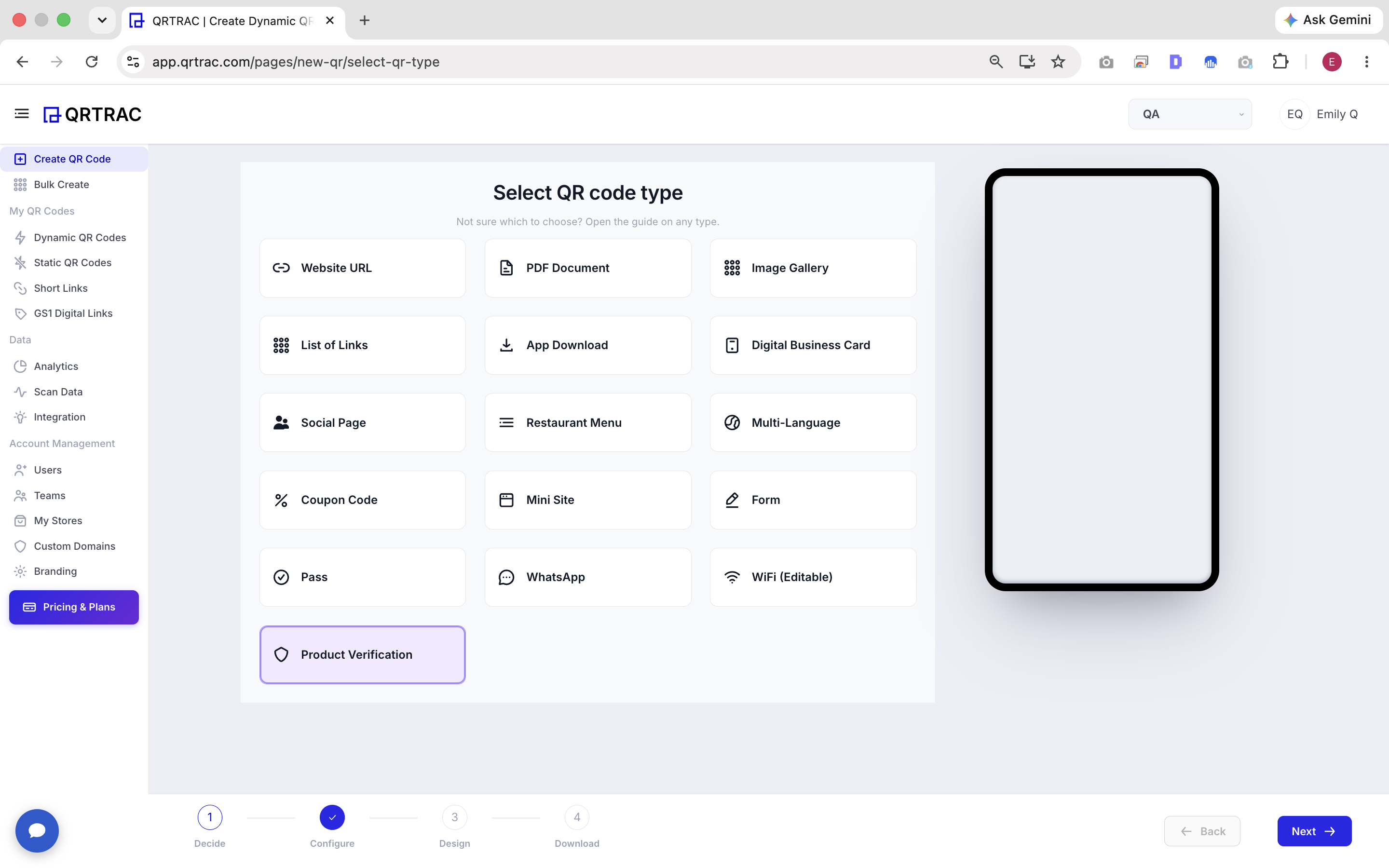
Step 1: Select "Product Verification" QR Type
- Log in to your QRTRAC dashboard.
- Click Create QR Code.
- From the available QR types, select the Product Verification option.
- Continue to the configuration screen.
Step 2: Configure Product Details
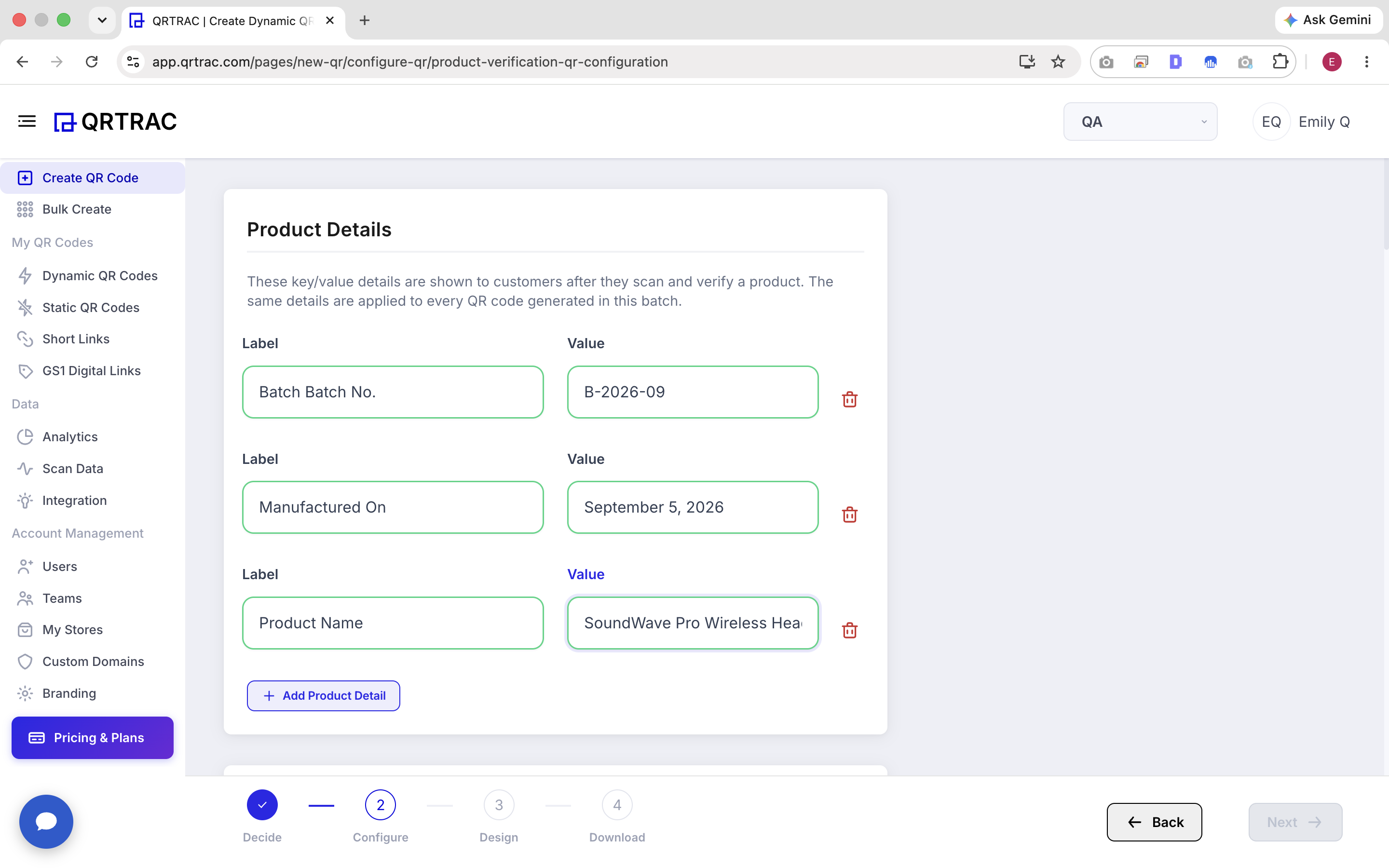
The Product Details section allows you to define key-value information that will be shown to your customers after they scan and successfully verify a product. The same details are applied to every QR code generated in this specific batch.
You can add multiple rows of details. For example:
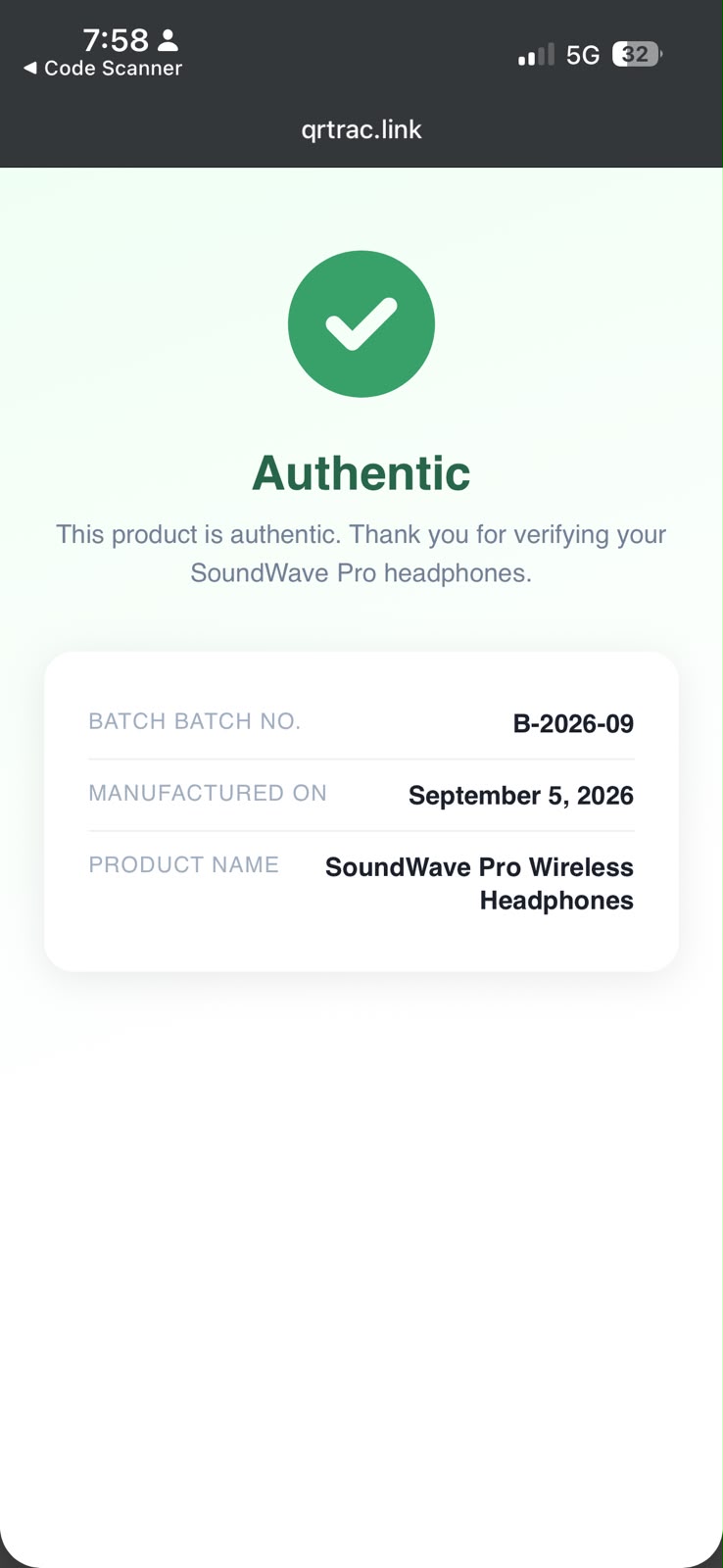
- Batch No. → B-2026-09
- Manufactured On → September 5, 2026
- Product Name → SoundWave Pro Wireless Headphones
You can easily add new fields using the Add Product Detail button, and delete any rows you don't need.
Step 3: Set Up Authenticity Verification
This is the most critical section, as it controls how QRTRAC determines whether a product is authentic or suspicious.
Option A: Scratch-off 2nd Factor Code (Highest Security)
When this toggle is enabled:
- Each generated unit receives its own unique scratch-off verification code.
- After scanning the QR code, the customer is prompted to enter the hidden scratch-off code.
- A mismatched scratch-off code results in a failed/suspicious verification state.
- Scratch-off codes are completely unique per unit and never reused.
Option B: Scan Count Threshold
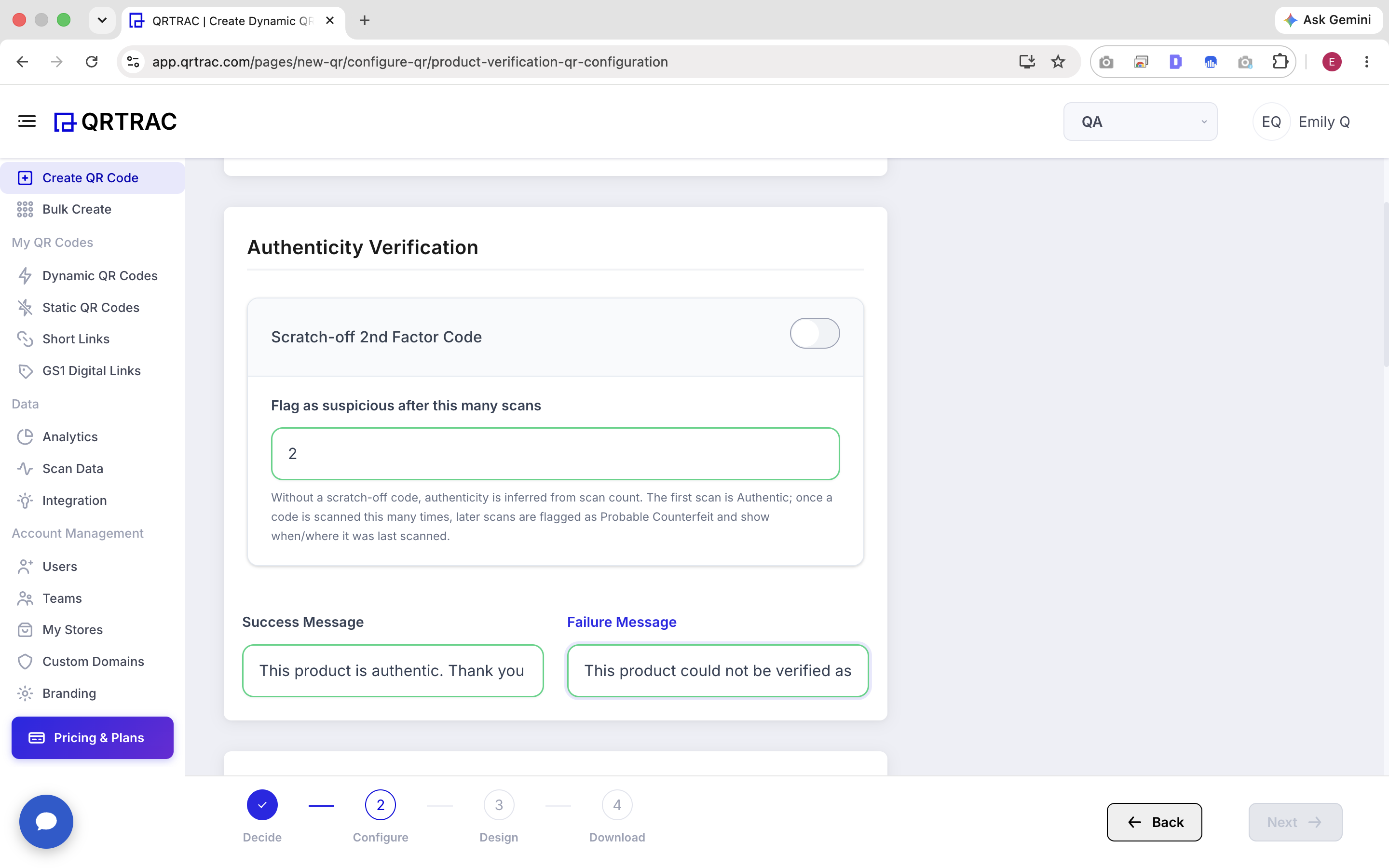
When the scratch-off feature is disabled, authenticity is inferred from the scan behavior:
- Flag as suspicious after this many scans: You configure a threshold (e.g., 2 scans).
- The first valid scan is treated as Authentic.
- Once a single QR code is scanned more times than your configured threshold, later scans are flagged as Probable Counterfeit.
Custom Verification Messages
You can customize the messages shown to customers during the verification process:
- Success Message: e.g., "This product is authentic. Thank you for your purchase."
- Failure Message: e.g., "Warning: This product could not be verified as authentic. It may be a counterfeit."
Important Security Note
Always ensure that your physical printing process securely hides the scratch-off codes if you choose to use the 2nd Factor feature. The security of the system relies on the code remaining hidden until the end customer scratches it.
Step 4: Capture Customer Information (Optional)
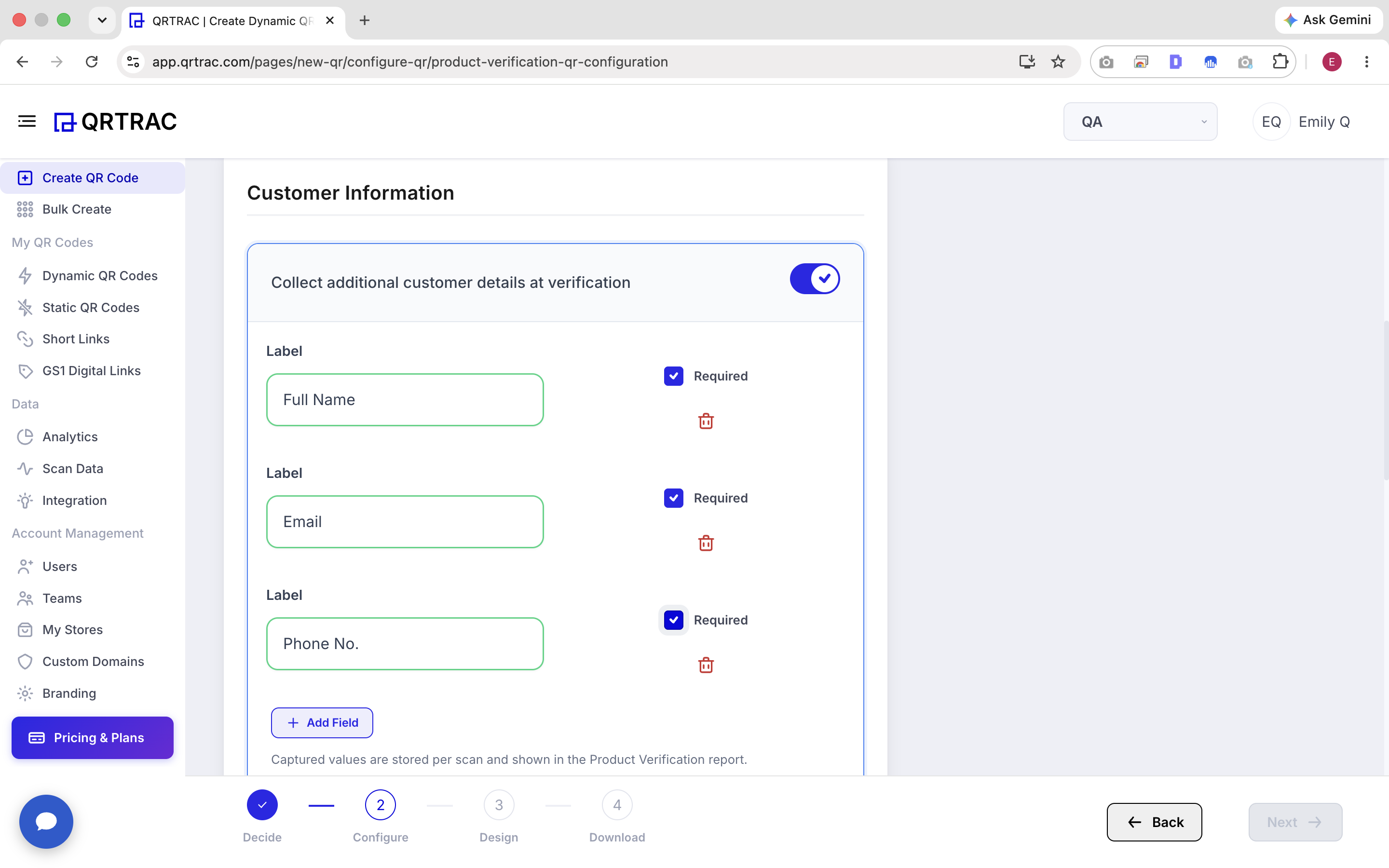
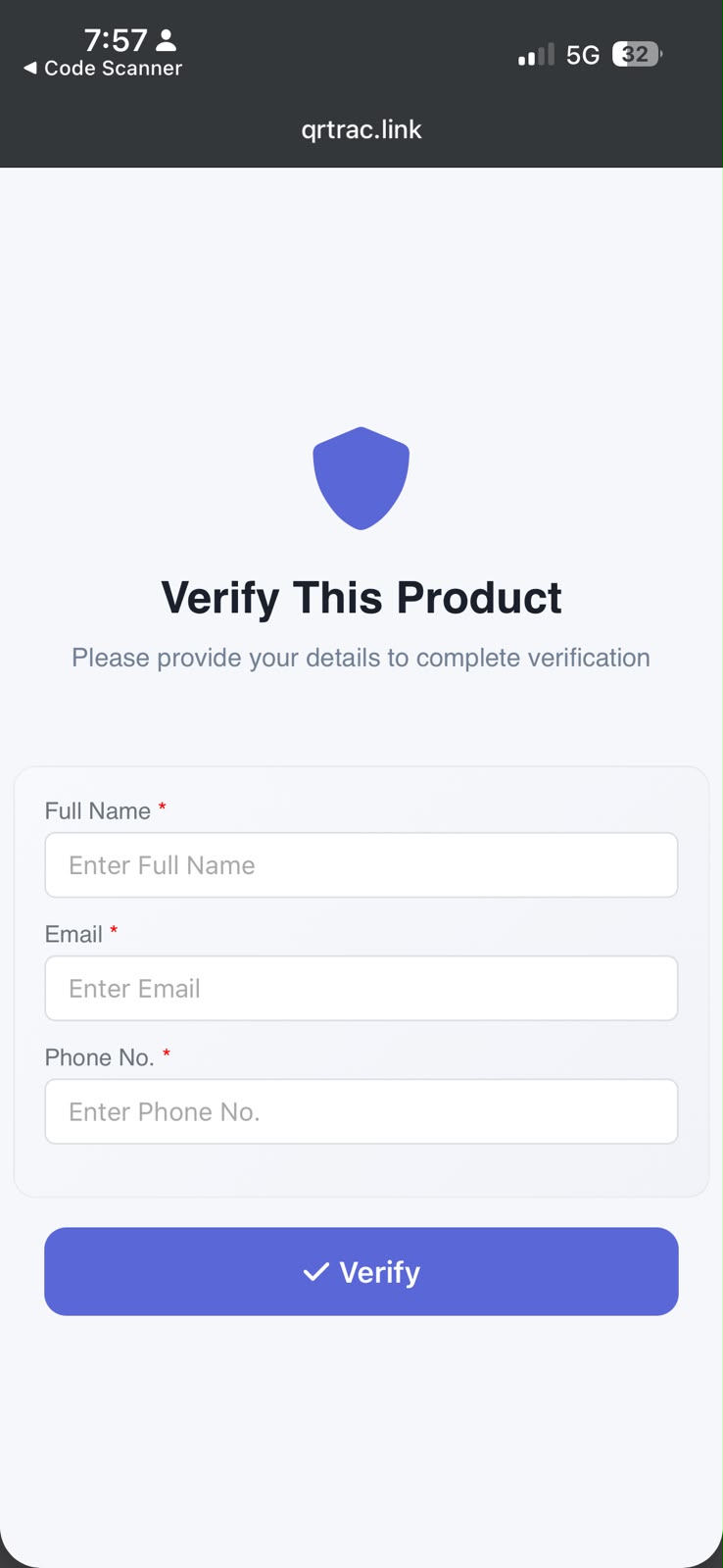
If you want to gather data from customers who verify your products (for warranties, marketing, or recall purposes), enable the Collect additional customer details at verification toggle.
You can add fields such as:
- Full Name
- Email Address
- Phone Number
You can mark specific fields as Required. Captured values are securely stored per scan and can be viewed later in your Product Verification Report. Customer data is strictly separated between units to ensure privacy.
Step 5: Define Batch Size
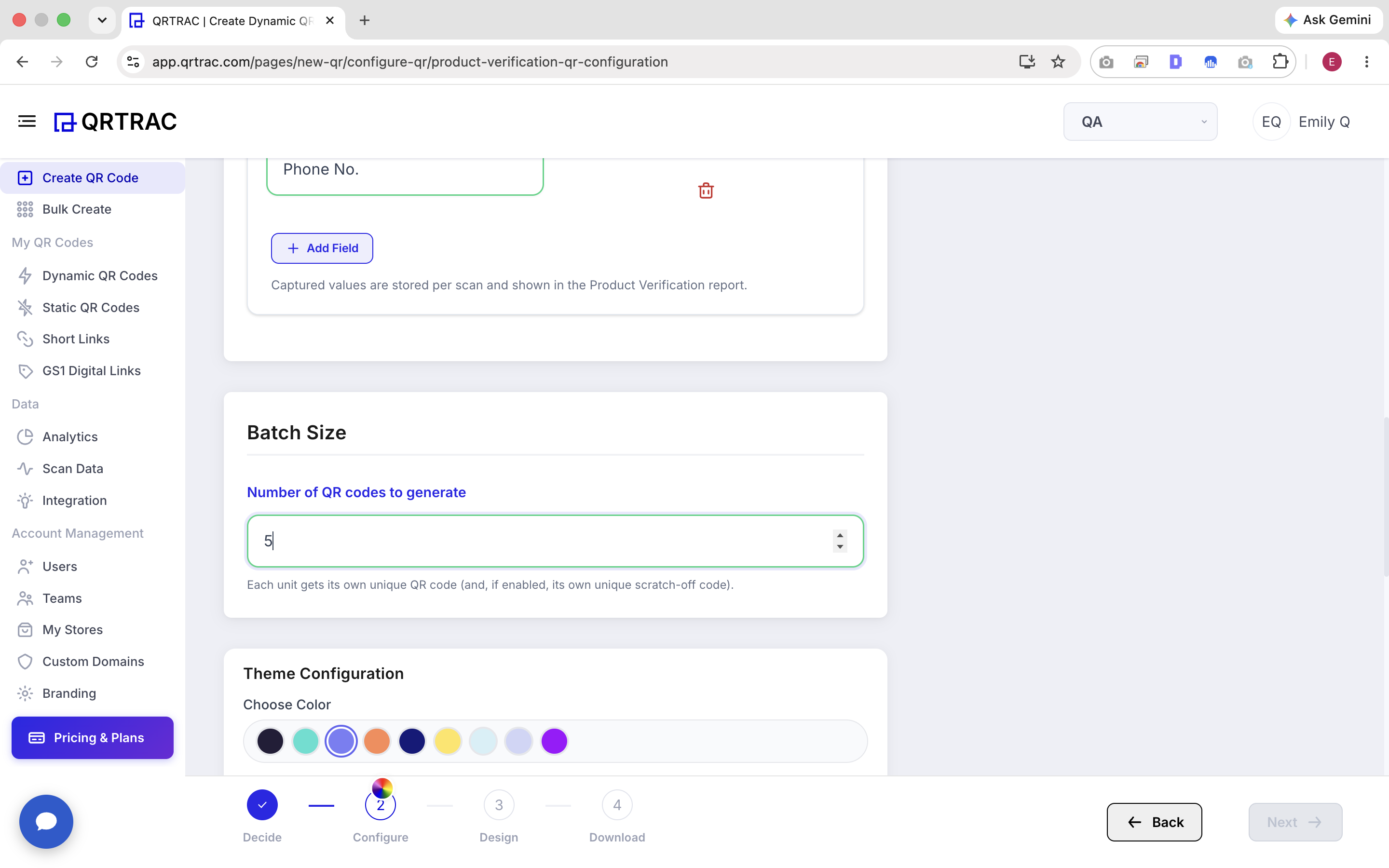
In the Number of QR codes to generate field, enter the exact number of units you are producing for this run (e.g., 500, 1000, 5000).
What happens during generation?
- Every generated unit is assigned a unique identifier.
- Every unit receives a unique QR code.
- If enabled, every unit also receives a unique scratch-off code.
Step 6: Design Your QR Code
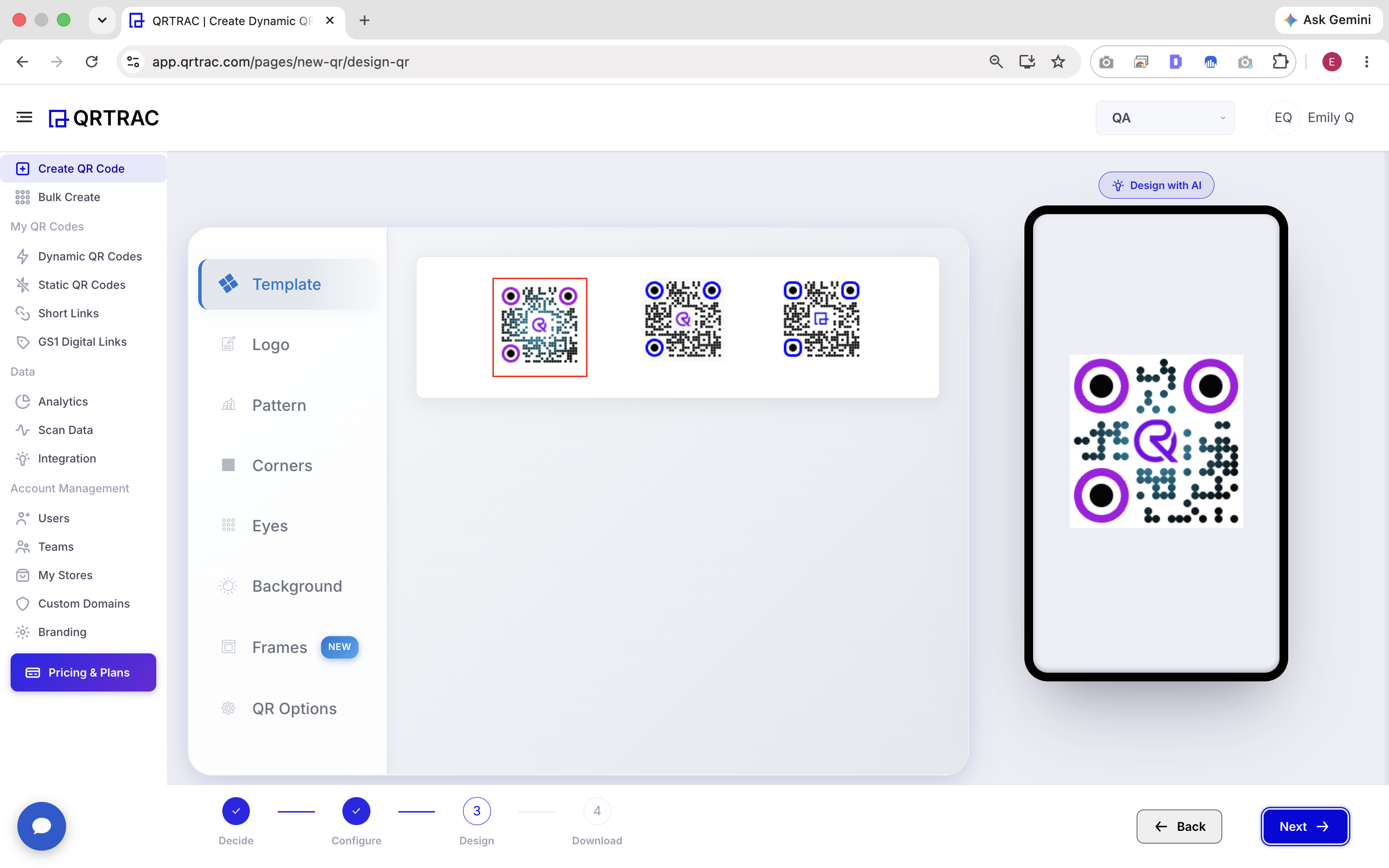
Move to the Design step to customize the visual appearance of your QR codes.
You can use the existing design editor to change the template, add your brand logo, adjust the pattern, and modify the colors. The selected design will be uniformly applied to all generated QR codes in this batch.
Design Tip: When designing QR codes that will be printed on small product packaging, prioritize high contrast and avoid overly complex patterns to ensure they remain scannable.
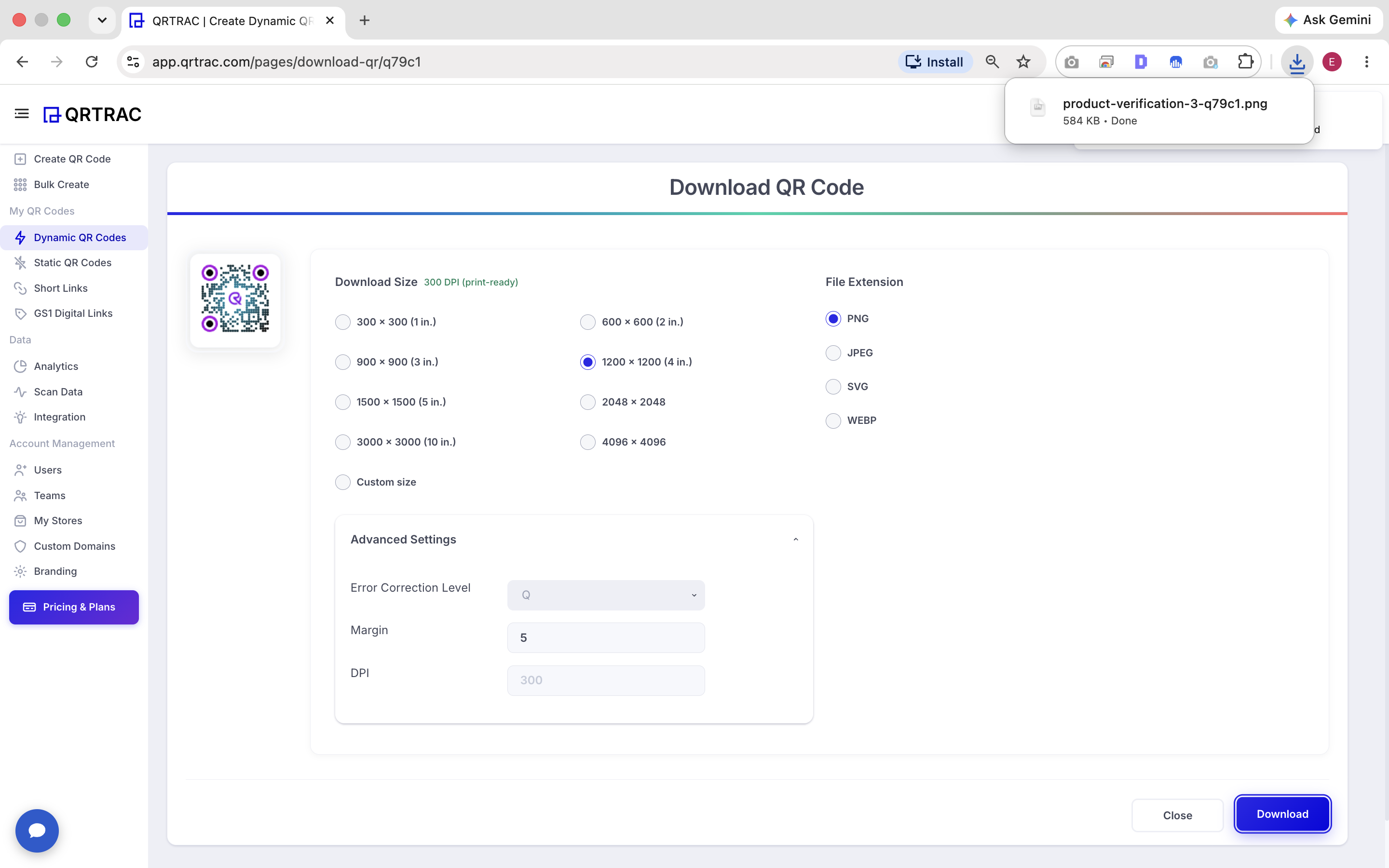
Step 7: Download QR Codes & Scratch Codes
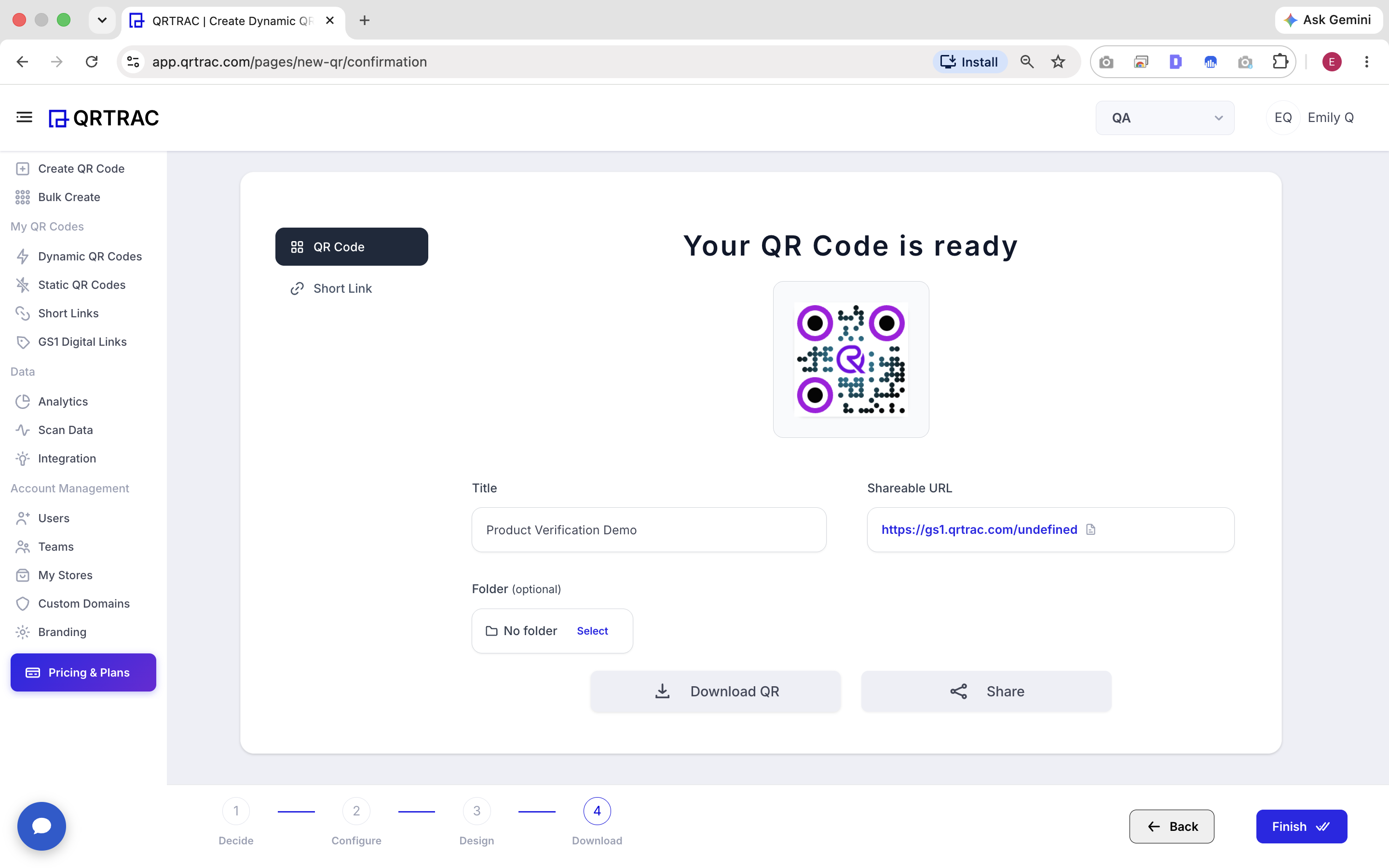
Once you finish the design, proceed to the Download stage.
QRTRAC will securely generate your batch. From the dedicated Product Verification download screen, you can obtain your assets. If scratch-off authentication is enabled, you will be able to download a mapped file containing the unique QR codes alongside their corresponding scratch-off codes for your printing facility.
Note: You can safely re-download the batch later; the system will retrieve the exact same unit data without regenerating new codes or breaking the mappings.
Managing the Product Verification Report
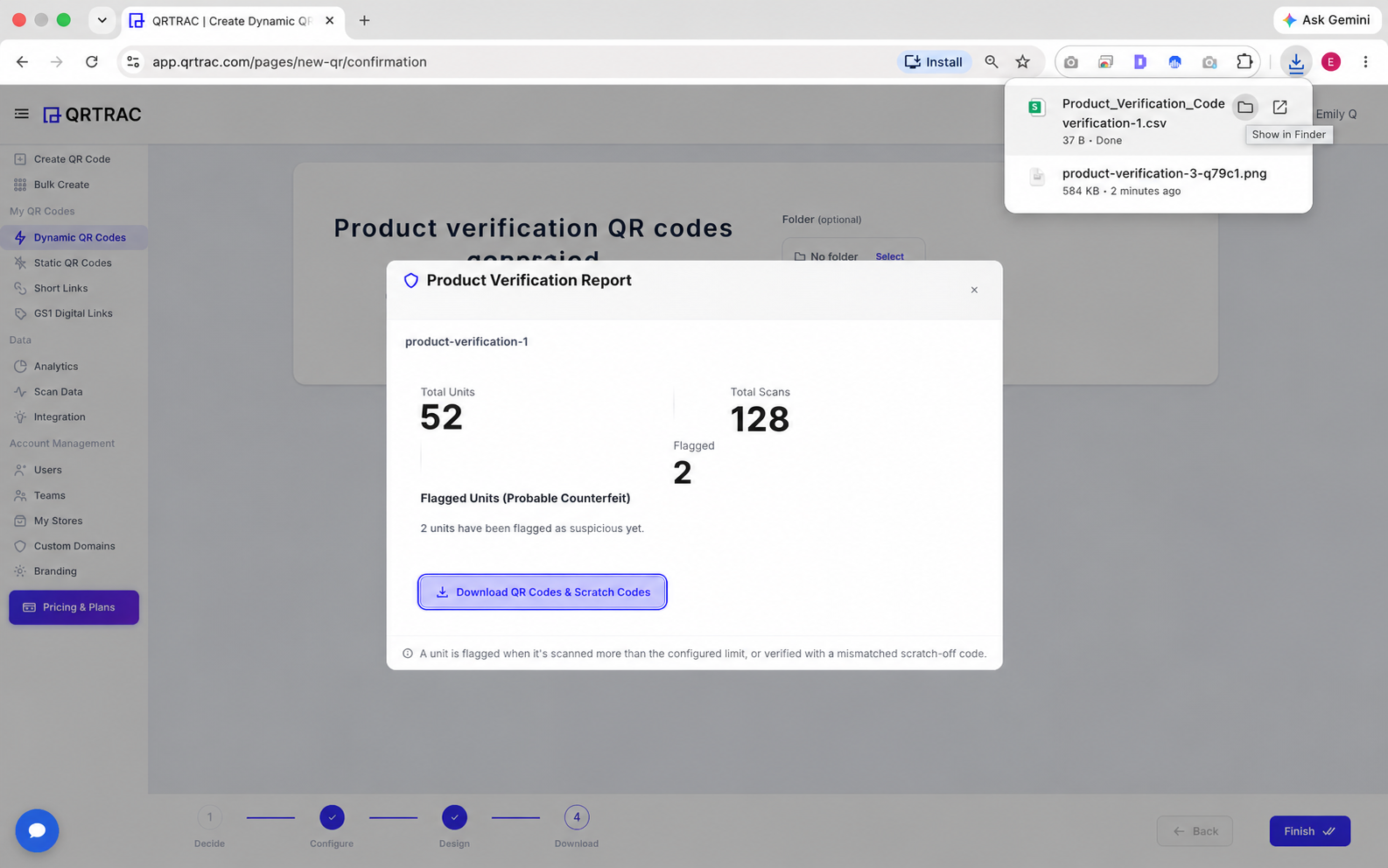
After your products are in the market, you can monitor their status through the Product Verification Report modal in your dashboard.
The report provides real-time statistics:
- Total Units: The number of generated units in the batch.
- Total Scans: Total verification scans across all units.
- Flagged: Number of units currently flagged as suspicious.
Investigating Flagged Units (Probable Counterfeits)
If any units are flagged, they will appear in this report. A unit is flagged when:
- It was scanned more than your configured scan threshold.
- A scratch-off code was entered incorrectly (mismatched).
The report displays the unit identifier, number of scans, reason for flagging, and the last known scan location/timestamp to help you investigate potential counterfeiting.
Customer Verification Experience
When a customer scans the Product Verification QR Code, they will be guided through a mobile-friendly verification process. Here is what the interaction looks like:
1. Scanning & Entering the Scratch-off Code
If you enabled the Scratch-off 2nd Factor Code, the customer will be prompted to enter the hidden code found on the physical product packaging. This ensures the product has not been tampered with.
2. Viewing the Authentication Result
After a successful scan and verification, the customer will see the authentication result. If the product is genuine, they will see your custom Success Message alongside the Product Details you configured earlier. If the product is suspicious or the scratch-off code doesn't match, they will see the Failure Message.
Frequently Asked Questions
What does the customer experience look like?
When a customer scans the QR code, they are taken to a verification page. They will see the product details you configured. If enabled, they will be asked to enter the scratch-off code and fill out any customer information fields. Finally, they receive the success or failure authentication message.
Can customers see the internal scratch-off codes?
No. Scratch-off codes are securely validated on the server. Customers only see the physical code they scratch off the product packaging.
What happens if I go back during creation?
Your configuration progress (product details, batch size, etc.) is preserved if you move back and forth between the Decide, Configure, and Design steps.
Does Product Verification support Advanced Settings?
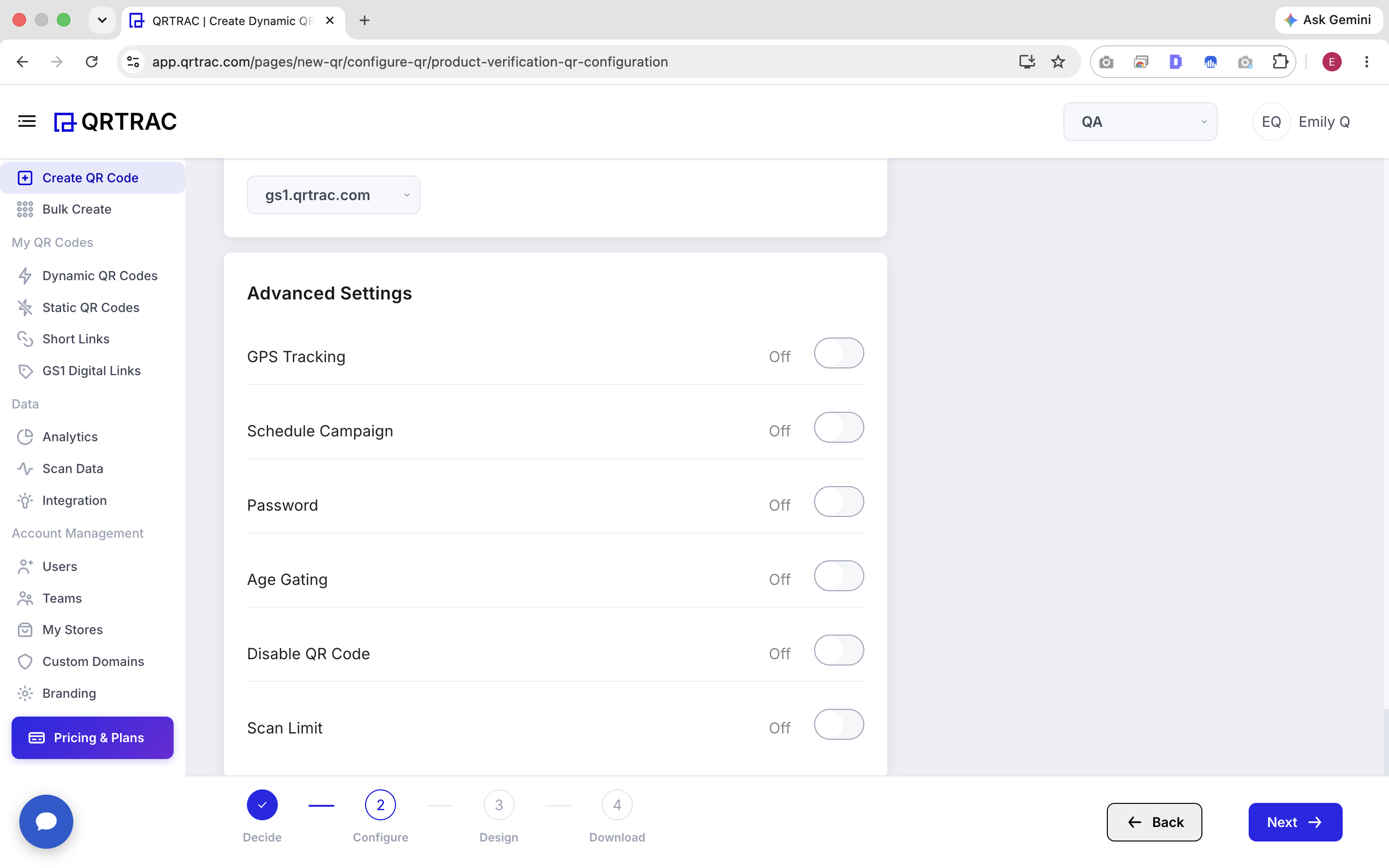
Yes. You can use Advanced Settings like Custom Domains, GPS Tracking, and Scheduled Campaigns alongside the Product Verification features.
Common Mistakes
- ❌ Forgetting to map scratch-off codes to the correct units during printing.
- ❌ Not testing the customer verification flow before distributing products.
- ❌ Setting the scan limit threshold too low for your typical use case.
- ❌ Designing a QR code with insufficient contrast for reliable scanning.
Launch Checklist
- Product Details configured and verified
- Scratch-off logic / Scan Threshold tested
- Custom verification messages added
- Batch generated and securely downloaded
- Print samples scanned successfully