How to Create GS1 Digital Links in Bulk
QRTRAC allows you to create multiple GS1 Digital Links at once instead of creating each link individually. By uploading a CSV or Excel file, you can validate your records, preview the generated Digital Link paths, create the links, and then select and download the generated QR codes in one workflow.
Before You Create GS1 Digital Links in Bulk
Before getting started, ensure you have the following requirements:
- A QRTRAC account
- A GS1 Digital Link domain
- A CSV or Excel file containing the required data
Your file must follow specific rules:
- GTIN is required.
- Destination is required.
- Name, lot, and serial are optional.
- Up to 500 rows can be uploaded at a time.
- A header row is supported and will be skipped during processing.
Ensure your columns are in this exact order:
gtin, destination, name, lot, serialStep 1: Open Bulk Create
Go to the GS1 Digital Links section in your QRTRAC dashboard and select the Bulk Create option.
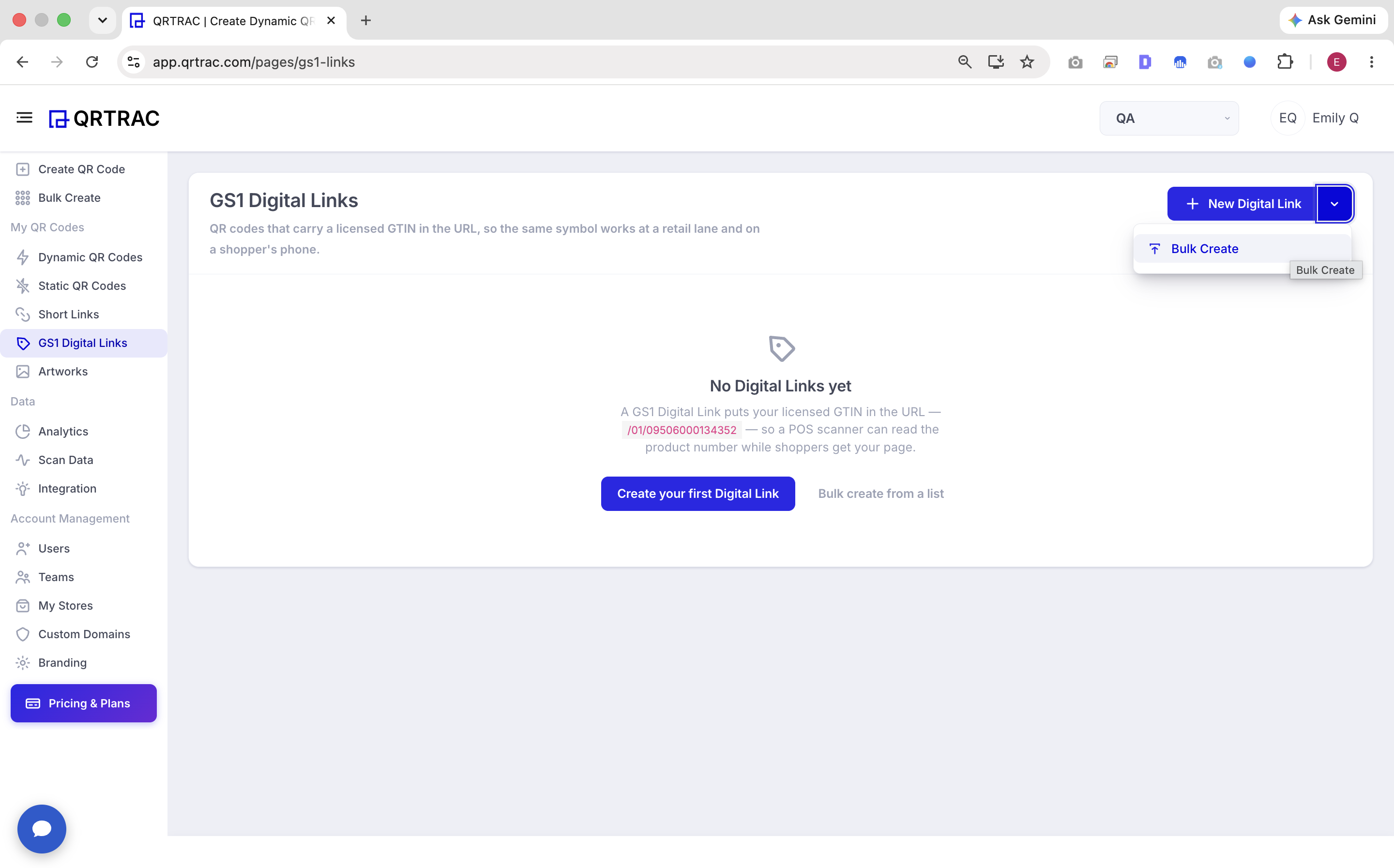
Open Bulk Create from the GS1 Digital Links section.
Step 2: Select Your GS1 Digital Link Domain
You need to select or enter the domain that will be used for all the generated Digital Links in your bulk upload.
For example, you might select:
gs1.qrtrac.comThis domain becomes the base part of all your generated GS1 Digital Link URLs.
Step 3: Upload Your CSV or Excel File
In the Bulk Create modal, you will find the option to Choose CSV or Excel file.
Remember that your file should follow the supported column order:
gtin, destination, name, lot, serial- GTIN is required.
- Destination is required.
- Name is optional.
- Lot is optional.
- Serial is optional.
Header rows are skipped automatically, and you can upload up to 500 rows at a time. If you need help preparing your file, use the Download a template option provided in the modal.
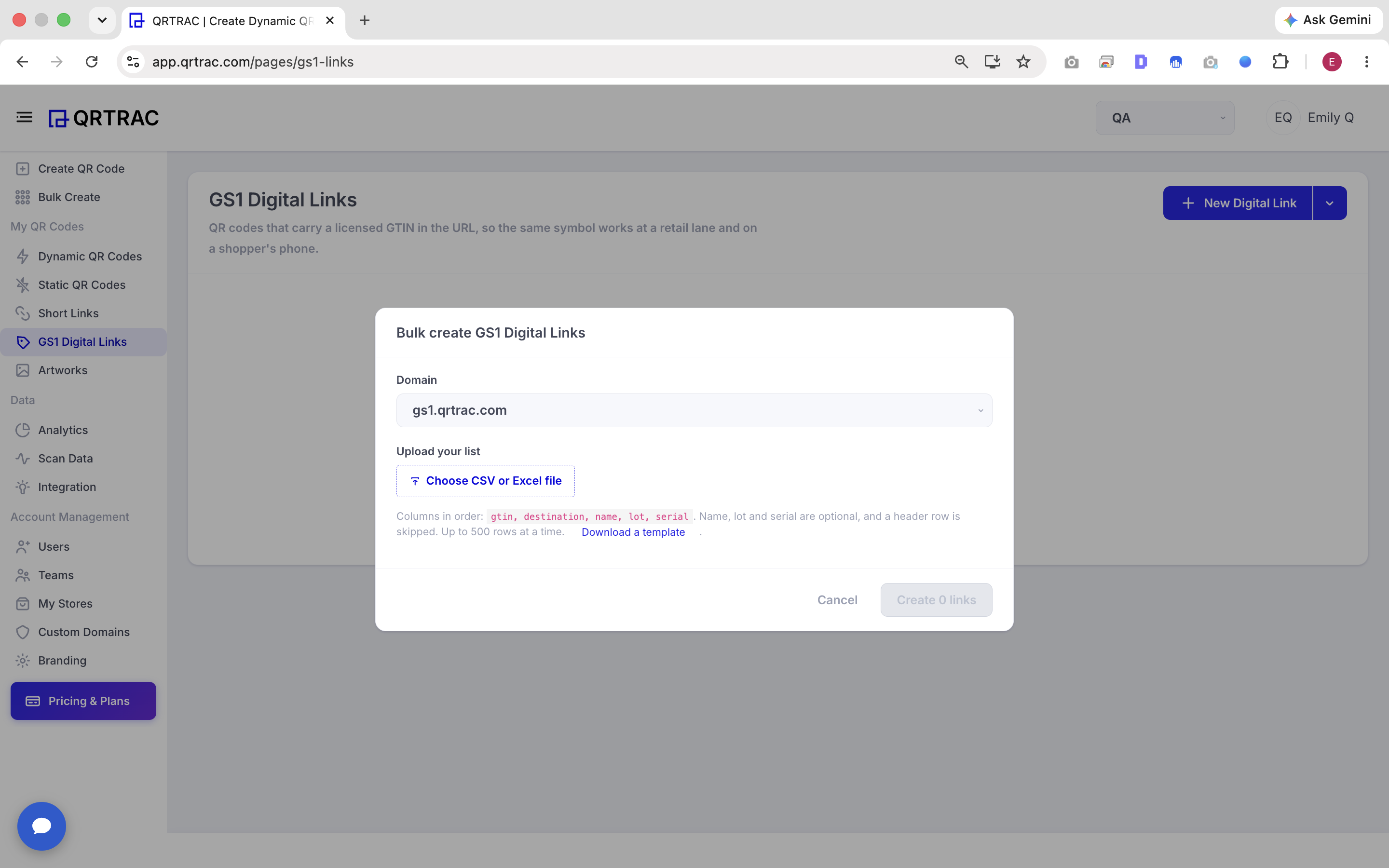
Upload a CSV or Excel file containing your GS1 Digital Link records.
Step 4: Review and Validate the Uploaded Records
After uploading the file, QRTRAC validates the uploaded records and displays a preview before actually creating the links. You will see a summary, for example:
20 readyThe preview table will show you:
- LINE
- GTIN
- DIGITAL LINK PATH
- STATUS
An example Digital Link path might look like this:
01/00850012345671/10/LOT-US-VCS-260927-A/21/SN-VCS-260927-00001Only records with a "Ready" status can be created. If any records have errors, you should correct them in your source file and re-upload.
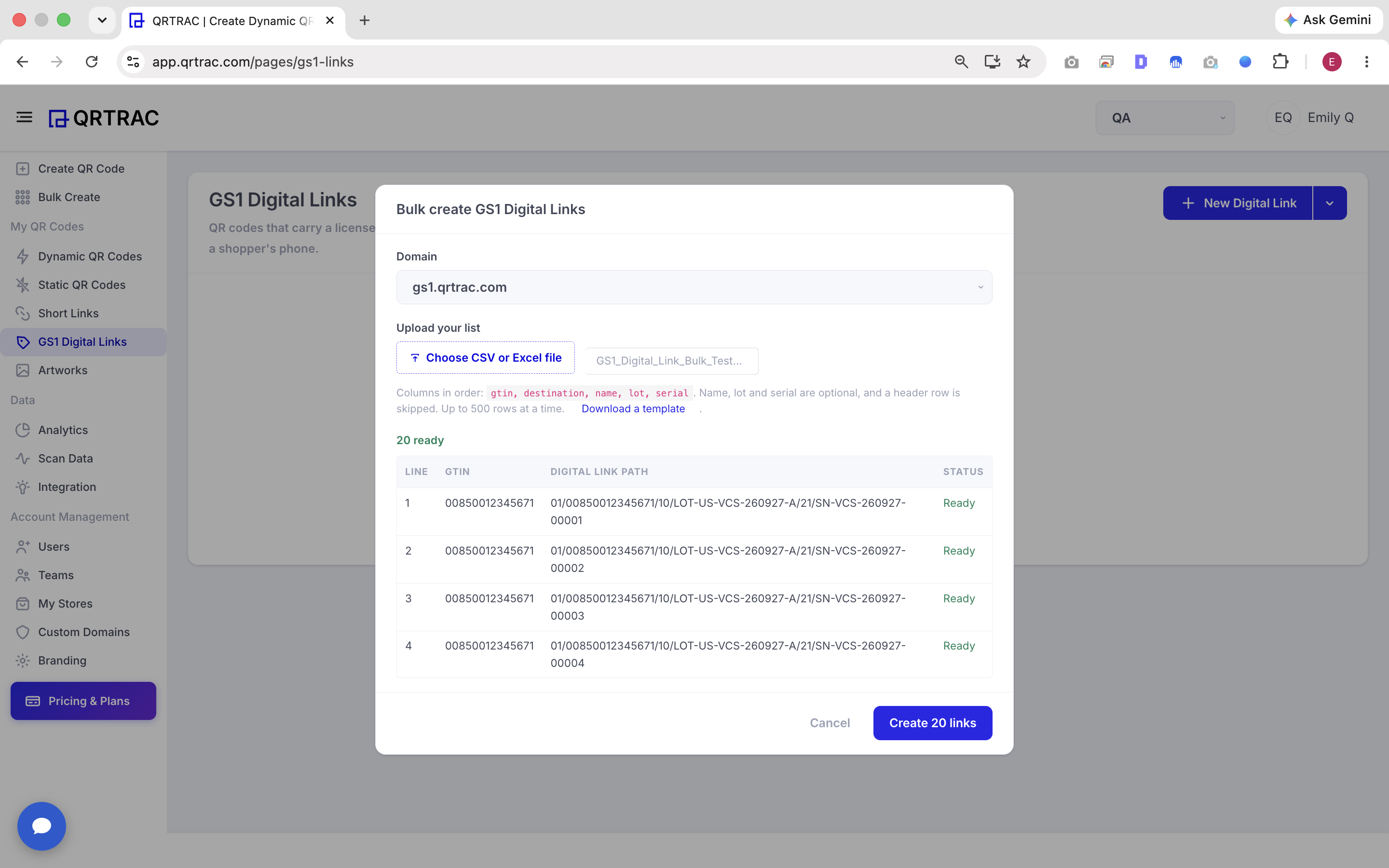
Review the validated records and Digital Link paths before creating the links.
Step 5: Create the GS1 Digital Links
Once you have reviewed the uploaded records and everything looks correct, click the creation button, which will indicate the number of valid records (e.g., Create 20 links).
QRTRAC will then process the batch and create the GS1 Digital Links from your validated records.
Step 6: Review the Created GS1 Digital Links
After creation is complete, the generated links will appear in your GS1 Digital Links list.
You can review all the information associated with each record, including:
- Code
- GTIN
- Batch / Lot
- Serial
- Digital Link
- Destination
For example, a record might display:
- GTIN:
00850012345671 - Batch/Lot:
LOT-US-VCS-260927-C - Serial:
SN-VCS-260927-00013 - Digital Link:
https://gs1.qrtrac.com/01/00850012345671/10/LOT-US-VCS-260927-C/21/SN-VCS-260927-00013 - Destination:
https://www.cerave.com/skincare
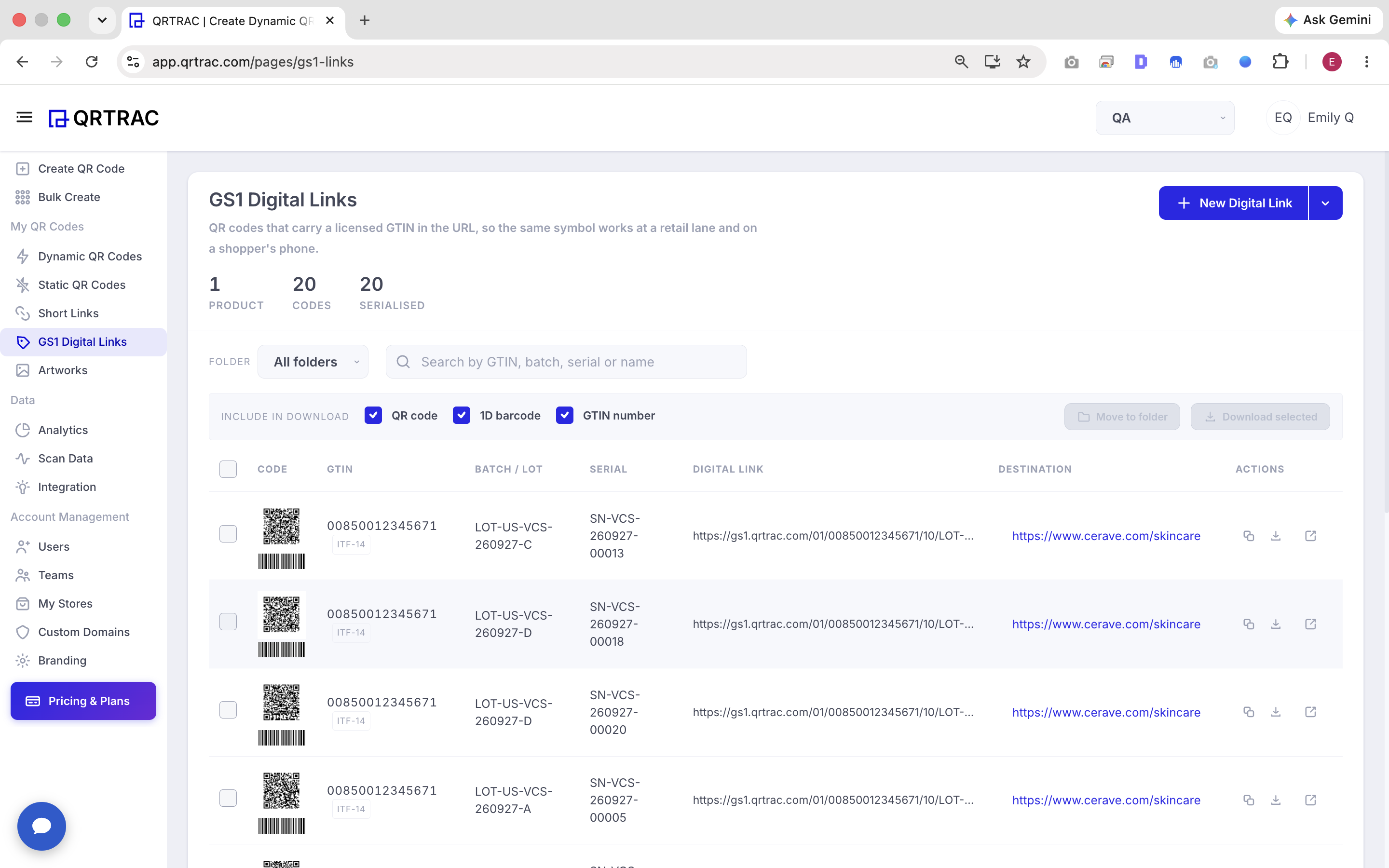
Review the GS1 Digital Links created from your bulk upload.
Step 7: Select Multiple GS1 Digital Links
You can manage your newly created links by selecting multiple generated records using the checkboxes in the table.
The interface will show the total number of selected records and provide bulk actions such as:
- Clear
- Move to folder
- Download selected
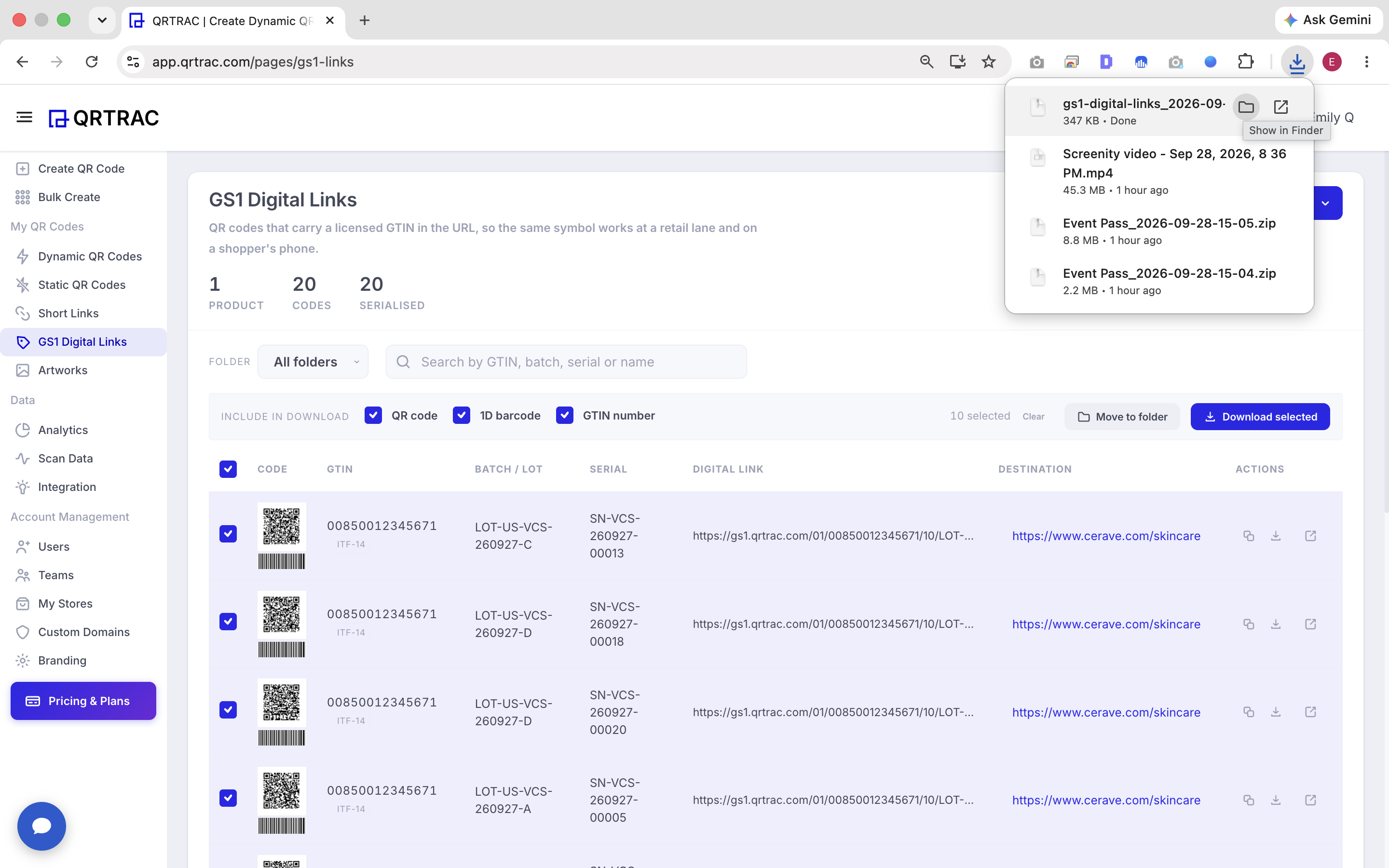
Select the GS1 Digital Links you want to download.
Step 8: Configure the Download
When preparing to download your selected links, you will see Include in Download options in the interface.
You can choose exactly what information to include with your download:
- QR code
- 1D barcode
- GTIN number
Make sure to check the boxes for the information you want included in your export before finalizing the download.
Step 9: Download the Selected GS1 Digital Links
After selecting the required records and configuring the download options, click Download selected.
This will package your generated GS1 Digital Link codes and download them to your device, ready for use in packaging, labels, product materials, or any other workflow.
Bulk GS1 Digital Link Creation Workflow
Here is a quick summary of the process:
- GS1 Digital Links
- → Bulk Create
- → Upload CSV/Excel
- → Validate Records
- → Preview Digital Link Paths
- → Create Multiple Links
- → Review Generated Links
- → Select Links
- → Download Selected
CSV / Excel File Requirements
Your upload file must be formatted correctly. Use the table below as a reference:
| Column | Required | Description |
|---|---|---|
| GTIN | Yes | Product GTIN used in the GS1 Digital Link |
| Destination | Yes | Destination URL for the Digital Link |
| Name | No | Optional record/product name |
| Lot | No | Optional lot or batch value |
| Serial | No | Optional serial value |
- Column order:
gtin, destination, name, lot, serial - Header row: Supported and automatically skipped
- Maximum rows: 500 rows per upload
- Best practice: Use the QRTRAC template when needed
Common Issues and Troubleshooting
Invalid or Missing GTIN
Each record should contain a valid GTIN. If a GTIN is missing or improperly formatted, the record will fail validation and cannot be created.
Missing Destination
Each record should include a destination URL. This is the link users are directed to when scanning the Digital Link.
Incorrect Column Order
Make sure your file columns follow this exact sequence: gtin, destination, name, lot, serial. If the columns are out of order, the validation will misinterpret your data.
More Than 500 Rows
QRTRAC allows up to 500 rows per upload. If your list is larger, you should split your file into multiple smaller uploads.
Records Not Ready
If the preview status for any record is not "Ready", review the validation feedback, correct the errors in your source file, and re-upload the file before creating links.
Frequently Asked Questions
Can I create multiple GS1 Digital Links at once?
Yes. QRTRAC Bulk Create allows multiple records to be uploaded and created together.
Can I upload an Excel file?
Yes. The Bulk Create workflow supports CSV and Excel files.
How many records can I upload at one time?
Up to 500 rows can be uploaded at a time.
Are name, lot, and serial required?
No. Name, lot, and serial are optional. GTIN and destination are required.
Can I download only selected GS1 Digital Links?
Yes. Select the required records and use the Download selected action.
Can I review the Digital Link paths before creating them?
Yes. QRTRAC provides a preview and validation step before the links are created.
Ready to Create GS1 Digital Links in Bulk?
Upload your product lists and generate hundreds of fully compliant GS1 Digital Links in just a few clicks with QRTRAC.
Start Bulk Creation