vCard Business Card QR Code Generator
Create a business card QR code to let people save your contact details instantly by scanning with their smartphone. Our vCard QR generator makes it easy to share your digital business card at networking events, trade shows, and one-on-one meetings. Follow the steps below to build a fully configured business card with QR code in minutes.
You might be using this business card QR code generator if you're:
- Printing QR on business cards and visiting cards
- Sharing contact details at networking events and conferences
- Adding QR code to email signature and LinkedIn profile
- Using it at trade shows, exhibitions, and events
- Building a digital business card with vCard technology
- Tracking who scanned and saved your contact information
- Creating contactless information sharing solutions
Before You Create the QR Code
Before starting, make sure:
- Your phone number is correct (with country code)
- Your email address is active
- Your social links are correct
- Your website URL works properly
Wrong contact details = Lost opportunities
Double-check every phone number, email, and URL before generating your QR code. A single typo means every scan leads to a dead end.
Why Choose a Business Card QR Code Generator?
Our vCard QR code generator offers significant advantages over traditional business cards and manual contact sharing:
Instant Contact Sharing
People scan your business card QR code and automatically save your vCard to their phone contacts — no manual typing needed.
Track Scans & Analytics
See exactly how many people scanned your digital business card, when they scanned it, and their location — with built-in tracking analytics.
Update Information Anytime
Change your phone number, email, or social links without reprinting — your QR code stays the same because it's dynamic.
Professional Branding
Customize colors, add your logo, and style the landing page to match your brand — impress contacts before they save your info.
Multiple Platform Support
Add social links (LinkedIn, Twitter, Instagram, WhatsApp), calendar links, and more to your digital business card QR code.
Step 1: Login & Start (Decide Phase)
- Login to your QRTRAC dashboard
- Click Create QR Code
- Select Digital Business Card
- Click Next
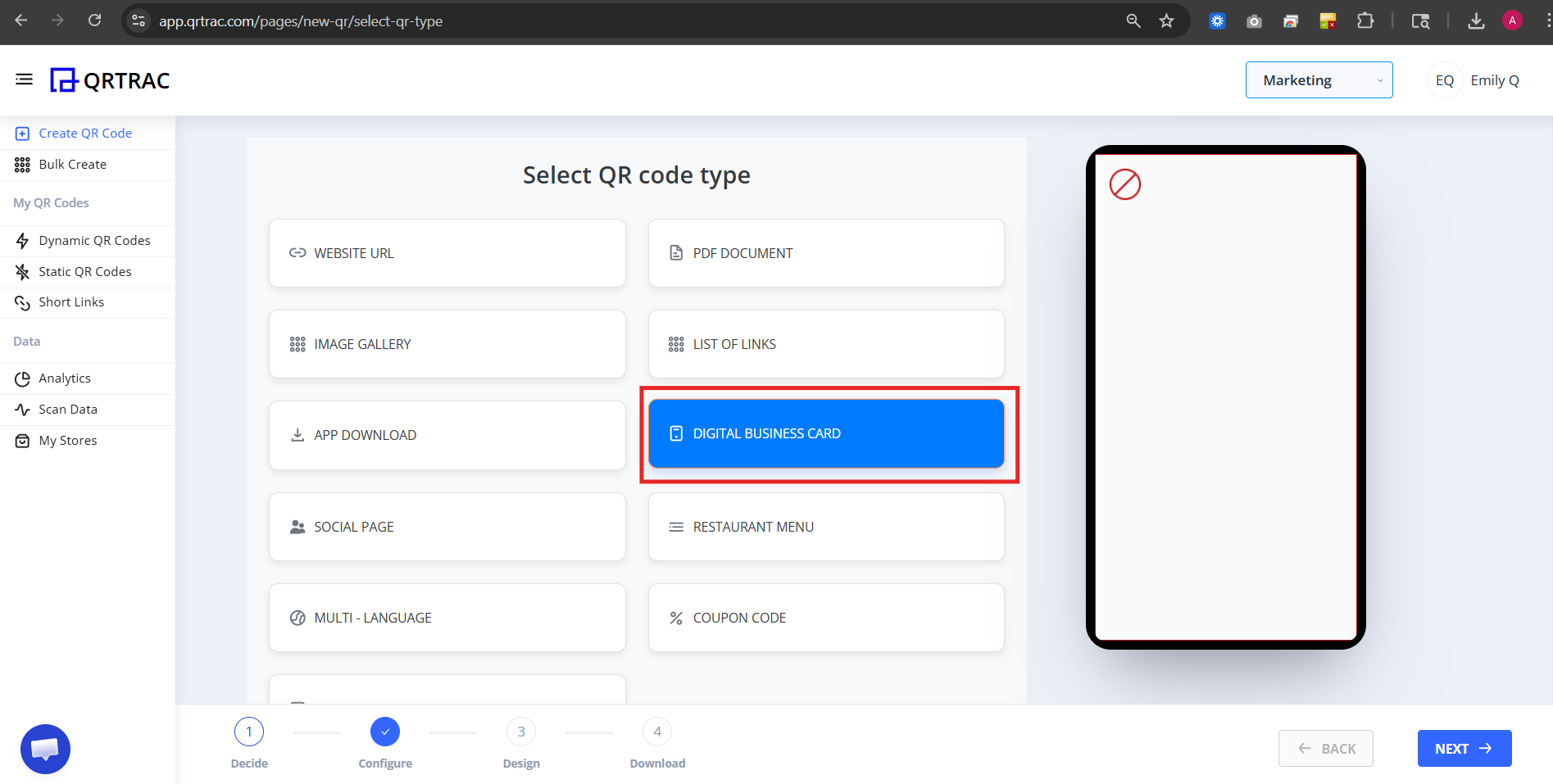
Step 2: Configure Your Digital Business Card
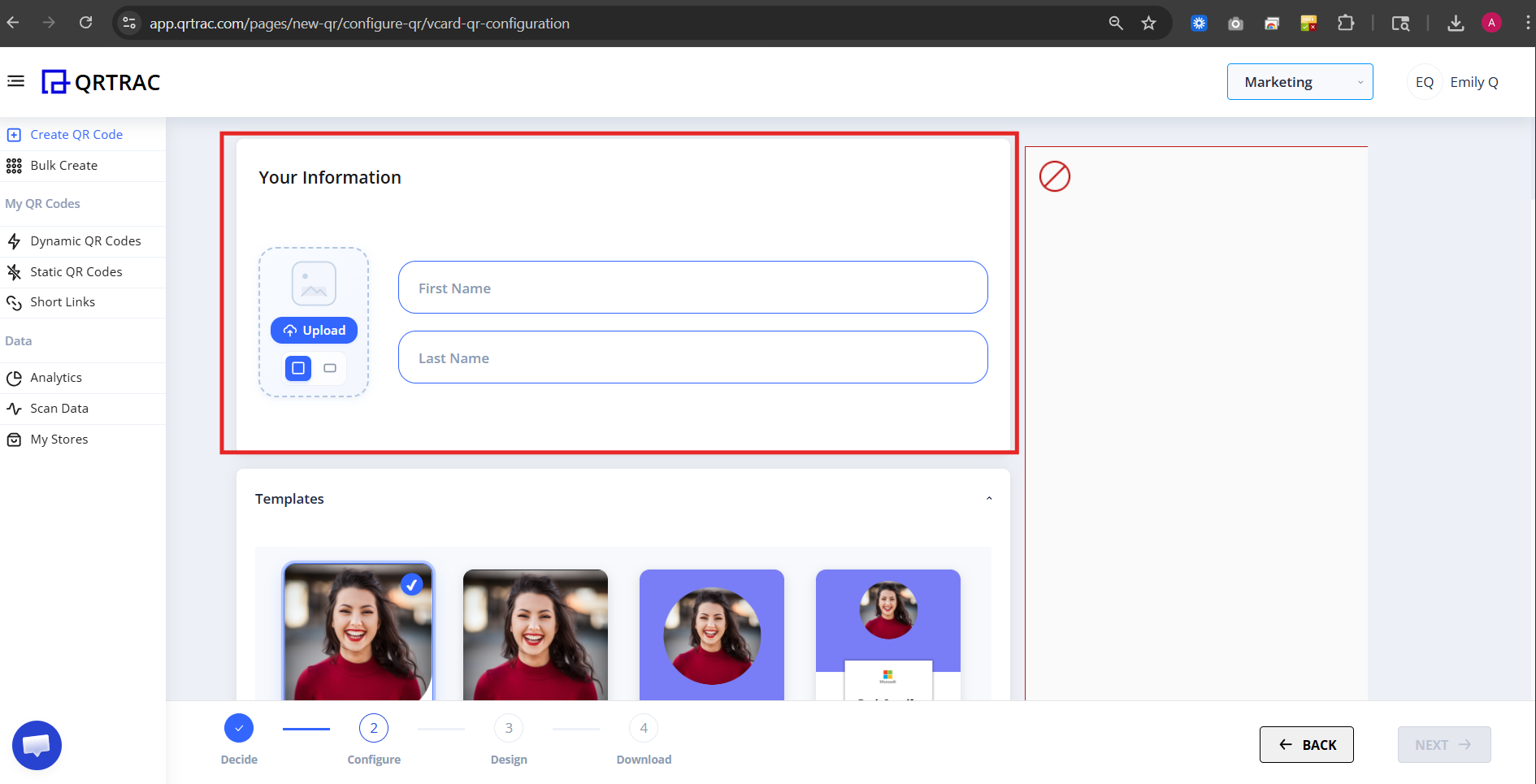
Now you are inside the Configure section. Here you will fill in all your profile details.
A) Your Information
Fill in:
- First Name
- Last Name
- Upload Profile Image
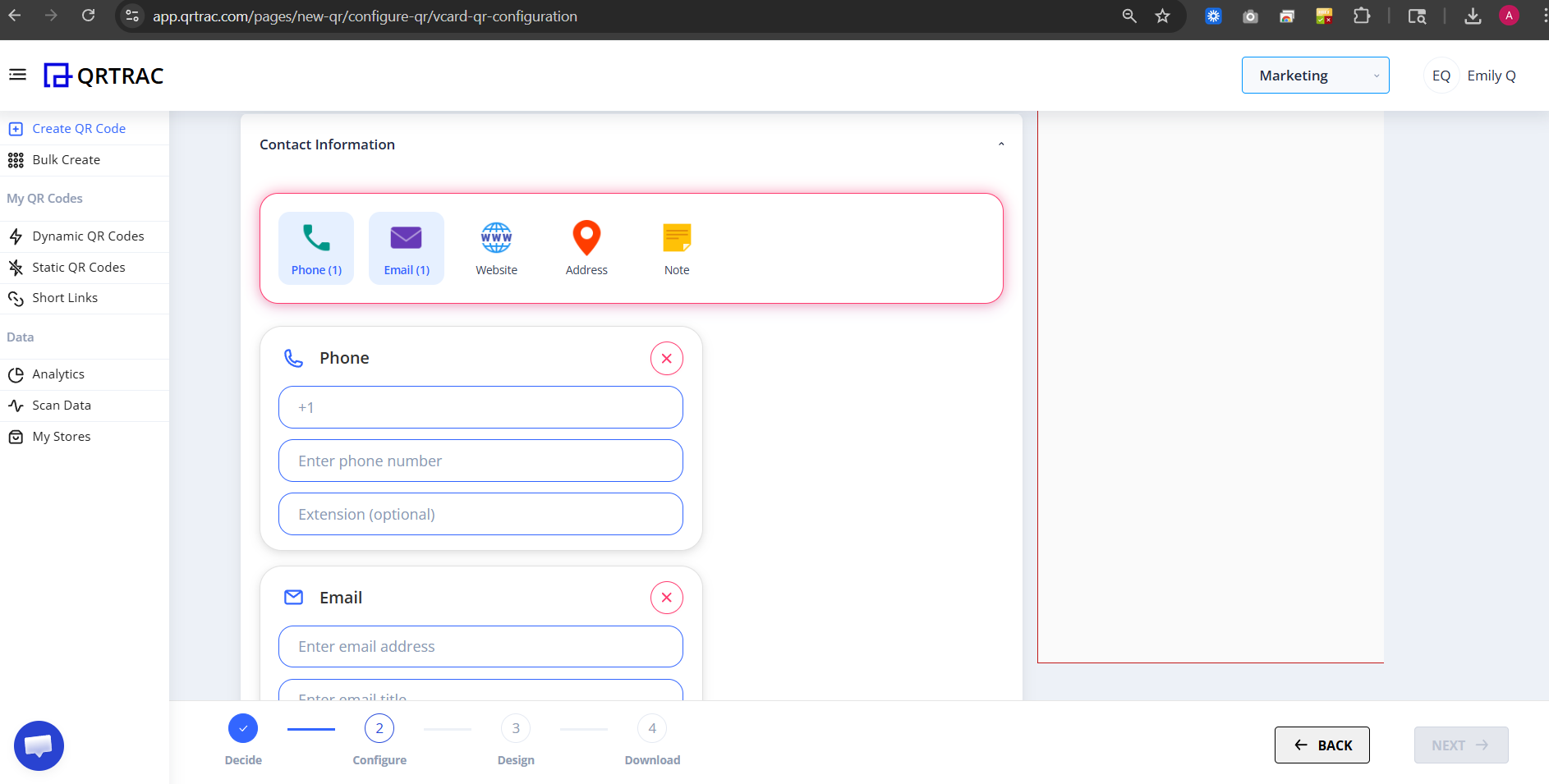
B) Contact Information
Under Contact Information section, add:
- Phone
- Website
- Address
- Note (Short professional bio)
Tip: Keep your Note short and professional — one or two sentences is ideal.
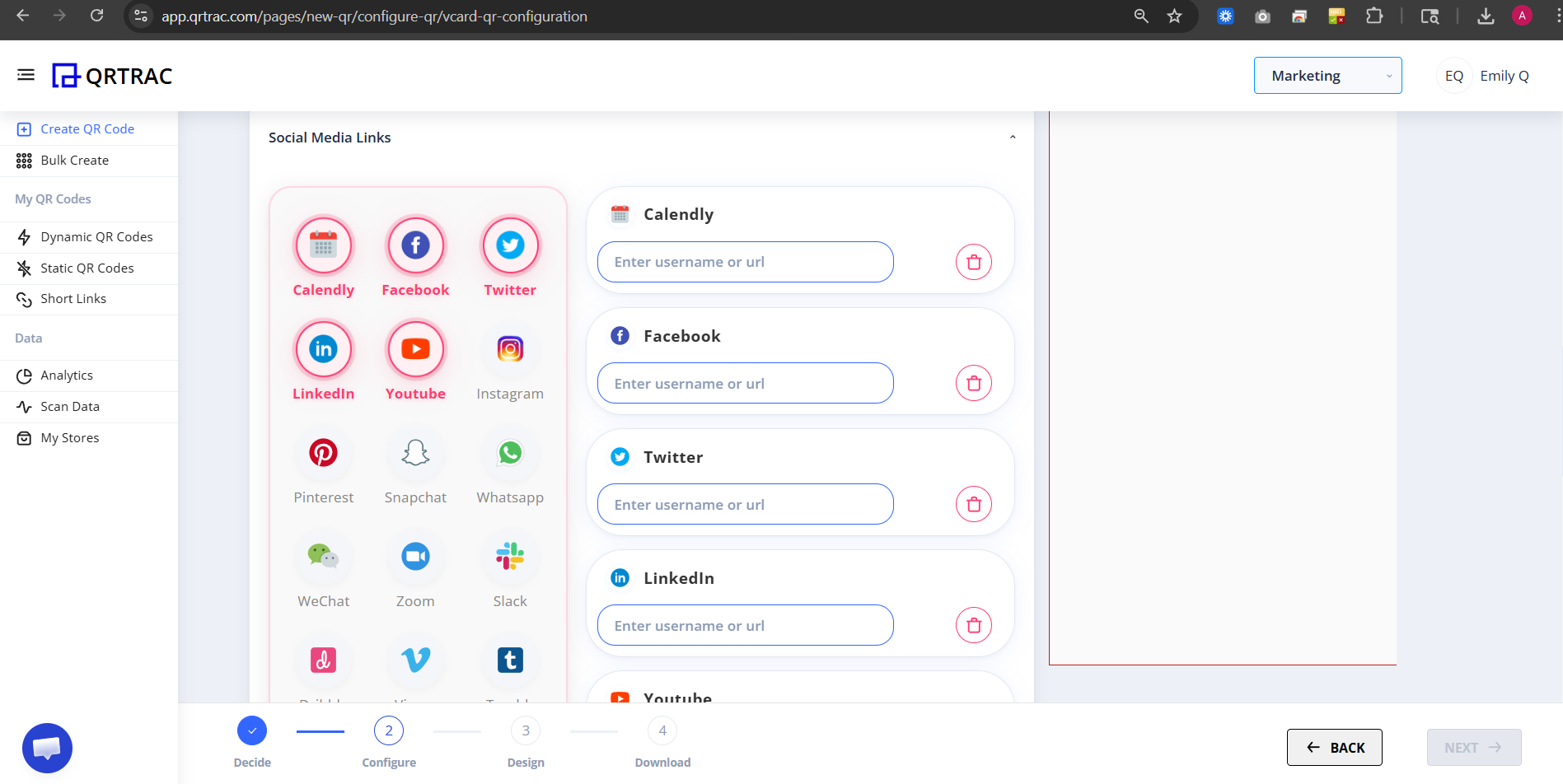
C) Social Media Links (Optional)
You can add multiple social profiles such as:
- Calendly
- YouTube
- Snapchat
- Zoom
- Slack
- Dribbble
- Vimeo
- Tumblr
- Wistia
- Foursquare
- Mix
- Flickr
- Patreon
- GitHub
- RSS
- PayPal
- Custom Link
- TikTok
- Line
- Telegram
Tip: Add only platforms you actively use — a clean card with fewer links makes a stronger impression.
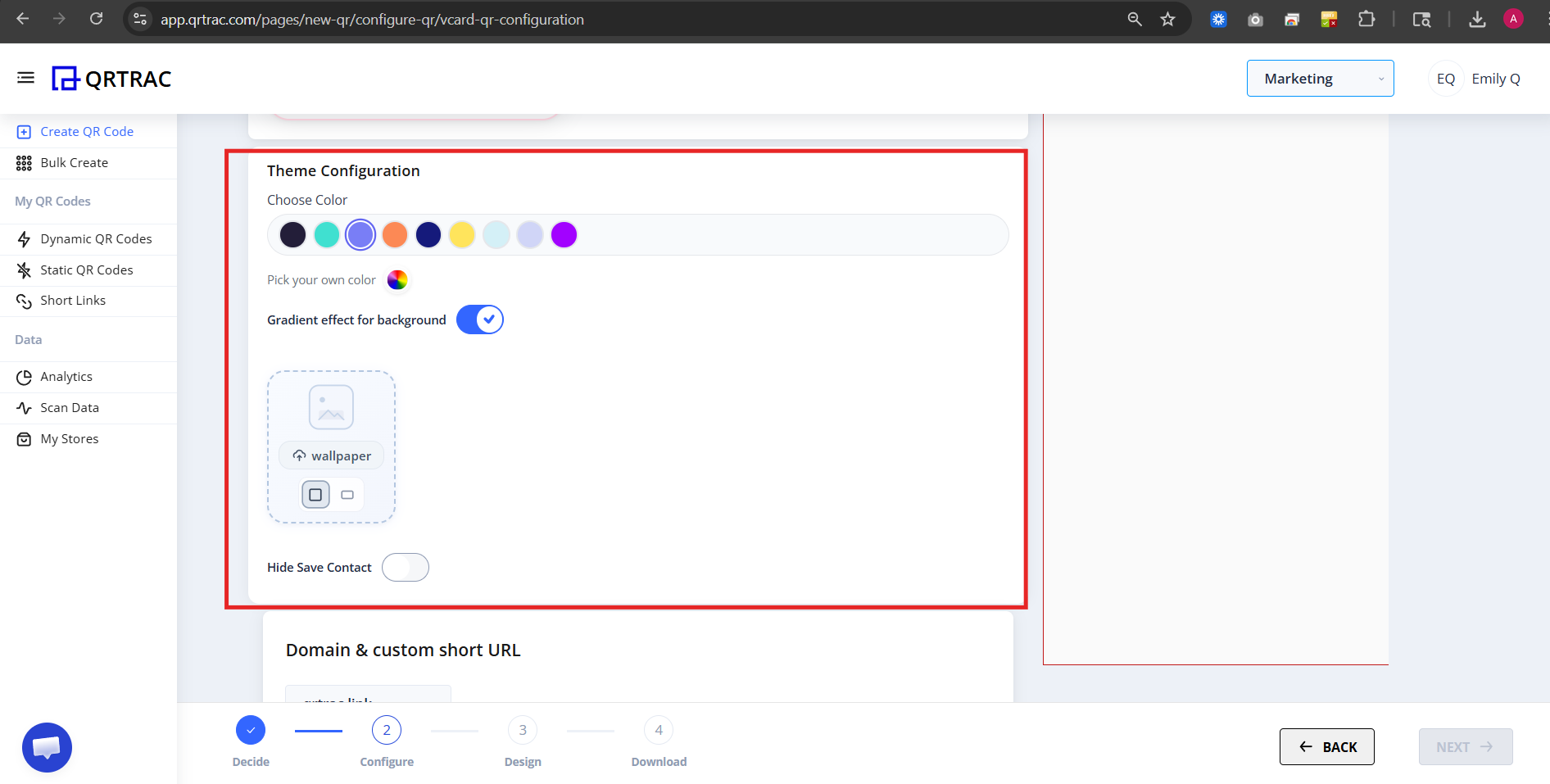
D) Theme Configuration
Under Theme Configuration, you can customize:
- Choose Color
- Pick a custom color
- Enable Gradient effect for background
- Add Wallpaper
- Hide "Save Contact" button (when enabled, users cannot directly save your contact to their phone)
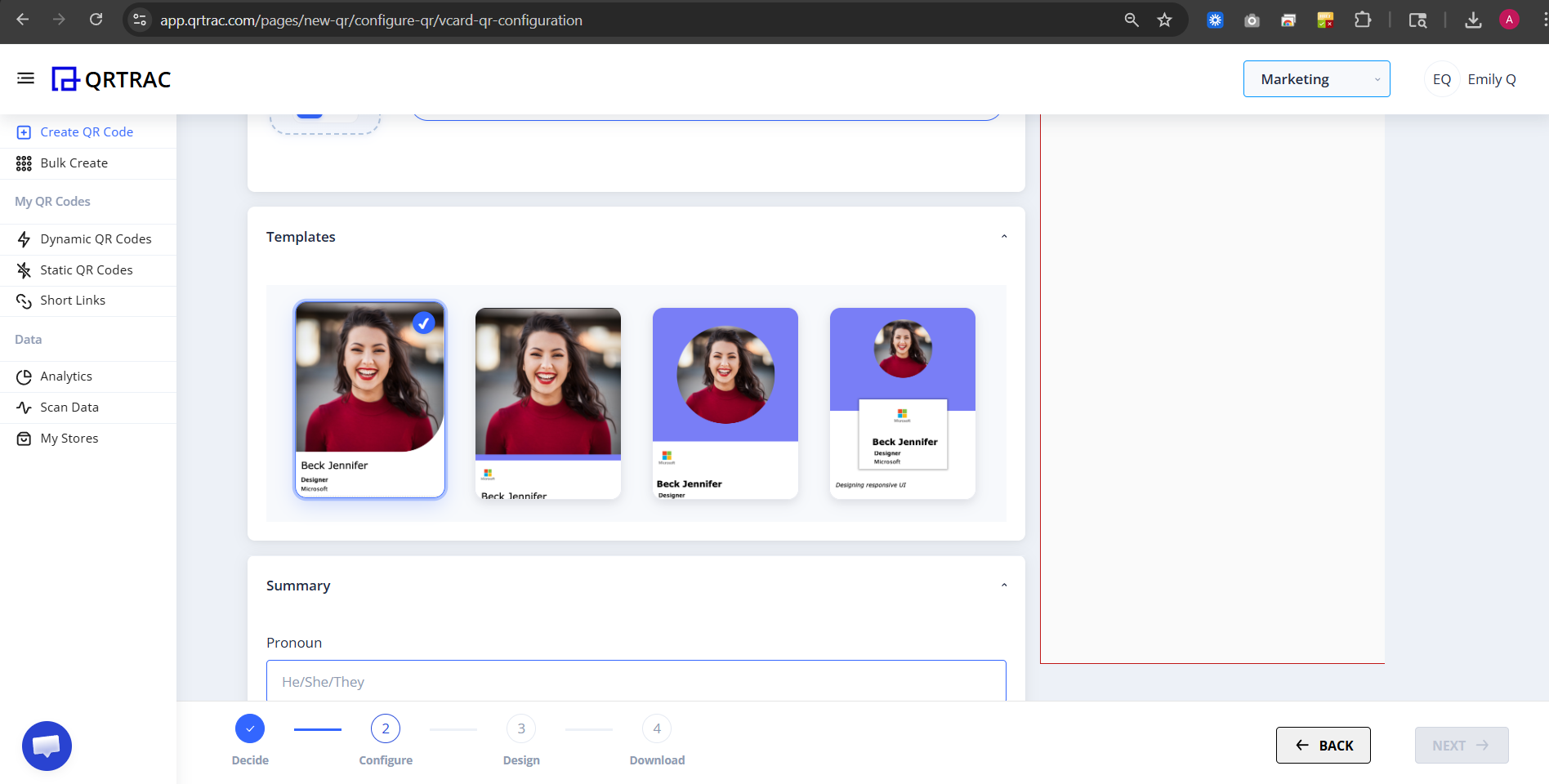
E) Templates
Choose a template layout for your digital card:
- Profile image layout
- Card style design
- Minimal or detailed format
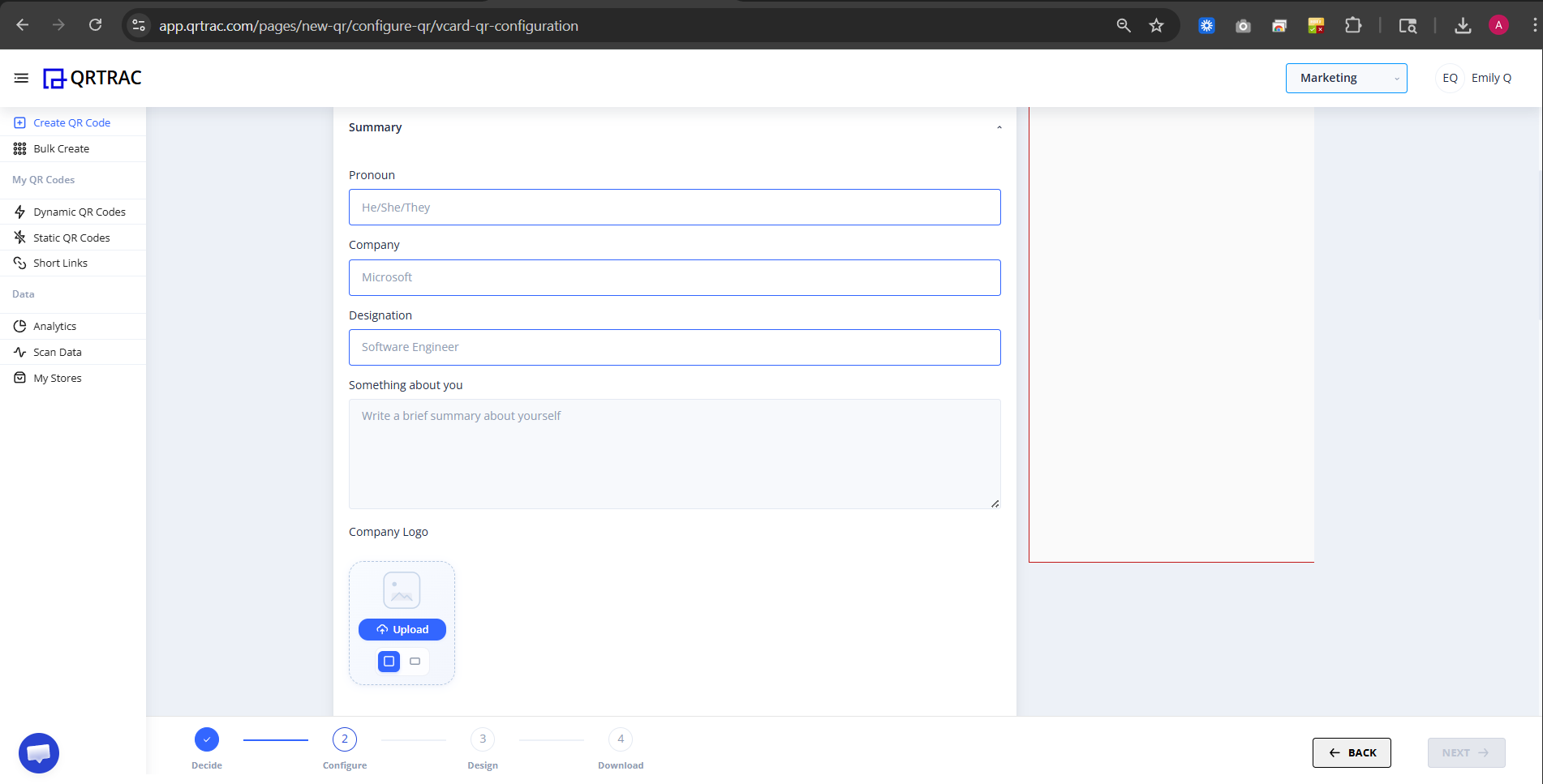
F) Summary Section (Inside Configure)
As you scroll down, you will see a Summary section. Here you can review:
- Pronoun
- Company
- Designation
- Short bio
- Company logo
This helps you verify everything before moving to Design.
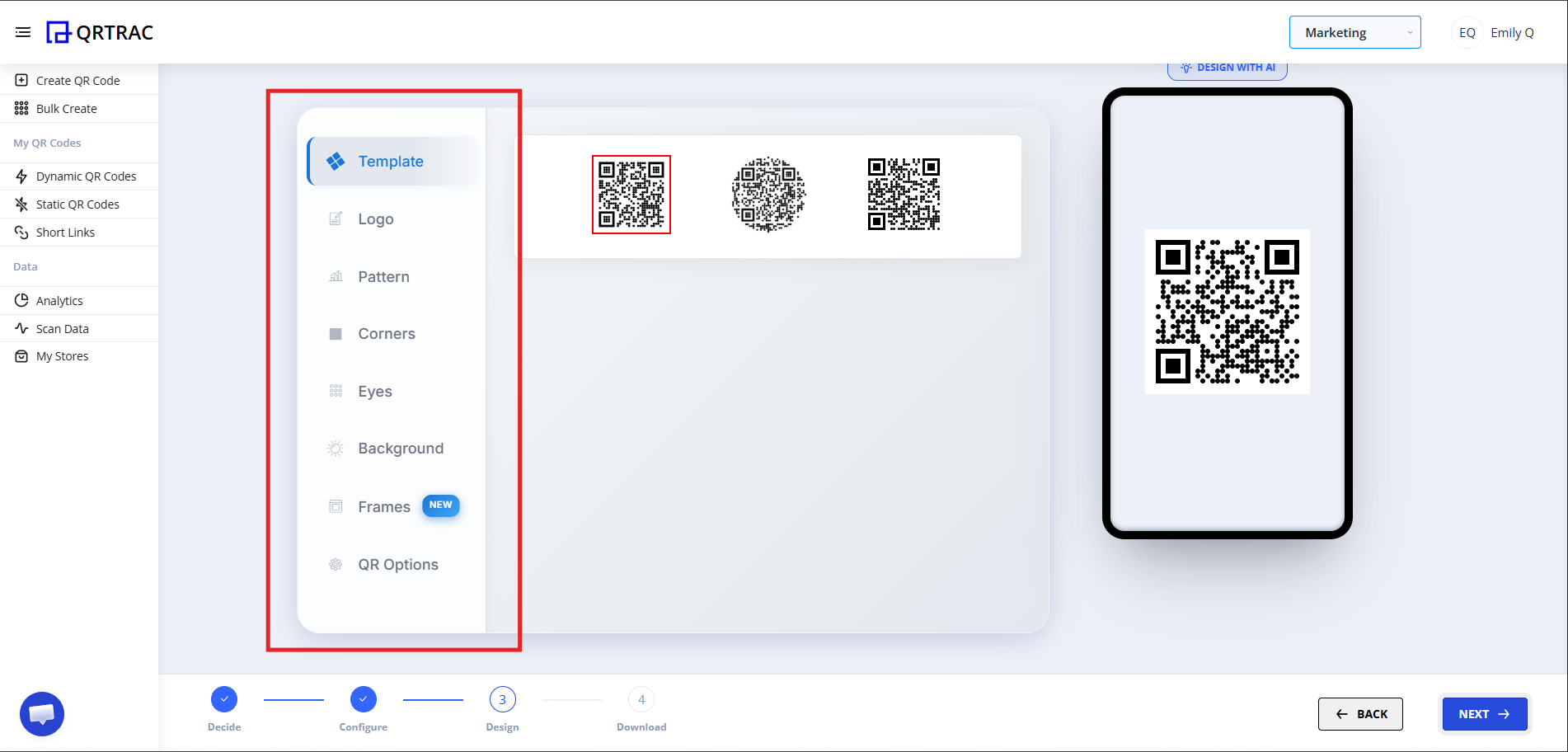
Step 3: Design Your QR Code (Design Phase)
Click Next to move to the Design section. Here you can:
- Change QR color
- Add logo in center
- Modify QR pattern
- Change eye style
- Adjust background
Dynamic vCard QR Code — Update Without Reprinting
Update your contact details, social links, and profile picture at any time from the QRTRAC dashboard without reprinting your business cards. Every scan is tracked with full analytics.
Step 4: Review & Download (Download Phase)
After designing:
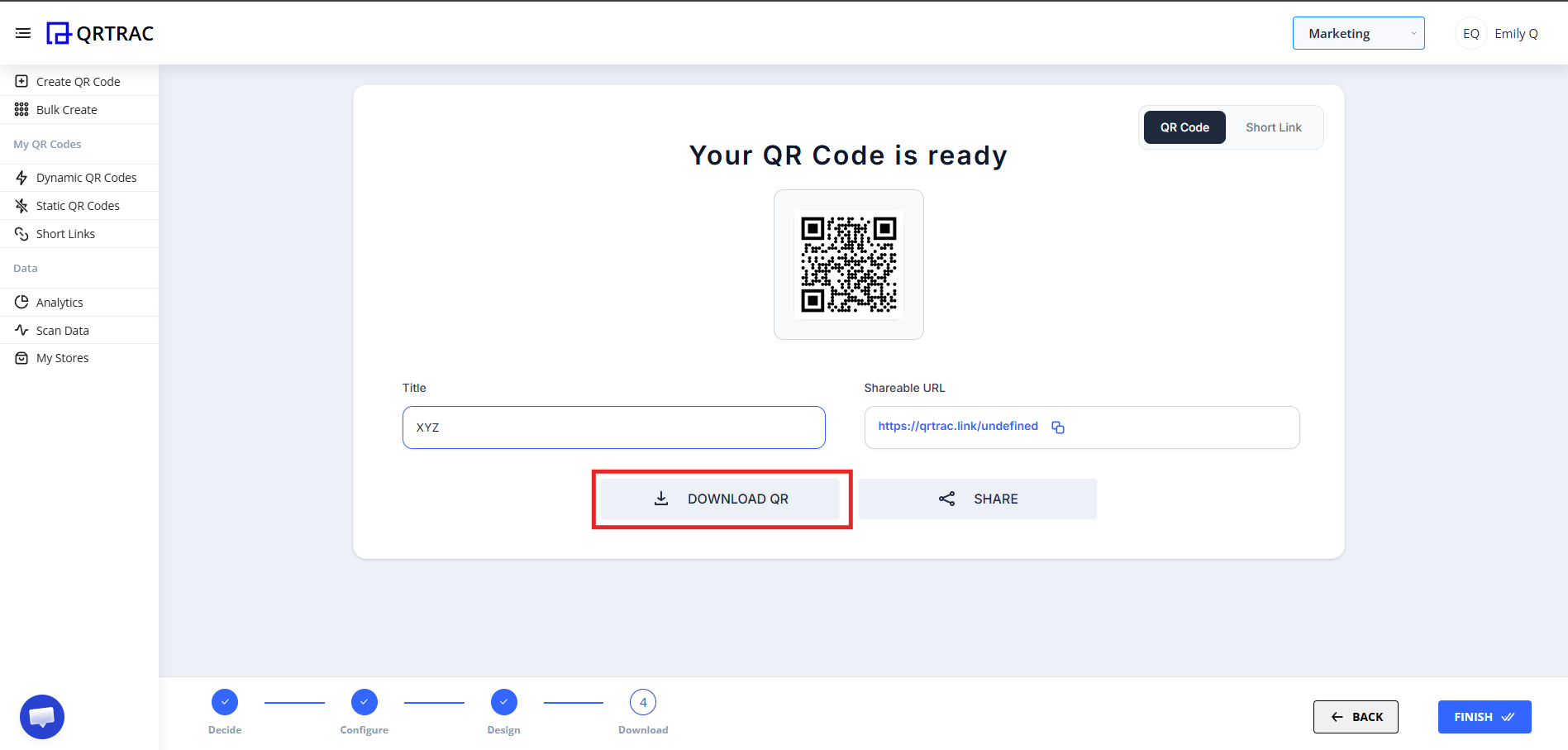
- Click Next to go to Preview
- Preview your digital business card
- Click Download QR
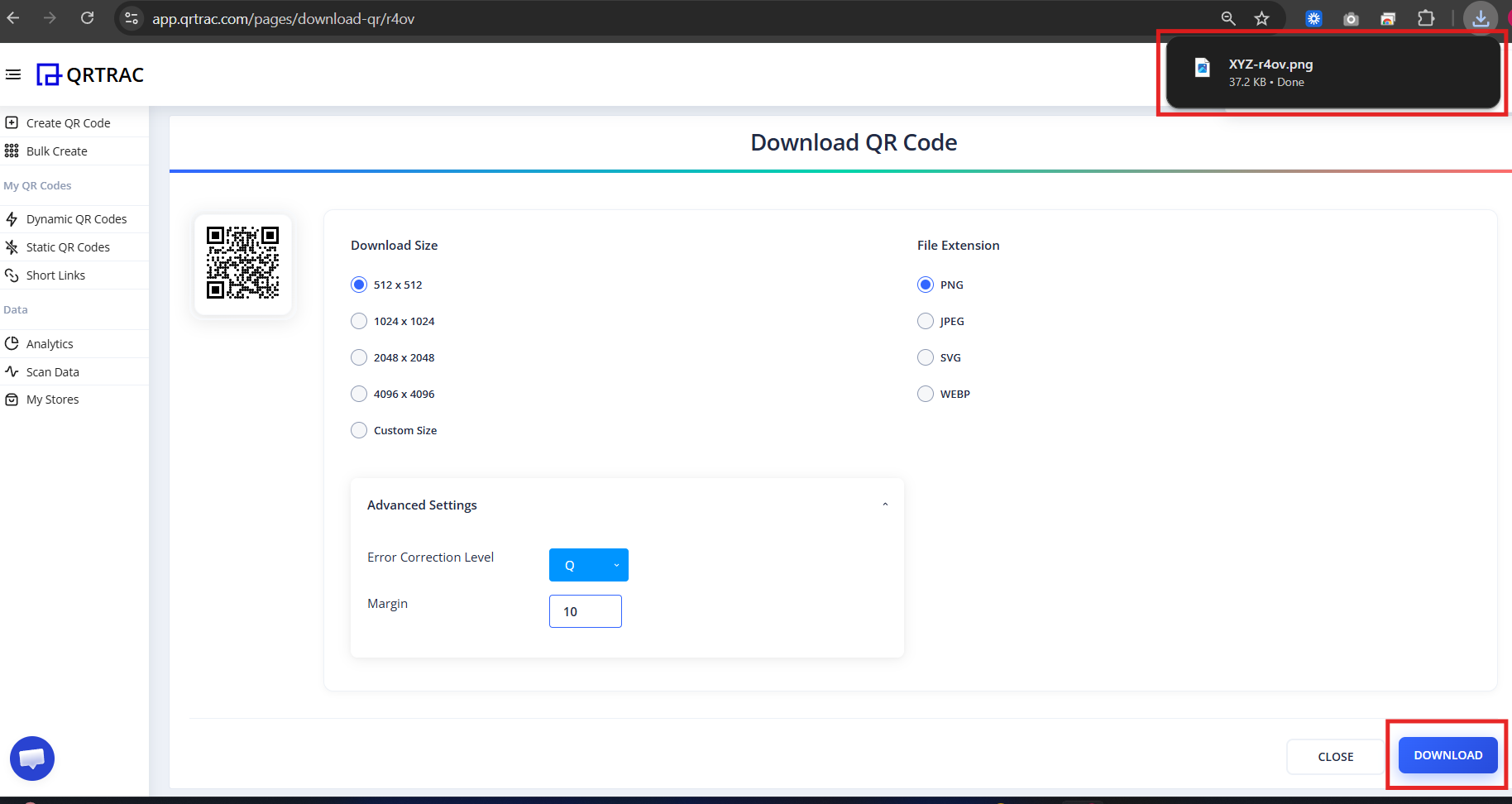
Download the format you need (PNG, SVG, etc.)
Best Practices Before You Print
Always test your Digital Business Card before printing it on physical materials to ensure a smooth experience for your connections.
- Test the Scan: Use your phone's native camera to scan the code.
- Verify Actions: Tap the "Save Contact", phone, and email buttons to confirm they open the correct apps.
- Check Social Links: Ensure all social media links route to the correct profiles.
Popular Use Cases for QR Code Business Cards
Business card QR codes are versatile and adapt to your networking context. Here's where digital business cards with QR codes work best:
- Printed Business Cards & Visiting Cards
- Email Signatures
- LinkedIn Profiles & Social Media
- Conference & Event Badges
- Trade Show Booths & Exhibitions
- Sales & Marketing Presentations
- Networking Events
- Real Estate & Professional Services
Frequently Asked Questions
Can I update my business card details later?
Yes. Because this is a dynamic vCard QR code, you can log into your QRTRAC dashboard and update your contact information at any time without needing to reprint the physical business cards. This is one of the biggest advantages of using a QR code for business cards.
Can I track how many people scanned my business card QR code?
Absolutely. The analytics dashboard provides real-time tracking data on scan volume, unique visitors, geographic locations, and timestamps. See exactly when and where people scanned your digital business card QR code.
Does it work offline?
No, an internet connection is required for the scanner to load your digital profile and download the contact file.
Can I save the contact to my phone?
Yes. Scanners will see a "Save Contact" button on the card page that saves your vCard (vcf format) directly to their phone's contacts app — unless you hide it in Theme Configuration.
Is this business card QR code good for networking events?
Perfect for networking events, trade shows, and conferences. Hand out your business cards with QR codes, and attendees can save your contact info in seconds. Track who scanned your code and follow up with them later using the analytics data.
What format is the vCard QR code?
Our vCard QR generator creates standard vcf/vCard format codes that are compatible with all smartphones and contacts apps (iOS, Android, etc.). The scanned contact automatically populates with your name, phone, email, social links, and more.
Common Mistakes
- ❌ Forgetting the country code in your phone number.
- ❌ Overcrowding the profile with broken or irrelevant social links.
- ❌ Skipping the final testing phase before bulk printing.
- ❌ Using a low-contrast QR color that makes scanning difficult.
Launch Checklist
- Contact details verified
- Brand theme selected
- Code scanned successfully
- Social links open correct profiles