How To Create an Editable WiFi QR Code
A dynamic, editable WiFi QR code lets your customers, guests, or employees connect to your network instantly without typing a long password. Because it is editable, you can change your Wi-Fi password for security reasons and update the QR code without having to print it again.
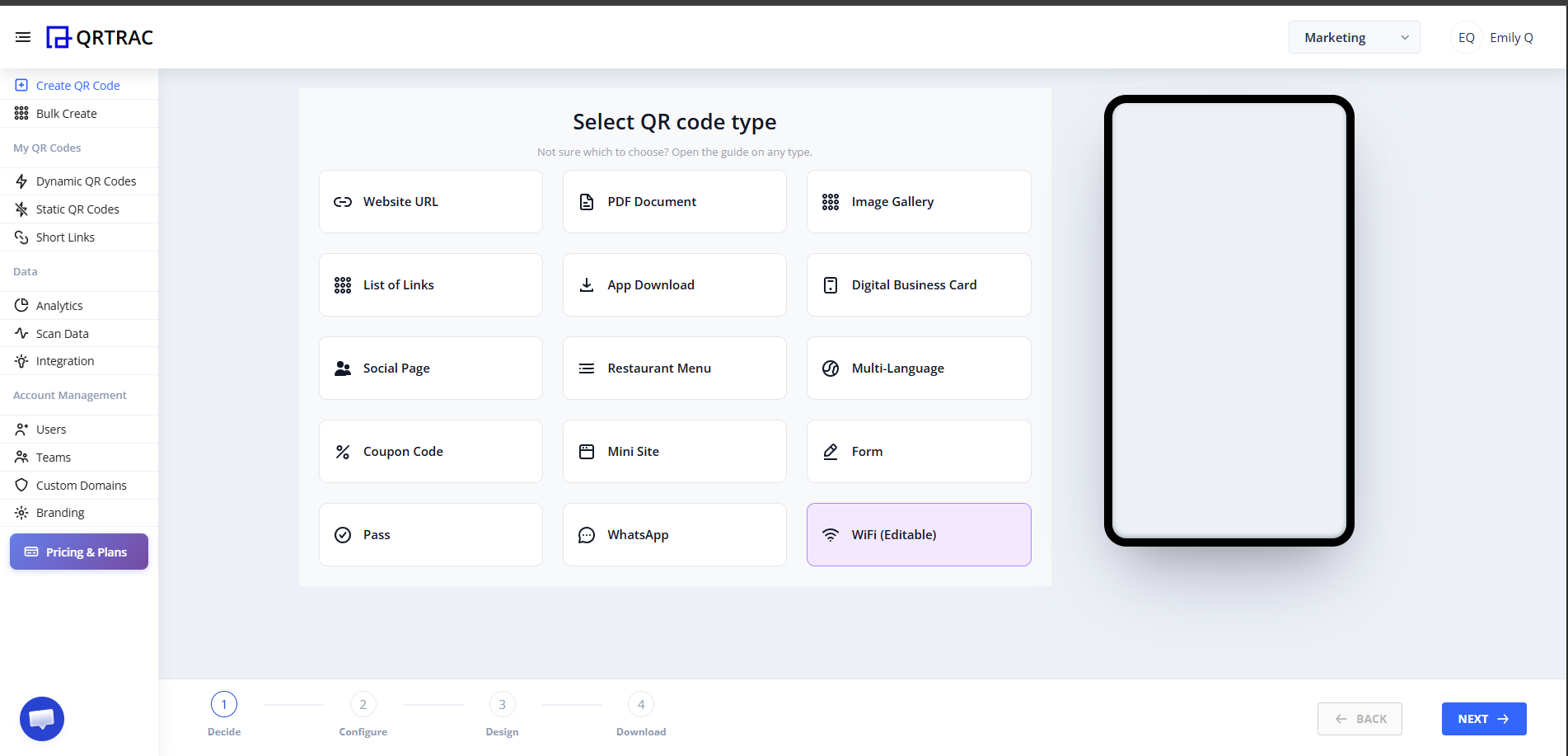
Step 1: Select "WiFi (Editable)" QR Type
- Log in to your QRTRAC dashboard.
- Click Create QR Code.
- From the available QR types, select the WiFi (Editable) option.
Step 2: Enter WiFi Network Settings
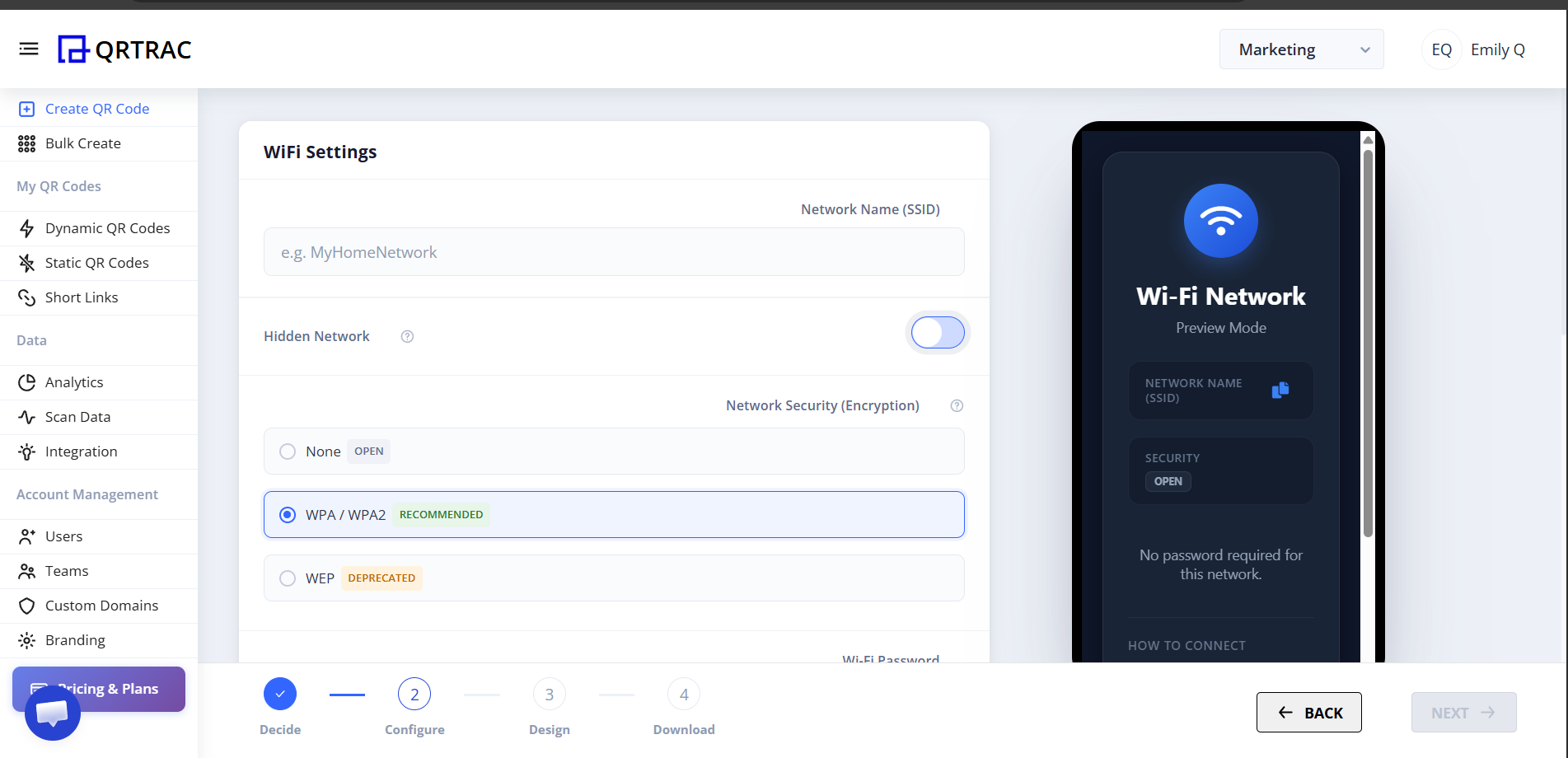
Provide the network details so devices know exactly which network to join and what security protocol to use.
- Network Name (SSID): Enter the exact name of your Wi-Fi network.
- Hidden Network: Toggle this on if your Wi-Fi network does not broadcast its name.
- Network Security (Encryption): Select your security type. WPA / WPA2 is recommended and the most common. Select None if it's an open network, or WEP if using older legacy security.
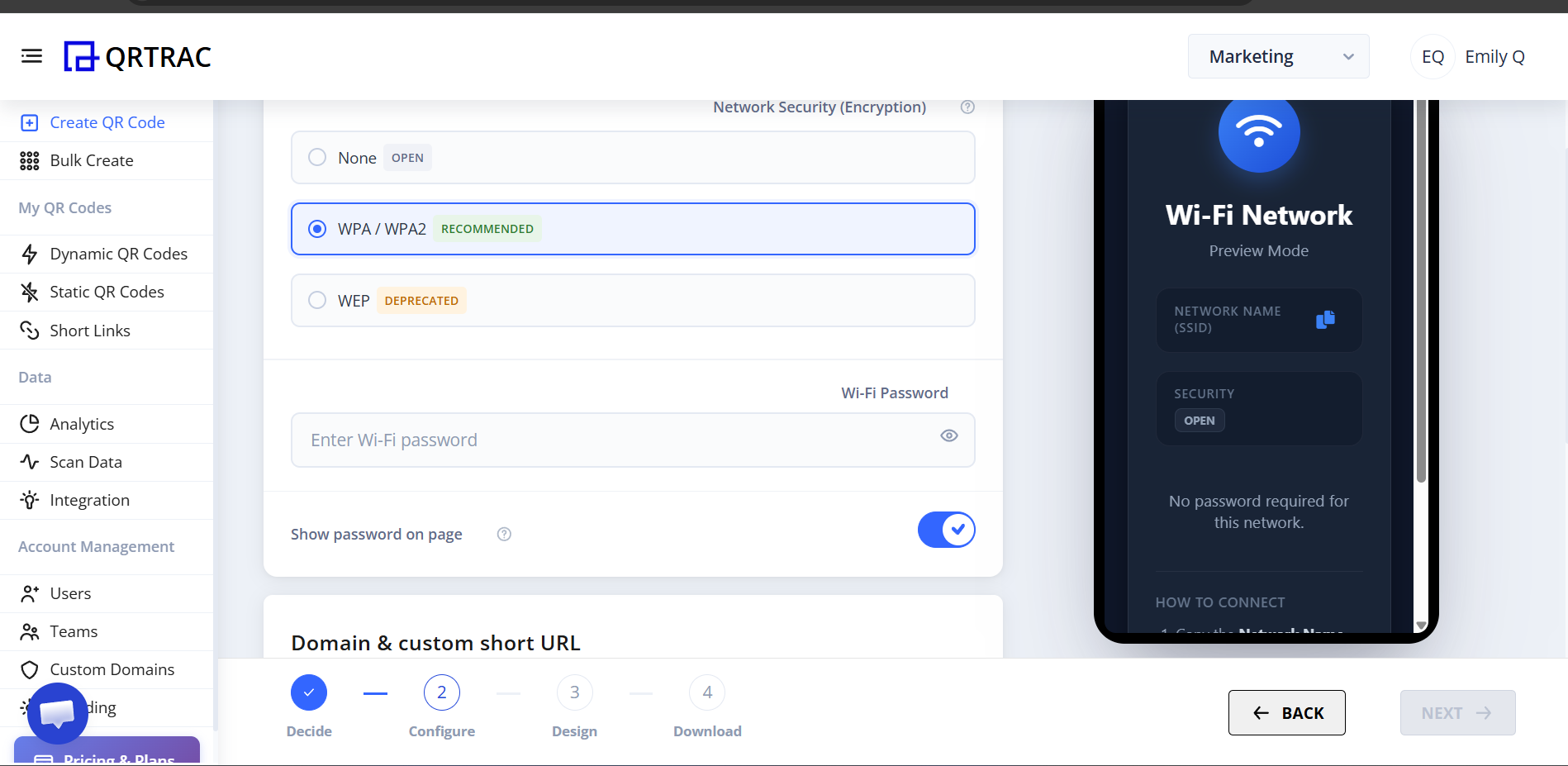
Next, provide the password to access the network.
- Wi-Fi Password: Enter the password required to connect to the network.
- Show password on page: By default, this is on, allowing users to see the password on the intermediate connection page. You can turn this off if you prefer it to remain hidden.
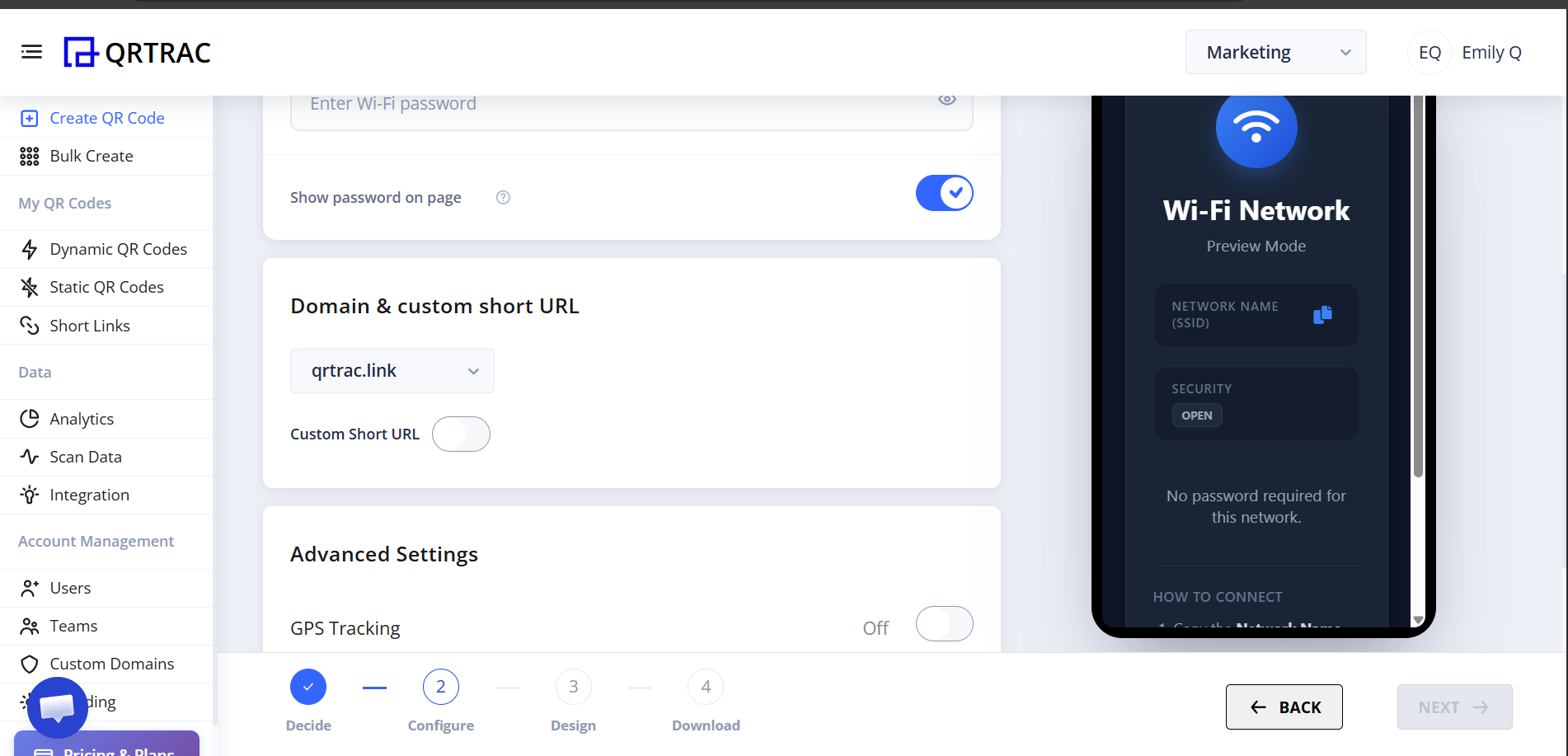
- Domain & custom short URL: Optionally, select a custom domain and set up a custom short URL link.
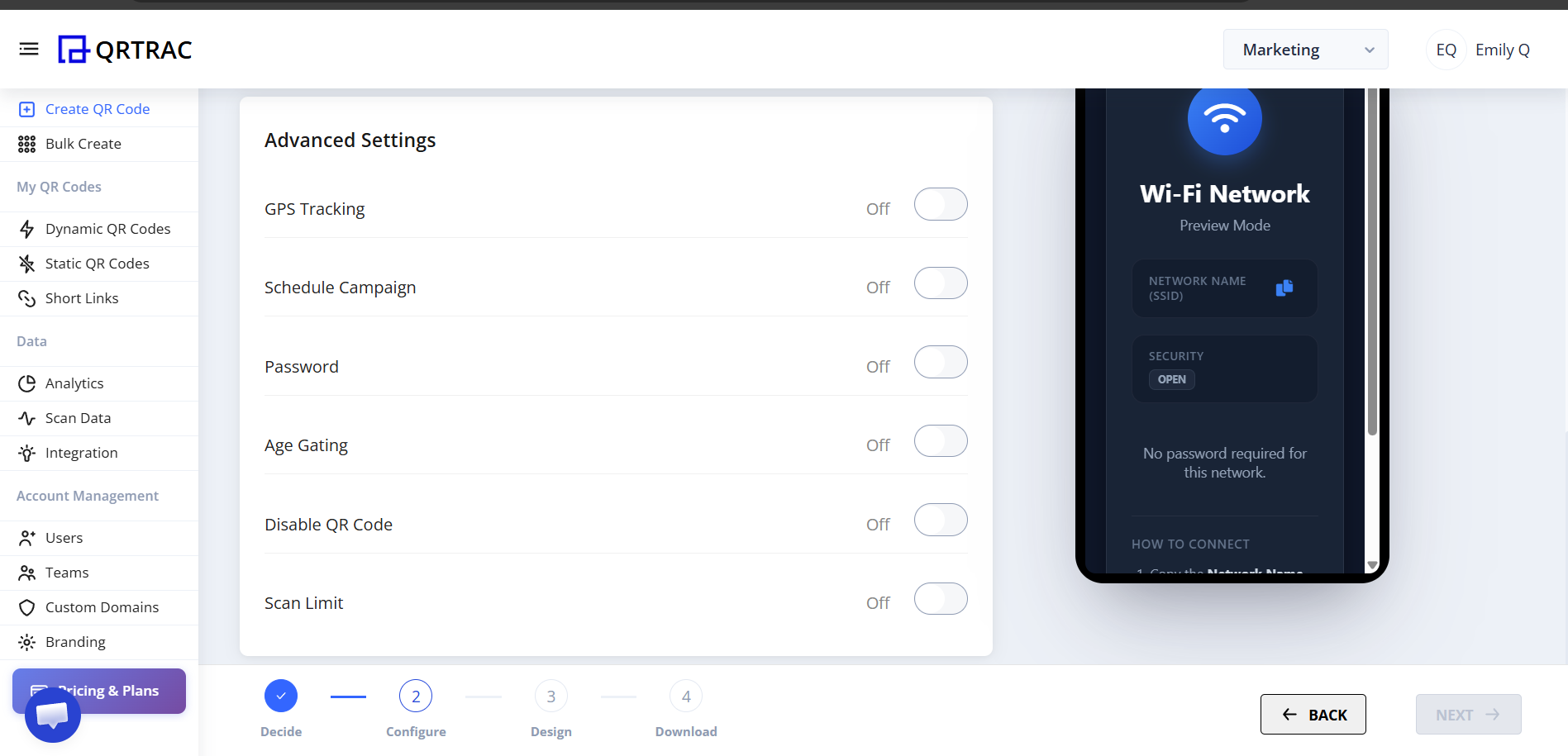
Step 3: Advanced Settings
Use advanced settings to control when and how your QR code can be scanned.
- GPS Tracking: Record the location of scans (user permission required).
- Schedule Campaign: Set specific active dates if the network is only available for a temporary event.
- Scan Limit: Disable the QR code after a certain number of scans.
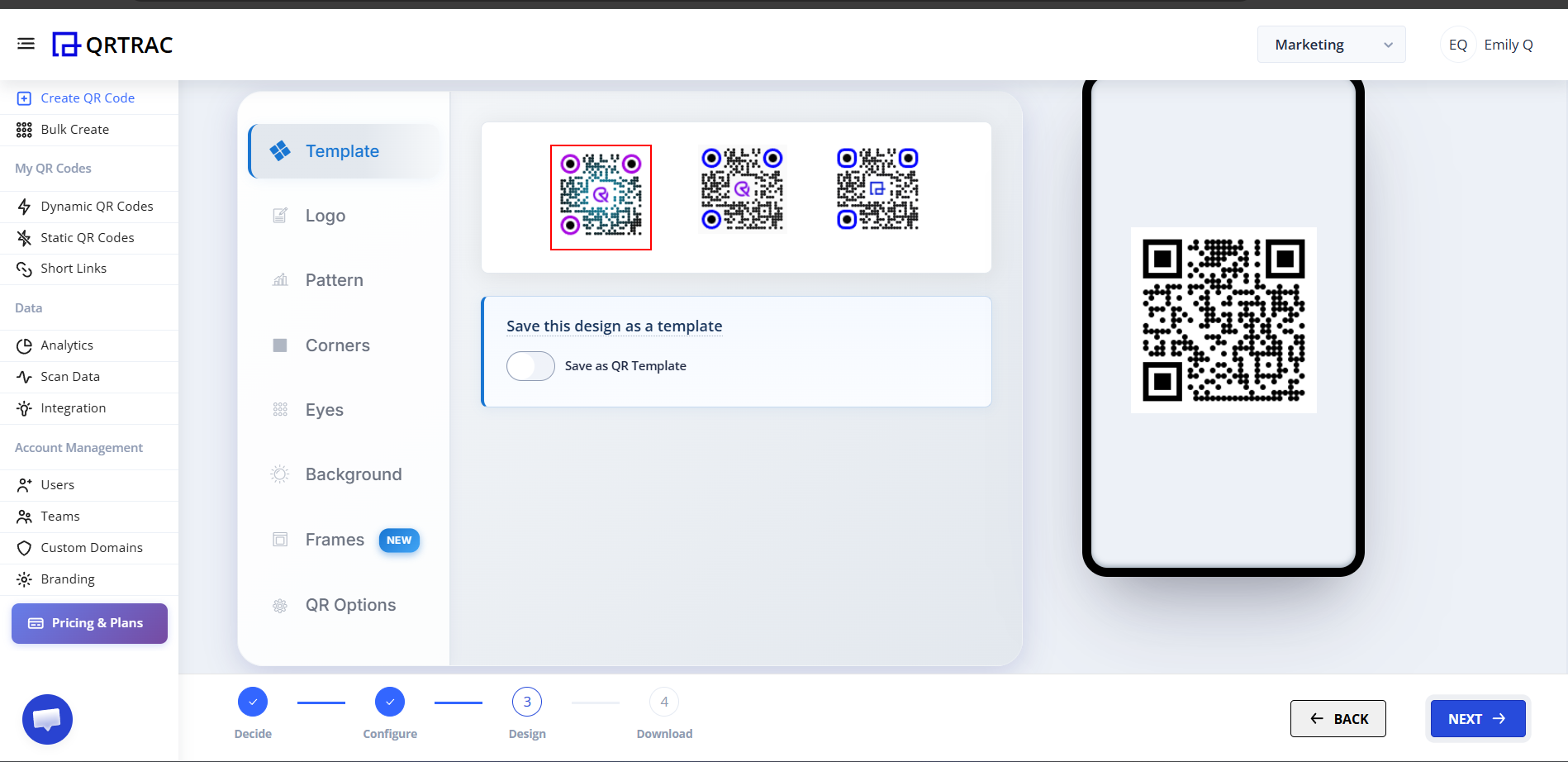
Step 4: Design Your QR Code
Customize the appearance of your QR code to match your brand or the decor of your establishment.
- Template: Use a pre-designed template or save your design to use later.
- Logo: Add a Wi-Fi icon or your business logo to the center of the code.
- Pattern & Colors: Customize the data pattern, eyes, background, and frames.
Step 5: Finalize and Download
Once you are happy with the design, save your QR code and proceed to download.
- After clicking Next, give your QR Code a title (e.g., "Guest WiFi") and assign it to a folder.
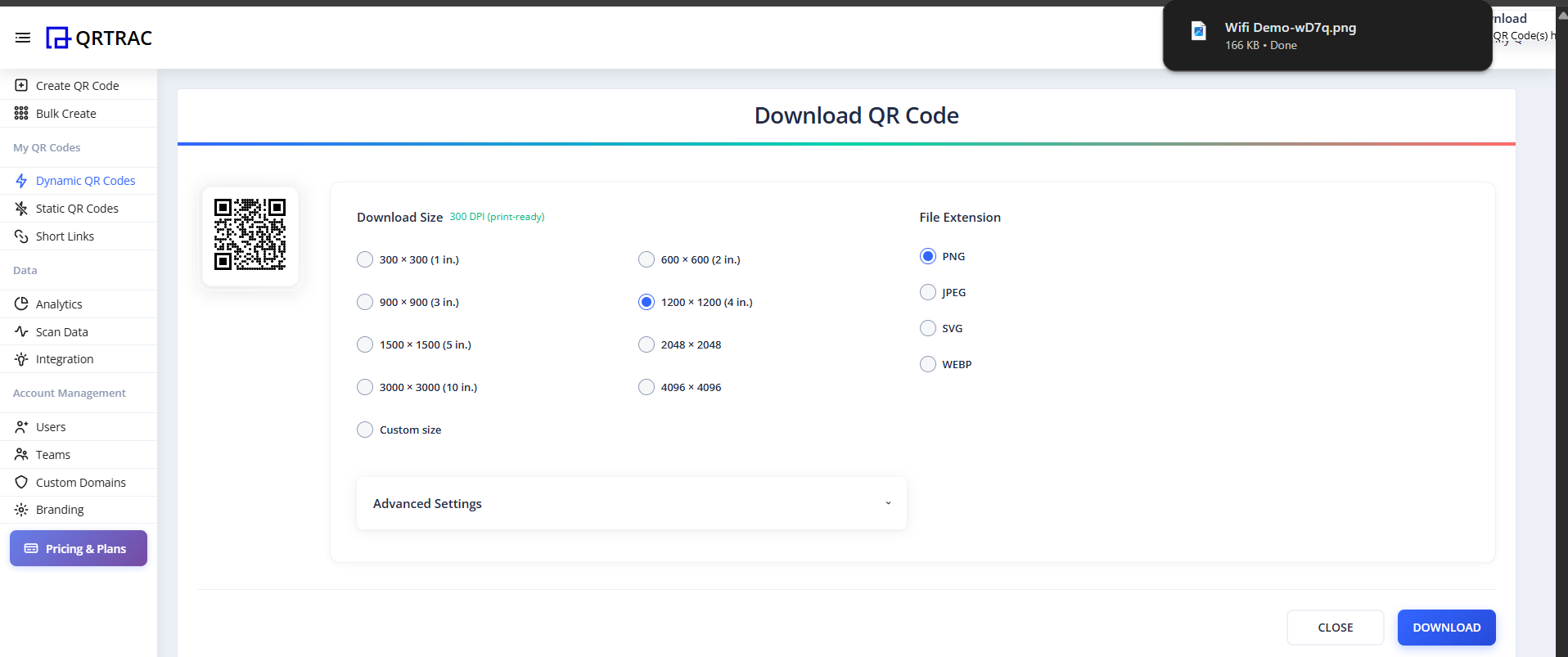
- Click Download QR.
- Choose your preferred Download Size (e.g., 1200 x 1200) and File Extension (PNG, JPEG, SVG, or WEBP).
- Click the final Download button.
Tip: Always test your QR code by scanning it with your smartphone directly from your monitor. Ensure your phone prompts to connect to the Wi-Fi network before printing.
Frequently Asked Questions
What is the difference between this and the Static Wi-Fi QR Code?
The "WiFi (Editable)" QR code is dynamic, meaning it hosts a mobile connection page. This allows you to update the password in the dashboard at any time without changing the physical QR code. Static Wi-Fi codes have the password hardcoded into the graphic, so if you change the password, you must reprint the code.
Will this work on both iPhone and Android?
Yes, modern iOS and Android devices can natively scan the code, load the connection page, and join the network effortlessly.