How to Install QRTRAC in ChatGPT
QRTRAC QR Codes & Links is QRTRAC's app for ChatGPT, published by QRTRAC. Once it's installed, you can ask ChatGPT to create dynamic QR codes and branded short links, change where they point, and show how they're scanning, without opening the dashboard.
Before you start
- A QRTRAC account on Business Plus or higher, or a 7-day free trial.
- A ChatGPT account that can install plugins. Some work and school workspaces turn plugins off; see If plugins are turned off.
Install the app
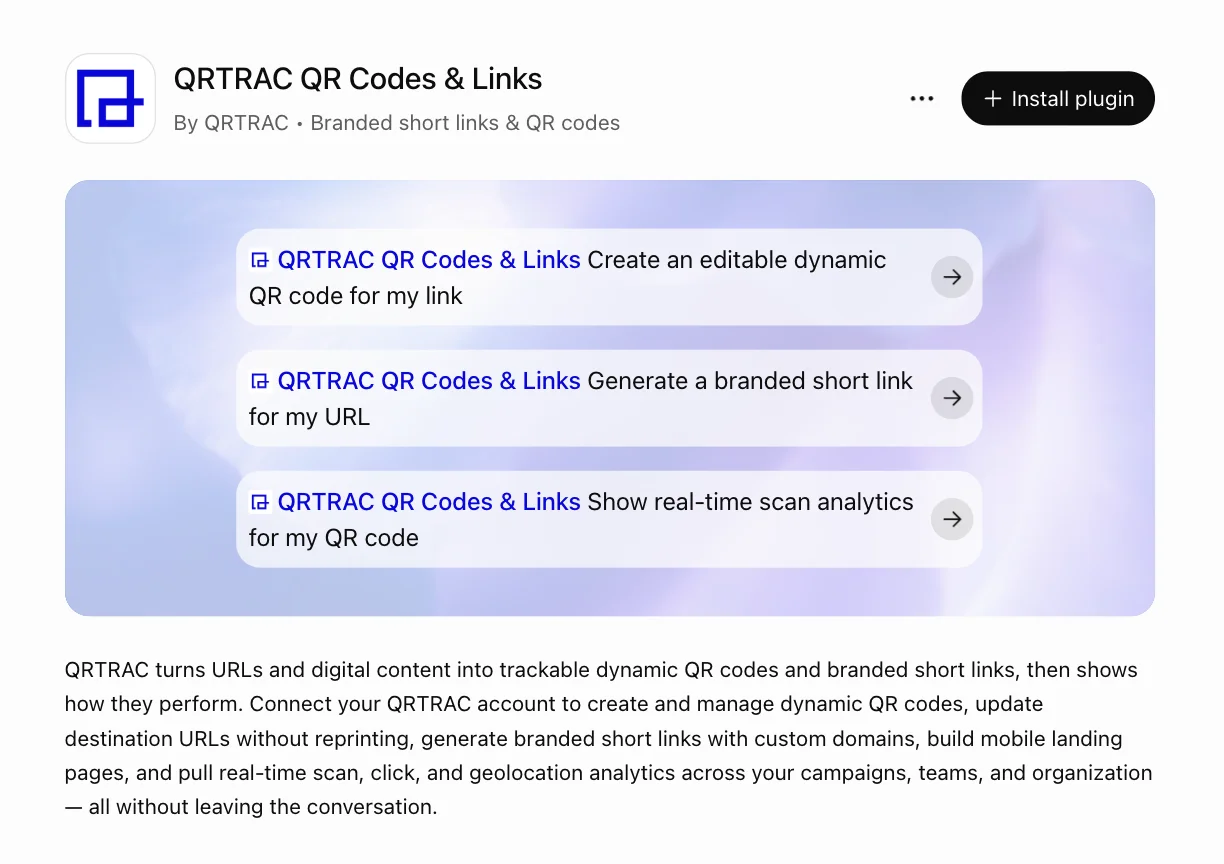
The QRTRAC QR Codes & Links listing in ChatGPT. Click Install plugin in the top-right corner.
- Open QRTRAC QR Codes & Links in the ChatGPT plugin directory.
- Click Install plugin.
- Sign in with your QRTRAC account when ChatGPT asks.
- Choose the QRTRAC team the app should use. Everything the app creates or reads stays inside that team.
What you can ask
Start with the app's suggested prompts:
- “Create an editable dynamic QR code for my link”
- “Generate a branded short link for my URL”
- “Show real-time scan analytics for my QR code”
You can also ask for a digital business card QR code, a link-in-bio page of links, a folder for a campaign, or a scan breakdown by device and location. The full list of what the app can do is on the QRTRAC MCP page.
To see which team you're connected to, ask ChatGPT: “Which QRTRAC team am I connected to?”
Changing codes that are already printed
QR codes made through the app are dynamic. If you ask ChatGPT to point a code somewhere else or delete it, that changes every copy already printed. Name the exact code when you ask, and check ChatGPT's summary before you confirm.
If plugins are turned off
If your ChatGPT workspace doesn't let you install plugins, you can connect QRTRAC as a custom app instead: go to Settings → Apps → Developer mode → Create app, and paste this server URL:
https://mcp.qrtrac.com/mcpThen sign in to QRTRAC and choose a team, as above.
Data and disconnecting
When the app is connected, ChatGPT may share relevant parts of your chats with it so it can carry out your requests. ChatGPT's own notice on the app page explains this. QRTRAC uses that data under its privacy policy.
To disconnect, remove the app in ChatGPT's settings. Its access to your QRTRAC team ends right away. Your codes, short links and scan data stay in QRTRAC.
Troubleshooting
- Sign-in works but nothing can be created. Check that your QRTRAC plan is Business Plus or higher, or that your trial is still active.
- Codes show up in the wrong team. Disconnect the app, install it again and choose the right team at sign-in.
- You need a type the app can't make, such as Wi-Fi or PDF. Create it in the QRTRAC dashboard. You can still ask ChatGPT for its scan reports.
Still stuck? Email support@qrtrac.com.