How to Create QR Code Artwork in QRTRAC
QRTRAC Artwork lets you place dynamic QR codes directly onto existing designs such as posters, event passes, labels, promotional materials, or other artwork.
Using the Artwork workflow, you can:
- Upload an artwork or design.
- Create new QR codes or use existing QR codes.
- Place QR codes in your desired position.
- Resize and reposition QR codes seamlessly.
- Download the finished artwork ready for print.
- Manage generated artwork.
- View artwork performance and scan activity.
Before You Create QR Code Artwork
Before you begin, make sure you have the following ready:
- A poster, event pass, label, or other artwork/design as a suitable image or design file.
- An existing QR code, or the option to create new QR codes during the workflow.
- The destination or content that the QR code should represent.
Step 1 — Open Artwork Creation
To start creating your design, open the Artwork section from your QRTRAC dashboard. This section is specifically designed to help you embed your QR codes into an existing design layout.
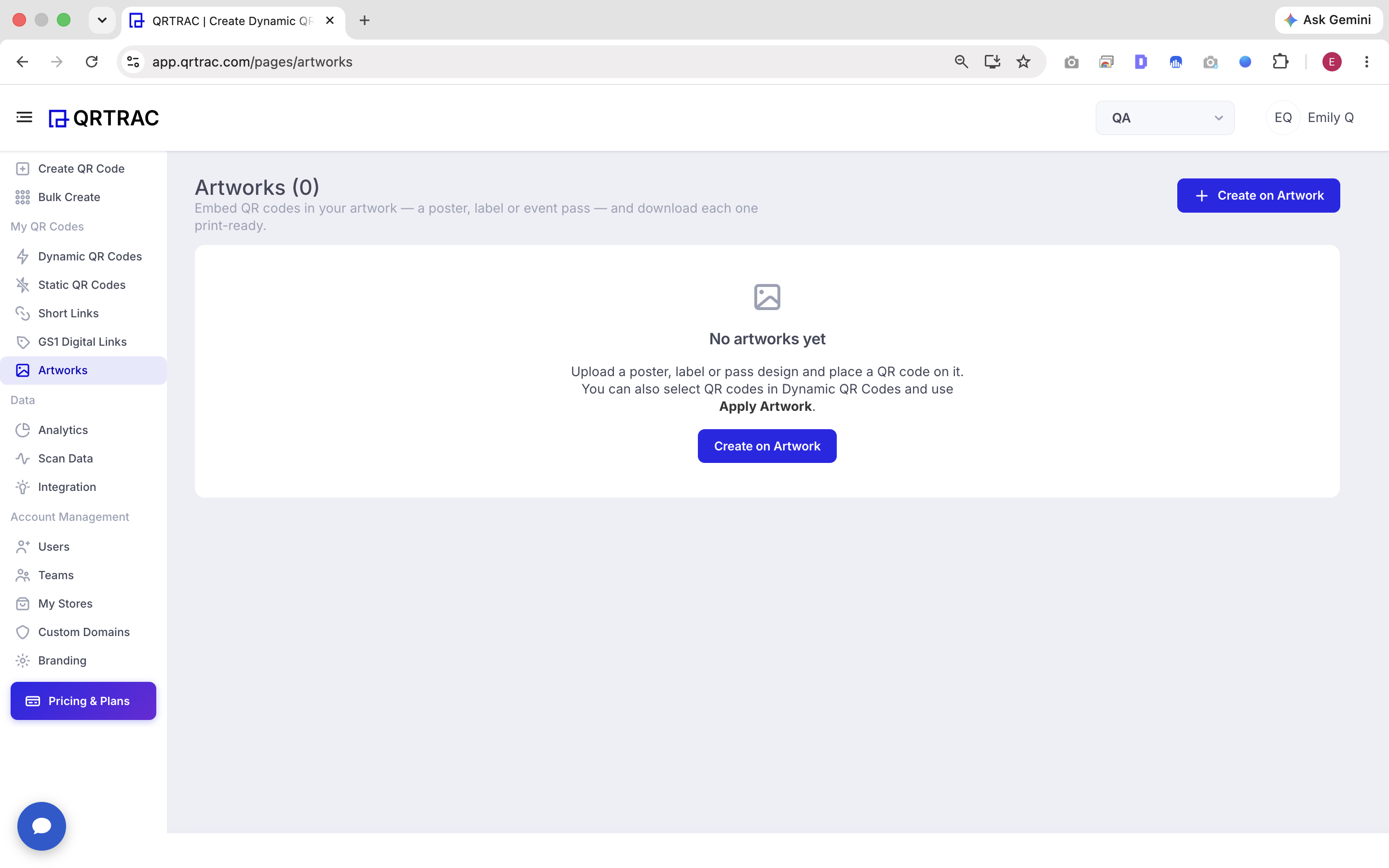
QRTRAC Artworks section / starting the artwork workflow
Step 2 — Upload Your Artwork
Next, you will upload the artwork or design that will contain the QR code. You can upload files for an event pass, a poster, a product label, promotional design, or any other printed material.
QRTRAC provides an interactive artwork canvas where the uploaded image will be displayed, allowing you to position the QR code later.
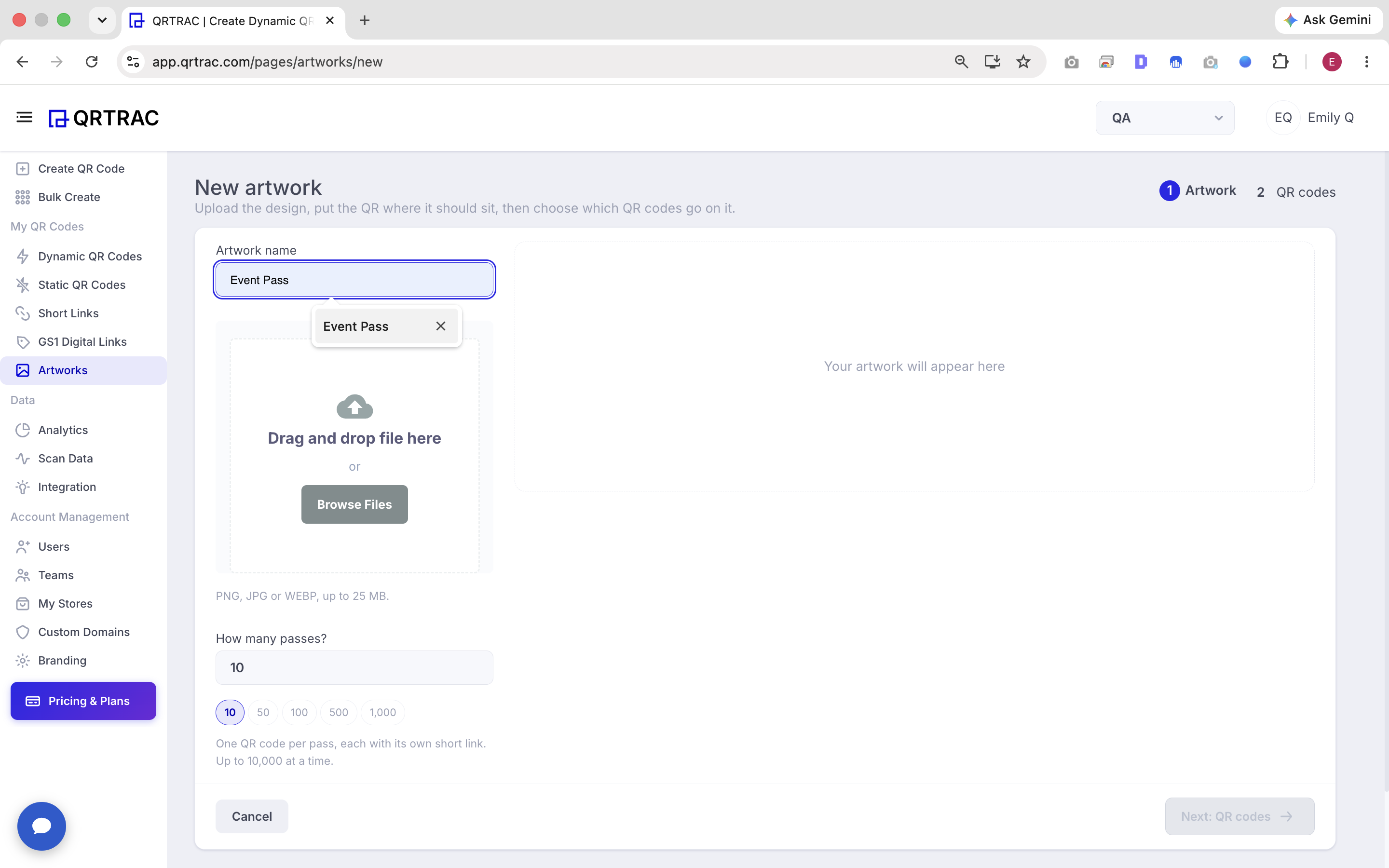
New Artwork / artwork upload workflow
Step 3 — Configure and Design the QR Code
After selecting your destination content, you can configure the QR code and customize its appearance before placing it onto the uploaded artwork.
QR code configuration screen
You have access to a variety of design options to make the code fit your brand visually while keeping it highly suitable for scanning:
- Template: Apply pre-built designs.
- Logo: Insert your brand logo in the center.
- Pattern: Change the internal data module shapes.
- Corners: Modify the shape of the outer and inner corner markers.
- Background: Set a background color or make it transparent.
- Frames: Add a frame with a call-to-action text.
- QR Options: Adjust error correction and data density.
New artwork screen showing QR code selection options
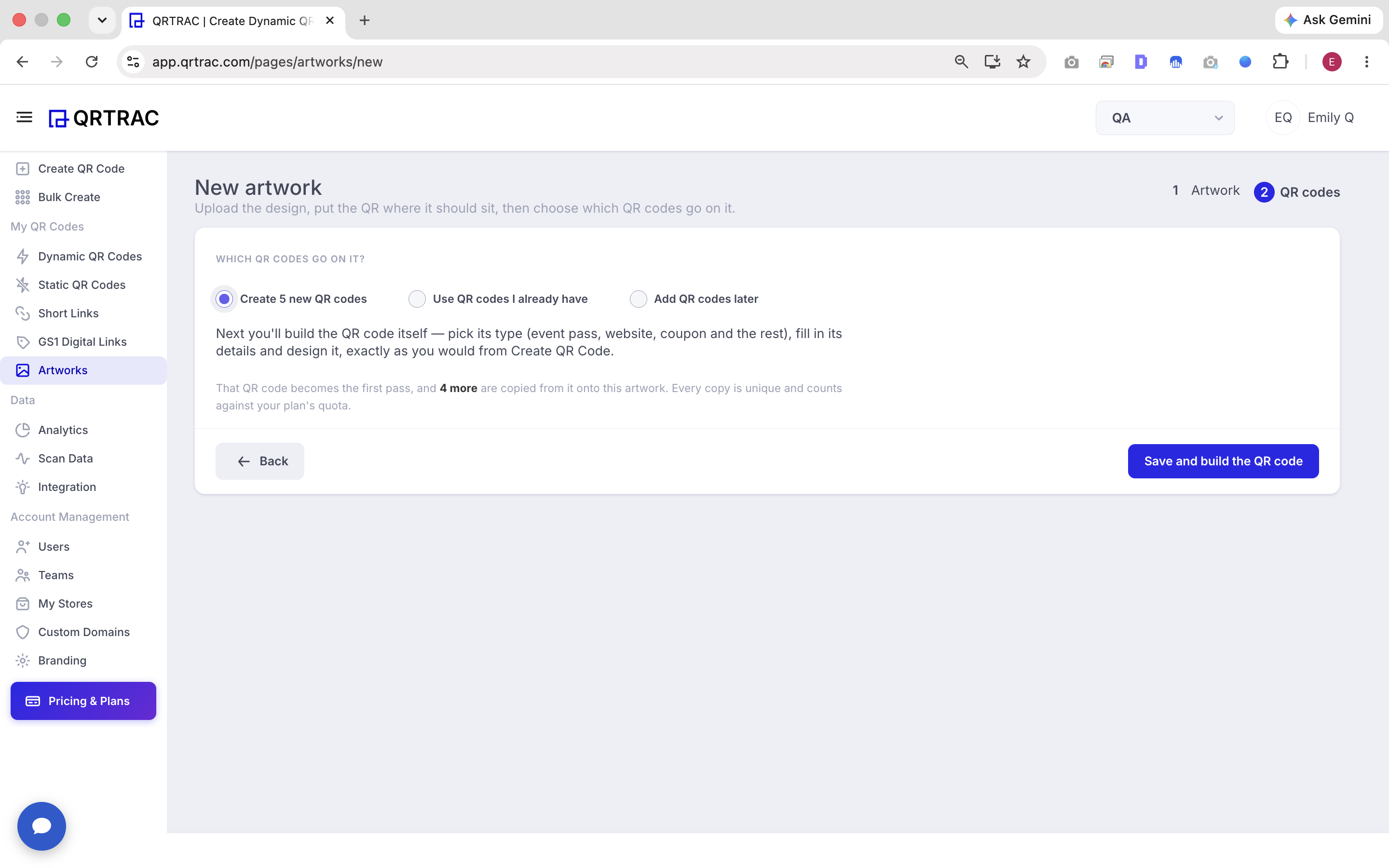
Step 4 — Choose Which QR Codes Go on the Artwork
QRTRAC allows you to carefully select which QR codes should be placed onto your artwork canvas.
The interface presents three main options:
- Create new QR codes: Generate fresh codes instantly for this artwork.
- Use QR codes I already have: Select from codes you've previously made.
- Add QR codes later: Skip selection for now and add them during a later stage.
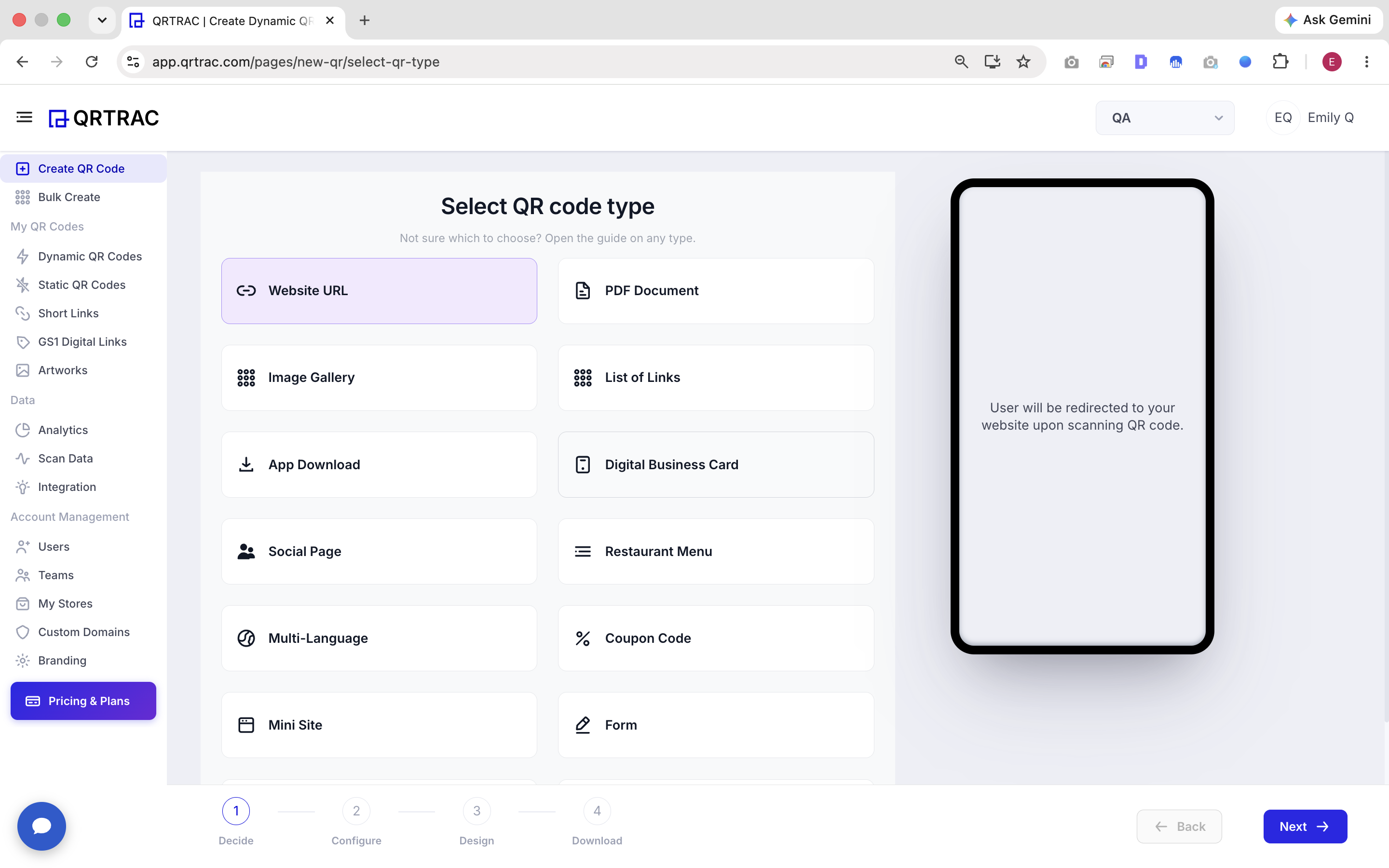
QR code type selection screen
If you choose to use existing QR codes, you can search through your library by the QR code's name or short link to locate the specific codes you need. You are also able to select multiple QR codes to be placed on the artwork if required.
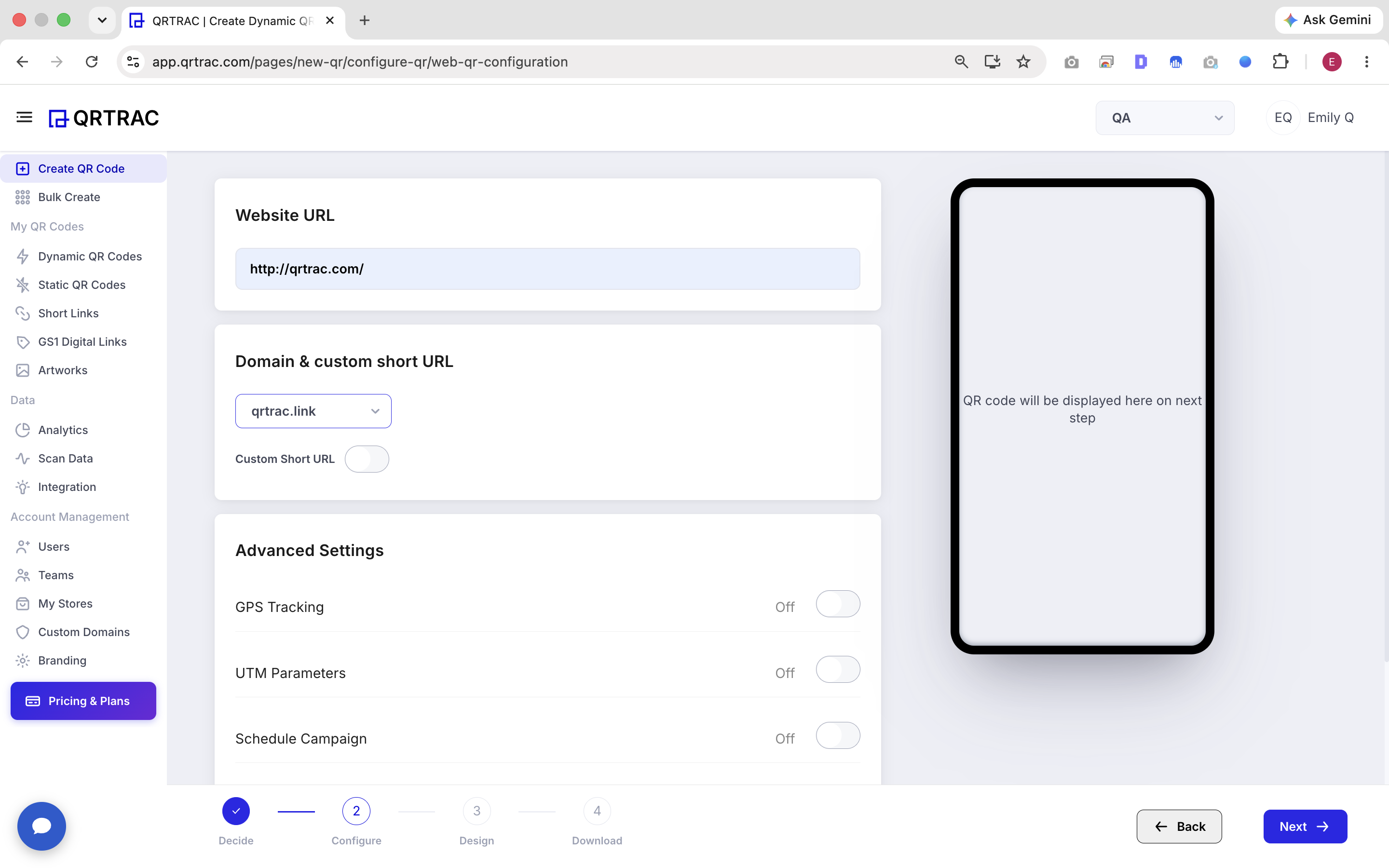
QR code destination and configuration screen
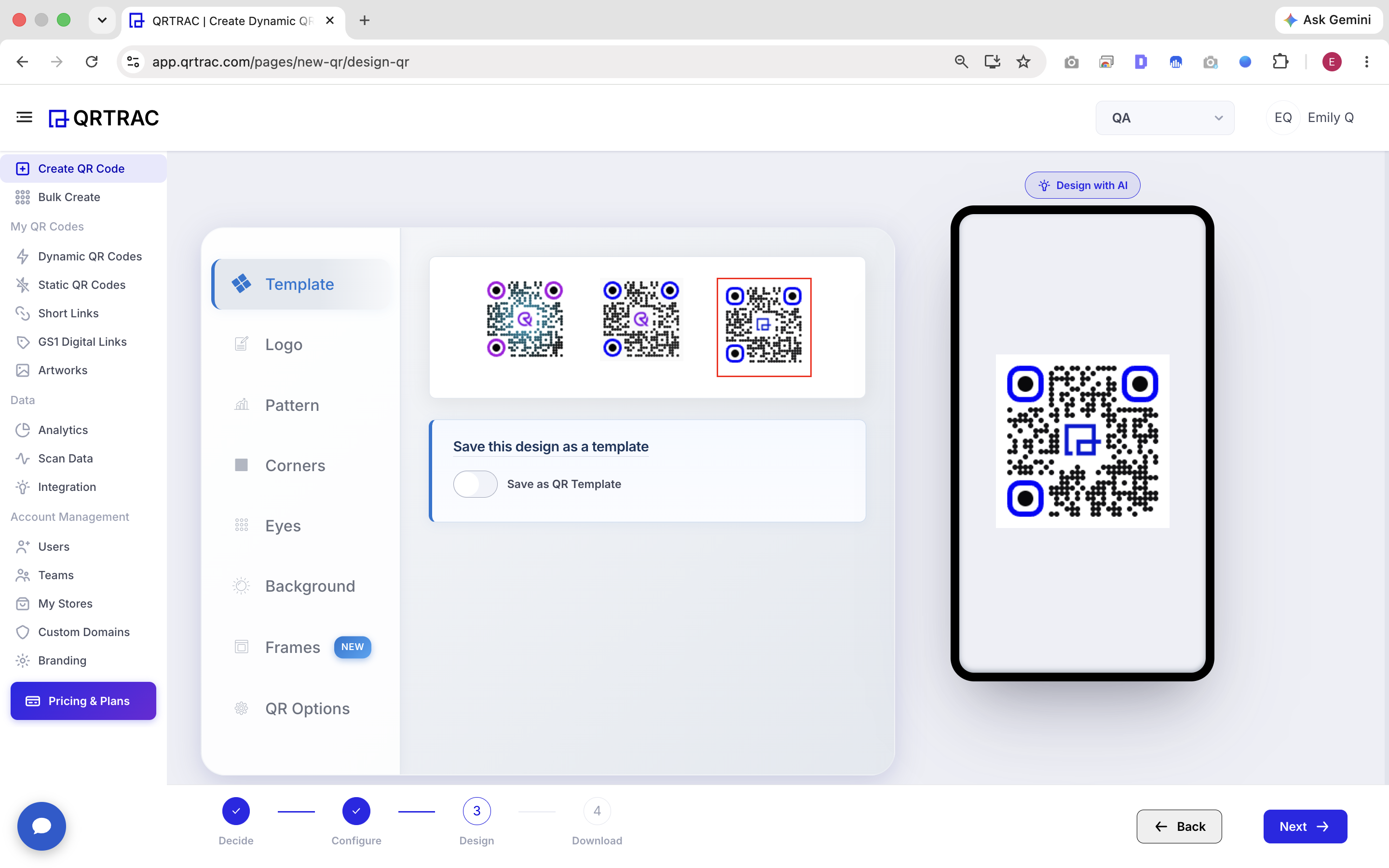
QR code template and design selection screen
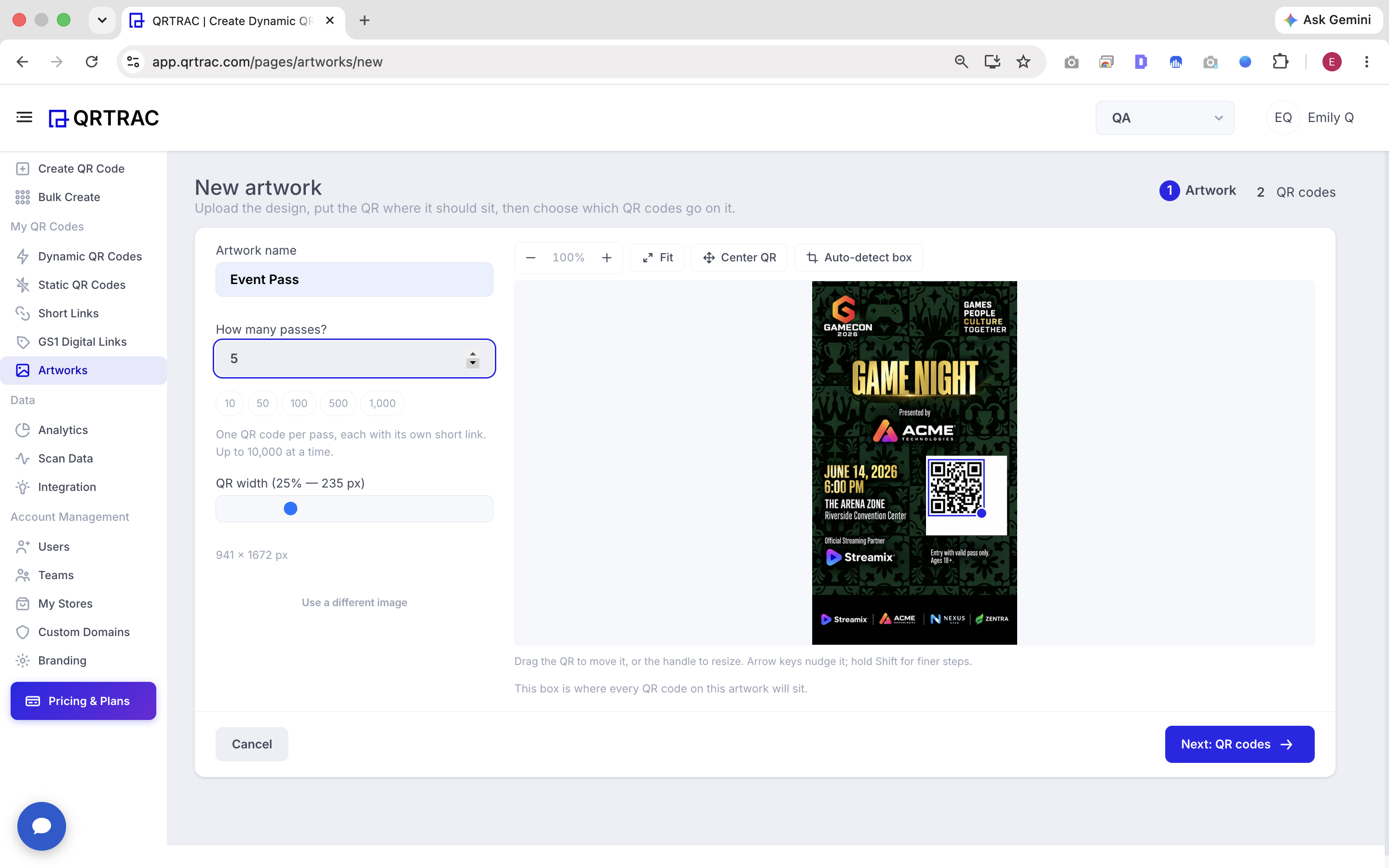
Step 5 — Position the QR Code on Your Artwork
After your QR code is selected, QRTRAC opens the interactive artwork editor.
Use the editor controls to get the perfect placement:
- Zoom controls: Zoom in and out of the canvas.
- Fit: Automatically fit the artwork to your screen.
- Center QR: Quickly snap the QR code to the center of the design.
- Auto-detect box: Automatically detect predefined spaces on the artwork.
- Drag to reposition: Click and drag the QR code to any location.
- Resize: Drag the corner handles to scale the QR code.
- Fine positioning: Use your keyboard arrow keys to nudge the QR code.
- Shift + arrow keys: Use this combination for finer, more precise movement.
Ensure the QR code is positioned in a clear area of the artwork where it can be easily identified and scanned by users.
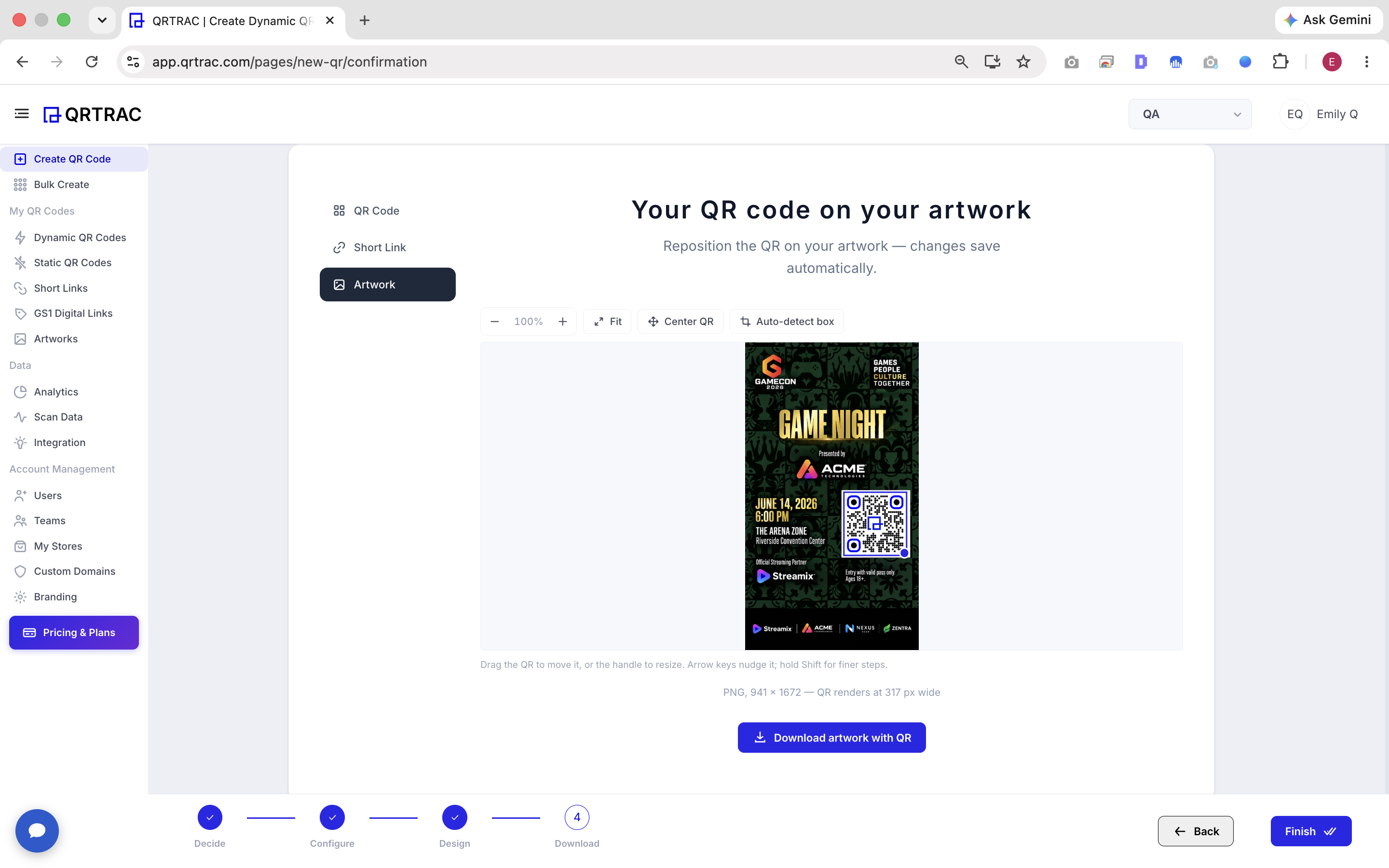
Artwork editor showing QR code positioned on the design
Step 6 — Manage Your QR Code Artwork
After creating your designs and saving them from the editor, you can return to the Artworks section to manage your saved artwork.
This management view provides a comprehensive look at your generated designs, showing:
- Artwork name
- Artwork preview image
- Number of QR codes attached
- Options to view passes or artwork details
- Edit artwork functionality
- Quick download links
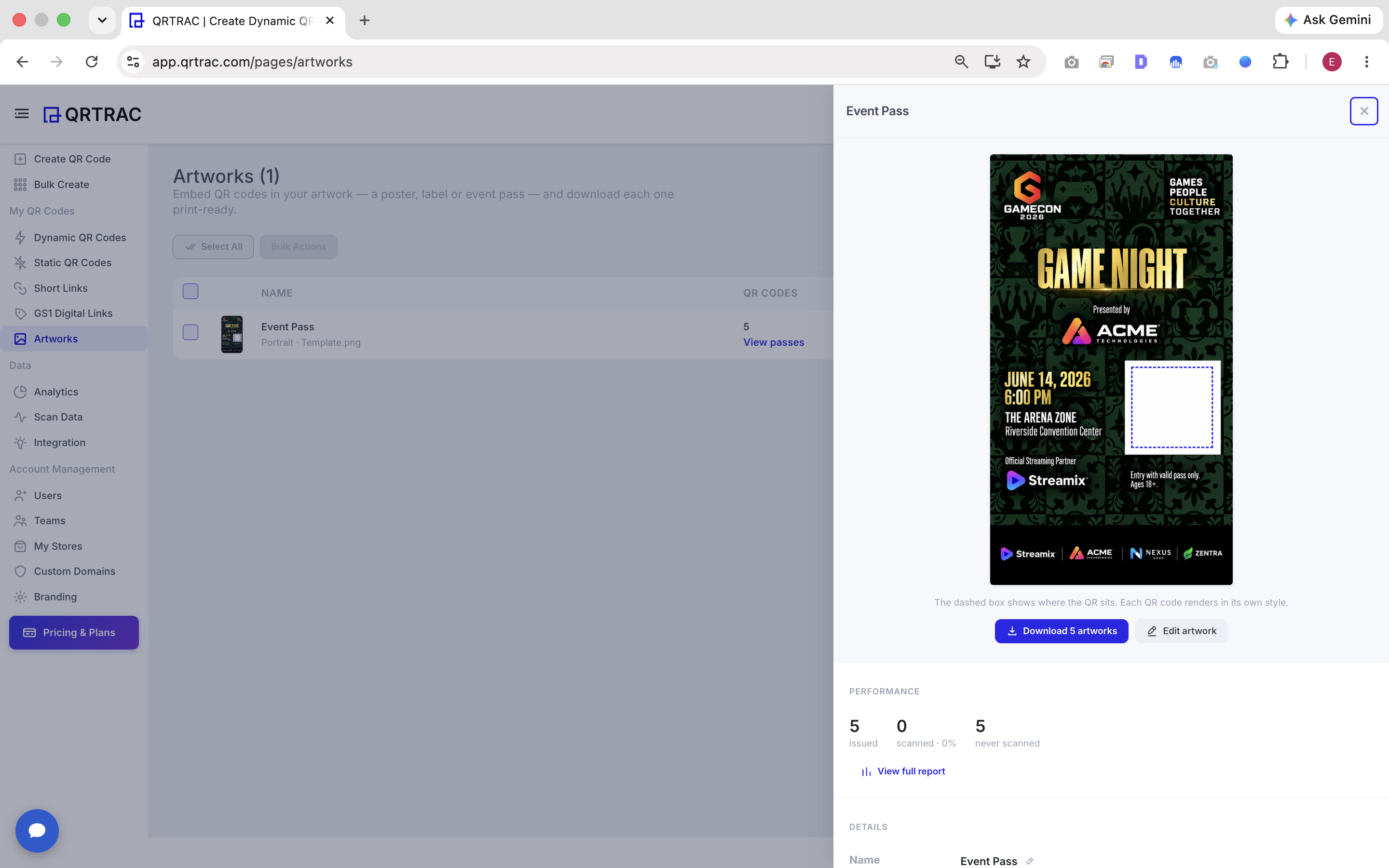
Artworks management screen / artwork details
Step 7 — Download the Finished Artwork
Once you are ready, you can download the finished artwork to your device.
The download modal provides three formats, allowing you to choose the best option for your output:
- JPEG: Useful when you need smaller file sizes for digital sharing.
- PNG: Recommended when lossless image quality is preferred.
- PDF: The ideal choice for high-quality, print-ready output.
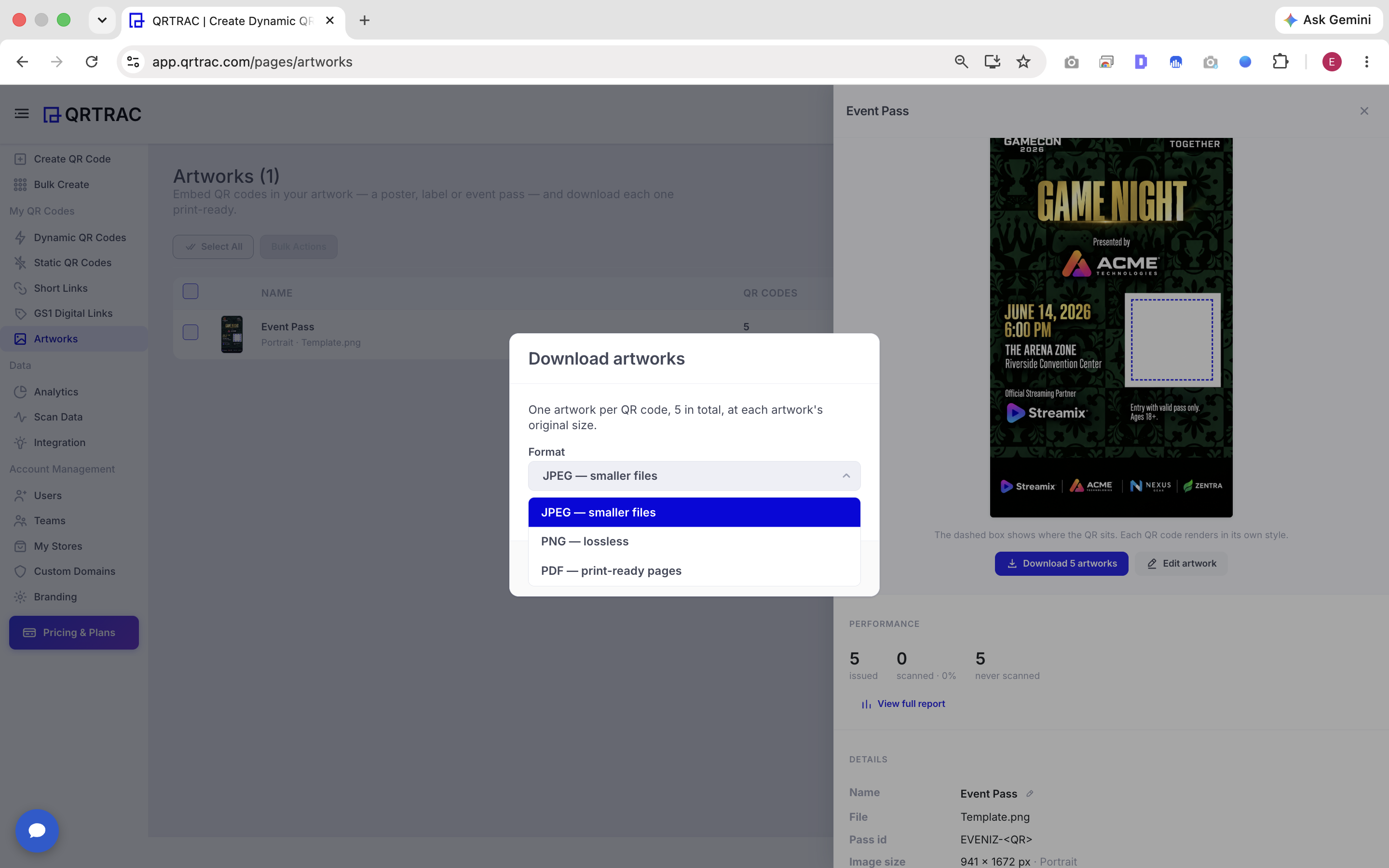
Download artworks modal showing JPEG, PNG, and PDF options
If you are downloading multiple artworks simultaneously, QRTRAC will efficiently render them all and save them conveniently as a single ZIP file for you.
Step 8 — Monitor Artwork Performance
QRTRAC provides dedicated performance metrics so you can understand exactly how the QR codes associated with your artwork are being used in the real world.
By checking the analytics, you can review essential metrics such as:
- Passes issued: The total number of passes generated.
- Scanned: The number of codes that have been successfully scanned.
- Never scanned: Codes that are yet to see engagement.
- Total scans: The cumulative count of all scan events.
- Scanned more than once: Identifying repeat interactions.
- Last scan: The timestamp of the most recent activity.
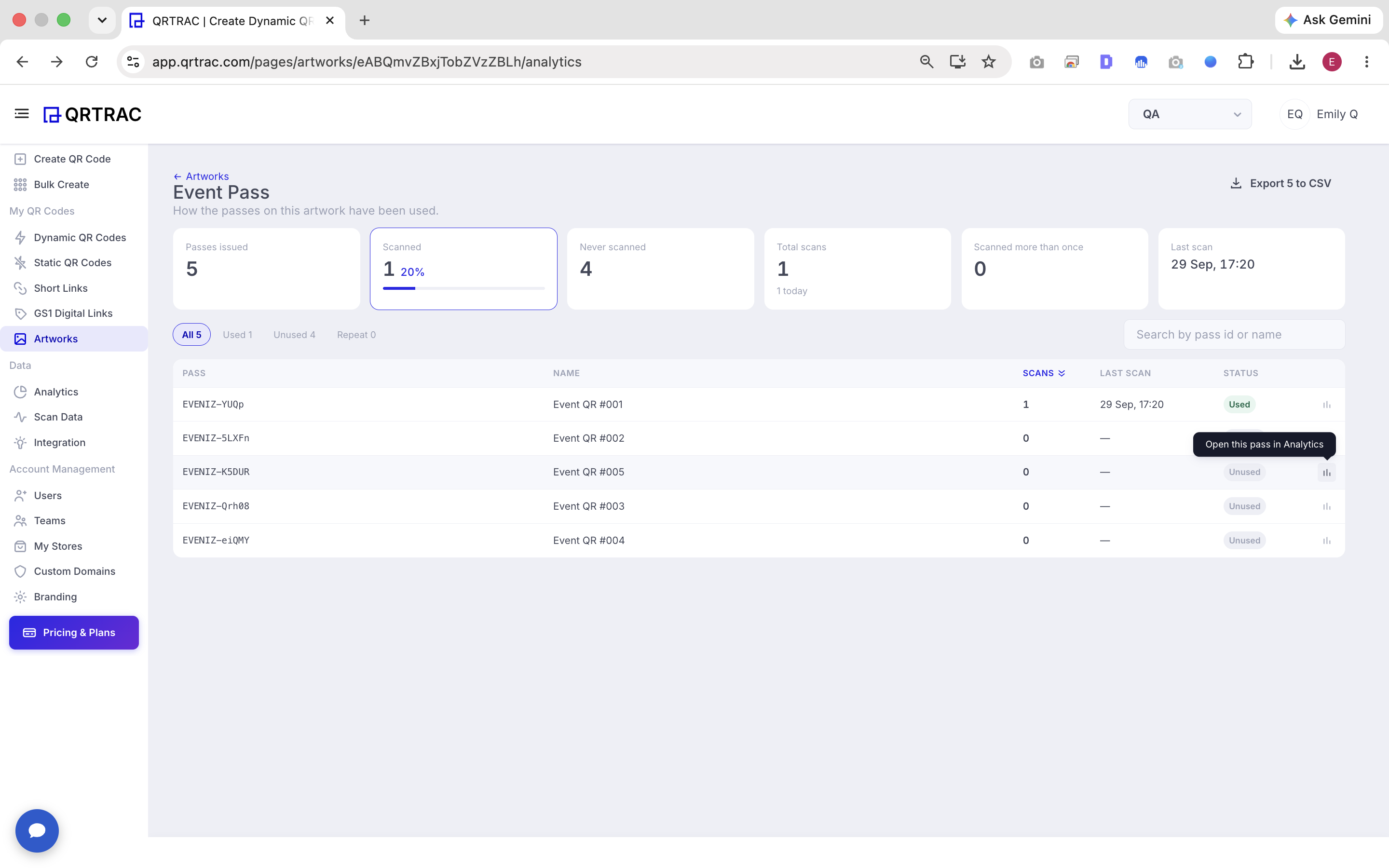
Artwork performance and analytics dashboard
You can drill down to view individual QR/pass activity, track precise scan data, and export this information for further reporting when available.
How QR Code Artwork Works
Here is a quick summary of the complete artwork process:
- Upload artwork
- Choose QR codes
- Customize the QR code
- Place the QR code on the artwork
- Manage the artwork
- Download the finished design
- Monitor performance
Tips for Creating Scannable QR Code Artwork
To ensure the best possible experience for your users, follow these practical guidelines:
- Keep enough contrast between the QR code and its background color.
- Avoid placing the QR code over visually complex or noisy areas of the artwork.
- Do not make the QR code unnecessarily small; it should be prominent enough to scan.
- Leave sufficient clear space (quiet zone) around the edges of the QR code.
- Always test the QR code with a mobile scanner before printing large batches.
- Make sure the final downloaded artwork maintains adequate resolution to prevent blurring.
- Position the QR code where users can easily see and scan it in physical environments.
Sending the finished files to a print shop? Our guide to QR codes for printing covers file formats, edits that break codes and a checklist to run before anything goes to press.
Common Questions About QR Code Artwork
What is QR code artwork?
QR code artwork is a feature in QRTRAC that allows you to directly place and merge your QR codes onto an existing design layout, such as a poster or pass, before downloading the finished file.
Can I use an existing QR code on my artwork?
Yes, you can search for and select QR codes you have already created in your QRTRAC account and place them onto your new artwork.
Can I create new QR codes while creating artwork?
Absolutely. During the artwork creation workflow, you can choose to generate brand new QR codes specifically for the design.
Can I add QR codes to an artwork later?
Yes, you have the option to skip the QR code selection step and add QR codes to the artwork at a later stage.
Can I resize and reposition a QR code?
Yes, the interactive artwork editor allows you to drag the QR code to reposition it, resize it using corner handles, and use keyboard arrows for fine adjustments.
What file formats can I download?
You can download your finished artwork as a JPEG for smaller file sizes, a PNG for lossless quality, or a PDF for print-ready pages.
Can I use QRTRAC artwork for event passes and posters?
Yes, the artwork tool is perfectly suited for placing QR codes onto event passes, posters, product labels, and any other printed promotional material.
Can I track scans from QR codes placed on artwork?
Yes. Because you are placing dynamic QRTRAC codes on the artwork, you can track performance metrics such as total scans, unique passes issued, and latest scan activity directly from your dashboard.
Create QR Code Artwork with QRTRAC
Create QR code artwork in QRTRAC, place your QR codes exactly where you need them, download your finished designs, and monitor QR code activity from one platform.