How to Create a Form QR Code
The Form feature allows you to create interactive QR codes that collect customer information directly through a mobile form. This is perfect for gathering contact details, feedback, inquiries, survey responses, and more.
With QRTRAC's Form feature, you can easily create customizable forms that appear when users scan your QR code, making data collection smooth and efficient.
Video Tutorial: Step-by-step guide to creating Form QR Codes
Step 1: Select the Form QR Type
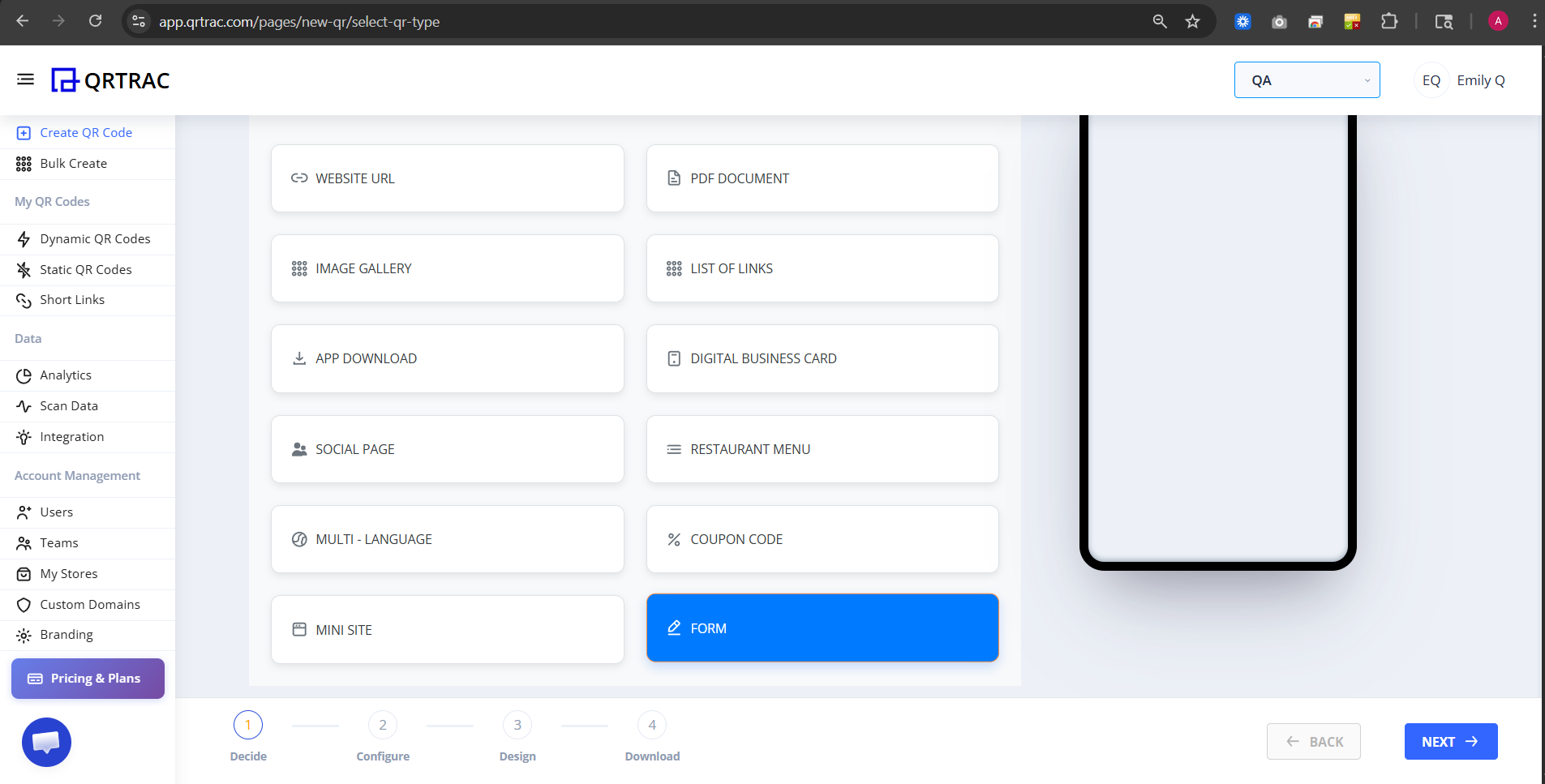
Click on Create QR Code from your dashboard. You'll see various QR code types available. Locate and click on the FORM option, which is highlighted in blue. The Form QR type is perfect for collecting customer information in a structured way.
Step 2: Configure Form Title and Description
In the Form Configuration section:
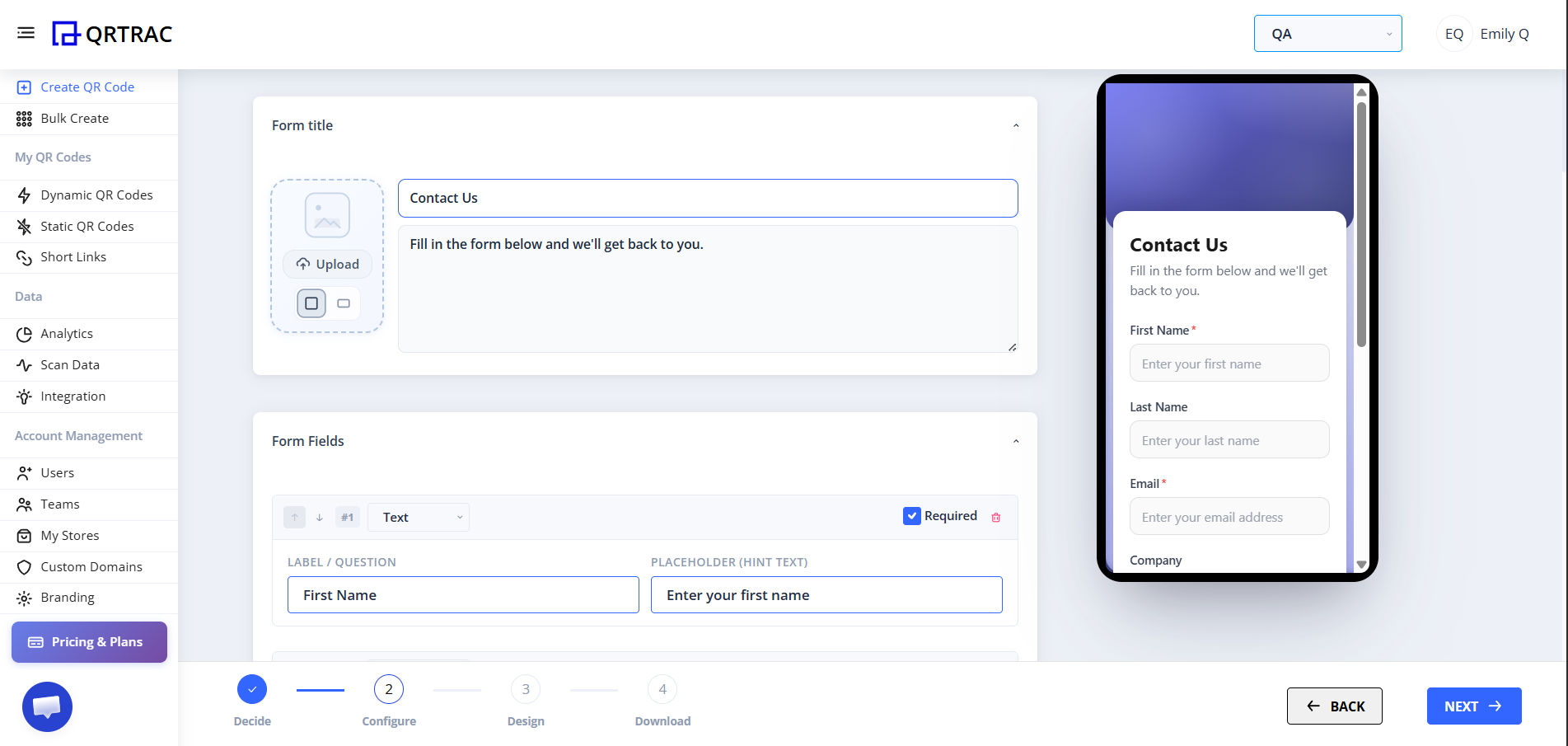
- Enter a Form Title - This is the main heading users will see (e.g., "Contact Us")
- Add a Description - Provide instructions or context (e.g., "Fill in the form below and we'll get back to you.")
- Optionally upload an Image or Logo - Click the Upload button to add a banner image
- Review the preview on the right side to see how it will appear on mobile devices
Step 3: Add and Configure Form Fields
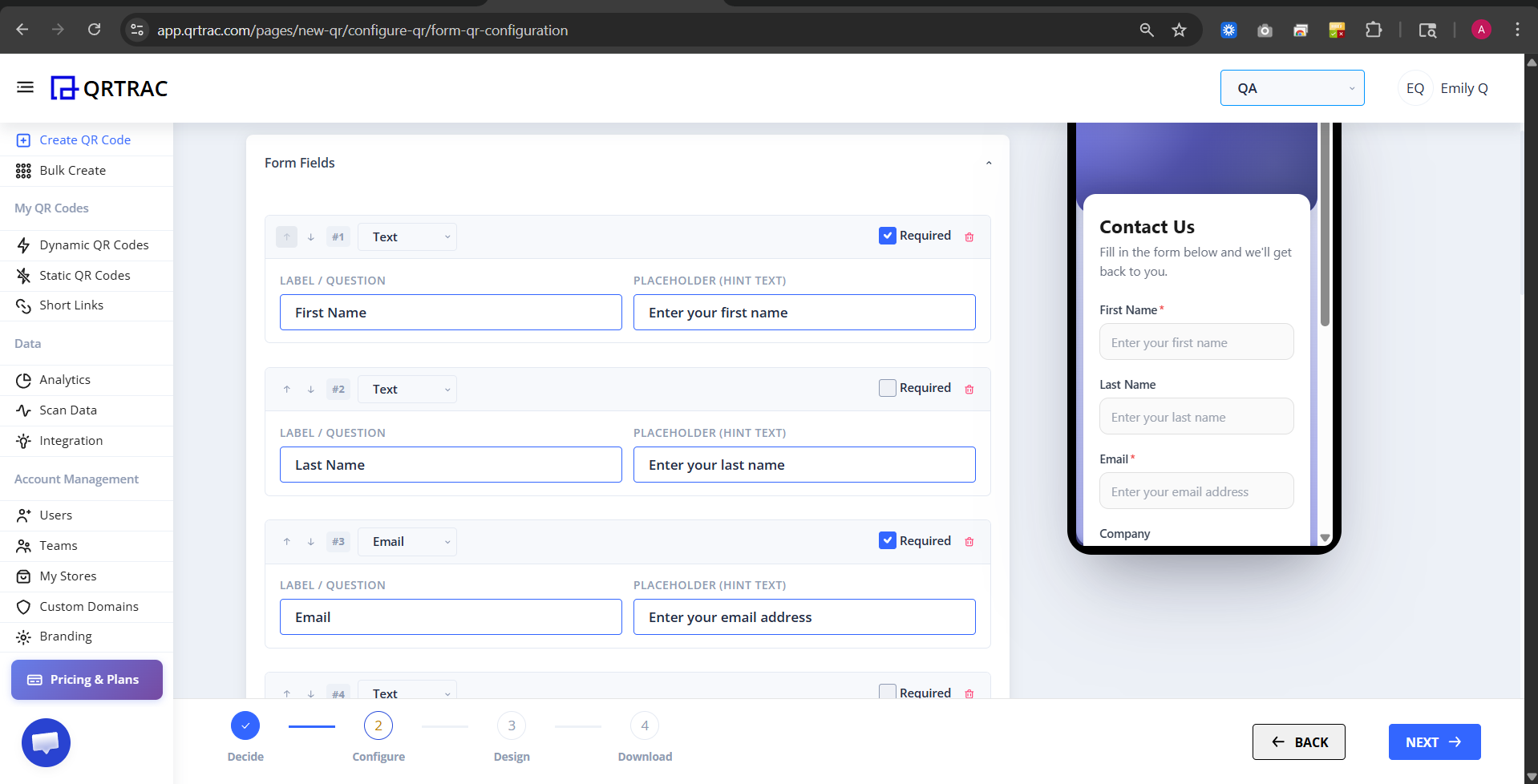
In the Form Fields section, click the + button to add fields. For each field, you can:
- Add a Label/Question (e.g., "First Name")
- Add Hint Text (the greyed-out example text inside the input field, e.g., "Enter your first name")
- Mark the field as Required by checking the checkbox
Example form structure:
- First Name (Text, Required)
- Last Name (Text)
- Email (Email, Required)
- Phone (Phone)
- Company (Text)
- Message (Message)
Step 4: Configure Field Types and Submit Settings
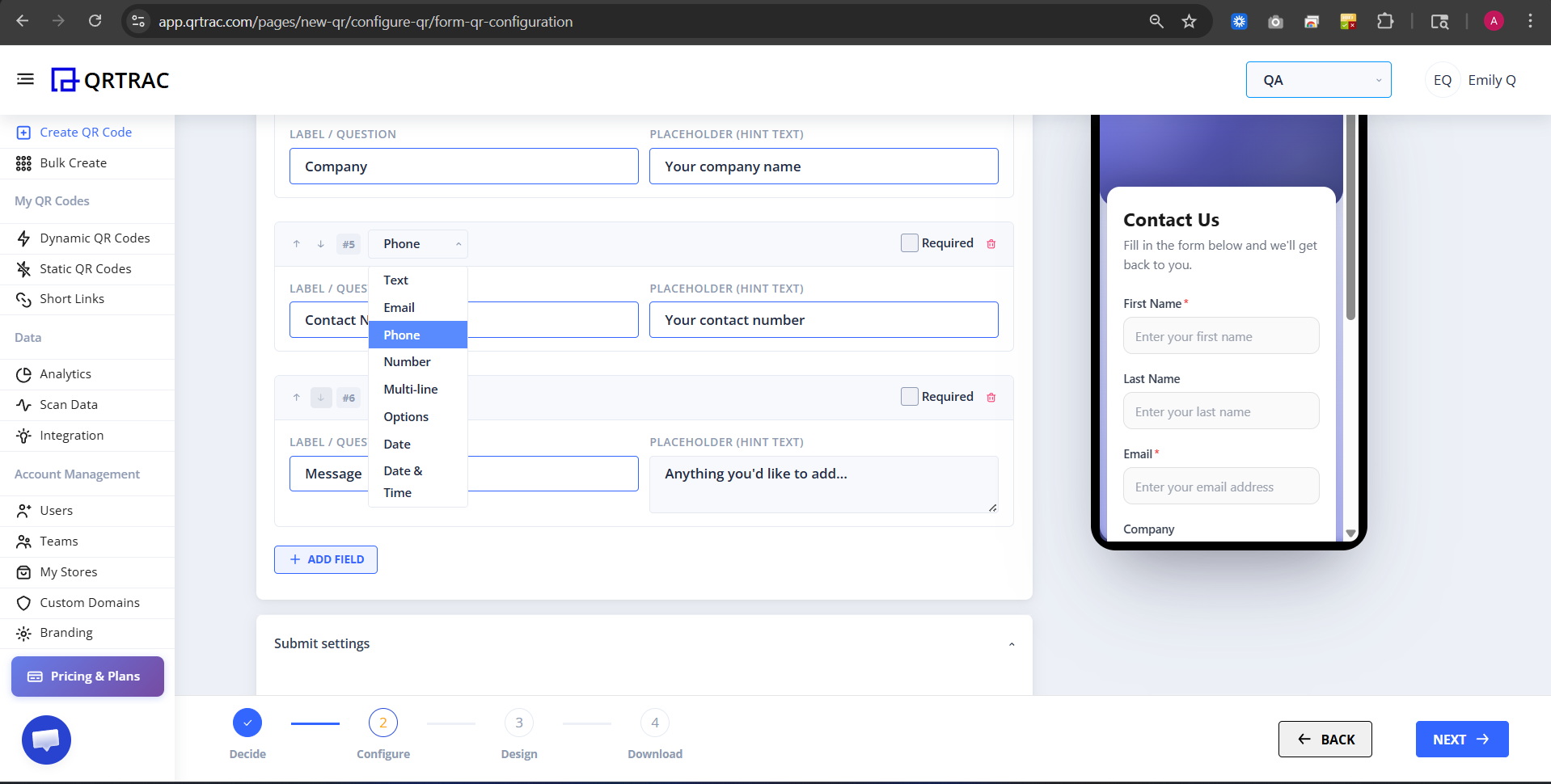
You can add various field types to your form:
- Text - Single line text input
- Email - Email address input
- Phone - Phone number input
- Message - Multi-line text area
- Dropdown - Select from predefined options
- And more specialized field types
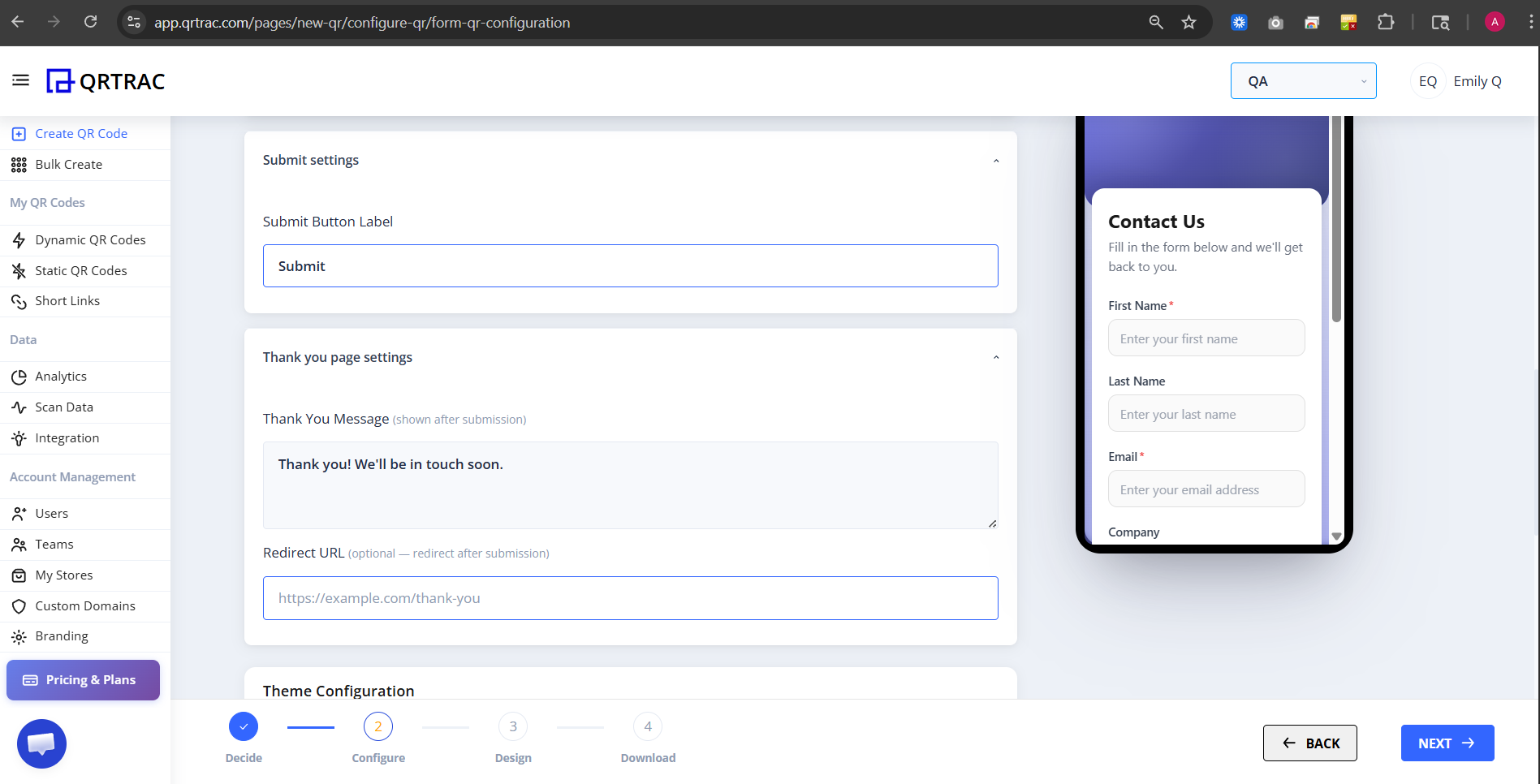
Step 5: Configure Submit Settings
In the Submit Settings section:
- Customize Submit Button Label - Change the button text (default: "Submit"). Examples: "Send", "Get in Touch", "Subscribe"
- Add a Thank You Message - This appears after submission (e.g., "Thank you! We'll be in touch soon.")
- Set Redirect URL (Optional) - Direct users to a page after submission (e.g., "https://example.com/thank-you")
Step 6: Customize Theme and Colors
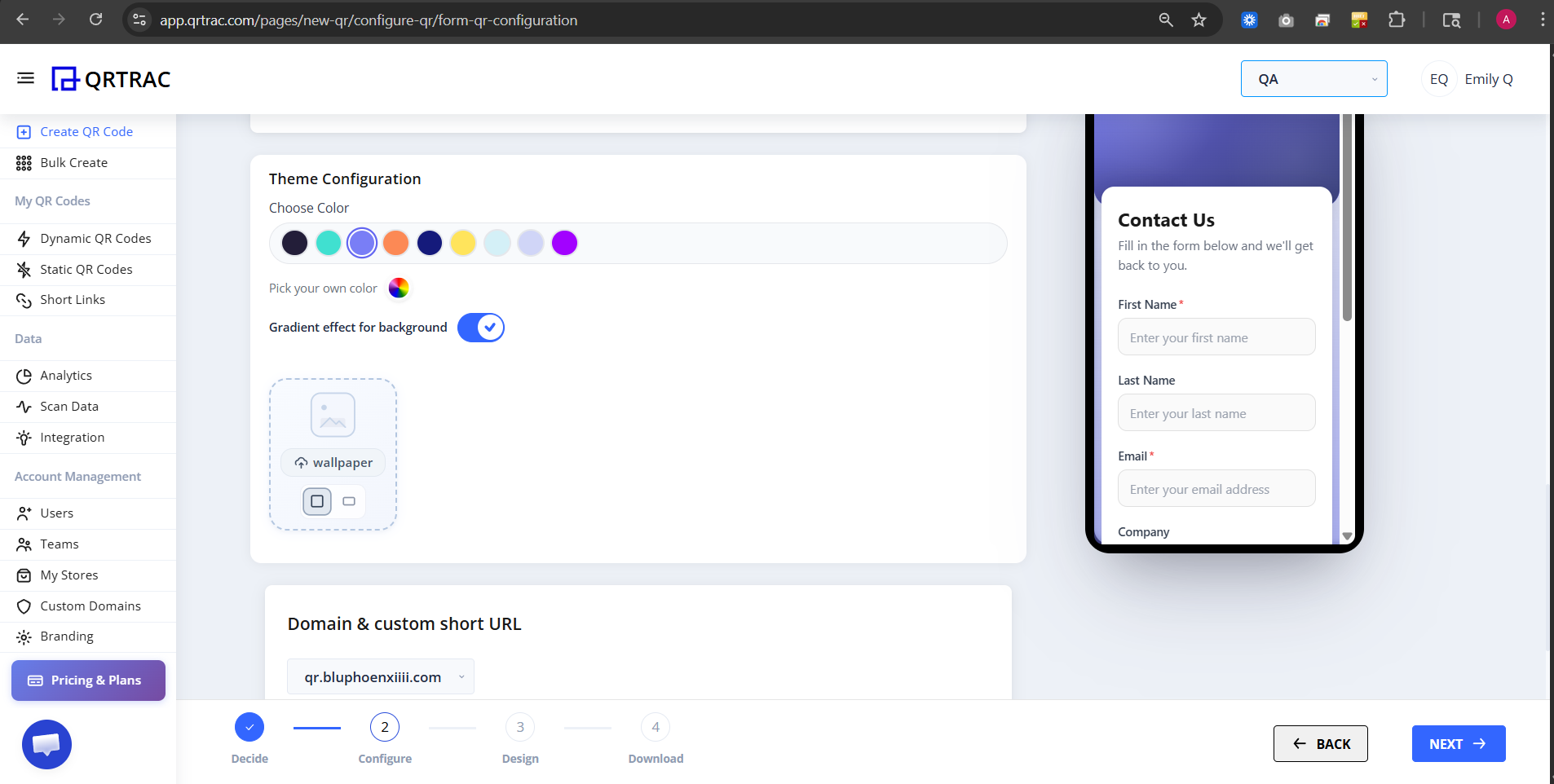
In the Theme Configuration section:
- Choose a background color for your form by clicking on the color palette
- Select from available color options or create a custom color
- Toggle "Match color to background" to automatically adjust text colors
- Preview your color selection on the right side of the screen
Step 7: Configure Domain and Custom URL
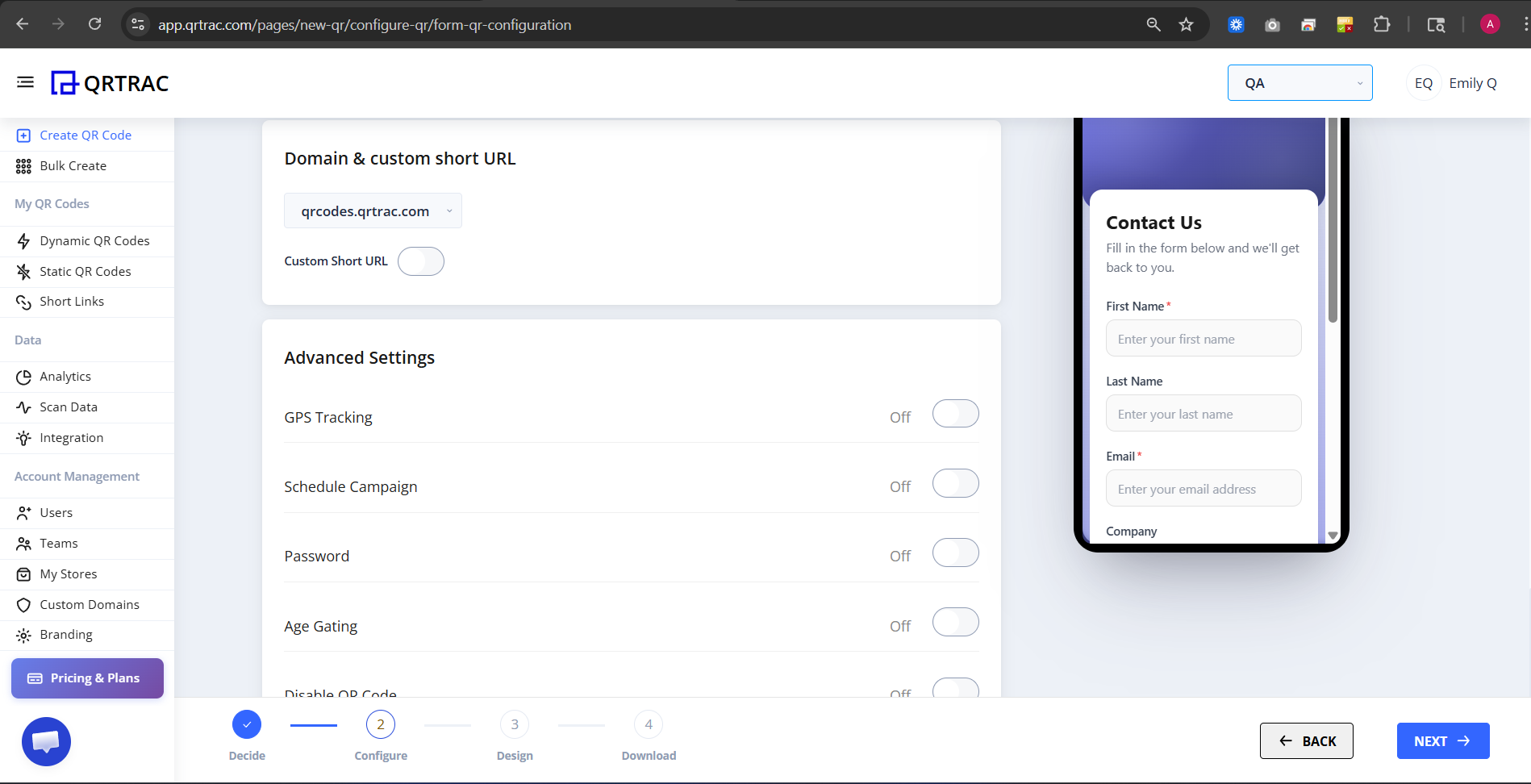
Your form will have a default domain URL (qrcodes.qrtrac.com). You can optionally enable Custom Short URL to create a branded short link. This makes your shareable link more memorable and professional.
Step 8: Access Advanced Settings
Expand the Advanced Settings section to access optional features:
- GPS Tracking - Track where the QR code is scanned
- Schedule Campaign - Set date ranges for when the form is active
- Password - Protect your form with a password
- Age Gating - Restrict access to a specific age group
- Display QR Code - Show the QR code on the form page
Toggle each setting On or Off as needed for your use case.
Step 9: Choose Design Template
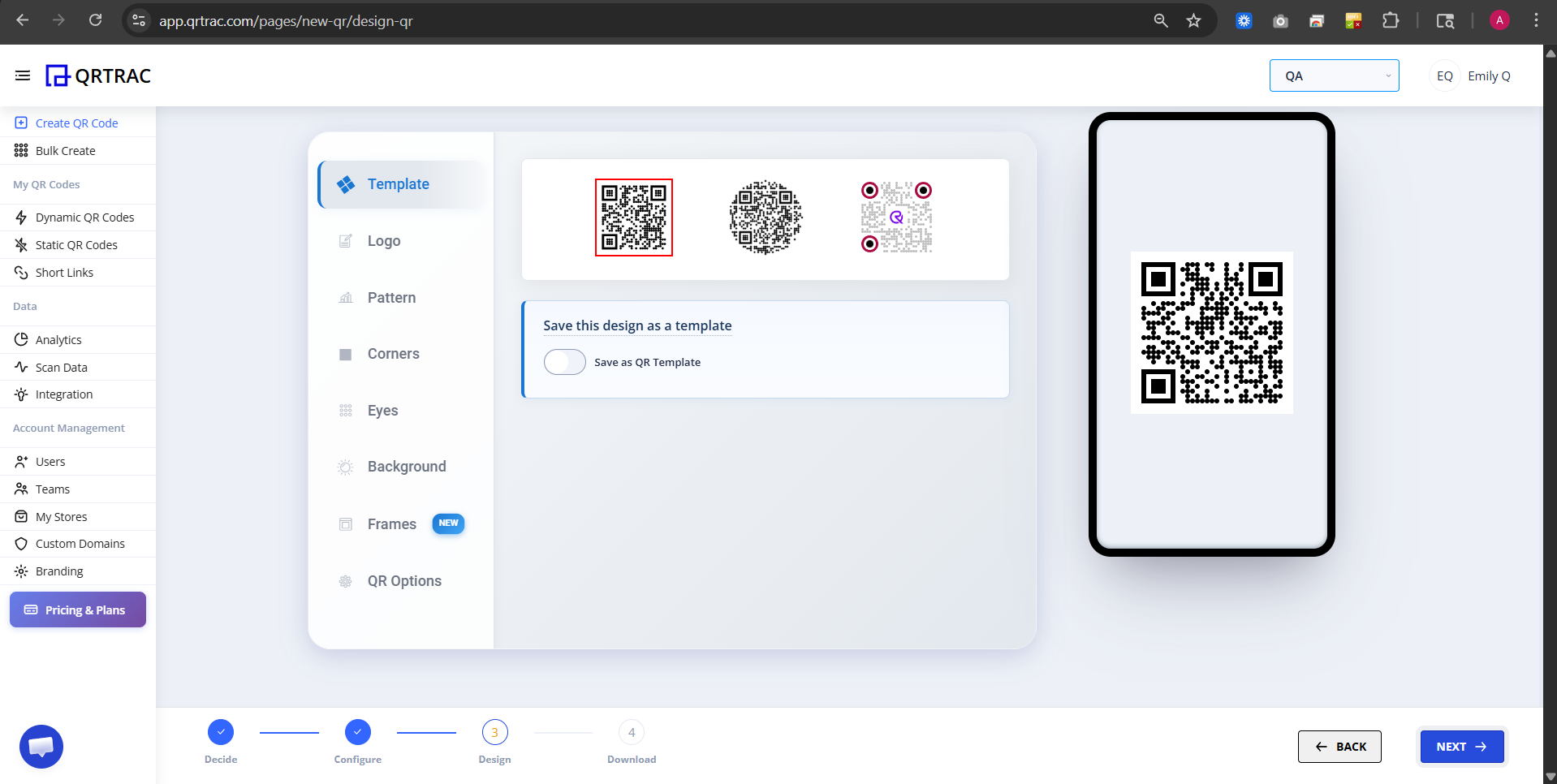
In the Design section, browse through available form templates. Each template shows a preview of how your form will look. Select the template that best matches your brand style. Your form preview with the QR code will be displayed on the right.
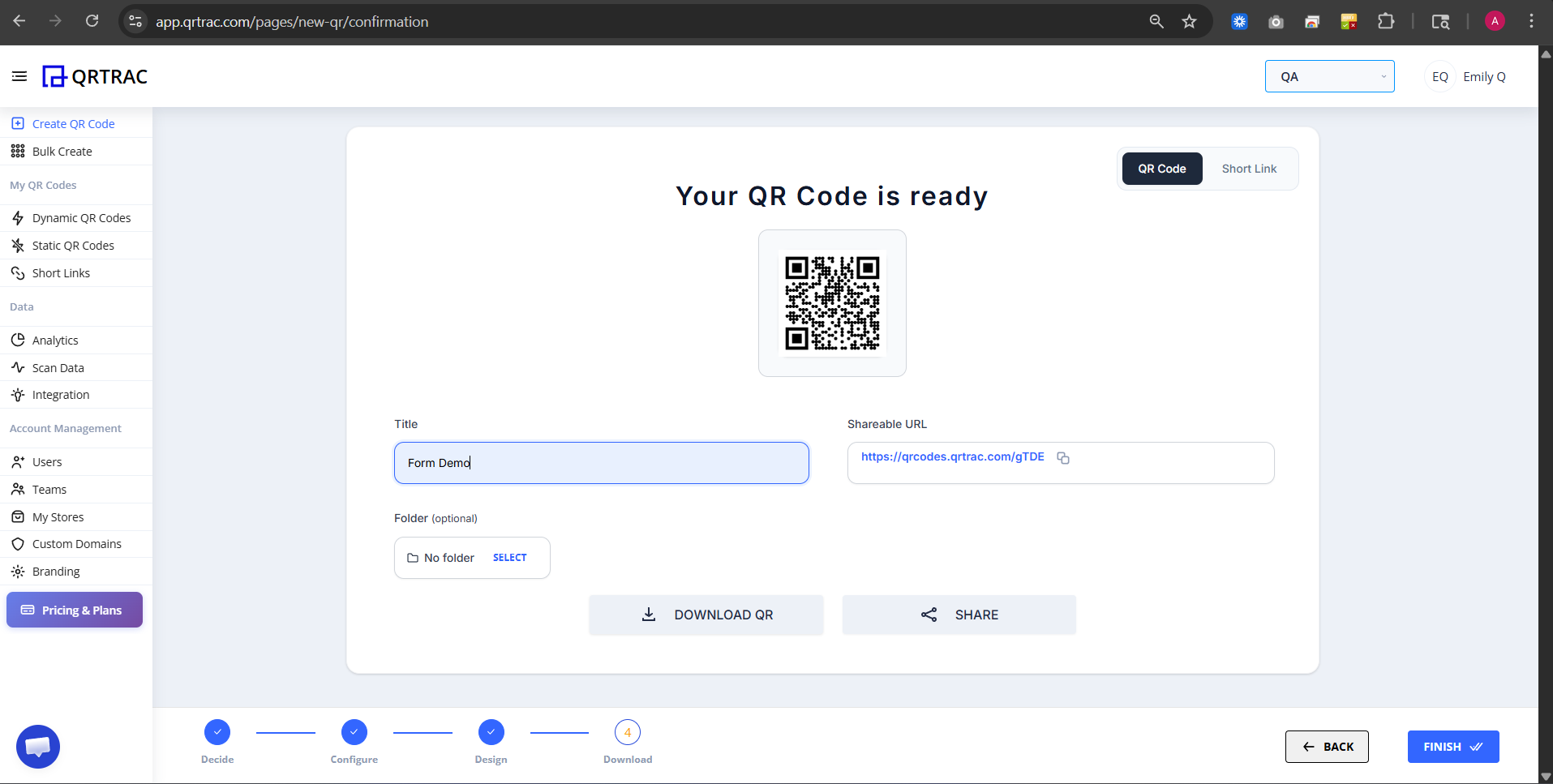
Step 10: Review and Download Your QR Code
After completing all settings, click the NEXT button. You'll see the message "Your QR Code is ready" with your generated QR code. The Shareable URL is provided for easy distribution.
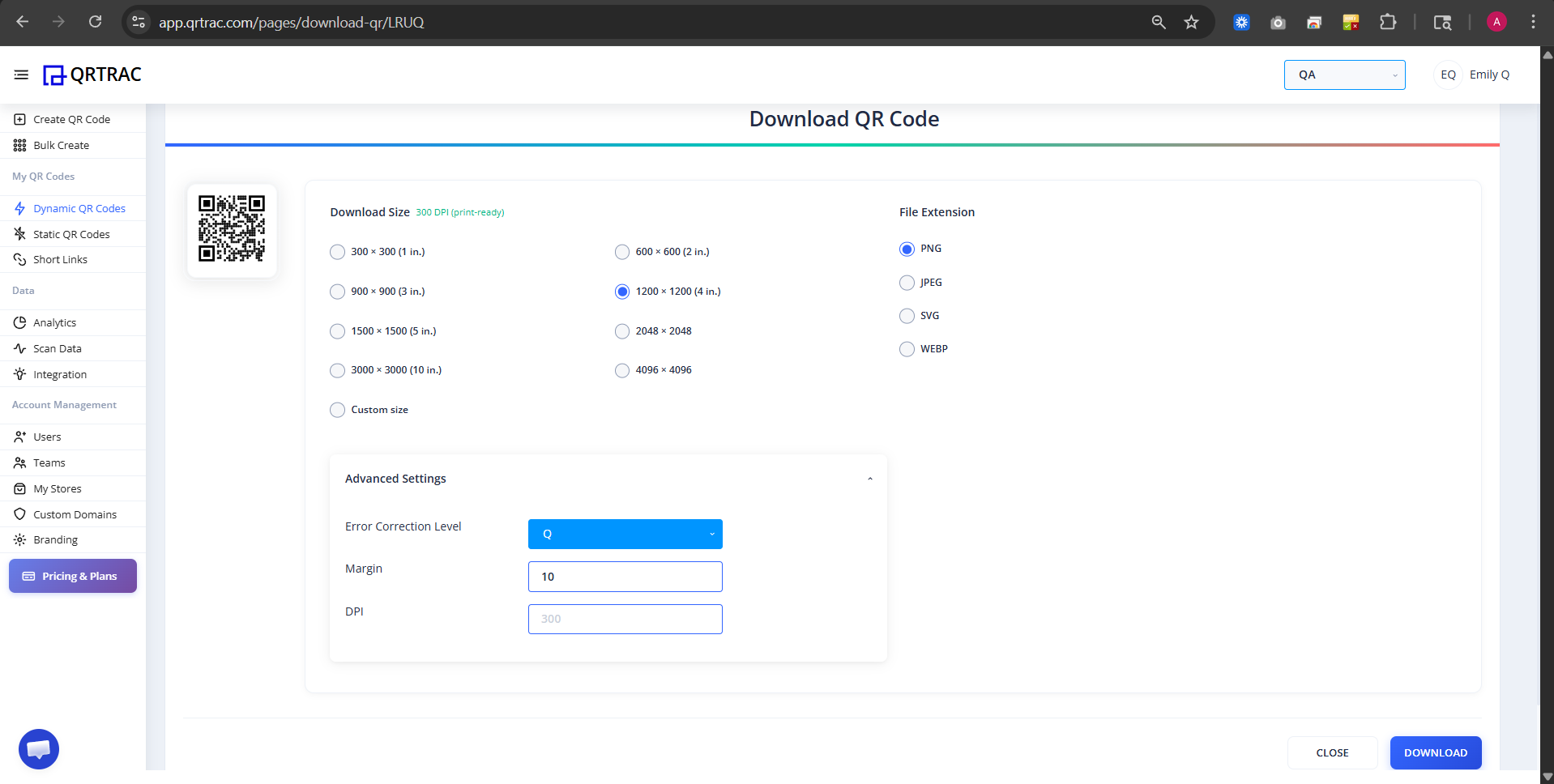
Download Options
On the Download page, you can customize your QR code:
- Download Size - Choose from 300×300 (1 in.) to 3000×3000 (10 in.) or custom size
- File Format - Select PNG, JPEG, SVG, or WEBP
- Advanced Settings:
- Error Correction Level - Set error tolerance (Q is recommended)
- Margin - Add white space around the QR code
- DPI - Set resolution for printing
Click DOWNLOAD to save your QR code.
Real-World Mobile Examples
Here's how your Form QR code will look to users when they scan it on their mobile device:
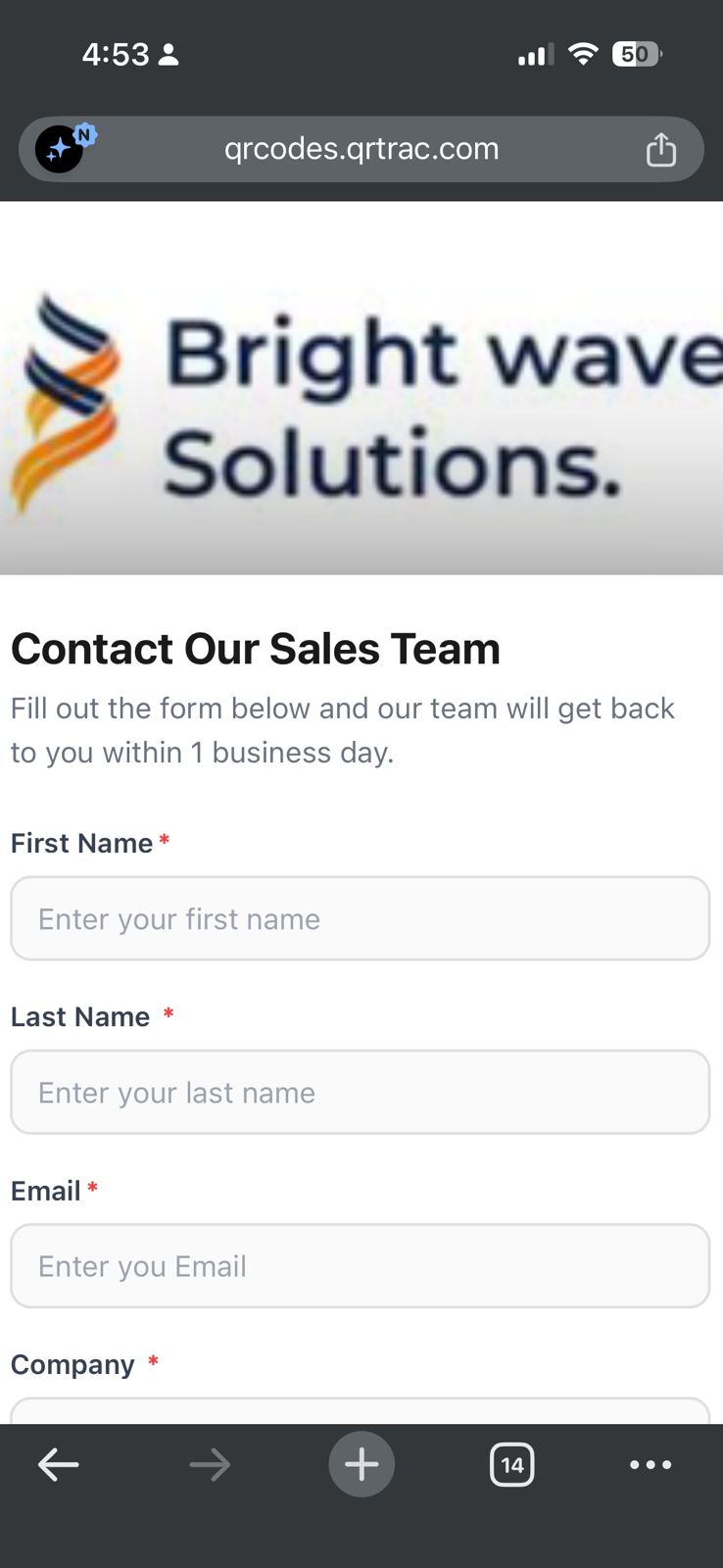
Header & Title
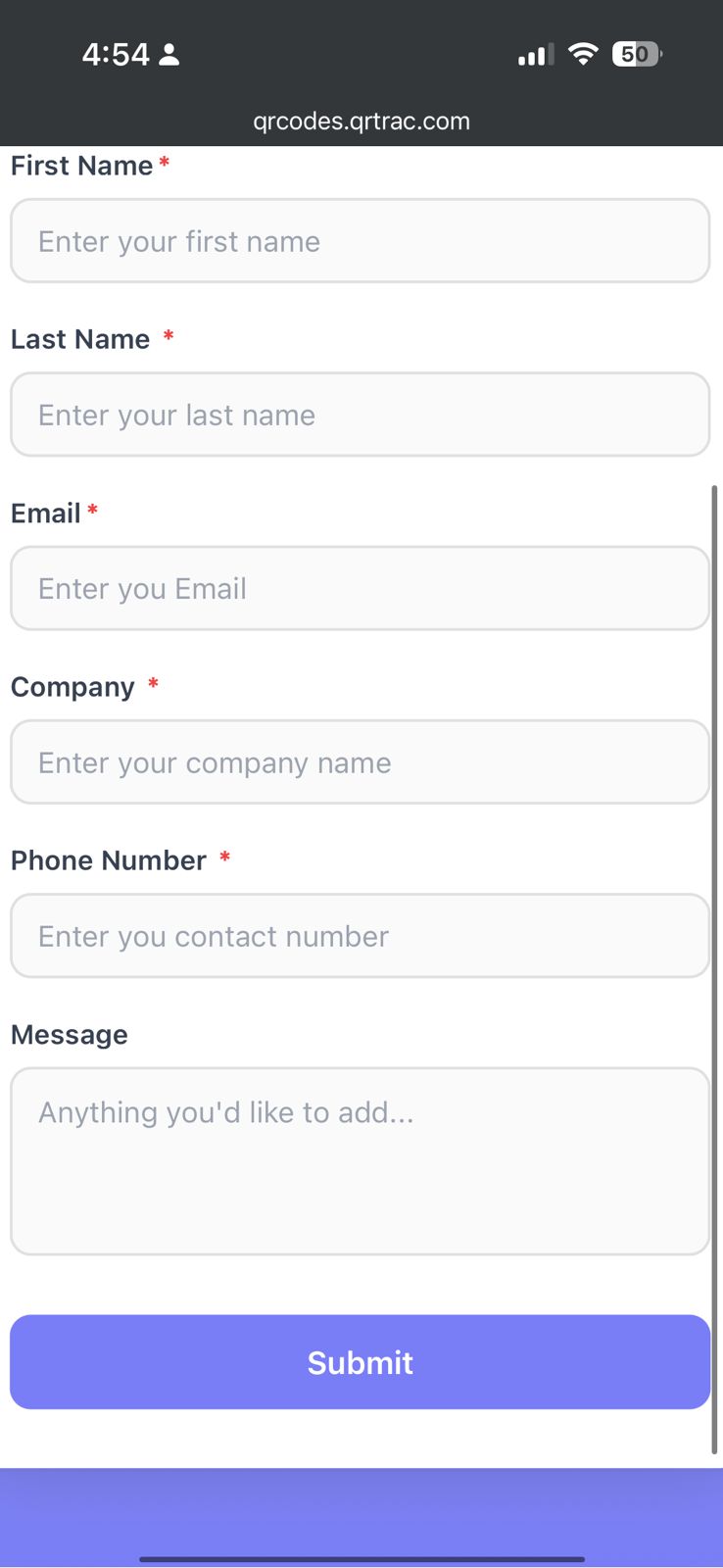
Fields & Submit
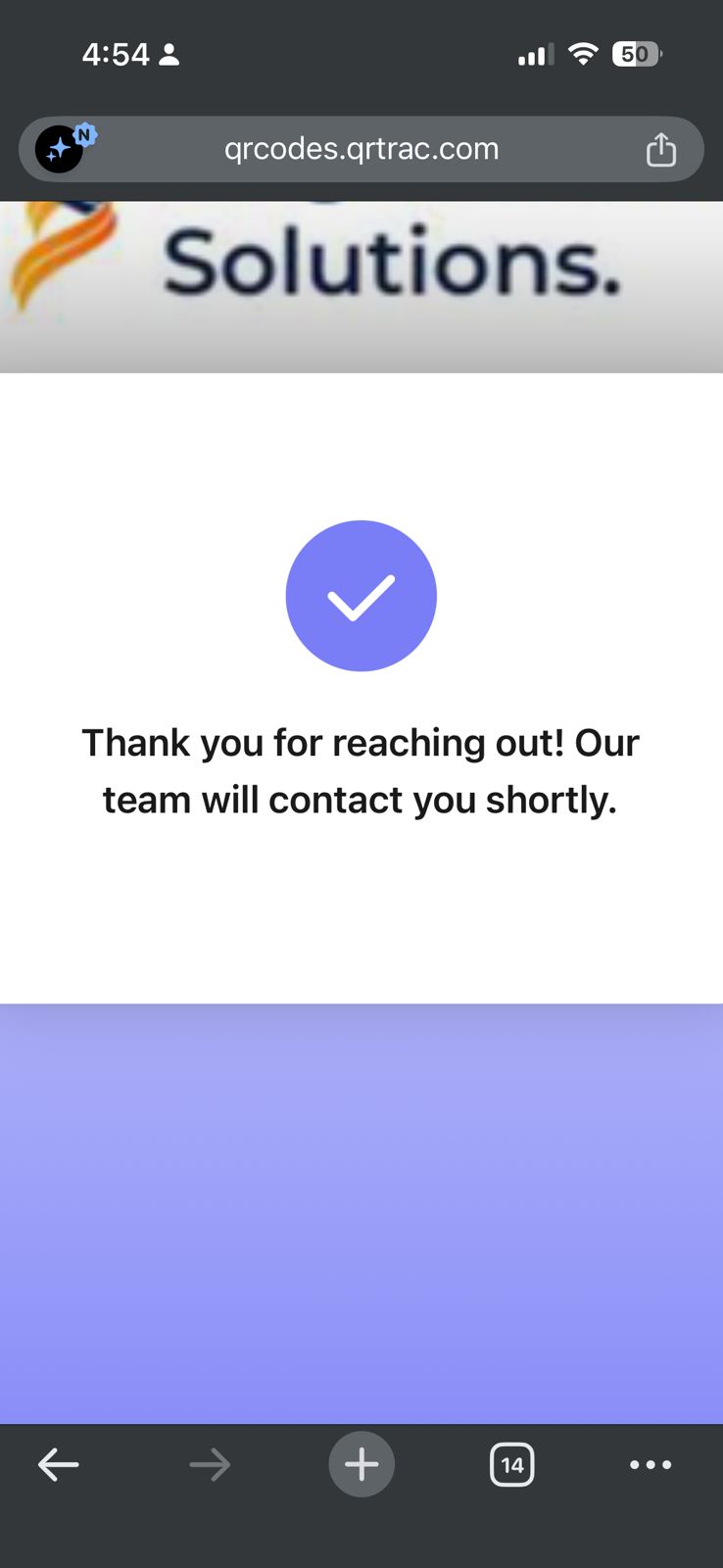
Thank You Page
Mobile users see a clean, responsive form interface optimized for touch interaction on smartphones and tablets.
Why Use Form QR Codes?
Form QR codes provide several benefits for your business:
- Collect customer data directly from scans
- Improve response rates with mobile-friendly forms
- Reduce manual data entry and save time
- Track form submissions through analytics
- Enhance customer engagement with interactive experiences
- Perfect for offline-to-online conversion
Best Use Cases
Form QR codes work best for:
Lead Generation
Collect contact information at events or retail locations
Customer Feedback
Gather surveys and testimonials from customers
Event Registration
Allow attendees to sign up on the spot
Inquiry Forms
Enable customers to request information or quotes
Contest Entries
Collect entries for promotions or giveaways
Newsletter Signup
Build your mailing list with easy sign-ups
Pro Tip
Keep your forms short (under 10 fields) for better engagement. Test on mobile devices before deployment, and always include a thank you message for better user experience.
Next Steps
After creating your Form QR code:
- Print the QR code for physical locations (business cards, posters, menus, etc.)
- Share the shareable URL via email, social media, or messaging apps
- Embed the QR code on your website or landing pages
- Track form submissions and responses in the QRTRAC Analytics dashboard
Discover the Power of Form QR Codes
Ready to supercharge your data collection? Explore our dedicated feature page to see live demos, advanced use cases, and how the Form QR can transform your business.
Explore Form Features