How To Create Social Page QR Code
If you want people to access all your social media profiles from a single QR scan, this guide is for you. Perfect for influencers, brands, creators, or anyone promoting multiple platforms at once.
- Influencer or content creator
- Running multiple social platforms
- Promoting brand profiles
- Adding QR on posters or packaging
- Using QR for events or networking
- Wanting to track profile visits
Before You Start
Before creating your Social Page QR code, confirm:
- Your social profile links are correct
- All profiles are set to public
- URLs open properly in a browser
- You copied the full profile URL (not a short preview link)
Public Profiles Only
QR codes can only open publicly accessible pages. If a profile is private or requires login, the user will see an error or access request instead of your content.
Step 1: Login & Start
- Login to your QRTRAC dashboard
- Click Create QR Code
- Select Social Page QR Code
- Click Next
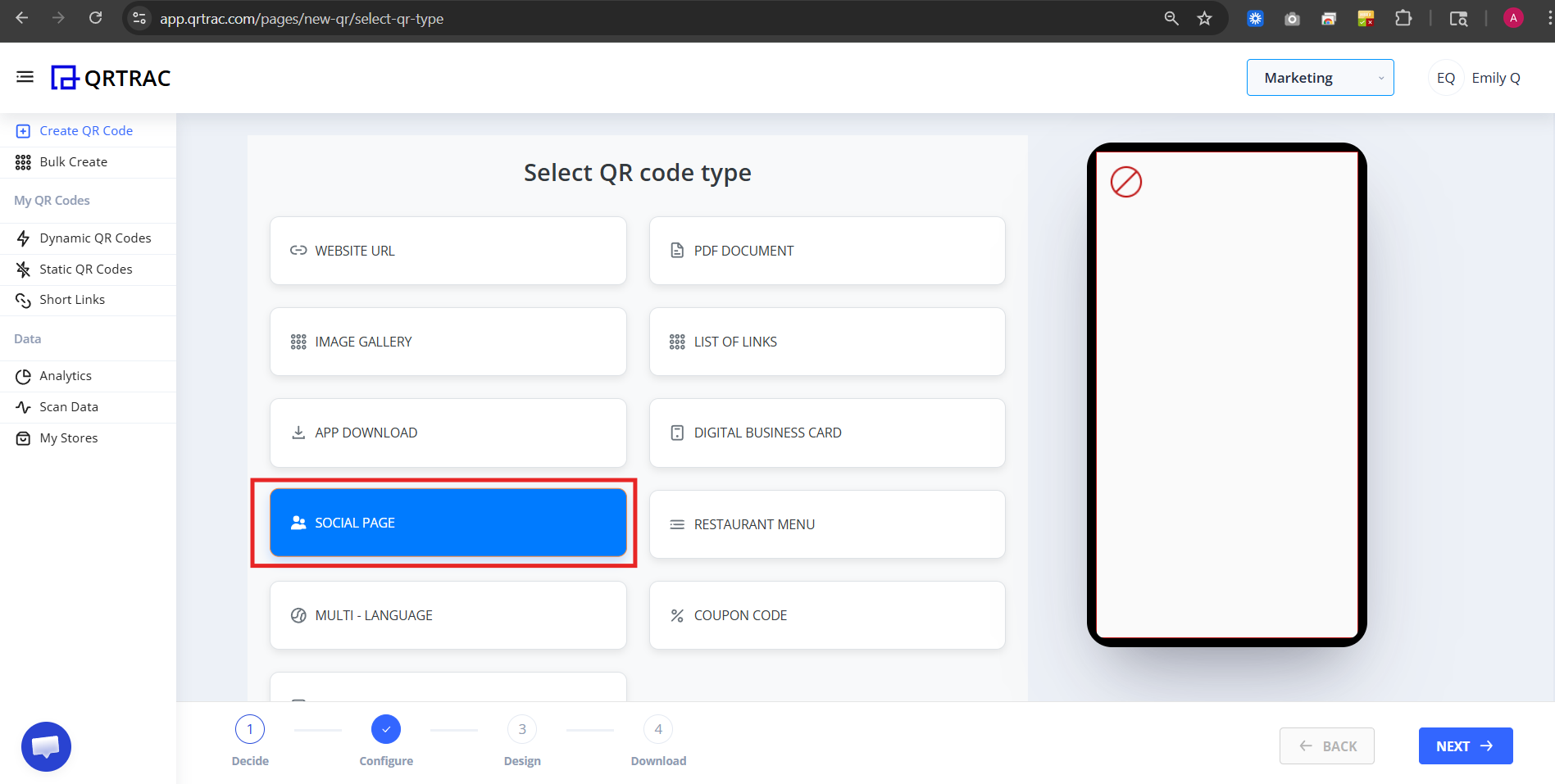
Step 2: Configure Your Social Page
Now you are inside the Configure section.
A) Social Media (Required)
Under Social Media section, add at least one social link.
Supported platforms include:
- Calendly
- YouTube
- Snapchat
- Zoom
- Slack
- Dribbble
- Vimeo
- Tumblr
- Wistia
- Foursquare
- Mix
- Flickr
- Patreon
- GitHub
- RSS
- PayPal
- Custom Link
- TikTok
- Line
- Telegram
👉 At least one social link is required.
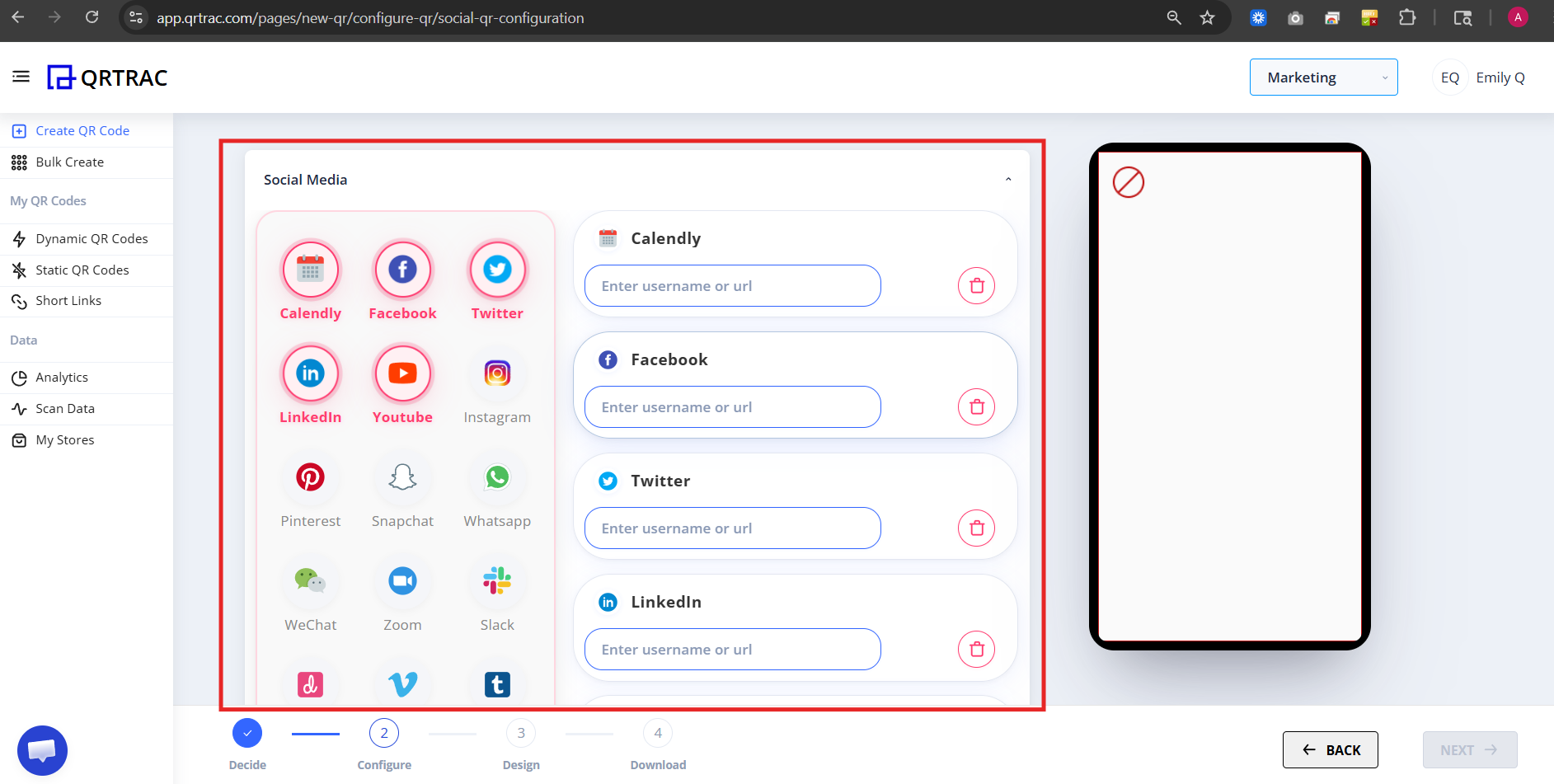
B) Page Title
Add your main page heading.
Example:
- “Follow Us”
- “Connect With Me”
- “Our Social Profiles”
C) Upload (Profile Image or Logo)
You can upload:
- Brand logo
- Profile image
- Creator photo
This will appear on your social landing page.
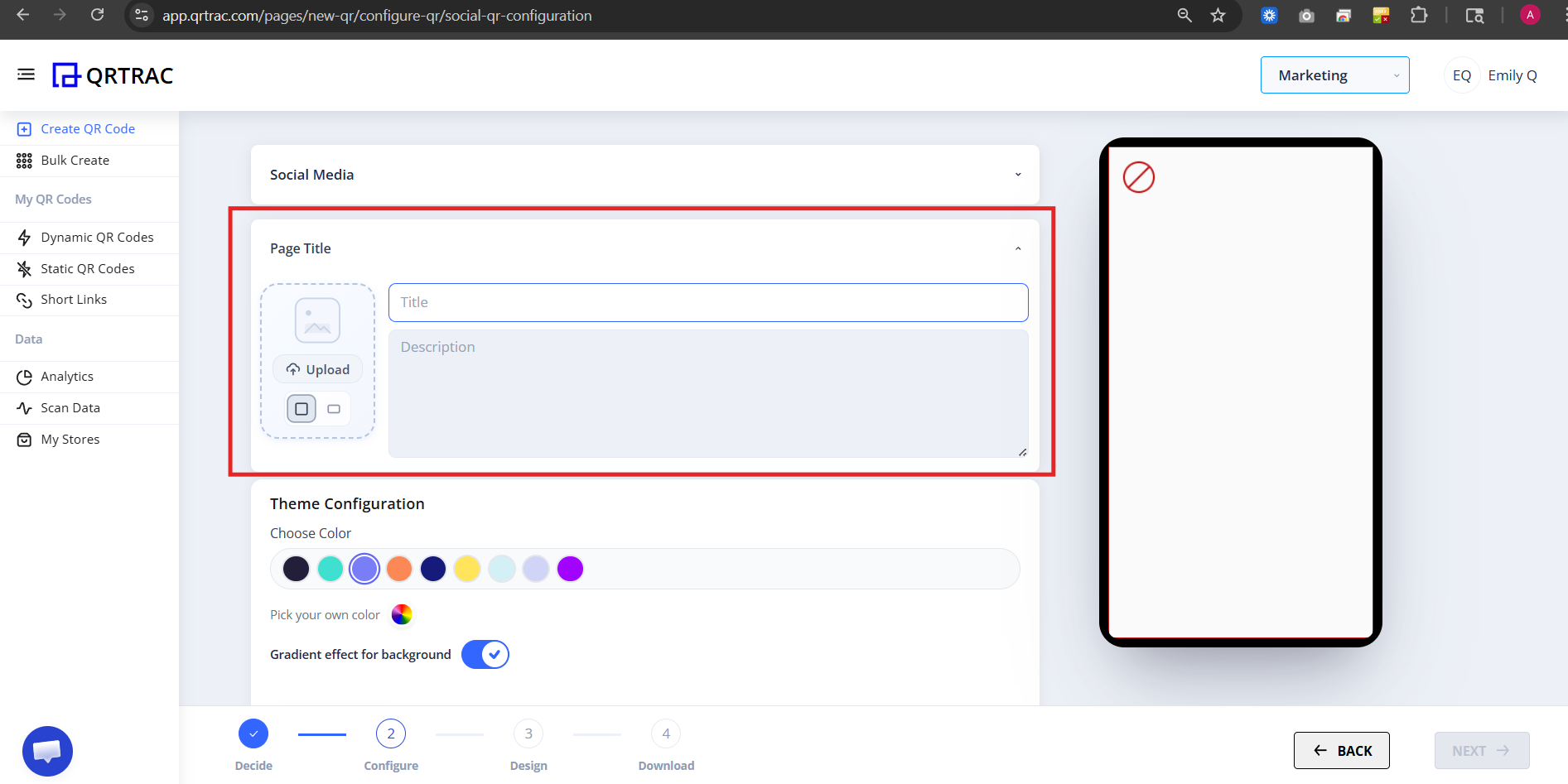
D) Title & Description
Add:
- Title
- Description
Use description to explain who you are or what your brand does.
Example:
“Follow us on social media for latest updates, offers and content.”
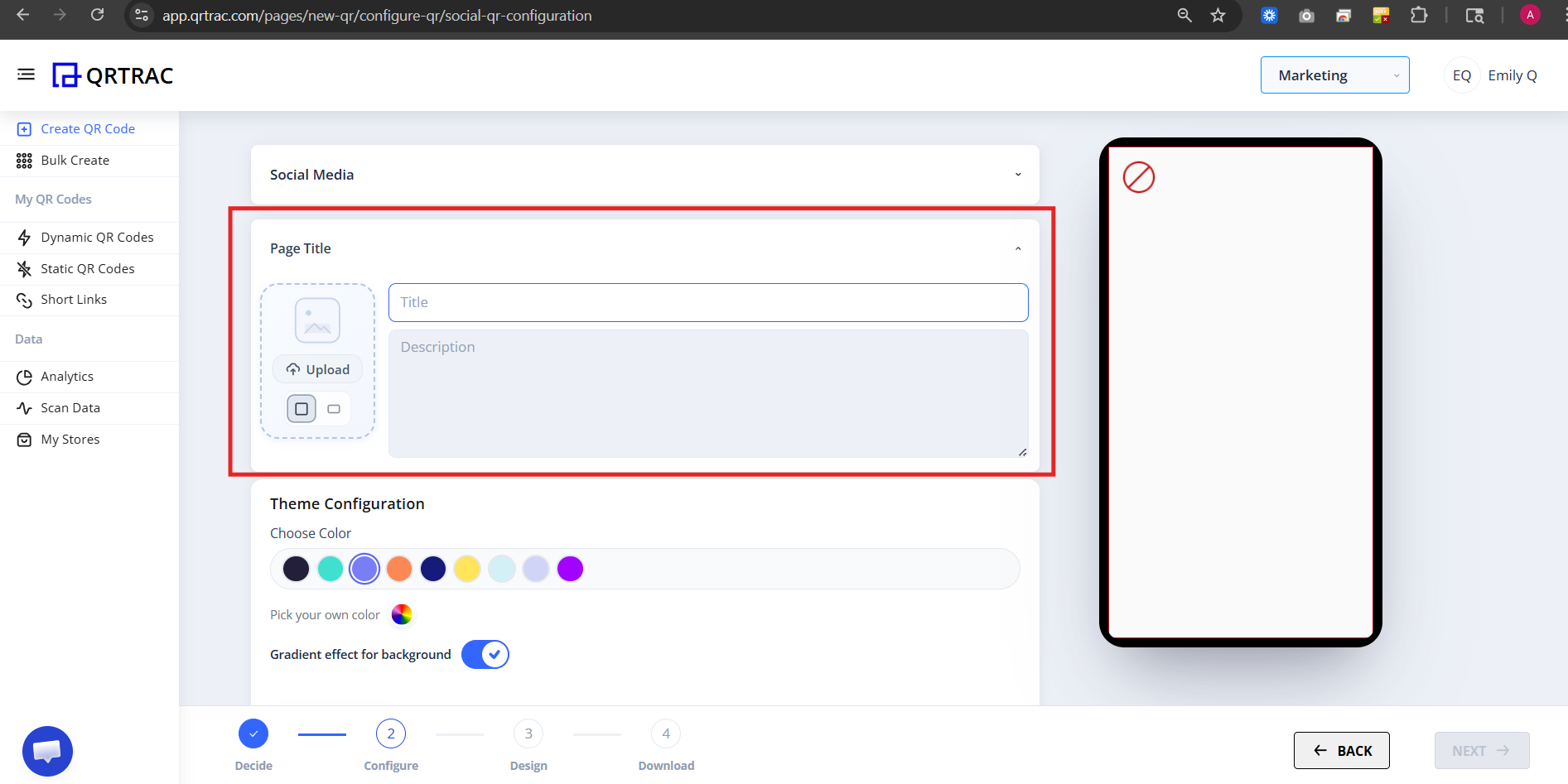
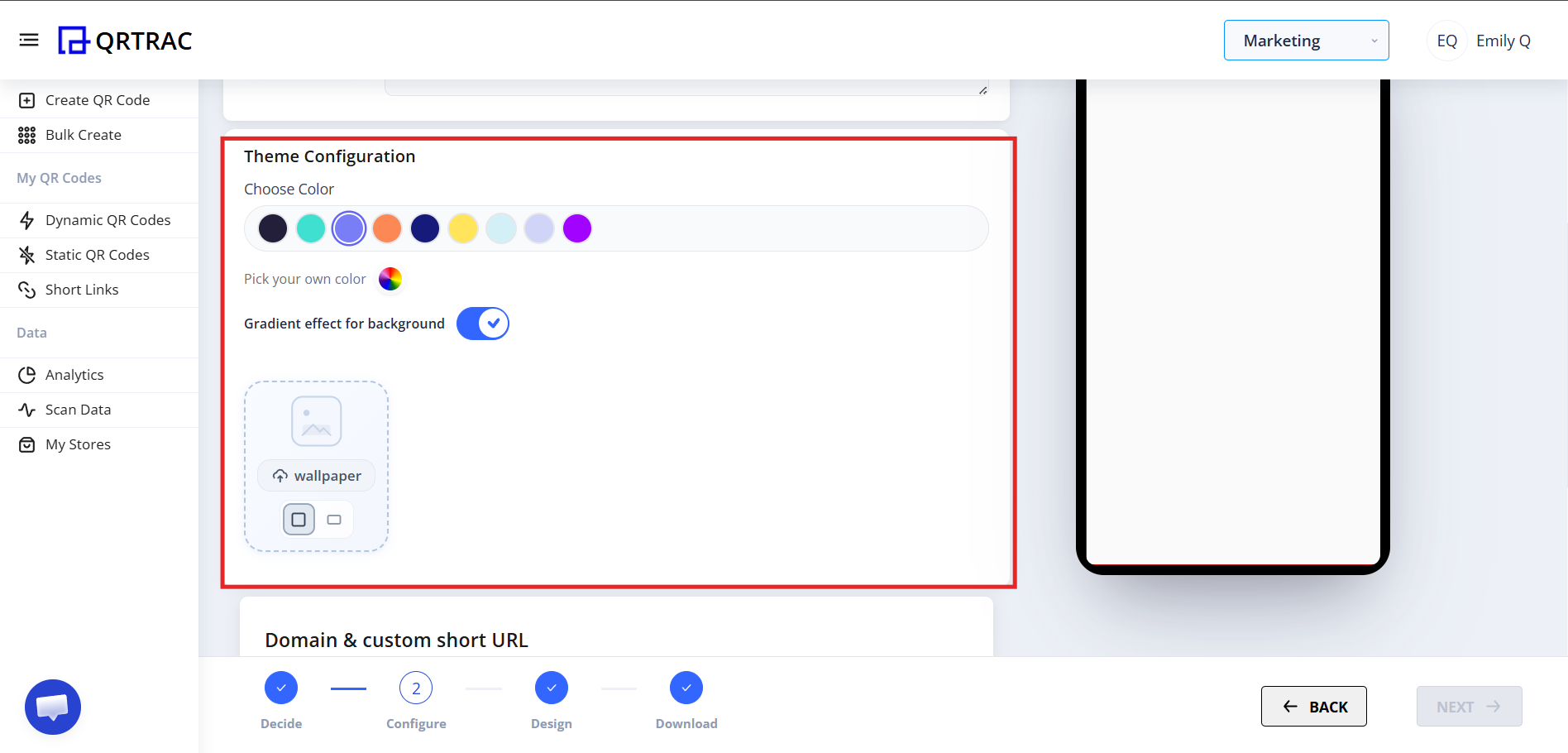
E) Theme Configuration
Under Theme Configuration, you can customize:
- Choose Color
- Pick your own color
- Pick a custom color
- Enable Gradient effect for background
- Add Wallpaper
👉 Choose colors matching your brand identity.
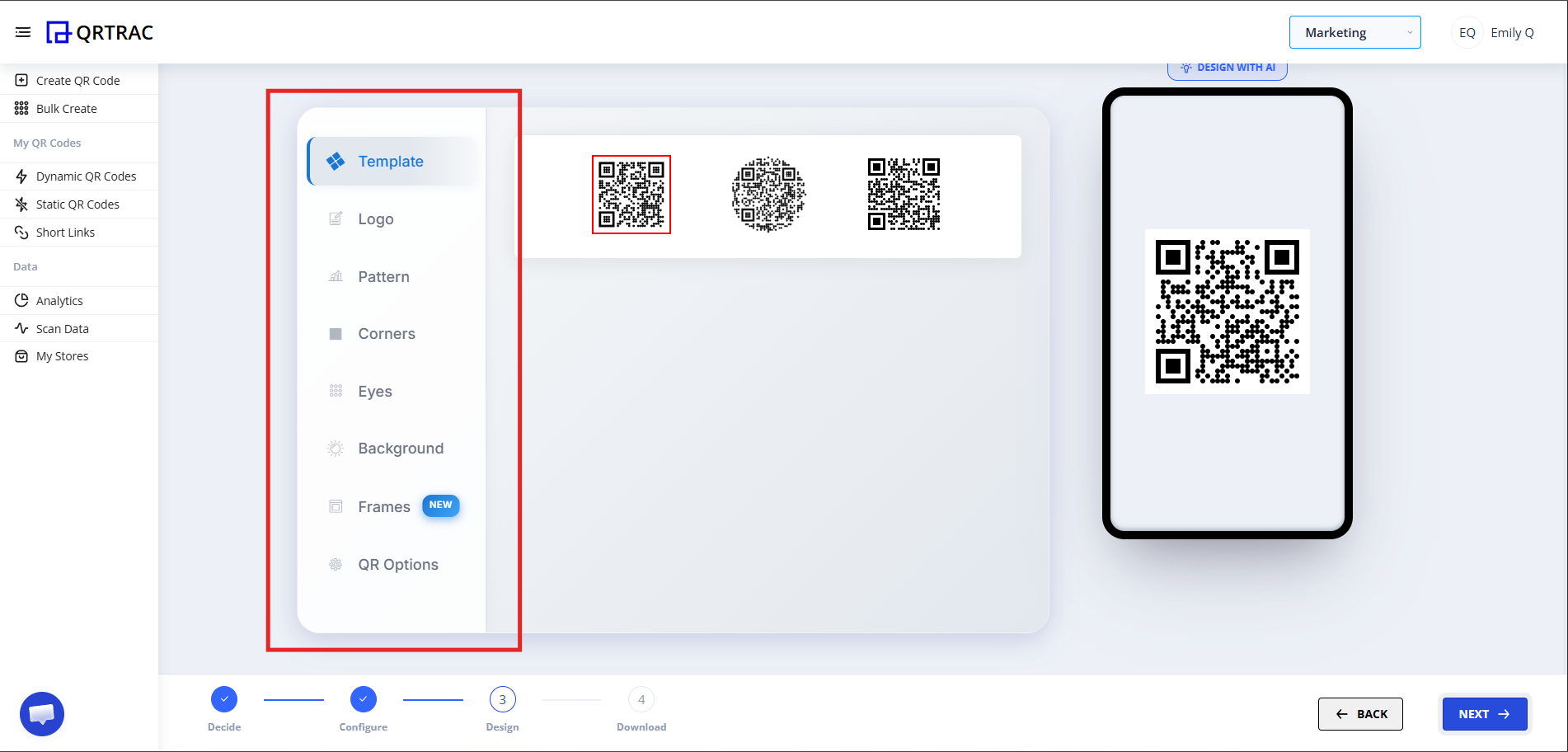
Step 3: Design Your QR Code (Design Phase)
Click Next to move to Design section.
Here you can:
- Change QR color
- Add logo
- Modify pattern
- Change eye style
- Adjust background
Dynamic QR — No Reprinting Needed
Update your social links any time from the QRTRAC dashboard without reprinting.
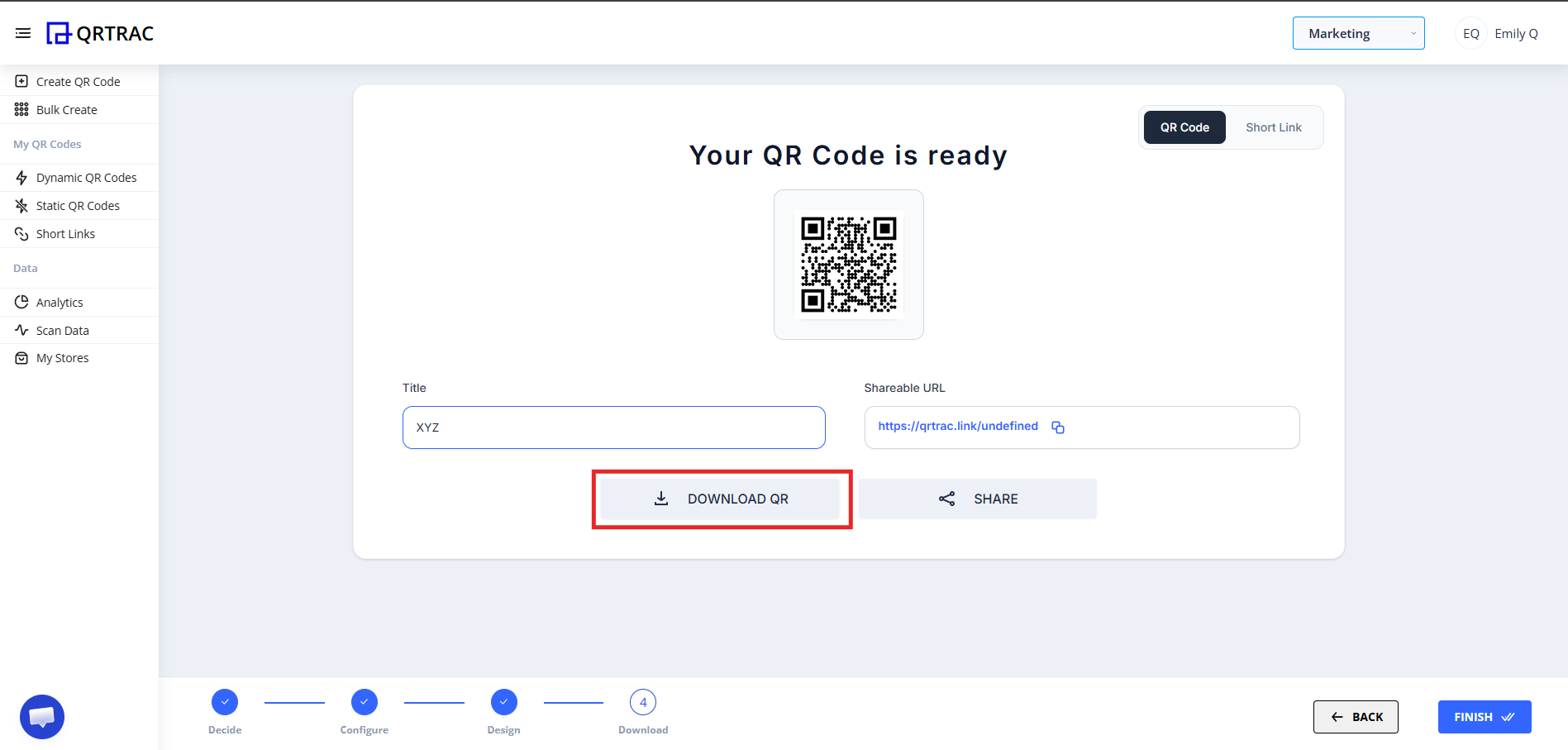
Step 4: Review & Download
After designing:
- Click Next to go to Preview
- Preview your Social Page
- Click Download QR
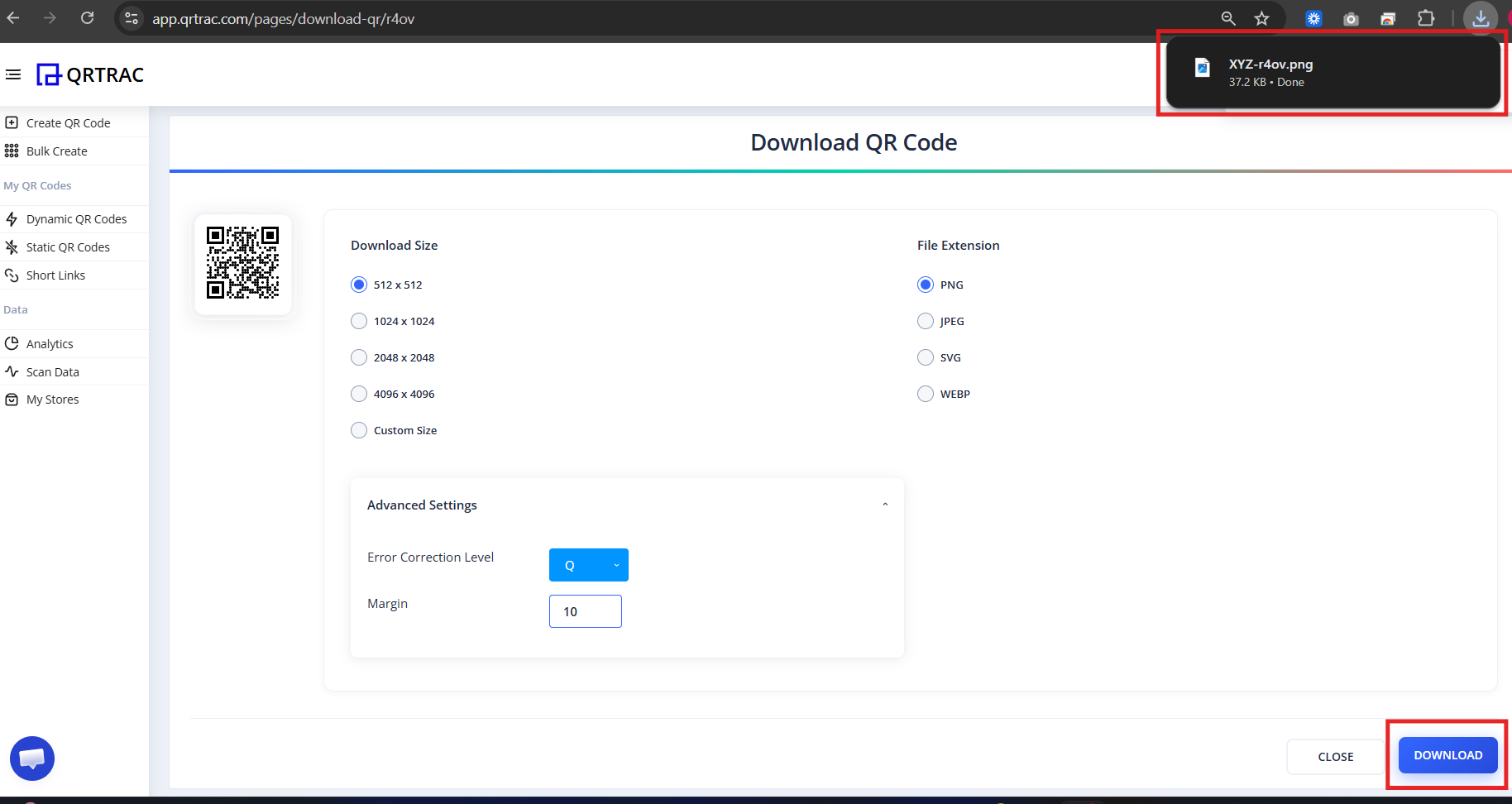
Download format you need (PNG, SVG, etc.)
Tip: Always test your QR code with a smartphone camera straight from your computer monitor before you download and print it.
Popular Use Cases
Social Page QR codes are ideal anywhere you want to connect offline audiences to your online presence:
- Printed Merchandise
- Posters & Event Flyers
- Product Packaging
- Conference & Networking Badges
- Restaurant Tables
- Email Signatures
Frequently Asked Questions
Can I add or remove social links after printing?
Yes. Because this is a Dynamic QR Code, you can add, remove, or reorder your social links at any time from the QRTRAC dashboard without reprinting.
Can I track how many people scanned the QR?
Yes. The analytics dashboard shows real-time scan counts, unique visitors, device types, and geographic locations.
How many social platforms can I add?
You can add links to 28+ platforms including Instagram, TikTok, LinkedIn, YouTube, WhatsApp, GitHub, and more — plus a custom link option for any URL.
Does it work without internet?
No. An active internet connection is required to load the social page after scanning.
Common Mistakes
- ❌ Adding a private or login-protected social profile.
- ❌ Pasting a short preview link instead of the full profile URL.
- ❌ Skipping the scan test before printing at scale.
- ❌ Using a brand color that blends into the background of the material.
Launch Checklist
- All social links verified and public
- Profile image or logo uploaded
- Brand theme color applied
- QR scanned and all links tested