How to Create a GS1 Digital Link QR Code
A GS1 Digital Link connects a product's standard GS1 identification information with a digital destination. Instead of using separate barcodes for point-of-sale scanning and consumer engagement, the GS1 Digital Link URL serves both purposes within a single 2D barcode.
QRTRAC allows you to create a GS1 Digital Link QR code easily by entering your GTIN (Global Trade Item Number), optional qualifiers and attributes, selecting a domain, and defining where shoppers should be directed. Follow the step-by-step guide below to generate and manage your GS1 Digital Links.
Before You Create a GS1 Digital Link
Keep this practical checklist in mind before getting started:
- Have your valid GTIN ready.
- Decide whether Batch/Lot information is needed.
- Decide whether Serial information is needed.
- Prepare any required GS1 Application Identifiers (AIs).
- Prepare the Destination URL.
- Select the appropriate Digital Link Domain.
GS1 Digital Link vs Destination URL
A GS1 Digital Link contains structured product identification information (like the GTIN and batch number) formatted as a web address. The Destination URL represents the web page or location where the user is ultimately directed when they scan the code. The Digital Link identifies and routes the product, while the destination is the content users reach.
Step 1: Open GS1 Digital Links
To begin, access the GS1 Digital Links management section from your QRTRAC dashboard.
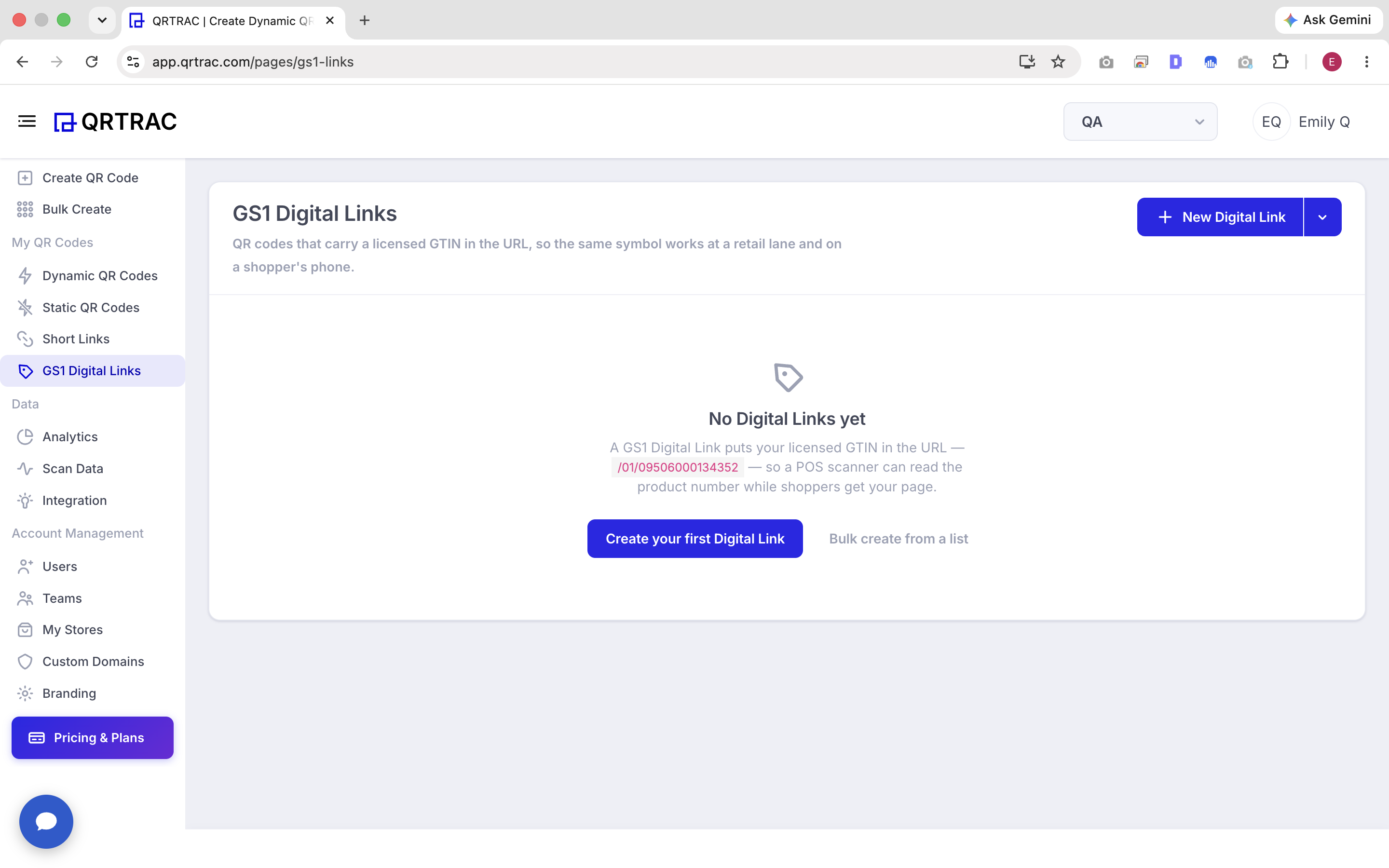
GS1 Digital Links section in the QRTRAC dashboard
From this page, you can manage existing codes. To create a new one, click the New Digital Link button.
Step 2: Start a New GS1 Digital Link
After clicking New Digital Link, you'll be presented with a form to enter your product's identification details.
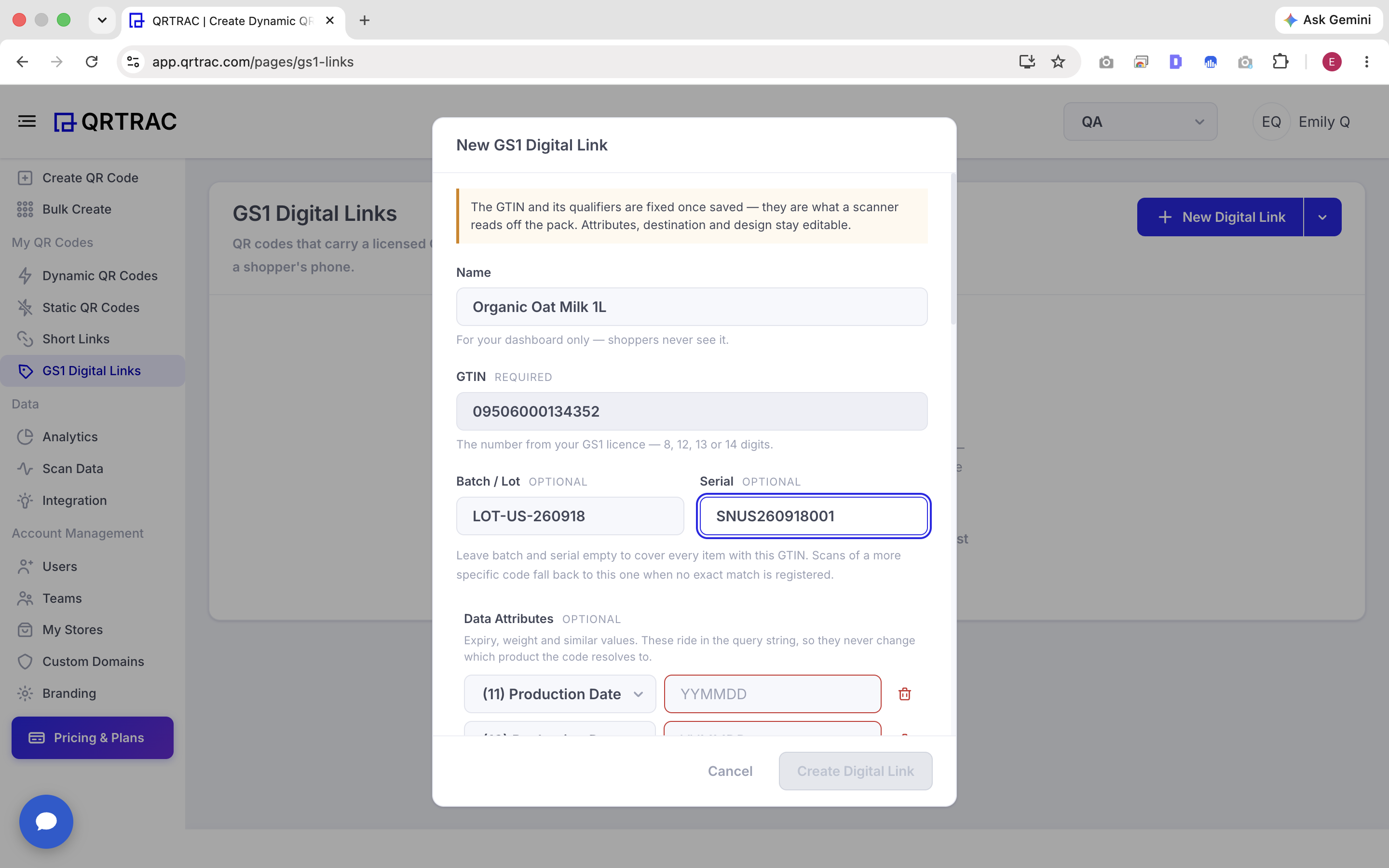
New GS1 Digital Link form
Fill out the following visible fields:
- Name — An internal name used to help you manage the Digital Link easily in your dashboard.
- GTIN — Required — The product's standard GS1 identification number. The GTIN and its qualifiers identify the product in the GS1 Digital Link.
- Batch / Lot — Optional — Can be used to identify a specific batch or production lot of the product.
- Serial — Optional — Can be used to identify an individual product or unit.
Important Note
As indicated in the interface, the GTIN and its qualifiers are fixed once saved, while attributes, destination, and design can remain editable.
Step 3: Add Data Attributes
The Data Attributes section allows you to include additional, optional product-related GS1 information to your Digital Link.
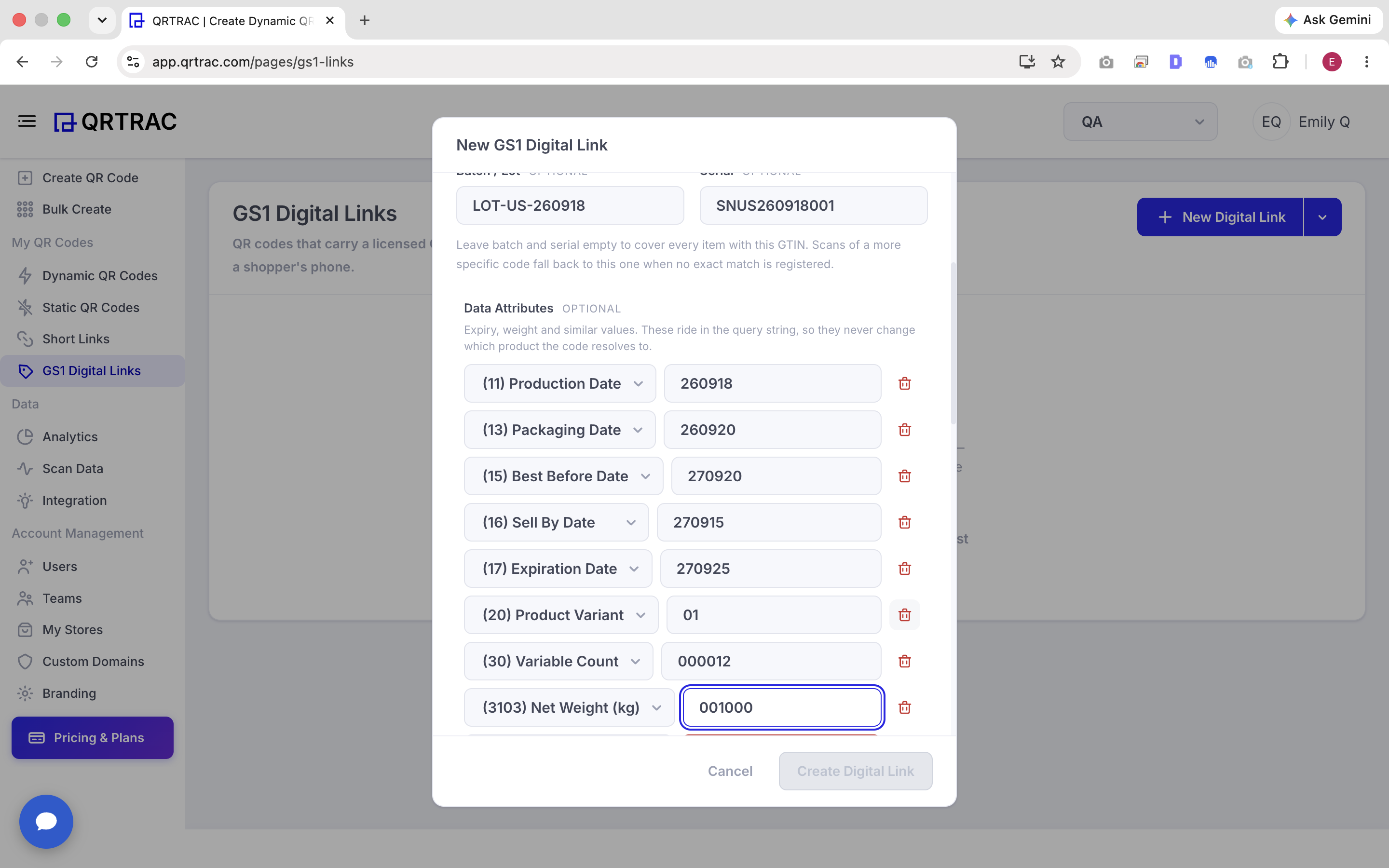
Data Attributes and Application Identifier selector
You can select a predefined Application Identifier (AI) from the dropdown rather than manually typing out identifiers. The examples visible in this section include:
- Production Date
- Packaging Date
- Best Before Date
- Sell By Date
- Expiration Date
- Product Variant
- Variable Count
- Net Weight (kg)
- Net Weight (lb)
- Price
- Expiration Date & Time
- Harvest Date
- Batch/Lot as an attribute
Simply select the relevant Application Identifier and enter its corresponding value. If you need to include multiple attributes, click + Add More.
Step 4: Add Custom Application Identifiers
If you need to use an identifier that isn't listed in the predefined attributes, you can use the Custom Application Identifiers section.
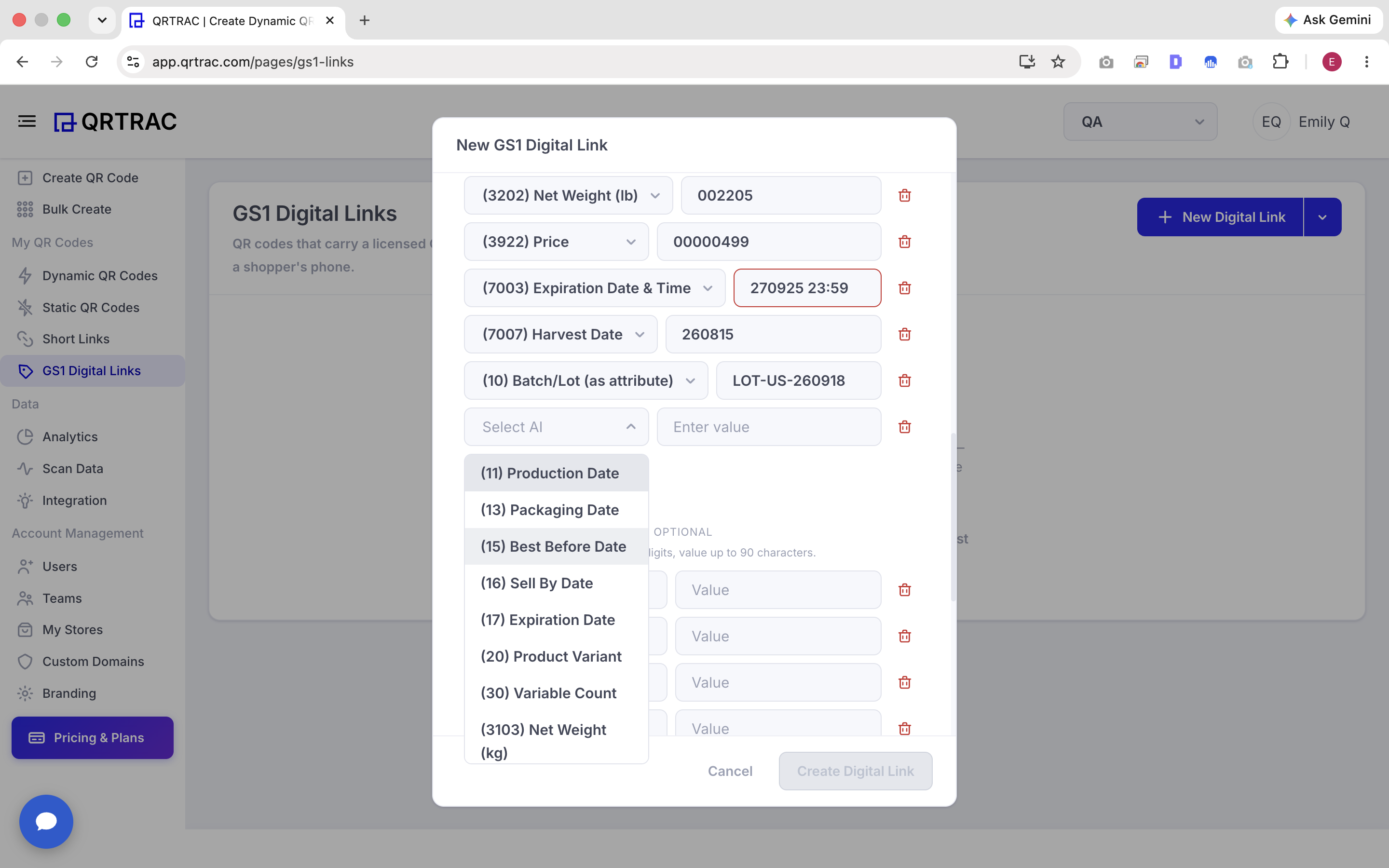
Custom Application Identifiers
The interface allows you to enter AIs outside the predefined list using a numeric identifier alongside its corresponding value. The visible example fields show values like 91, 92, 93, 94, and 95. Note that these are just examples provided by the interface; they are optional and not universally required identifiers.
Click + Add More to insert additional custom identifiers as needed.
Step 5: Select the Domain and Add the Destination
Next, define the routing parameters by selecting your domain and destination URL.
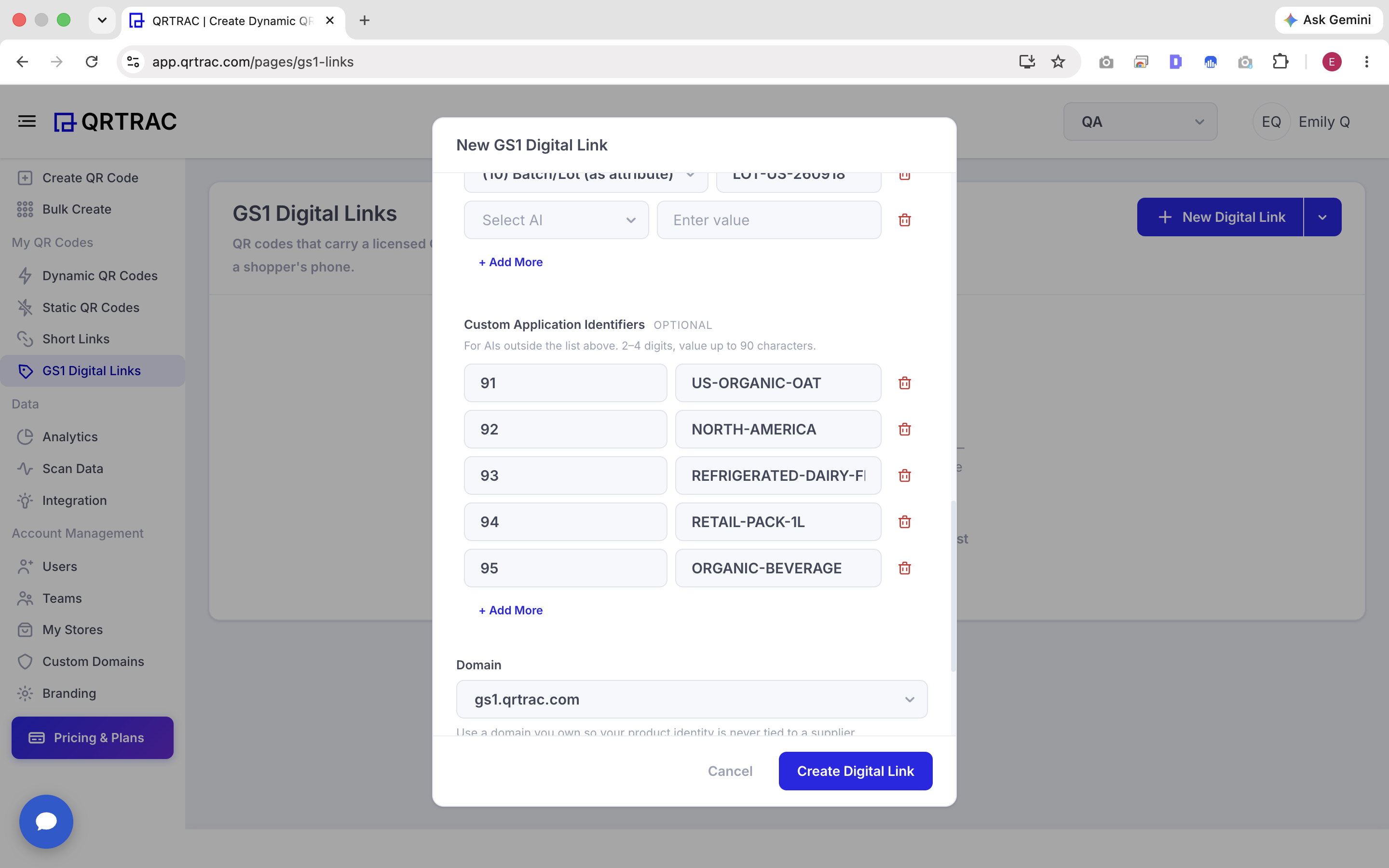
Domain and Destination
Domain
The Domain is the root web address used for your GS1 Digital Link. In the screenshot, the selected domain is gs1.qrtrac.com. The UI notes that using a domain you own helps keep the product identity independent of any single supplier.
Destination
The Destination is where shoppers are sent after successfully accessing the Digital Link. The screenshot shows a product URL as the destination example.
Directly below this, the Encoded in the QR Code section displays the resulting GS1 Digital Link URL containing all the structured product identification data you entered.
Step 6: Create the Digital Link
Once you have completed the required information and verified your data, simply click the Create Digital Link button. QRTRAC will process your request, create the GS1 Digital Link, and return you to your main GS1 Digital Links list.
Step 7: Manage the Created GS1 Digital Link
Back on your GS1 Digital Links page, you can view and manage all generated codes.
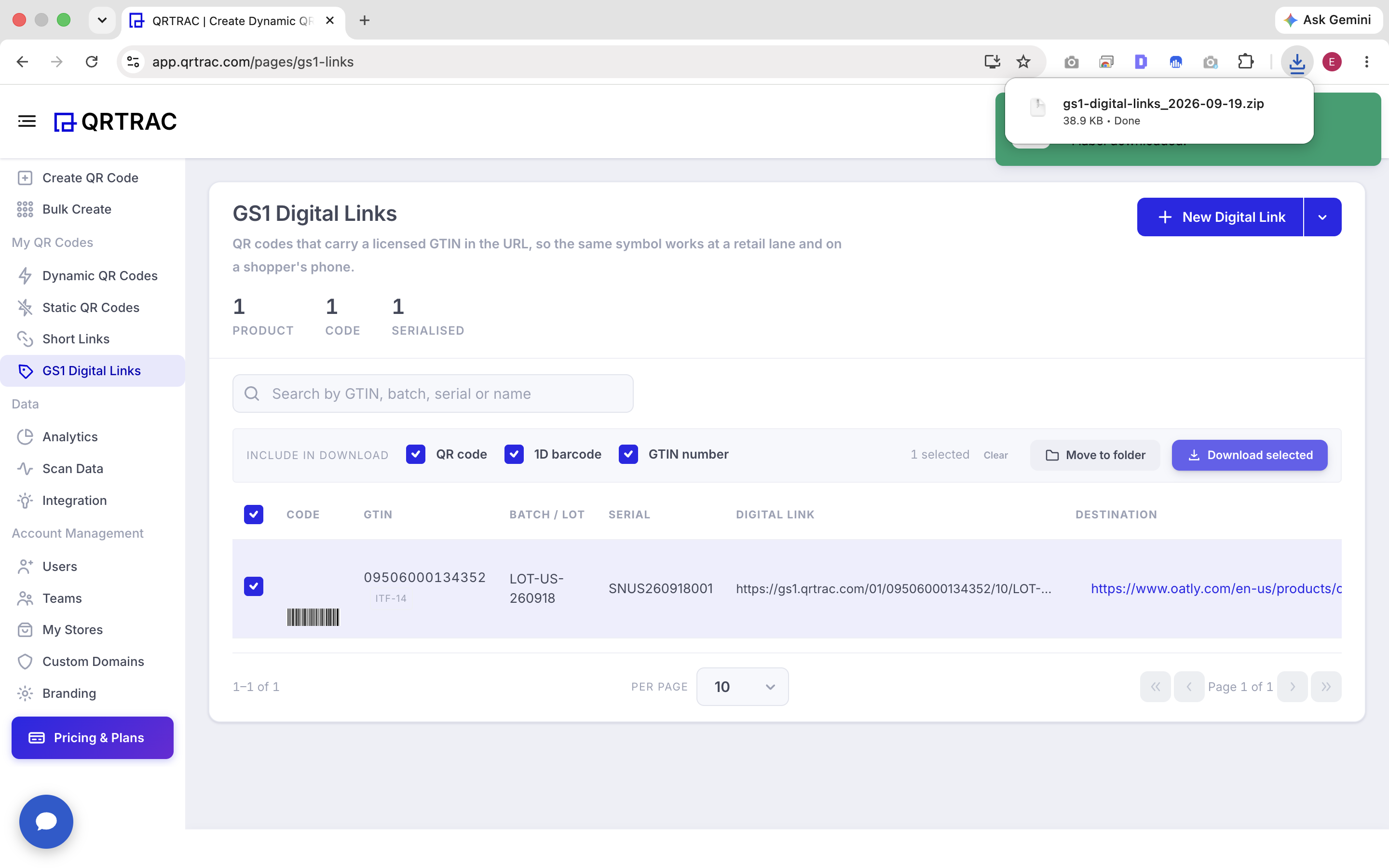
Created GS1 Digital Link list
The table displays important information for each entry:
- Code
- GTIN
- Batch / Lot
- Serial
- Digital Link
- Destination
You can use the selection checkboxes next to each row to manage downloads. When downloading, you can choose which information should be included in the exported file:
- QR code
- 1D barcode
- GTIN number
After checking the required formats, click the Download selected button.
Step 8: Configure and Download the QR Code
Clicking the download option opens a dedicated QR code download configuration screen where you can select your preferred image format and fine-tune your code.
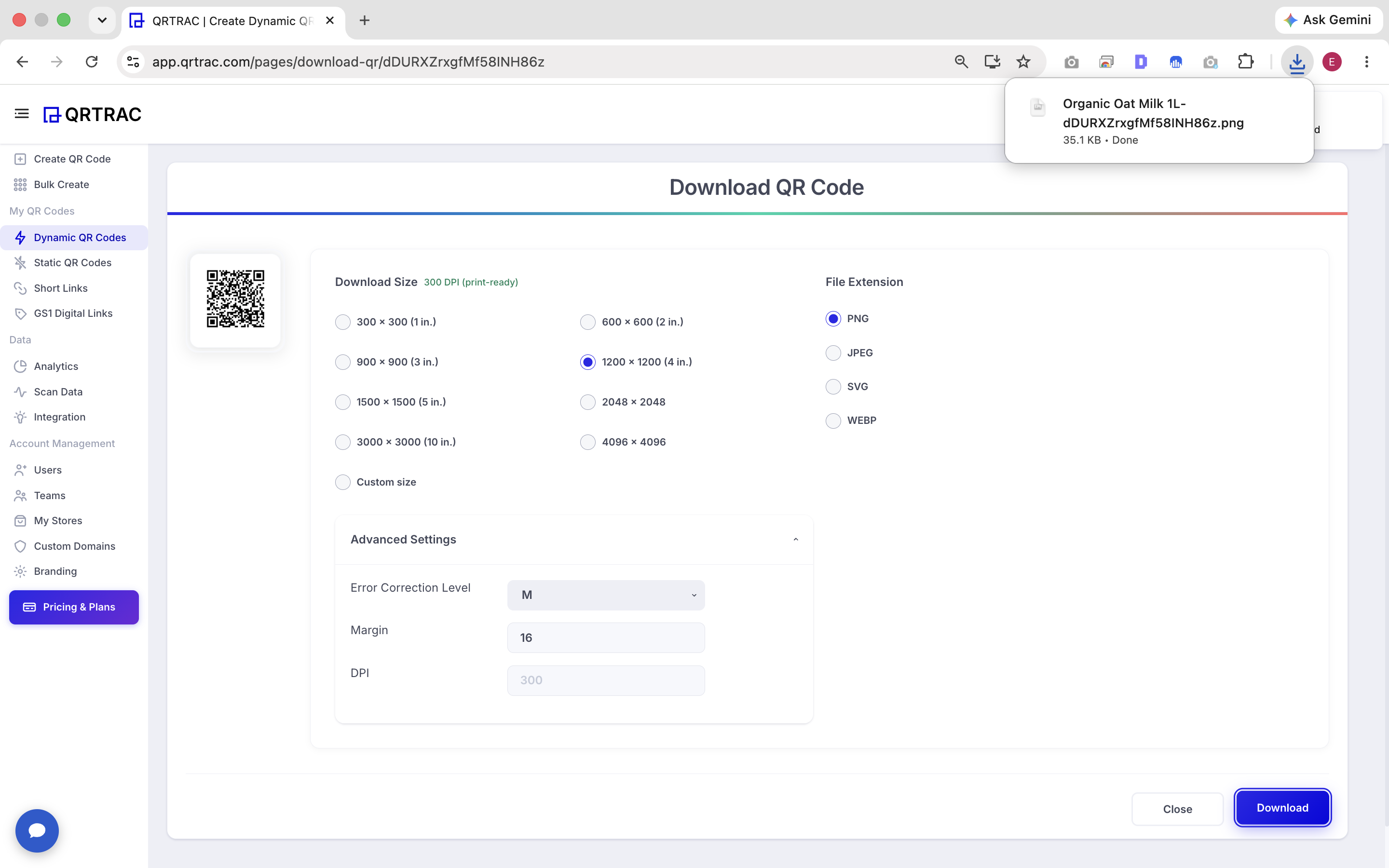
QR code download settings
Here you can select the most appropriate Download Size for your needs. The available options include:
- 300 × 300
- 600 × 600
- 900 × 900
- 1200 × 1200
- 1500 × 1500
- 2048 × 2048
- 3000 × 3000
- 4096 × 4096
- Custom size
The interface also features a 300 DPI (print-ready) indication, confirming that the output is suitable for professional printing.
You can also choose from these available file extensions:
- PNG
- JPEG
- SVG
- WEBP
Under the Advanced Settings section, you can configure:
- Error Correction Level: This controls how much damage or obstruction a QR code can tolerate while remaining scannable.
- Margin: This controls the whitespace (the quiet zone) around the QR code, which is essential for scanners to recognize it.
- DPI: This relates to the print resolution, ensuring crisp reproduction on packaging.
Once your configuration is complete, simply click Download to save the generated QR code to your device.
Common GS1 Digital Link Setup Mistakes
- ❌ Entering an incorrect GTIN.
- ❌ Confusing Batch/Lot information with Serial numbers.
- ❌ Adding an incorrect Application Identifier value.
- ❌ Forgetting to provide the Destination URL.
- ❌ Choosing an inappropriate QR code download size for print.
- ❌ Removing the required quiet-zone margin when preparing a QR code for print.
Frequently Asked Questions
What is a GS1 Digital Link?
A GS1 Digital Link is a standardized web address that contains product identification information. It allows a single QR code to be scanned at retail checkout while also connecting consumers to a destination URL with product information.
What information is required to create a GS1 Digital Link in QRTRAC?
To create a GS1 Digital Link, you are required to provide a valid GTIN, a Domain, and a Destination URL. Other attributes like Batch/Lot or Serial numbers are optional.
Is Batch/Lot information required?
No. The Batch/Lot field is entirely optional, as is the Serial field.
What is a GTIN?
GTIN stands for Global Trade Item Number. It is the universally recognized identifier for trade items, developed by GS1, which is commonly found below a traditional barcode.
What are GS1 Application Identifiers?
GS1 Application Identifiers (AIs) are numerical prefixes used in GS1 barcodes to define the meaning and format of the data that follows them, such as dates, weights, or dimensions.
Can I add custom Application Identifiers?
Yes. QRTRAC allows you to enter custom Application Identifiers outside of the predefined list using the numeric identifier and your corresponding value.
Can I change the destination after creating the Digital Link?
Yes. While the GTIN and its qualifiers are fixed once saved, the destination URL, attributes, and design can remain editable.