Bulk Embedded QR Code Export
Use QRTRAC's Bulk Embedded Export feature to generate multiple static QR codes from a single Excel or CSV spreadsheet and automatically embed a scannable QR code into every row of the exported Excel file.
This is useful when you need to create large batches of QR codes for products, assets, inventory, documents, equipment, packaging, labels, menus, or other physical items.
The process is simple:
- Download the template
- Add your IDs and QR data
- Upload the completed spreadsheet
- Review the imported rows
- Generate and export the Excel file
- Use the embedded QR codes directly from the exported spreadsheet
Step 1: Open Bulk Embedded Export
Sign in to your QRTRAC dashboard and open the Static QR Codes section.
- Log in to your QRTRAC account.
- Go to Static QR Codes from the left sidebar.
- Click the dropdown arrow next to Create Static QR Code.
- Select Bulk Embedded Export.
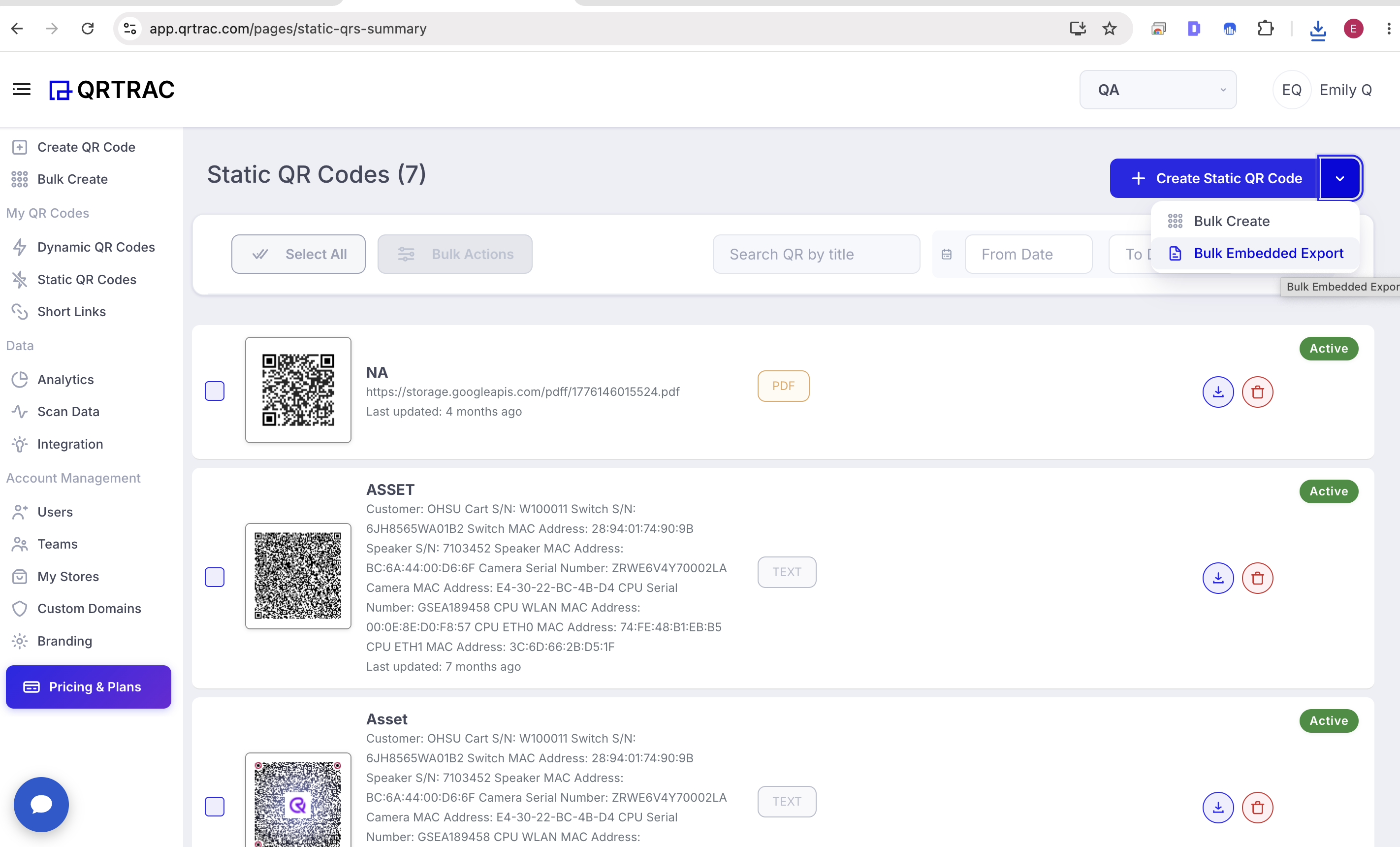
Step 2: Download the Excel or CSV Template
The Bulk Embedded Export page provides a ready-to-use template.
The template contains two columns:
id— Optional identifier or name that helps you recognize each QR code.data— Required content that will be encoded into the QR code.
You can download either:
- Excel Template
- CSV Template
For this example, use the Excel template.
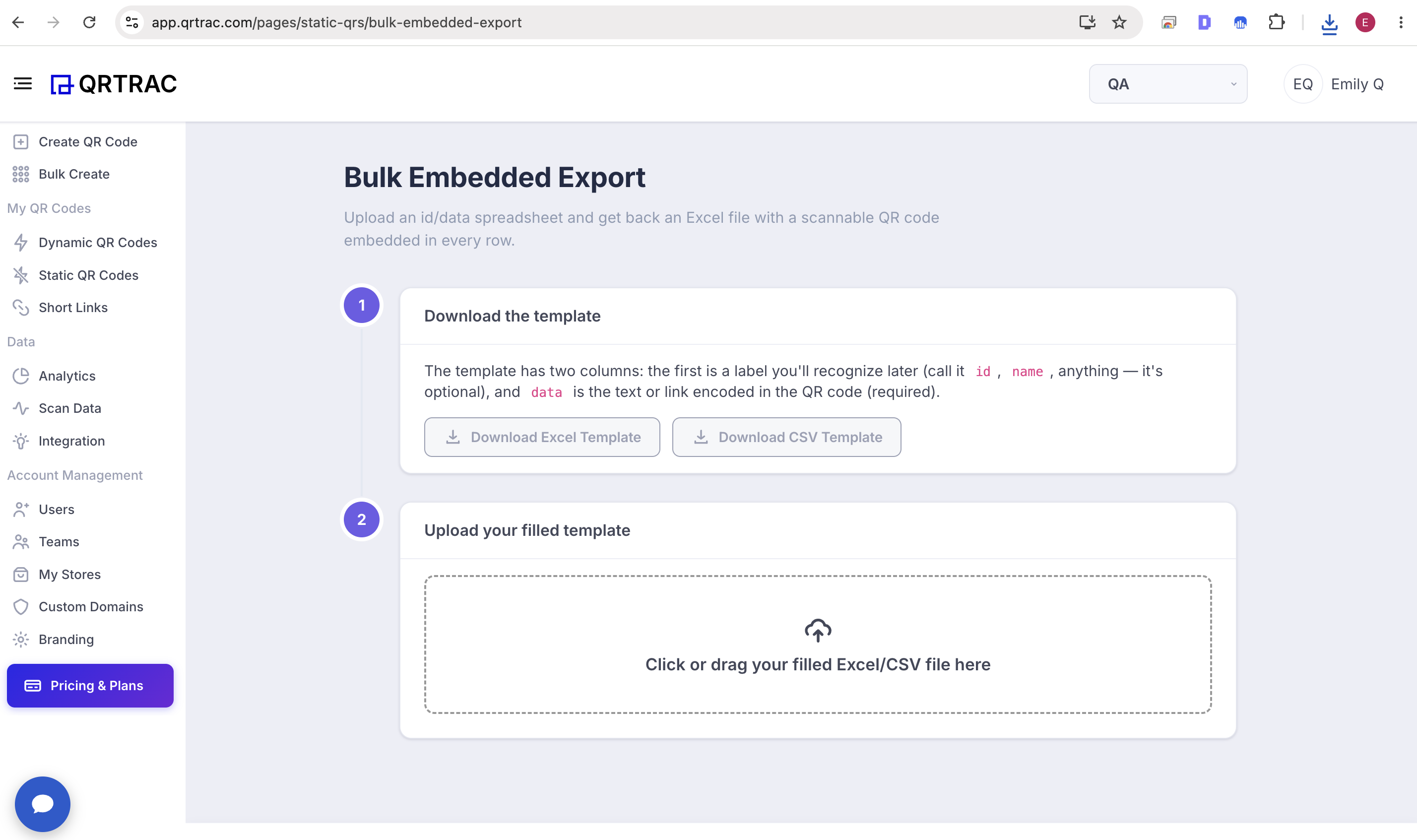
Step 3: Fill in the Template
Open the downloaded Excel template. Enter your data using the two available columns.
The id column is optional. Use it as a recognizable name or identifier for each QR code.
Examples: ASSET-001, ASSET-002, PRODUCT-001, BOX-1001, MACHINE-025
The data column is required. Enter the URL, text, identifier, or other information that you want to encode inside the QR code.
Examples:
https://example.com/asset-001SN:12345 LOC:Warehouse-Ahttps://example.com/product/1001WARRANTY:WR-2026-001 PRODUCT:Demo Laptop
Do not change the column names.
| id | data |
|---|---|
| ASSET-001 | https://example.com/asset-001 |
| ASSET-002 | SN:12345 LOC:Warehouse-A |
| ASSET-003 | https://example.com/asset-003 |
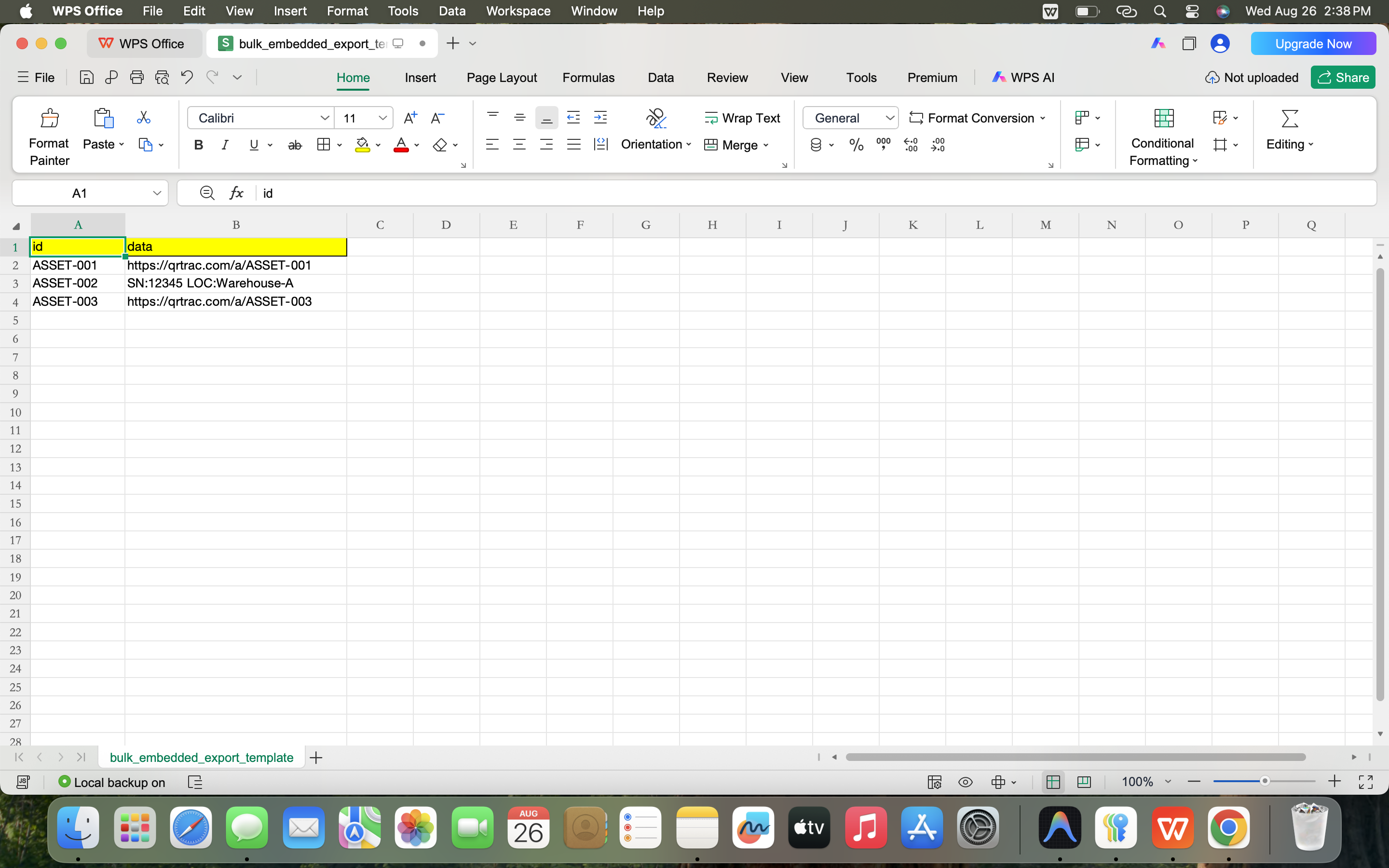
Step 4: Upload Your Completed Spreadsheet
Return to the Bulk Embedded Export page.
- Under Upload your filled template, click the upload area or drag and drop your completed Excel/CSV file.
- QRTRAC will process the spreadsheet and validate each row.
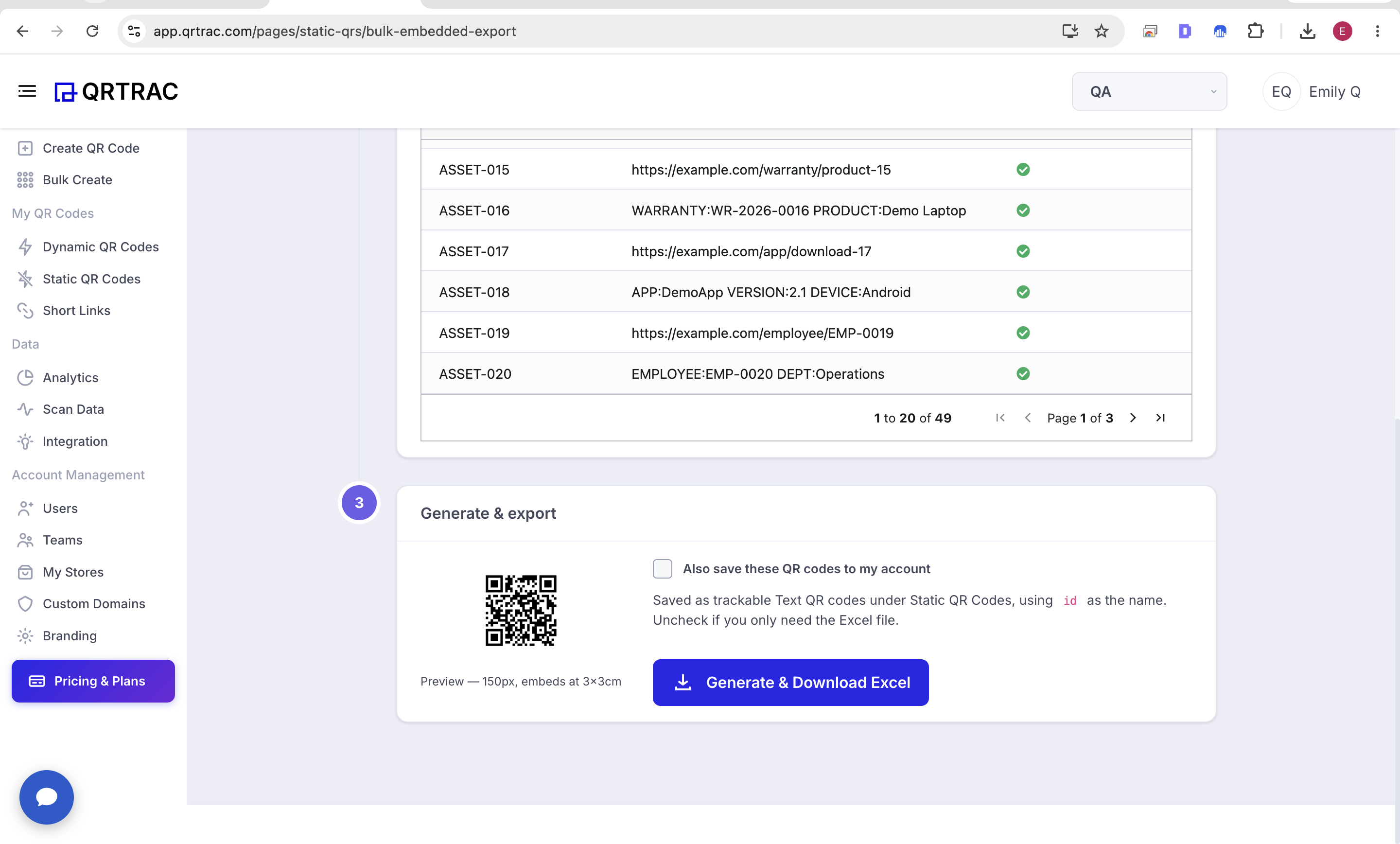
After the upload is processed, the page displays the imported records in a preview table. The table shows:
- Name / ID
- Data
- Validation status
A green checkmark indicates that the row is ready to generate.
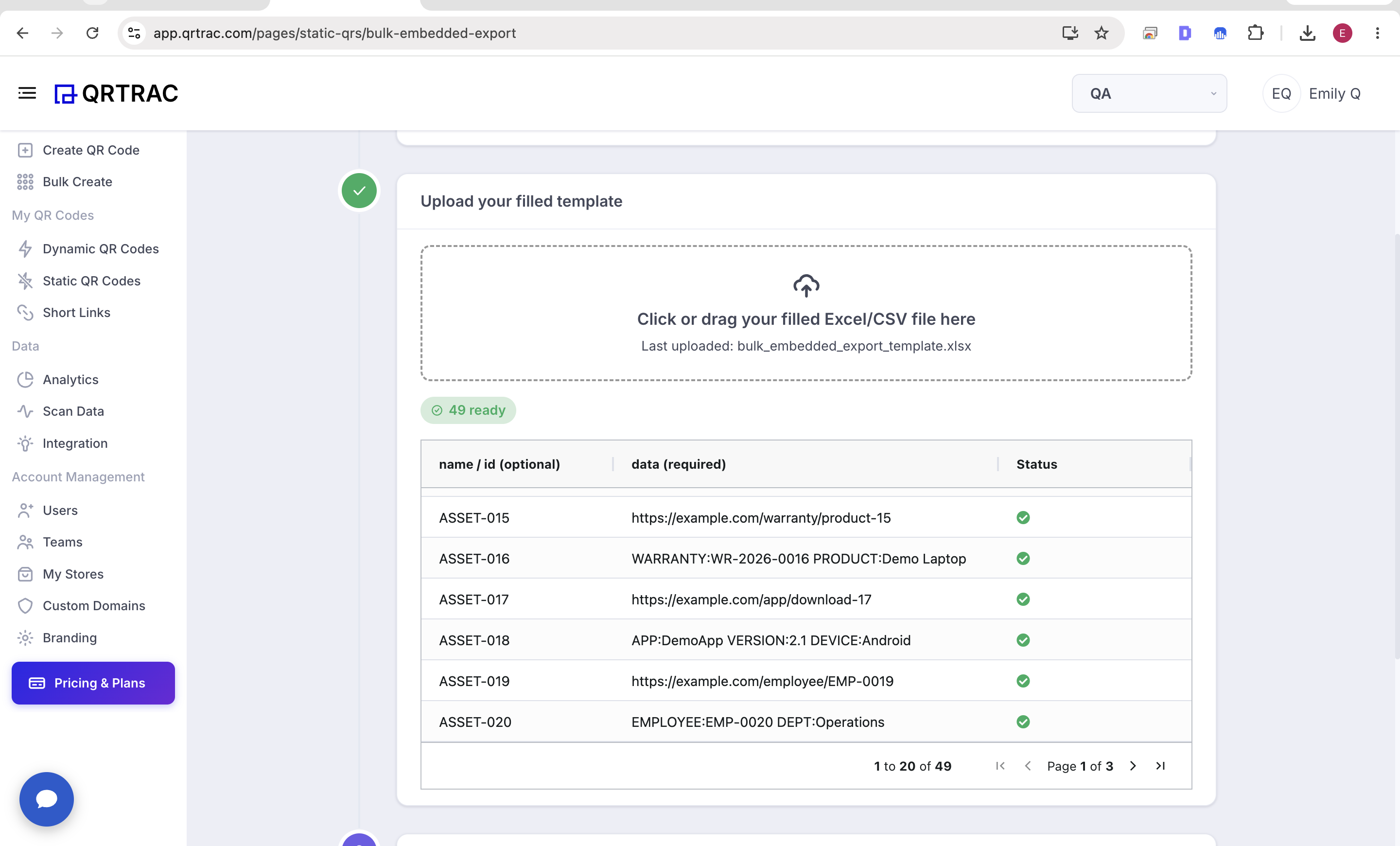
Step 5: Review Your Imported Data
Before generating the QR codes, review the imported records. QRTRAC displays the uploaded rows in a paginated table.
Check that:
- The ID/name is correct.
- The QR data is correct.
- Each row has a successful validation status.
- There are no missing required data values.
- URLs and text values are exactly what you want to encode.
If you have many records, use the pagination controls to review additional rows.
Important
Do not generate the export until you are satisfied with the imported data.
Step 6: Generate & Export Your Embedded QR Codes
After your data has been validated, scroll to the Generate & export section.
You will see a QR code preview and an option: Also save these QR codes to my account
When enabled, QR codes are also saved to your QRTRAC account as trackable Text QR codes under Static QR Codes, using the id value as the QR code name. If you only need the exported Excel file, leave this option unchecked.
Click: Generate & Download Excel
QRTRAC will generate the QR codes and create an Excel file with the QR code embedded into each row.
Step 7: Download and Use the Generated Excel File
After generation is complete, open the downloaded Excel file.
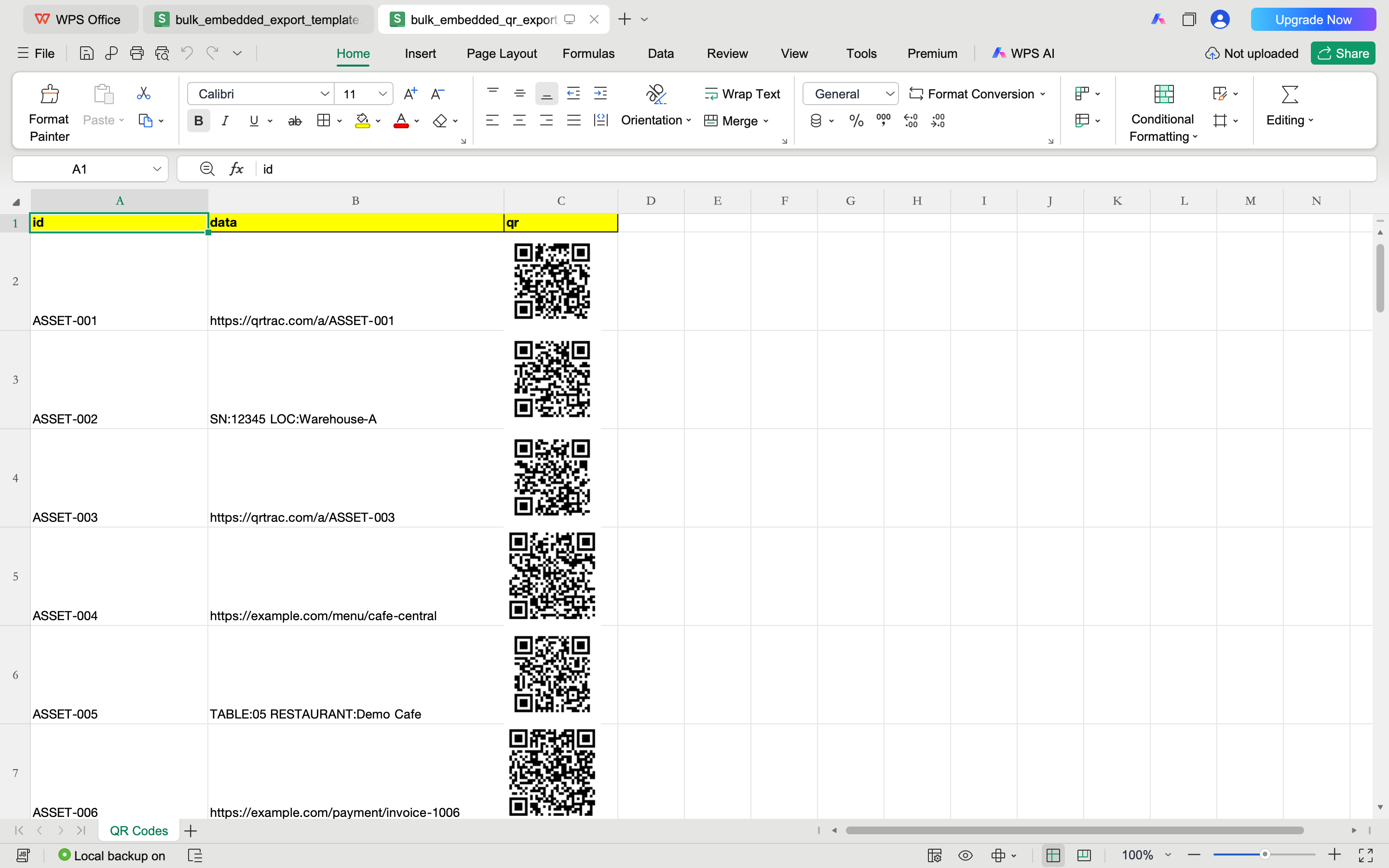
The exported spreadsheet contains the original information along with a new qr column. Each row contains its corresponding scannable QR code.
| id | data | qr |
|---|---|---|
| ASSET-001 | https://example.com/asset-001 | Embedded QR |
| ASSET-002 | SN:12345 LOC:Warehouse-A | Embedded QR |
| ASSET-003 | https://example.com/asset-003 | Embedded QR |
The QR codes are embedded directly into the spreadsheet, making the file useful for:
- Asset lists
- Inventory sheets
- Product records
- Warehouse records
- Equipment documentation
- Product labels
- Packaging workflows
- Printing workflows
- Internal QR code management
How Bulk Embedded Export Works
The complete workflow is:
Excel/CSV data → Upload → Validate → Generate QR codes → Embed QR codes → Download Excel
This means you do not need to create and download every QR code individually. For example, if your spreadsheet contains 500 valid rows, QRTRAC can process the records as a batch and produce an Excel file containing the corresponding embedded QR codes.
Important: ID vs Data
Understanding the two columns is important.
ID
The id column is optional and is primarily used to identify or recognize the QR code later.
Example: ASSET-001
Data
The data column is required and represents the actual content encoded into the QR code.
Example: https://example.com/product/001
The QR code itself encodes the value from the data column.
Save QR Codes to Your QRTRAC Account
The Also save these QR codes to my account option is optional.
Enable it when you want the generated QR codes to also appear inside your QRTRAC account. According to the Bulk Embedded Export workflow, these are saved as trackable Text QR codes under Static QR Codes, with the id value used as the QR code name.
Leave the option unchecked if you only need the generated Excel file.
Common Mistakes
✗ Missing data
The data column is required.
✓ Fix: Make sure every row contains a value before uploading the spreadsheet.
✗ Changing the column names
Keep the template headers exactly as provided: id and data.
✓ Fix: Do not rename or remove the required data column.
✗ Invalid or incomplete URLs
If you are encoding URLs, make sure they are complete and valid.
✓ Fix: Use https://example.com/product/123 instead of example.com/product/123.
✗ Uploading the wrong file
Always use the provided structure.
✓ Fix: Use the Excel or CSV template provided on the Bulk Embedded Export page.
✗ Generating before reviewing
Generating blindly may lead to errors in the final file.
✓ Fix: Always check the validation results before clicking Generate & Download Excel.
Best Practices
Use meaningful IDs
Instead of generic names such as QR-001, use meaningful identifiers such as WAREHOUSE-A-001 or PRODUCT-2026-001. This makes the exported data easier to manage.
Keep your data consistent
Use a consistent naming and data format across all rows.
Test important QR data
If the QR codes are being used for physical products, assets, packaging, or printed materials, scan a few generated QR codes before using the entire batch.
Keep the exported Excel file
Store the generated Excel file as a reference so you can match each QR code with its corresponding ID and data.
Frequently Asked Questions
Q What is Bulk Embedded Export?
A Bulk Embedded Export lets you upload an Excel or CSV spreadsheet and generate multiple QR codes at once, with the generated QR code embedded directly into each row of the exported Excel file.
Q What columns are required?
A The template contains id and data. The id column is optional, while data is required.
Q Can I upload CSV files?
A Yes. QRTRAC provides both Excel and CSV template options.
Q Can I use URLs as QR data?
A Yes. You can encode URLs as well as text and other supported data values.
Q Are the QR codes saved to my QRTRAC account?
A Only when Also save these QR codes to my account is enabled during the export process.
Q What happens if I only need the Excel file?
A Leave the account-saving option unchecked and generate the Excel file.
Q Can I generate QR codes for many rows at once?
A Yes. The feature is designed for bulk QR generation from spreadsheet data.
Q Where can I find the generated QR codes if I save them to my account?
A Saved codes are available under Static QR Codes as trackable Text QR codes, using the id as the QR code name.
🎉 You're Done!
Your QR codes have been generated and embedded into the exported Excel file.
You can now use the spreadsheet for asset management, inventory, product records, labels, packaging, documentation, or other workflows where each row needs its own scannable QR code.