App Download QR Code Generator
How To Create QR Codes for Apps with Tracking Enabled
Create dynamic QR codes for apps that instantly route users to the right app store on any platform — Google Play, Apple App Store, Amazon, or Microsoft Store. Our app download QR code generator lets you track every scan, monitor device types, and optimize your mobile app distribution strategy. This guide walks you through the full setup in QRTRAC.
Step 1: Login & Start
Sign in to your QRTRAC account and visit the dashboard to begin.
- Login to your QRTRAC dashboard
- Click Create QR Code
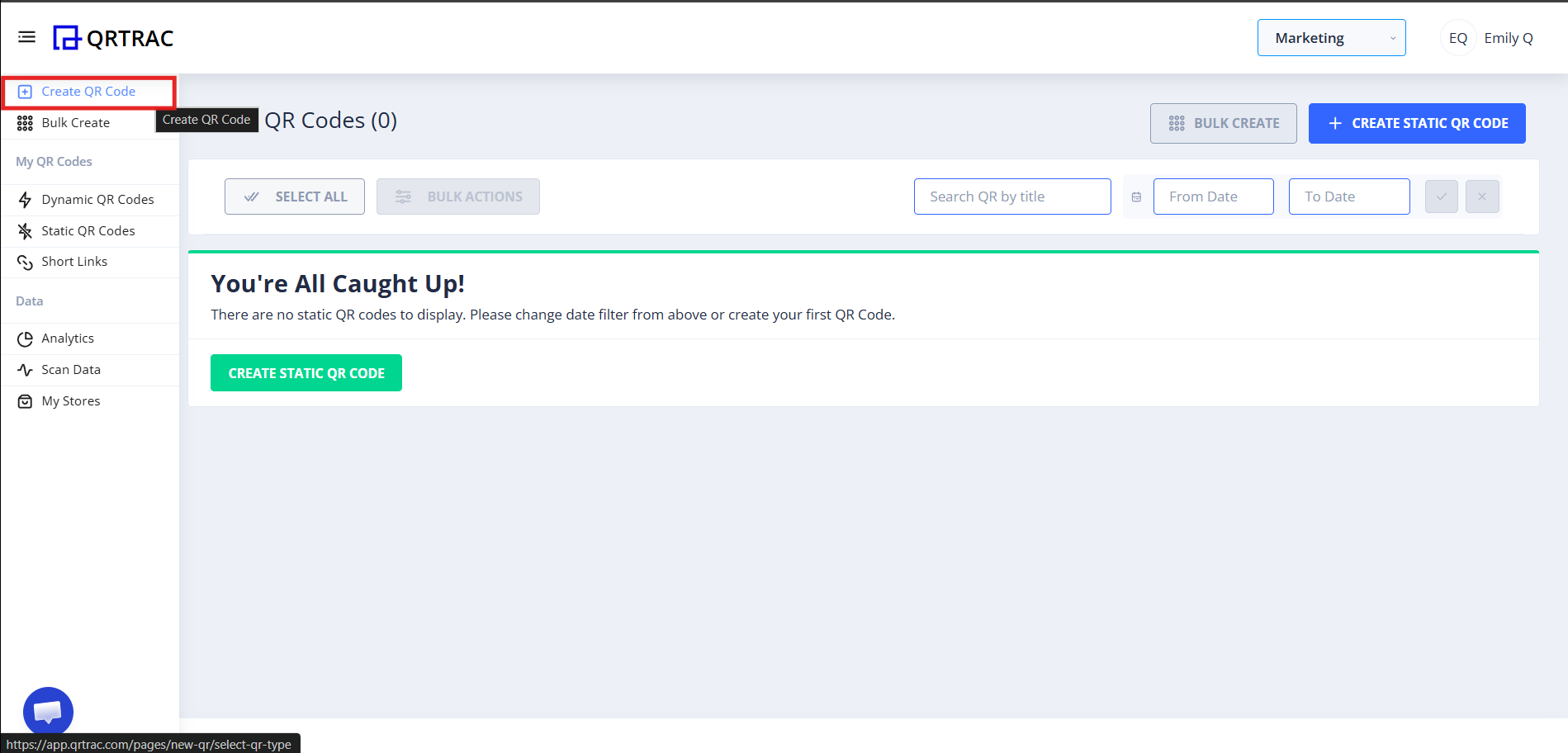
Step 2: Select "App Download QR Code"
From the QR types list, choose the right type to continue.
- Choose App Download QR Code from the type list
- Click Next
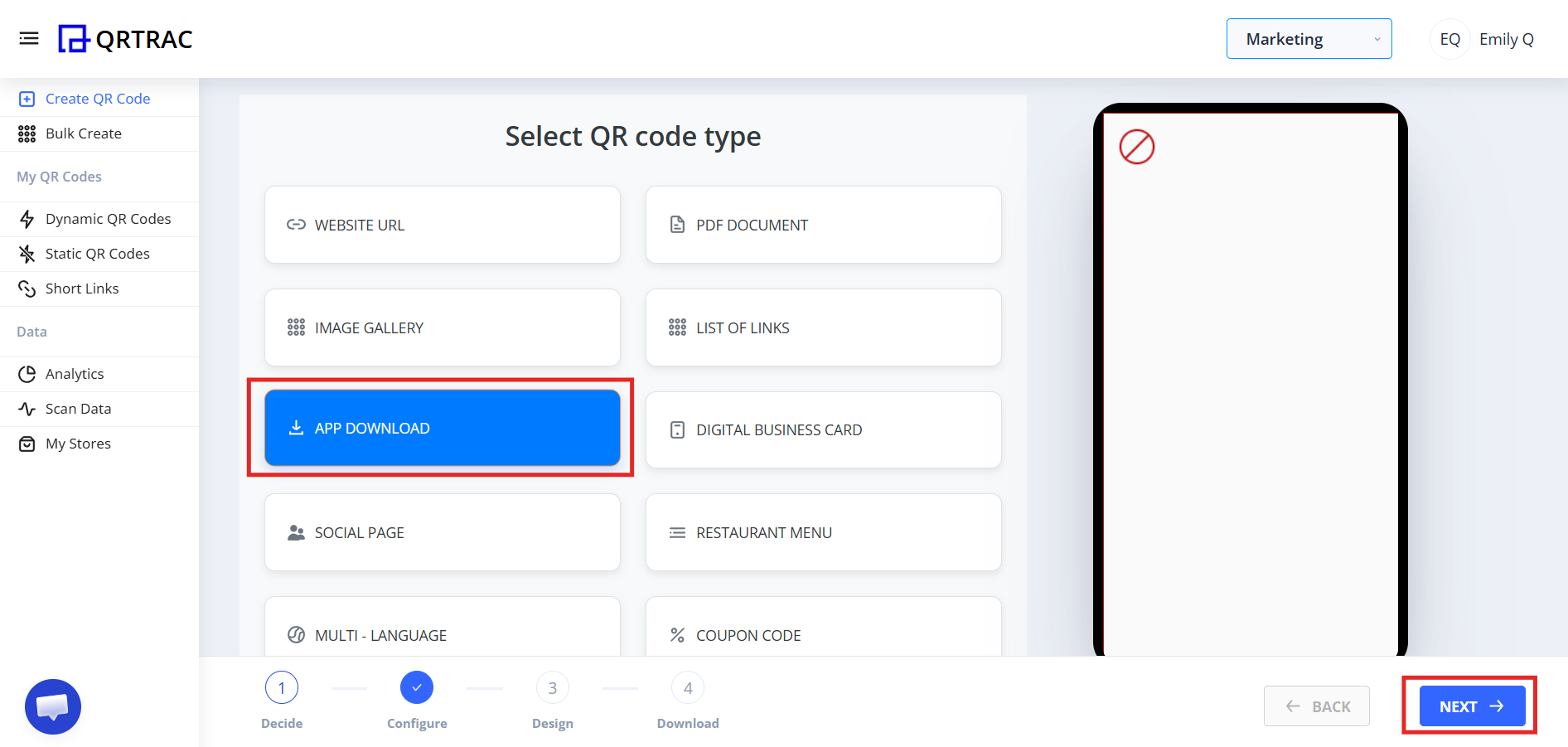
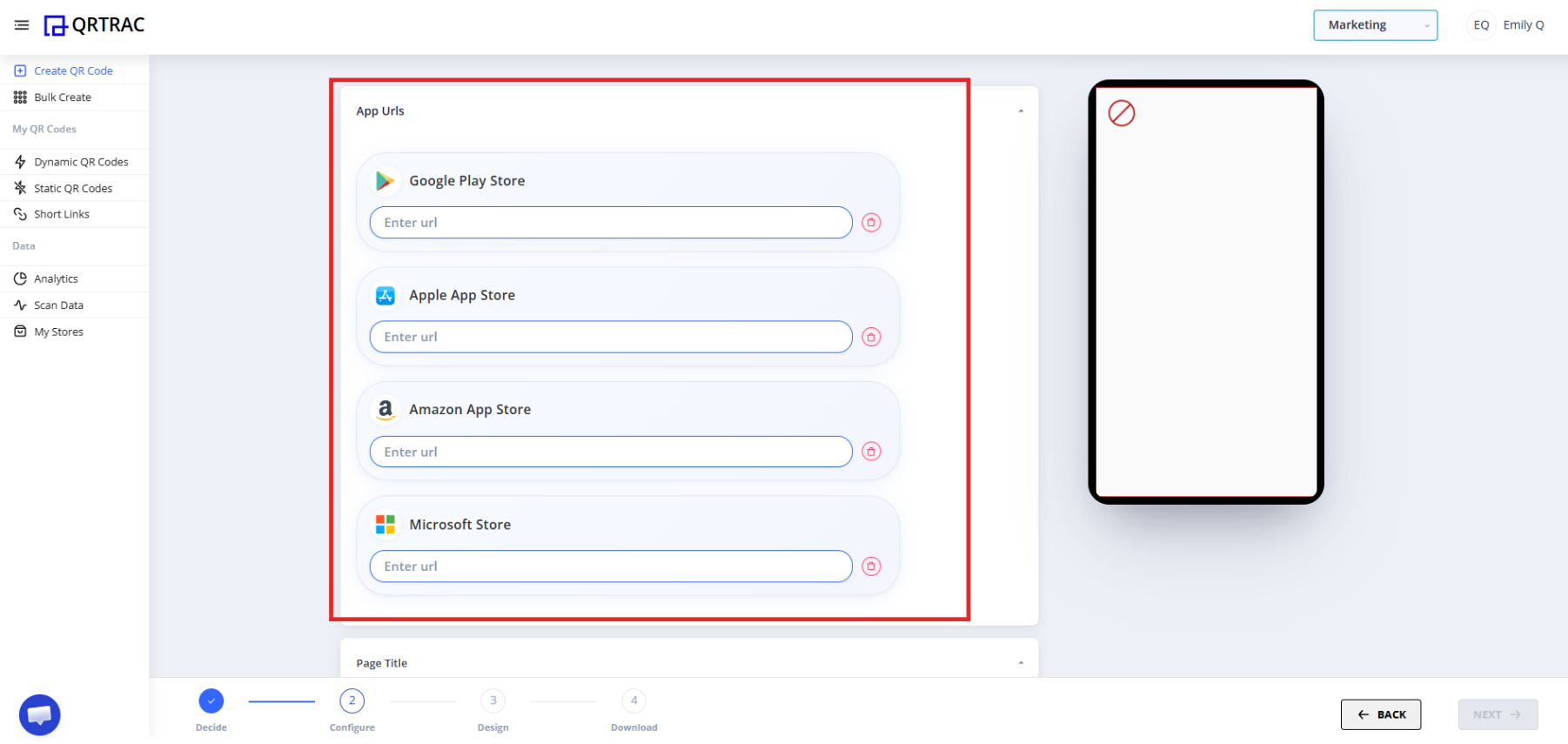
Step 3: Add Your App Store Links
You will see fields for each major app store. Paste the correct URL for every platform you support.
| Platform | Store |
|---|---|
| Android | Google Play Store |
| iPhone / iPad | Apple App Store |
| Amazon devices | Amazon App Store |
| Windows | Microsoft Store |
Correct URL examples:
You can:
- Add only one store
- Add multiple stores
- Leave unused store fields empty
Common Mistakes — What Users Usually Do Wrong
✗ "QR scanned but wrong store opened"
- Smart Download option is disabled
- Wrong store link was pasted
- App link copied incorrectly
✓ Fix: Always copy the link directly from the store in your browser, not from a third-party site.
✗ "QR scanned but page not loading"
- App may have been removed from the store
- Link is broken or outdated
- Extra space in the URL
✓ Fix: Verify your app is still published and the URL opens correctly in a browser first.
✗ "It opens a website instead of the app store"
- Website URL was pasted instead of the store listing URL
✓ Fix: Make sure you paste the actual store URL (e.g. play.google.com/...), not your marketing website.
Step 4: Configure Smart Download (Automatic Device Detection)
Smart Download is our intelligent dynamic QR code feature that automatically detects a user's device and sends them to the right store — no manual selection needed. This creates a smooth experience and enables complete tracking of which devices are downloading your app.
| Smart Download ON ✓ (Recommended) | Smart Download OFF |
|---|---|
| Android → Google Play opens automatically | User sees a store selection page |
| iPhone → App Store opens automatically | User must tap their preferred store |
| Windows → Microsoft Store opens | Extra step in the download flow |
Tip
Keep Smart Download enabled for the smoothest experience and fewer drop-offs.
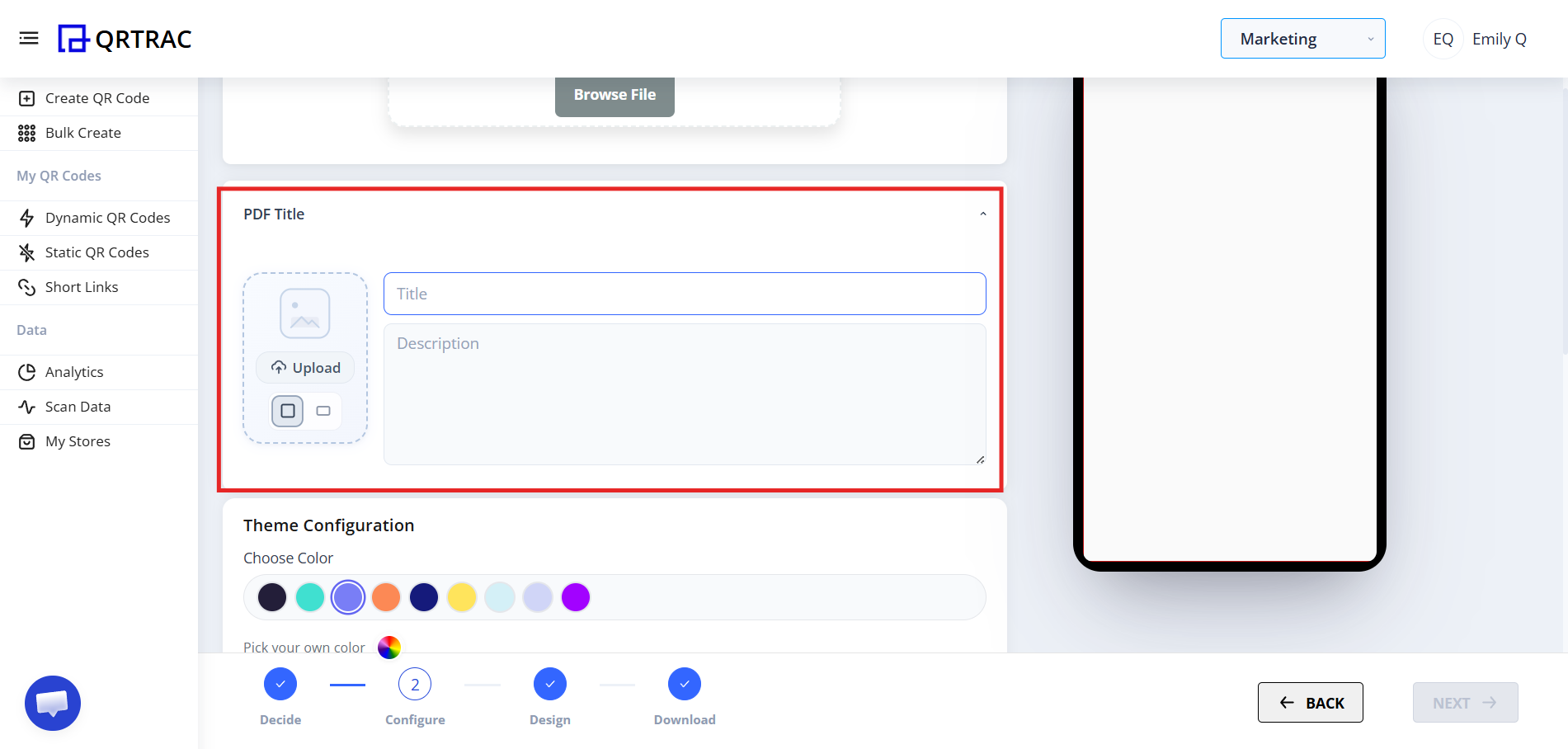
Step 5: Customize Your Landing Page (Optional)
When Smart Download is off — or as a fallback — users see a landing page. Customize it to match your brand.
- Add a Page Title
- Write a short App Description
- Upload your App Logo
- Pick a Theme Color
- Set a Background or Gradient
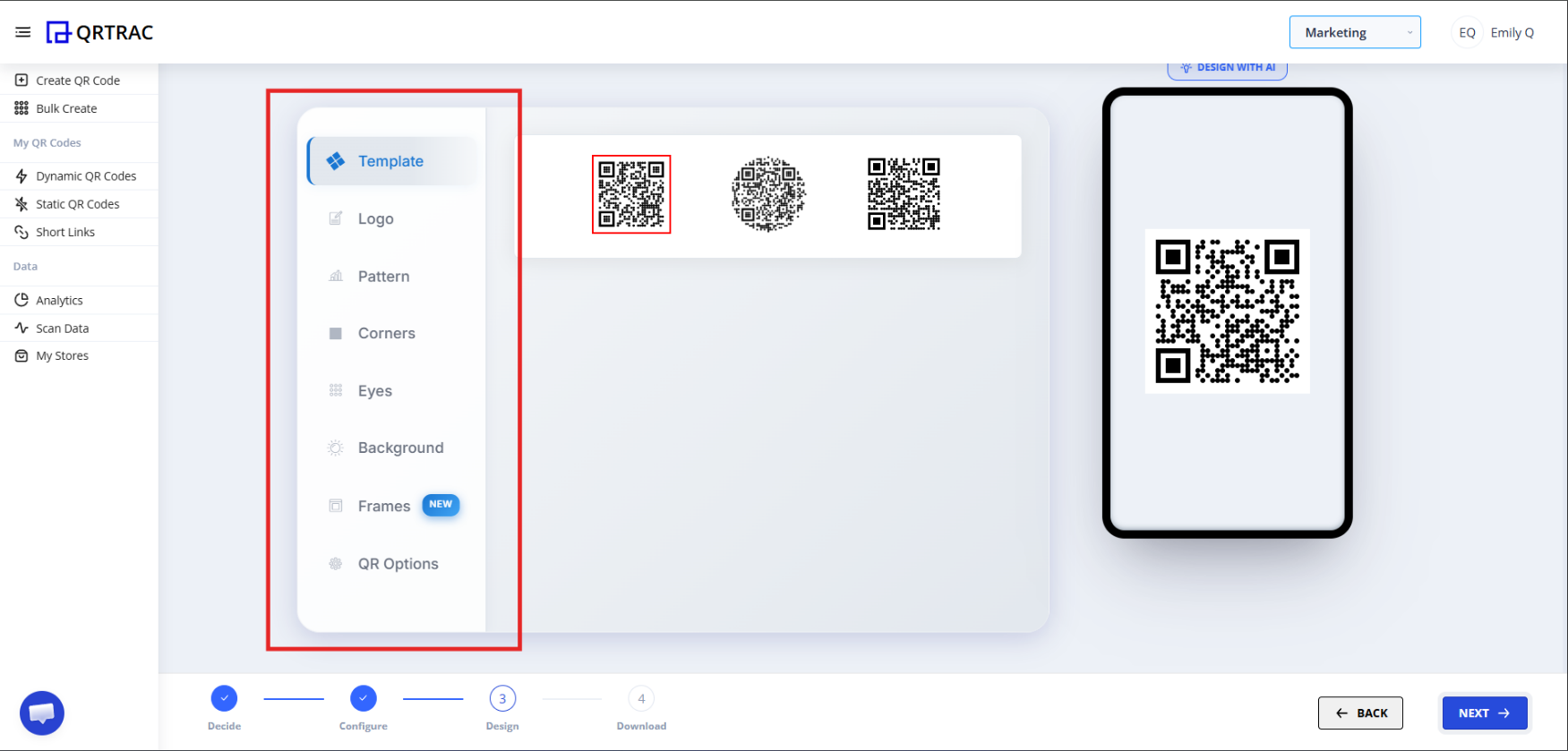
Step 6: Design Your QR Code
Click Next to enter the Design section where you can make the QR code fully on-brand.
- Change QR color
- Add a logo in the center
- Customize the eye style (corner squares)
- Adjust the dot pattern
- Change the background color
Dynamic QR Code with Analytics — No Reprinting Needed
When you create a dynamic QR code for your app distribution, you can update app store links at any time from your dashboard without reprinting or redistributing the QR code. Plus, every scan is tracked and recorded with full analytics.
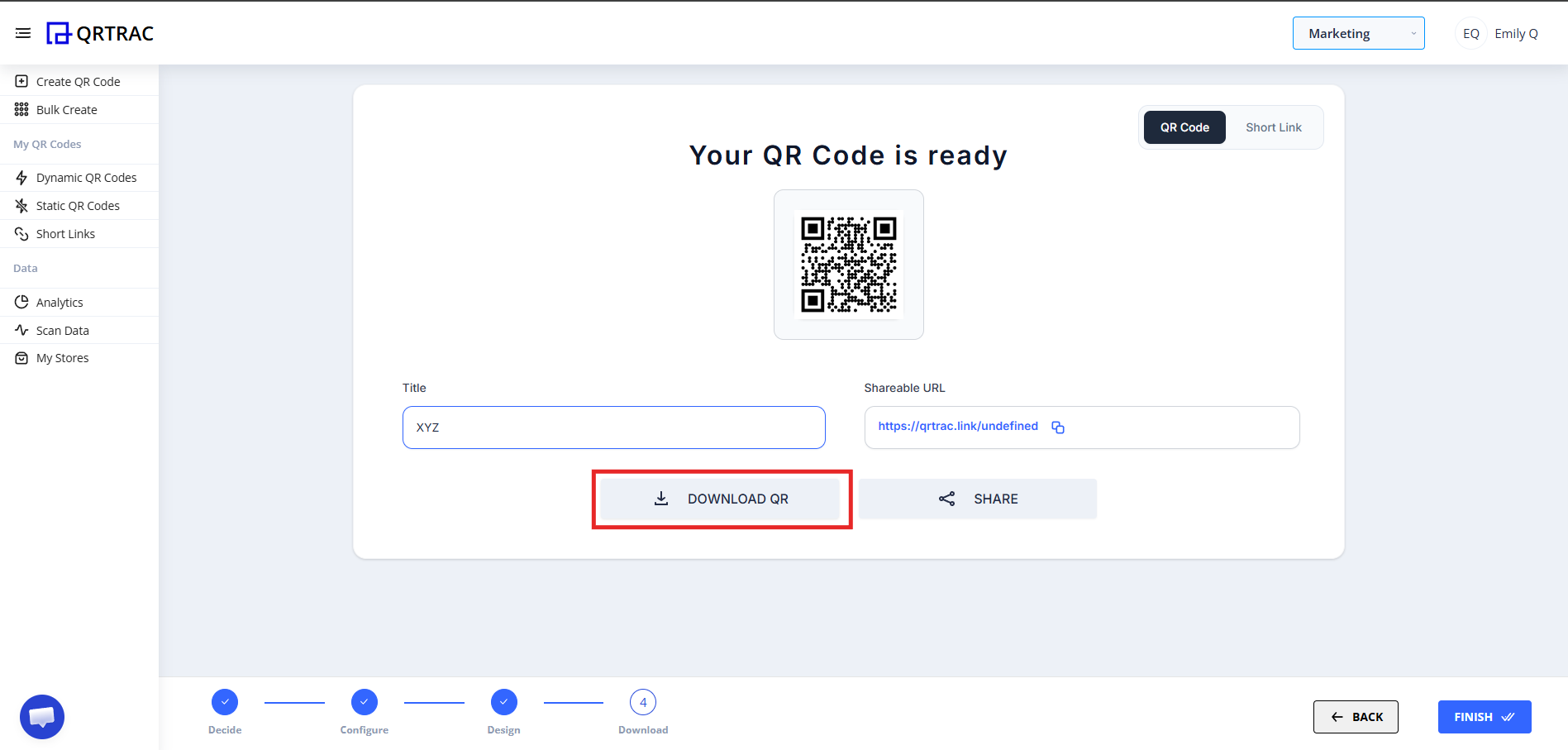
Step 7: Review & Download
Before downloading, preview your QR on the screen and test it on real devices.
- Click Next to go to the Preview screen
- Preview your QR code
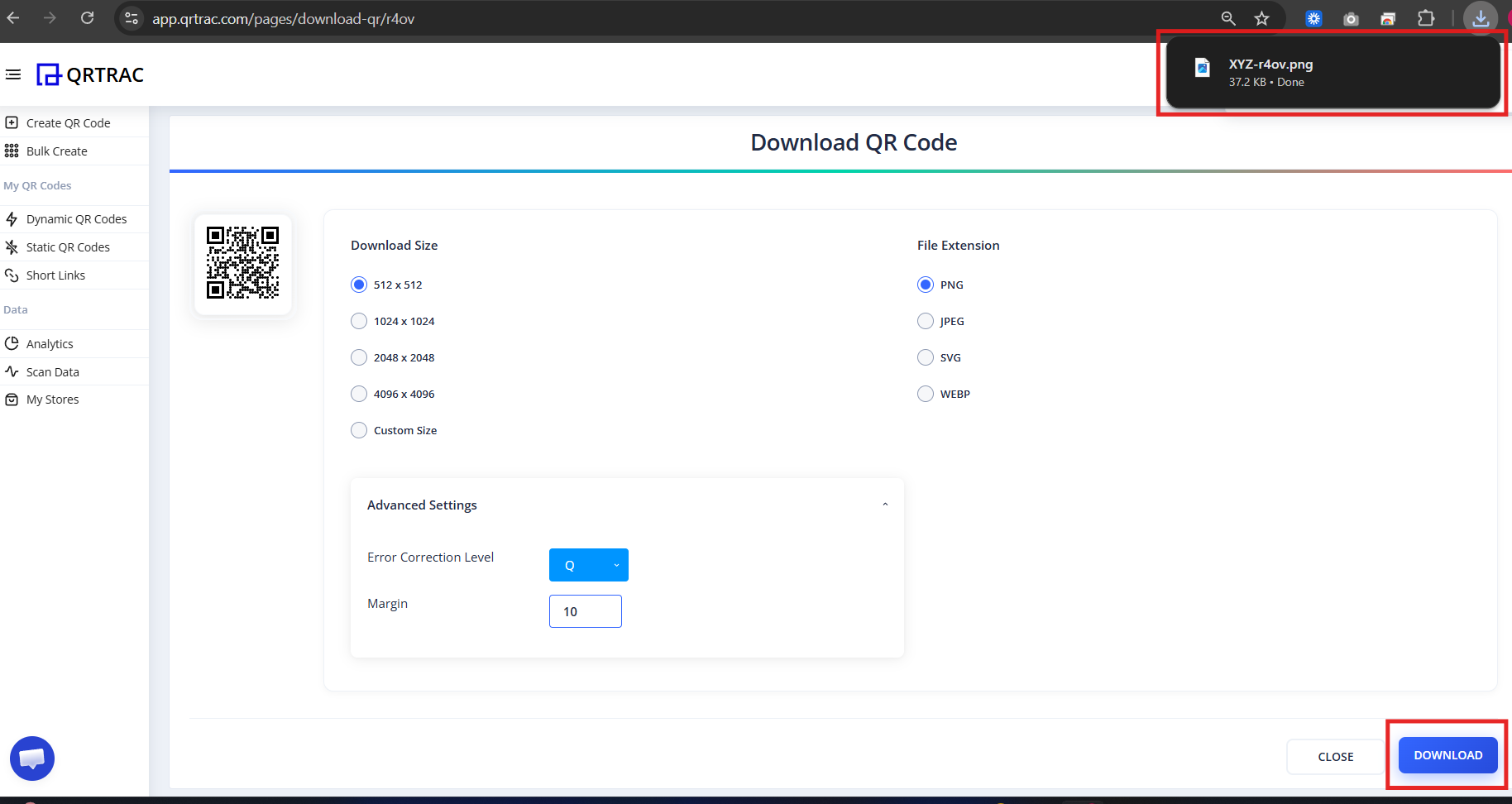
- Click Download and choose your format (PNG, SVG, etc.)
Before You Print or Share
This is where many users make costly mistakes. Always test on real devices before mass printing.
Never print at scale without testing
Printing thousands of copies with an unverified QR wastes budget and time. A quick 2-minute scan test can save significant rework.
Test checklist:
- Scan from an Android phone
- Scan from an iPhone
- Confirm the correct store opens on each
- Verify the app page loads correctly
- Check on a stable internet connection
What Users Will See After Scanning
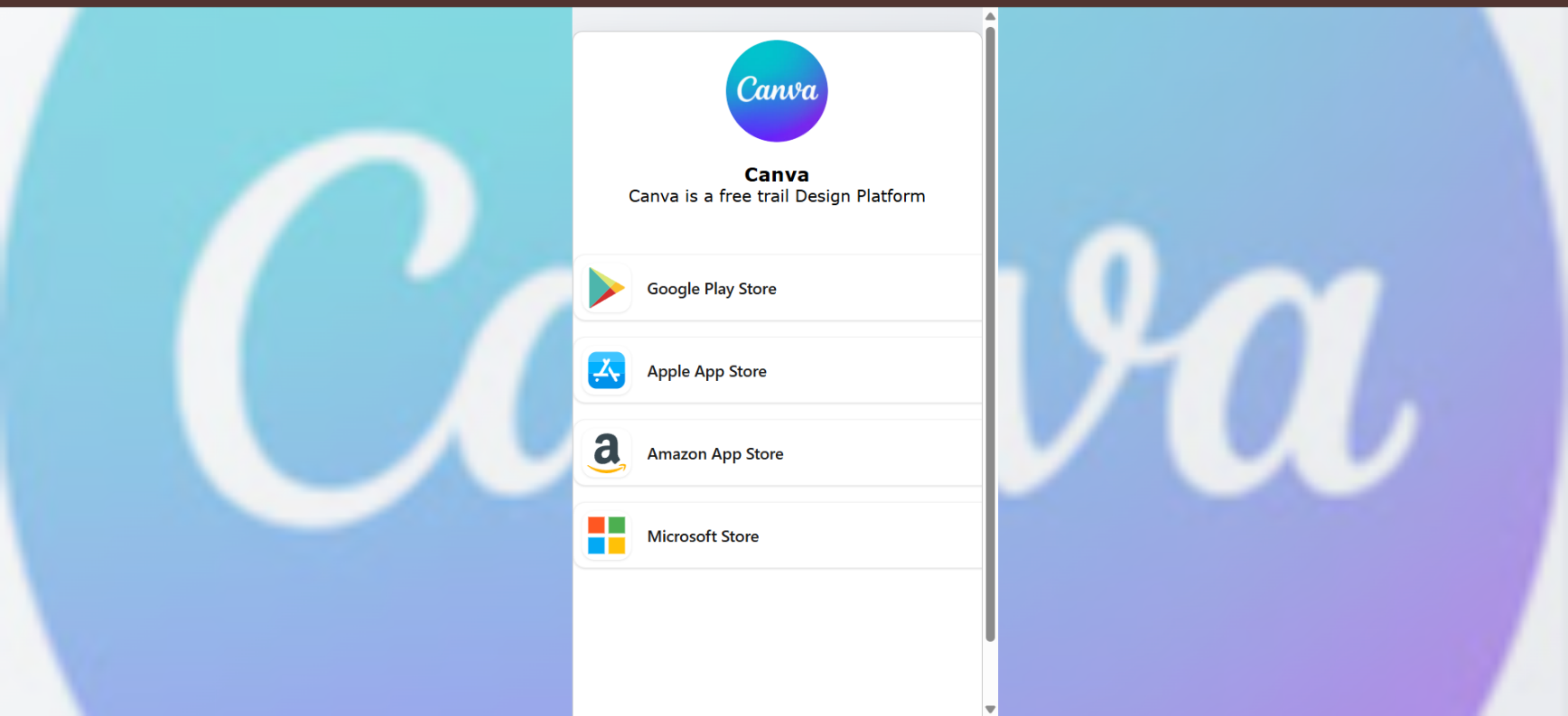
After scanning, users are redirected to a smart app download page that guides them to the right store for their device.
On this page users will see:
- App logo and name
- Short app description
- Store download buttons for their platform
- Easy one-tap download
Track QR Code Scans & App Downloads
One of the biggest advantages of using QRTRAC's dynamic QR code generator for app distribution is built-in tracking. Every time someone scans your app download QR code, you get detailed analytics:
- Scan Count — Total number of QR code scans
- Device Type Breakdown — How many Android vs. iPhone scans
- Geographic Location — Where users are scanning from
- Timestamp Data — When scans happen (peak times, trends)
- Store Performance — Which store gets the most traffic
Unlike static QR codes, tracking QR codes give you full visibility into your app download campaign performance.
How Smart App Store Detection Works
When Smart Download is enabled, the system automatically detects the user's device type and opens the correct store — no manual choice needed. This intelligent routing is what makes dynamic QR codes for apps so effective.
| Device | Store Opened |
|---|---|
| Android phone / tablet | Google Play Store |
| iPhone / iPad | Apple App Store |
| Windows PC / tablet | Microsoft Store |
Why This Dynamic QR Code for Apps Is Useful
Our app download QR code solution is essential when:
- You support multiple platforms (iOS, Android, Windows, Amazon)
- Users scan QR codes from different devices and need the right app store
- You want a professional download experience with custom branding
- You need to track QR code scans with detailed analytics — see device types, locations, and scan timestamps
- You want to update app store links dynamically without reprinting
Why Use an App Download QR Code Generator?
Here's why QRTRAC's app download QR code solution is better than sharing direct app store links:
One QR for Multiple App Stores
Users scan once and get routed to Google Play (Android), Apple App Store (iOS), Amazon, or Windows Store automatically.
Full Download Tracking & Analytics
Track QR code scans by device type, location, and time. See exactly which app store platforms are getting the most traffic.
Update Links Without Reprinting
Use a dynamic QR code to update app store URLs instantly from your dashboard — perfect if you change store links or launch on new platforms.
Brand Customization
Make your QR code match your brand with custom colors, logo placement, and landing page styling.
Professional User Experience
Users see a branded landing page with your app logo, description, and easy store buttons — building trust before download.
Frequently Asked Questions
Q Can I edit store links later?
A Yes — if you created a dynamic QR code for apps, you can update store links at any time from your dashboard without reprinting. This is one of the key benefits of dynamic vs. static QR codes.
Q Can I track QR code scans and app downloads?
A Yes. Full tracking analytics are available in your QRTRAC dashboard, including scan counts, device types (iOS vs Android), geographic locations, and timestamps. You can see exactly how many people scanned your QR code and which app store they were directed to.
Q What's the difference between dynamic and static QR codes for apps?
A Dynamic QR codes allow you to update links and track scans, while static QR codes are fixed and cannot be changed. For app distribution, dynamic QR codes are recommended since you can track performance and update store links as needed.
Q Does the QR code expire automatically?
A Only if you manually configure an expiry date in your QR settings. By default, dynamic QR codes remain active indefinitely and will continue to track scans.
Q Why is my QR code not scanning?
A Common causes: printed too small, low contrast between QR and background, blurry print, or poor lighting. Try increasing the size and ensuring high contrast (dark QR on a light background).
🎉 You're Done!
Your App Download QR Code is ready to share.