How To Create a WhatsApp QR Code
A WhatsApp QR code makes it incredibly easy for customers to contact you. Instead of manually typing your phone number, they just scan the code, and their WhatsApp app opens instantly with a pre-filled message ready to send.
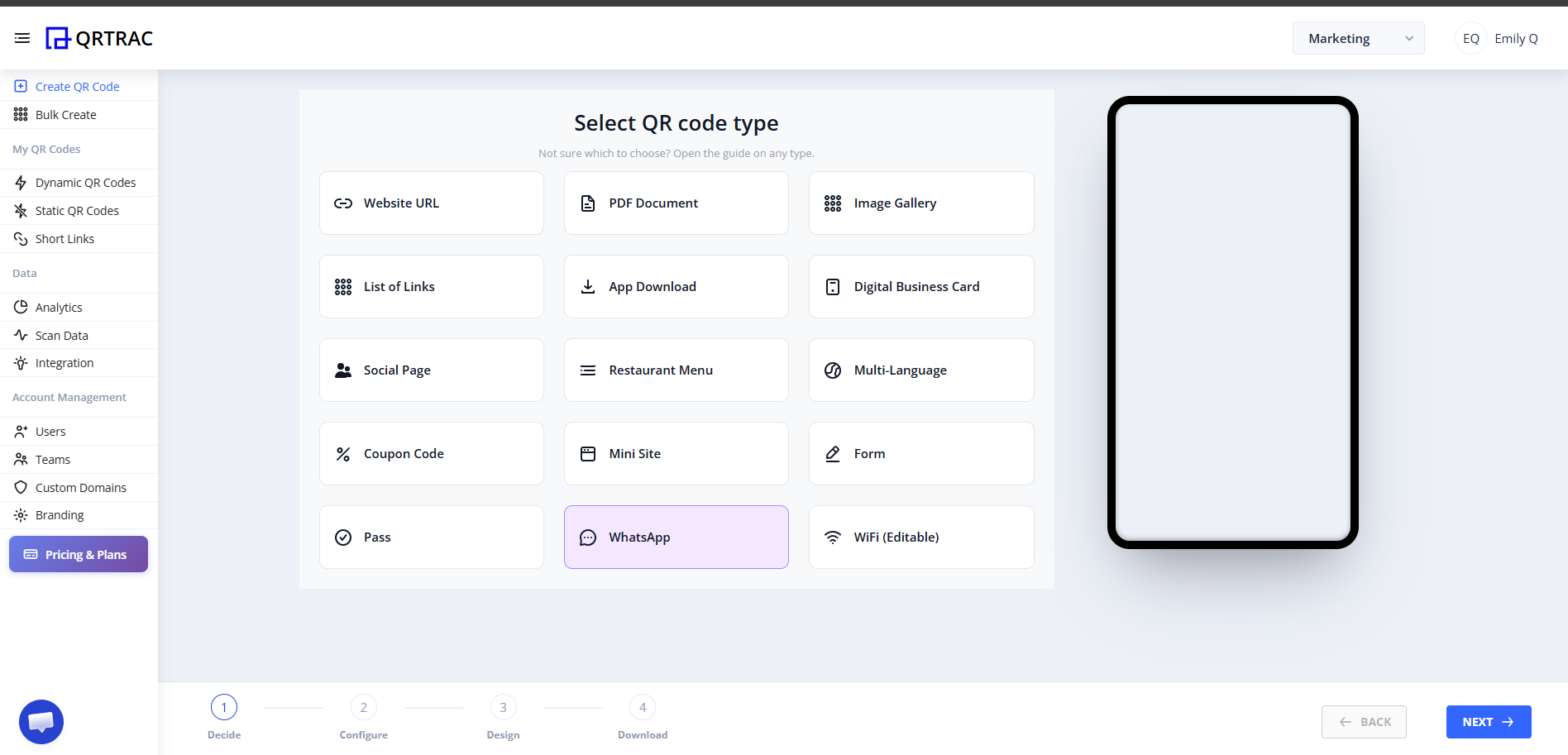
Step 1: Select "WhatsApp" QR Type
- Log in to your QRTRAC dashboard.
- Click Create QR Code.
- From the available QR types, select the WhatsApp option.
Step 2: Enter WhatsApp Settings
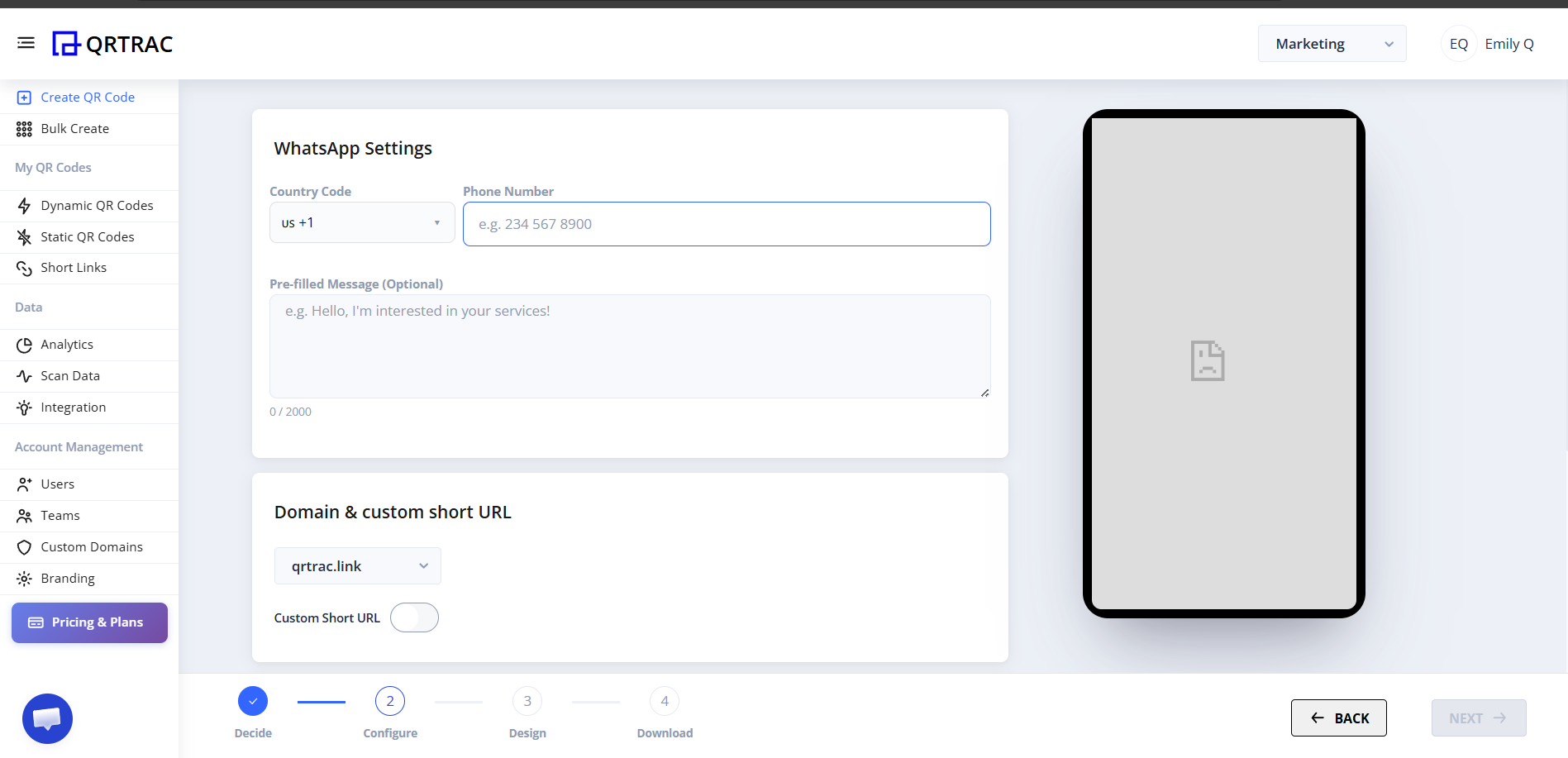
Provide the phone number where you want to receive messages and configure a default message to save your customers time.
- Country Code & Phone Number: Enter the country code (e.g., US +1) and the phone number linked to your WhatsApp account.
- Pre-filled Message: Enter a default text message (e.g., "Hello, I'm interested in your services!"). When users scan the QR code, this message will automatically appear in their text input field, ready to be sent to you.
- Domain & custom short URL: Optionally, choose a domain (like qrtrac.link) and customize the short URL for your QR code.
Step 3: Advanced Settings
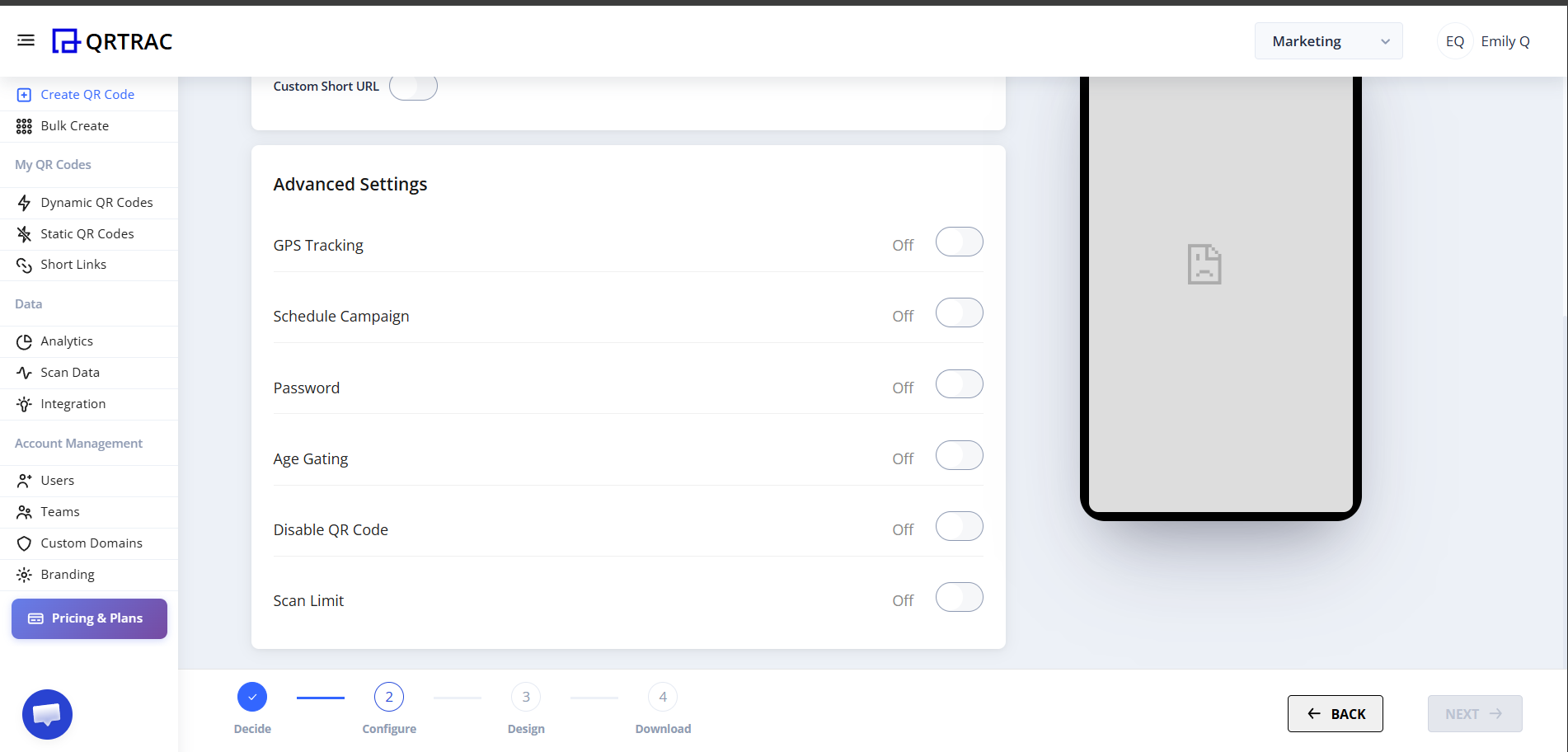
Configure advanced features to add more functionality and tracking to your WhatsApp QR code.
- GPS Tracking: Keep track of where your QR codes are being scanned.
- Schedule Campaign: Set specific start and end dates for your QR code to be active.
- Password: Require a password before the user can open the WhatsApp link.
- Age Gating: Restrict access to users above a certain age.
- Scan Limit: Automatically disable the QR code after a certain number of scans.
Step 4: Design Your QR Code
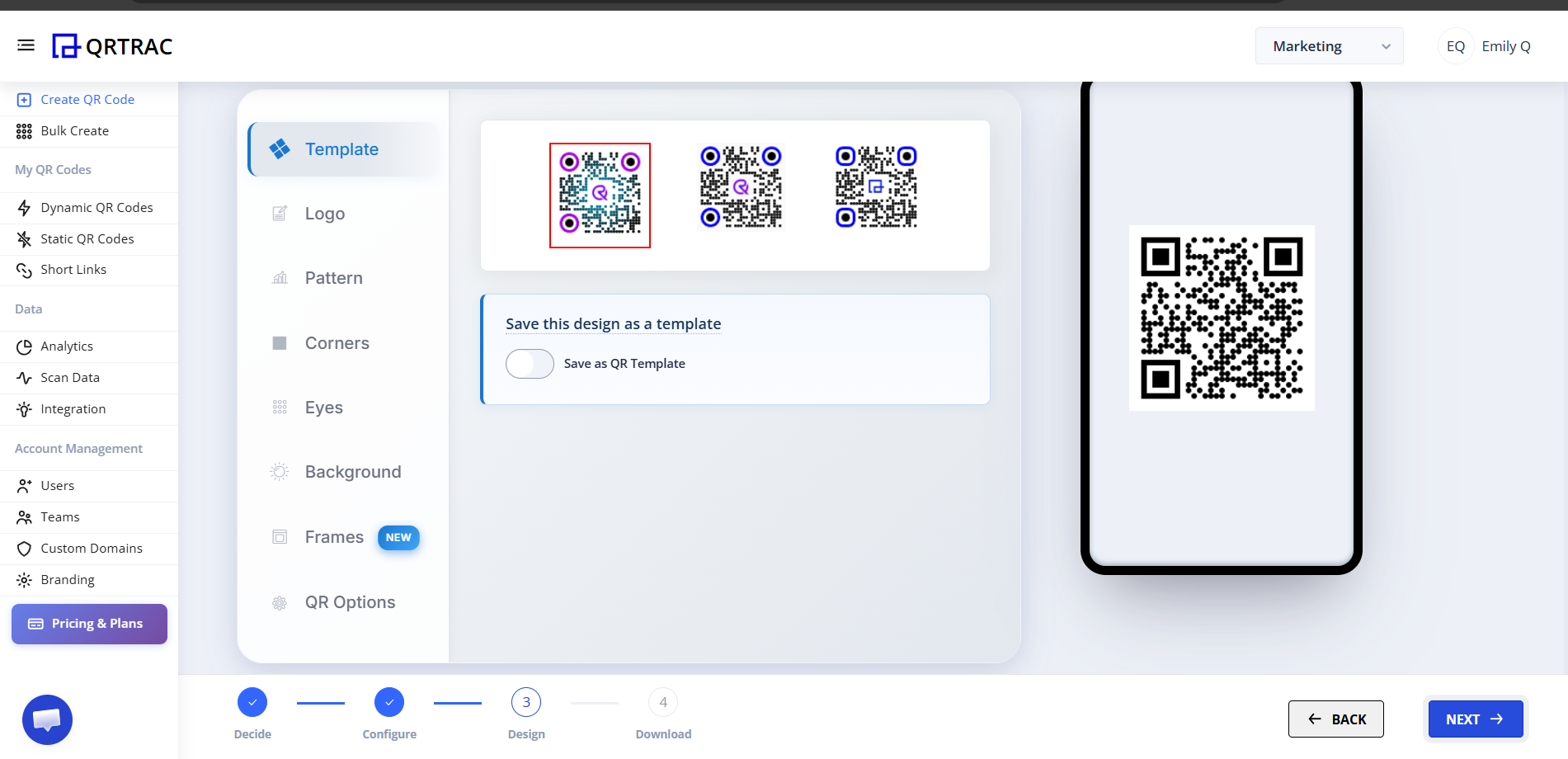
Make your QR code stand out by matching it with your brand's visual identity.
- Template: Use a pre-designed template or save your current design for future use.
- Logo: Add your company's logo or a WhatsApp icon to the center of the QR code so users know what to expect.
- Pattern & Colors: Customize the data pattern, eyes, background, and frames to match your brand colors.
Step 5: Finalize and Download
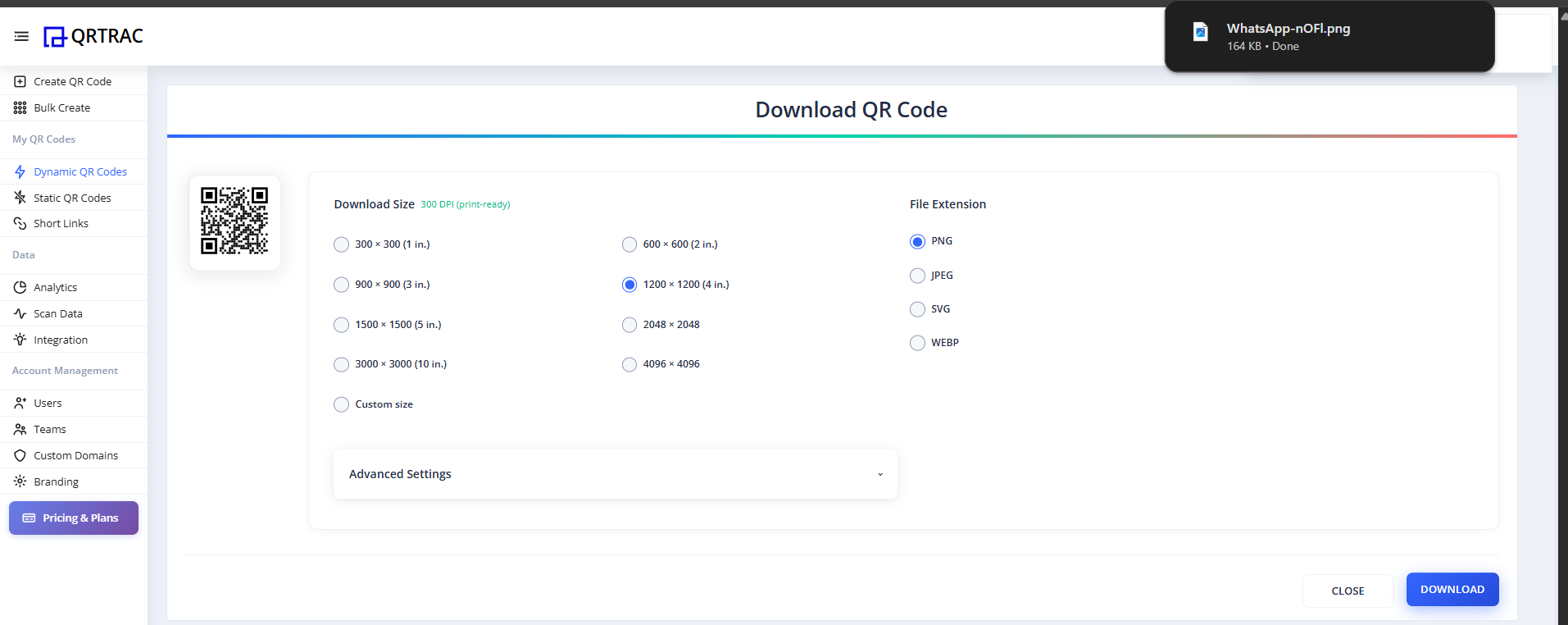
Once you are happy with the design, proceed to the download screen.
- Click Next on the design step.
- Choose your preferred Download Size (e.g., 1200 x 1200 / 4 in. for high-quality print).
- Select your desired File Extension (PNG, JPEG, SVG, or WEBP).
- Click the Download button.
Tip: Always test your QR code by scanning it with your smartphone directly from your monitor. Make sure it successfully opens WhatsApp with the correct phone number and pre-filled message before you print it.
Frequently Asked Questions
Can I change the phone number or message later?
Yes. If you create a Dynamic QR Code, you can update the phone number or the pre-filled message anytime without needing to reprint the QR code.
Do users need to have WhatsApp installed?
Yes, users scanning the code must have the WhatsApp application installed on their smartphone or use WhatsApp Web on desktop for the link to function correctly.