
The invitations are back from the printer. They look perfect. Then the first guest texts to say the code opens someone else's RSVP, and a second says theirs doesn't scan at all.
Getting a QR code for printing is the easy part. Things go wrong in the handoff: the code moves from the person who made it, to the designer who places it, to the print vendor who outputs it. Each step can resize, recolor, crop or swap the code, and nobody scans it again until the piece is in someone's hand.
This guide walks through where QR codes break between you, your designer and your printer, what to send at each step, and how to hand off finished artwork with the codes already in place.
Key takeaways
- Most printed QR failures come from the handoff, not the code: low-res files, recoloring, cropped margins and mixed-up files.
- Send the printer a vector code or a finished PDF at final size, never a screenshot or a compressed JPEG.
- Tickets, passes and invitations need one unique code per guest, and placing hundreds of them by hand is where mix-ups happen.
- Use dynamic codes so a wrong or changed link can be fixed after printing.
- Scan the printed proof, not the screen, before you approve the run.
Where QR codes go wrong between designer and printer
A printed code passes through at least three sets of hands, and each one has a different idea of what "done" means. The person who created the code thinks the link is the job. The designer thinks the layout is the job. The printer thinks matching the file they were sent is the job. Nobody owns "does it scan on paper."
| Handoff problem | What happens | When you usually find out |
|---|---|---|
| Low-resolution code file | Soft or jagged edges after the printer scales it up | At the proof, or worse, after the run |
| Code recolored, inverted or stretched | Looks on-brand, scans slowly or not at all | When someone finally tests the printed piece |
| Quiet zone cropped or covered | Phones can't find the code's edges | After trimming, when the bleed cut eats the margin |
| Same code on every ticket | No way to tell guests apart or stop shared screenshots | At the door |
| Codes mixed up across files | Guest A's invitation opens guest B's pass | When guests start asking |
| Test link or typo in a static code | Every printed piece opens the wrong page | After it's in people's hands |
The last column is the expensive part. Every one of these problems is cheap to catch before the run and costly to fix after it, because the fix is a reprint.
Send the printer files it can actually use
The most common handoff is someone right-clicking a QR code on screen, saving a small PNG and emailing it to the designer. It looks fine in the layout at 100% zoom. At print size, that 300-pixel image gets stretched across 1.5 in (3.8 cm) of paper, and the module edges turn soft. Whatever generator you use, export a QR code for printing from the source file, not from a screen.
- Best for the code alone: SVG, EPS or a vector PDF. Vector files scale to any size without losing sharpness, which is why print vendors ask for them.
- Best for finished artwork: a PDF of the whole design at the final trim size, with the code already placed. The printer has nothing to rebuild.
- Acceptable: a PNG exported at full print resolution for the size it will print. Many printers ask for 300 pixels per inch at final size, so a 2 in (5 cm) code needs about 600 pixels across. Check your printer's spec sheet.
- Avoid: JPEG for the code itself. Compression smears the sharp black-and-white edges that phone cameras look for.
Size matters as much as format. A code on a ticket or badge is held at arm's length or closer; a code on a poster is read from across a room. Our QR code size guide covers distance-to-size rules for each.
Edits that quietly break a code
Designers are paid to make things look right, and a black-and-white square often looks wrong next to a carefully built layout. So it gets adjusted. Some adjustments are safe; others look fine on screen and fail on paper.
- Recoloring: brand colors work if the code stays dark on a light background with strong contrast. A mid-green code on a light-green panel often doesn't.
- Inverting: a white code on a dark background matches dark-mode designs, but some older scanner apps can't read it. Test on the phones your audience actually uses.
- Stretching: scaling a code non-proportionally to fit a box distorts the grid. Always lock the aspect ratio.
- Covering the quiet zone: the QR code standard, ISO/IEC 18004, calls for a clear margin around the code, four modules wide. Decorative frames, text and bleed cuts that creep into it are a common cause of failed scans.
- Placing it on a busy background: a photo or pattern behind the code confuses the camera. Put the code in a solid light box instead.
Stock and finish change the result too. Kraft paper, foil, glossy laminate and textured invitation card all lower contrast or add glare. The QR code design best practices guide covers which styling choices hold up in print.
One design, hundreds of unique codes
This is where print handoffs get painful. A single poster needs one code. An event with 400 guests needs 400 tickets, each with its own code, so you can see who arrived, stop one screenshot admitting a group and limit each pass to a single entry. The same goes for event passes, conference badges, numbered invitations, membership cards and vouchers.
Without a tool built for it, the options are all manual:
- The designer places each code by hand in a layout file, one page per guest. Slow, and one misplaced file means two guests share a code.
- The printer runs variable-data printing from a spreadsheet and a folder of code images. It works, but adds setup cost, and a sorting mistake between the spreadsheet and the image names puts the wrong code on the wrong card.
- You send 400 code images and one design and hope someone else figures it out. This is the version that produces "my invitation opens someone else's RSVP."
Whichever route you take, keep a list that matches each code's ID to the guest or ticket number, and spot-check a sample of finished pieces before the full run.
When the printed link is wrong
Sometimes the code is perfect and the link isn't. A staging URL from the web team, a typo, an RSVP form that gets replaced, a venue page that moves a week before the event. With a static code, the destination is baked into the pattern, so every one of those means a reprint.
A dynamic code stores a short link instead, and you can change where it points after printing. That turns a reprint into a dashboard edit. Our explainer on static vs. dynamic QR codes covers the tradeoffs. For anything with a long shelf life, put the short link on a domain you control, so the printed piece doesn't depend on any one vendor; here's how custom domain QR codes work.
What customers told us, and what we built
One customer printed 10,000 passes for a professional soccer match. Every pass needed its own code. Generating the codes was the quick part, since a bulk batch does it in minutes. Getting each one into its own copy of the pass design was the hard part: 10,000 files, each code in the same spot, none repeated and none skipped. Operationally, it was tough, and one sorting slip would have sent two fans to the gate with the same pass.
Another customer, an agency running a game night, needed 1,000 to 2,000 invitations with a week to go. Each code had to scan only once, and only on one of three event dates. Those rules were the easy part, because Pass QR codes already have scan limits and date scheduling. What they really needed was every code placed inside its own copy of the invitation, at that volume, before the deadline.
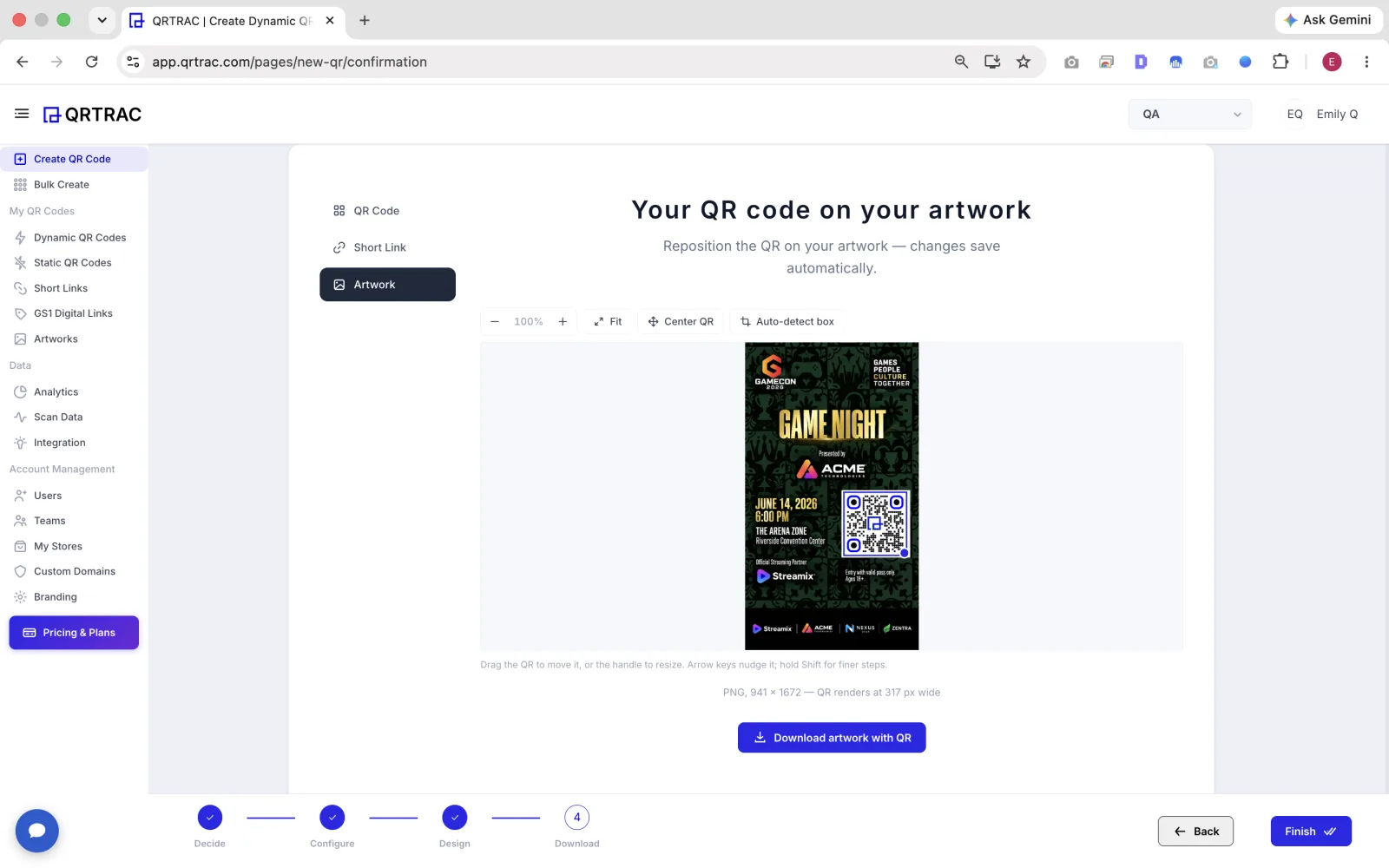
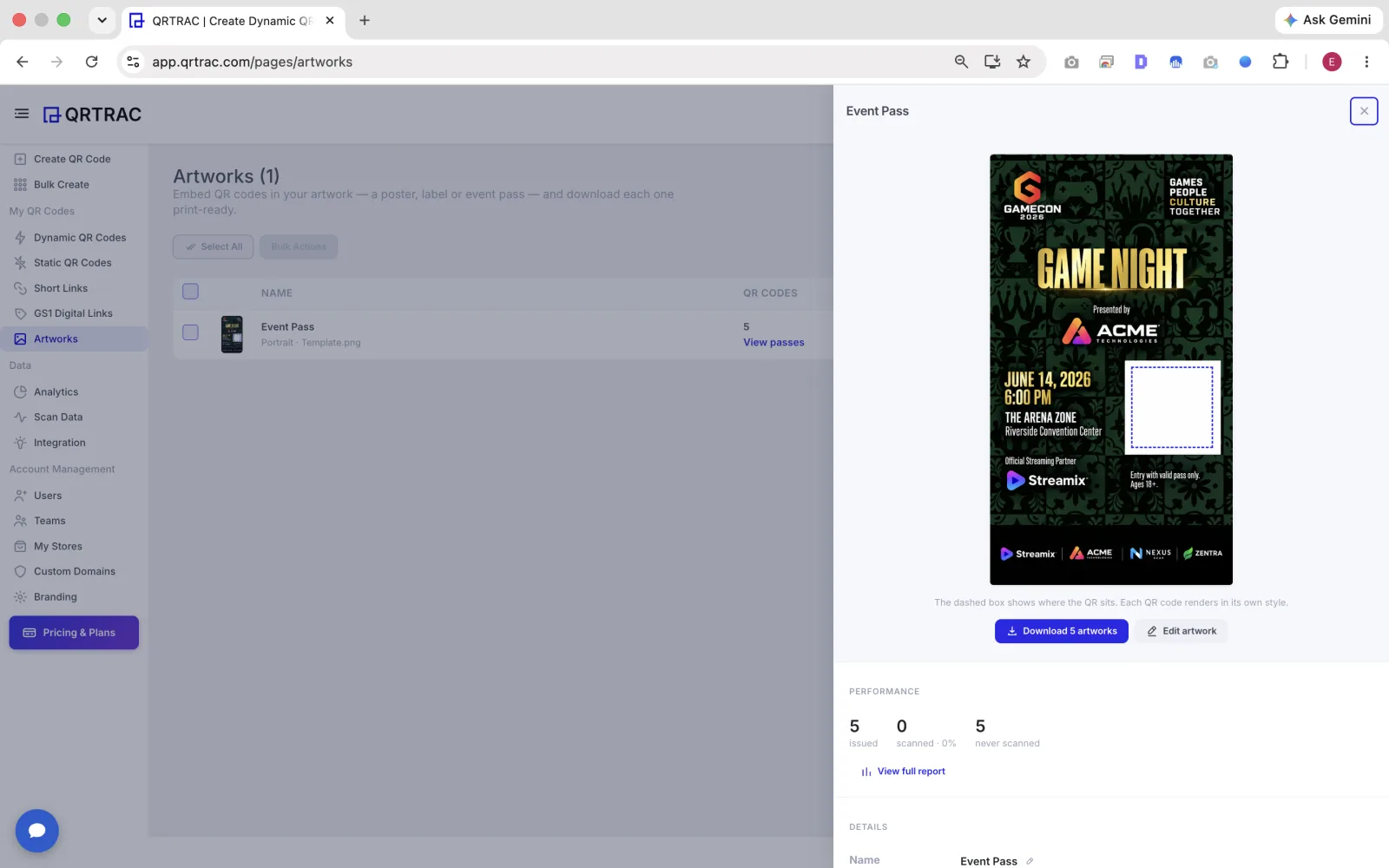
Both customers needed the same thing: put their own codes into their own design and walk away with finished files, without a designer or print shop doing it by hand. So we built Artwork, a self-service step that puts the codes into the design for you. You upload the finished design (a ticket, pass, invitation, poster or label), choose or create the codes, place them and download print-ready files. The handoff to your printer becomes "here are the final files," not "here's a design and a folder of codes."
How it addresses each handoff problem:
- Unique codes without the busywork: attach several codes to one design and Artwork renders one finished file per code. Download them as JPEG, PNG or PDF; several at once arrive as a single ZIP.
- Placement that holds: ask your designer to leave a solid light box where the code should go. Auto-detect box finds it, or you drag, resize and nudge the code with the arrow keys (Shift for finer steps).
- Resolution you can see: the editor shows the size of your uploaded design and how many pixels wide the code will render, so you know before downloading whether the file is big enough for print. Upload the design at the printer's requested resolution.
- Design approval in parallel: you can choose "Add QR codes later," so the layout can be signed off before every guest's code exists.
- Links you can still fix: the codes are dynamic, so a moved RSVP page or changed venue link is an edit, not a reprint.
It places the code, not other personalized text. If each invitation also needs the guest's name printed on it, your printer's variable-data setup or a mail merge still handles that part.
Know which printed pieces were actually used
The handoff doesn't end when the box of tickets arrives. For passes and invitations, the useful question afterward is which ones were used, which never were and which were scanned more than once, a sign a screenshot is being shared.
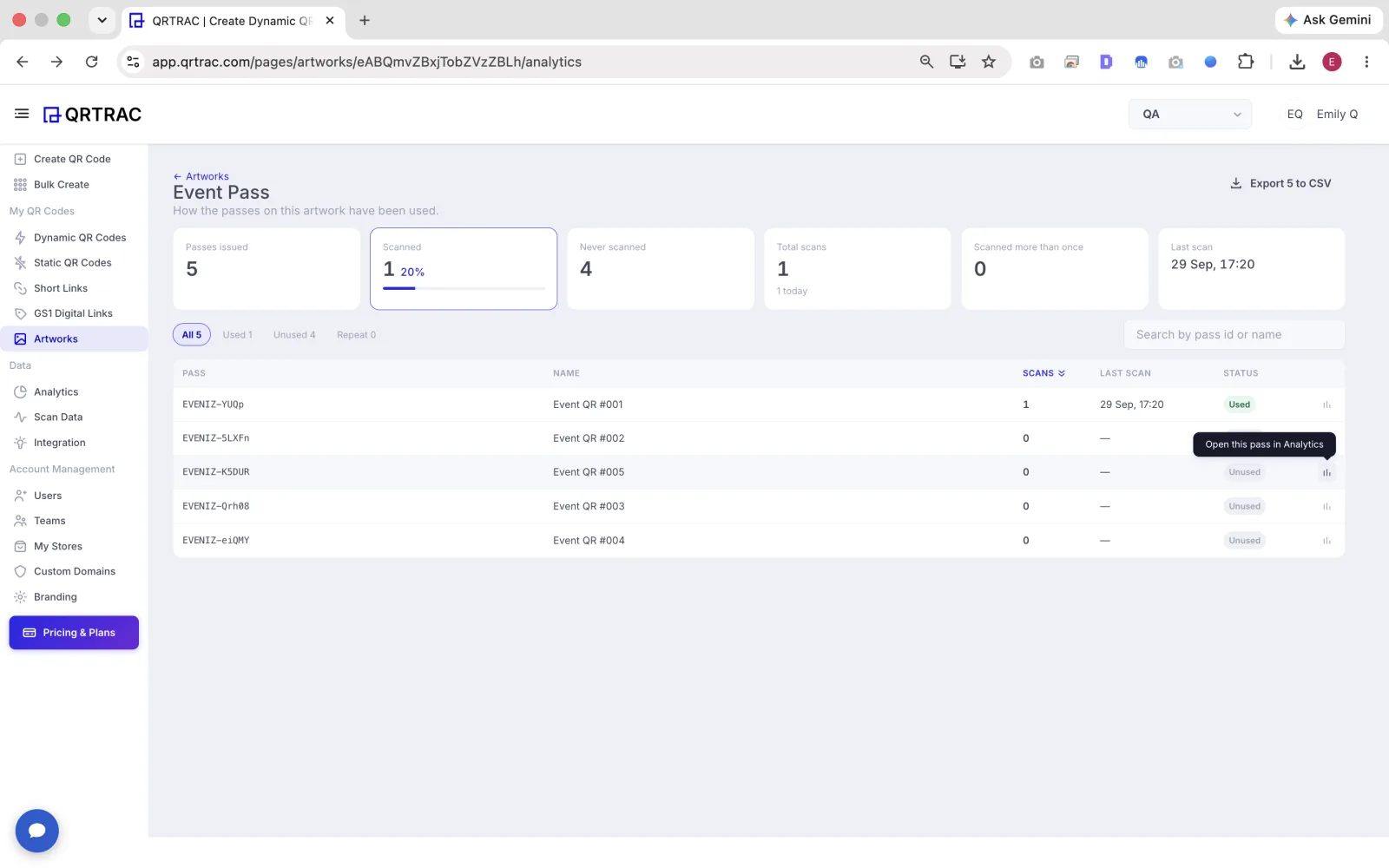
Each artwork in QRTRAC has its own report: passes issued, scanned, never scanned, total scans, scanned more than once and the last scan time, with a per-pass list you can filter and export to CSV. For door control, the Pass QR code type adds check-in passwords and scan limits, so a pass can be marked used at the gate.
A print handoff checklist
Run through this before anything goes to press, whatever tools you use.
| What to check | Why it matters | What to look for |
|---|---|---|
| Code tested on the final proof | Screens hide problems that paper shows | Scanned from the printed proof on 3 or more phones, including an older one |
| Resolution checked at final size | Printers scale whatever you send | Vector code, or the full design at the printer's requested resolution |
| Quiet zone inside the trim | The bleed cut can remove the margin | Clear space on all four sides, well inside the safe area |
| Contrast survives the stock | Kraft, foil and colored paper reduce contrast | Dark code on a light box, sampled on the real paper |
| One code per guest where it matters | Shared codes can't be tracked or limited | A unique code per ticket, pass or invitation, matched to your guest list |
| Dynamic code, on a domain you control | Links change after printing | A short link you can repoint, ideally on your own domain |
| One named owner for the final files | Version churn is how wrong files get printed | A single folder of approved files the printer pulls from |
If you are printing labels with a code and text on each rather than designed artwork, our guide to bulk QR code label printing covers that workflow.