Logo QR Code Generator
Add Your Logo to a QR Code Without Breaking the Scan
Upload your logo, set how much of the code it covers, and download a print-ready file. A logo QR code tells people who it's from before they scan, which matters when every flyer, menu, and package carries one.
How to create a QR code with a logo
Create the code, open the Logo tab in the Design step, upload a square logo, keep Logo Size at or below 0.5 with Hide Background Dots on, then download an SVG and test a printed proof on two phones. It takes about two minutes.
- 1
Pick what the code opens
Website, PDF, menu, digital business card, app download, and the other QRTRAC types. Choose dynamic so you can change the destination after printing.
- 2
Open the Logo tab and upload
In the Design step, open Logo and click Upload. A square logo with a transparent background works best. The live preview updates as you go.
- 3
Set the size, then check the preview
Logo Size starts at 0.5. Turn on Hide Background Dots so the logo sits on a clean patch instead of on top of the pattern.
- 4
Download and test
Download an SVG for print or a 300 DPI PNG (1200 × 1200 by default), then scan the printed proof with two different phones.
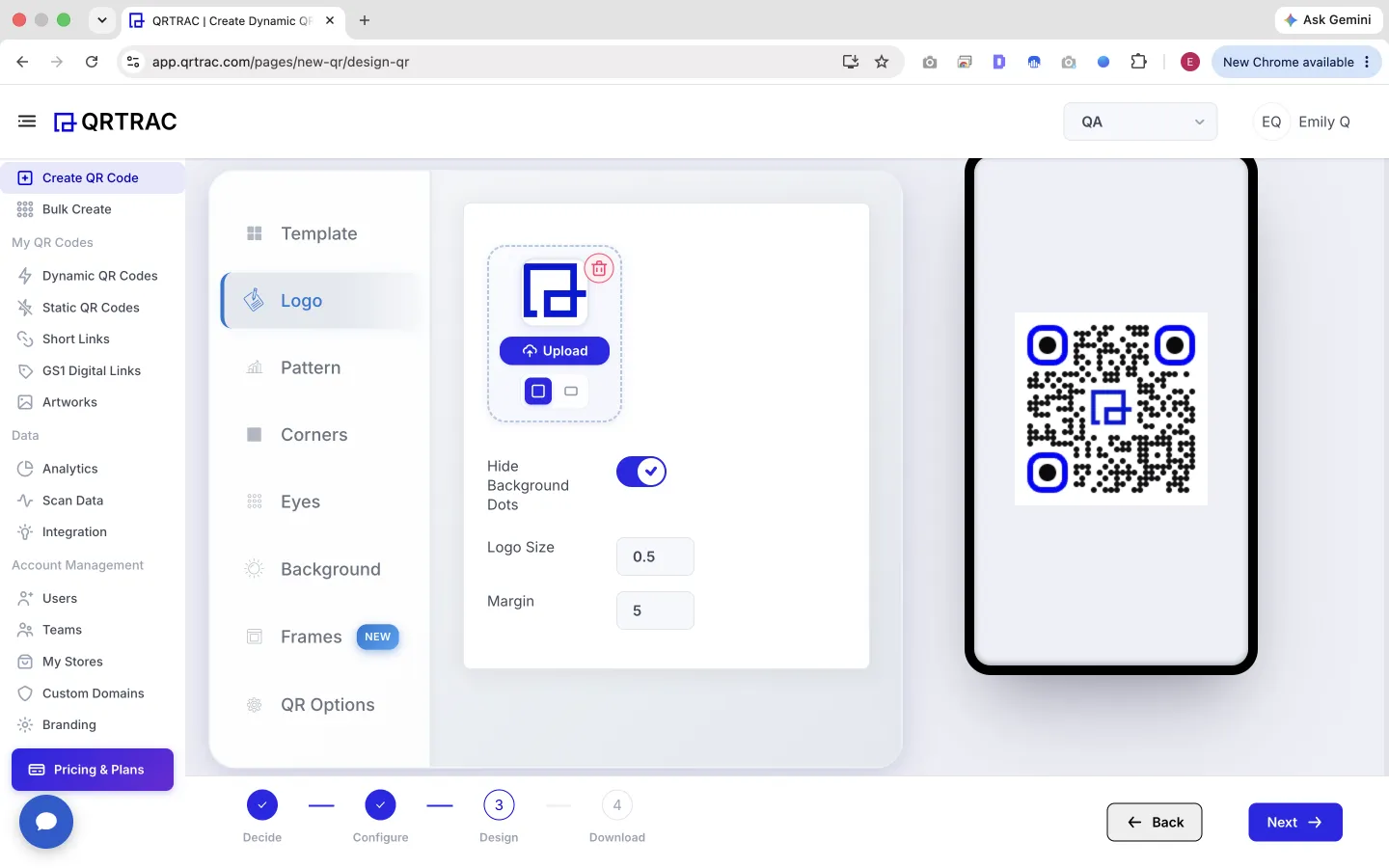
The settings that keep a logo QR code scannable
A logo covers part of the code. These are the controls that decide whether the code still reads, with the defaults QRTRAC starts you on.
| Setting | Default | What it does |
|---|---|---|
| Logo | None | The image placed in the center of the code. |
| Logo Size | 0.5 | How much of the code the logo covers. Lower it if scans get slow or fail. |
| Hide Background Dots | On | Removes the pattern behind the logo so the logo reads cleanly. Turn it off only for a transparent logo you want the pattern to show through. |
| Margin | 5 | Space between the logo and the surrounding pattern. |
| Error Correction (QR Options) | Q | How much of the code can be covered and still scan: about 25% at Q, 30% at H. Move to H for a larger logo. |
Full details are in the help guide to QR code default settings.
Getting the logo file right
- Square, not wide. The center of a QR code is a square. A long horizontal wordmark has to shrink until it's unreadable; a monogram or icon doesn't.
- Transparent background. A PNG with transparency sits cleanly on the hidden-dots patch. A logo on a white box looks pasted on.
- Enough contrast. A pale logo on a white code disappears. Use the dark version of your mark.
- Match the code to the brand. Set the pattern and eye colors in the Design step. Keep the modules dark on a light background; the design guide lists colors that scan reliably.
When to skip the logo
A plain code is always the easiest to scan. Leave the logo off when:
- The code prints smaller than about 1 in (2.5 cm), like on jewelry tags or small labels.
- It's a static code holding a long web address, so the pattern is already dense.
- It goes on a curved, glossy, or textured surface that's already hard to read.
If a printed logo code won't scan, our QR code troubleshooting guide walks through the fixes.
Make the whole scan look like your brand
Save it as a template
Store the logo, colors, pattern, and frame once. Everyone on the team applies the same design to new codes.
Use your own domain
Scans go through a link on your domain instead of ours, so the address people see matches the logo they scanned.
White label for agencies
Run the dashboard under your own brand and create logo codes for each client in their own workspace.
Make your first logo QR code
Upload your logo, preview it live, and download a print-ready SVG. Compare plans on the pricing page.
Start 7-day free trial