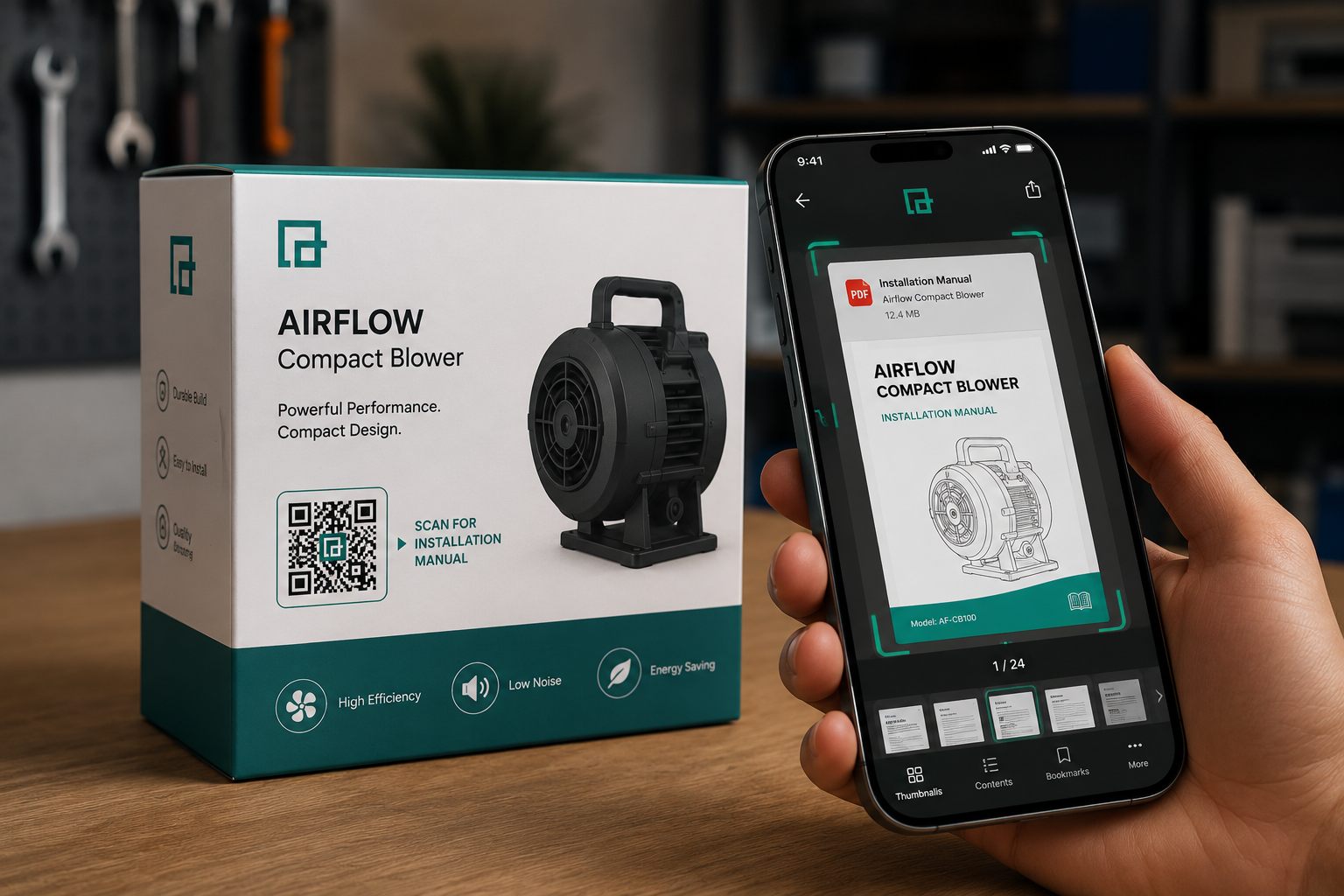
Traditional printed guides present several challenges for both customers and installers. Physical booklets are easily misplaced during the unboxing process, and complex setup steps can require several pages, taking up significant packaging space.
Customers may also need to reference the instructions long after the original packaging has been discarded, and professional installers often need quick access to reliable documentation while on the job.
Since product documentation is typically available digitally, a smart tag serves as the perfect bridge between the physical product and the digital PDF guide.
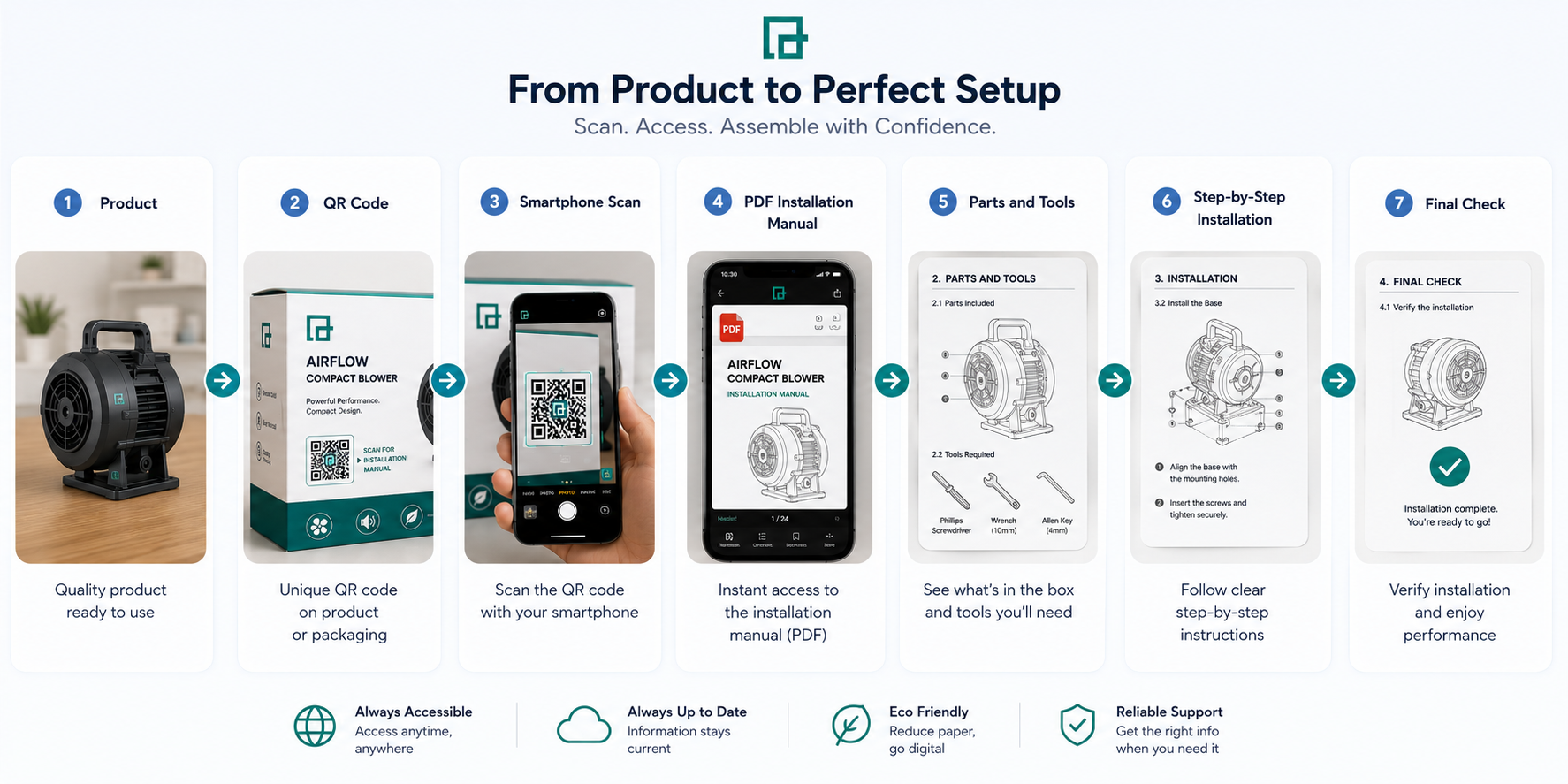
Product → smart tag → PDF Setup Guide → Installation Steps
What are Digital Instruction Tags?
These tags refer to a smart tag placed on a product, package, label, instruction card, or other physical material that directs the scanner to digital instructions.
the digital tag provides an access point to digital destinations such as:
It is important to understand the distinction: the digital tag is the access point, while the PDF is the actual installation documentation.
Why Connect Packaging to Setup Guides?
Quick Access
Customers can simply scan the digital tag with a smartphone and access the documentation instantly without searching online or hunting through the box.
Less Packaging Clutter
a smart tag can provide access to a detailed digital manual without requiring all multi-page instructions to be printed directly on the packaging.
Easy Access After Purchase
Customers may still have access to the installation guide after opening or disposing of the packaging, as long as the digital tag remains available on the product surface or is reproduced elsewhere.
Centralized Instructions
A digital destination can provide the installation document along with related product user manuals, resources, and support links where appropriate.
Useful for Installers
Professional installers can quickly access product-specific instructions directly from their phones, ensuring they have the exact guidance needed for the model at hand.
Better Access to Long Documents
a smart tag can provide a simple, clean entry point to a multi-page PDF document that would otherwise be cumbersome to include in a small box.
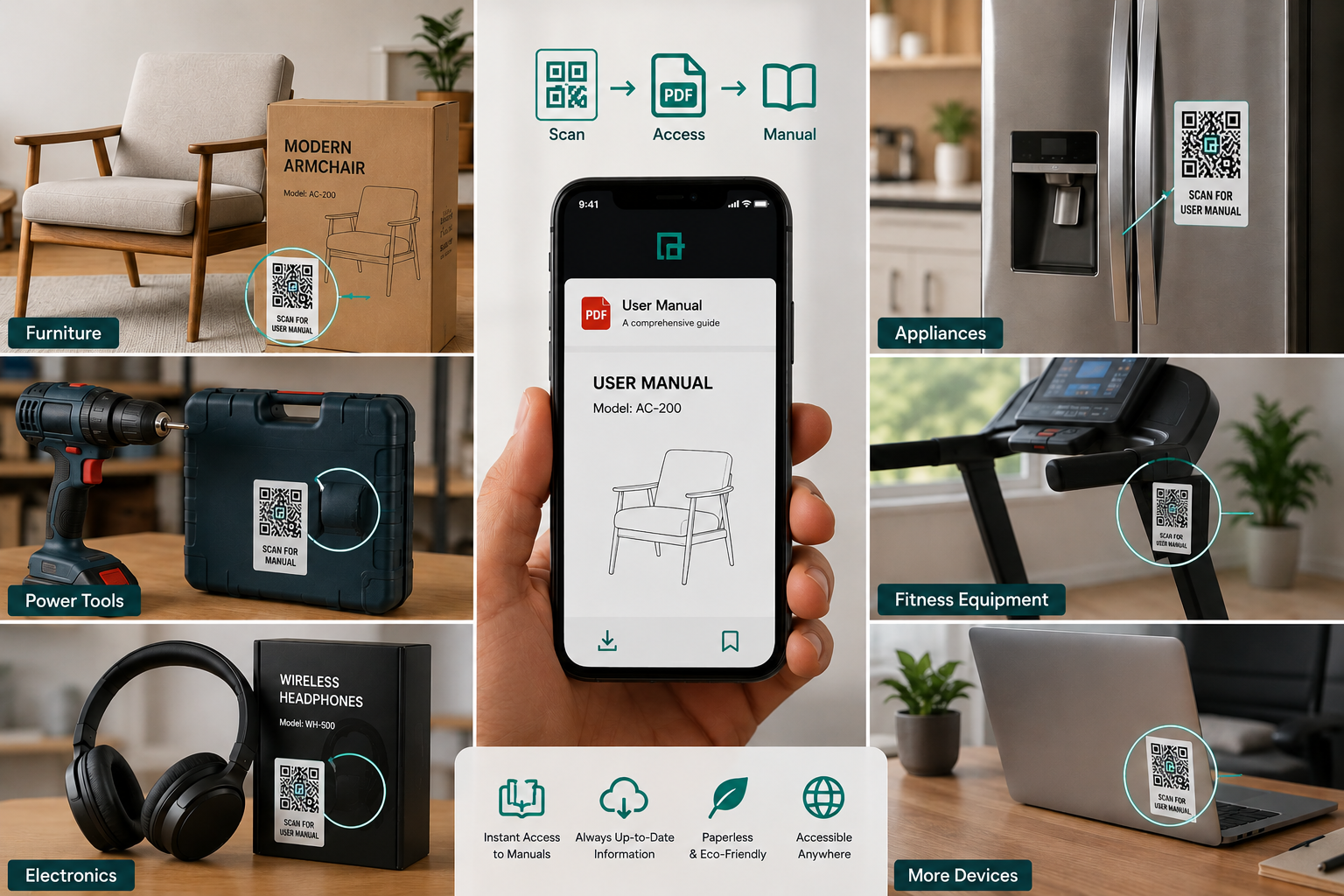
Washing machines, dishwashers, ovens, and air conditioners can use a smart tag to link directly to an Installation Instructions PDF.
Electronics
Smart devices, cameras, displays, audio equipment, and networking equipment can use a smart tag to link to a Setup Guide.
Tools
Power tools, workshop equipment, and specialized tools can use a smart tag to link to Installation / Setup Instructions.
Fitness Equipment
Treadmills, exercise bikes, and weight equipment can use a smart tag to link to an Assembly Guide.
Industrial Equipment
Machinery, commercial equipment, technical products, and components can use a smart tag to link to technical Installation Documentation.
Outdoor Products
Garden equipment, outdoor structures, and outdoor furniture can use a smart tag to link to an Assembly / Installation Guide.
Where to Place the smart tag
Product Packaging
Placing the digital tag on the product box, carton, packaging sleeve, shipping package, or product label is highly visible and convenient for the initial setup.
Product Label
This is extremely useful when the digital tag needs to stay with the product long after purchase.
Instruction Card
A small card inside the box can contain a simple message: "Scan for Installation Manual".
Inside the Package
Printing the digital tag on internal flaps or inserts is useful when it should remain accessible after the outer packaging is discarded.
Printed Instruction Booklet
a smart tag can also be included inside a printed manual to provide access to the latest digital documentation, related videos, or supplementary resources.
Product Surface
Where appropriate, a smart tag can be placed directly on the product itself.
Placement depends on the surface material, available size, expected scan distance, necessary durability, and overall product design.
What Should the Installation Manual Contain?
the digital tag is only the access point; the quality of the instructions themselves remains critical. The exact content depends on the product, but a comprehensive PDF might include:
Customer follows the step-by-step installation instructions
Customer successfully completes the setup
Smart Tags for Assembly Setup
For products requiring assembly—such as furniture, fitness equipment, shelving, or DIY products—a PDF manual is essential. the digital tag provides direct access to a PDF that can include:
Clear parts diagrams
The correct assembly order
Numbered steps
Detailed illustrations
Tool requirements for each step
Final safety and stability checks
Troubleshooting via Smart Tags
The digital instructions can include vital troubleshooting information for issues such as missing parts, incorrect assembly, setup errors, configuration problems, or if the product is not operating correctly.
The smart tag can provide rapid access to the troubleshooting section inside the PDF or to a digital resource hub to help resolve issues efficiently.
Digital PDF vs Printed Guide
Many products benefit from providing both printed and digital documentation depending on the product, customer needs, and applicable regulatory requirements.
Factor
Printed Manual
PDF via smart tag
Physical copy
Yes
No
Smartphone access
No
Yes
Packaging space
Requires space
Minimal QR footprint
Long instructions
Can be bulky
Easy to provide digitally
Easy digital sharing
Limited
Yes
Search within document
Depends
Often available in PDF viewer
Updates
Requires reprinting
Depends on QR destination
Requires device
No
Yes
Static vs Dynamic smart tags
Static smart tag
Useful when the PDF destination is unlikely to change and simple, fixed access is required.
Dynamic smart tag
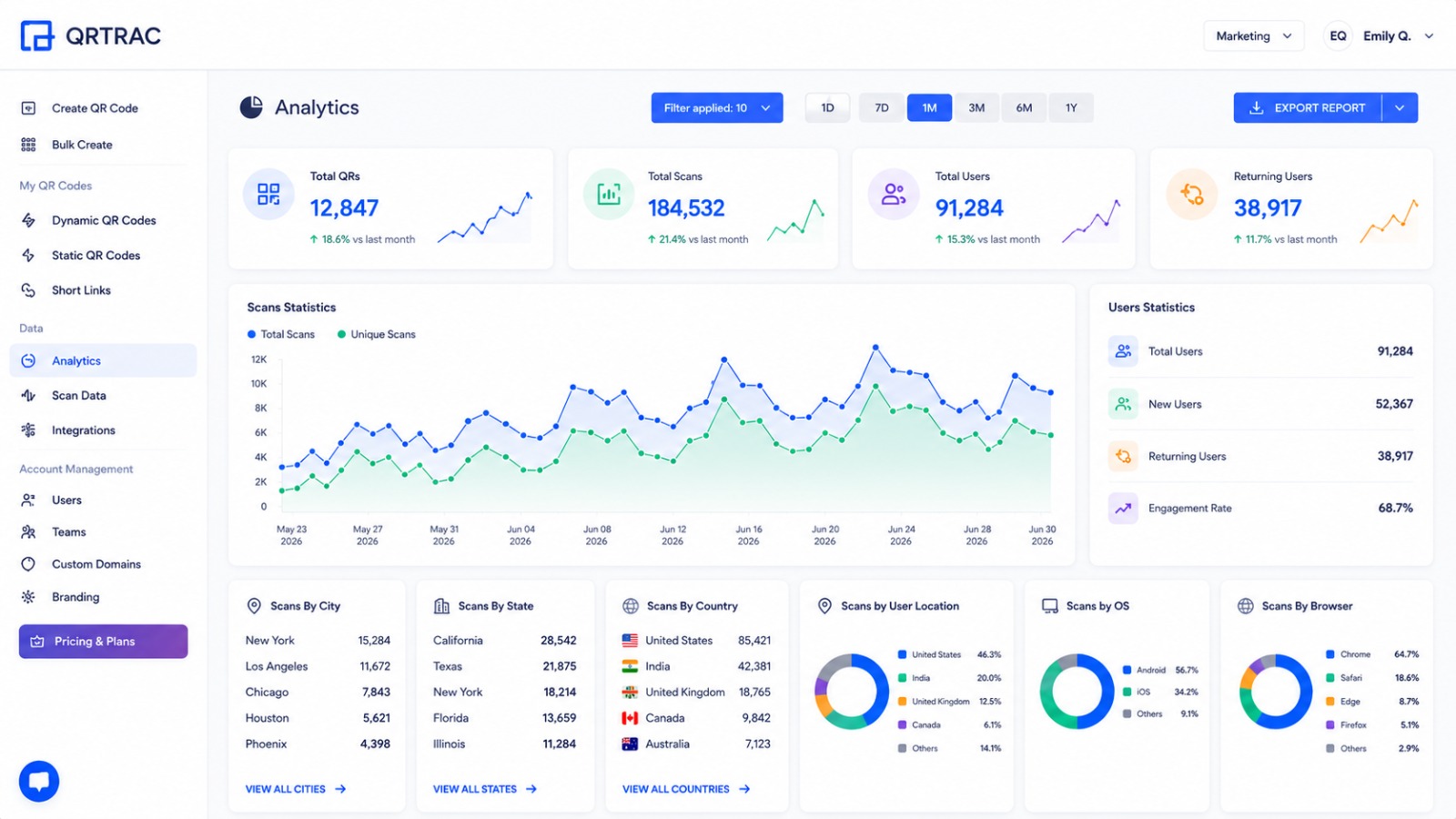
Useful when installation documentation may be updated, product documentation changes over time, different destinations need to be managed, or when analytics are useful.
While the exact behavior depends on the digital tag platform, a Dynamic smart tag allows the destination link to be updated; however, the underlying PDF documentation still needs to be manually maintained by your team.
How to Create a PDF Access Code
Using the QRTRAC PDF smart tag Generator, you can create your smart tag in a few simple steps:
Step 1 — Prepare the PDF
Make sure the setup guide is complete, readable, and appropriate for mobile viewing.
Step 2 — Upload / Select the PDF
Upload your PDF document to the QRTRAC platform.
Step 3 — Generate the smart tag
Generate the digital tag that is connected to the uploaded PDF.
Step 4 — Customize if available
Use QRTRAC's customization tools to adjust the digital tag design, colors, and add a frame if desired.
Step 5 — Test the smart tag
Test the generated smart tag using multiple smartphones before proceeding to print.
Step 6 — Add to Packaging
Place the digital tag in an accessible location on your product or packaging design.
Step 7 — Add a Clear CTA
Include clear instructions like "Scan for Installation Manual", "Scan for Assembly Instructions", or "Scan for Setup Guide".
smart tag Label / CTA Best Practices
a smart tag should always have clear context so the user knows what to expect after scanning.
Installation Manual smart tag Printing Best Practices
When printing your smart tag, consider the following:
scan code size and Contrast: Ensure high contrast between the code and background, and scale it appropriately.
Quiet zone: Leave a clear margin around the scan code.
Print quality and Surface material: Avoid reflective surfaces that cause glare.
Placement and Folding: Do not place the scan code over folds, seams, or highly curved surfaces.
Packaging damage and Lighting: Consider environmental factors where the code will be scanned.
Scan distance: The further away the user scans, the larger the scan code needs to be.
Always test the final printed smart tag in the actual environment where customers or installers will scan it.
Product Version & Installation Manual Management
Manufacturers often deal with multiple product iterations. For example, Product Version A requires Guide A, while the updated Product Version B requires Guide B.
It is vital to maintain correct documentation, clear product version identification, accurate links, and archived documentation for older models. If Dynamic Smart Tags are used, they can be useful when a destination needs to change without reprinting the physical smart tag (where supported), but testing the QR destination regularly is always necessary.
smart tags for Distributors and Installers
The same installation-manual smart tag can provide smooth access to documentation for multiple stakeholders, including distributors, retail staff, professional installers, service technicians, and end customers.
This ensures everyone has access to the most accurate product documentation when handling or setting up the equipment.
Common Mistakes
scan code too small: Ensure it is large enough to scan easily.
Poor contrast: Use dark QR patterns on a light background.
No CTA: Always tell the user what they are scanning for.
Wrong PDF or Broken link: Double-check the URL destination.
Outdated document: Keep the PDF current.
scan code placed on a fold or damaged during packaging: Place in a secure, flat area.
Manual not mobile-friendly: Ensure text is readable on smartphones.
scan code not tested after printing: Always do a final physical test.
Product version mismatch: Ensure the manual matches the exact product version.
Relying only on the scan code for critical information: Required physical safety information must still be available on the product.
Best Practices Checklist
Use a clear CTA
Keep the PDF readable
Confirm the correct product version
Test the smart tag before printing
Test the final printed packaging
Use adequate smart tag size and contrast
Avoid folds and damaged areas
Keep documentation accurate
Keep the PDF accessible
Consider Dynamic QR if updates are expected
Keep required physical information available
Review the destination periodically
Real-World Use Case Examples
Furniture
Example: Box → smart tag → Assembly PDF → Parts Diagram → Step-by-Step Assembly
Appliance
Example: Packaging → smart tag → Installation PDF → Installation Requirements → Setup Instructions
Fitness Equipment
Example: Product → smart tag → Assembly Manual → Setup Instructions → Safety Information
Industrial Equipment
Example: Equipment Label → smart tag → Technical Installation PDF → Installation Steps → Maintenance Documentation
When Should You Use a PDF smart tag for Installation Manuals?
The installation manual is already available as a PDF.
The document contains multiple pages.
Customers need instructions after purchase.
Packaging has limited space.
Installers need quick digital access.
The product requires assembly.
Documentation needs to be accessible from a smartphone.
If you need to link to multiple resources (such as a PDF, a video, and a support page), a mobile documentation page containing multiple links might be a better destination than a direct PDF.
Conclusion
Installation manuals do not have to be difficult to access.
a smart tag on the product or packaging can provide a simple connection to a digital PDF installation manual, allowing customers and installers to access product-specific instructions from a smartphone.
Sources & References
QRTRAC Usage Analytics Data (2025-2026) - Digital access rates for hardware and appliance manuals.
GS1 Global Packaging Guidelines - Standards for mobile-ready digital links on consumer packaging.
smart tags for Installation Manuals — Common Questions
Everything you need to know about providing digital PDF manuals via smart tags.
QWhat is a QR Code for an installation manual?
It is a scannable tag placed on a product, package, label, or instruction card that directs the user to a digital PDF setup guide.
QCan I put a QR Code for a PDF manual on product packaging?
Yes, placing it on product packaging such as the box, carton, sleeve, or shipping package is an excellent way to provide immediate access to digital instructions.
QCan a QR Code open a PDF guide?
Yes, you can create a PDF QR Code that links directly to a digital document, making it easy for customers or installers to view the steps on their smartphones.
QCan I use a QR Code for assembly instructions?
Absolutely. It can link to a PDF containing parts diagrams, numbered assembly steps, tool requirements, and illustrations for products like furniture or fitness equipment.
QWhere should I place the code?
Common placements include the product packaging, label, an instruction card inside the package, a printed guide, or directly on the product surface depending on material and durability.
QShould I use a Static or Dynamic QR Code?
Static codes are best when the PDF destination will never change. Dynamic codes are recommended if you expect to update the product documentation, or want scan analytics.
QCan I update the guide after printing?
If you use a Dynamic QR Code, you can update the digital destination URL or replace the PDF file without having to reprint the physical packaging.
QCan customers scan it with any smartphone?
Yes, most modern smartphones (iOS and Android) have built-in scanners in their camera apps, allowing them to easily access the PDF documentation.
QCan I put it directly on a product?
Yes, as long as the surface material, size, contrast, and curvature allow for easy scanning. This is useful for long-term access after packaging is discarded.
QCan I use the same code for product support?
Yes, it can direct users to a digital destination that includes the setup guide as well as troubleshooting information, support contacts, and related digital resources.
QWhat should I write next to the QR Code?
You should use a clear Call-To-Action (CTA) such as 'Scan for Instructions', 'Scan for Assembly Steps', or 'Scan for Setup Guide'.
QHow do I test it?
Always print a sample of the packaging and test the code with multiple smartphones in the actual environment where it will be scanned to ensure readability.
QCan the QR code link to an installation video instead of a PDF?
Yes. Point it to a step-by-step video for mixing, application or assembly. Installers scan the code on the bucket, bag or crate and the video opens in their phone browser, with no app needed. You can swap in a better video later without reprinting.
QWhich products benefit most from application videos?
Anything that needs specific steps to install correctly, such as floor coatings, waterproofing membranes, fast-setting mortars, roofing sealants and plumbing fixtures. Showing the steps on video helps prevent the installation mistakes that turn into warranty claims.
QShould it replace the printed copy?
Not necessarily. While a digital PDF is convenient, you should provide both printed and digital documentation depending on the product, customer needs, and applicable safety or regulatory requirements.
QCan QRTRAC create a PDF access code?
Yes, QRTRAC provides a Generator that allows you to easily connect your physical packaging to a digital PDF document.
Ready to Connect Your PDF Manuals?
Create a smart tag for your installation manual with QRTRAC and connect your physical product or packaging to its digital PDF instructions.
 By Aawes Shaikh
· Updated