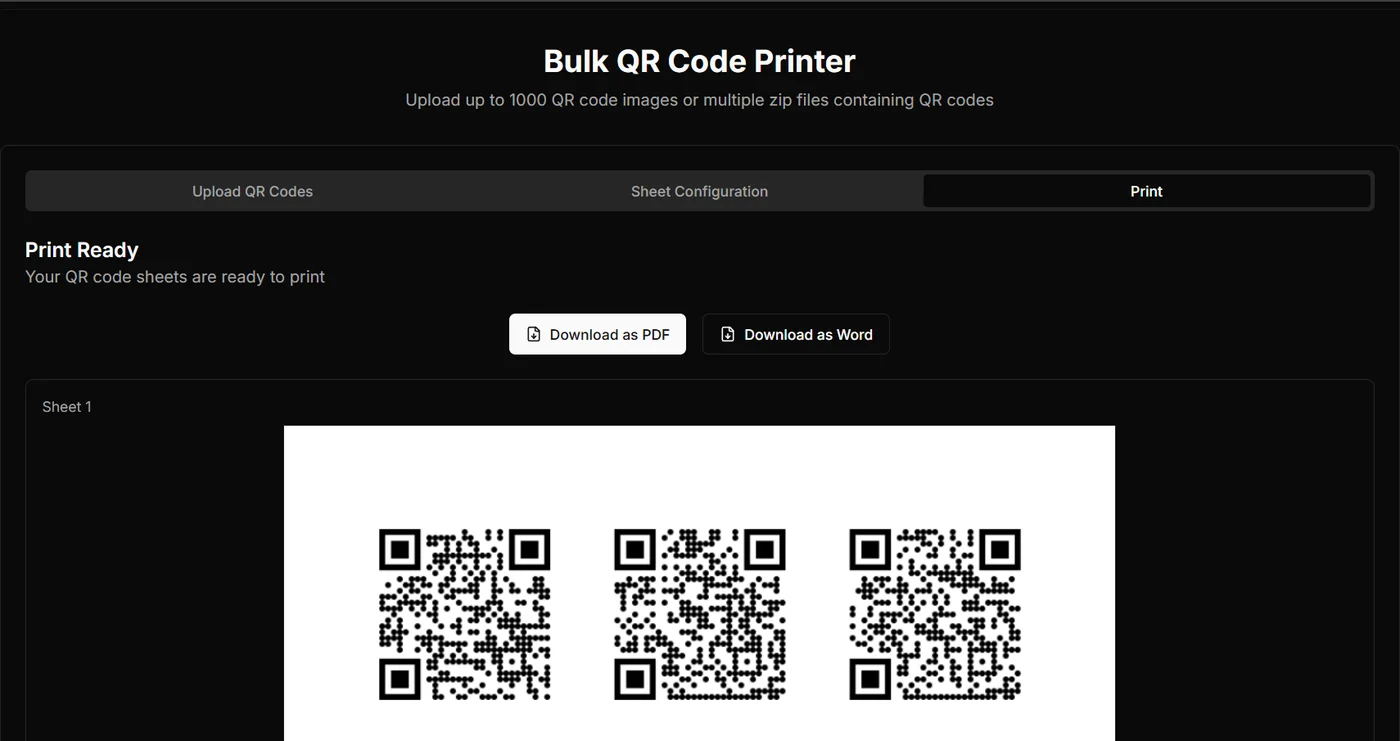
Lay out up to 1,000 QR codes on printable sheets. Pick the page size, grid and code size, add cut lines, and download a PDF that’s ready for your printer.

Three tabs: Upload QR Codes, Sheet Configuration, Print.
In your QRTRAC code list, tick the codes you want, then pick Bulk Actions → Print QR Codes. Or upload QR images straight to the printer: single PNG files or several ZIP files, up to 1,000 codes at a time.
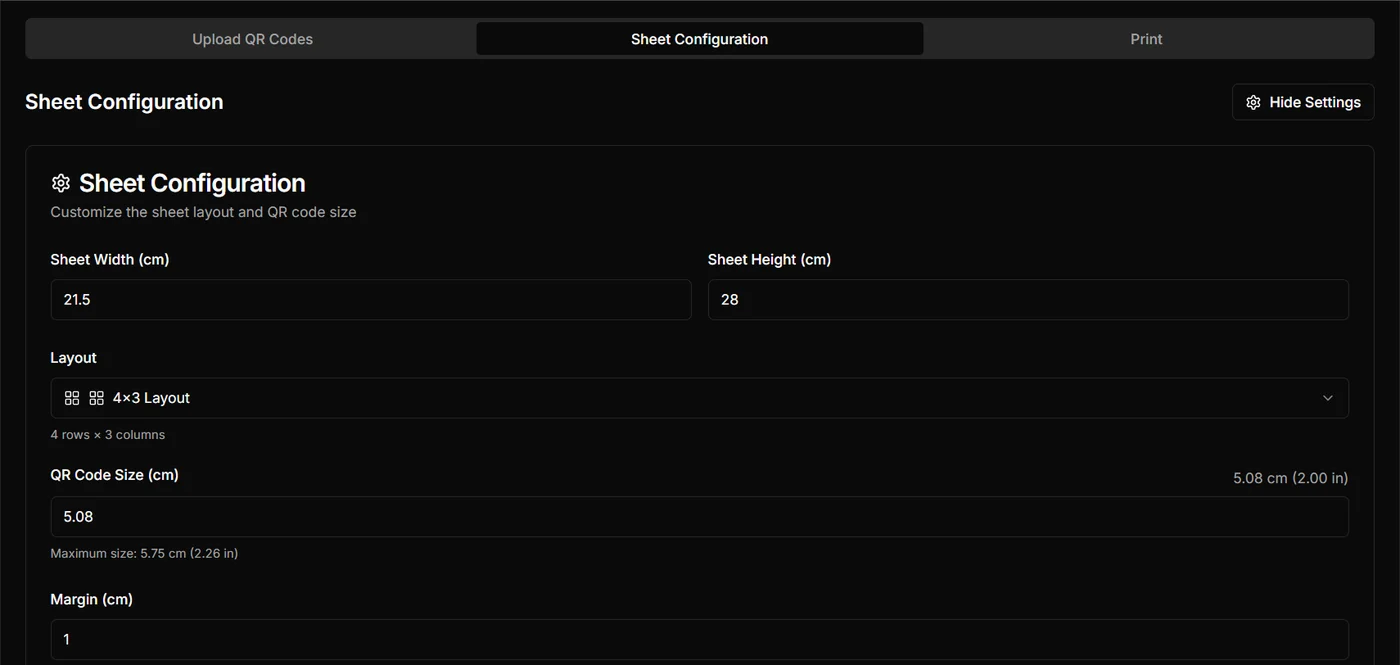
Enter the sheet width and height, choose a grid such as 4 rows × 3 columns, set the QR code size and page margins. The maximum code size updates to fit the grid you choose.
Align codes left, center or right, turn on dashed cutout lines for trimming, and drag codes into a different order if you need to.
Apply the settings and download the sheets as a PDF for printing, or as a Word file if you want to add text or images first.
Most scanning problems with printed codes come from the print settings, not the code.
Turn off “Fit to page” and “Shrink to fit” in the print dialog. Scaling changes the size you planned and can push codes into the cut lines.
It keeps the codes sharp. Save the Word file for when you need to edit the sheet first.
Keep printed codes at least 0.8 in (2 cm) wide. A common rule of thumb is about 1 in of code for every 10 in of scanning distance.
Dark code on a light, matte background, with a clear white border around each code.
Printers can shrink or shift content slightly. Print one sheet, scan a few codes with different phones, then run the rest.
Make hundreds of editable, tracked codes from a spreadsheet, then send them straight to the printer from Bulk Actions.
Bulk QR code generatorAvery sheets, thermal rolls, sequential numbers and Code 128 barcodes are in the labels app.
Bulk QR code labelsCreate your codes, pick a grid and download the PDF.
Start your free trialNo credit card needed.